Not every PC upgrade increases gaming performance.
A new graphics card can dramatically boost FPS in one PC but make almost no difference in another. Likewise, adding more RAM or installing an SSD won’t automatically make games run faster.
The biggest FPS boost almost always comes from upgrading the component that’s actually limiting your system.
In this guide, you’ll learn how to identify your bottleneck, understand when a CPU, GPU, RAM or SSD upgrade makes the biggest difference, and avoid wasting money on hardware that won’t improve your gaming experience.
Quick Answer: Which PC Upgrade Gives the Biggest FPS Boost?
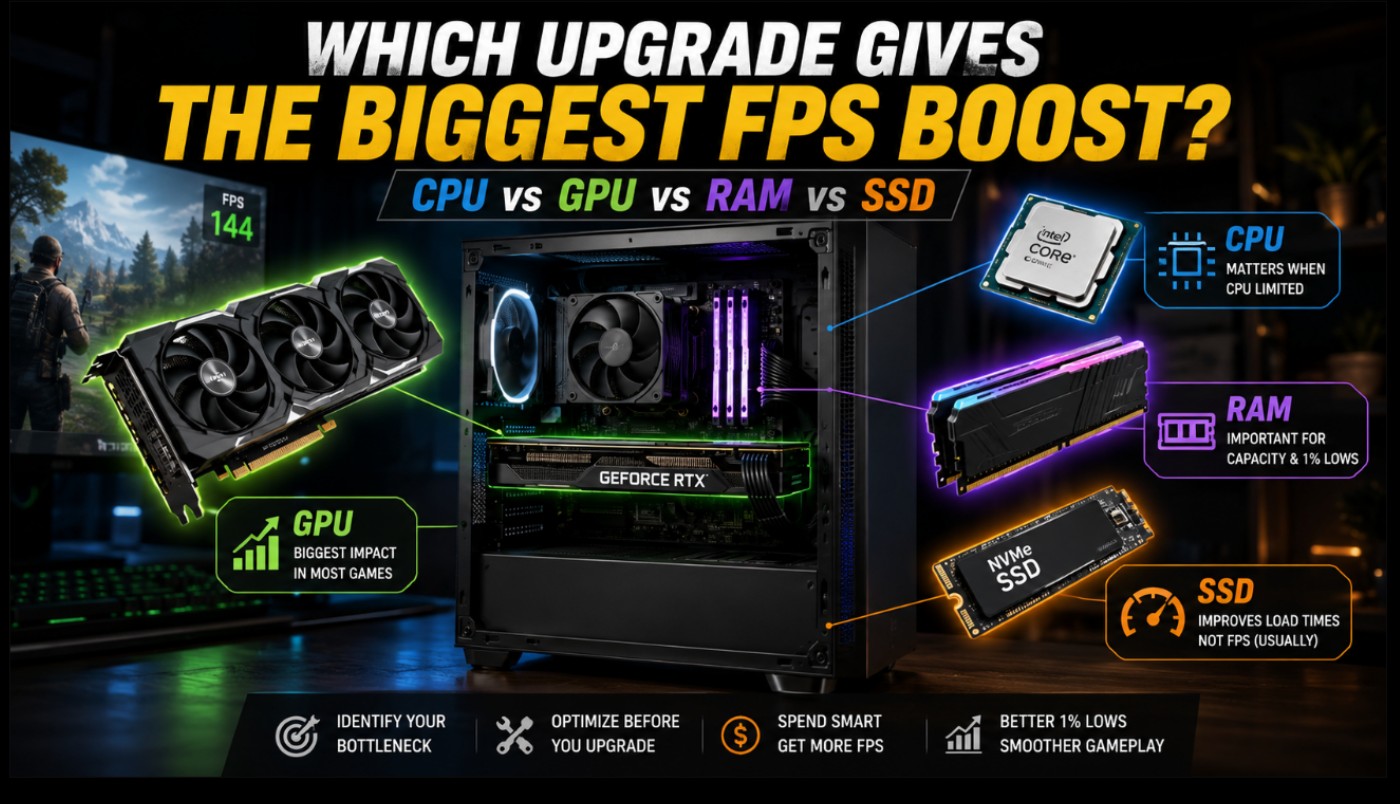
A graphics card upgrade usually gives the biggest FPS boost when the GPU is the main bottleneck.
That does not mean the GPU should always be your first upgrade. A stronger graphics card will not deliver its full performance if your CPU cannot prepare frames quickly enough, your system does not have enough RAM, your power supply cannot support the card or your case cannot keep the hardware cool.
Here is the practical answer:
- Upgrade the GPU when graphics usage stays near its limit and lowering resolution or graphics settings improves FPS.
- Upgrade the CPU when FPS stays low even after lowering graphics settings and one or more CPU cores are heavily loaded.
- Upgrade the RAM when your system is running out of memory, constantly using the page file or suffering from major stutters when games load new areas.
- Upgrade to an SSD when loading times, boot times, texture streaming and general responsiveness are the problem. Do not buy an SSD expecting a large average FPS increase.
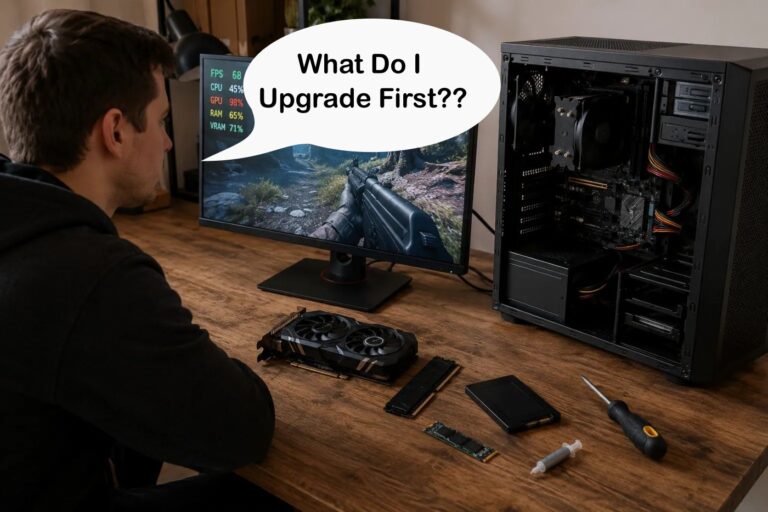
Before buying anything, read our guide on how to tell what is actually bottlenecking your gaming PC. A few minutes of testing can prevent a very expensive mistake.
What Actually Determines Your FPS?
Gaming performance is not controlled by one component. Your PC must complete several jobs before a frame appears on your monitor.

The CPU processes game logic, physics, artificial intelligence, draw calls, player input and background tasks. The graphics card renders the final image. Understanding what each component does makes it much easier to choose the right GPU for your CPU, ensuring neither component limits the other’s performance.
System RAM stores active game data. VRAM stores textures, geometry, frame buffers and other graphics data. Storage supplies files as the game loads levels, textures and assets.
Your final performance is limited by whichever part of that chain cannot keep up. If you’re planning an upgrade, our guide on how to upgrade a gaming PC in the right order explains how to identify the real bottleneck before spending money on new hardware.
Other factors can also affect FPS and smoothness:
- Game engine behaviour
- Graphics settings
- Resolution
- Background applications
- Driver problems
- CPU and GPU temperatures
- Power limits
- Memory configuration
- Game updates and shader compilation
- Windows settings
This is why two PCs with the same graphics card can deliver different results. The surrounding hardware, cooling, software and game settings all matter.
If performance becomes worse after the PC has been running for a while, check for overheating and throttling before buying new parts. Our guide to hidden thermal throttles that kill FPS explains what to look for.
Understanding PC Bottlenecks Without the Nonsense
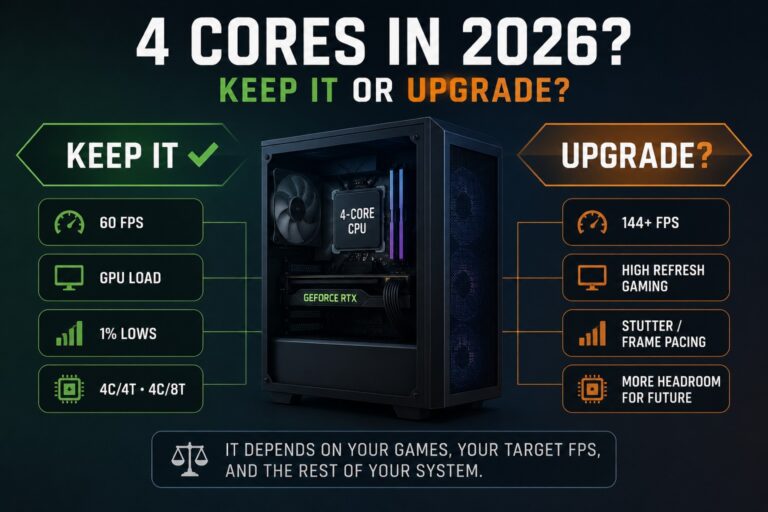
A bottleneck is simply the component that prevents the rest of the PC from working faster in a particular situation. Every gaming PC has a bottleneck, and it can change from one game to another. If your processor is an older quad-core, our guide to whether a 4-core CPU is actually becoming your bottleneck shows how to test it before assuming the CPU needs replacing.
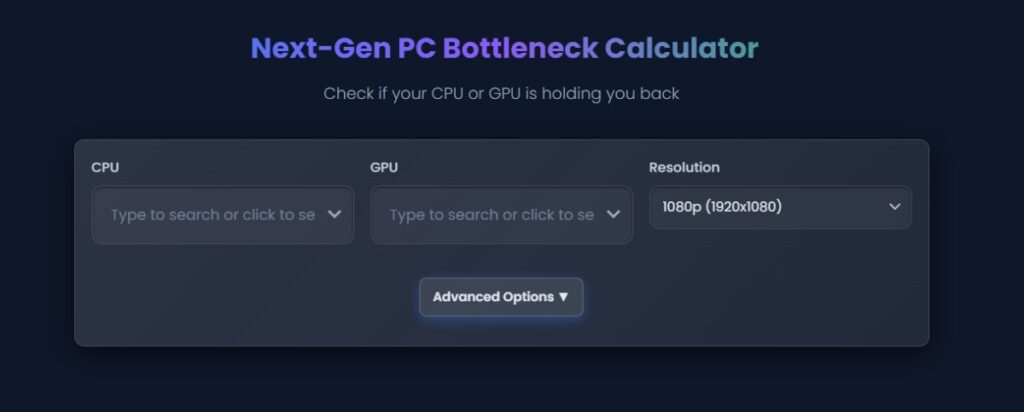
You might be GPU-limited in a visually demanding single-player game at 1440p, CPU-limited in an esports game at 1080p and memory-limited when running a heavily modded open-world game.
A bottleneck is not automatically a fault. It only becomes a problem when it prevents you from reaching the performance you actually want.
GPU Bottleneck
A GPU bottleneck happens when the graphics card cannot render frames as quickly as the CPU can prepare them.
This is common when:
- Playing at 1440p or 4K
- Using high or ultra graphics settings
- Enabling ray tracing
- Using a weak or older graphics card
- Running out of VRAM
In a normal GPU-limited situation, upgrading the graphics card can produce the most noticeable FPS improvement.
CPU Bottleneck
A CPU bottleneck happens when the processor cannot prepare game data and draw calls quickly enough to keep the GPU busy.
This is common when:
- Targeting very high FPS
- Playing competitive games at low settings
- Playing strategy, simulation or large multiplayer games
- Using an old dual-core or low-clocked processor
- Running many background applications
- Pairing a powerful GPU with a much weaker CPU
If you are unsure whether the CPU or GPU is responsible, use our guide on how to tell whether your CPU or GPU is causing low FPS.
RAM Bottleneck
RAM becomes a bottleneck when the system does not have enough usable memory or when the memory configuration restricts performance. For example, running one RAM stick in single channel can limit memory bandwidth even when you have enough total RAM installed.
This can happen when:
- The PC has only 4GB or 8GB of RAM
- The game and background applications exceed available memory
- The system uses one memory stick instead of dual-channel memory
- The RAM is running below its intended speed
- An integrated GPU is reserving part of system memory
Storage Bottleneck
Storage usually affects loading and asset delivery more than average FPS.
A very slow hard drive can contribute to:
- Long loading screens
- Delayed texture loading
- Open-world traversal stutter
- Slow game launches
- Slow Windows response
However, replacing a hard drive with an SSD does not turn a weak GPU into a fast one.
CPU vs GPU vs RAM vs SSD: Upgrade Comparison
| Upgrade | Typical FPS Impact | Impact on 1% Lows | Loading Time Impact | Best When | Typical Priority |
|---|---|---|---|---|---|
| Graphics Card | Potentially very high | Moderate to high | Low | The GPU is fully loaded or lacks enough VRAM | Usually first for GPU-limited gaming PCs |
| Processor | Low to very high depending on the game | Often high in CPU-limited games | Low | The CPU is limiting frame delivery | High for esports, simulation and old CPUs |
| RAM | Usually low unless capacity or configuration is poor | Can improve significantly when memory is insufficient | Low | The PC lacks capacity or dual-channel memory | High only when the current RAM is inadequate |
| SSD | Usually little or no average FPS gain | May reduce storage-related hitching | Very high | The PC still uses a hard drive or loads assets slowly | High for responsiveness, not raw FPS |
The table shows why there is no universal winner. The GPU has the greatest potential to increase average FPS, but the correct upgrade is still determined by the weakness of your current system.
When a GPU Upgrade Gives the Biggest FPS Boost
A graphics card upgrade is usually the best choice when the PC is clearly GPU-limited. The GPU is responsible for rendering resolution, textures, lighting, shadows, reflections, effects, anti-aliasing and many other visual elements. If you are upgrading a compact or small-form-factor PC, however, case clearance and available GPU power can narrow your options considerably, so see our guide to the best low-profile GPUs without external power before choosing a card.
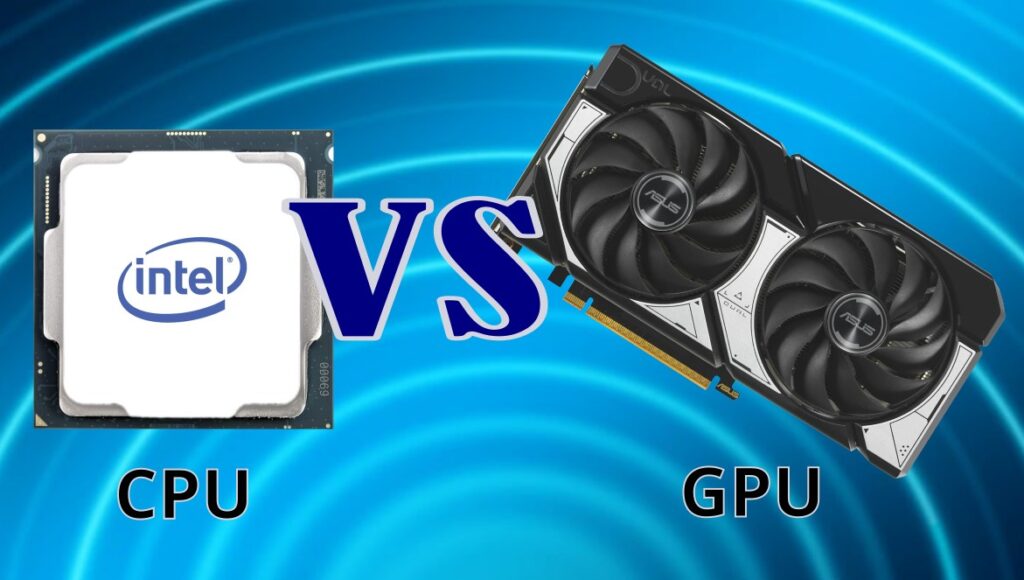
The more demanding the image becomes, the more work the GPU must perform.
Signs That You Need a Better GPU
- GPU usage remains very high during gameplay
- Lowering resolution noticeably improves FPS
- Lowering shadows, effects or ray tracing improves performance
- The game reports that VRAM is full
- Textures fail to load correctly
- The CPU still has available performance
- Your graphics card does not meet the game’s practical requirements
Why the GPU Usually Matters More at 1440p and 4K
Higher resolutions require the GPU to render more pixels per frame.
At 1080p, a powerful graphics card may finish frames quickly enough that the CPU becomes the limiting factor. At 1440p or 4K, the extra graphics workload often shifts the bottleneck back toward the GPU.
This does not mean the CPU stops mattering at higher resolutions. The CPU still performs game logic and prepares frames, but the graphics card usually spends more time rendering each one.
VRAM Matters Too
A graphics card can have enough processing power but still struggle because it lacks enough VRAM.
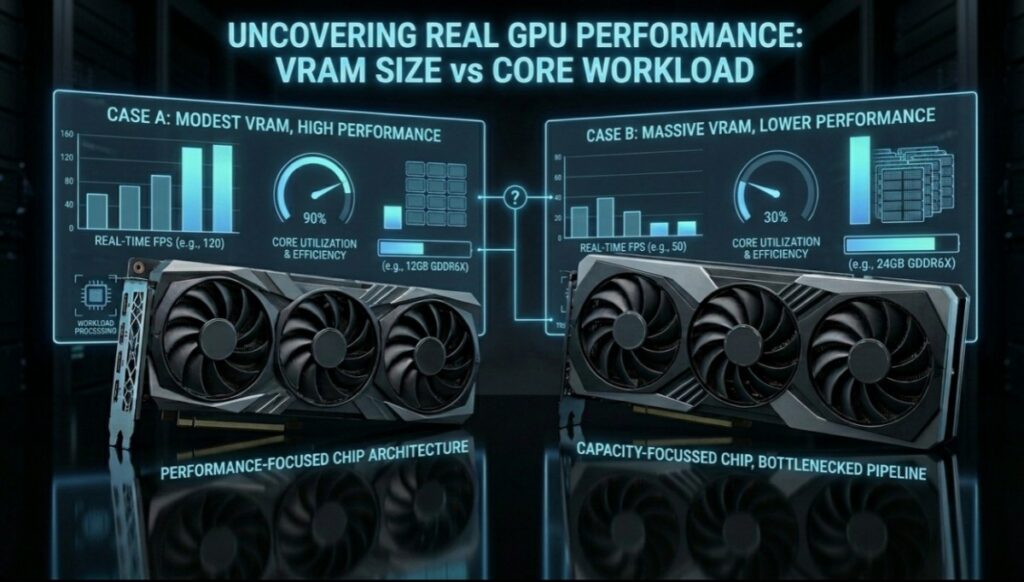
When VRAM fills up, the game may move data between video memory, system RAM and storage. This can cause stuttering, delayed textures and unstable frame times.
VRAM requirements depend on the game, resolution, texture quality, ray tracing and mod usage. Read our guide comparing 8GB, 12GB and 16GB graphics cards before paying more for memory you may not need.
Do not buy a graphics card based only on its VRAM capacity. Memory size cannot compensate for a weak graphics processor.
Do Not Ignore the Rest of the PC
Before installing a larger graphics card, check:
- Power supply wattage
- Available power connectors
- Case clearance
- Motherboard compatibility
- CPU balance
- Cooling and airflow
- Monitor resolution and refresh rate
Our guide to GPU upgrade mistakes covers the expensive compatibility problems that buyers often discover too late.
When you are ready to compare cards, use our guide to gaming GPUs that make sense for 1080p and 1440p.
When a CPU Upgrade Gives the Biggest FPS Boost
A processor upgrade can make a major difference when the game is CPU-limited.
This is especially important for gamers targeting high refresh rates. Reaching 60 FPS is less demanding on the CPU than trying to maintain 144 FPS, 240 FPS or more.
Games That Often Depend Heavily on the CPU
- Competitive shooters
- Large multiplayer games
- Real-time strategy games
- City builders
- Simulation games
- Physics-heavy games
- Open-world games with many characters
- Games with heavy artificial intelligence calculations
A CPU upgrade may improve average FPS, but its biggest benefit is often better frame consistency.
The game may not simply run faster. It may feel smoother because frame delivery becomes more stable and the worst dips become less severe.
Signs That Your CPU Is the Problem
- Lowering graphics settings does not improve FPS much
- The GPU is not being fully used
- One or more CPU cores stay heavily loaded
- FPS drops sharply in crowded areas
- Performance becomes worse during large battles
- Strategy games slow down in the late game
- Background applications cause major performance loss
Total CPU usage can be misleading. A game can be CPU-limited even when Windows reports only moderate overall usage because one important core or thread may already be fully loaded.
This is why per-core monitoring is more useful than looking only at the overall CPU percentage.
Why Strategy and Simulation Games Behave Differently
Strategy and simulation games often calculate thousands of units, decisions, economic events or artificial intelligence tasks.
Reducing texture quality will not solve a simulation bottleneck. The graphics card may be waiting while the CPU completes the next stage of the game world.

For a deeper explanation, read why strategy games lag in the late game.
A CPU Upgrade May Require a Platform Upgrade
Upgrading the CPU is not always as simple as replacing one chip.
You may also need:
- A compatible motherboard
- New RAM
- A better CPU cooler
- A BIOS update
- A stronger power supply
- A fresh Windows activation or installation in unusual cases
This can make a CPU upgrade far more expensive than the processor’s advertised price. Before buying, check how to choose PC parts that fit and perform together.
Our gaming CPU value guide can also help you avoid paying for performance your graphics card cannot use.
When More RAM Improves Gaming Performance
RAM is one of the most misunderstood PC upgrades. Adding more RAM does not automatically increase FPS. It helps when your current memory capacity or configuration is restricting the system.
When a RAM Upgrade Can Make a Big Difference
- Your PC has only 4GB of RAM
- Your PC has 8GB and modern games regularly exceed it
- You run Discord, browsers, launchers or recording software while gaming
- The system uses a single RAM stick
- Your integrated graphics share system memory
- The game stutters when entering new areas
- Windows constantly uses the storage page file
When the system runs out of RAM, it starts moving data to storage. Even a fast SSD is much slower than system memory. The result can be pauses, freezes, delayed asset loading and poor 1% lows.
Capacity vs Speed
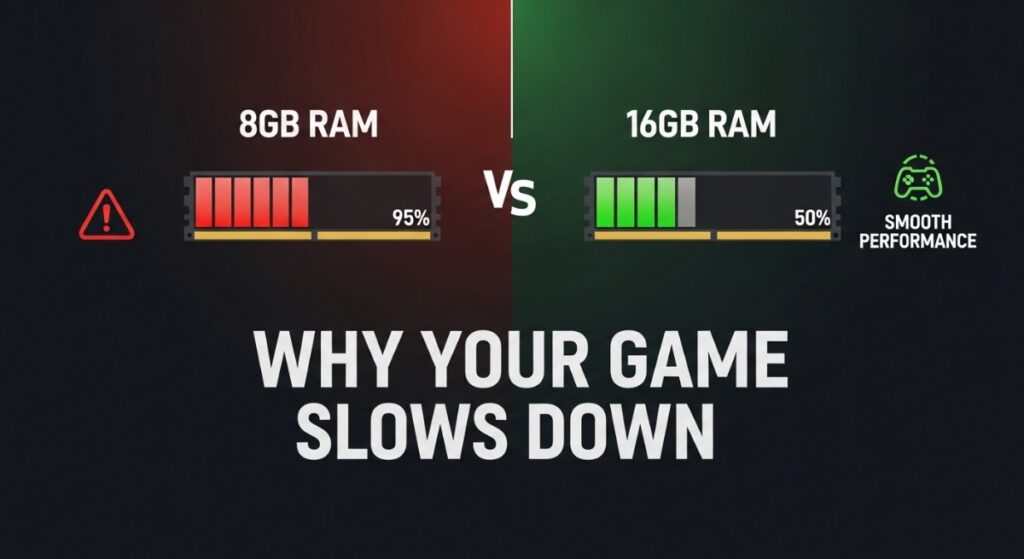
Having enough RAM capacity matters more than buying extremely fast memory. A balanced system with sufficient dual-channel memory will usually provide a better experience than a memory-starved PC with one fast module.
Memory speed and latency can still affect gaming performance, especially with integrated graphics and some CPU-limited games, but the gains are usually smaller than correcting insufficient capacity.
Single-Channel vs Dual-Channel RAM
A PC with one memory stick may have less available memory bandwidth than a system using two matched sticks in the correct slots.
This can matter greatly for integrated graphics because the built-in GPU relies on system RAM instead of dedicated VRAM.
If your laptop or desktop uses integrated graphics, adding a compatible second memory module can sometimes improve gaming performance more than simply replacing the existing drive.
If you’re not sure whether you need 16GB, 32GB or more, read our complete guide to how much RAM games actually need first.
Once you know the capacity your system actually needs, use our gaming RAM buying guide to choose the right kit without overspending on capacity or speed you won’t use.
Does an SSD Increase FPS?
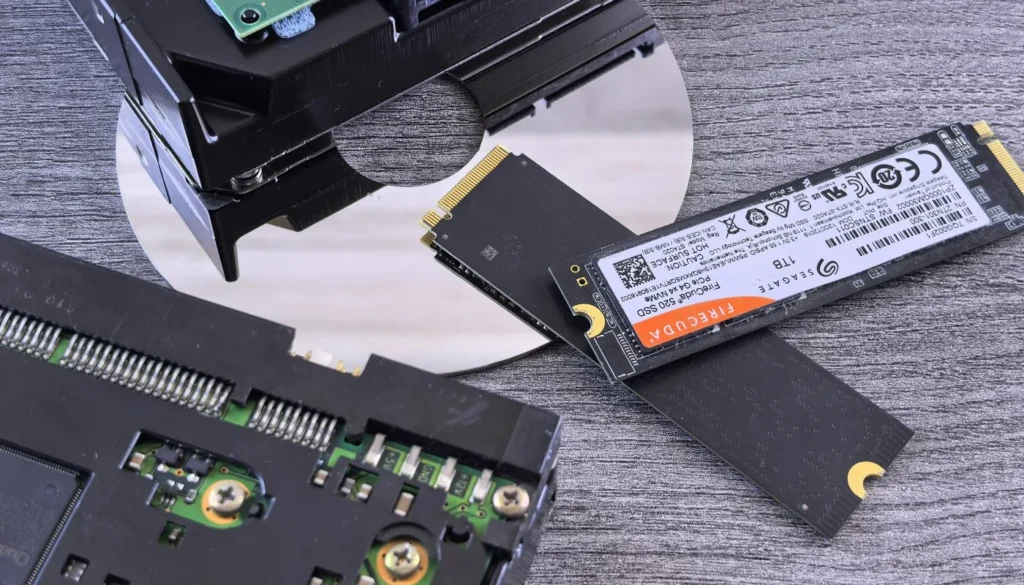
If you’re wondering, “does SSD increase FPS?”, the answer is usually no, at least not by much. An SSD normally has little effect on average frame rate, but it can improve loading times, asset streaming and some storage-related stuttering.
Moving from a mechanical hard drive to an SSD can make the entire PC feel dramatically faster. Windows starts more quickly, games launch faster, levels load sooner and large files become easier to manage.
What an SSD Can Improve
- Windows boot time
- Game launch time
- Level loading
- Fast travel loading
- Texture and asset streaming
- Patch installation
- File transfers
- General system responsiveness
What an SSD Usually Does Not Improve
- GPU rendering power
- CPU processing speed
- Maximum graphics settings
- Average FPS in a normal GPU-limited game
Some games can stutter when a slow hard drive fails to deliver assets quickly enough. In those cases, an SSD may improve frame-time consistency or reduce traversal hitching.
However, that is different from a large increase in sustained average FPS.
Read whether faster SSDs improve FPS or only loading times for a more detailed explanation.
SATA SSD vs NVMe SSD for Gaming
Both SATA and NVMe SSDs are much more responsive than a mechanical hard drive.
An NVMe drive can offer far higher transfer speeds, but the difference between a good SATA SSD and an NVMe SSD is not always dramatic during normal gameplay.
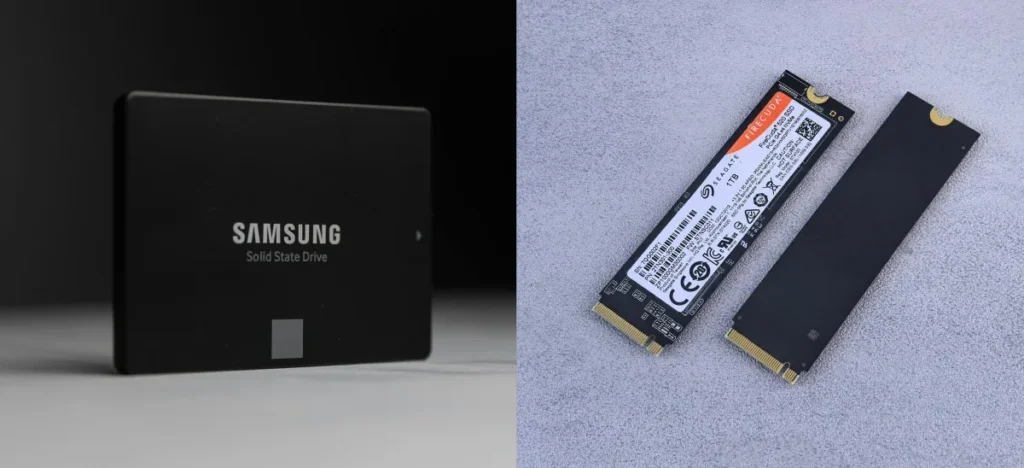
Do not choose a gaming SSD using the largest advertised speed number alone. Capacity, reliability, controller quality, thermal behaviour, warranty and price matter too.
Our guide to what actually makes an SSD feel faster explains what to look for.
VRAM vs System RAM: They Are Not the Same Thing
VRAM and system RAM serve different purposes.
System RAM stores active data used by the operating system, applications and game engine.
VRAM is located on the graphics card and stores graphics-related data such as textures, geometry, render targets and frame buffers.
Adding more system RAM does not increase the dedicated VRAM on your graphics card.
If a game exceeds available VRAM, it may use system memory as overflow. Because that data must travel across a slower connection, performance can become inconsistent.
If a game exceeds system RAM, Windows may move data to the storage page file, which can cause severe pauses and stuttering.
Both shortages can harm smoothness, but they require different solutions.
Why 1080p and 1440p Can Need Different Upgrades
Resolution can change which part of your PC becomes the bottleneck.
1080p Gaming
At 1080p, the graphics card has fewer pixels to render than at higher resolutions.

A strong GPU may complete each frame quickly, leaving the CPU as the limiting factor. This is especially common when using low settings to chase very high FPS.
Competitive players often care more about CPU performance, frame pacing and 1% lows than maximum visual quality.
1440p Gaming
At 1440p, the GPU must process a heavier graphics workload. This makes the graphics card more likely to become the bottleneck.
A GPU upgrade may therefore produce a larger improvement at 1440p than it would at 1080p on the same PC.
4K Gaming
At 4K, graphics performance and VRAM capacity become even more important.
The CPU still matters, but the graphics card usually performs substantially more work per frame.
Features such as upscaling and frame generation can change the balance, but they do not remove the need for a capable base system.
Read our comparison of DLSS, FSR and XeSS to understand why displayed FPS numbers do not always represent better responsiveness.
Esports Games vs AAA Games
Esports and Competitive Games
Competitive games are often played at lower graphics settings to maximise clarity and frame rate. This reduces the graphics workload and can expose a CPU bottleneck.
A faster processor may improve:
- Maximum FPS
- Minimum FPS
- 1% lows
- Input consistency
- Performance during intense multiplayer action
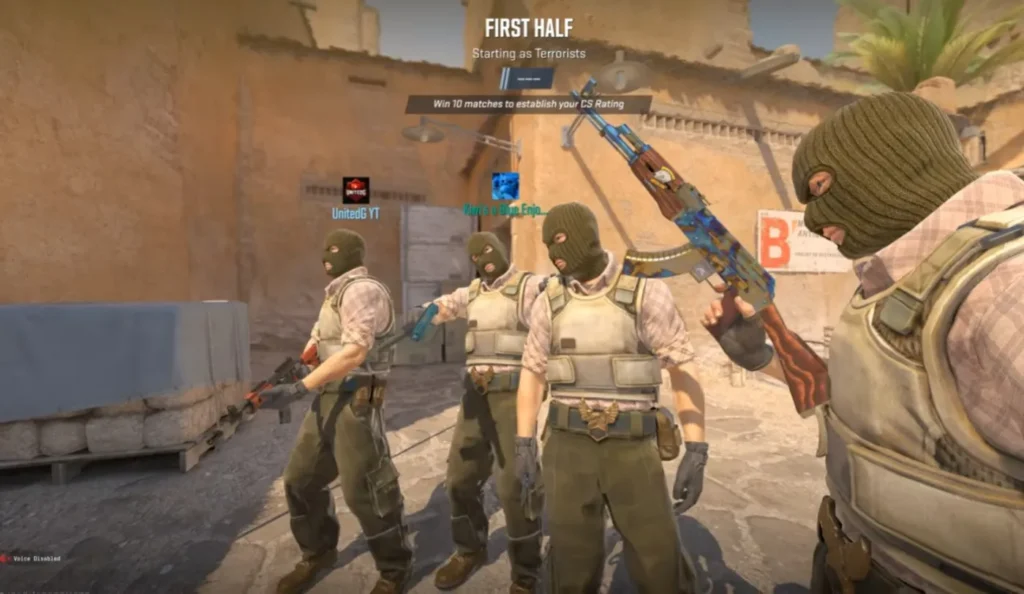
Counter-Strike 2 is a good example of a game where installing a faster graphics card does not always solve the real limitation. Read our guide to why a GPU upgrade may not improve Counter-Strike 2 performance.
AAA Single-Player Games
Modern single-player games often use demanding textures, lighting, effects, open environments and ray tracing.
These workloads usually place more pressure on the GPU, especially at high settings and resolutions.
However, open-world artificial intelligence, crowded cities and background simulation can still create CPU-related dips.
Average FPS Is Not the Whole Story
A game running at a high average FPS can still feel bad.
Average FPS tells you how many frames were produced over a period of time. It does not tell you whether those frames arrived smoothly.
What Are 1% Lows?
1% lows represent the slower frames that occur during the worst one percent of the test period.
They help reveal stutters and sudden performance dips that average FPS can hide.
A system averaging a respectable frame rate can still feel inconsistent if its 1% lows are poor.
What Is Frame Pacing?
Frame pacing describes how evenly frames are delivered. If frames arrive at irregular intervals, gameplay can feel jerky even when the FPS counter looks acceptable.
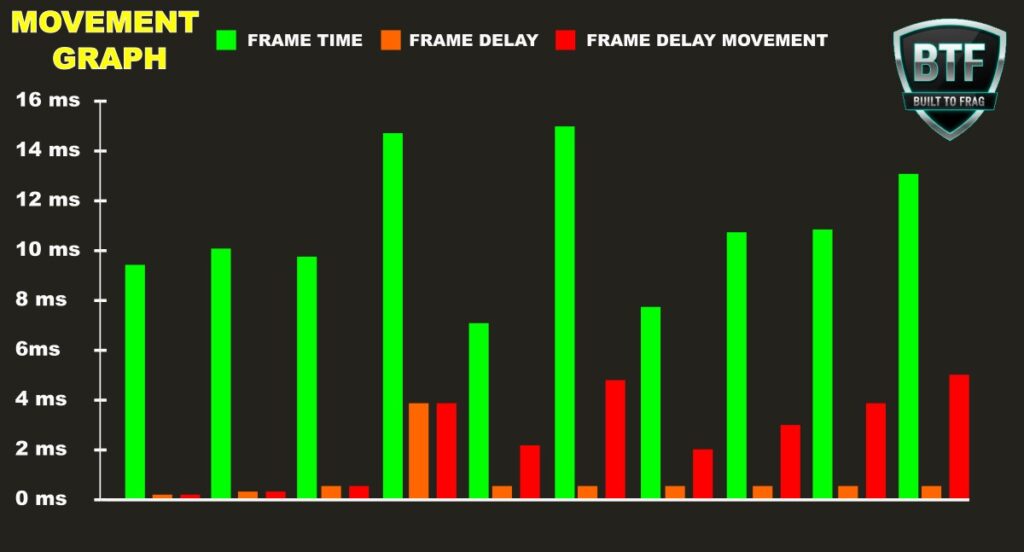
Frame pacing can be harmed by:
- CPU bottlenecks
- Insufficient RAM
- VRAM overflow
- Shader compilation
- Background applications
- Thermal throttling
- Storage streaming problems
- Driver issues
Our guide to what smooth gameplay actually feels like explains why stable frame delivery can matter more than chasing the highest possible number.
How to Identify Your Bottleneck Before Upgrading
You do not need to guess which component is holding your PC back. Use monitoring tools while playing the game that is giving you trouble.

Useful Monitoring Tools
- MSI Afterburner
- RivaTuner Statistics Server
- HWiNFO
- Windows Task Manager
- CPU-Z
- GPU-Z
- CrystalDiskInfo
- CrystalDiskMark
- DirectX Diagnostic Tool
Use our MSI Afterburner beginner guide or the HWiNFO64 guide if you are unsure what the readings mean.
MSI Afterburner is one of the easiest free tools for monitoring FPS, CPU usage, GPU usage, temperatures and memory usage while gaming. You can download it from the official MSI Afterburner page.
If you’re new to monitoring performance, our guide on How to Use MSI Afterburner Without Frying Your Rig walks you through setup and explains what all the numbers actually mean.
Test 1: Lower the Resolution
Reduce the resolution or resolution scale while keeping the same gameplay scene.
- If FPS improves substantially, the graphics card is probably a major limitation.
- If FPS barely changes, the CPU or another part of the system may be limiting performance.
Test 2: Lower GPU-Heavy Settings
Reduce settings such as:
- Ray tracing
- Shadows
- Reflections
- Volumetric effects
- Ambient occlusion
- Anti-aliasing
If performance improves, the GPU is likely struggling.
Test 3: Check GPU Usage
Very high GPU usage during demanding gameplay usually indicates that the graphics card is being fully used.
Low GPU usage does not automatically prove a CPU bottleneck. Frame limits, V-Sync, game menus, driver issues, power limits and overheating can also reduce usage.
Test 4: Check Per-Core CPU Usage
Do not rely only on total CPU usage.
Check whether one or more cores remain heavily loaded while the graphics card is underused.
Test 5: Check RAM and VRAM Usage
Look for memory usage approaching the available limit.
Also watch for:
- Stuttering when entering new locations
- Texture pop-in
- Sudden disk activity
- Freezing when switching applications
Test 6: Check Temperatures and Clock Speeds
High temperatures can reduce CPU and GPU clock speeds.
If the component slows down under load, cleaning the PC, improving airflow, adjusting fan curves or replacing old thermal paste may help more than buying a new part.
Read our guide to thermal paste techniques that actually work before removing a cooler unnecessarily.
When Optimisation Beats Upgrading
Do not spend money until you have ruled out fixable software and cooling problems.
Optimisation may be the better first step when:
- The PC is overheating
- Drivers are broken or badly outdated
- Too many background applications are running
- Windows is filled with unnecessary startup software
- The game is using the wrong graphics processor
- RAM is installed in the wrong slots
- The monitor is connected to the motherboard instead of the graphics card
- The CPU or GPU is stuck in a low-power mode
- The game is compiling shaders
- The storage drive is nearly full or failing
Our guide to PC maintenance and optimisation covers the basic checks that should happen before any hardware purchase.
You can also review the Windows settings we disable on a gaming PC, but avoid random registry tweaks and miracle optimisation tools.
Simple PC Upgrade Decision Flowchart

Step 1: Is the game running badly because the PC is overheating, misconfigured or overloaded with background software?
Yes → Fix the software, cooling or configuration problem first.
No → Continue.
Step 2: Does lowering resolution or GPU-heavy settings noticeably improve FPS?
Yes → The graphics card is probably the main bottleneck. Consider a GPU upgrade.
No → Continue.
Step 3: Is GPU usage low while one or more CPU cores are heavily loaded?
Yes → The processor is probably limiting performance. Consider a CPU or platform upgrade.
No → Continue.
Step 4: Is system RAM nearly full, or is the PC using only one small memory stick?
Yes → Upgrade RAM capacity or correct the memory configuration.
No → Continue.
Step 5: Are loading times, texture streaming and general responsiveness the main problems?
Yes → Upgrade to an SSD.
No → Continue.
Step 6: Is the entire platform too old to support a worthwhile upgrade?
Yes → Save toward a balanced rebuild instead of repeatedly upgrading obsolete parts.
No → Upgrade the confirmed bottleneck.
Biggest PC Upgrade Myths
Myth 1: More RAM Always Means More FPS
More RAM helps only when the existing capacity or configuration is limiting the PC.
Moving from insufficient memory to sufficient memory can improve smoothness dramatically. Moving from enough memory to far more than you use usually does very little for FPS.
Myth 2: An SSD Gives You Much Higher FPS
An SSD improves loading, responsiveness and asset delivery. It usually does not provide a large increase in sustained average FPS.
Myth 3: The Most Expensive GPU Is Always the Best Upgrade
A powerful graphics card can be wasted when paired with an old processor, weak power supply, small case or low-resolution monitor.
The best graphics card is the one that fits the rest of the system and meets your actual performance target.
Myth 4: Low GPU Usage Always Means the CPU Is Bottlenecking
Low GPU usage can also be caused by:
- FPS caps
- V-Sync
- Power-saving modes
- Thermal throttling
- Driver problems
- Game engine limitations
- Background loading
Myth 5: A New CPU Always Requires a New Motherboard
Some motherboards support newer processors after a BIOS update. Others do not.
Compatibility depends on the socket, chipset, BIOS support, motherboard power delivery and manufacturer support list.
Myth 6: Every Bottleneck Must Be Eliminated
Every PC has a limiting component.
The goal is not to remove every bottleneck. The goal is to build a balanced system that reaches your desired performance without wasting money.
Myth 7: Higher Average FPS Automatically Means Smoother Gameplay
A high average can hide severe frame-time spikes.
1% lows, frame pacing and input consistency often matter more than a small increase in the headline FPS number.
Which Upgrade Gives the Best Value?
The best-value upgrade is the least expensive change that removes the limitation you actually notice.
GPU Upgrade Value
A graphics card offers excellent value when:
- Your current GPU is fully loaded
- You want higher graphics settings
- You are moving to 1440p
- You are running out of VRAM
- The CPU is still capable enough for your target FPS
CPU Upgrade Value
A processor offers excellent value when:
- You play CPU-heavy games
- You want high refresh rate performance
- Your graphics card is regularly underused
- Your minimum FPS is poor
- Your current motherboard supports a meaningful drop-in upgrade
RAM Upgrade Value
RAM offers excellent value when:
- The PC has insufficient capacity
- The system is running in single-channel mode
- An integrated GPU needs more memory bandwidth
- Background applications are forcing the system to use the page file
SSD Upgrade Value
An SSD offers excellent value when:
- The PC still boots from a mechanical hard drive
- Games take a long time to load
- Windows feels unresponsive
- Open-world asset streaming is causing pauses
- The existing drive is failing or nearly full
An SSD may not win the FPS contest, but moving away from a hard drive can still be the upgrade that makes an old PC feel most pleasant to use.
When You Should Not Upgrade
Buying new hardware is not always the correct decision.
Do not upgrade yet when:
- The problem is caused by overheating
- The game itself is badly optimised
- Your FPS is capped by a setting
- Your monitor cannot display the extra frames you are targeting
- The power supply is unsafe or unsuitable
- The platform is too old to justify further investment
- The desired upgrade creates several additional expenses
- Your current PC already meets your actual needs
Sometimes the most economical choice is to save for a balanced replacement rather than install an expensive new component into an obsolete platform.
Use our guide on whether to upgrade an old PC or buy a new one before committing more money to aging hardware.
What Should You Upgrade First? Recommendations by PC Type
Old Office PC
An old office PC may have a weak power supply, limited case space, an old processor and no dedicated graphics card.

Recommended order:
- Confirm whether the motherboard, case and power supply can support a graphics card.
- Upgrade insufficient RAM, especially if the system has only one module.
- Install an SSD if Windows still runs from a hard drive.
- Add a low-power graphics card only if the platform can support it safely.
- Consider a replacement build if the CPU and motherboard are too old.
Do not force an expensive GPU into a machine that cannot power, cool or properly use it.
Our no-GPU gaming PC guide can help if you need to keep playing before purchasing a dedicated card.
Budget Gaming Rig
A budget gaming PC usually benefits most from a carefully chosen GPU upgrade, provided the CPU and power supply are still adequate.
Recommended order:
- Test for a GPU or CPU bottleneck.
- Upgrade the GPU if graphics usage is consistently high.
- Upgrade the CPU if high-FPS games are limited by processing performance.
- Ensure the system has sufficient dual-channel RAM.
- Add more SSD storage when capacity becomes restrictive.
If several parts need replacing, compare the total cost with our smart budget gaming PC build.
Laptop
Most gaming laptops do not allow CPU or GPU upgrades. Upgradeable components are commonly limited to RAM and storage, although this varies by model.
Recommended order:
- Check whether the laptop supports a RAM upgrade.
- Confirm whether the memory is operating in dual-channel mode.
- Add or replace the SSD if storage is slow or full.
- Clean vents and fans if temperatures are high.
- Use a sensible power profile and play while connected to the correct charger.
- Consider replacement when the soldered CPU or GPU is the true limitation.
Do not buy laptop RAM or storage before confirming the supported type, capacity and physical slot availability.
Ageing Gaming Desktop
An older gaming desktop may still have a useful case, power supply, storage and graphics card but an outdated CPU platform.
Recommended order:
- Test the games you actually play.
- Check whether the motherboard supports a worthwhile CPU upgrade.
- Compare a drop-in CPU upgrade with the price of a new motherboard, processor and RAM.
- Upgrade the GPU only if the CPU can support your target performance.
- Replace the entire platform when incremental upgrades no longer make financial sense.
Read what to upgrade first on a low-end PC for a more basic upgrade order.
Final Verdict
The graphics card usually gives the biggest FPS boost, but only when the GPU is the component holding the PC back.
A CPU upgrade can provide the biggest improvement in competitive, simulation, strategy and high-refresh-rate gaming. More RAM can transform a system that is running out of memory or using a poor single-channel setup. An SSD can make the PC feel dramatically faster, but it should be purchased for responsiveness and loading times rather than a major average FPS increase.
The correct upgrade order is:
- Fix software, cooling and configuration problems.
- Identify the real bottleneck.
- Upgrade the limiting component.
- Check compatibility and supporting hardware.
- Stop spending once the PC meets your performance target.
Do not upgrade based on marketing, internet arguments or a single usage percentage.
Test your own PC, understand what is limiting it and spend your budget where it will create a measurable improvement.
If you want a broader long-term plan, read how to future-proof a weak gaming PC without wasting money.
Frequently Asked Questions
Which PC component increases FPS the most?
The graphics card usually has the greatest potential to increase FPS in graphically demanding games. However, the biggest improvement will come from upgrading whichever component is currently limiting your system.
Should I upgrade my CPU or GPU first?
Upgrade the GPU first when lowering resolution and graphics settings improves FPS and GPU usage remains high. Upgrade the CPU first when lowering graphics settings changes very little and the GPU is underused while one or more CPU cores are heavily loaded.
Will adding more RAM increase FPS?
More RAM can improve FPS and reduce stuttering when the system does not have enough memory or is using a poor single-channel configuration. Once the system has enough properly configured RAM, adding more unused capacity usually provides little benefit.
Will an SSD improve gaming FPS?
An SSD usually does not significantly increase average FPS. It can reduce loading times, improve Windows responsiveness and help with asset-streaming stutter in some games.
Does upgrading from 8GB to 16GB RAM improve gaming?
It can improve gaming when the game and background applications exceed the available 8GB. The biggest benefits are often reduced stuttering, fewer freezes and better multitasking rather than a dramatic increase in average FPS.
Can a weak CPU limit a powerful GPU?
Yes. A weak CPU may be unable to prepare frames quickly enough, causing the graphics card to remain underused. This is most noticeable at lower resolutions and high frame-rate targets.
Can a weak GPU bottleneck a strong CPU?
Yes. In graphically demanding games, the graphics card may reach its limit while the processor still has available performance. This is a normal GPU bottleneck and often indicates that a graphics card upgrade would help.
Does higher resolution use more CPU or GPU?
Higher resolution mainly increases the workload on the GPU. The CPU still performs game logic and frame preparation, but the GPU becomes more likely to limit performance at 1440p and 4K.
What should I upgrade if my games stutter?
Stuttering can be caused by insufficient RAM, VRAM limits, CPU bottlenecks, storage streaming, overheating, shader compilation or software problems. Diagnose the cause before buying hardware. Our guide to why games stutter even on low settings can help.
Should I upgrade or build a new gaming PC?
Upgrade when one affordable component can solve the main problem without creating several new compatibility issues. Consider a new build when the CPU, motherboard, RAM, power supply and graphics card all need replacement.