Every gamer knows the pain: one day your rig is buttery smooth, the next it feels like you’re dragging a cart through quicksand. PCs don’t suddenly “get old” overnight, they get neglected. Dust piles up, drivers go stale, Windows hoards junk, and before you know it your expensive gaming machine is crawling. That’s where PC maintenance and optimization comes in. This guide is your all-in-one toolkit to keep your system running fast, stable, and game-ready.
Why PC Maintenance Matters (and Why Most People Skip It)
Unlike consoles, gaming PCs aren’t fire-and-forget machines. They’re modular beasts that need care. Skip the basics and you’ll end up with stuttering frame rates, thermal throttling, or, worse, a rig that refuses to boot on raid night. A little upkeep goes a long way.
If it’s been a while since you’ve checked your system, our Complete Gaming PC Health Check is the perfect place to start. It walks you through temperatures, CPU and GPU usage, RAM, storage, Windows, and overall system health so you can catch small problems before they become expensive repairs or unnecessary upgrades.
- Dust cleaning improves airflow and extends hardware lifespan.
- Driver updates fix crashes and boost performance in new games.
- Regular backups mean you won’t lose your save files or mods to a bad drive.
- Monitoring temps stops your GPU from cooking itself mid-match.
Neglecting these things doesn’t just hurt performance, it shortens your PC’s life. Think of this guide as your gaming rig’s service manual. Part of keeping your system clean also includes checking connected devices. If your phone is acting strange, learn how to remove rootkit from Android before reconnecting it to your PC.
PC Maintenance and Optimization And Core Hardware Maintenance
Cleaning Dust and Improving Airflow
Dust is the silent killer of gaming PCs. It clogs fans, insulates heat, and can even cause shorts. Once a month, crack open your case and hit it with compressed air (outside, unless you enjoy snowstorms of dust on your desk). Clean filters, wipe fan blades, and make sure cables aren’t blocking airflow. Good airflow equals stable FPS.
If your temps look normal but your FPS still tanks, read Your Temps Are Lying, The Hidden Throttles Killing FPS to track down the real performance limits. Or Building a new rig and it refuses to boot? Fix the most common first-boot mistakes here: New PC Won’t Boot? Fix First Boot Mistakes
Cooling and Thermal Paste
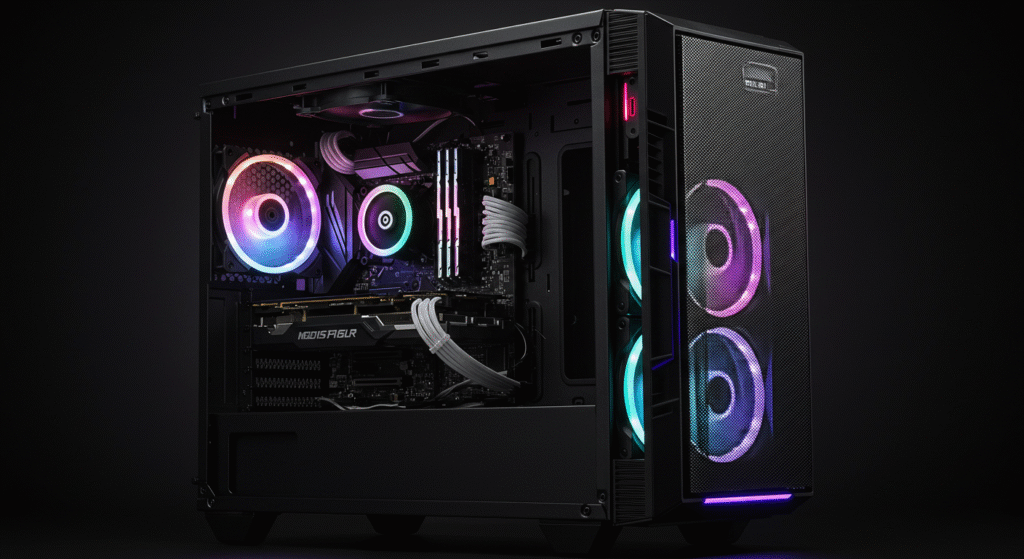
If your CPU or GPU is hitting 90°C regularly, you’ve got a problem. Heat throttles performance and slowly cooks your components. Replacing thermal paste every 1–2 years is a cheap fix. Monitor temps with tools like HWiNFO or HWMonitor. If temps are still high, consider upgrading your cooler or case fans.
Storage Health
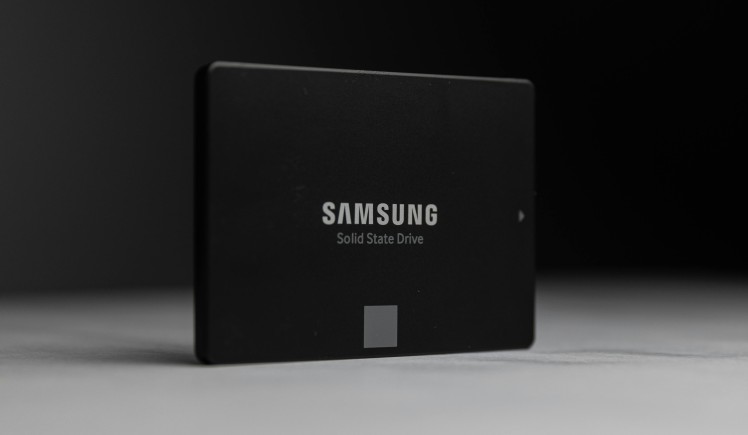
SSDs don’t last forever, and HDDs fail even faster. Use CrystalDiskInfo to check drive health. If your SSD is over 80% full, performance nosedives, leave breathing room. Gamers should keep an eye on load times; if your favorite RPG suddenly takes forever to boot, it might be time for an upgrade. For help choosing storage, check out our Ultra-Budget Gaming PC Build guide.
Software Optimization and Cleanup
Startup and Background Programs
Half of your performance problems come from apps you didn’t even know were running. Open Task Manager (Ctrl + Shift + Esc) → Startup tab → disable anything you don’t need. Streaming apps, launchers, and “helpful” update agents love hogging resources. Freeing up your startup boosts boot times and smooths gameplay. Also be careful with cleanup utilities, they can delete shader caches and force games to rebuild them. Learn more in Game Compiling Shaders Every Launch? Here’s What Causes It and How to Stop It.
Disk Cleanup and Storage Management
Windows collects junk like a loot goblin. Run built-in tools like Disk Cleanup or Storage Sense to clear temp files, caches, and old Windows update data. Third-party options like CCleaner can help, but don’t go overboard, stick to the basics. For step-by-step fixes, see our guide on Windows 11 running slow.
Updates and Drivers
Gamers love to hate updates, but they’re necessary. GPU driver updates often deliver big FPS gains. Stick to official sources: NVIDIA, AMD, or Intel. As for Windows updates? yes we know they are annoying, but skipping them leaves you open to crashes and security issues. Just schedule them for when you’re not gaming.
Security and Stability
Malware and Virus Protection
Malware doesn’t just steal data, it eats performance. Windows Defender is solid, but running a second opinion scan monthly with Malwarebytes is smart. Avoid shady “optimizer” apps that promise miracles they’re often junkware in disguise.
Windows Errors and Troubleshooting Basics
Random freezes, BSODs (Blue Screens of Death), or 100% disk usage? These are classic symptoms of a neglected system. Our guide to Windows 10 and 11 problems and how to fix them covers common issues.
If your PC restarts or shuts down while gaming, first determine whether Windows crashed, the PC lost power, or only the display failed before replacing hardware.
Monitoring Tools Every Gamer Needs
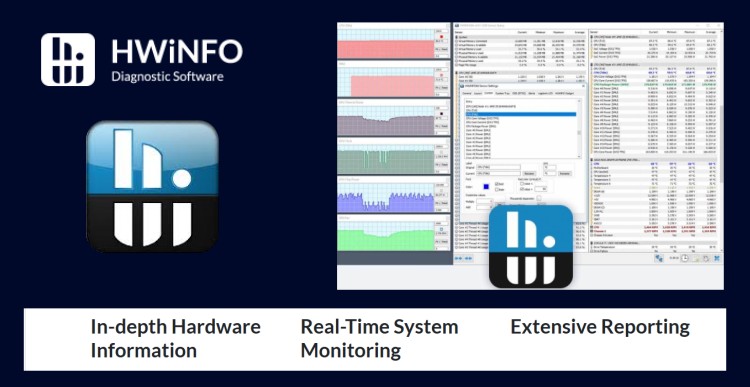
Flying blind is a rookie mistake. Monitoring your rig is like checking your car’s dashboard—you’ll know if something’s wrong before it causes a serious problem. Before enabling upscaling, make sure your system is properly optimized, then use this DLSS vs FSR vs XeSS guide to get the best results.
- HWiNFO / HWMonitor: Tracks temps, voltages, fan speeds.
- MSI Afterburner: Great for in-game overlay of GPU usage and temps.
- CrystalDiskInfo: Reports SSD/HDD health in seconds.
- Task Manager: Quick glance at RAM and CPU usage.
If you’re new to monitoring, check out our guide to monitoring temps, clocks, and usage like a pro.
Backup and Restore Toolkit
Imagine losing hundreds of hours in Elden Ring because your drive died. Backups aren’t optional. Options include:
- Windows Backup & Restore: Built-in and simple.
- Macrium Reflect: Free, powerful imaging software.
- Cloud Storage: OneDrive, Google Drive, Dropbox—great for documents and saves.
System Restore points are a lifesaver when updates go wrong. Create one before big changes. Trust me, it beats reinstalling Windows at 3 AM.
Long-Term Maintenance Habits
Daily / Weekly Habits
- Close unused background apps before gaming.
- Quick malware scan once a week.
- Empty recycle bin and clear temp files.
Monthly Habits
- Check temps and fan speeds.
- Update drivers and Windows.
- Run a full system cleanup.
Yearly Habits
- Deep clean your case and fans.
- Reapply thermal paste on CPU/GPU if temps are rising.
- Create a full system image backup.
Quick PC Maintenance Checklist
Here’s a simple recap you can screenshot or print:
- 🖥️ Clean dust monthly
- 🌡️ Monitor temps regularly
- 🗂️ Free up storage monthly
- 🔄 Update Windows & drivers
- 🛡️ Scan for malware weekly
- 💾 Backup files and system yearly
Good maintenance helps, but it cannot eliminate every performance problem. Some strategy games slow down because of CPU simulation limits, which is covered in Why Strategy Games Lag in the Late Game.
Ready to dive deeper into specific tweaks and real-world tests?
These focused guides expand on everything covered in our main PC maintenance and optimization breakdown:
- How to Test Gaming PC Performance (Without Frying It) — push your rig safely and see what it’s really capable of.
- How to Undervolt Your GPU and Lower Temps — cut heat and noise without sacrificing frames.
- Capping Your FPS (Seriously, Stop Flexing) — why stability often beats raw numbers when it comes to smooth gameplay.
- Steam CPU Temperature Overlay: Kernel Panic vs Reality — learn how to read your system data without getting false alarms.
- Why Does My Game Stutter on a High-End PC? — uncover the sneaky causes behind lag that specs alone can’t fix.
- How to Test a Used CPU Before It Ruins Your Rig — stress-test safely before your bargain chip becomes a burnout story.
- Ray Tracing Isn’t Magic — It’s Just Expensive Lighting — understand what it really adds (and when it’s not worth it).
- Audio glitches during gameplay can sometimes come from driver conflicts or Windows settings. Our guide on fixing audio crackling in games walks through the most common fixes.
Each guide ties back to real, measurable performance, so whether you’re tuning temps, testing limits, or chasing smoother frames, these are the tweaks that actually matter.
What We Recommend.
PC maintenance and optimization isn’t about babying your rig, it’s about respecting the hardware and software that fuel your games. With a few smart habits and the right tools, you’ll enjoy smoother performance, fewer crashes, and a PC that lasts for years. So grab some compressed air, update those drivers, and keep fragging without interruption.