A GPU upgrade should feel like a massive win, smoother frame rates, cleaner visuals, and finally being able to crank settings without your PC sounding like a jet engine. Instead, a lot of gamers end up with black screens, crashing games, power supply problems, or a graphics card that physically does not even fit inside the case.
That happens because most GPU upgrade guides skip the real-world stuff that actually breaks builds. Compatibility issues, weak power supplies, CPU bottlenecks, outdated OEM systems, and terrible driver cleanup habits still destroy perfectly good upgrades every single year.
This guide breaks down the most common gpu upgrade mistakes, how to avoid them, and how to make sure your next graphics card upgrade actually improves gaming performance instead of creating new problems.
Important: A GPU upgrade is not always the correct fix. Some performance problems come from RAM limitations, weak CPUs, overheating, or slow storage. If you are unsure what is actually holding your system back, check our PC parts compatibility guide before spending money blindly.
Quick GPU Upgrade Checklist
- Benchmark your current PC before buying anything
- Check motherboard, PSU, and case compatibility
- Verify your CPU will not bottleneck the new GPU
- Confirm your power supply has enough wattage and connectors
- Clean old GPU drivers before installing new ones
- Stress test the system after installation
- Do not trust VRAM numbers alone when choosing a GPU
Do You Actually Need a GPU Upgrade?
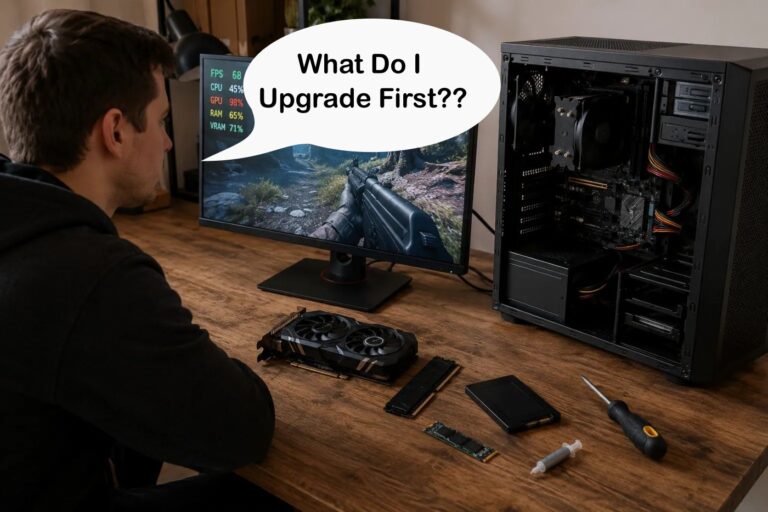
This is the part most upgrade guides completely ignore. A lot of gamers assume low FPS automatically means the graphics card is dying, but that is not always true. Sometimes the real problem is a weak CPU, only 8GB of RAM, overheating, shader compilation stutter, or even a slow hard drive choking modern games.
If your GPU usage constantly sits near 95% to 100% during gaming, especially at higher resolutions or ultra settings, then a graphics card upgrade will probably help. If GPU usage stays low while one or two CPU cores slam into 100%, your processor is likely the bottleneck instead.
This matters even more on older systems. Throwing a high-end GPU into an old DDR3-era office PC does not magically create a modern gaming machine. In many cases, the CPU, motherboard, or power supply becomes the real limitation long before the GPU can stretch its legs.
If you are unsure which component is actually slowing your games down, start with practical diagnostics first instead of panic-buying hardware.
If you confirm that RAM is the upgrade your system actually needs, use our RAM Buying Guide for Gaming PCs to choose the right capacity, DDR generation and memory kit without overspending.
Mistake 1: Skipping Benchmarks Before You Buy
Why it matters: If you do not measure, you guess. Benchmarks reveal whether your performance problem is really the GPU, or if settings, storage, or a specific game engine is the issue.
What to do: Run a baseline with 3DMark and a free stress test like Unigine Heaven. Check in-game overlays for average FPS, 1% lows, and frame time stability. Note temps and clocks. Compare across a few titles from your library. If you focus on shooters, try something from your list of favorites here: Best FPS Games for PC 2025.
Watch for: Stuttering, crashes under load, big dips in 1% lows, or the inability to hold your target settings. If the upgrade is mainly for ray tracing, sanity check whether you actually use those effects in real play, start here for a reality check: Ray Tracing Isn’t Magic, Just Expensive Lighting.
Mistake 2: Ignoring Compatibility Checks
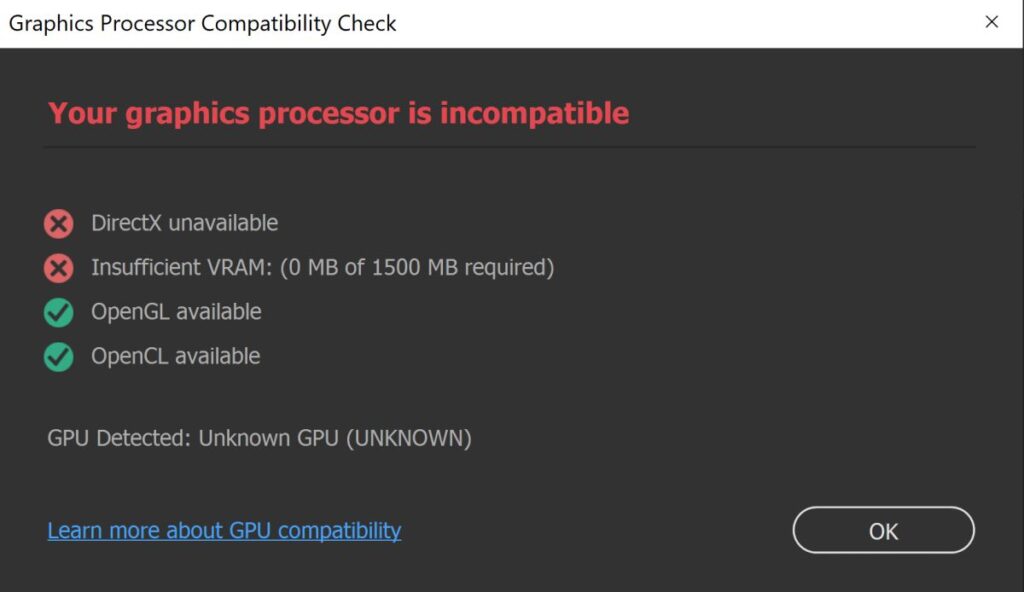
A powerful GPU is useless if it does not physically fit, cannot get enough power, or ends up trapped behind an old CPU bottleneck. Compatibility problems are still one of the biggest reasons gamers waste money on upgrades that never perform properly.
This is also where many first-time builders get blindsided. GPU manufacturers advertise performance numbers, but they rarely explain how older systems, OEM motherboards, or weak power supplies can completely change the outcome. If you are working with a small-form-factor PC that has no 6-pin or 8-pin GPU power cable, our guide to the best low-profile GPUs without external power shows which cards are actually worth considering.
Motherboard and PCIe Compatibility
Most modern graphics cards use a PCIe x16 slot, and thankfully PCIe generations are backward compatible. A PCIe 4.0 GPU will still work inside many older PCIe 3.0 systems. The performance loss is usually small for gaming, especially at higher resolutions.
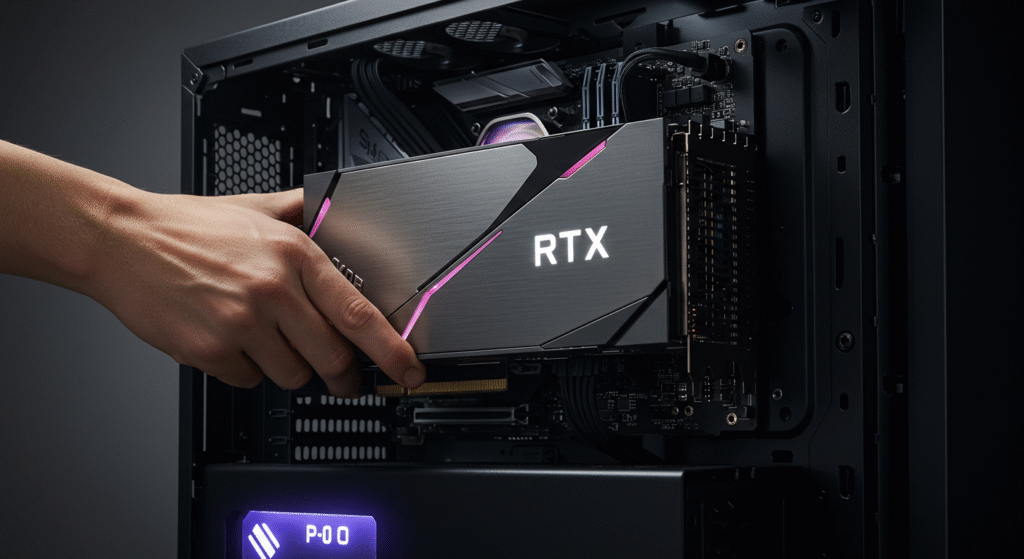
The bigger problem is physical compatibility. Some modern GPUs are absurdly large. Triple-fan cards can occupy three or even four slots, and many budget cases simply do not have enough clearance.
- Measure GPU length before buying
- Check slot clearance near front fans and drive cages
- Confirm your motherboard actually has a full PCIe x16 slot
- Verify airflow is not blocked by oversized coolers
CPU Bottlenecks Are Real
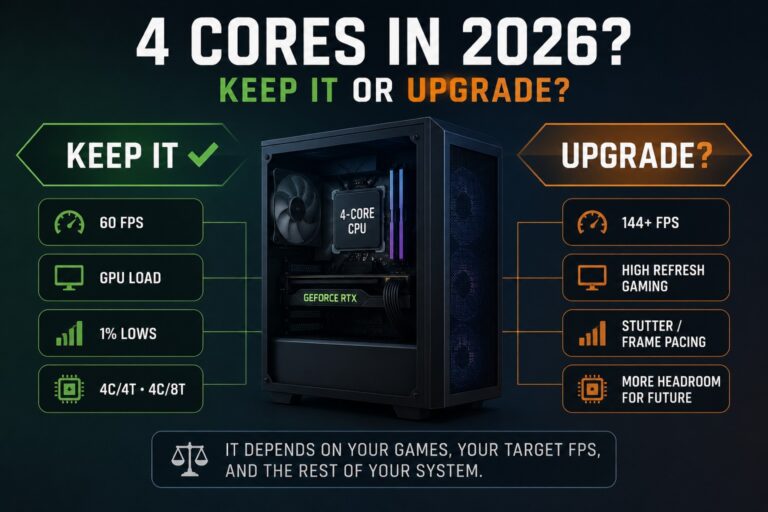
A high-end graphics card paired with an old quad-core CPU can create an incredibly uneven experience. Your average FPS may look fine, but frame pacing, shader compilation, and 1% lows can still feel terrible.
If your CPU constantly pins one or two cores at 100% while GPU usage stays low, the processor is likely holding the system back. This is extremely common in esports games, open-world titles, and modern multiplayer shooters.
Before buying a massive GPU upgrade, monitor your current system properly. If you need help understanding component balance, use our PC parts compatibility guide first.
Legacy Hardware Warning
Older systems need extra caution before any GPU upgrade. This is especially true for old Dell, HP, Lenovo, and Acer prebuilts built around DDR3-era hardware.
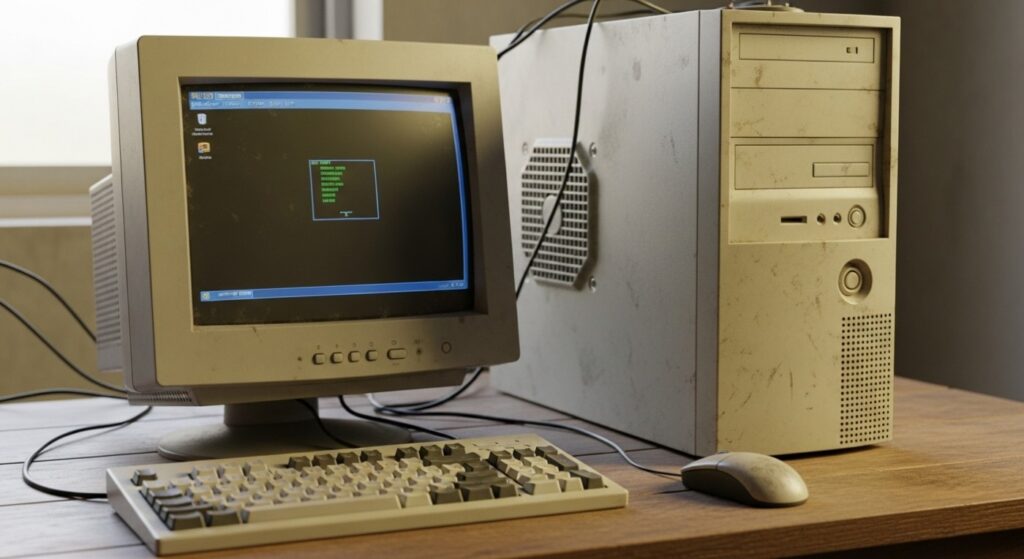
Many of these systems use:
- Weak proprietary power supplies
- Low-profile cases with limited airflow
- Non-standard motherboard layouts
- Older BIOS versions that struggle with modern GPUs
- Limited PCIe power connectors
This is why some upgrades that look amazing on YouTube completely fail in real-world budget systems. A shiny new GPU does not help much if your case cannot close afterward or your PSU starts screaming under load.
Sometimes the smarter move is a balanced upgrade path instead of chasing the biggest graphics card possible. Older systems often benefit more from:
- Adding an SSD
- Upgrading from 8GB to 16GB RAM
- Improving airflow and cooling
- Buying a used mid-range GPU instead of a flagship card
If you are working with older hardware, especially integrated graphics systems or office PCs converted into gaming rigs, you should also read our low-end focused upgrade guides before spending money blindly.
Mistake 3: Underestimating the PSU
A weak or low-quality power supply can turn a GPU upgrade into a stability nightmare. Random shutdowns, black screens, driver crashes, and sudden reboots are often power-related, especially under gaming load.
This gets worse with newer high-performance graphics cards because modern GPUs can spike power usage extremely fast. Even if your system technically boots, an aging PSU may still struggle once games start hammering the GPU properly.
Check Wattage Properly
Do not guess. Look up the manufacturer’s recommended PSU wattage for your exact graphics card model, not just the GPU chipset itself. Factory-overclocked variants often pull more power than reference designs.

It is also smart to leave some headroom instead of running your PSU at the absolute limit all the time. A system that constantly lives near maximum capacity usually runs hotter, louder, and less stable.
- Verify total PSU wattage
- Check GPU manufacturer recommendations
- Allow extra headroom for transient power spikes
- Avoid ultra-cheap unknown PSU brands
Connector Mistakes Still Kill Builds
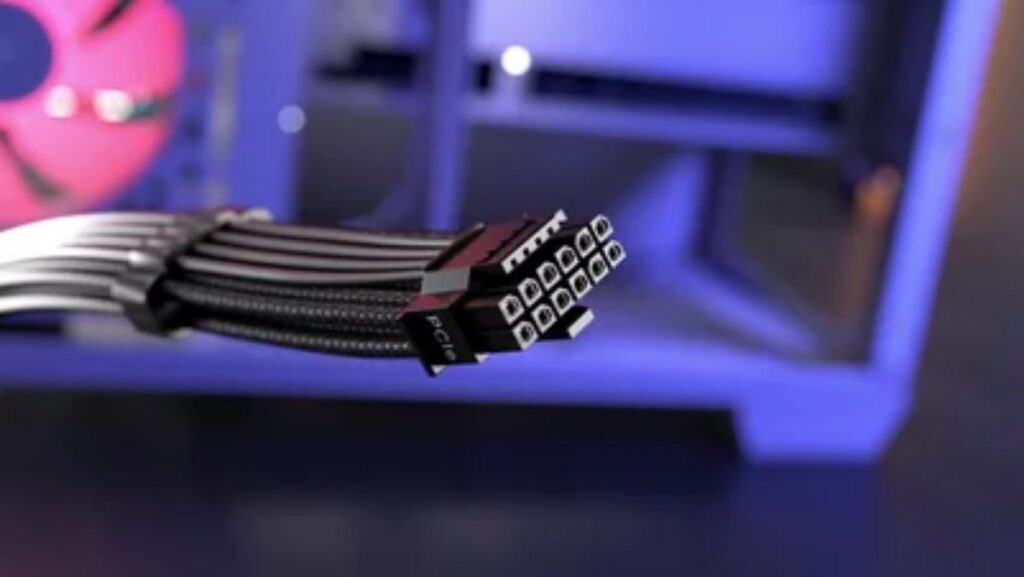
Modern GPUs may require multiple 8-pin PCIe connectors or newer 12VHPWR cables. One of the most common GPU upgrade mistakes is assuming your existing PSU already has the correct connectors available.
Do not force incompatible cables. Do not mix modular PSU cables between different power supply brands unless the manufacturer explicitly confirms compatibility. That is a fantastic way to turn expensive hardware into electronic confetti.
If your PSU is old, low-tier, or missing proper connectors, replacing the PSU before the GPU is often the smarter move.
For realistic upgrade planning, especially on weaker systems, our budget gaming PC build guide explains how balanced hardware matters more than chasing the biggest GPU possible.
Mistake 4: Skipping Basic Safety and Prep
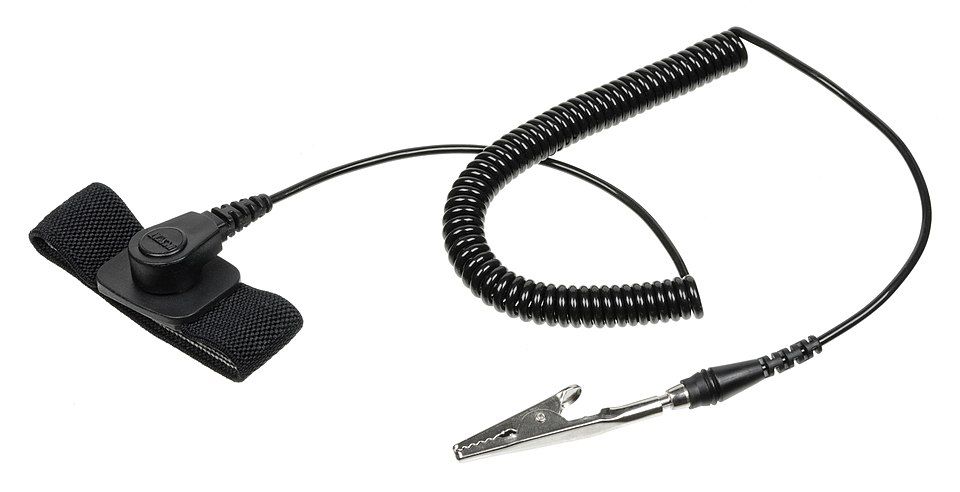
Why it matters: Static discharge and messy cables turn a fun upgrade into a parts order.
- Power down, unplug, discharge: Shut down, switch off the PSU, unplug the cable, press the case power button once to discharge.
- Ground yourself: Touch the metal chassis regularly or use an anti-static wrist strap. Static electricity can damage components in an instant.
- Clear workspace: Good lighting, screws in a cup, cables out of the way. Less chaos, fewer mistakes.
Mistake 5: Rushing the Physical Install
Remove the old card: Unplug PCIe power. Unscrew the bracket. Press the PCIe slot latch and lift the card straight out.
Seat the new card: Align with the slot, press down firmly until the latch clicks, then secure with screws. Connect the correct power leads. Check that the card is level and not sagging. If your case supports a support bracket, use it.
Final pass: Route cables so fans are clear. Close the panel, reconnect power, and boot.
Mistake 6: Making a Mess of Drivers and Settings
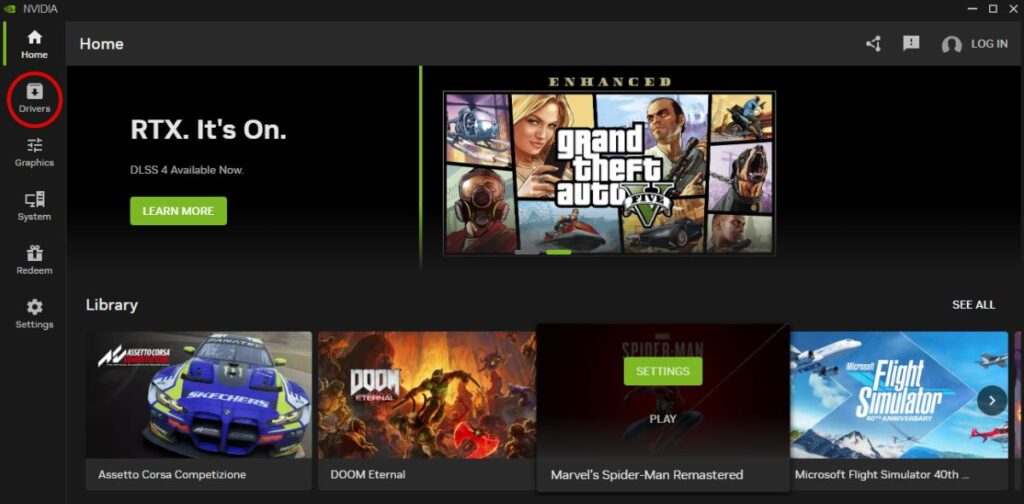
Clean install mindset: Uninstall old GPU drivers first. Then grab fresh drivers from the official pages, NVIDIA or AMD. During install, pick the clean or factory option where available.
- After install, set your monitor’s correct refresh rate in Windows display settings.
- Set native resolution, confirm HDR or VRR if your display supports it.
- Optional tools: capture overlay, GeForce Experience or Adrenalin features, only enable what you use.
Mistake 7: Not Stress Testing or Monitoring Afterward
Prove stability: Run a loop of 3DMark or a long pass in Unigine Heaven. Play your heaviest game for at least 20 to 30 minutes. Watch temps, clocks, and GPU utilization.
Tune if needed: Adjust fan curves, check power limits, and verify case airflow. If you still see hitching or weird drops, start here for practical fixes that are not snake oil: Why Does My Game Stutter on High-End PC?
If you are tuning performance and something keeps crashing under load, this GPU troubleshooting guide helps you verify stability before you chase more FPS.
Quick Summary Table
| Mistake | Quick Fix |
|---|---|
| Skipping benchmarks | Baseline with 3DMark and Unigine, log FPS, temps, 1% lows |
| Ignoring compatibility | Check PCIe slot, CPU bottleneck, case clearance, board manual |
| Underpowered PSU | Verify wattage and connectors, add headroom, upgrade if needed |
| No safety or prep | Unplug, discharge, ground yourself, tidy the workspace |
| Rushing install | Release latch, seat firmly, screw down, correct cables, check sag |
| Driver mess | Uninstall old, clean install official drivers, set refresh rate |
| No stress test | Loop a benchmark, play your heaviest game, monitor temps and clocks |
What a GPU Upgrade Actually Fixes in Real Games
A GPU upgrade can absolutely improve gaming performance, but only when the graphics card is the actual bottleneck. This is where many upgrade guides oversimplify things and accidentally convince people to throw money at the wrong problem.
In real-world gaming, a stronger GPU usually improves:
- Higher average FPS at medium, high, or ultra settings
- Better performance at 1440p and 4K resolutions
- Improved ray tracing capability
- More VRAM headroom for modern textures
- Better visual settings without tanking frame rates
What a GPU upgrade does not automatically fix:
- Shader compilation stutter
- CPU bottlenecks
- Slow hard drives
- Overheating systems
- Poorly optimized games
- RAM shortages
This is why some gamers upgrade their graphics card and still end up disappointed afterward. The GPU gets blamed for problems that were actually caused by weak CPUs, bad airflow, old storage drives, or unstable memory configurations. One of the biggest mistakes is buying a graphics card based purely on VRAM. Our 8GB vs 12GB vs 16GB VRAM guide explains how to choose the right amount for your needs.
Ironically, some gamers searching for “games without a GPU” or “PC gaming without a graphics card” end up here after struggling with crashing or unstable graphics cards. In some cases, removing a failing dedicated GPU and temporarily gaming on integrated graphics can actually help diagnose whether the graphics card is the real issue.
If your games still stutter after upgrading, start with proper diagnostics instead of panic-buying more hardware. Our game stutter troubleshooting guide breaks down the most common real-world causes.
And if your GPU keeps crashing under load after installation, use our GPU crash troubleshooting guide before assuming the card itself is defective.
BTF’s Conclusion
A graphics card upgrade should make your games feel smoother, sharper, and more stable, not introduce power problems, crashing drivers, or a case panel that suddenly refuses to close.
The biggest GPU upgrade mistakes usually happen before the card even gets installed. Skipping compatibility checks, underestimating the power supply, ignoring CPU bottlenecks, or rushing driver cleanup still ruin upgrades for thousands of gamers every year.
The good news is that most of these problems are completely avoidable with proper planning. Benchmark your system first, verify compatibility properly, and focus on balanced upgrades instead of blindly chasing the biggest GPU your budget can afford.
If you are planning a broader upgrade path, especially for older or low-end systems, our PC parts compatibility guide can help you avoid expensive mistakes before they happen.
Frequently Asked Questions
Can a GPU damage a motherboard?
It is rare, but incorrect installation, bad PSU cables, electrical shorts, or forcing incompatible connectors can damage components. Most problems come from power supply mistakes rather than the GPU itself.
Do I need a new PSU for a GPU upgrade?
Not always. It depends on the power requirements of the new GPU, the quality of your existing PSU, and whether the correct PCIe power connectors are available.
Should I uninstall old GPU drivers first?
Yes. Removing old drivers before installing a new graphics card helps prevent crashes, black screens, and driver conflicts.
Can an old CPU bottleneck a new GPU?
Absolutely. Older quad-core CPUs, especially DDR3-era processors, can limit modern GPUs heavily in newer games and multiplayer titles.
What happens if my PSU is too weak for my GPU?
You may experience crashes, random shutdowns, black screens, driver instability, or failure to boot under gaming load.