If your gaming PC is slow, stuttery, and one bad patch away from becoming a YouTube machine, the first instinct is usually to buy something shiny and hope for the best. That is also how people waste money on upgrades that barely move the needle. So What to Upgrade First on a Low-End PC, can the first upgrade make games smoother?, or cut load times?, and make the whole system feel less miserable. The wrong one just gives you a lighter wallet and the same bad frame rate.
If you are still trying to squeeze life out of a truly weak machine, you should also check out Free Games for Garbage PCs. That guide helps if you are not ready to spend yet and just need games that stop bullying your hardware.
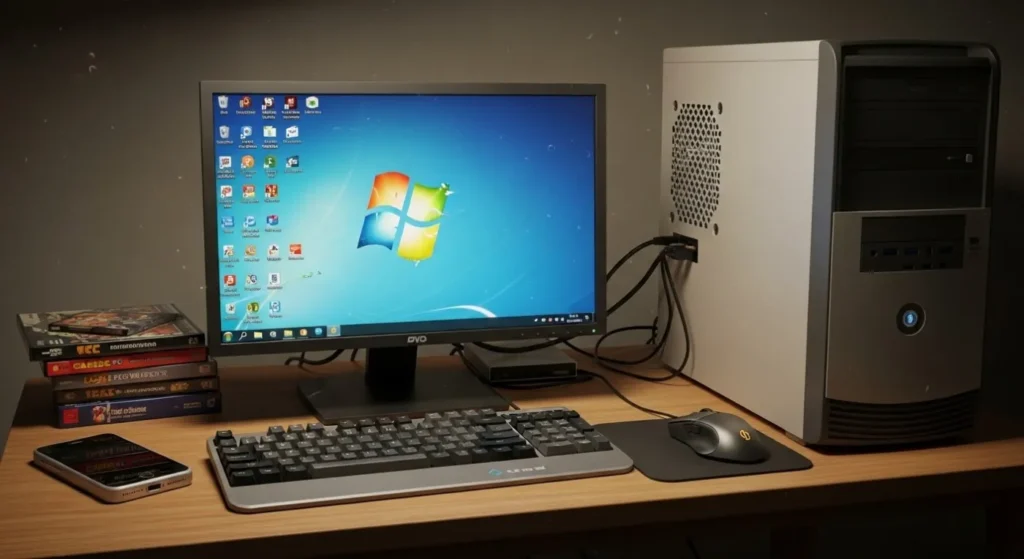
What Should You Upgrade First? Quick Answer
If you want the blunt version, here it is. On most low-end PCs, your first upgrade depends on what is holding the system back the hardest.
- If you only have 4GB of RAM, upgrade RAM first. That is the most common cheap upgrade that actually changes daily use and gaming stability.
- If you are still using an HDD, upgrade to an SSD. It will not magically double FPS, but it can make the whole PC feel dramatically less awful.
- If your GPU is the clear limit, upgrade the GPU. This can deliver the biggest gaming jump, but only if the rest of the system can keep up.
- If your CPU is constantly pinned at 100%, upgrade the CPU only if your platform gives you a sensible path.
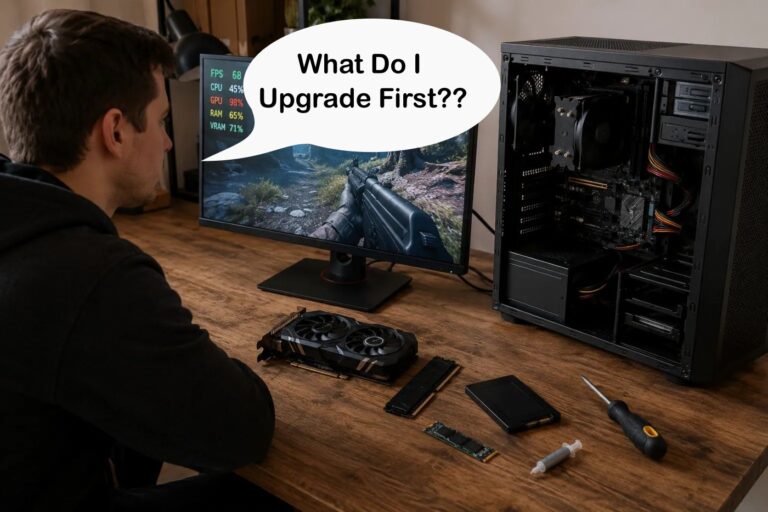
The real answer is simple: find the bottleneck first, then upgrade the part causing the pain. If you skip that step, you are basically shopping with your eyes closed.
Step 1, Identify Your Bottleneck Before You Buy Anything
This is the part most people try to skip because it sounds boring. It is also the part that decides whether your upgrade actually helps. Low-end PCs do not have enough spare performance to hide bad decisions, so you need to know what is maxing out, what is overheating, and what is simply too old to keep pretending.
If you’re not sure how to interpret those signs, this guide shows you how to identify exactly what’s bottlenecking your gaming PC before you spend money on upgrades.

Before spending money, test the system properly. My guide on how to test gaming PC performance is a good starting point, and if you want a wider monitoring setup, read how to monitor temps, clocks, and usage.
You can also use MSI Afterburner safely if you want an easy overlay for GPU usage, temperatures, clocks, and frame rate. According to the Steam Hardware Survey, a huge portion of PC gamers are still using mid to low-end systems, which is exactly why upgrading the right component matters more than chasing high-end specs.
CPU Bottleneck Signs
If your processor is the problem, your games usually feel unstable rather than just slow. You may get weird frame drops in crowded areas, heavy stutter during combat, or terrible performance in strategy games, shooters with lots of AI, and open-world titles that hammer background simulation.
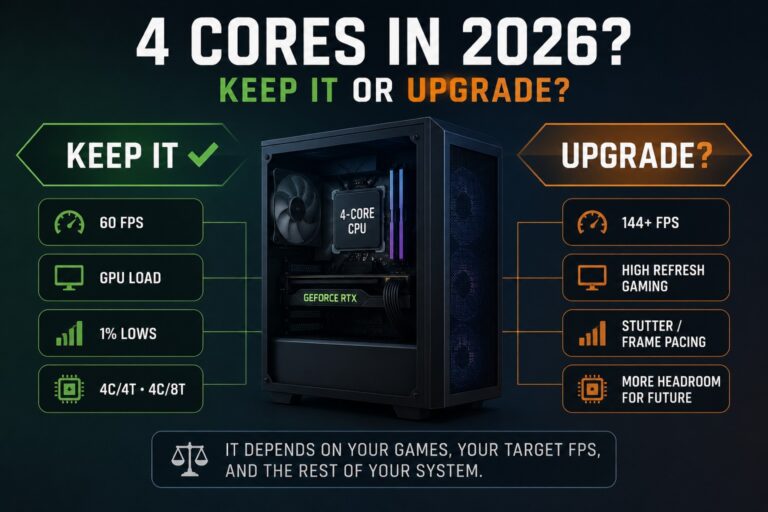
These problems can become especially noticeable on older quad-cores, so if you’re still using one, our guide to whether your 4-core CPU is actually holding you back explains how to tell when four cores have genuinely become the limitation.
Before rushing out to buy a new CPU, it’s worth making sure it’s actually your biggest bottleneck. Our guide on how to upgrade a gaming PC in the right order explains how to diagnose performance problems first, helping you avoid spending money on components that won’t deliver the improvement you’re expecting.
If you’re wondering whether upgrading your CPU is really the right move, our guide on which PC upgrade gives the biggest FPS boost explains when a CPU upgrade will genuinely improve gaming performance, and when another component is actually holding you back.
- CPU usage sits near 100% for long stretches
- FPS drops hard during busy scenes even when graphics settings are lowered. Upgrading blindly is how you waste money. What Smooth Gameplay Actually Feels Like on a Low-End PC helps you understand what actually needs fixing before you spend anything.
- Frame pacing feels ugly, even when average FPS looks acceptable
- Background apps make gaming noticeably worse
If you are not sure whether the CPU or GPU is causing the mess, read CPU or GPU problem during gaming?.
If your processor is getting hammered constantly, this guide on fixing high CPU usage while gaming can also help you separate fixable problems from real hardware limits.
GPU Bottleneck Signs
A GPU bottleneck is easier to spot. Your games run badly because the graphics card simply cannot keep up. This usually shows up as low FPS, heavy drops when effects kick in, and performance that improves noticeably when you lower resolution or settings.
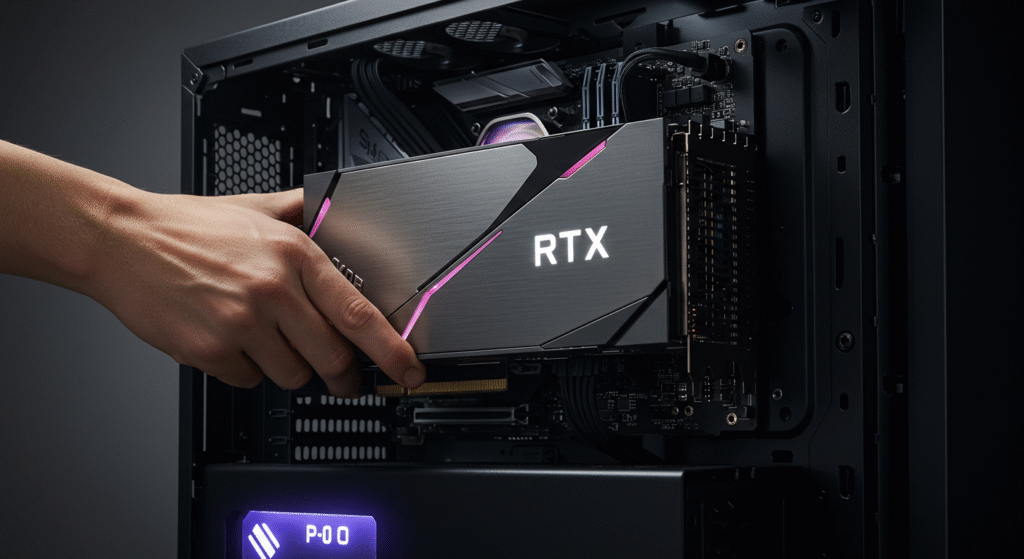
- GPU usage is near full load most of the time
- Lowering settings gives a clear improvement
- Performance collapses with shadows, reflections, or high-resolution textures
- Esports games run okay, newer AAA titles run like a slap in the face
If that sounds familiar, a GPU upgrade may be the right move, but only if your power supply, case, and CPU are not about to sabotage the plan. If you’re considering a graphics card upgrade, make sure you don’t overspend on memory. Read our guide to choosing between 8GB, 12GB, and 16GB VRAM first.
Also before upgrading anything, it helps to know your current limits, our Intel HD Graphics Gaming Guide shows exactly where integrated graphics start to struggle and if you need the upgrade anyway, and if you need games that are lightweight you can still try lighter games like the ones in our best horror games for low-end PCs roundup.
RAM Bottleneck Signs
RAM problems are painfully common on low-end PCs, especially older office desktops, budget laptops, and old DDR3 systems that somehow still refuse to die. Not enough memory causes stutter, hitching, long alt-tab delays, and games that freak out the second Windows decides it also wants some breathing room.
If you’re running 8GB and wondering whether the problem is your RAM or simply the games you’re trying to play, see what an 8GB RAM PC can realistically handle before deciding you need an upgrade.
But capacity isn’t the only thing worth checking. If you already have enough memory, single vs dual channel RAM can still affect gaming performance, particularly on budget CPUs and systems using integrated graphics.
Common Bottleneck issues:
- System has only 4GB of RAM
- Games freeze or hitch when loading new areas
- Discord, browser tabs, or launchers make performance worse
- Drive activity spikes while gaming because the system is leaning on virtual memory
If your machine is constantly choking on memory, read game using too much RAM fix. That will help you tell the difference between bad settings, background junk, and genuine hardware limits.
If you upgraded your PC and still saw no real FPS improvement, this guide explains what probably went wrong: why your PC upgrade didn’t improve FPS.
Storage Bottleneck Signs
Storage bottlenecks do not usually look like classic low FPS problems. They show up as endless load screens, delayed texture loading, Windows taking forever to do simple tasks, and a general feeling that the PC is dragging itself uphill through wet cement.

- Games take ages to launch or load levels
- Windows feels sluggish even outside gaming
- Open-world games stream assets badly
- You are still using an old hard drive as your main system drive
Upgrade Priority, What Actually Comes First on a Low-End PC
Once you know what is holding the PC back, the next step is deciding what gives you the best return for the least pain. Not every upgrade deserves to go first. Some improve performance immediately. Some just shift the bottleneck somewhere else. And some are technically useful, but completely wrong for a tight-budget system. If you’re upgrading because a reinstall didn’t fix anything, start by understanding why your PC still feels slow after reinstalling Windows.
1. Upgrade RAM First, If You Only Have 4GB
If your PC still has 4GB of RAM, stop overthinking it. This is usually the first upgrade worth making, especially if you use Windows 10 or 11, keep a browser open, or play anything newer than a toaster-compatible indie game. Going from 4GB to 8GB can make the system feel far less unstable, and in many cases it smooths out gameplay more than people expect.
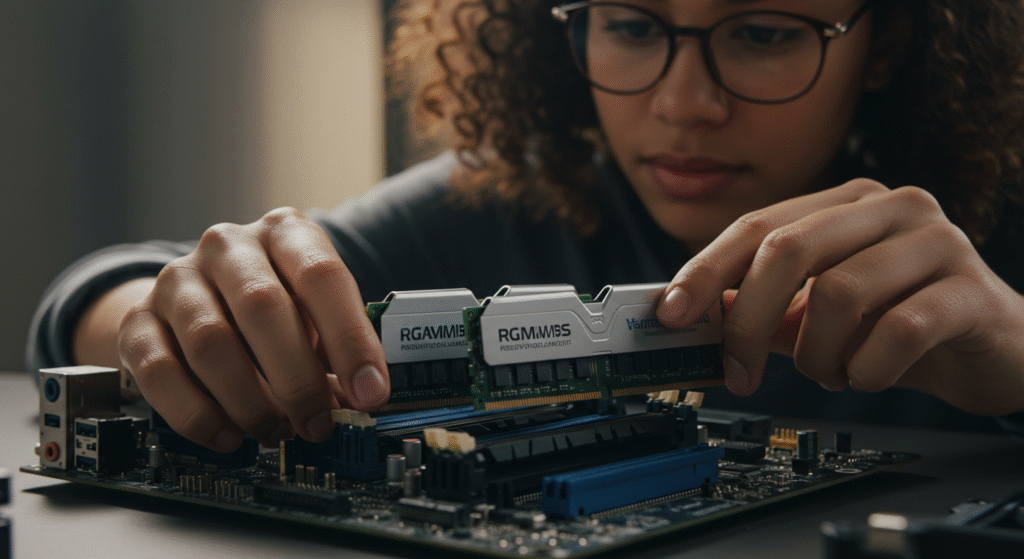
This is one of the rare low-cost upgrades that helps both gaming and normal use. Programs stop fighting each other as much, Windows behaves better, and some games that were borderline unplayable become merely annoying, which honestly counts as progress. If you are trying to spend as little as possible, my guide to the best PC upgrades under $100 is a good place to start.
2. Upgrade to an SSD, If You Are Still on a Hard Drive
If your PC boots from an HDD, an SSD upgrade is one of the best first upgrades you can make. It usually will not transform raw FPS numbers, but it absolutely transforms how the system feels. Boot times shrink, games open faster, patching is less painful, and the whole machine stops behaving like it is trying to remember how electricity works.
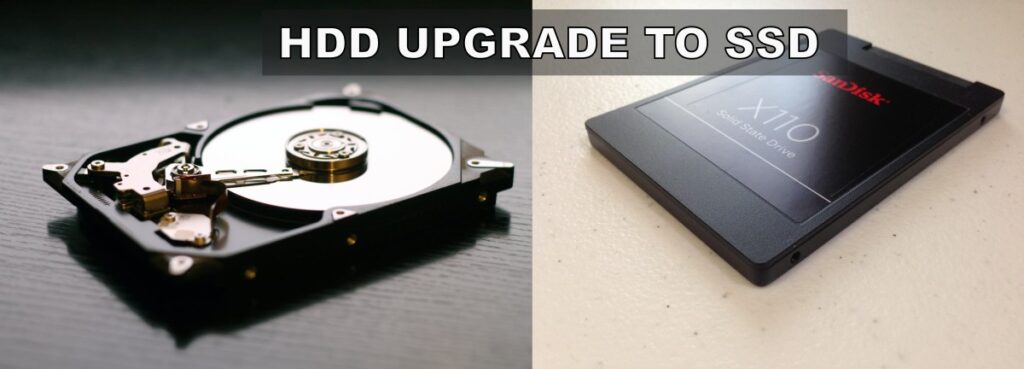
This matters more than people think. A low-end PC that responds quickly feels much easier to live with, and that alone can make gaming less frustrating. If you want SSD recommendations, check out the best NVMe SSDs for gaming. Just keep expectations realistic, because storage speed and frame rate are not the same thing.
If you want the detailed version of that argument, read do faster SSDs improve FPS?.
3. Upgrade the GPU, If Gaming Performance Is the Real Problem
A GPU upgrade can deliver the biggest obvious gaming improvement, but it is also where low-end PC owners get themselves into trouble. A better graphics card is great in theory. In practice, your system may have a weak power supply, an old CPU, terrible airflow, or a case that barely fits anything modern. If you are upgrading a compact OEM or small-form-factor PC with no spare GPU power connector, our guide to the best low-profile GPUs without external power covers the cards designed for those limitations. If your main goal is online multiplayer, use our online games for low-end PCs guide to see what your current system can still handle before buying upgrades.

4. Upgrade the CPU, But Only If the Platform Makes Sense
CPU upgrades can help, especially in simulation-heavy games. The problem is that they are rarely simple on older systems. You need to consider socket compatibility, motherboard support, BIOS versions, and whether the upgrade is even worth it.
Best Upgrade Paths for Small Budgets
If you don’t have a lot of money to throw at your PC, upgrade order matters even more. The goal here isn’t perfection, it’s getting the biggest real-world improvement for the least amount of cash. That means targeting the bottleneck, not chasing specs that look good on paper. If you are upgrading for demanding open-world games, start with our Crimson Desert performance breakdown to see why CPU, SSD, RAM, and GPU balance matter.
Important: Not all upgrades apply to every system. Many older PCs, especially DDR3-era machines, have limited compatibility with modern components like newer RAM, GPUs, and NVMe SSDs. If your system is older, you may need to look for compatible parts on the second-hand market instead of buying new hardware. Always check what your motherboard and power supply can actually support before upgrading. But for DDR4 systems see below.
If You Have a Tiny Budget (Under $100)
At this level, you’re not transforming your system, you’re stabilizing it. The best move here is almost always RAM, especially if you’re still stuck on 4GB. More memory reduces stutter, improves multitasking, and makes games far less likely to choke when things get busy.

- Upgrade from 4GB to 8GB RAM
- Buy used RAM if needed (just match type and speed)
- Avoid flashy upgrades that don’t fix your actual problem
This is exactly why cheap upgrades can outperform expensive ones when chosen correctly. If you want more ideas, check cheap gaming upgrades that boost FPS.
If You Have a Small Budget ($150–$200)
This is the sweet spot for low-end PCs. You can combine upgrades that noticeably improve both performance and usability. The best combo here is usually RAM plus an SSD.
- Upgrade to 8GB or 16GB RAM
- Add a SATA SSD (or NVMe if supported)
- Reinstall Windows on the SSD for maximum benefit


An SSD won’t magically increase FPS in every game, but it makes everything else feel faster and more responsive. That alone can make your system feel like a completely different machine.
If You Have a Mid Budget ($300 – $350)
This is where things change. Instead of upgrading one part at a time, you can often get far better value by replacing the core of your system completely. If your current PC is stuck on an old platform, this kind of “mini rebuild” can deliver a much bigger performance jump than stacking small upgrades.
At this budget, the goal is simple: build a modern baseline that actually supports future upgrades.
- Entry-level CPU (With Onboard Graphics)
- Compatible motherboard (DDR4 platform)
- 8GB RAM To Start (16gb Later when you can)
- Optional if budget allows: Basic SSD (NVMe later if neccesary)
This approach removes multiple bottlenecks at once. Instead of fixing one weak link, you’re replacing the entire foundation, which makes future GPU upgrades far more worthwhile.
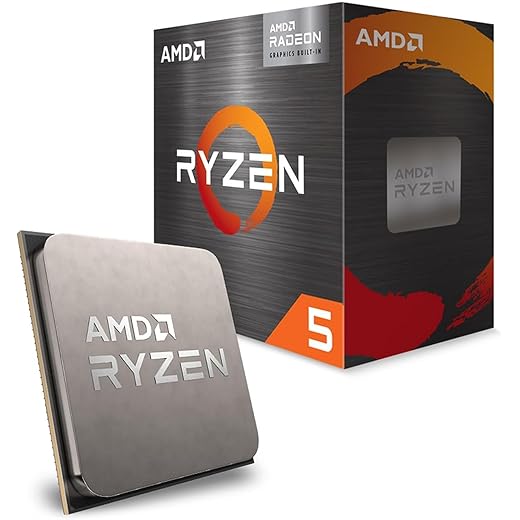


The trade-off is that you’ll likely need to reuse your existing case, storage, or power supply, and you may need to rely on second-hand parts to stay within budget. If you’re currently on a DDR3 system, this is often the smartest move. Trying to upgrade piece by piece on outdated hardware usually costs more in the long run and delivers worse results.
For a broader breakdown of what upgrades actually matter, read gaming PC upgrades that actually matter. If you’re unsure what actually makes a difference, read gaming PC upgrades that actually matter.
When to Stop Upgrading and Start Rebuilding
If your upgrade list starts including CPU, motherboard, RAM, GPU, and storage, you’re no longer upgrading, you’re rebuilding. At that point, it’s smarter to plan a balanced system instead of patching an old one piece by piece.
If you’re heading in that direction, it’s worth looking at a proper build instead of stacking upgrades. My mid-range gaming PC build guide shows what a clean upgrade path actually looks like.
What Not to Upgrade First
- Motherboard upgrades do not improve performance alone
- Power supplies matter, but rarely improve gaming first
- Cooling upgrades are not your first priority
- Buying based on hype is not a strategy
How This Actually Affects Real Gaming
- CPU bottlenecks cause stutter and frame pacing issues
- GPU bottlenecks cause low FPS
- RAM bottlenecks cause freezing and instability
- Storage bottlenecks hurt loading and responsiveness
When You Should Not Upgrade
Sometimes the smartest move is not upgrading at all. If your system is too old, limited, or incompatible, saving for a new build is often the better choice. Also If you need something that works on a weak school laptop without chewing through data, check out these offline games for low-end PCs.
Final Verdict
Do not upgrade blindly. Find your bottleneck, fix that first, and ignore generic advice that treats every PC the same.
Upgrade RAM if you only have 4GB. Upgrade to an SSD if you are still on a hard drive. Upgrade the GPU if gaming performance is clearly limited. Upgrade the CPU only if your platform makes sense.