Learning how to choose PC parts that fit can quickly become overwhelming. Every component comes with different model numbers, specifications and compatibility requirements, and a part that looks excellent on its own may make little sense once it is placed into a complete build.
The easiest way to make the right decisions is to treat the PC as a complete system. Start with the games you want to play, choose your target resolution and frame rate, and set a realistic budget. From there, select the graphics card, pair it with an appropriate CPU, choose the motherboard platform, and complete the build with suitable RAM, storage, power, cooling and a case that fits everything.
This guide will walk you through that process in the correct order. You will learn where your budget matters most, how to avoid poorly balanced component pairings, and how to check that every part is technically and physically compatible before you buy. The goal is not to build the most expensive gaming PC possible. It is to choose parts that work together and deliver the gaming performance you actually need.
How to Choose PC Parts: The Short Answer
The safest way to choose PC parts is to work from your performance target outward. Follow this order before committing money to any individual component:
- List the games and software you actually use. A competitive shooter, heavily modded RPG and demanding strategy game can place very different demands on a PC.
- Choose your resolution and target frame rate. Building for 1080p at 60 FPS requires far less GPU power than 1440p at 144 FPS or modern gaming at 4K.
- Set the complete build budget. Include the case, cooling, power supply, storage and any additional fans—not only the CPU and graphics card.
- Choose the GPU for your gaming target. Use benchmarks from the games, resolution and settings closest to what you intend to play.
- Pair it with a sufficiently strong CPU. The processor must support your target frame rate without consuming money that would improve performance more elsewhere.
- Select a compatible motherboard platform. Check the socket, chipset, exact CPU support and required features.
- Add suitable RAM and SSD capacity. Prioritize enough memory and storage for your real workload before chasing impressive specifications.
- Choose the PSU from the completed system’s requirements. Verify power capacity, model quality and every connector required by the CPU and GPU.
- Choose cooling and a case around the hardware. Confirm cooler height, GPU dimensions, radiator placement, PSU size and airflow.
- Run the complete list through PCPartPicker. Use its warnings as the first compatibility check.
- Verify everything manually. Check BIOS support, physical clearances, power cabling, motherboard headers and storage lane sharing in the manufacturer documentation.
This order prevents one exciting early purchase from dictating the rest of the build. Choose the gaming target first, build a complete system around it, and only buy once the entire list has been checked together.
If you need a broader explanation of how each component contributes to the finished system, use our complete gaming PC hardware guide before finalizing your parts list.
Start With the Games and Performance You Want
Before choosing a CPU or graphics card, decide what you expect the finished PC to do. A gaming PC built for older titles at 1080p should not receive the same hardware priorities as one intended for competitive gaming at 240 FPS or demanding games at 4K. Your games, resolution and frame-rate target determine where the budget will make the greatest difference.
Which Games Do You Actually Play?
Different types of games place very different demands on a PC. Competitive shooters often run at modest graphics settings but need strong CPU performance to deliver consistently high frame rates. Modern AAA games generally place heavier demands on the GPU, especially when you increase the resolution, texture quality or ray-tracing settings.
Strategy and simulation games can become CPU-limited as battles, cities or simulated populations grow. Heavily modded games may require more RAM and VRAM than the original game needs, while older and lightweight games can run well on much cheaper hardware.
Make a short list of the games you play most often and check recent benchmarks for them. Do not build around one unusually demanding game you may never play, but do not assume every gaming PC should prioritize the same components either.
Choose Your Resolution
Resolution has a major effect on graphics-card demand because the GPU must render more pixels in every frame. At 1080p, affordable and mid-range GPUs can provide excellent results, and CPU limitations may become more visible when chasing high frame rates.

Moving to 1440p increases GPU demand but usually provides a noticeable improvement in image clarity. It is a popular target for balanced gaming builds because it offers a meaningful visual upgrade without the extreme hardware cost of 4K.
At 4K, the graphics card becomes the dominant expense in most builds. That does not make the CPU irrelevant: it must still process game logic, physics and draw calls quickly enough to support the target frame rate. Higher resolution shifts more pressure to the GPU; it does not remove CPU demand.
Choose a Realistic FPS Target
A stable 60 FPS is a sensible target for slower-paced and cinematic games. Targeting 90–120 FPS provides smoother movement and responsiveness without requiring the extreme hardware needed to sustain very high refresh rates in demanding games.
Gaming at 144 FPS or above changes the balance. The GPU must produce frames quickly, but the CPU must also prepare them fast enough and maintain consistent frame delivery. A competitive 1080p build may therefore justify greater CPU priority than a 4K build targeting 60 FPS.
| Gaming target | GPU priority | CPU priority | RAM starting point | Main concern |
|---|---|---|---|---|
| Older or lightweight games at 1080p | Low–medium | Low–medium | 16GB | Avoid overspending |
| Modern games at 1080p/60 | Medium | Medium | 16–32GB | Balanced value |
| Modern games at 1440p | High | Medium | 32GB preferred | GPU performance and VRAM |
| Competitive high-refresh gaming | Medium–high | High | 32GB preferred | CPU performance and frame consistency |
| Modern 4K gaming | Very high | Medium | 32GB | GPU performance and VRAM |
These priorities are starting points rather than rigid rules. The correct balance still depends on the games, settings and performance target you choose.
Set the Budget Before Choosing Components
Your budget must cover the complete tower, not only the processor and graphics card. Include the motherboard, RAM, storage, power supply, CPU cooling, case and any additional fans the system requires. A parts list that spends everything on performance hardware and leaves nothing for power, cooling or storage is not a finished build.
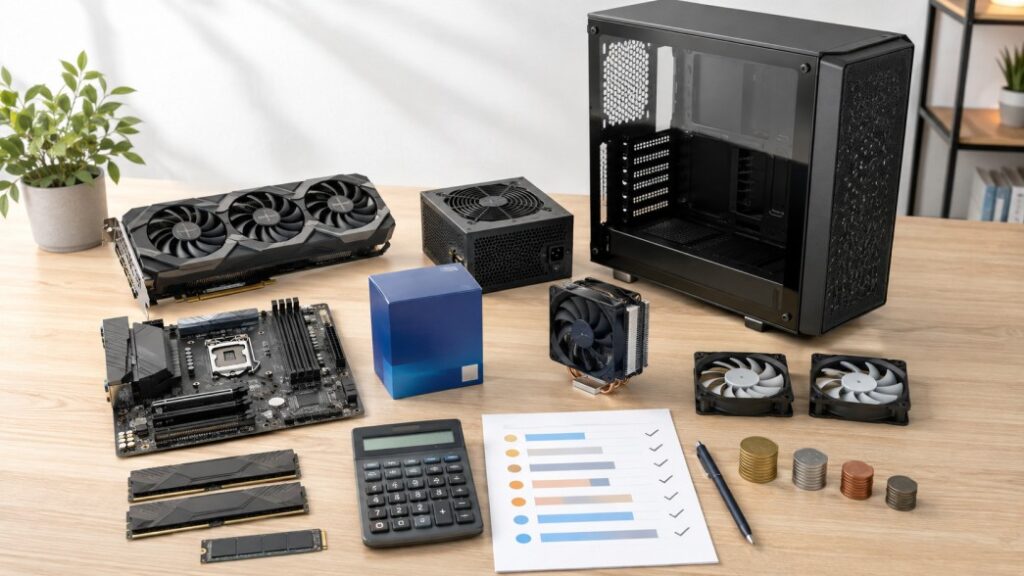
Decide whether the monitor, keyboard, mouse, headset and Windows licence are included in the same budget. If they are, reserve that money before selecting the internal components. Otherwise, a supposed R20,000 PC can quietly become a R25,000 purchase by checkout.
Spend Where It Changes the Experience
For most gaming builds, the GPU receives the largest share because it has the greatest effect on resolution, graphics settings and frame rate. That does not justify applying one fixed percentage to every system.
An integrated-graphics build has no separate GPU expense. A competitive high-refresh system may need greater CPU priority, while strategy and simulation games can benefit from stronger CPU performance and additional memory. Reusing a case, storage drive or power supply changes the available budget again.
Regional pricing also matters. A component that represents excellent value in one country may be overpriced or unavailable in another. At the very low end, the cost of a reliable PSU, usable motherboard and practical SSD consumes a larger portion of the total. Budget allocation must respond to the actual build rather than an attractive percentage copied from another parts list.
Do Not Starve the Supporting Components
Prioritizing the GPU does not mean sacrificing everything around it. An unsuitable motherboard can restrict features or future upgrades. A poor PSU can create instability or lack the connectors the GPU requires. Inadequate cooling can reduce sustained performance, while too little RAM or storage can make an otherwise powerful PC frustrating to use.
The supporting components do not need to be luxurious. They need to be sufficient, compatible and reliable.
| Component | Typical gaming priority | When to spend more | When to save |
|---|---|---|---|
| GPU | Highest | Higher resolution, ray tracing or demanding AAA games | Lightweight or CPU-heavy games |
| CPU | Medium–high | High refresh rate, simulations or strategy games | GPU-limited 60 FPS targets |
| Motherboard | Functional | More ports, storage, networking or future CPU support | No need for premium extras |
| RAM | Functional | Modding, multitasking or simulation games | Basic or lightweight gaming |
| Storage | Functional | Large game library or content work | Easy future expansion |
| PSU | Non-negotiable quality | Powerful GPU or planned future upgrade | Never by choosing an unsafe model |
| Case and cooling | Hardware-dependent | Hot components or noise sensitivity | Efficient, lower-power hardware |
Choose the Graphics Card for Your Gaming Target
The graphics card should usually be selected early in a gaming build because it consumes a large part of the budget and influences several decisions that follow. Your GPU choice affects the power supply, case clearance, cooling requirements and the processor needed to support your target frame rate.
Do not begin by asking which graphics card is the most powerful. Ask which one can deliver the performance you want in the games, resolution and settings you intend to use.
Use Benchmarks, Not Model Names
Model names and generation numbers do not tell you enough about real gaming performance. A newer card is not automatically faster or better value than every older model, and two cards with similar specifications can perform differently once games, drivers and graphics features are involved.
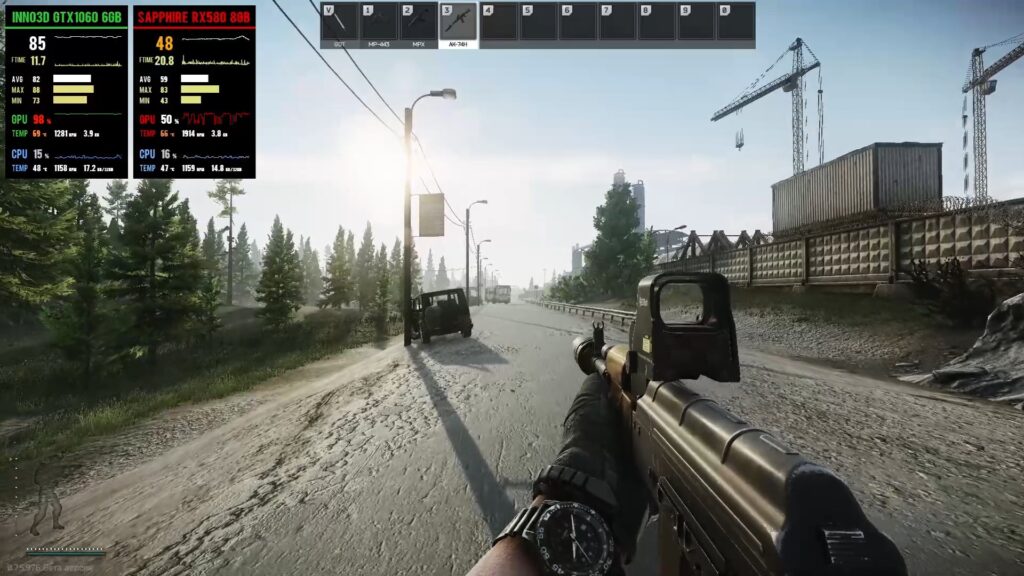
Look for recent independent benchmarks covering the exact games you play. Match the tested resolution and settings as closely as possible to your intended setup. Average FPS shows general performance, while 1% lows, when available, provide useful information about frame-rate drops and consistency.
If you intend to use ray tracing, compare ray-tracing results separately instead of assuming strong conventional rendering performance guarantees the same result. Upscaling and frame generation can improve perceived smoothness, but check image quality, latency and whether your games support the relevant technology. These features should support acceptable native performance rather than disguise a GPU that is fundamentally too weak for your target.
Avoid comparing GPUs through core counts, clock speeds or memory bandwidth alone, especially across different architectures. Those specifications help explain performance, but measured results show what the card actually delivers.
Check VRAM for the Games and Resolution
VRAM affects how comfortably a GPU can handle textures, resolution, ray tracing and demanding game assets. Running short can cause texture problems, stuttering or settings compromises, but VRAM capacity is not a complete performance score. A slower card with more VRAM does not automatically outperform a faster card with less.
If you are considering an 8GB card, read Is 8GB VRAM Still Enough? to see where that capacity remains practical. For a broader buying decision, our 8GB vs 12GB vs 16GB VRAM guide explains how the sensible capacity changes with games, resolution and expected lifespan.
Check the Requirements the GPU Creates
Before finalizing the GPU, record its board power and the manufacturer’s recommended PSU capacity. Confirm the required power connectors and whether your chosen power supply provides them natively.
Write down the card’s length, height, thickness and slot count as well. A case may provide enough length while still lacking side-panel clearance for the card or its power cable. Thick cards can also block nearby expansion slots. Finally, consider how much heat the GPU must release and whether the case provides enough airflow to keep it performing consistently. These requirements will guide the power supply, cooling and case decisions later in the build.
Pair the GPU With the Right CPU
Once you have chosen a graphics-card tier, select a processor that can support it in the games and performance target you established earlier. The CPU does not need to be equally expensive or belong to the same marketing tier as the GPU. It needs to deliver the frame rates you want without consuming money that would improve the complete build more elsewhere.
Stop Looking for a Bottleneck-Free PC
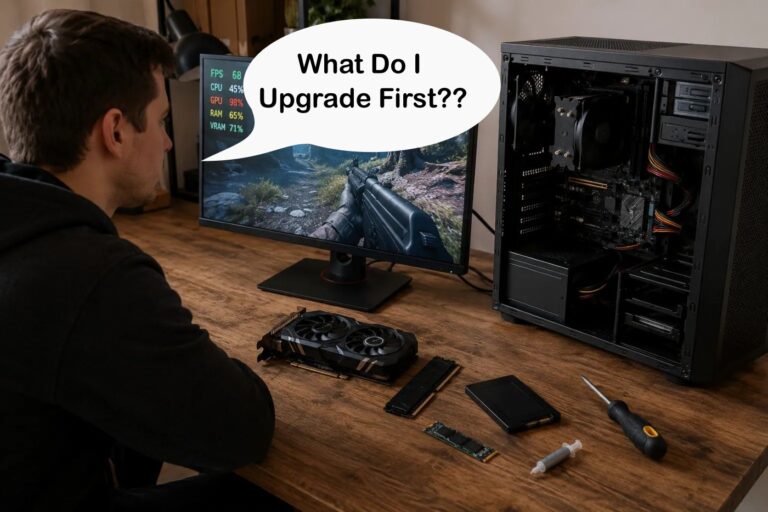
There is no permanently bottleneck-free PC. Every workload eventually becomes limited by the CPU, GPU, memory, storage, game engine or another part of the system. The limiting component can change when you switch games, raise the resolution or adjust the graphics settings.

The goal is therefore not to eliminate every bottleneck. It is to choose a CPU with enough performance for your games, resolution and target frame rate. You must also account for background work such as voice chat, browser tabs, recording, streaming or productivity software.
Be especially cautious with online bottleneck calculators that reduce an entire system to one percentage. They cannot reliably account for individual games, graphics settings, memory configuration or the frame rate you are trying to achieve. Recent game benchmarks using similar CPU and GPU combinations provide far more useful evidence.
Know When CPU Performance Matters More
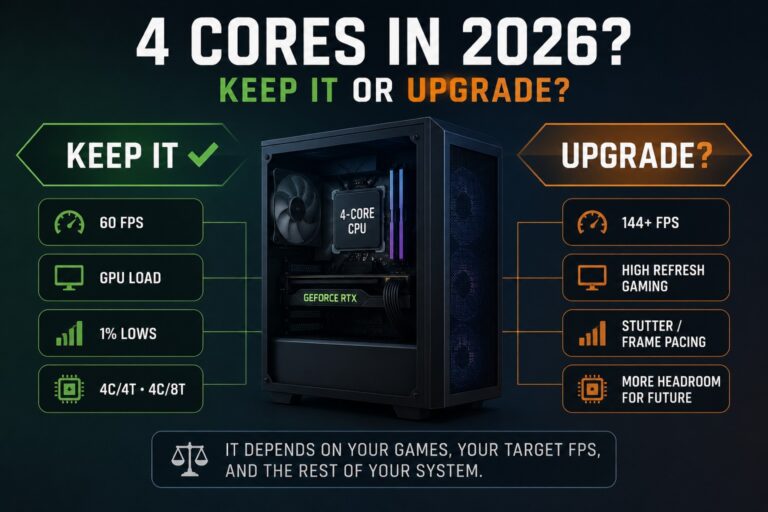
CPU priority generally rises as your target frame rate increases. Producing more frames requires the processor to handle game logic, physics, draw calls and background tasks more quickly. That is why a competitive player targeting 144 FPS or more may benefit from a stronger CPU even at 1080p.
Strategy and simulation games can also become heavily CPU-limited as battles, cities or simulated populations grow. Large multiplayer environments place additional pressure on the processor, while streaming or running productivity software alongside a game increases the total workload.
By contrast, a 4K build targeting a stable 60 FPS is more likely to be limited by the graphics card. The CPU must still be capable, but spending heavily on it while compromising the GPU may reduce the performance the build was intended to deliver.
Choose the Platform, Not Only the Processor
The CPU’s shelf price is only part of its real cost. Compare the price of a suitable motherboard, the cooling it requires and whether the platform uses DDR4 or DDR5 memory. A cheaper processor can become the more expensive choice once the complete platform is considered.
Also consider the available upgrade path, power consumption and whether integrated graphics would be useful for troubleshooting or temporary use without a dedicated GPU. None of these factors automatically makes one processor brand better than another; the correct choice depends on the exact chips and total platform cost available to you.
If you need help judging the balance, use our guide to pairing the right GPU with your CPU. Compare the complete combination against your actual games and performance target before committing to either component.
Choose the Motherboard Around the CPU and Features You Need
Choose the motherboard after the CPU and platform have been decided. The board must support the processor, fit the case and provide the connections your completed build requires. Spending more does not automatically improve gaming performance, but choosing too little board can leave you without essential ports, storage support or a practical upgrade path.
Confirm Exact CPU Support
Start by matching the CPU and motherboard socket, but do not stop there. Matching sockets does not guarantee out-of-box CPU support. A motherboard may physically accept a processor while still requiring a newer BIOS before it can recognize and boot with it.
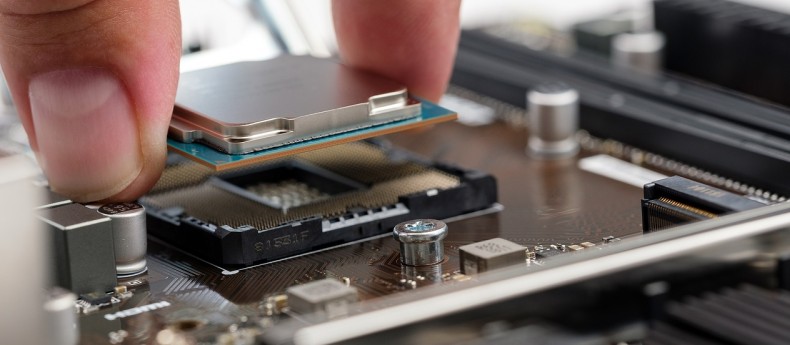
Open the support page for the exact motherboard model and revision—not merely another board with a similar name. Find its CPU-support list, locate your exact processor and note the minimum BIOS version required. Then check the retailer’s product information or ask whether the board ships with a sufficiently recent BIOS.
If an update may be necessary, determine whether the motherboard supports CPU-less BIOS updating. Manufacturers use different names for this feature, but it generally allows the BIOS to be updated with a USB drive and power supply without installing an already supported processor. Without that feature, you may need the retailer, a repair shop or a compatible older CPU to perform the update.
Choose the Correct Form Factor and Chipset
ATX motherboards generally provide the most expansion space and connectors. MicroATX boards are smaller and often deliver excellent value while retaining the features most gaming builds need. Mini-ITX is intended for compact systems but usually costs more, provides fewer expansion options and makes cooling and assembly more difficult.
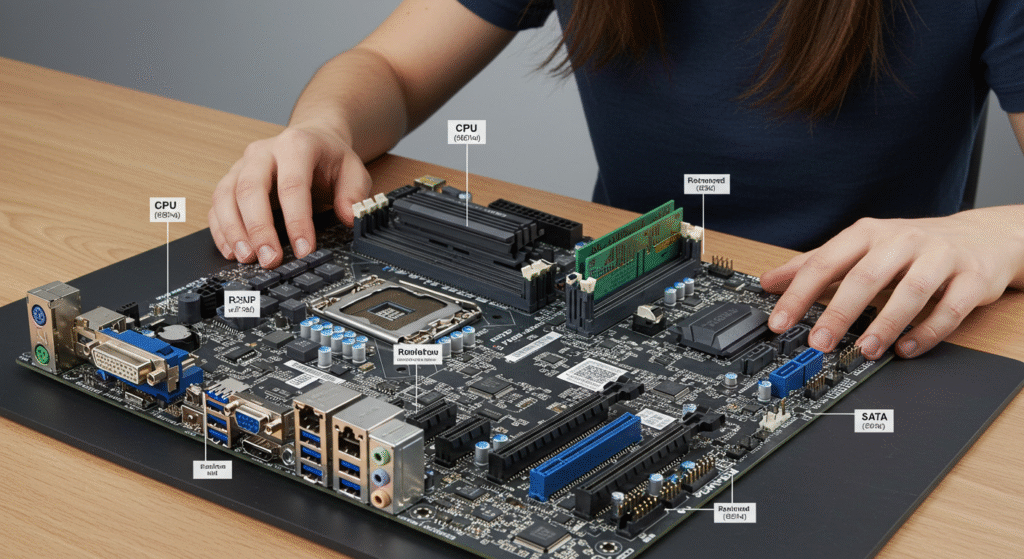
The chipset determines features such as available connectivity, expansion support and overclocking options. Do not pay for a premium chipset merely because it appears more powerful. Check the exact capabilities of the chipset and board generation, especially if overclocking matters, because support differs between platforms.
Consider your expansion needs as well. A capture card, sound card, additional storage controller or other PCIe device may require slots that a smaller board does not provide, or that a thick graphics card could block.
Check the Features People Forget
Count the M.2 slots and SATA ports you expect to use. Check the rear USB selection and confirm that the board has the correct internal header if your case includes front USB-C. Decide whether you need built-in Wi-Fi and Bluetooth, and check the Ethernet speed if you use wired networking.
Also count the fan headers and distinguish between 12V RGB and 5V addressable RGB headers, because those lighting systems are not interchangeable. Check PCIe slot placement and confirm that the rear audio connections meet your speaker, headset or recording needs.
For help comparing suitable options rather than paying for features you will never use, see our guide to the best gaming motherboards for every budget.
Choose RAM and Storage Without Chasing Specifications
RAM and storage are easy places to waste money on impressive numbers while overlooking capacity and configuration. For a gaming build, the priority is enough memory for the games and background applications you use, followed by enough SSD space to hold Windows and a practical part of your game library.
Choose RAM Capacity for the Actual Workload
Sixteen gigabytes remains workable for lightweight games, older titles and tightly constrained budget builds. It can also handle many modern games when unnecessary background applications are closed, but it provides less room for multitasking and increasingly demanding releases.
For a new gaming PC, 32GB is the safer target where the budget allows. It gives the system more breathing room for modern games, browser tabs, launchers, voice chat and other background software without turning RAM into an unnecessary luxury purchase.
More than 32GB is normally justified only by a specific workload. Heavy modding, large simulation games, video editing, virtual machines and other specialist software can benefit from additional capacity. Buying more memory without a use for it will not improve gaming performance by itself.
Confirm RAM Type and Configuration
Your motherboard and CPU platform determine whether the build uses DDR4 or DDR5. The two generations are physically different and cannot be mixed. Check the motherboard specifications for supported capacity and memory speeds before selecting a kit.
For most gaming builds, use a matched two-module kit and install it in the slots recommended by the motherboard manual. This enables the intended memory-channel configuration and can improve frame rates and frame-time consistency compared with using one module. Our single vs dual-channel RAM guide explains where the difference matters most.
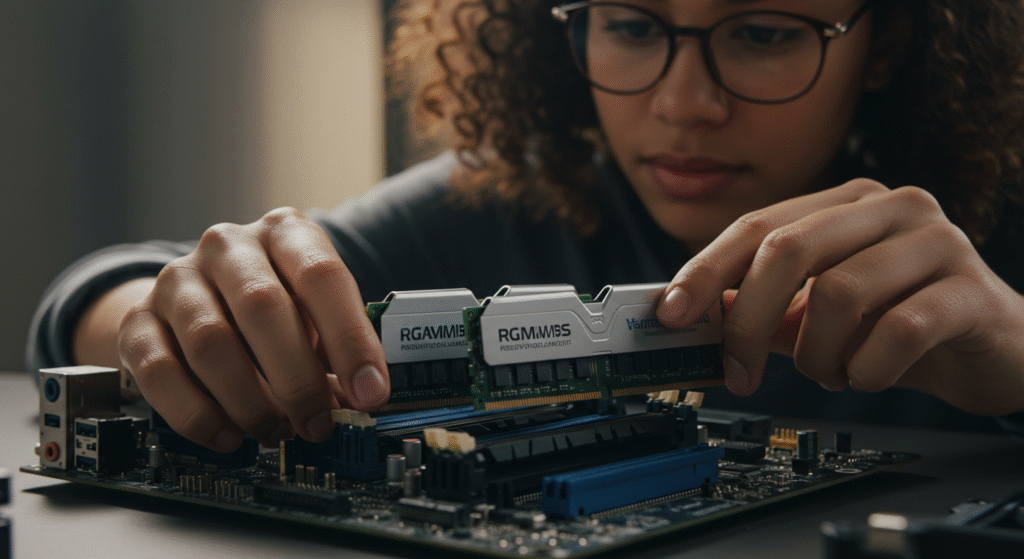
XMP and EXPO are memory profiles that apply advertised settings, but those settings are not guaranteed to work with every CPU, motherboard and module configuration. A motherboard’s qualified vendor list shows kits tested by the manufacturer; it is not a complete list of every kit that can work.
Prioritize Practical SSD Capacity
Use an SSD for Windows, applications and the games you play regularly. NVMe drives are compact, cable-free and fast, making them the natural choice for most new builds. SATA SSDs remain viable when upgrading an older system, reusing an existing drive or buying at a substantial discount.

Do not sacrifice useful capacity merely to buy the drive with the largest advertised speed. For gaming, a reasonably priced 1TB or 2TB SSD may be more useful than a smaller premium model because modern game libraries fill quickly. Read Do Faster SSDs Improve FPS? and our guide to real-world SSD performance before paying for benchmark speed you may barely notice. When you are ready to choose a drive, compare the best NVMe SSDs for gaming.
Finally, remember that M.2 describes the physical form factor. An M.2 drive may use SATA or NVMe, and not every motherboard slot supports both. Confirm the drive’s interface, size and supported slot in the motherboard manual before buying.
Choose the PSU, Cooler and Case Last
Choose the power supply, CPU cooler and case after the main components have been selected. Their requirements depend on the processor, graphics card, motherboard and storage configuration. Selecting them too early can leave you with insufficient power, incompatible cooling or a case that cannot physically accommodate the completed build.
Choose the PSU by Load, Connectors and Quality
Begin with an estimate of the completed system’s power consumption, then compare it with the GPU manufacturer’s recommended PSU capacity. That recommendation normally accounts for more than the graphics card alone, but you must still consider the CPU, additional hardware and the quality of the power supply.
Leave reasonable headroom for transient loads, quiet operation and realistic future upgrades. There is no universal percentage that suits every PC. A low-power system, a flagship GPU build and a machine intended for a major future upgrade do not require the same margin.
Confirm that the PSU provides the correct native connectors for the motherboard, CPU and graphics card. For modern high-power hardware, an appropriate ATX 3.x model may provide better support for current GPU power requirements and native cabling. Avoid unnecessary adapters where a suitable native connection is available.
Judge the exact PSU model, not only the brand or wattage printed on the box. Efficiency certifications describe how efficiently the unit converts power; they do not guarantee build quality, voltage regulation, protection features or long-term reliability. Most importantly, never connect modular cables from a different PSU unless the manufacturer explicitly confirms compatibility. The plugs can appear identical while using different wiring.
Match the Cooler to the CPU and Case
Check that the cooler includes mounting hardware for the exact CPU socket and can handle the processor’s expected heat output. Physical support for the socket does not prove that a small cooler can control a hot, power-hungry CPU under sustained load.
For an air cooler, compare its total height with the case limit and check whether the fan or heatsink overhangs tall RAM modules. Large coolers can also interfere with motherboard VRM heatsinks or the first expansion slot.
For liquid cooling, verify the radiator size, thickness and supported mounting position. A case may support a particular radiator at the front but not at the top, or the radiator and fans may reduce the available GPU or RAM clearance. Confirm the complete combination rather than checking each component separately.
Confirm the Case Fits the Entire Build
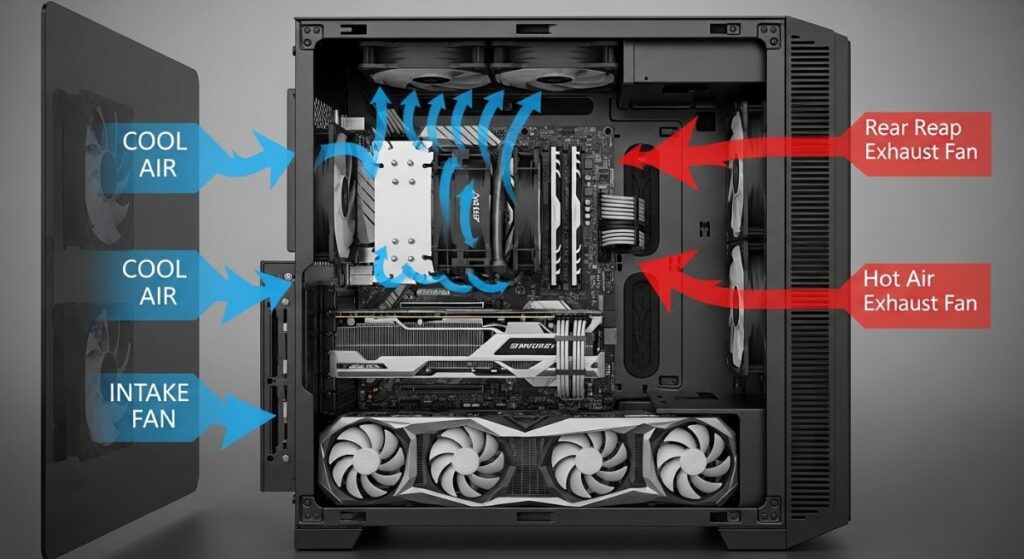
Start with motherboard form-factor support, then verify the GPU’s length, height and thickness. Include front fans or radiators when calculating length, and leave sufficient side-panel clearance for the GPU power connector and cable.
Check the maximum CPU-cooler height, radiator positions, fan thickness and any interference between top-mounted cooling and the motherboard or RAM. Confirm that the PSU fits with enough room for cables, especially when drive cages occupy the same area. If you need hard drives or SATA SSDs, make sure the required mounting positions remain available after cooling hardware is installed.
Finally, judge airflow from the complete layout. Fan position, direction, open intake area and an unobstructed exhaust path matter more than simply installing the largest possible number of fans.
How to Check PC Part Compatibility Before Buying
Once the complete parts list is assembled, check it as a system before placing any orders. Compatibility has several layers: parts must use the correct interfaces, receive suitable power, fit inside the case and work in the intended configuration. An automated tool provides an excellent first pass, but the final verification still requires manufacturer specifications and manuals.
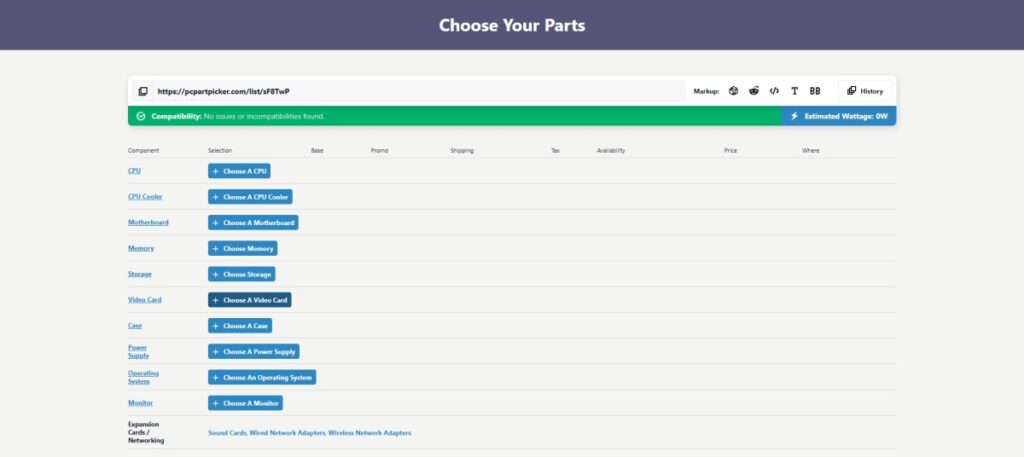
Run the Build Through PCPartPicker
Add the complete build to PCPartPicker, including the cooler, case, power supply and storage drives. Do not check only the CPU, motherboard and GPU.
PCPartPicker commonly helps identify CPU and motherboard conflicts, incompatible memory generations and motherboard form factors that the case does not support. It may also compare approximate GPU clearance, estimate system power consumption and flag basic limitations involving storage or expansion slots.
Read every compatibility note rather than looking only for a green status. Some messages describe a definite incompatibility, while others warn about a condition that requires manual confirmation. A BIOS warning, for example, does not necessarily mean the parts cannot work together. It means support may depend on the BIOS version installed on the motherboard.
Do Not Treat PCPartPicker as the Final Authority
An automated checker cannot always know which BIOS version a particular motherboard will have when it reaches you. It may also lack enough detail to confirm whether a large air cooler overhangs your RAM or whether a top-mounted radiator collides with the motherboard’s VRM heatsinks.
Case clearance becomes especially complicated when multiple components occupy the same space. A front radiator and its fans can reduce GPU length, while a tall or vertically mounted graphics card may leave insufficient side-panel space for its power cable. Published maximum dimensions may describe an empty case rather than your exact configuration.
Other unresolved details can include the exact number and type of fan, RGB and front-I/O headers; unusual PCIe or storage lane sharing; PSU cable requirements; and physical differences between component revisions. The motherboard and case manuals remain the final sources for these checks.
| Compatibility check | PCPartPicker first pass | Manual verification required |
|---|---|---|
| CPU socket | Yes | Confirm the exact CPU-support list |
| Required BIOS | Warning possible | Confirm the minimum and shipping version |
| RAM generation | Yes | Check module configuration and profile support |
| Motherboard and case form factor | Yes | Check layout and mounting restrictions |
| GPU length | Usually | Include radiator, fans and drive cages |
| GPU height and thickness | Limited | Check the side panel, slots and nearby cards |
| PSU wattage | Estimate | Check the GPU recommendation and connectors |
| Cooler clearance | Sometimes | Check RAM, VRM and case measurements |
| M.2 support | Basic | Check the interface and lane-sharing table |
| Fan, RGB and front-I/O headers | Limited | Check the motherboard and case manuals |
Final Manual Compatibility Checklist
Before buying, open the official specifications and manuals for the motherboard, case, cooler, graphics card and power supply. Confirm every item below:
- The exact CPU appears on the motherboard’s CPU-support list.
- The installed or expected BIOS version supports that processor.
- The motherboard form factor fits the case.
- The RAM generation, capacity and module configuration are supported.
- The CPU cooler supports the socket and has sufficient cooling capacity.
- The cooler fits below the side panel and clears the RAM and VRM heatsinks.
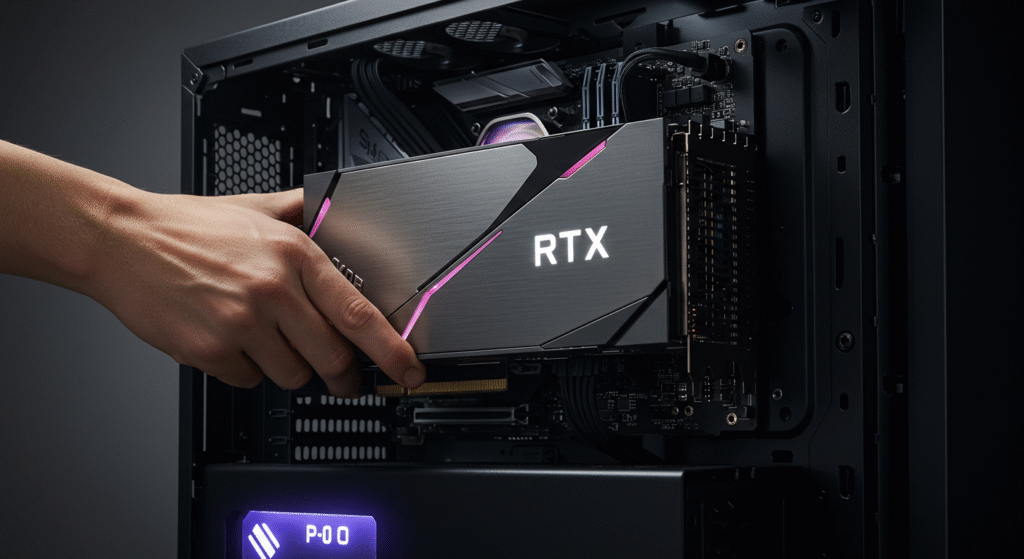
- The GPU fits in length, height and thickness.
- The radiator, fans and drive cages do not occupy required GPU space.
- The PSU provides sufficient capacity and the correct native connectors.
- The PSU fits the case with enough space to route its cables.
- Every modular cable belongs to that exact PSU or is explicitly approved for it.
- Each M.2 drive uses a supported interface, size and motherboard slot.
- Lane sharing does not disable a SATA port or PCIe slot the build requires.
- The motherboard provides the required front-I/O, fan, RGB and ARGB headers.
If the complete build passes both the automated and manual checks, you have far stronger evidence of compatibility than a matching socket or green status alone can provide.
Example of a Balanced PC Parts Decision
Consider a mid-range gaming PC intended for modern games at 1440p and approximately 60–100 FPS. Because this target places substantial demand on the graphics card, the GPU should receive the first performance consideration. Compare recent benchmarks from the games you play and accept sensible settings adjustments instead of paying heavily to keep every option at maximum.
Pair that GPU with a CPU capable of supporting the target frame rate without dominating the budget. Compare complete platform costs, including the processor, motherboard, cooling and correct DDR4 or DDR5 memory. If affordable, 32GB of RAM provides useful headroom for games and background applications.
Choose at least a practical 1TB SSD, with 2TB considered for a larger game library. Finalize the PSU only after the CPU and GPU are known, then choose the cooler and case using the processor’s cooling requirements and the graphics card’s exact dimensions.
Run the completed list through PCPartPicker and investigate every warning. Then manually confirm CPU and BIOS support, physical clearances, PSU cabling, M.2 support and motherboard headers. The build is ready to buy only when the complete system meets the performance, budget and compatibility targets.
Final Checklist Before You Buy
Before placing any orders, work through this final checklist. Resolve any uncertainty before buying the components that depend on it.
- Your games, resolution and target frame rate have been identified.
- The budget includes the complete tower, cooling and any required fans.
- Relevant benchmarks support the chosen GPU and CPU pairing.
- The total platform cost is acceptable, and the motherboard provides every required feature.
- The RAM configuration and SSD capacity suit the build and use supported interfaces.
- The PSU provides sufficient power, suitable quality and the correct connectors.
- All physical clearances, PCPartPicker warnings and manufacturer specifications have been checked.
- The retailer’s return policies are acceptable if a published specification proves incorrect.
Buy only after the complete list has been checked as a system.
FAQ About Choosing Compatible PC Parts
What PC Parts Should I Choose First?
Start with the games you want to play, your intended resolution, target frame rate and complete budget. For most gaming builds, choose the GPU tier first and then pair it with a sufficiently strong CPU. The motherboard, RAM, storage, PSU, cooler and case should be selected around those main components rather than chosen independently.
Does Matching the CPU Socket Guarantee Compatibility?
No. A matching socket confirms that the CPU physically belongs to that motherboard platform, but it does not guarantee out-of-box support. Check the exact motherboard CPU-support list and identify the minimum BIOS version required for your processor. If an update may be needed, confirm whether the motherboard supports CPU-less BIOS updating.
Does Every Graphics Card Work With Every Motherboard?
Most modern graphics cards and motherboards use PCIe and are broadly compatible, including across different PCIe generations. That does not guarantee the complete build will work. The GPU must physically fit the case, receive sufficient power through the correct connectors and leave enough room for other expansion cards, cooling hardware and its power cable.
Is PCPartPicker Always Accurate?
PCPartPicker is an excellent first compatibility check, but it should not be treated as the final authority. It may not fully confirm the motherboard’s shipping BIOS, cooler and RAM interference, radiator clearance, GPU power-cable space, storage lane sharing or every required fan and front-I/O header. Verify unresolved details in the manufacturer manuals.
How Do I Know Whether a GPU Will Fit My Case?
Compare the GPU’s length, height, thickness and slot count with the case specifications. Account for any front-mounted radiator, fans or drive cage that reduces the available length. Also check that the side panel provides enough space for the card and its power connector without forcing the cable into an unsafe bend.
Should I Spend More on the CPU or GPU?
For most modern games at 1440p or 4K, additional GPU performance usually makes the larger difference. CPU priority increases when targeting very high frame rates, playing competitive shooters, running strategy or simulation games, or streaming and multitasking in the background. Base the decision on relevant benchmarks rather than a fixed budget percentage.