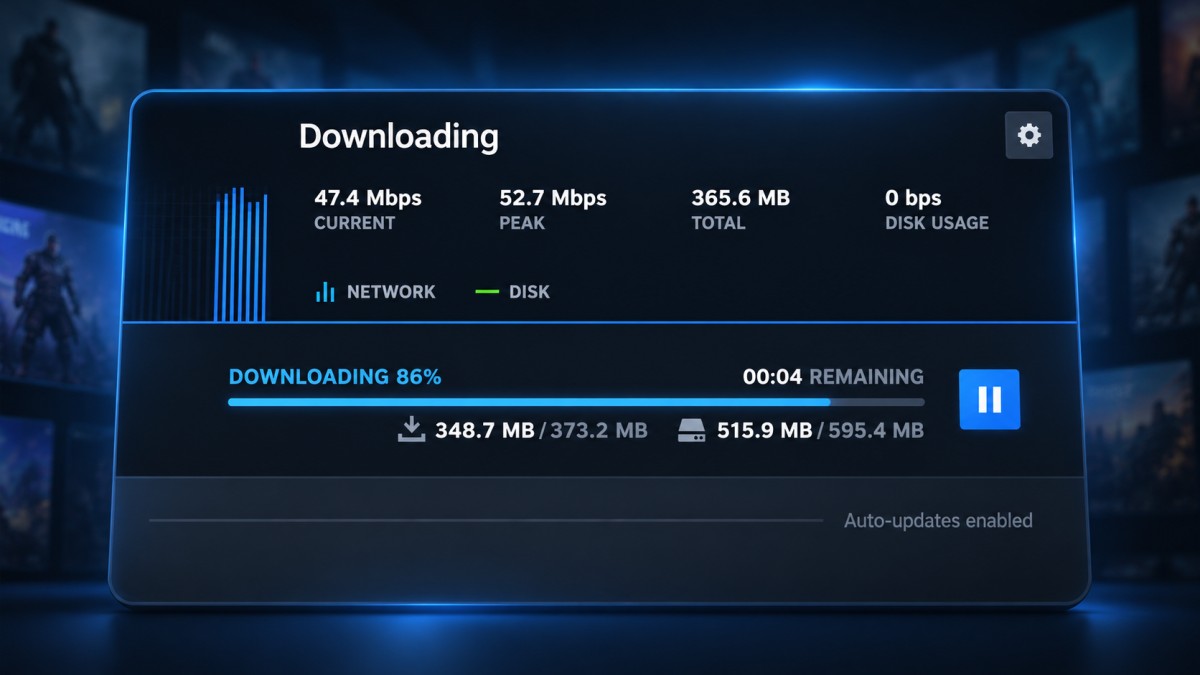
If your Steam download speed drops to zero, your internet connection might not be the problem. Steam can temporarily stop transferring data while it processes, writes or installs game files. This is particularly noticeable on some older PCs and slower storage drives.
But not every pause is normal. If your download stops making progress altogether, you could be dealing with a Steam setting, connection problem or installation error.
Start here: Open Steam’s Downloads page and compare its network activity, disk activity and installation progress. Those three observations will help you decide whether to wait, investigate your PC or fix a genuine stalled download.
First, Check Whether Steam Has Actually Stopped Downloading
Steam doesn’t simply download a complete game and then copy it onto your drive. Depending on the game and the installation or update being performed, it may also need to process downloaded data and modify files already stored on your PC.
Valve confirms that Steam installations can be CPU- and disk-intensive. Download throughput may be limited by how quickly Steam can complete that work. That’s why a falling network speed doesn’t automatically mean your connection has failed.
To see what’s happening:
- Open Steam and select Downloads near the bottom of the client, or use View > Downloads.
- Find the game currently downloading or updating.
- Watch the network and disk activity indicators.
- Check whether download or installation progress continues when network speed reaches zero.
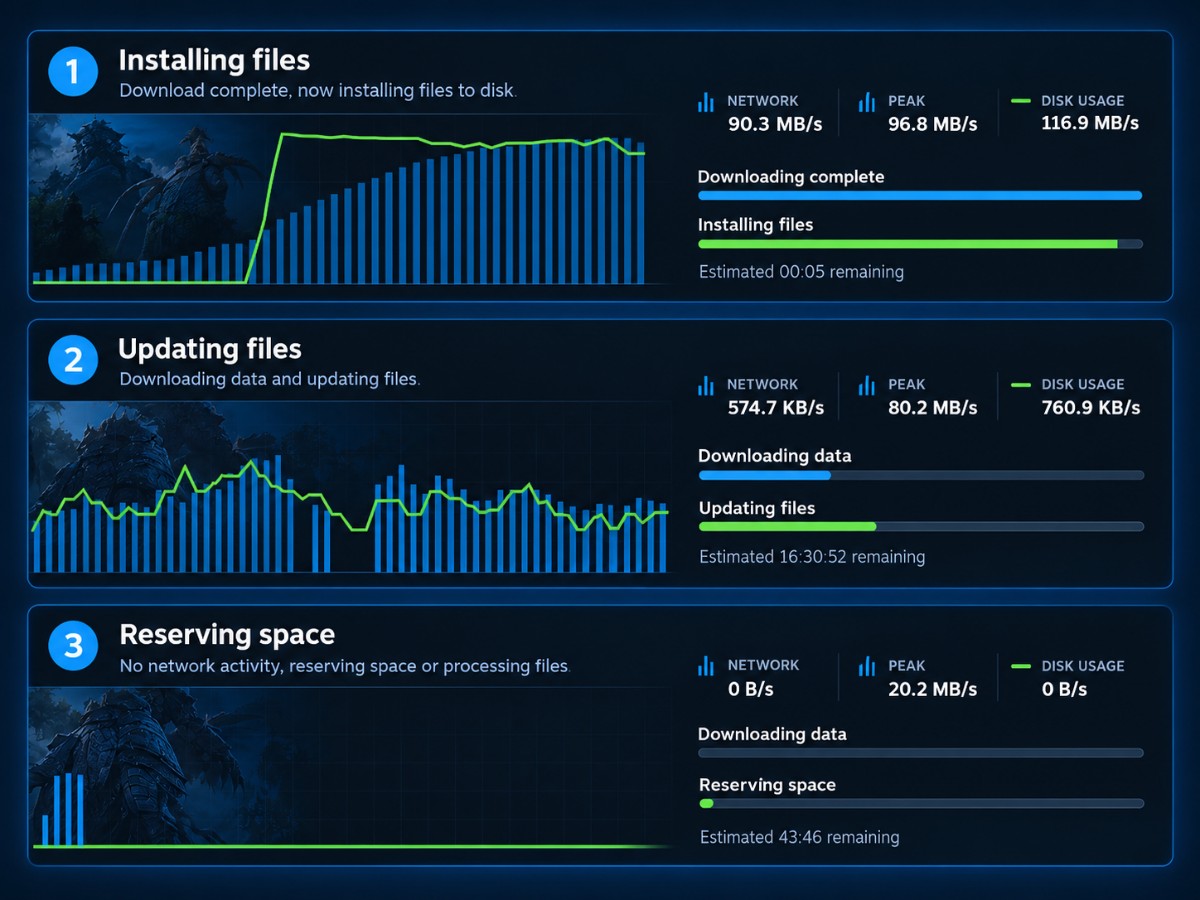
If network speed falls to 0 B/s while disk activity continues and the installation progresses, Steam may simply be working through downloaded data. Give it an opportunity to finish that work before changing anything.
If network activity, useful disk activity and installation progress all stop, investigate further. One zero-speed reading isn’t enough to identify the cause.
Don’t confuse download speed with internet connection speed. Steam commonly reports transfer rates in bytes per second, while internet providers advertise bits per second. An 80 Mbps connection has a theoretical maximum of approximately 10 MB/s before accounting for overhead and other limitations.
What Steam’s Download Activity Is Telling You
Before trying fixes, match what Steam is doing to the symptoms below. These are diagnostic clues rather than guaranteed explanations.
| What you see | Possible explanation | What to do next |
|---|---|---|
| Network at zero, but disk activity and installation progress continue | Steam may be processing downloaded files | Monitor progress before intervening |
| Network speed repeatedly drops while the disk stays very busy | Storage processing or another disk-heavy task may be contributing | Check Windows Task Manager |
| Network and disk activity are at or near zero | Steam may be waiting, reserving space, paused or genuinely stalled | Check the displayed installation stage and whether progress eventually resumes before treating it as a failure |
| Steam reports a disk write or installation error | A file, folder, permissions or storage problem may be preventing installation | Follow Steam’s error-specific troubleshooting |
| Downloads stop when you launch a game | Steam may be pausing downloads during gameplay | Check the downloads-during-gameplay setting |
The important difference is whether Steam is still accomplishing useful work. A download that briefly stops transferring data and then resumes is different from one that repeatedly fails to make progress.
Don’t judge the result by the network graph alone. Check Steam’s current status, including whether it is downloading, installing, updating or reserving space. A temporary pause with no visible network or disk activity does not prove a failure. If the same stage remains unchanged, no progress resumes and Steam displays an error or repeatedly fails to complete the operation, investigate it as a possible stall.
Check Whether Your Drive or CPU Is Holding Things Up
If Steam repeatedly stops transferring data while your drive is busy, Windows can help identify what’s using your PC’s resources.
You don’t need benchmarking software or paid utilities. Start with Task Manager.
- Leave Steam open while the download or installation is running.
- Press Ctrl + Shift + Esc to open Windows Task Manager.
- Open the Processes tab and inspect CPU and disk usage.
- Click the Disk column to sort processes by their current disk activity. Check whether Steam or another application is responsible.
- Open Performance and select the drive containing the Steam library you’re downloading to. Compare disk activity with what Steam is showing.
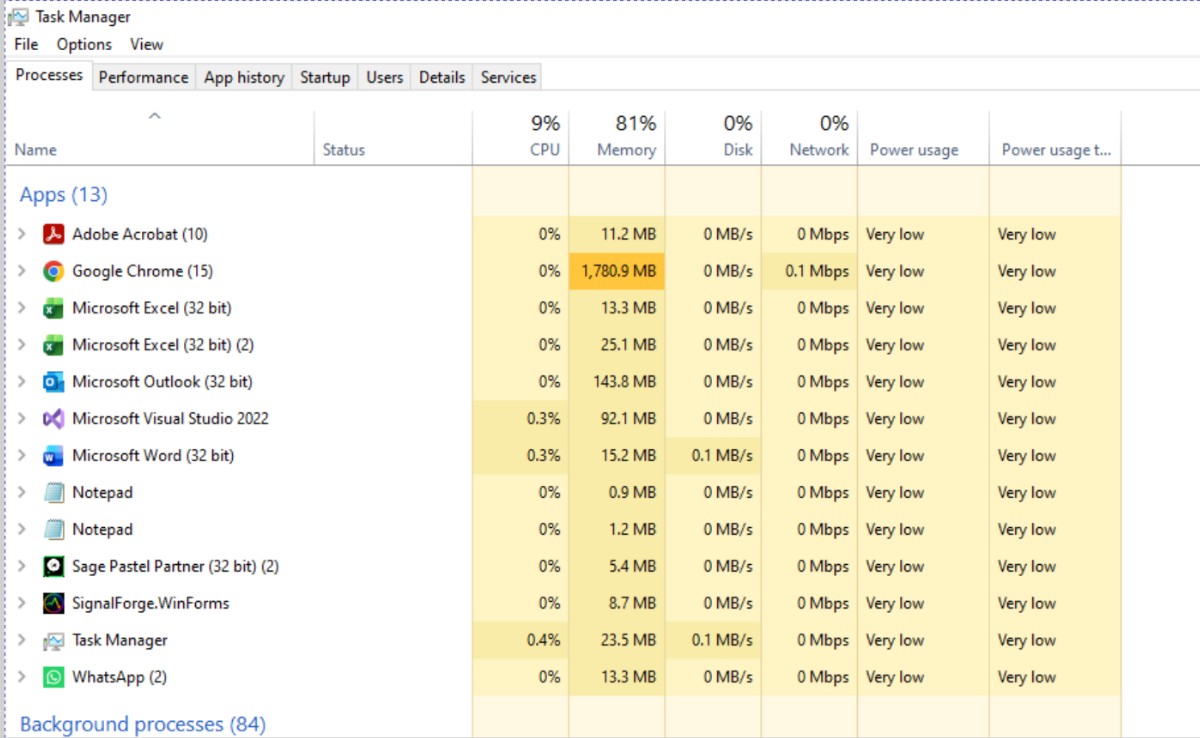
If Steam is actively using the disk: The client may be processing installation data. If progress continues, allow it to complete. High disk activity doesn’t prove the drive is faulty.
If another application is using the disk heavily: A backup, file transfer, update or other background operation may be competing with Steam. If safe, let that task finish or close an unnecessary application normally, then check whether Steam progresses more consistently.
If CPU usage is very high: Look at which process is responsible. Steam installation work may be contributing, but high overall CPU usage alone doesn’t prove a CPU bottleneck. If you need to investigate unusual CPU behaviour in more detail, our guide to monitoring PC temperatures, clocks and resource usage explains how to collect useful readings before drawing conclusions.
Does an Old HDD Make Steam Downloads Stop?
An older mechanical hard drive can take longer to handle some installation workloads than an SSD, especially when it must read and write many files or contend with other activity.
However, an HDD is not automatically the cause, and an SSD can also experience processing pauses. Game files, available storage space, background activity and the installation workload all matter.
If your drive is consistently busy while Steam makes slow installation progress, understanding what SSD performance actually changes in gaming can help you assess the limitation. Don’t buy another drive based on one download graph.
Fix a Steam Download That Really Is Stuck
If Steam isn’t transferring data, installation progress has stopped, and the client doesn’t recover, work through the relevant checks below. Test after each change rather than applying every fix at once.
1. Check Whether Steam Has Paused or Restricted the Download
Open Downloads and confirm that your game is actively queued for downloading rather than paused, scheduled for later or displaying an error.
Next, go to Steam > Settings > Downloads. Check whether a download speed limit or scheduling restriction is affecting the transfer.
If downloads stop specifically when you launch a game, check the option to allow downloads during gameplay. Steam normally pauses downloads while games are running, so that behaviour may be intentional rather than a fault.
Resume the download and check whether it progresses before moving on.
2. Restart Steam and Check Your Connection
If there is no installation progress and Steam shows no obvious error, exit Steam normally and reopen it. If that doesn’t help, restart Windows and try again.
Check whether other downloads or websites are also experiencing connection problems. If you’re using Wi-Fi and the connection is unstable, testing over a wired connection, where practical, can help isolate wireless interference. If you also notice connection dropouts or packet loss during online games, our guide to testing Wi-Fi adapter problems and packet loss can help investigate that separate symptom.
If everything else downloads normally but Steam continues struggling, investigate Steam-specific settings rather than assuming your internet provider is responsible.
3. Test Another Steam Download Region
Valve explains that Steam uses regional content servers and that a particular region may sometimes experience slow or unreliable service.
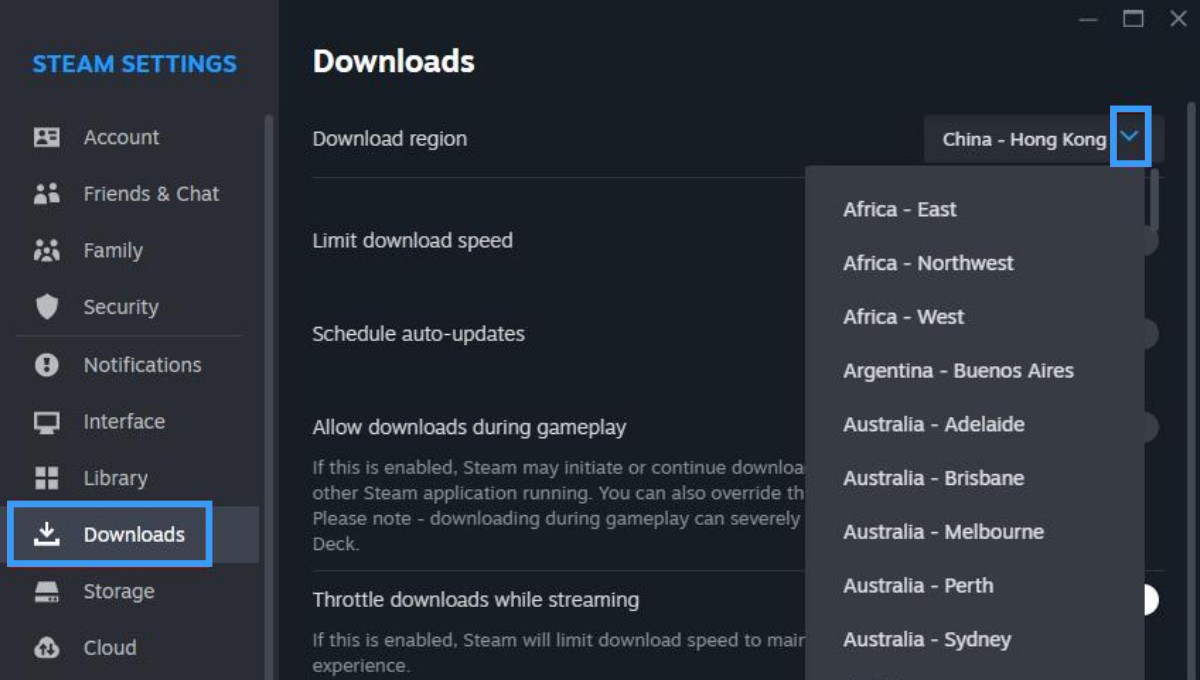
- Open Steam > Settings > Downloads.
- Find Download Region and note your current selection.
- Select another geographically nearby region.
- Apply the change, restart Steam if prompted, and retest the download.
Don’t automatically choose a distant server because it sounds faster. Test a reasonable alternative, and restore your previous region if the change makes no difference.
4. Clear Steam’s Download Cache if the Problem Persists
If the client repeatedly fails to download properly despite the earlier checks, Steam’s download cache may be worth clearing.
Go to Steam > Settings > Downloads > Clear Download Cache and follow the confirmation prompts.
Before doing this: Make sure you can sign back into your Steam account and complete any required Steam Guard authentication. Valve states that clearing the download cache doesn’t remove installed games, but you will need to log in again.
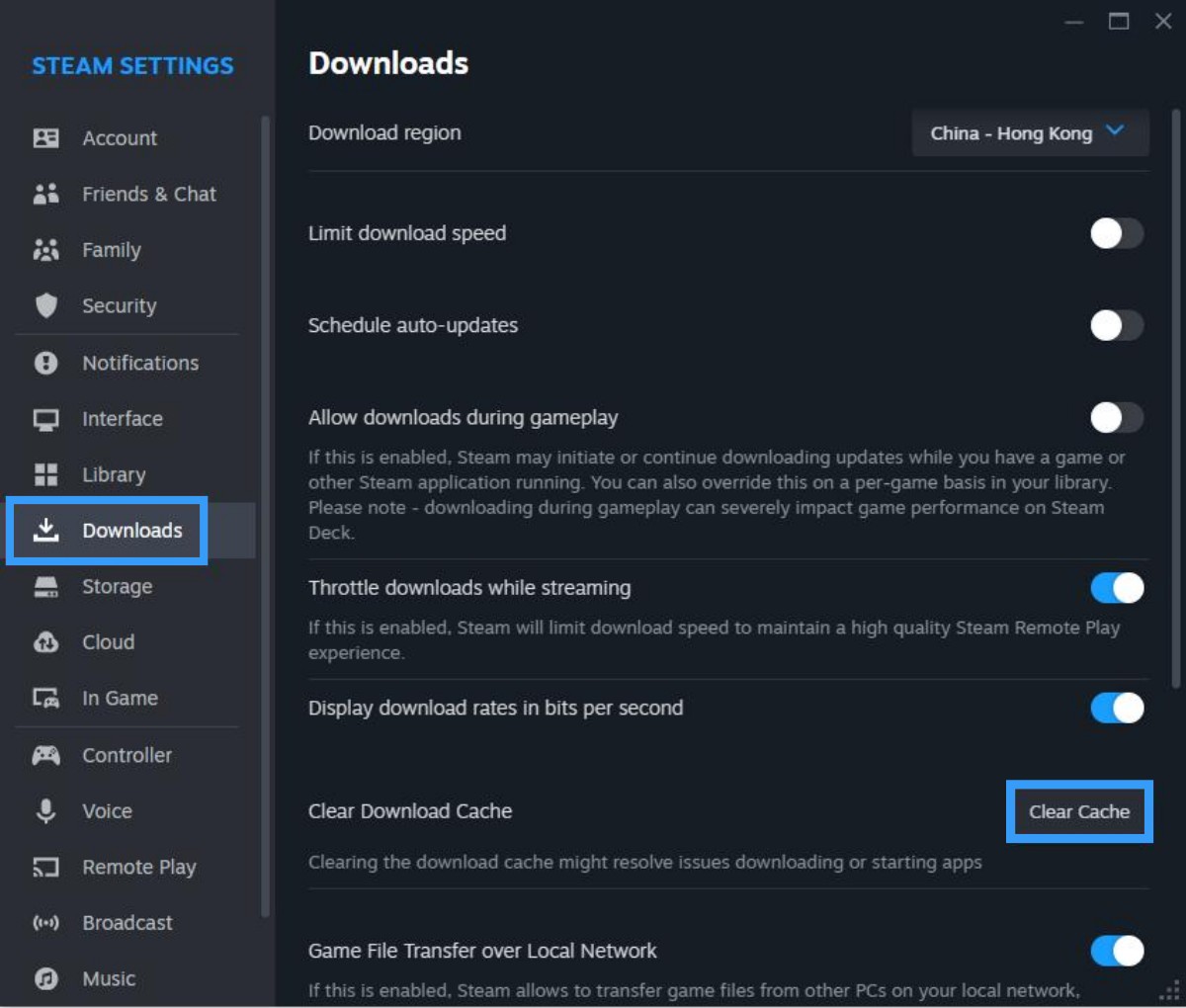
After signing in, resume the download and check whether it progresses normally. Clearing the cache isn’t guaranteed to solve an underlying disk, network or server problem.
5. Investigate a Disk Write or Installation Error Separately
If Steam reports a Disk Write Error or another installation failure, you’re dealing with something more specific than an ordinary network-speed pause.
Check available space on the actual installation drive and read the complete Steam error message. If the problem appears related to library-folder permissions, Valve documents a repair option under Steam > Settings > Storage, where you can select the affected library and use its folder repair control.
If the error concerns existing game files, Steam also offers file verification through the game’s Properties > Installed Files menu.
Use these tools when their purpose matches your problem. Verifying an installed game or repairing a library folder is not a general-purpose solution to every temporary network-speed drop.
For the official procedures and further error-specific troubleshooting, consult Steam Support’s update and installation troubleshooting guide.
How to Tell Whether You’ve Fixed the Problem
After making a change, return to the same game’s Downloads screen and watch what happens over a meaningful part of the download or installation.
- Downloaded data increases: Steam is transferring files, even if the speed fluctuates.
- Installation progresses while network speed is zero: Steam may still be completing useful work.
- The download now completes: The immediate problem is resolved, although a single successful download doesn’t prove which change was responsible unless you tested changes individually.
- Everything repeatedly stops without progress: Record the error, affected game, installation drive and troubleshooting already attempted before escalating.
If the issue remains unresolved, use Steam’s official slow-download and content-server guidance or contact Steam Support with your observations.
The bottom line: If Steam’s network speed drops to zero but installation progress continues, you may not need to fix anything. If progress genuinely stops, check Steam’s status, your PC’s resource usage and any reported errors before changing settings. The goal isn’t a perfectly flat download-speed graph; it’s a download that completes successfully.