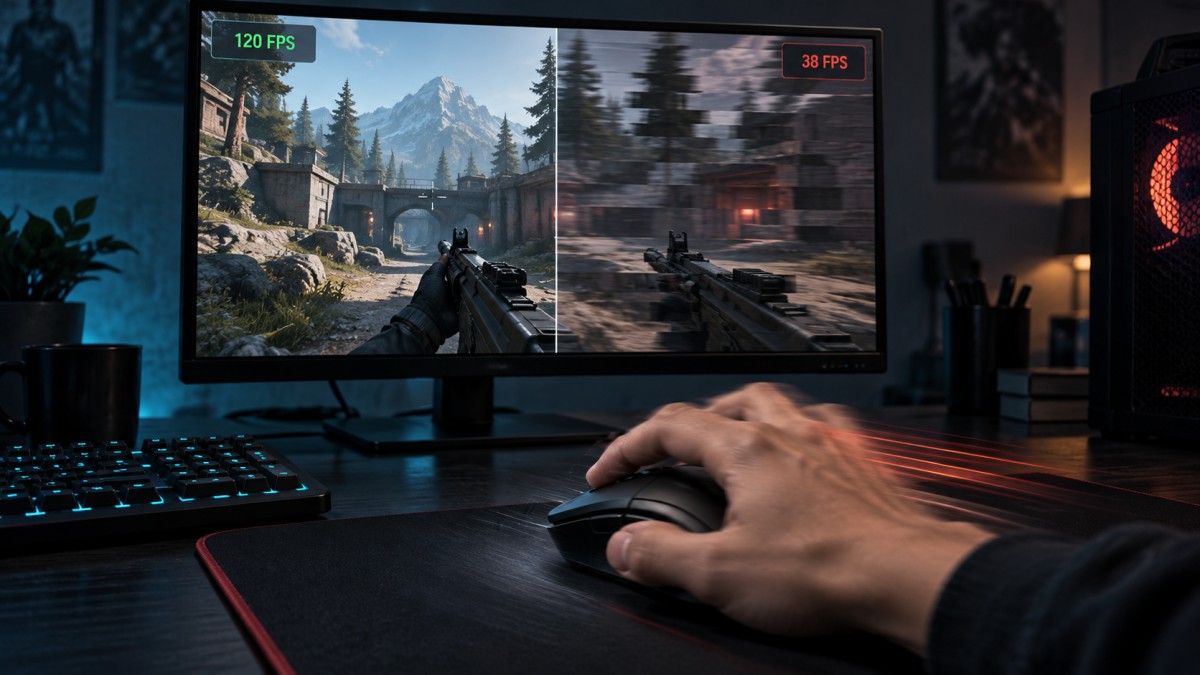
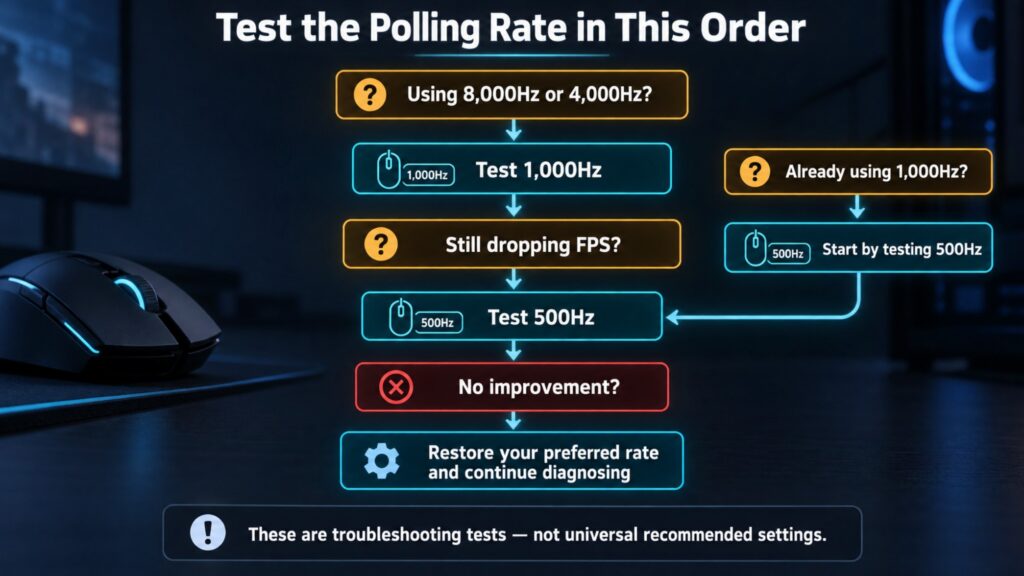
If your FPS drops when you move the mouse, temporarily lower its polling rate by one step and repeat the same movement. Try 1,000Hz if you currently use 4,000Hz or 8,000Hz, or 500Hz if you currently use 1,000Hz. High polling rates can cause problems in some games, but first confirm that mouse input triggers the drop, not the camera revealing more of the game world.
This guide is for games that remain smooth while the mouse is still but stutter, freeze or lose FPS when you move the mouse or cursor. It applies to ordinary gaming mice as well as 4,000Hz and 8,000Hz models, on both weaker and powerful PCs.
You will reproduce the symptom first, separate mouse input from camera rendering, test the polling rate, and only then investigate background software, the USB connection or the game itself.
Run This Quick Test Before Changing Anything
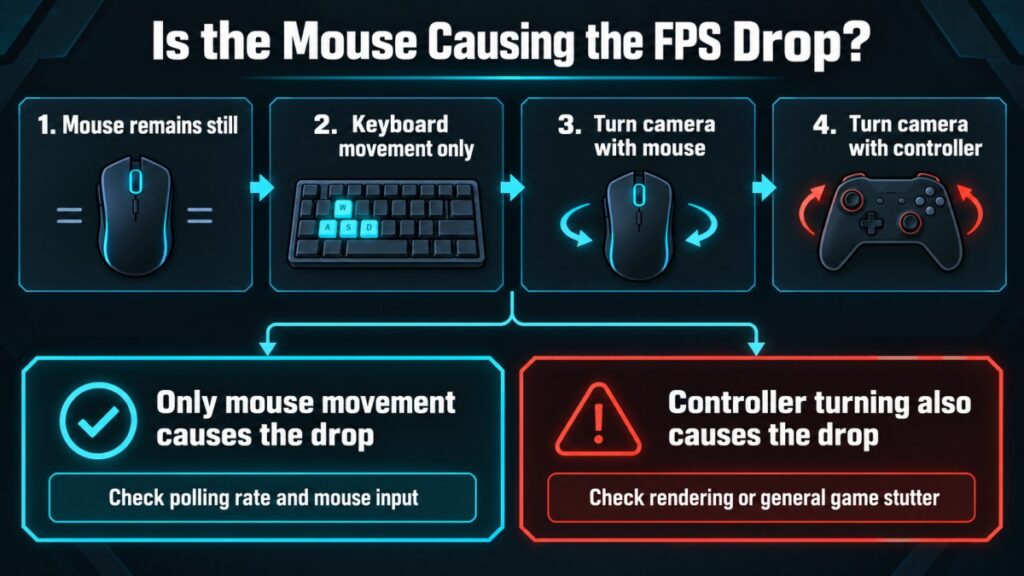
Use one repeatable location and keep the graphics settings and frame cap unchanged. Watch the FPS counter or frame-time graph while you perform each test. Watch a frame-time graph if the game or overlay provides one; otherwise use the FPS counter and visible stutter together. If a game feels choppy even when the FPS counter appears stable, first learn how to recognise uneven frame delivery and hidden stutter.
| Test | What the result suggests |
|---|---|
| Stand still without moving the mouse | Establishes the baseline |
| Move with the keyboard while keeping the camera still | Shows whether ordinary movement triggers the drop |
| Turn the camera with the mouse | Checks whether the symptom follows mouse input |
| Turn the camera with a controller | Separates mouse input from camera rendering |
| Move the cursor in a game menu | Tests mouse input without rendering a changing 3D view |
If mouse movement causes an immediate drop while keyboard movement remains smooth, investigate the input path. If a controller causes the same drop while turning the camera, the game may be struggling to render changing scenery rather than process the mouse. Try to pan through the same view at a similar speed, because a faster camera movement may expose different parts of the scene and produce a different workload.
A menu test is particularly useful. If simply moving a visible cursor drops FPS, even though the game world is not changing, the mouse or input path becomes a much stronger suspect. These comparisons narrow the diagnosis; none proves the final cause by itself. Use a simple menu area without animated backgrounds or heavy hover effects where possible.
Lower the Mouse Polling Rate First
Polling rate is how frequently the mouse reports movement and button input to the computer. A 1,000Hz setting targets up to 1,000 reports per second. It is not the same as DPI: DPI changes how far the pointer or aim moves, while polling rate changes how often that movement is reported.
Higher report rates give Windows and the game more frequent input events to process. Microsoft’s Raw Input documentation notes that buffered processing can be useful for high-frequency mice when several events accumulate between message-loop updates. That does not mean every 1,000Hz mouse will hurt performance, but it explains why a game’s input handling can matter.
| Current setting | First test |
|---|---|
| 4,000Hz or 8,000Hz | Lower it to 1,000Hz |
| 1,000Hz | Lower it to 500Hz |
| 500Hz | Try 250Hz only as a compatibility test |
| Unknown | Check the mouse utility or manufacturer documentation |
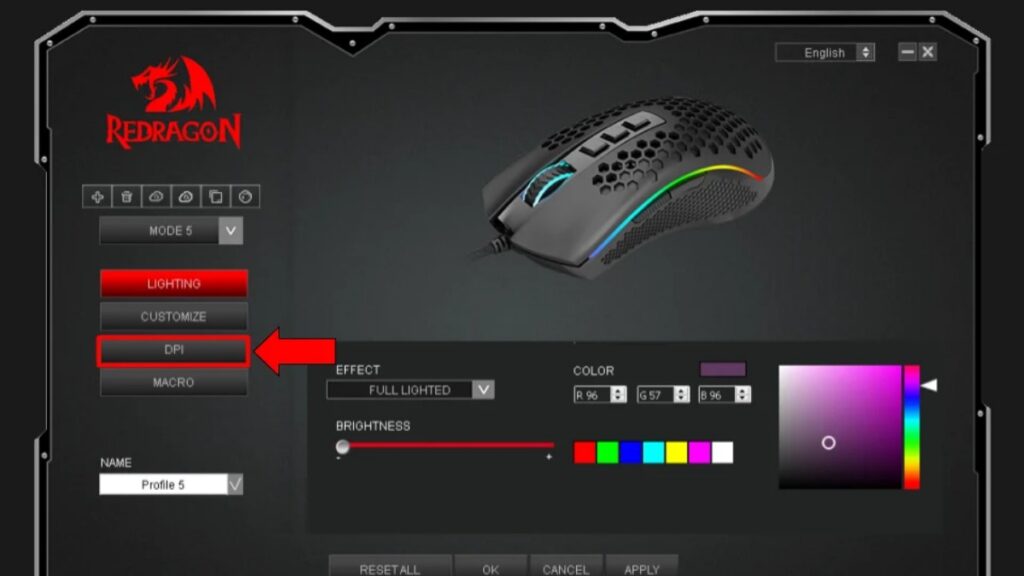
The setting may be called Polling Rate or Report Rate. Change only that setting, restart the game if necessary, and repeat the same movement in the same location.
Epic Games recommends testing between 500Hz and 1,000Hz when Fortnite loses FPS during mouse movement. Riot also documented a major input-processing improvement for 8,000Hz mice when it introduced buffered raw input in Valorant Patch 3.07. These examples confirm that polling rate can matter, but their exact settings and results are game-specific.
What the Polling-Rate Result Actually Means
| Result | What it means | Next action |
|---|---|---|
| The drop disappears | Input frequency or the game’s processing of that input is strongly implicated | Keep the stable rate for that game and verify it again |
| The drop improves but remains | Polling rate may contribute without being the only cause | Continue to software and CPU checks |
| Nothing changes | Polling rate has not explained the symptom | Restore your preferred rate and continue below |
| A controller causes the same drop | The problem is probably not exclusive to the mouse | Investigate rendering or general game stutter |
If 500Hz removes the drop, that does not prove the mouse is faulty or the CPU is obsolete. It may simply be a stable workaround for that game’s input path. You can keep it, or check the game’s official support and patch notes for a more specific fix.
Keeping the mouse at 500Hz is a reasonable workaround if the game becomes consistently smooth. Competitive players may prefer to restore a higher rate for unaffected games, but stability matters more than preserving a setting that causes repeatable stutter.
If Polling Rate Does Not Fix It
Close Mouse Software and Overlays
Exit the mouse utility completely, then temporarily disable active overlays, recording tools and performance displays. Test the same movement again. If the problem disappears, restore programs one at a time until it returns.
Before testing, confirm that closing the utility has not changed the mouse’s polling rate, DPI or active profile. Otherwise, you may be testing two changes at once.
One smooth run is not enough to blame an application. The symptom should repeatedly disappear with the suspected utility closed and return when it is restored. If closing programs manually does not isolate it, Microsoft’s clean-boot procedure can test for a wider startup-software conflict. Use that only after the simpler checks, follow Microsoft’s complete instructions and restore normal startup afterwards.
Try a Direct USB Connection
Reconnect the mouse, try another direct USB port and bypass any hub or dock during the test. For a wireless mouse, reconnect the receiver and check the battery or charge level. Microsoft includes these steps in its mouse and keyboard troubleshooting.
This is an isolation test, not evidence that USB hubs normally cause FPS drops. If nothing changes, move on instead of trying every port repeatedly.
Test Another Mouse
Use a borrowed or basic mouse in the same game and scene. You do not need to buy another gaming mouse for this test.
- If the symptom disappears, investigate the original mouse’s report rate, receiver, firmware, saved profile and utility.
- If both mice behave identically, the problem is more likely to be in the game or system.
A successful test with another mouse still does not prove that the original hardware is physically defective. Its software, wireless connection or active profile may be responsible.
Decide Whether It Is One Game or Every Game
If only one game is affected, check its official support pages and patch notes for raw-input, high-polling-rate or cursor-performance issues. Also note whether the problem began after a game update and whether it appears in menus, gameplay or both.
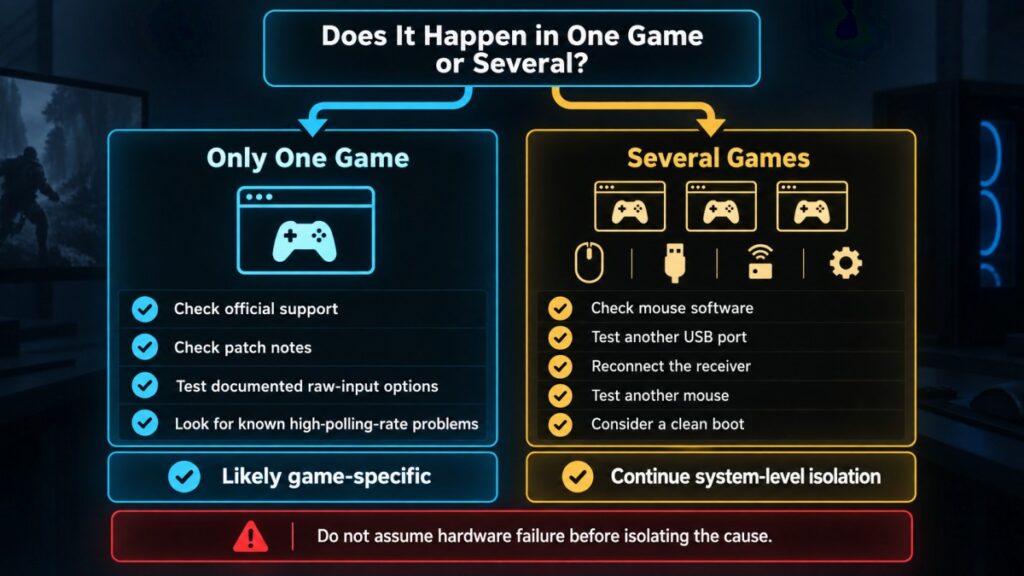
Raw input lets an application receive mouse data through Windows’ raw-input path, but the game still decides how to process those events. Valorant’s buffered-input change helped its handling of 8,000Hz mice; that does not make the same setting correct for another game. Test only the input options that the affected game actually provides and documents.
If the same symptom appears across several games, give more weight to the mouse profile, companion software, receiver, USB connection or another system-level conflict. A clean boot becomes more useful here because the problem is no longer tied to one game.
Check Whether One CPU Thread Spikes
Low total CPU usage does not rule out a processing limit. Task Manager’s default graph combines the load across all logical processors, so one heavily loaded processor can be hidden inside a moderate overall percentage.
- Open Task Manager and select Performance, then CPU.
- Right-click the graph and choose Change graph to > Logical processors.
- Reproduce the mouse movement while watching the individual graphs.
- Check the Processes tab for another application that becomes active at the same time.
Microsoft documents the logical-processor view in its Task Manager troubleshooting guidance. If one logical processor repeatedly reaches or approaches full usage while the symptom occurs, input or game processing may be reaching a CPU limit. Task Manager cannot prove which component caused it, and very brief spikes may not appear clearly in its graph. Treat this as supporting evidence, not a diagnosis of a faulty or inadequate CPU.
If high CPU activity continues outside this mouse-specific test, use the broader guide to diagnose persistent high CPU usage while gaming. Do not plan a CPU upgrade from one Task Manager graph.
Verify the Fix Before You Stop Troubleshooting
Repeat the original test using the same game, scene, graphics settings, frame cap and similar mouse movements. Where it is safe, switch the suspected trigger off and on again. A convincing result should repeat across at least two launches or sessions instead of appearing during one unusually smooth run.
- FPS or frame time remains stable when mouse movement resumes.
- The symptom returns when the suspected trigger is restored.
- No unrelated graphics, Windows or game settings changed during the comparison.
If the problem remains, restore your preferred polling rate if it made no difference. Record the affected games, mouse model, connection type and when the problem began, then check the developer’s current support information. If controller or keyboard testing shows a wider performance problem, continue with the broader FPS-drop and stutter diagnosis.
Do not replace the mouse, reinstall Windows or upgrade the CPU until a controlled test points there.