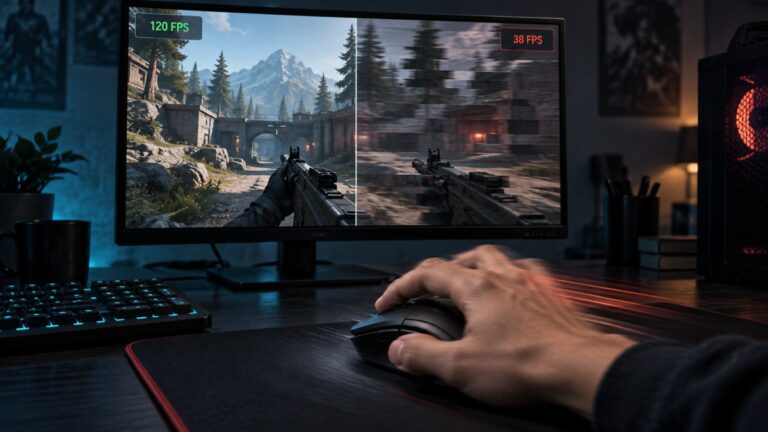
Let’s get one thing straight. Not all FPS gains are real. You’ve probably seen it before. You turn on DLSS, FSR, or XeSS and suddenly your FPS jumps from 45 to 80. Feels like magic. Free performance. Problem solved, right?
Not exactly. Lets get to nitty gritty of dlss-vs-fsr-vs-xess
Because what these technologies actually do is trade one thing for another. You gain frames, but you might lose clarity, introduce artifacts, or even make your game feel worse in motion. And if your system has deeper issues, these tools can hide the problem instead of fixing it.
This is where most comparisons get it wrong. They focus on numbers, not experience. So instead of another benchmark-heavy breakdown, this guide answers a simpler question:
Which one actually improves your gaming experience on a real PC?
We’ll break down DLSS vs FSR vs XeSS in plain English, show where each one shines, and more importantly, where they fall apart. Upscaling technologies can improve performance, but they don’t replace having enough video memory. See our VRAM buying guide to learn how much memory modern gamers actually need.
Quick Answer: Which One Should You Use?
If you just want the answer without the deep dive, here it is.
- NVIDIA GPU (RTX series): Use DLSS, it’s usually the best mix of performance and image quality.
- AMD GPU: Use FSR, it works on far more hardware and usually gives the easiest FPS boost.
- Intel Arc or supported mixed systems: XeSS can be a solid middle ground, though support is less universal.
That said, the answer is not as simple as “DLSS wins” and we all go home. Because even with modern upscaling technologies, repeated shader compilation can affect startup performance. Learn why in Game Compiling Shaders Every Launch? Here’s What Causes It and How to Stop It.
The best upscaler depends on your GPU, the game’s implementation, and whether you care more about cleaner image quality or brute-force FPS.
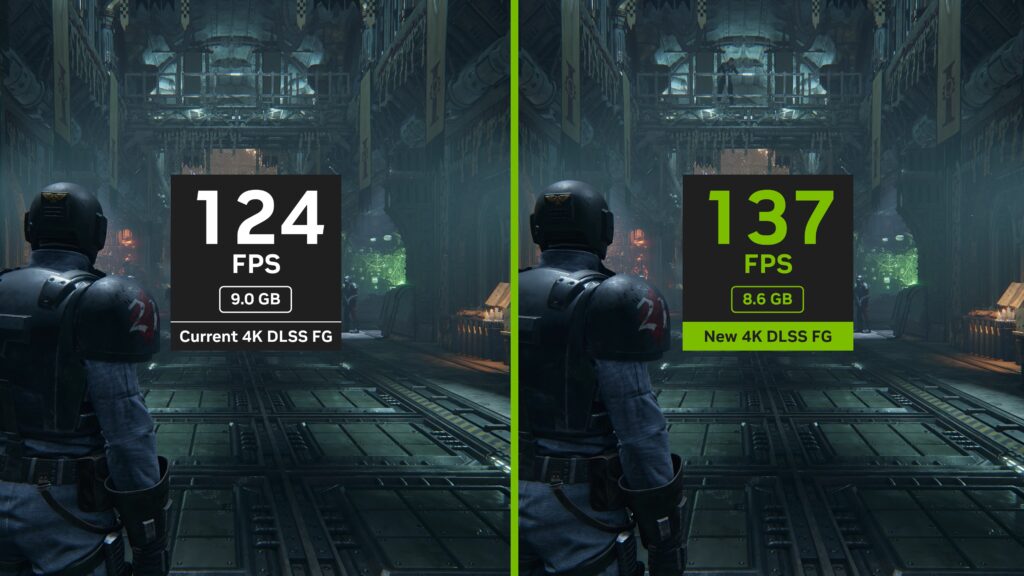
If you use an RTX card, DLSS is usually the strongest option. If you want wide compatibility, FSR is the easiest recommendation. If a game has a good XeSS implementation, it can outperform expectations, but it is still less dependable as a default pick.
So the real question is not just which one gives the biggest number on the FPS counter. It is which one makes the game feel better without making the image look like it got smeared with petroleum jelly.
What DLSS, FSR, and XeSS Actually Do (Without the Marketing)
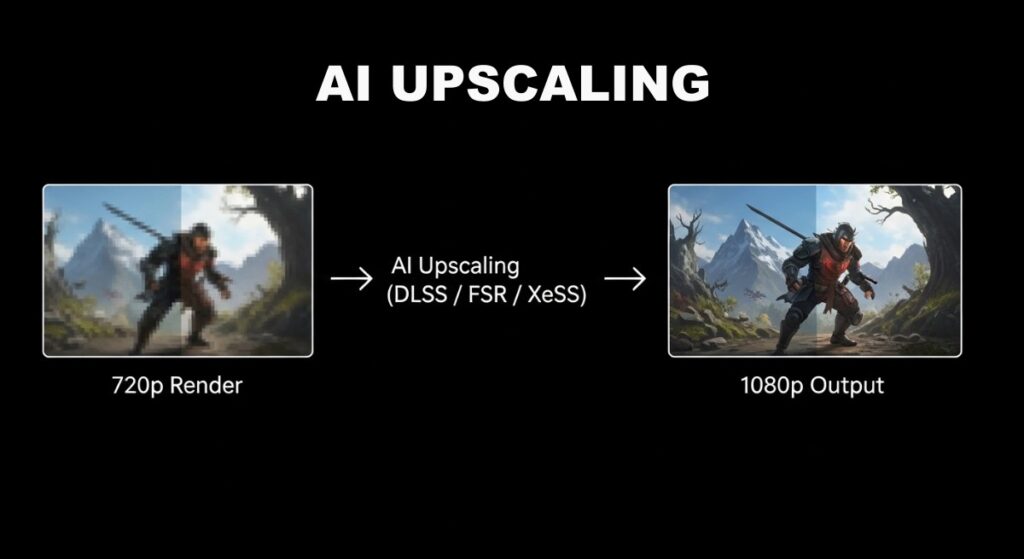
All three technologies do the same basic job. They render the game internally at a lower resolution, then rebuild that image so it looks closer to your target resolution.
That lower internal resolution reduces GPU load. Less rendering work usually means more frames. The upscaler then tries to recover detail, smooth edges, and preserve clarity so the final image does not look obviously worse than native resolution.
That is the promise, anyway.
DLSS
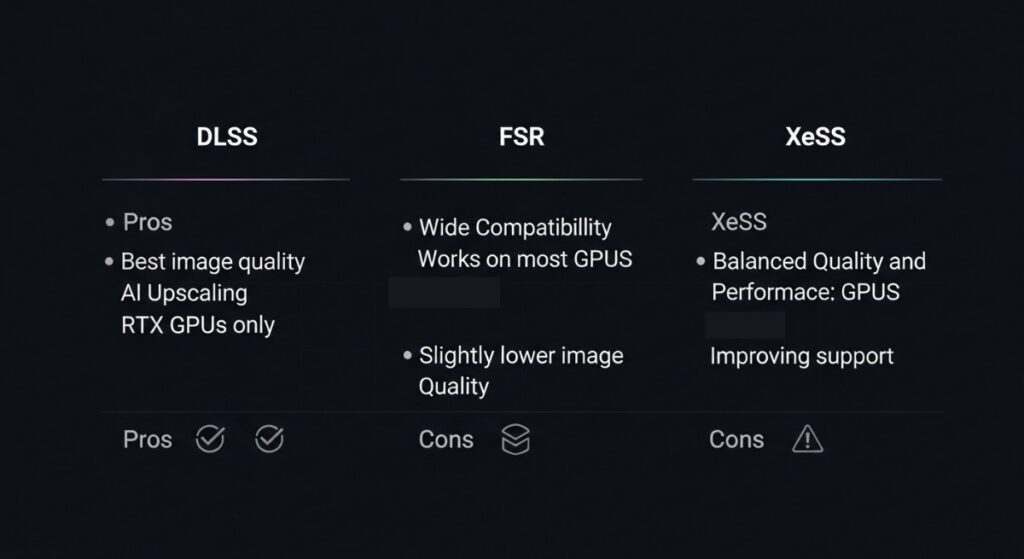
DLSS, short for Deep Learning Super Sampling, is NVIDIA’s AI-assisted upscaling system. It uses RTX hardware and motion data from the game to reconstruct a sharper final image than a simple upscale would manage.
When implemented well, DLSS Quality mode can look very close to native resolution while giving a meaningful FPS boost. That is why NVIDIA users keep leaning on it so hard, especially at 1440p and 4K.
Its weakness is that it is hardware-locked. If you do not have a supported RTX card, you are not invited to the party.
FSR
FSR, or FidelityFX Super Resolution, is AMD’s answer. The big advantage is compatibility. FSR works on a much wider range of hardware, including AMD cards, NVIDIA cards, and sometimes older systems that DLSS will not touch.
That flexibility makes FSR incredibly useful for real-world gamers who are not all sitting on shiny modern GPUs. The downside is that image reconstruction is usually less consistent. Blur, shimmering, edge breakup, and ghosting can be more noticeable, especially in lower-quality modes.
In other words, FSR is often the easiest performance win, but not always the prettiest one.
XeSS
XeSS is Intel’s upscale tech, and it sits in an awkward but interesting middle position. On Intel Arc hardware, it can use dedicated acceleration for better results. On other supported hardware, it can still run, but the experience varies more.
Sometimes XeSS looks surprisingly clean. Other times it feels like a “nice to have” checkbox rather than a serious reason to choose one GPU over another. It is promising, but it still feels less dominant than DLSS and less universally relevant than FSR.
So yes, they all boost FPS by reducing rendering load. No, they do not all do it equally well.
Why FPS Gains Lie
This is the part that gets glossed over in most comparison articles. FPS is useful, but it is not the full story. You can switch on DLSS, FSR, or XeSS and see a massive jump in the counter. That number is real. But the actual play experience can still be messy if frame pacing is unstable, if input response gets weird, or if the image quality falls apart in motion.
A game running at a higher average FPS can still feel worse than a lower-FPS setup with better consistency. That is why people keep chasing bigger numbers and still come away thinking, “Why does this somehow feel worse?”
There are a few common reasons for that:
- microstutter that average FPS does not show clearly
- frame pacing issues that make motion feel uneven
- CPU bottlenecks that upscaling does not solve
- background system issues that still drag performance down
- visual artifacts that make the game look unstable in motion
If your game still feels rough after enabling an upscaler, the problem may not be the rendering resolution at all. It may be CPU load, thermal limits, bad Windows behavior, or inconsistent game optimization. That is why articles like Why Does My Game Stutter on a High-End PC? and How to Test Gaming PC Performance matter more than another screenshot of an FPS graph.
And if what you really want is smoother motion rather than maximum headline numbers, even something simple like capping your FPS properly can sometimes improve consistency more than an aggressive upscaling mode.
The big point is this: DLSS, FSR, and XeSS do not fix a badly behaving PC. They shift GPU workload and give you more rendering headroom. That can help a lot, but it is not magic.
Section 2 will deal with the part that matters most in actual gameplay, the difference between higher FPS and genuinely smoother performance, plus how these tools behave on low-end, mid-range, and high-end PCs.
Real Performance vs Smoothness: The Part Benchmarks Ignore
Here’s where most comparisons completely fall apart. They show you higher FPS numbers and call it a day. But what you actually feel while playing is not just FPS, it’s how consistent those frames are.
DLSS, FSR, and XeSS can all increase your average FPS, sometimes massively. But that does not automatically translate into smoother gameplay.
The difference comes down to frame pacing.
If your frames are delivered unevenly, even a high FPS number can feel choppy. You might see 90 FPS on paper, but it feels closer to 45 because of spikes, dips, and inconsistent delivery.
Upscaling helps your GPU do less work, but it does not fix problems elsewhere in your system.
- CPU bottlenecks: If your processor is struggling, DLSS or FSR will not magically fix it.
- Background processes: Windows being Windows can still wreck consistency.
- Thermal throttling: Your system may be downclocking mid-game.
- Game engine limitations: Some games are just badly optimized.
This is why you’ll sometimes enable DLSS, see a huge FPS jump, and still think, “Why does this feel off?”
If that sounds familiar, you are probably dealing with deeper issues like high CPU usage during gaming or hidden system limits like performance throttles killing your FPS.
And if your goal is actual smoothness, not just chasing numbers, pairing upscaling with smarter settings, like reducing lag without destroying visuals, usually gives better results than maxing out every performance mode.
Bottom line: Upscaling increases headroom, but smooth gameplay comes from balance, not just raw FPS.
How DLSS, FSR, and XeSS Behave on Real PCs
This is the part that actually matters. Not lab results. Not controlled benchmarks. What happens on the kind of machines people actually use. Let’s break it down by system type.
Low-End PCs (Older GPUs, Integrated Graphics)
If you are running older hardware or integrated graphics, your options are limited, but also very clear. DLSS is usually off the table unless you somehow have an entry-level RTX card. XeSS may work in some cases, but support can be inconsistent.
FSR becomes the default choice here. And to be fair, it does help. Dropping internal resolution and upscaling can turn an unplayable 25 FPS experience into something closer to 40 or 50 FPS.
But there is a trade-off. At lower internal resolutions, image quality takes a noticeable hit. Textures soften, edges shimmer, and fast motion can introduce ghosting.
If your system is already struggling, you may also still run into issues like stutter on low-end PCs because the bottleneck is not purely GPU-related.
Reality check: On low-end systems, FSR can make games playable, but it will not make them look clean. You are trading visual quality for survival.
Mid-Range PCs (GTX 1660, RX 6600, RTX 3060 Level)
This is where things get interesting, because this is where most gamers actually sit. If you are on an RTX card, DLSS becomes a strong option. You can often use Quality mode and get a solid FPS boost without completely wrecking image clarity.

If you are on AMD or older NVIDIA hardware, FSR still does the job, but you will need to be more careful with the mode you choose. Balanced or Performance modes can start to look noticeably worse.
XeSS can occasionally surprise you here, depending on the game. Some implementations look cleaner than expected, others feel like a slightly better version of FSR.
This is also the tier where upscaling is often used to delay upgrading.
Instead of immediately buying new hardware, you squeeze more life out of your system. That can work, but it is not always the smartest long-term move. Sometimes actual upgrades, like those in cheap gaming upgrades that boost FPS or understanding which upgrades actually matter, will give you a better experience than relying on upscaling alone.
Reality check: This is the sweet spot for DLSS and FSR. You can get meaningful FPS gains with acceptable quality, as long as you do not push the most aggressive modes.
High-End PCs (RTX 4070+, RX 7800 XT+, Modern Systems)
Here is where things flip a bit. On high-end systems, you are often not using DLSS, FSR, or XeSS just to make a game playable. You are using them to push higher resolutions, enable ray tracing, or chase ultra settings.
DLSS tends to dominate in this space, especially with newer features like frame generation. It can dramatically increase FPS when paired with demanding effects.
But there is a catch.

At this level, image quality matters more. And aggressive upscaling modes can start to look worse than just running the game at native resolution with slightly lower settings.
There is also the question of whether you even need upscaling at all. If your GPU is already capable, forcing DLSS or FSR can sometimes introduce more visual issues than it solves.
If you are unsure whether your hardware is actually struggling or just poorly configured, it is worth checking guides like how to test gaming PC performance before assuming you need upscaling.
And if you are pushing modern titles, it is also worth understanding how newer GPUs behave in general, especially with technologies discussed in GPU V Ram performance breakdowns.
Reality check: On high-end PCs, upscaling is a tool, not a necessity. Used correctly, it unlocks higher settings. Used blindly, it can just make things look worse.
CPU vs GPU: The Bottleneck You Cannot Ignore
One of the biggest misconceptions around DLSS, FSR, and XeSS is that they “fix performance.” They do not. They reduce GPU workload. If your game is GPU-bound, meaning your graphics card is the limiting factor, upscaling helps a lot. You lower rendering resolution, your GPU breathes easier, and FPS increases.

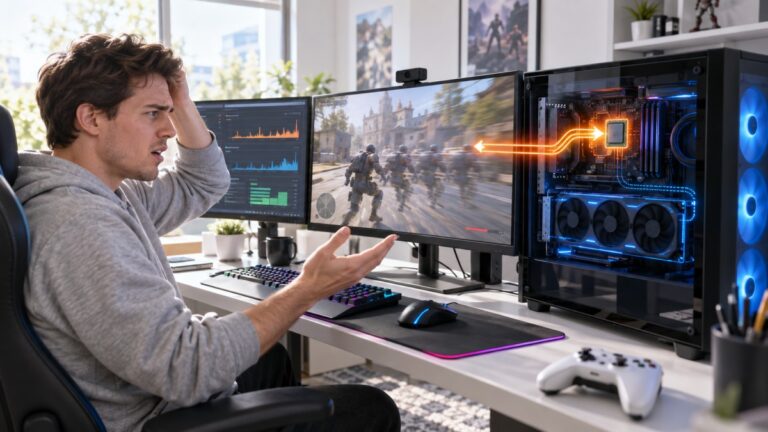
But if your system is CPU-bound, the story changes completely. Your CPU is responsible for game logic, physics, AI, and draw calls. If it cannot keep up, lowering GPU workload will not fix the bottleneck.
That is why some players see almost no improvement when enabling DLSS or FSR. The GPU was never the problem to begin with. If you suspect this is happening, it is worth digging into whether you are dealing with a CPU limitation, like those explained in CPU vs GPU bottleneck scenarios.
The key takeaway: Upscaling is powerful, but only when used in the right situation. If you apply it to the wrong bottleneck, you get minimal gains and maximum confusion.
Image Quality: Where Things Start to Fall Apart
Up to this point, everything sounds great. More FPS, less GPU load, smoother gameplay. But this is where the trade-offs become impossible to ignore. Because no matter how good DLSS, FSR, or XeSS gets, they are still reconstructing an image that was never fully rendered in the first place.
And that shows. Sometimes subtly. Sometimes very obviously. The biggest difference between these technologies is not just how many frames they give you, but how well they hide the fact that they are cutting corners.
Blur and Softness
This is the most common issue, especially at lower quality modes. When the internal resolution drops too far, fine detail disappears. Textures lose sharpness, distant objects look smeared, and the whole image can feel slightly out of focus.
DLSS usually handles this best in Quality mode, keeping edges relatively clean. FSR tends to struggle more here, especially in Performance mode, where the softness becomes very noticeable. XeSS sits somewhere in between depending on the implementation.
This is why aggressive upscaling often feels like a downgrade, even if your FPS looks fantastic.
Ghosting and Motion Artifacts
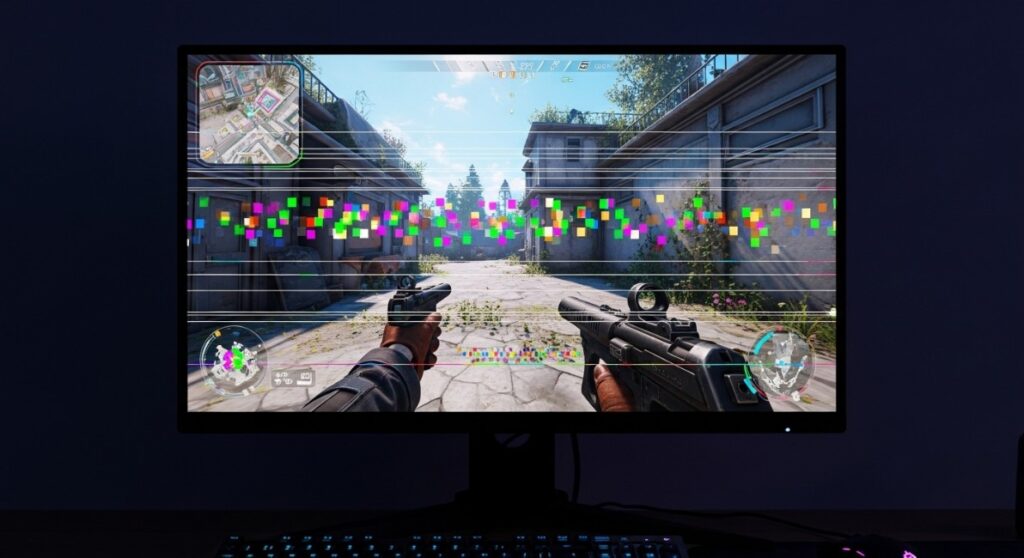
This is where things get more distracting. Ghosting happens when moving objects leave behind faint trails or duplicates. It is especially visible in fast-paced games, transparent effects, or fine details like foliage and wires.
FSR is the most prone to this, particularly in earlier versions and lower modes. DLSS has improved a lot over time but can still show artifacts in complex motion scenes. XeSS again depends heavily on how well the game implements it. If you play shooters or fast action games, this is something you will notice quickly.
Shimmering and Edge Instability
Shimmering is that annoying flicker you see on edges, thin objects, or distant textures when moving the camera. This tends to happen when the upscaler cannot consistently reconstruct fine detail from frame to frame.
FSR is again more vulnerable here, especially on lower settings. DLSS generally produces more stable edges, which is one of the main reasons it is often preferred for higher resolutions.
It might sound minor, but over time, this kind of instability can make a game feel visually “noisy” even if the FPS is high.
Frame Generation and Input Lag: The Dirty Secret
Now we get to the feature that looks incredible in marketing and confusing in practice. Frame generation. Technologies like DLSS Frame Generation create entirely new frames between real ones. This can massively boost your FPS counter, sometimes doubling it.
On paper, it looks like the ultimate performance upgrade. In reality, it comes with a trade-off that many players do not expect.
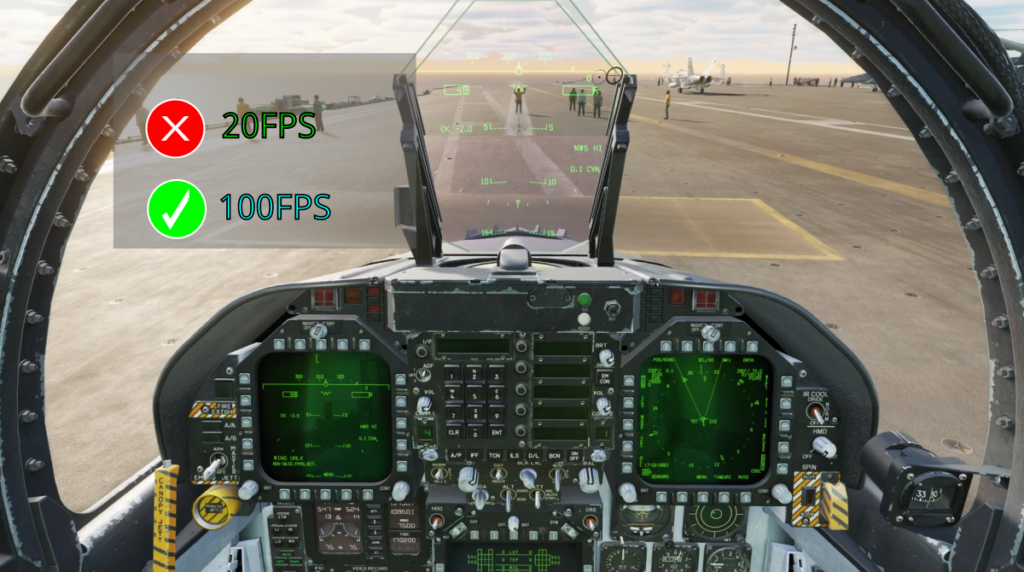
What Frame Generation Actually Does
Instead of rendering every frame traditionally, the system predicts and inserts artificial frames between real ones.
This reduces the workload on your GPU and increases the number shown on your FPS counter. But those extra frames are not tied to your actual inputs.
Why Input Lag Increases
Because generated frames are based on prediction, your inputs are still tied to the original rendered frames, not the inserted ones. This can introduce additional latency, meaning your actions feel slightly delayed compared to what you see on screen.
In slower games, this is often barely noticeable. In fast-paced shooters or competitive titles, it can feel off very quickly. This is why some players turn on frame generation, see a massive FPS boost, and still feel like something is “wrong.” The game looks smoother, but it does not respond as tightly.
When Frame Generation Works Well
Frame generation makes the most sense when:
- You are playing single-player or slower-paced games
- You are targeting high resolutions like 1440p or 4K
- Your base FPS is already stable (not fluctuating wildly)
In these cases, the extra frames can genuinely improve perceived smoothness without breaking responsiveness too badly.
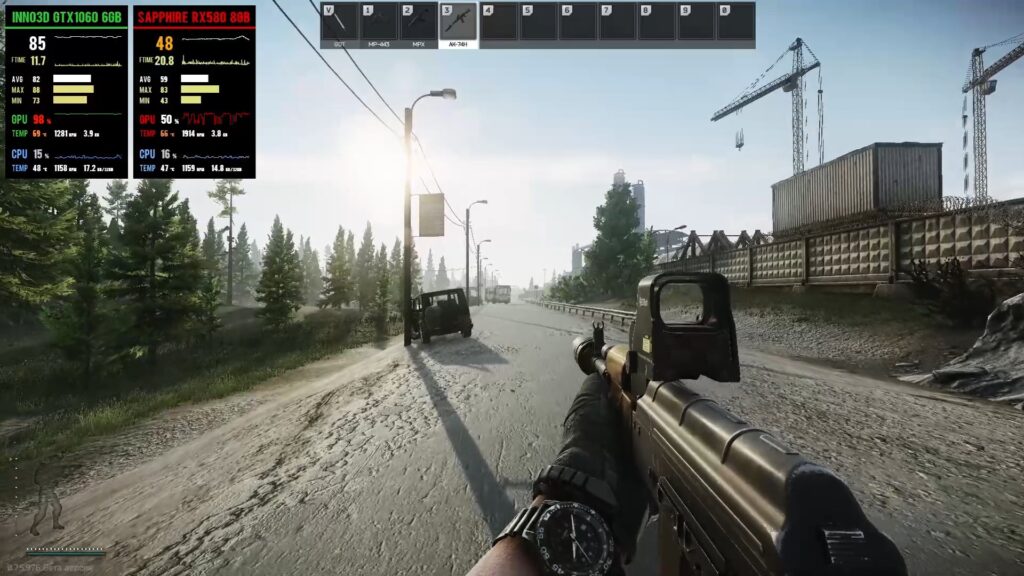
When You Should Avoid It
Frame generation is a bad idea when:
- You are playing competitive shooters
- You already have input lag issues
- Your base FPS is unstable or too low
If your system is struggling to maintain consistent performance, adding generated frames on top can actually make the experience feel less predictable.
Before relying on features like this, it is often smarter to fix underlying issues first, whether that means addressing system settings with guides like Windows settings to disable for gaming or improving baseline performance through proper PC maintenance and optimization.
The Real Trade-Off: Clarity vs Performance
At this point, the pattern should be clear. Every upscaling technology is making the same deal:
You get more performance, but you give up some level of visual accuracy or responsiveness.
The only real difference between DLSS, FSR, and XeSS is how well they hide that compromise.
- DLSS: Best at preserving detail, especially in Quality mode, but locked to NVIDIA hardware
- FSR: Most flexible and widely supported, but more visible artifacts in many cases
- XeSS: A middle-ground option that can be impressive, but less consistent overall
This is why chasing the highest FPS number is not always the smartest move. Sometimes a slightly lower FPS at native resolution will look cleaner and feel more stable than an aggressively upscaled image running at a higher number.
Other times, upscaling is exactly what you need to make a demanding game playable. The key is understanding what you are trading, not just what you are gaining.
Compatibility: What Actually Works on Your GPU
This is the part that quietly decides everything for most people. You can compare DLSS, FSR, and XeSS all day, but your GPU usually makes the decision for you before you even open the settings menu.
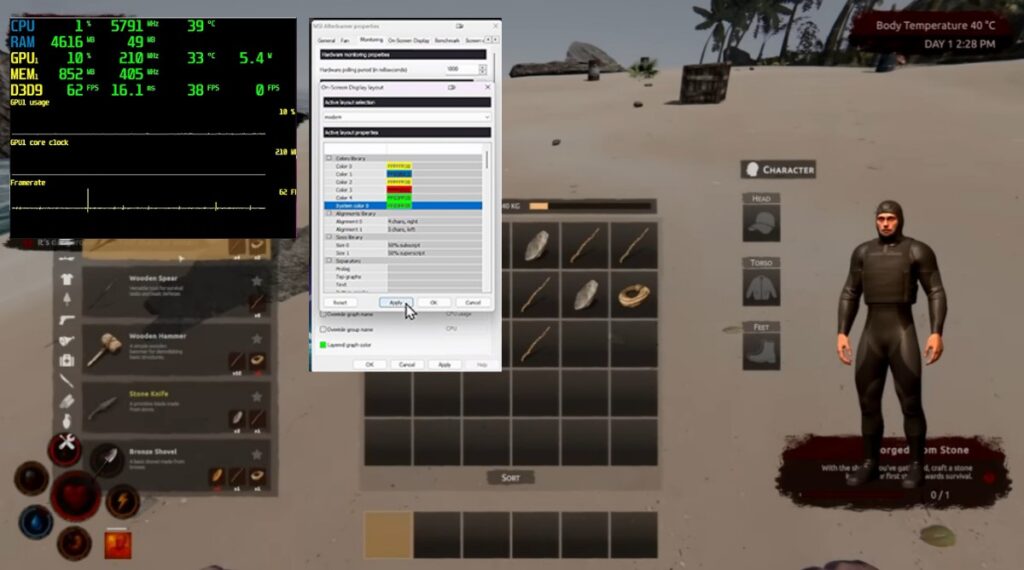
- DLSS: Requires NVIDIA RTX GPUs (20-series and newer)
- FSR: Works on almost everything, including AMD, NVIDIA, and some older GPUs
- XeSS: Works best on Intel Arc, but can run on other GPUs with mixed results
That means for a huge portion of players, the choice is already limited.
If you are running older hardware or a non-RTX NVIDIA card, DLSS is not even an option. If you are on AMD, FSR becomes your default in most games. If you are on Intel Arc, XeSS is worth trying, but not guaranteed to be better every time.
This is also why upscaling often becomes a “best available option” decision rather than a true preference.
If you are unsure whether your GPU is even worth pairing with upscaling, it helps to check realistic performance expectations in guides like best GPU picks for 1080p and 1440p or understand limitations such as whether 8GB VRAM is still enough.
Translation: You are not always choosing the best tool. You are choosing the best tool your hardware allows.
Counter Argument: You Don’t Really Choose Between Them
Let’s challenge the entire premise of this comparison for a second. Most articles treat DLSS vs FSR vs XeSS like a real decision, as if you are picking between three equal options. In reality, you usually are not.

Your GPU determines what is available. The game determines what is implemented. And the quality of that implementation determines whether it is even worth using. So instead of asking: “Which one is best?” The better question is:
“Which one works best in this specific game, on my specific hardware?”
Because the answer can change from title to title. Some games have excellent DLSS implementation. Others have surprisingly strong FSR. Some barely support XeSS properly at all.
This is also why blindly following “DLSS is always better” or “FSR is good enough” advice can lead to disappointment. “The real skill is knowing when to use it, not just which one to pick.“
When You Should Turn DLSS, FSR, or XeSS OFF
This might sound counterintuitive, but sometimes the best move is not to use upscaling at all. Here are situations where turning it off can actually improve your experience:
- Your game already runs smoothly at native resolution
- You notice blur, ghosting, or shimmering that bothers you
- You are playing competitive games where clarity matters
- Your FPS is high, but the game still feels unstable
If performance still feels off even without upscaling, the issue is likely deeper than resolution. It could be system configuration, thermal limits, or poor optimization.
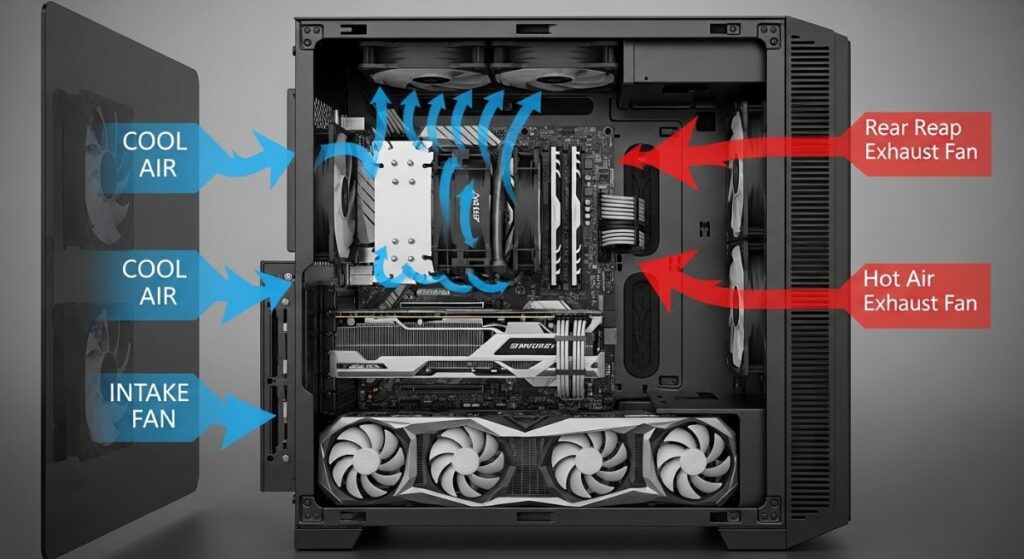
In those cases, you will get more benefit from fixing your system properly through guides like Windows settings to disable for gaming or improving overall stability using a full PC maintenance and optimization guide.
And if your instinct is to “just turn on DLSS instead of upgrading,” it is worth considering whether smarter upgrades from gaming PC upgrades that actually matter might give you a cleaner long-term solution. “Upscaling is a tool, not a crutch.“
Final Verdict: Which One Actually Improves FPS?
So after all of this, what is the real answer? All three improve FPS. But that is not the question that matters. The real answer is:
- DLSS: Best overall balance of performance and image quality, if you have RTX hardware
- FSR: Best for compatibility and making games playable on weaker systems
- XeSS: A solid middle option that depends heavily on the game and hardware
What actually improves your experience depends on how you use them. If you use Quality modes, understand your bottlenecks, and combine upscaling with proper system optimization, these tools can be incredibly effective.
If you just chase the highest FPS number and ignore everything else, they can make your games look worse while only pretending to feel better.
The smartest approach is simple: Use upscaling to support your system, not to replace understanding it.For further understanding check NVIDIA DLSS technology
FAQ
Does DLSS actually increase real FPS?
Yes, DLSS increases real rendered FPS by lowering internal resolution. However, perceived smoothness depends on frame pacing and system stability, not just the FPS number.
Is FSR worse than DLSS?
Not always. DLSS usually has better image reconstruction, but FSR works on far more hardware and can still deliver strong performance gains, especially on lower-end systems.
Is XeSS worth using?
XeSS is worth testing if available, especially on Intel Arc GPUs. Its quality varies by game, so it is not as consistently reliable as DLSS but can outperform expectations in some titles.
Should I always enable DLSS or FSR?
No. If your game runs smoothly at native resolution, you may get better image quality and responsiveness by leaving upscaling off.
Does upscaling fix stuttering?
No. Upscaling reduces GPU load but does not fix CPU bottlenecks, poor optimization, or system issues. Stuttering often requires separate fixes.