Should you add more RAM or replace the memory already in your gaming PC? If your computer has one 8GB stick and a free compatible slot, adding a second module may be the cheapest upgrade. If both slots are full, your existing RAM is mismatched, or you’re struggling with instability, replacing it with a matched kit is usually the safer choice.
But there’s a third option: buy nothing. If your games aren’t running short of memory, more RAM may not solve the slowdown you’re trying to fix. Here’s how to check before spending your money.
Add More RAM or Replace It? The Quick Decision
| Your current RAM setup | What usually makes sense | Why |
|---|---|---|
| 1×8GB DDR4, compatible free slot | Consider adding one compatible 8GB stick | Often the lowest-cost route to 16GB; test stability |
| 2×4GB DDR4, both slots occupied | Replace with a matched 2×8GB kit if you need 16GB | There’s no room to add memory |
| 1×8GB DDR4, matching stick unavailable or expensive | Compare the cost of a new matched 2×8GB kit | Reduces mixing uncertainty |
| 2×8GB DDR4, games use memory comfortably | Keep your RAM | More capacity is unlikely to fix an unrelated bottleneck |
| 2×8GB DDR4, confirmed memory shortages | Consider replacing with 2×16GB | Provides capacity without relying on mixed kits |
| Unstable or mismatched RAM | Diagnose first; consider a validated matched kit | Additional sticks can make troubleshooting harder |
Important: these are typical desktop DDR4 scenarios, not universal rules. Your motherboard, processor, BIOS and supported memory configurations determine what will work.
Check What RAM You Have Before Buying Anything
You don’t need to open the case immediately. On Windows 10 or 11, press Ctrl + Shift + Esc to open Task Manager. Select Performance, then Memory. Note the installed capacity, reported speed and Slots used reading if Windows displays it.

That gives you a useful starting point, but Task Manager isn’t a compatibility checker. Slot information may be absent or inaccurate on some systems. Before ordering RAM, identify your motherboard or PC model, read its support documentation, and check the memory type, maximum capacity, slot layout and any BIOS requirements. A memory compatibility tool such as the Crucial System Scanner can help narrow your options.
Check the actual physical slot layout too. A board with four slots doesn’t automatically mean every four-stick combination will run at the same speed. On laptops, the memory may be soldered, partly soldered or installed in replaceable SO-DIMM slots. This article focuses on desktop upgrades.
When Adding Another RAM Stick Makes Sense
Imagine your older gaming PC has a single 8GB DDR4 module and one available RAM slot. You regularly run out of memory while playing, and a compatible second 8GB module is available at a good price. Adding it may be a sensible, inexpensive way to reach 16GB without discarding working hardware.
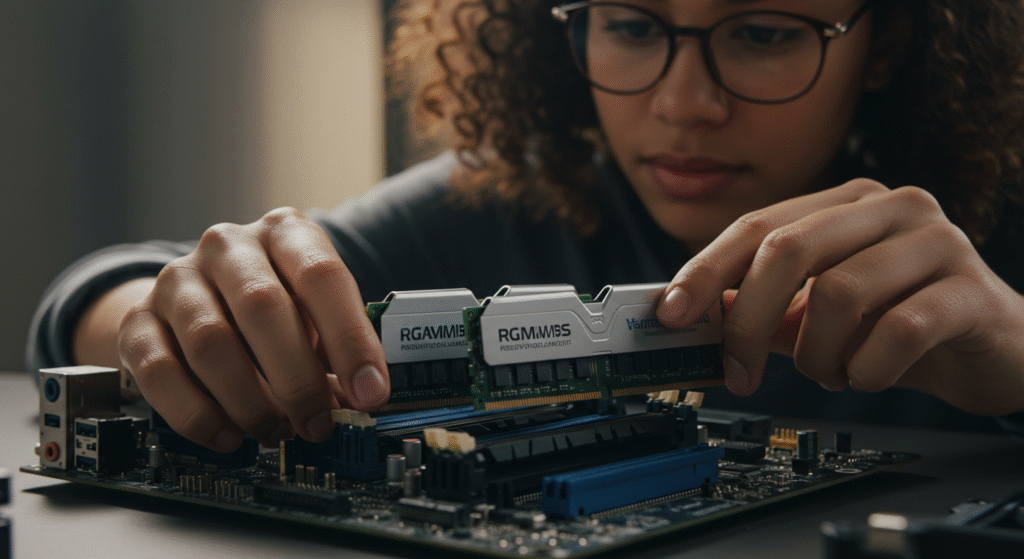
On a conventional dual-channel DDR4 desktop, installing suitable memory in the correct slots may also increase available memory bandwidth compared with a single-stick setup. That can matter for integrated graphics and some CPU-limited workloads. It doesn’t guarantee a fixed FPS increase. Our separate single vs dual channel RAM for gaming article explores those performance differences.
The catch: two modules purchased separately are not equivalent to a factory-tested matched kit. Even RAM with the same brand and advertised speed may use different memory chips or subtimings. A mixed setup might run perfectly, need slower settings, or cause boot or stability problems.
Choose the add-one-stick route when compatibility looks good, the savings are meaningful, and you can test the result or return the module if it doesn’t work reliably. If a new matched kit costs only slightly more, the kit is generally the less complicated purchase.
When Replacing Your Existing RAM Is the Better Buy
Both Memory Slots Are Already Full
If your PC uses two 4GB sticks in its only two slots, you cannot increase capacity without removing something. For an older DDR4 gaming PC that genuinely needs more than 8GB, a compatible 2×8GB DDR4 kit is often the straightforward upgrade.
Your Existing Modules Don’t Match or Behave Reliably
Random crashes, boot loops or memory errors need investigation rather than another blind purchase. If testing points to an incompatible combination of RAM modules, replacing them with a supported matched kit can simplify the setup and troubleshooting. Don’t assume every crash is caused by RAM: unstable overclock settings, BIOS issues and other hardware faults can produce similar symptoms.
You Need 32GB, Not Just a Second Stick
If you already have 2×8GB and your normal games and background applications consistently exhaust that capacity, replacing the kit with 2×16GB may be cleaner than adding another separate pair. This is especially relevant when four-module configurations force your platform to use more conservative memory speeds or settings.
Don’t buy 32GB just because it’s a bigger number. For a closer look at capacity requirements, read how much RAM games need.
Can You Mix Different RAM Brands, Sizes or Speeds?
Sometimes, yes—but possible is not the same as guaranteed. Systems may run mixed-capacity or mixed-speed modules, but effective speeds, memory-channel behaviour and stability depend on the platform and configuration. Memory often falls back to settings that all installed modules can handle. Overclocking profiles such as XMP or EXPO can make mixed kits harder to run reliably.
Kingston’s gaming memory support guidance warns that separately purchased modules—even with matching part numbers—may have different internal components. Its general advice is to use matched kits for the most predictable result.
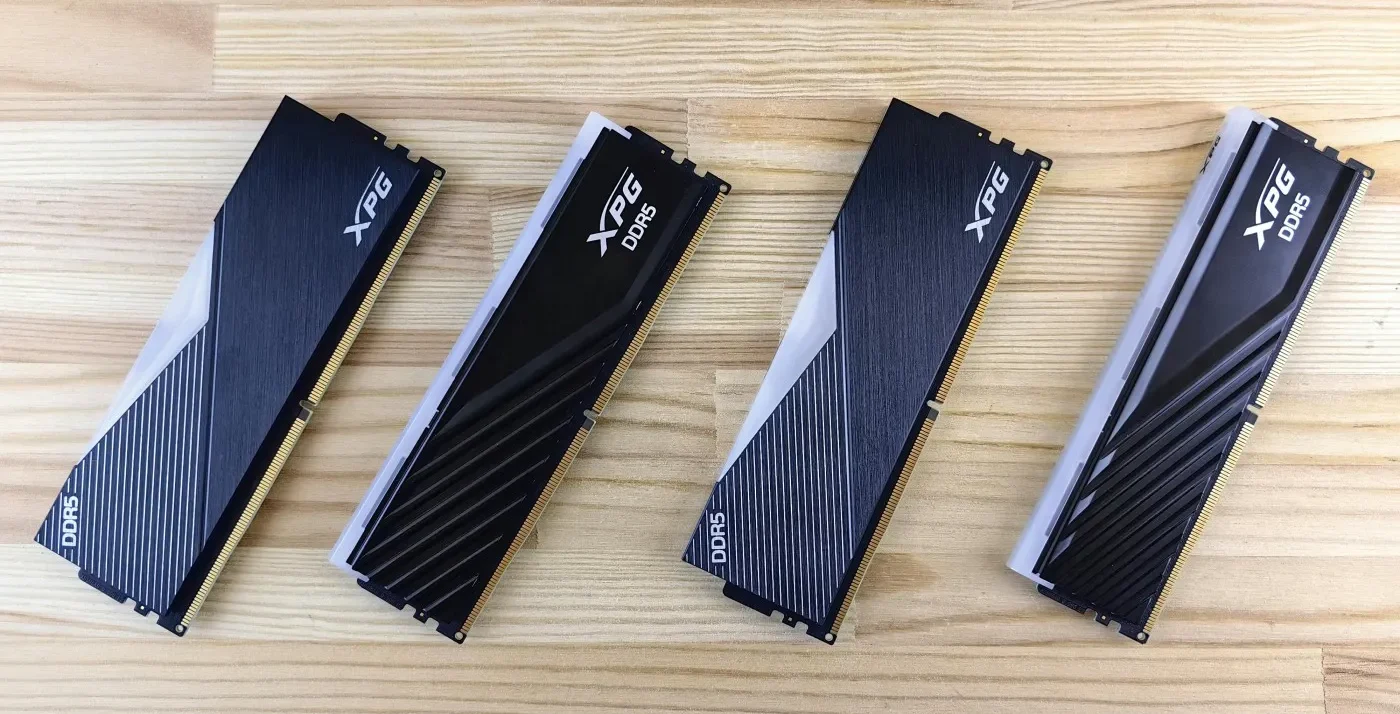
Never attempt to mix DDR4 and DDR5. They are different memory generations and are not interchangeable. Also confirm whether the PC takes desktop DIMMs or laptop SO-DIMMs before ordering.
Will More RAM Actually Fix Your Gaming Problem?
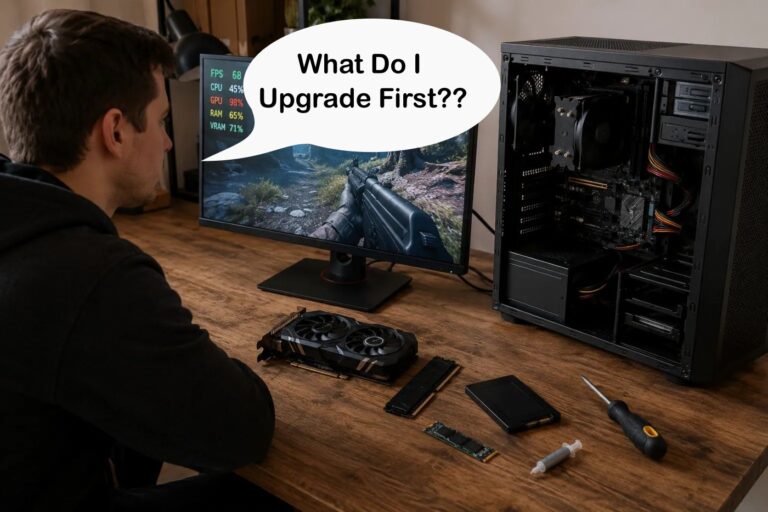
Before buying RAM, open Task Manager using Ctrl + Shift + Esc, select Performance, then Memory. Note your installed capacity, current memory usage, available memory and committed memory. Launch a game that normally struggles and check these readings while the problem occurs.
If available memory becomes very low, committed memory is high relative to installed RAM, and you observe sustained paging activity alongside stuttering, insufficient RAM becomes a stronger suspect. However, committed memory exceeding physical RAM does not automatically prove a performance problem.
Close unnecessary background applications and repeat the test. If performance improves when memory demand falls, additional RAM may be worthwhile. If memory usage remains comfortable, investigate the CPU, GPU, storage or other causes before spending money.
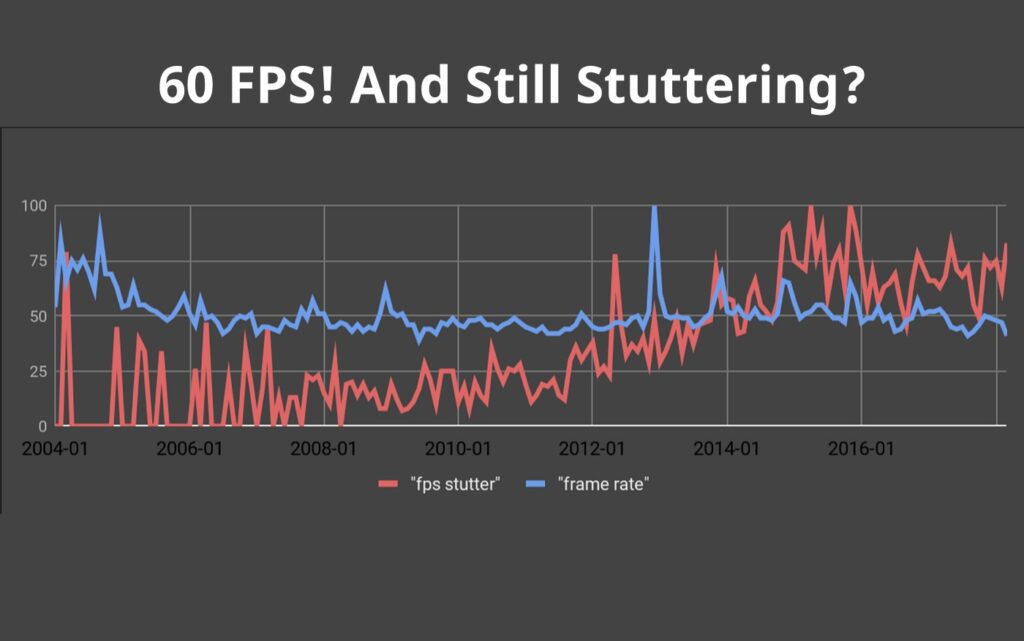
Close unnecessary background programs and test the game again. If the symptoms ease when memory demand falls, an upgrade becomes more plausible. If memory use is comfortable and the graphics card is saturated, RAM capacity is unlikely to be your first priority.
For broader troubleshooting, use BTF’s gaming PC health check. If one specific game appears to be consuming excessive memory, see how to troubleshoot a game using too much RAM.
What RAM Should You Buy If Replacement Is Necessary?
For older DDR4 gaming PCs, there are two practical buying categories. The right brand is less important than verified compatibility, a sensible price and a reliable return policy.
Corsair Vengeance LPX 16GB (2×8GB) — Best for Replacing an Older 8GB Setup
Best for: a compatible DDR4 desktop stuck on 8GB where both slots are occupied, or where finding a reliable matching module is too expensive. A mainstream 2×8GB kit can give the system enough headroom for many older, lighter and esports games without paying for unnecessarily premium memory.
Why we chose it: The Corsair Vengeance LPX 16GB DDR4 kit provides a straightforward two-module replacement for older gaming PCs that need more than 8GB. Its low-profile design is useful where CPU cooler clearance is limited, while its mainstream DDR4 specifications make it a sensible option for compatible budget systems. The exact kit and supported operating speed must still be checked against your motherboard and processor.
Before buying: confirm your board’s DDR4 support, CPU and BIOS requirements, approved capacities, intended memory speed and slot placement. A DDR4-3200 kit is a common example, not a universal promise that every old PC will run it at 3200MT/s.
Patriot Viper 4 32GB (2×16GB) — Best for Extending the Life of a DDR4 Gaming PC
Best for: users keeping a capable DDR4 platform who can demonstrate that 16GB is no longer sufficient for their games and normal background workload. Replacing the old pair with one matched 32GB kit avoids the uncertainty of combining two separate kits.
Skip it if: your 16GB system has comfortable free memory while gaming. In that case, the upgrade budget may deliver more value elsewhere.
Why we chose it: The Patriot Viper 4 32GB DDR4 kit offers a practical replacement for an existing 16GB setup when games and background applications genuinely require more memory. Its matched 2×16GB configuration avoids the uncertainty of mixing separate kits, allowing owners of compatible DDR4 systems to increase capacity without replacing their motherboard and processor. Check the exact kit specifications and cooler clearance before ordering.
Before You Install the New RAM
- Check the motherboard manual for the preferred memory slots and supported configurations.
- Save any unusual BIOS or memory-overclock settings so you can return to stable defaults if needed.
- Shut down, switch off and unplug the desktop before working inside it; follow appropriate anti-static precautions.
- Seat each module fully, without forcing it into the slot.
- After booting, confirm Windows recognizes the expected capacity and perform a reliable memory stability test.
- Only enable XMP/EXPO where supported, then test stability again; advertised overclocked speeds are not guaranteed on every system.
If the PC fails to start or shows less memory than expected, power it down and check module seating, slot placement and compatibility rather than repeatedly increasing memory speed. Kingston’s desktop memory support advice covers common installation checks.
FAQ: Adding or Replacing Gaming PC RAM
Is it cheaper to add RAM instead of replacing it?
It can be, especially when you have one stick and a matching compatible module is affordable. Compare the real cost against a factory-matched kit, including return options if mixed memory doesn’t work reliably.
Can I add 16GB RAM alongside my existing 8GB?
Some systems can use different module sizes, but supported configurations and dual-channel behaviour vary. Check the motherboard documentation and understand that a mixed combination isn’t guaranteed to run at the desired settings.
Will replacing one stick with two increase gaming FPS?
It may improve bandwidth and performance if your existing configuration is a bottleneck, especially with integrated graphics, but there is no universal FPS improvement. Capacity shortages and channel configuration are different problems.
Can I reuse my old DDR4 when upgrading to a DDR5 motherboard?
No. DDR4 modules cannot be installed in DDR5 slots. Check the exact motherboard variant when changing platforms.
The BuiltToFrag Verdict: Add, Replace or Keep?

Add RAM: If you have one 8GB module, an available compatible slot and a memory shortage, adding a second suitable module may be the cheapest upgrade.
Replace with 16GB: If your only two slots contain 2×4GB, or mixing another module isn’t economical, consider a compatible Corsair Vengeance LPX 16GB kit.
Replace with 32GB: If your existing 16GB is demonstrably insufficient, a compatible Patriot Viper 4 32GB kit may be the better long-term purchase.
Keep your RAM: If memory capacity isn’t limiting your games, don’t buy more just because an upgrade is available.
Don’t turn a cheap upgrade into an expensive guessing game. Confirm the bottleneck, check compatibility, compare the actual options, and buy only what your gaming PC needs.