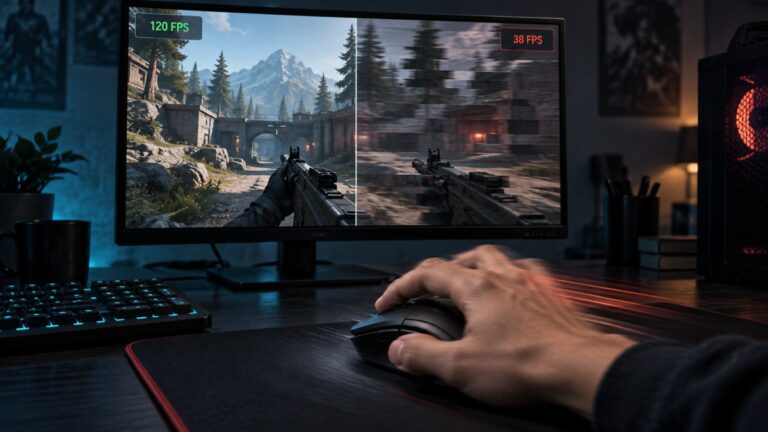
Most low-end PC gamers do not actually know what Smooth Gameplay on Low-End PCs looks like. i know that sounds harsh, but it is true. A lot of players look at the FPS counter, see 45, 60, or even 100 FPS, and assume everything is fine.
Then the game feels awful anyway. The mouse feels delayed. The camera movement looks uneven. Combat causes random hitching. The game feels choppy but FPS is high, and now you are sitting there wondering if your PC is broken, the game is badly optimized, or Windows is quietly chewing on your soul in the background.
This guide is not another lazy “best low-end PC games” list. This is about how to tell if a game is running well on weak hardware. Because on a low-end PC, good performance does not always mean max settings, 144 FPS, and buttery perfection. Sometimes good means stable, predictable, responsive, and not making you want to uninstall the game after five minutes.
So let’s define what good actually looks like on bad hardware.
The Biggest Lie About FPS
FPS is useful, but it is not the whole story. This is where a lot of low-end PC gamers get trapped. They chase a bigger number because bigger looks better, but then the game still feels rough.
If you have ever searched why games feel laggy even at high FPS, this is usually the reason. Your average FPS might look fine, but the game may still deliver frames unevenly. That creates a rough, jittery feeling even when the counter looks respectable.
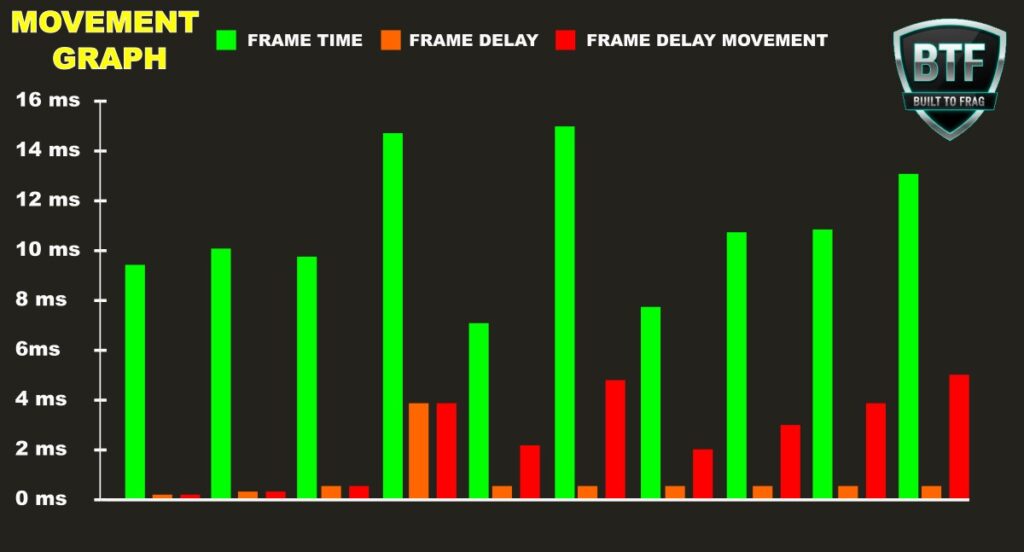
This is the basic fps vs frame time difference: FPS tells you how many frames are being produced per second. Frame time tells you how evenly those frames arrive. If the frame delivery is messy, the game can feel bad even when the FPS number looks decent.
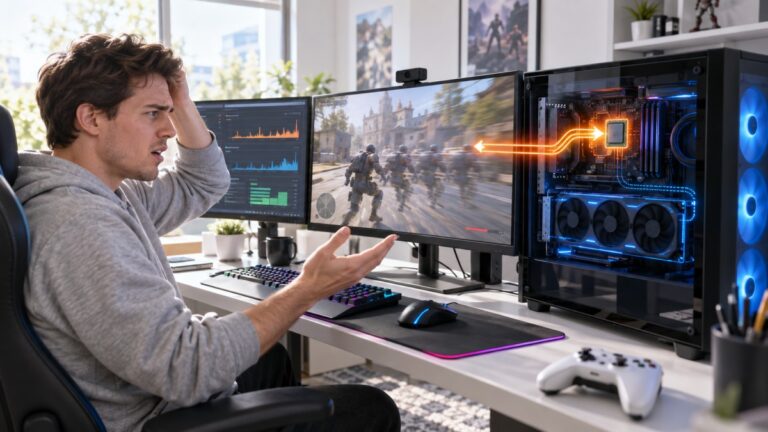
Even a stable frame rate can fall apart when a game becomes CPU-bound. Strategy titles are notorious for this, especially during late-game scenarios. Read Why Strategy Games Lag in the Late Game to understand why. Hitman WOA can expose a similar problem in crowded locations, where an older CPU may become the limiting factor even when the GPU still has headroom. Our Hitman WOA low-end PC performance guide shows how to identify and tune for that bottleneck.
That is why high FPS vs stable FPS gaming is not as simple as “more frames equals better.” On a weak PC, a locked 45 FPS can sometimes feel better than an unstable 70 FPS that constantly spikes, dips, and trips over itself like a drunk skeleton.
If you want a deeper breakdown of this exact problem, read our guide on why unlimited FPS can make games feel worse.
What Smooth Gameplay Actually Feels Like
Smooth gameplay is not just about the number in the corner of your screen. It is about how the game responds to your inputs and how consistent the motion feels while you play.

On a low-end PC, smooth gameplay usually has a few clear signs. Your mouse movement feels direct. Your character responds when you press a key. The camera does not hitch every time you turn around. Combat does not turn into a slideshow the second enemies appear.
That consistency can matter more than chasing a higher FPS number, especially in slower games. Red Dead Redemption 2 is a good example: our guide to running RDR2 on a low-end PC explains why a stable 30 FPS can still deliver a genuinely playable experience on older hardware.
Here is what smooth usually feels like in real terms:
- Input feels immediate: You move the mouse, and the game reacts without obvious delay.
- Camera movement feels even: Turning left and right does not create random bumps or skips.
- Combat stays playable: The game may drop a few frames, but it does not collapse.
- Performance is predictable: The same area behaves roughly the same way each time.
- The game does not get worse over time: After 30 minutes, it still feels like the same game.
That last point matters more than people think. A game that starts smooth but gets worse the longer you play may be dealing with memory leaks, overheating, shader issues, or background load. We covered that problem separately in why your game gets worse the longer you play.
What Bad Performance Feels Like
Bad performance is not always obvious from the FPS counter. Sometimes the FPS is stable but game feels bad anyway. That is usually when the problem is not just low FPS, but inconsistent delivery, input delay, CPU spikes, or background system pressure.
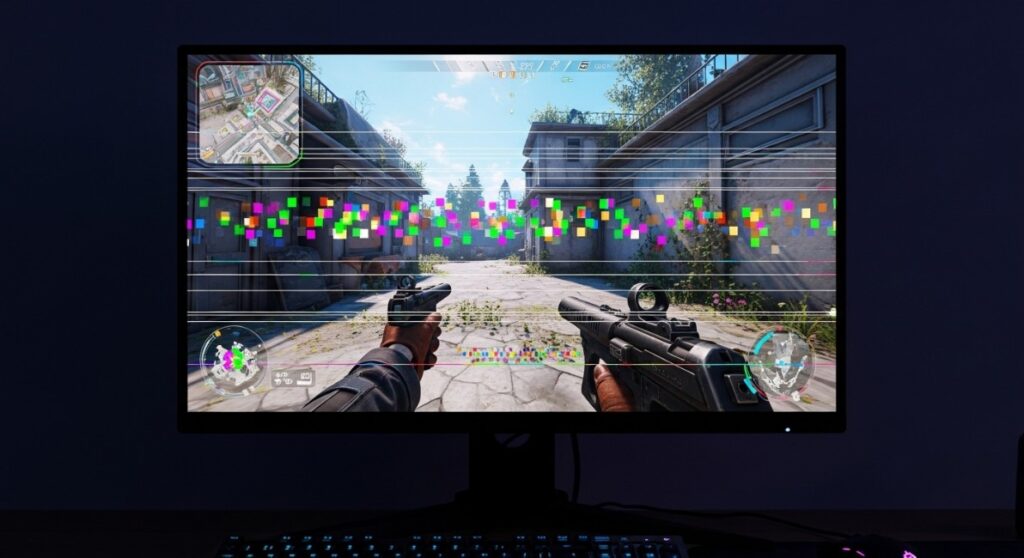
Here are the warning signs:
- Camera hitching: The game stutters when you turn quickly.
- Combat drops: The game feels fine until enemies, particles, or explosions appear.
- Random freezing: The game pauses for half a second, then continues.
- Delayed input: Your mouse or keyboard feels slightly behind your actions.
- Uneven movement: The game looks like it is skipping tiny steps between frames.
- Performance decay: The game starts fine, then gets worse after a while.
This is the heart of inconsistent frame rate gaming. The game does not have to run at 10 FPS to feel bad. It only has to break rhythm often enough for your brain to notice.
That is why “playable” is not the same as “smooth.” A game can technically run on your PC and still feel like garbage. Sorry, your ancient laptop does not get a participation trophy just because the main menu opened.
What Is Frame Pacing in Games?
What is frame pacing in games? Simple version: it is how evenly the game delivers each frame to your screen. When frame pacing is good, motion feels consistent. When it is bad, motion feels uneven, even if the FPS counter looks fine.
Think of it like walking down stairs. If every step is the same height, you move smoothly. If one step is tiny, the next is huge, and the next one randomly disappears, you are still moving forward, but it feels awful.

That is what uneven frame pacing does to games. This is why two games can both show 60 FPS and feel completely different. One feels smooth because the frames arrive evenly. The other feels like it is constantly tripping over tiny performance spikes.
This is also why some older or simpler games feel better on low-end PCs than newer, heavier titles. They may not look fancy, but they deliver frames consistently, and consistency is the secret sauce.
What Causes Stutter in Games?
Let’s answer the big one: what causes stutter in games? There are a few common reasons, and not all of them mean your PC is useless. If you have ever asked, “why does my game stutter randomly,” these are the usual suspects:

- CPU spikes: The processor cannot keep up during busy scenes.
- RAM pressure: The system runs out of usable memory and starts leaning on slower storage.
- Shader compilation: The game loads or builds effects during gameplay.
- Storage slowdowns: Old hard drives can struggle with asset streaming.
- Background apps: Browsers, launchers, overlays, and antivirus scans can interrupt performance.
- Bad optimization: Some games are just rough on PC. Yes, sometimes it really is the game.
If you need a proper micro stutter in games fix, start with our full guide on why games stutter on low-end PCs. This pillar explains how to recognize smoothness. That guide handles the deeper fixing work.
30 FPS vs 60 FPS Smoothness
The 30 FPS vs 60 FPS smoothness debate gets weird on low-end hardware. In theory, 60 FPS is better. In practice, a stable 30 FPS can feel better than an unstable 60 FPS that keeps dipping, hitching, and spiking. That does not mean 30 FPS is magically better. It means consistency matters.

A locked 30 FPS with clean frame pacing can feel playable in slower games like strategy titles, RPGs, turn-based games, and some single-player adventures. But in shooters, racing games, fighting games, and fast action games, 60 FPS usually feels much better because input response matters more.
Here is the simple version:
- 30 FPS can be acceptable: slower games, story games, turn-based games, older titles.
- 60 FPS feels better: shooters, racing games, competitive games, fast movement games.
- Unstable FPS feels bad: almost everywhere.
This is where low-end PC players need to stop chasing perfection and start chasing stability. A weak PC does not need to win a benchmark trophy. It needs to stop punching you in the eyes every time you move the camera.
The 30-Second Smoothness Test
Here is how to tell if a game is running well without becoming a benchmark goblin. You do not need ten overlays, three spreadsheets, and a dark room full of graphs. You need a quick repeatable test.

Try this:
- Stand in a busy area: Pick a place with enemies, buildings, lights, or moving objects.
- Move the camera slowly: Check if the motion feels even.
- Spin the camera quickly: Watch for hitching or sudden skips.
- Enter combat: See if the game collapses when action starts.
- Repeat the same route: If performance changes wildly each time, something is unstable.
If the game passes this test, it is probably running well enough for that hardware. If it fails badly, the problem is not just “low FPS.” It may be CPU load, RAM pressure, storage speed, shader stutter, bad settings, or a game that was optimized by someone having a very bad week.
Do I Need to Upgrade My PC for Gaming?
This is where people waste money. They ask, “do I need to upgrade my PC for gaming,” then immediately buy the wrong part because someone on the internet screamed “GPU bottleneck” without asking what game they play.
Before you upgrade, figure out what kind of bad performance you have.
CPU vs GPU Stutter Gaming
CPU vs GPU stutter gaming is one of the most important things to understand. If your GPU is maxed out and the game is running slowly but evenly, lowering graphics settings may help. If your CPU is spiking and the game hitches during AI, physics, crowds, or combat, a graphics card upgrade may not fix the problem.
Simple signs:
- GPU problem: Lowering resolution or graphics settings improves FPS clearly.
- CPU problem: Lowering graphics barely helps, but busy areas or enemies cause drops.
- RAM problem: Stutter gets worse when multitasking or after playing for a while.
- Storage problem: Stutter happens when entering new areas or loading assets.
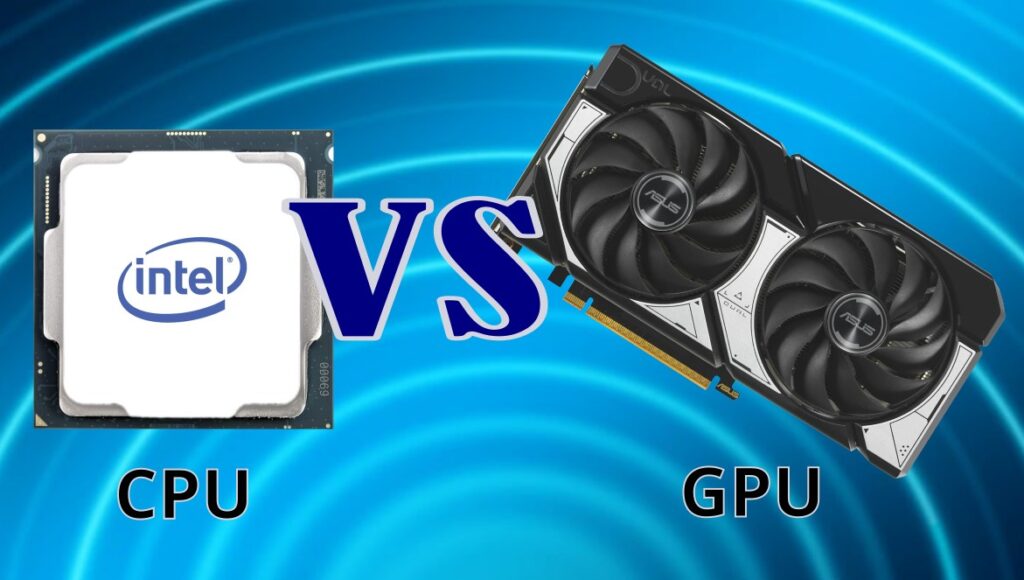
For a deeper decision guide, read how to tell if your CPU or GPU is the problem.
What Upgrade Improves Smoothness?
What upgrade improves smoothness depends on the bottleneck. More RAM can help if the system is choking. An SSD can help with loading and asset streaming. A better GPU can help if the game is graphically heavy. A better CPU can help if the game is simulation-heavy or stutters during action.
But do not guess. Guessing is how people buy a shiny GPU and still get stutter because their dual-core CPU is screaming in the corner.
If you are planning upgrades, start with what you should upgrade first on a low-end PC. Once your system is tuned, try our list of the best horror games for low-end PCs that can still deliver strong scares on weaker hardware.
How Much RAM Fixes Stutter?
How much RAM fixes stutter depends on the game and your background apps. For very old or lightweight games, 4GB can still survive. For modern Windows gaming, 8GB is often the realistic floor. For newer games, 16GB is usually the safer target.

RAM does not magically create FPS, but not having enough RAM can absolutely cause hitching, texture pop-in, loading pauses, and general misery. If your system is constantly swapping data to storage, smooth gameplay becomes a fantasy novel.
For more detail, read how much RAM games actually need.
Games That Feel Smooth on Low-End PC Hardware
Now we get to the fun part. There are games that feel smooth on low-end PC hardware because they are lighter, better optimized, older, less CPU-heavy, or simply built with cleaner performance behavior.
This section is not meant to become a giant list. That deserves its own article. But here are some low end PC smooth gameplay examples to help explain the idea:
- Older competitive shooters: often built for responsiveness and lower hardware targets.
- 2D indie games: usually easier to run and often very consistent.
- Turn-based strategy games: less dependent on instant response.
- Older RPGs: usually lighter on modern low-end machines.
- Well-optimized esports titles: designed to scale across weaker PCs.

Some of the best optimized PC games low end users should look for are games with simple visuals, stable engines, clear settings menus, and a history of running on modest hardware. That does not mean every old game runs perfectly. Some older PC ports are held together with duct tape and ancient curses.
For dedicated lists, start with:
- Best Games for 4GB RAM PCs That Run Smoothly
- Free Games for Garbage PCs
- 10 Free FPS Games That Actually Run on Low-End PCs
- 10 Open World Games That Actually Run on Low-End PCs
Why You Should Not Chase Perfect Smoothness on a Low-End PC
Here is the counter-argument nobody wants to hear: sometimes your PC is simply the limit. Not every stutter can be fixed. Not every game can be rescued. Not every weak laptop deserves to run a modern open-world game like it is hiding an RTX card under the keyboard.
That does not mean you should give up. It means you should set sane expectations. On bad hardware, good performance usually means:
- stable enough FPS
- minimal random hitching
- responsive controls
- settings that match your hardware
- no major stutter during normal play
Perfect performance is expensive. Playable performance is achievable. Smooth-enough performance is where most low-end gamers should aim.
Useful Places to Check Before Blaming Your PC
Before you assume your hardware is the problem, check whether the game itself has known issues. Some games have bad PC ports, broken shader compilation, poor CPU scaling, or settings that behave badly on certain systems.
PCGamingWiki is useful for checking known PC game fixes, launch options, configuration problems, and common workarounds. It is not magic, but it can save you from blaming your PC for a problem other players already found.
If input delay is the issue, NVIDIA’s system latency guide is worth reading, especially if you play competitive games. Just remember, latency fixes are not the same as stutter fixes. A game can be responsive and still have ugly frame pacing problems.
Smooth Gameplay Is About Consistency, Not Bragging Rights
So, what is smooth gameplay on a low-end PC? It is not always 60 FPS. It is not always high settings. It is not a fake benchmark screenshot posted by someone who forgot to mention they were staring at a wall indoors.

Smooth gameplay means the game feels consistent, responsive, and predictable. Your inputs land when they should. The camera moves evenly. Combat does not wreck the experience. The game behaves the same way today as it did five minutes ago.
That is what good actually looks like on bad hardware. If your game feels bad, do not instantly buy a new part. First, figure out whether you are dealing with low FPS, bad frame pacing, CPU spikes, RAM pressure, storage issues, or a game that is simply badly optimized.
Once you understand that, you stop guessing. And on a low-end PC, guessing is usually the most expensive setting of all.