Rebuilt using the BuiltToFrag upgrade system, focused on future-proof PC upgrades, weak gaming systems, real-world performance gains, and avoiding wasted money.
If your gaming PC is struggling, the wrong upgrade can waste hundreds of dollars and leave you rebuilding sooner than expected. The goal isn’t buying the most expensive hardware—it’s choosing upgrades that improve performance today while remaining useful for years.
If you’re unsure where to invest first, see our guide on which PC upgrade gives the biggest FPS boost to identify the upgrade that will have the biggest impact on your specific system.
This guide explains which PC upgrades offer the best long-term value, how to avoid compatibility traps, and how to build an upgrade path that keeps your system gaming longer.
What Does Future-Proofing a PC Actually Mean?
Future-proofing a PC does not mean buying the most expensive CPU, GPU, or motherboard you can afford. That usually wastes money. Real future-proofing means choosing parts that keep your upgrade path open, avoid compatibility traps, and stay useful through more than one upgrade cycle.
Just as importantly, future-proofing starts with upgrading in the right sequence. Our guide on how to upgrade a gaming PC in the right order shows you how to identify your current bottleneck, prioritise the upgrades that deliver the biggest benefit, and avoid spending money on hardware that your system isn’t ready to take advantage of.
For weak gaming PCs, this matters even more. A bad upgrade can lock you into an old platform, force a power supply replacement, create cooling problems, or make your next upgrade more expensive than it needed to be.
The best future proof PC upgrades are usually the boring parts people ignore: the power supply, case, cooling, motherboard, RAM, and storage. These components decide whether your next GPU or CPU upgrade is simple, affordable, and stable.
Start Here: What Should You Upgrade First?
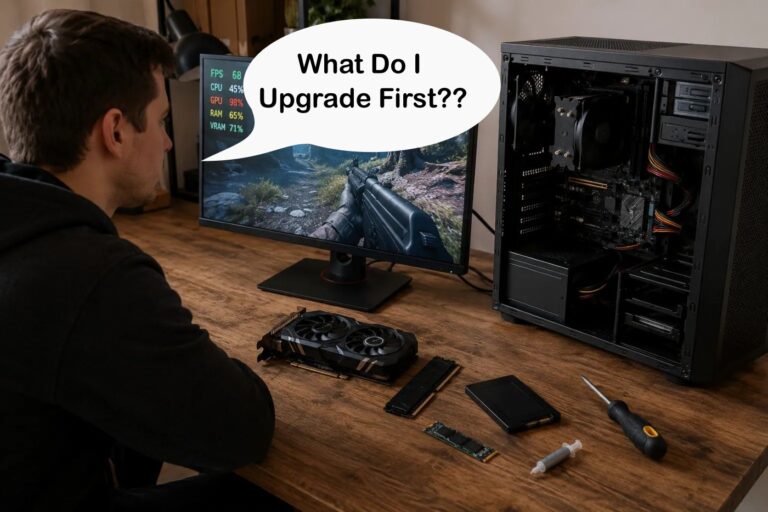
If your PC feels slow, the biggest mistake you can make is upgrading randomly. Most weak systems only have one or two real bottlenecks. Fix those first, and everything else improves. Ignore them, and you waste money with no real performance gain.
The goal is not to “build a better PC” overnight. It is to remove the exact part that is holding your system back right now while avoiding upgrades that create problems later. That could be RAM, storage, CPU limits, GPU limits, poor airflow, or a weak power supply.
Use this quick guide to match your issue to the upgrade that actually fixes it. If you are unsure what is happening on your system, start here: fix common Windows performance problems first before spending money.
| Your Problem | What It Usually Means | Upgrade That Actually Helps |
|---|---|---|
| Game stutters constantly | RAM or CPU bottleneck | Upgrade RAM from 8GB to 16GB |
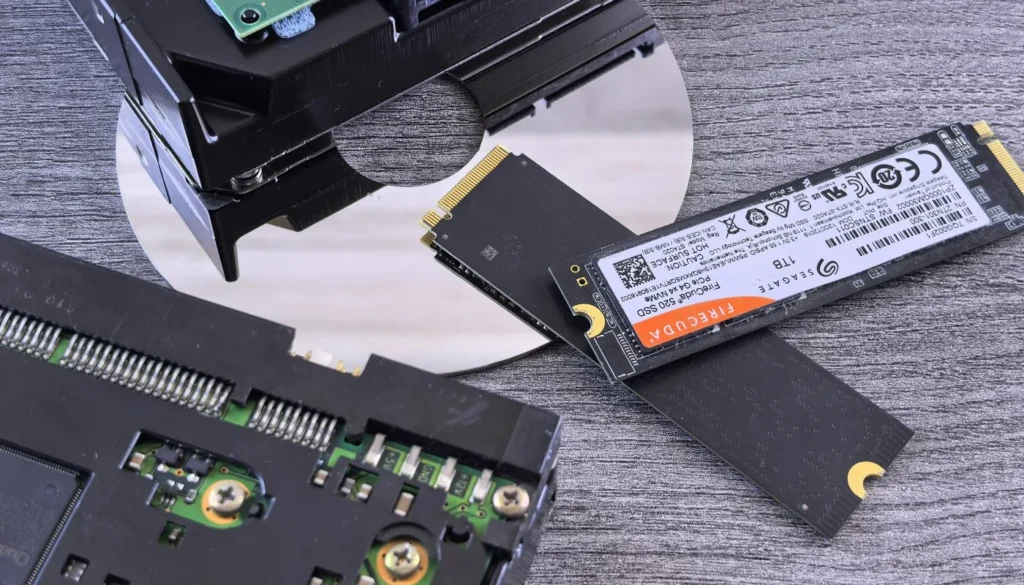
| Games take forever to load | Slow storage or old HDD | Switch to an SSD or NVMe SSD |
| Low FPS even on low settings | GPU limit | Entry-level or midrange GPU upgrade |
| PC freezes or crashes | Instability, RAM, PSU, or heat | Fix stability before upgrading performance parts |
| Everything feels slow | Storage and RAM combo bottleneck | SSD plus RAM upgrade |
Why Most PC Upgrades Fail And Waste Your Money
Most PC upgrades fail because they target the wrong problem. People buy a better GPU when the real issue is RAM, or upgrade the CPU when the system is choking on a slow hard drive. On a weak PC, that kind of mistake does not just waste money. It leaves performance exactly where it was.

Another common issue is stacking upgrades without fixing the foundation. Weak power supplies, limited motherboards, poor airflow, and old storage can quietly block performance gains. You can install better parts, but the system cannot use them properly, so nothing really improves. Before spending money on new hardware, make sure repeated shader compilation isn’t causing your slow game launches. See Game Compiling Shaders Every Launch? Here’s What Causes It and How to Stop It.
The fix is simple but not obvious. Stop thinking only in terms of parts, and start thinking in terms of bottlenecks and upgrade paths. If you are not sure what is holding your system back, this guide on how to monitor your PC properly helps you identify the real problem before you spend anything.
- Wrong upgrade target: Fixing symptoms instead of the real bottleneck
- Weak platform: PSU or motherboard limiting future upgrades
- Storage ignored: HDD holding everything back
- Thermal limits: Poor cooling causing throttling
- Over-upgrading: Buying parts your system cannot fully use
If you plan to mix and match parts or upgrade over time, always run your build through PCPartPicker to check compatibility, power requirements, and physical clearance before buying anything.
The Most Future-Proof PC Upgrades Ranked
Not every PC upgrade has the same long-term value. Some parts can survive multiple upgrade cycles, while others become outdated quickly. If you are trying to upgrade a weak gaming PC without wasting money, prioritize the parts that keep your future options open.
| Upgrade | Future-Proof Rating | Lifespan |
|---|---|---|
| PSU | 10/10 | 8-10 Years |
| Case | 9/10 | 8-10 Years |
| Air Cooler | 9/10 | 5-10 Years |
| Motherboard | 8/10 | 4-6 Years |
| RAM | 7/10 | 4-6 Years |
| SSD | 7/10 | 4-6 Years |
| CPU | 5/10 | 3-5 Years |
| GPU | 4/10 | 3-5 Years |
The lesson is simple. The most future-proof upgrades are not always the parts that increase FPS immediately. A good PSU, case, cooler, and motherboard can make every future upgrade cheaper and easier.
The Parts You Should Not Cheap Out On
If you are upgrading a weak PC, some parts should be treated as long-term investments. These are the components that stay with you through multiple upgrades. Get them wrong, and you will end up replacing everything again later.
This is where most people fail. They spend on visible performance parts like GPUs, but ignore the platform underneath. That is how you end up with systems that cannot handle upgrades, overheat, crash, or need full rebuilds after one change.
The goal is simple. Buy these parts once, and build everything else around them. If you get them right, future upgrades become cheaper, faster, and far less painful.
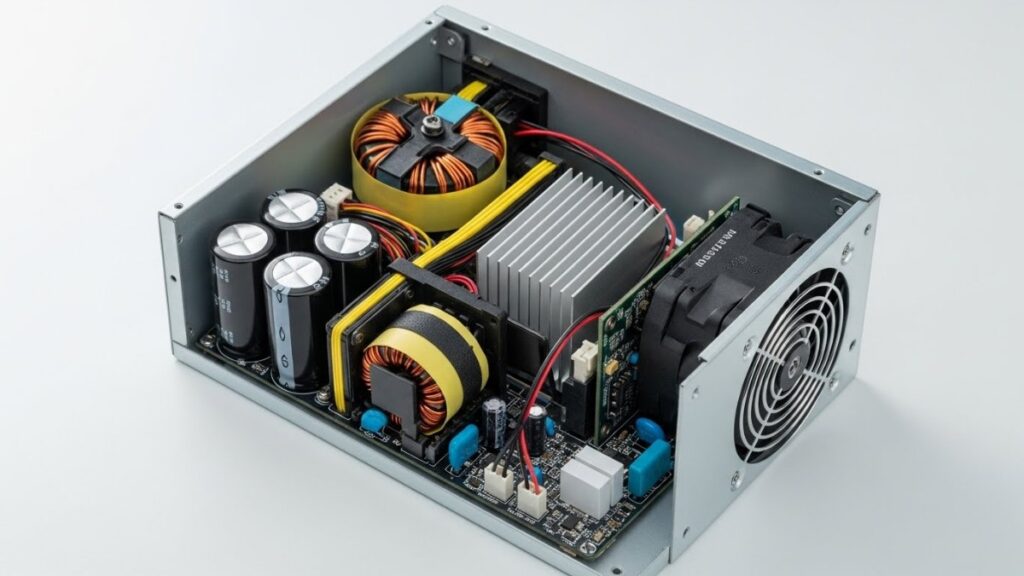
Before upgrading anything else, make sure your system is stable. If your PC is already crashing or behaving unpredictably, fix that first using this guide on fixing Windows performance and stability issues.
Power Supply: The Most Future-Proof Upgrade You Can Buy
Your power supply is the difference between an easy upgrade and a complete rebuild later. If your PSU is too weak, low quality, or outdated, any GPU upgrade becomes a problem instead of a plug-and-play improvement.
On low-end systems, the PSU is often ignored because it does not directly increase FPS. But the moment you try to upgrade your GPU, a weak power supply can force you to replace multiple parts instead of just one.
A good PSU is one of the best future proof PC upgrades because it can survive multiple builds, support future graphics cards, improve stability, and reduce the chance of expensive replacement work later.
- Target: 650W-850W for upgrade flexibility
- Efficiency: 80+ Gold or better
- Headroom: Leave extra wattage for future GPU upgrades
- Modular cables: Easier upgrades and cleaner builds
- Avoid cheap units: They fail faster and limit upgrades
Motherboard: The Part That Decides Your Upgrade Path
Your motherboard decides how far your system can grow. Weak boards limit CPU upgrades, restrict storage expansion, reduce memory flexibility, and can even cause performance issues under load.

This is one of the biggest mistakes on low-end builds. People pair a decent CPU with a cheap board, then wonder why upgrades later either fail, require a full rebuild, or perform worse than expected.
You do not need a premium motherboard, but you do need one that will not block your next upgrade. A good motherboard gives you a better CPU path, more storage options, stronger power delivery, and better long-term stability.
- Choose upgrade-friendly chipsets: Avoid entry-level dead-end boards
- Look for multiple NVMe slots: Storage expansion matters later
- Check VRM cooling: Prevents throttling on better CPUs
- BIOS support: Make sure future CPUs are supported
- RAM slots: Four slots gives more flexibility
If you are building around AMD, platform longevity matters. If you are building around Intel, socket changes matter. Either way, the motherboard is where many future-proofing decisions are won or lost.
Case and Airflow
Cases are often treated as cosmetic, but on a weak PC they directly affect performance. Poor airflow leads to higher temperatures, which causes throttling, instability, louder fans, and weaker long-term performance.
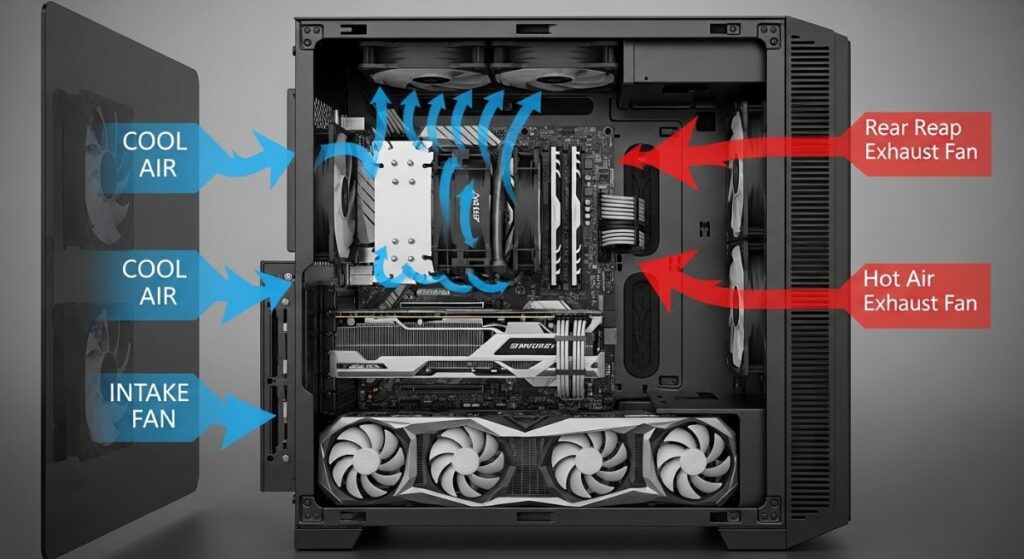
This becomes a bigger issue when you upgrade. Newer GPUs and CPUs often generate more heat, and a restrictive case will hold them back immediately.
A good airflow case prevents overheating problems now and avoids expensive replacements later. It also gives you more GPU clearance, better cable space, and more room for cooling upgrades.
- Mesh front panel: Improves airflow immediately
- GPU clearance: Prevents upgrade issues later
- Fan support: At least 2-3 fans minimum
- Cable space: Makes upgrades easier
- Avoid closed cases: They trap heat
CPU Cooling
Cooling is one of the most overlooked parts on low-end systems, but it directly affects performance. If your CPU runs too hot, it will slow itself down to prevent damage. That means lower FPS, stutter, and inconsistent performance even if your hardware should be capable.
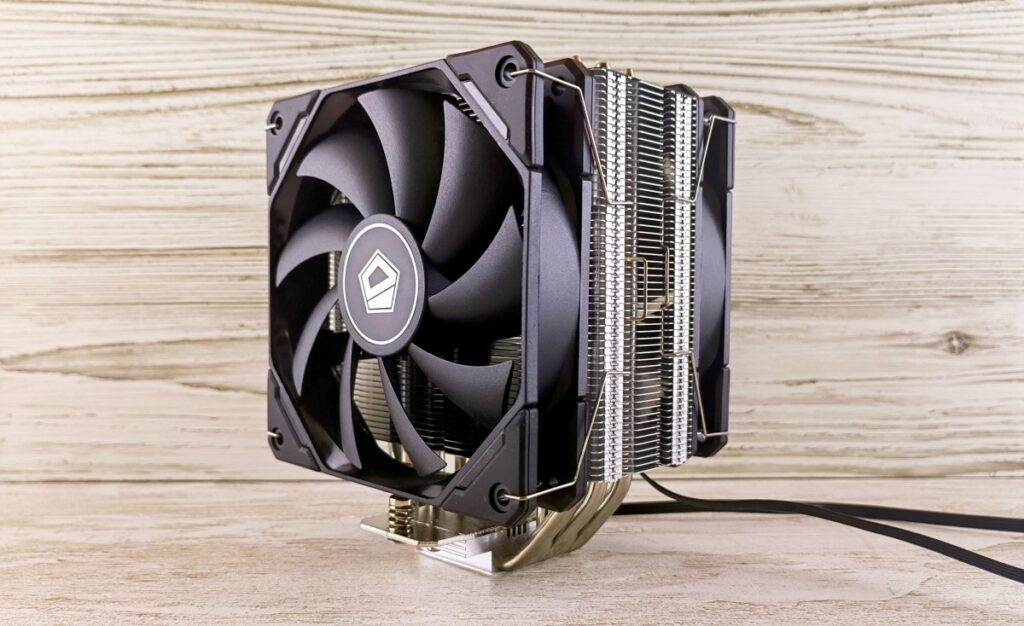
This becomes even more important when upgrading. A better CPU will generate more heat, and a weak cooler will immediately become a bottleneck. That turns what should be a performance upgrade into a throttling problem.
You do not need expensive cooling, but you do need something that can handle your next upgrade, not just your current setup. A decent air cooler can often move between builds and stay useful for years.
- Use a decent tower cooler: Stock coolers are often not enough
- Check compatibility: Make sure it supports future sockets
- Improve airflow first: Cooling works best with good case airflow
- Avoid tiny coolers: They struggle under load
- Watch temperatures: Throttling kills performance
Safe Midrange Upgrades: Where to Spend Smart
Not every part needs to be top-tier. In fact, overspending on the wrong components is one of the fastest ways to waste money on a weak PC. The goal here is balance, not max specs.

These are the parts you can safely upgrade in stages without breaking your system or your budget. They give immediate improvements while keeping your upgrade path open.
Think of this as controlled upgrading. You improve what matters now, without locking yourself into bad decisions later.
GPU Strategy
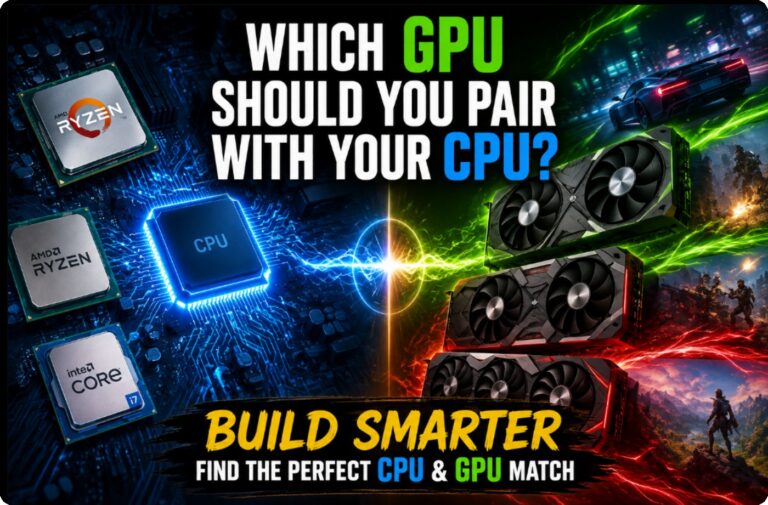
The GPU is the most obvious upgrade, but it is also where people make the biggest mistakes. Buying too much GPU for a weak system often results in wasted performance because the CPU, RAM, PSU, or platform cannot keep up.
Instead of chasing high-end cards, match your GPU to your current resolution and system limits. VRAM should be part of that decision too, but more is not automatically better. If you’re deciding between different GPU tiers, our 8GB vs 12GB vs 16GB VRAM buying guide explains which capacity makes sense for your games, resolution and budget.
The GPU is also one of the least future-proof upgrades because graphics cards age quickly compared to cases, power supplies, coolers, and storage. That does not mean you should avoid upgrading your GPU. It means you should not spend your entire budget there if the rest of the system is weak.
- 1080p focus: Best balance for low-end systems
- Avoid overkill GPUs: Your system may not use them fully
- Check PSU first: Make sure your system can support it
- Watch CPU limits: Bottlenecks are real
- Upgrade in steps: Do not jump too far ahead
CPU Strategy
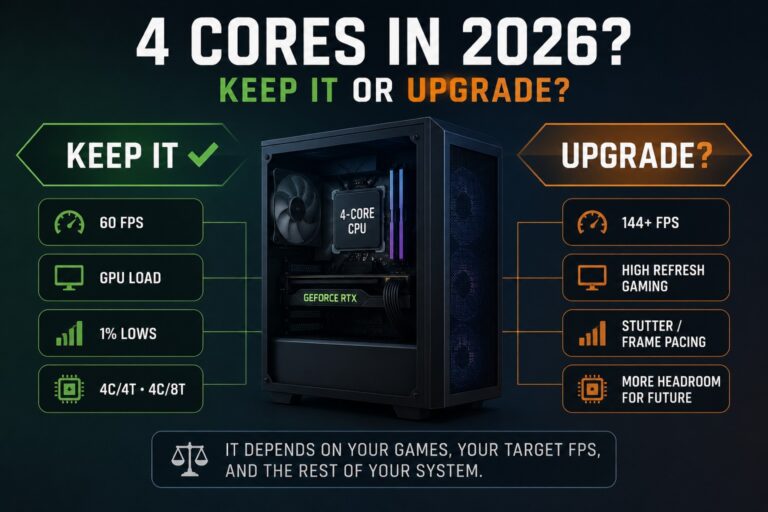
The CPU upgrade is where many people waste money. Buying a high-end CPU on a weak platform rarely improves gaming performance the way people expect. In many cases, the system is limited by RAM, storage, thermals, or GPU performance before the CPU even matters.
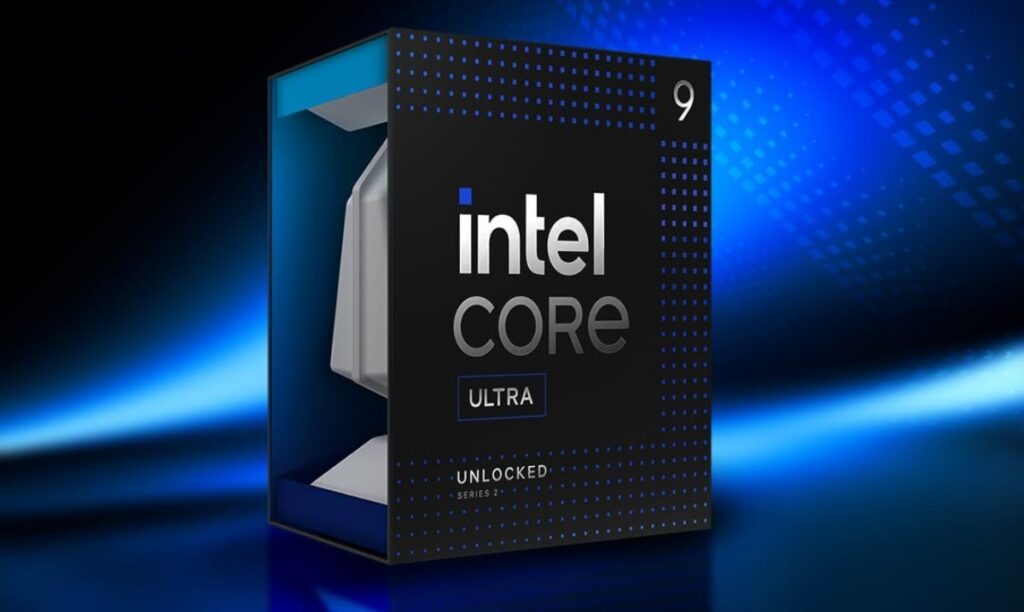
A smarter approach is to use a balanced midrange CPU that your system can actually support, then upgrade later when there is a real performance jump. This keeps your costs down and avoids replacing your motherboard or cooling setup too early.
If you are unsure whether your CPU is the real problem, check usage while gaming. If it is constantly maxed out, then it may be time to upgrade. If not, your bottleneck is probably somewhere else.
- Do not chase core count: Gaming prefers balance, clocks, and efficiency
- Match your motherboard: Avoid upgrading into a dead-end platform
- Upgrade when needed: Not just because new CPUs exist
- Watch CPU usage: 100% usage can signal a real bottleneck
- Plan for drop-in upgrades: Same socket can save money
Before blaming the GPU, CPU, or RAM, read this first: why your PC upgrade didn’t improve FPS and what to fix next.
Backward Compatibility Problems That Can Ruin Your Upgrade
Compatibility is where many future proof PC upgrades fall apart. A part can be powerful, affordable, and well-reviewed, but still be wrong for your system if it does not match your motherboard, power supply, case, memory, or BIOS support.
Before buying anything, check these compatibility issues carefully. They are the difference between a clean upgrade and a frustrating rebuild.
DDR4 vs DDR5 RAM
DDR4 and DDR5 are not interchangeable. A DDR4 motherboard cannot use DDR5 memory, and a DDR5 motherboard cannot use DDR4 memory. If you are planning a platform upgrade, memory support matters because it affects both current cost and future upgrade options.
AMD AM4 vs AM5
AM4 can still be useful for budget upgrades, especially if you already own the platform. AM5 is better for long-term upgrade planning because it gives you a newer platform and a stronger future CPU path. The right choice depends on whether you are upgrading an existing PC or building a new foundation.
Intel Socket Changes
Intel platforms can change sockets more often, so you need to check whether your motherboard supports the CPU you want now and whether it gives you any realistic upgrade path later. Do not assume a newer Intel CPU will work just because it looks similar.
PCIe Compatibility
PCIe is usually backward compatible, but performance and feature support can vary. A newer GPU can often work in an older PCIe slot, but older motherboards may limit bandwidth, storage speeds, or future expansion options.
PSU Connectors and GPU Power
Modern GPUs may need more power or different connectors than older systems provide. Before buying a graphics card, check wattage, PCIe power connectors, physical clearance, and whether your PSU is a quality unit.
BIOS Support
Some motherboards need a BIOS update before they support newer CPUs. This is especially important when buying used parts or upgrading an older board. Always check the motherboard support page before buying a CPU upgrade.
Smart Upgrade Platform Build: Foundation First
This is not a “buy everything now” build. This is a foundation setup that lets you upgrade in stages without replacing your entire system. The goal is flexibility, not maximum performance on day one.
Instead of spending everything on a GPU or CPU, this approach builds a system that can grow with your needs. You improve performance step by step instead of rebuilding from scratch every time something falls behind.
If you are working with a tight budget, you can start with basic parts and upgrade over time without breaking compatibility.
| Part | Recommended Class | What To Look For | Upgrade Benefit Later |
|---|---|---|---|
| Case | Airflow Case | Mesh front, GPU clearance | Fits future upgrades |
| Power Supply | 650W-850W Gold | Modular, headroom | Supports GPU upgrades |
| Motherboard | Upgrade-friendly board | Strong VRMs, NVMe slots | Supports better CPUs and storage |
| CPU | Balanced Midrange CPU | Strong gaming performance | Upgrade later without a full rebuild |
| Cooling | Decent Air Cooler | Handles future CPUs | Avoids throttling |
| RAM | 16GB Minimum | Leave room to expand | Upgrade to 32GB later |
| Storage | NVMe SSD | Fast load times | Add more storage later |
| GPU | Match Current Needs | 1080p performance | Upgrade when needed |
Upgrade Path Plan: How to Upgrade Without Rebuilding
The biggest mistake low-end PC users make is upgrading everything at once. That burns money fast and usually fixes nothing properly. A smarter approach is to upgrade in stages, targeting the biggest bottleneck each time.
This approach keeps your system usable while improving performance step by step. It also prevents compatibility issues, wasted parts, and unnecessary rebuilds.
Think of this as controlled progression. You fix what matters now, and prepare for what comes next without breaking your budget.
- Step 1: Fix performance issues, background apps, stability problems, and Windows issues
- Step 2: Upgrade storage if you are still using an HDD
- Step 3: Upgrade RAM from 8GB to 16GB minimum
- Step 4: Upgrade the PSU if your current one blocks GPU upgrades
- Step 5: Upgrade the GPU when the system can support it
- Step 6: Upgrade the CPU only if it becomes a real bottleneck
- Step 7: Refresh the platform only when the motherboard, RAM, and CPU path becomes a dead end
If you are unsure whether your system is ready for upgrades, start by fixing performance issues first using this guide on fixing Windows problems on low-end PCs.
Example Future-Proof Upgrade Roadmap
A good upgrade path does not need to happen all at once. For many weak gaming PCs, a staged roadmap works better because each upgrade solves one real problem without forcing a full rebuild.
| Stage | Upgrade Focus | Why It Matters |
|---|---|---|
| Stage 1 | Stability, Windows cleanup, temperatures | Fixes problems before money is spent |
| Stage 2 | SSD and RAM | Improves responsiveness, loading, and stutter |
| Stage 3 | PSU and airflow | Prepares the system for stronger parts |
| Stage 4 | GPU upgrade | Improves gaming performance when the system is ready |
| Stage 5 | CPU or motherboard platform upgrade | Only needed when the current platform becomes the limit |
There is also a point where future-proofing an old PC stops making financial sense. If replacing the motherboard, CPU, RAM and other ageing components starts looking more like a rebuild than an upgrade, compare the cost of starting fresh before spending more money on the old system. If portability appeals to you, our Best RTX 5060 Gaming Laptops comparison covers the models we’d consider for strong modern gaming performance without paying flagship laptop prices.
Common Upgrade Mistakes
Most upgrade mistakes come from rushing decisions or following generic advice that does not apply to weak systems. These mistakes cost money and usually do not improve performance.
Understanding what not to do is just as important as knowing what to upgrade. Avoid these, and your system will last longer and perform better.
If you recognize any of these mistakes, fix them before spending money on new parts.
- Upgrading the wrong part: Fix the bottleneck, not the symptom
- Ignoring the PSU: Limits future GPU upgrades
- Buying a cheap motherboard: Blocks CPU and storage upgrade paths
- Staying on HDD: Slows everything down
- Buying too much GPU: Your system cannot use it properly
- No airflow planning: Leads to thermal throttling
- Ignoring compatibility: Creates expensive rebuild problems later
- Assuming future-proof means expensive: Smart balance beats blind overspending
BTF Final Take
Future-proofing a weak gaming PC is not about chasing the best parts. It is about fixing the right problem at the right time while choosing upgrades that keep your future options open.
Most systems do not need a full rebuild. They need one smart upgrade that removes the biggest bottleneck, followed by a clear upgrade path that avoids wasted money, compatibility problems, and dead-end platforms.
If you follow a structured upgrade path, you spend less money, avoid unnecessary replacements, and get real performance gains instead of small improvements that barely matter.
Start with stability, storage, RAM, power, airflow, and compatibility. Then upgrade the GPU or CPU only when your system is ready. That is how you build a gaming PC that lasts longer without wasting money.