If you have aske the question: PC Still Slow After Reinstalling Windows? even though you have wiped the drive, then re-installed Windows. Sat through endless updates for what felt like an entire geological era. Then finally, after all that effort, you opened Chrome… and your PC still felt terrible.
Apps still take forever to load. Windows still freezes randomly. Games still stutter. Boot times still feel suspiciously close to “go make coffee” territory. Here’s the uncomfortable truth most optimization guides refuse to say out loud:
Reinstalling Windows removes software problems. It does not remove hardware limitations.
If your PC has an aging hard drive, weak CPU, low RAM, overheating issues, or integrated graphics that were already struggling five years ago, a clean install can only do so much. Modern versions of Windows are heavier than people realize, especially on older laptops and low-end desktops.
If you’re unsure whether Windows is really to blame, start with our Complete Gaming PC Health Check. It walks you through checking temperatures, CPU and GPU performance, memory, storage, and Windows itself, helping you determine whether your slowdown is caused by the operating system or an underlying hardware limitation.
That doesn’t mean your system is automatically junk. Some older PCs are absolutely worth saving. Others are being held together by thermal paste that now resembles dry toothpaste and a hard drive that sounds emotionally exhausted.
In this guide, we’re going to break down why reinstalling Windows often fails to make weak PCs feel fast again, how to figure out what’s actually slowing your system down, and which upgrades genuinely make a difference before you waste money or reinstall Windows for the fourth time.
Why Your PC Still Feels Slow After Reinstalling Windows
If your PC is still slow after reinstalling Windows, the problem is usually hardware related, not software related. Old hard drives, weak CPUs, low RAM, thermal throttling, and modern Windows background tasks can still overwhelm older systems even after a clean install.
A fresh Windows installation can remove junk files, broken drivers, malware, and years of software clutter, but it cannot make an old CPU faster, add more RAM, or fix a struggling hard drive. Nor can it stop games from recompiling shaders. If it keeps happening, check out Game Compiling Shaders Every Launch? Here’s What Causes It and How to Stop It.
| Symptom | Most Likely Cause |
|---|---|
| Very slow boot times | Old HDD or failing SSD |
| Freezing while opening apps | Low RAM or disk bottleneck |
| Lag during updates | Weak CPU struggling with Windows tasks |
| Games stuttering after reinstall | Thermal throttling or hardware limitations |
| 100% disk usage in Task Manager | Aging hard drive |
Reinstalling Windows Removes Software Problems, Not Hardware Limits
This is the part that catches most people off guard.
For years, reinstalling Windows was treated like the ultimate “make my PC fast again” button. Back in the Windows XP and Windows 7 era, that advice honestly worked pretty well because systems were lighter, background tasks were simpler, and hard drives weren’t constantly getting hammered by modern apps and services.
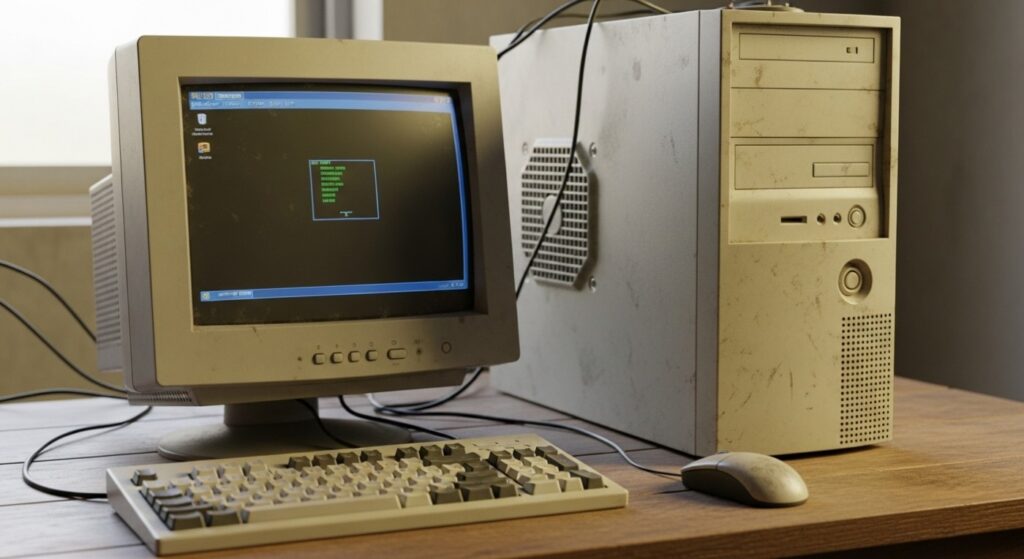
But modern Windows works very differently now. Windows 10 and especially Windows 11 run far more background processes than older operating systems ever did. Even on a clean install, your PC is immediately dealing with:
- Windows Update services
- Defender background scans
- search indexing
- telemetry processes
- driver services
- cloud syncing
- browser startup tasks
- gaming launchers waking up every five seconds
On newer hardware, this usually isn’t a huge problem. On older systems, especially weak laptops or office desktops, it becomes brutal.
A clean Windows installation can absolutely help if your old install was full of junk software, broken drivers, or years of accumulated nonsense. But reinstalling Windows cannot magically improve physical hardware limitations.
It cannot:
- make an old dual-core CPU process data faster
- turn a slow hard drive into an SSD
- add more RAM to a 4GB system
- fix thermal throttling
- improve integrated graphics performance
- repair aging storage latency
That’s why so many people finish reinstalling Windows, open a few programs, and immediately feel disappointed. The operating system itself may now be clean, but the hardware bottlenecks are still there waiting patiently like unpaid bills.
If your system is already struggling with weak hardware, reinstalling Windows mostly removes the extra weight sitting on top of the problem. It does not remove the problem itself.
This becomes especially obvious on older hard-drive-based systems. If your PC still uses a mechanical HDD, modern Windows can feel painfully slow no matter how clean the installation is. That’s one of the biggest reasons users think the reinstall “failed” when the real issue is storage performance.

And if your PC hasn’t had proper maintenance in years, things like overheating, bloated startup processes, and aging drives can slowly stack together over time. Our guide to PC maintenance and optimization covers the long-term side of keeping older systems alive.
The important thing to understand before doing anything else is this:
A reinstall can improve a bad system state. It cannot transform weak hardware into powerful hardware.
Once you understand that distinction, the next step becomes much easier because now you can start identifying the real bottleneck instead of endlessly reinstalling Windows and hoping for miracles.
The Biggest Reason Old PCs Still Feel Slow: Hard Drives
If I had to pick the single biggest reason older PCs still feel horrible after reinstalling Windows, it would be this:
Mechanical hard drives simply cannot keep up with modern Windows anymore.
This is where a lot of users accidentally blame Windows itself when the real issue is storage latency.
Years ago, hard drives were “good enough” because operating systems were lighter and applications weren’t constantly hammering the drive in the background. Modern Windows behaves very differently now. Even while you’re doing absolutely nothing, the operating system is still:
- checking updates
- indexing files
- running Defender scans
- loading startup services
- caching background tasks
- syncing cloud data
- preloading apps
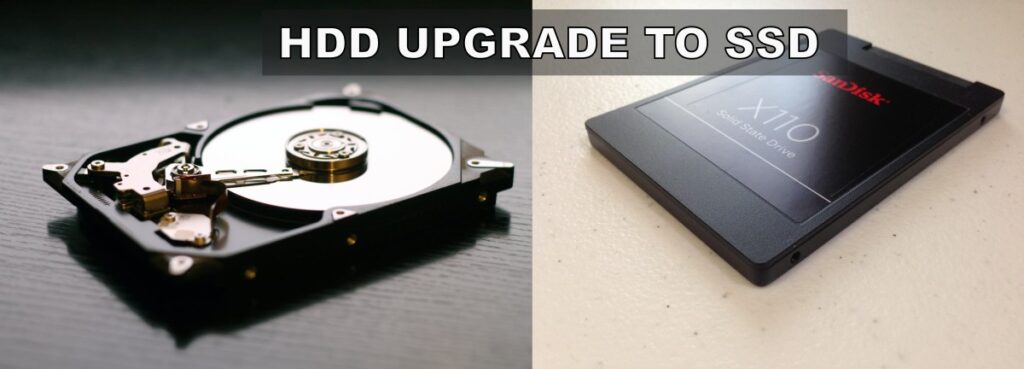
An old HDD has terrible random read and write performance compared to even a cheap SATA SSD. That means your PC spends massive amounts of time waiting for the drive instead of actually doing work.
This is why weak PCs often behave like this after reinstalling Windows:
- booting still takes several minutes
- opening Chrome freezes the desktop
- Task Manager shows 100% disk usage constantly
- games take forever to load
- Windows feels responsive for a few seconds, then suddenly stalls again
And here’s the nasty part:
A fresh Windows install can actually make this feel worse temporarily because Windows immediately starts rebuilding caches, downloading updates, indexing files, and setting up background services again. On an HDD-based system, that process can absolutely crush performance for hours or even days.
This is one reason people reinstall Windows, see horrible performance afterward, and assume something went wrong during the install. In reality, the hard drive is simply struggling to survive modern Windows workloads.
If your games also take forever to load, textures stream slowly, or maps hitch while moving around, our article on why games take forever to load on weak PCs explains this problem in much more detail.

Another important thing people miss is that older drives often degrade slowly over time. A hard drive doesn’t have to completely fail to become painfully sluggish. Aging drives can develop:
- slower seek times
- bad sectors
- high latency spikes
- thermal issues
- fragmentation problems
- background retry errors
That’s why it’s worth checking your drive health using tools like CrystalDiskInfo. Sometimes the reinstall isn’t the issue at all, your storage device is quietly approaching retirement.
This is also why SSD upgrades feel almost “fake” the first time people try them on old systems. You reinstall Windows expecting a miracle, then later swap the HDD for an SSD and suddenly the machine feels like it woke up from a coma.
That’s because SSDs massively reduce the waiting time between thousands of tiny Windows operations happening constantly in the background.
If you want a deeper breakdown of what actually matters with SSD performance on older gaming systems, check out our guide on real-world SSD performance for gaming.
And honestly, this is where many “dead” PCs get saved. A weak CPU is annoying. Low RAM is frustrating. But an old HDD running modern Windows is usually the thing that makes a system feel truly miserable.
Weak CPUs Can’t Keep Up With Modern Windows Anymore
Storage is only half the problem. The other issue many older PCs run into is that modern Windows expects far more CPU performance than people realize. A processor that felt “fine” years ago can suddenly feel completely overwhelmed today, even after a clean reinstall.
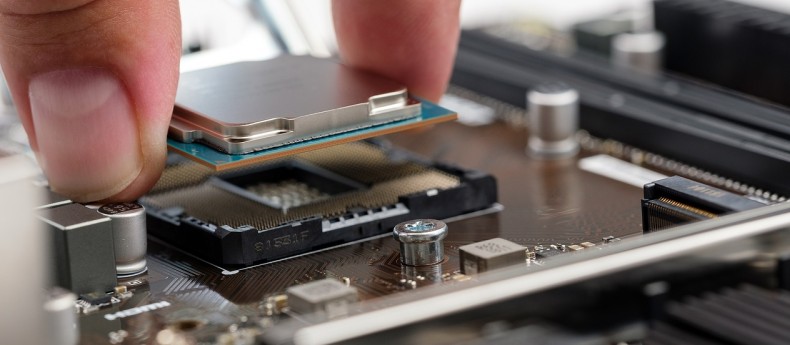
This is especially common on:
- older dual-core CPUs
- budget laptop processors
- older Intel Pentium and Celeron chips
- low-power office desktops
- aging AMD A-series systems
Back when these systems were released, Windows itself was lighter, browsers were less demanding, and people weren’t running Discord, Chrome, Steam, OneDrive, RGB software, launchers, overlays, and twenty browser tabs all at once.
Now even basic desktop use can hammer weak CPUs into submission.
One of the biggest misunderstandings people have is assuming that reinstalling Windows somehow “resets performance” back to factory speed. What it actually does is remove accumulated clutter. The CPU still has exactly the same limitations it had before.
In some cases, the problem gets worse because newer versions of Windows place heavier demands on older processors. Windows 11 especially can feel rough on unsupported or borderline hardware because the operating system expects modern scheduling, security features, and multitasking performance.
Even background tasks alone can become enough to saturate older CPUs:
- Windows Defender scans
- browser rendering
- game launchers
- Windows Update
- cloud syncing
- search indexing
- video decoding
That’s why users often see symptoms like:
- CPU usage sitting near 100%
- audio crackling during multitasking
- mouse stutter while updates install
- Discord lagging games
- random freezes during browser use
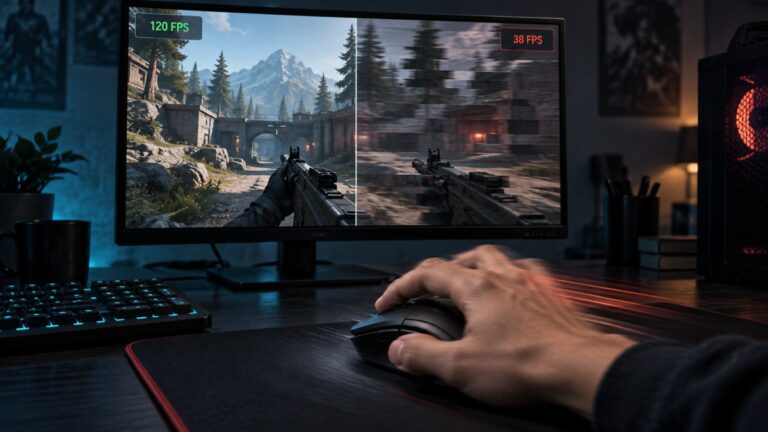
- games hitching even at low settings
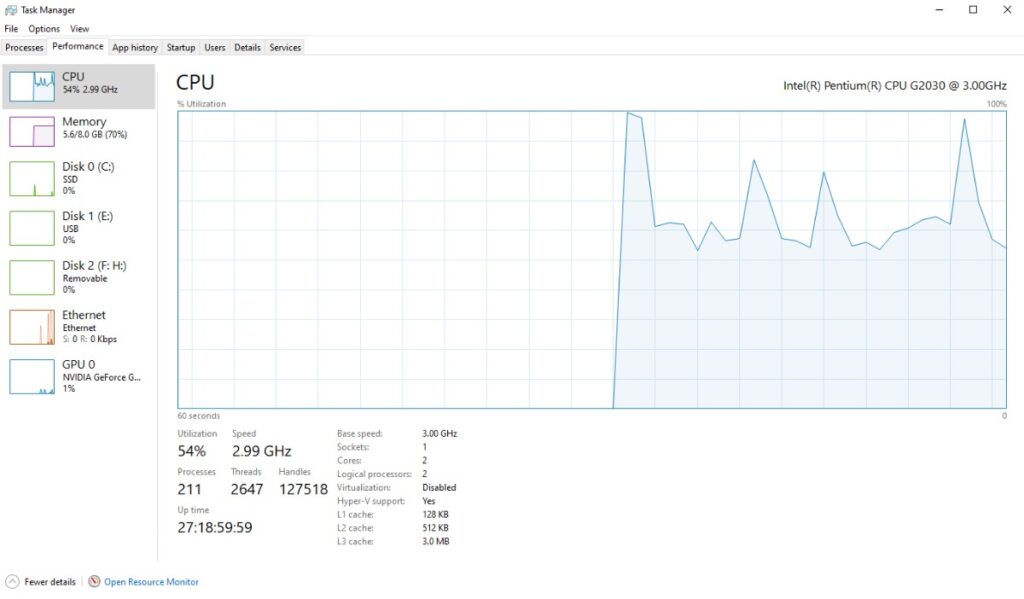
If you’ve ever opened Task Manager and seen your CPU pinned near maximum usage while doing almost nothing, that’s usually your biggest clue that the processor itself is becoming the bottleneck.
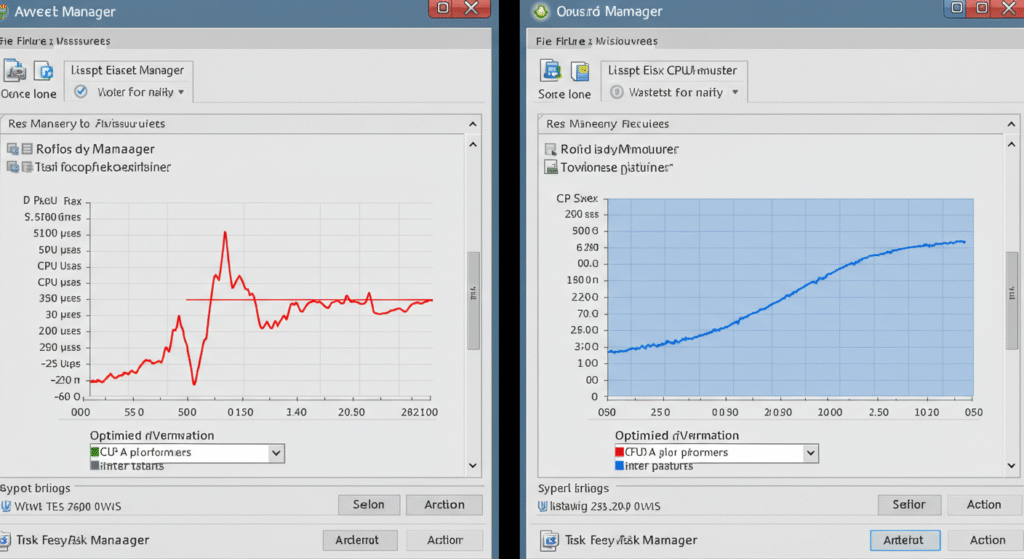
Our guide on high CPU usage while gaming breaks down how to identify whether background tasks or the processor itself are causing the problem.
And here’s where things get psychologically annoying for users:
A weak CPU can make the entire system feel slow even if the storage drive and RAM are decent. That creates the illusion that “Windows is broken” when the processor simply cannot keep up with modern workloads anymore.
This is also why old office PCs sometimes feel surprisingly worse over time despite getting reinstalled repeatedly. The software ecosystem around Windows becomes heavier every year, but the hardware stays frozen in time.
Microsoft’s own Windows 11 system requirements already hint at this shift toward newer hardware expectations, especially for security features and CPU support.
Now, this doesn’t automatically mean your PC is hopeless. Some older CPUs are still perfectly usable when paired with an SSD and enough RAM. Others are simply being crushed because they’re trying to run modern Windows with ancient hardware and only 4GB of memory.
Which brings us to the next major bottleneck most weak systems run into after reinstalling Windows.
Low RAM Creates Constant Freezing and Stutter
RAM problems are sneaky because they don’t always look like “RAM problems.” Most users don’t open Task Manager and think: “Ah yes, clearly my paging file is getting destroyed.” They just experience symptoms:

- browser tabs freezing
- games stuttering randomly
- Windows hanging for a few seconds
- apps taking forever to switch between
- the desktop becoming unresponsive during multitasking
And once again, reinstalling Windows cannot magically create more memory.
This is why so many older systems still feel awful after a clean install. Modern Windows plus modern applications can easily overwhelm low-memory systems, especially machines still running only 4GB of RAM.
In 2026, 4GB is honestly survival mode. Windows itself consumes a significant chunk before you even open anything. Then add:
- Chrome tabs
- Discord
- Steam
- game launchers
- background updates
- browser extensions
Suddenly the system runs out of physical memory and starts relying heavily on the paging file, which means Windows begins dumping data onto the storage drive instead.
If that drive is also an old HDD, performance collapses spectacularly. That’s why weak PCs often feel:
- fine for 30 seconds
- then horrible for two minutes
- then responsive again briefly
The system is constantly juggling memory pressure behind the scenes.
| RAM Capacity | Modern Windows Experience |
|---|---|
| 4GB | Barely usable for multitasking |
| 8GB | Minimum comfortable baseline |
| 16GB | Much smoother overall experience |
This also explains why some users reinstall Windows and initially think things improved, only for performance to tank again after reinstalling their normal apps. The clean install reduced background clutter temporarily, but the memory limitations never went away.
And if you game on a low-end PC, low RAM can also create severe frametime spikes and loading stutter because Windows is constantly moving data between memory and storage.
Our article on why games stutter on low-end PCs dives deeper into how memory bottlenecks create those random hitching and freezing problems people often mistake for GPU issues.
At this point, you can probably see the bigger pattern forming:
Most “slow PC after reinstalling Windows” problems are actually hardware bottlenecks wearing a software disguise.
Your PC Might Be Thermal Throttling Without You Realizing It
This is one of the most overlooked reasons older PCs still feel slow after reinstalling Windows. And honestly, it catches a shocking number of people off guard.
Thermal throttling happens when your CPU or GPU gets too hot and automatically reduces performance to protect itself from damage. The system intentionally slows down because the cooling can no longer keep temperatures under control.
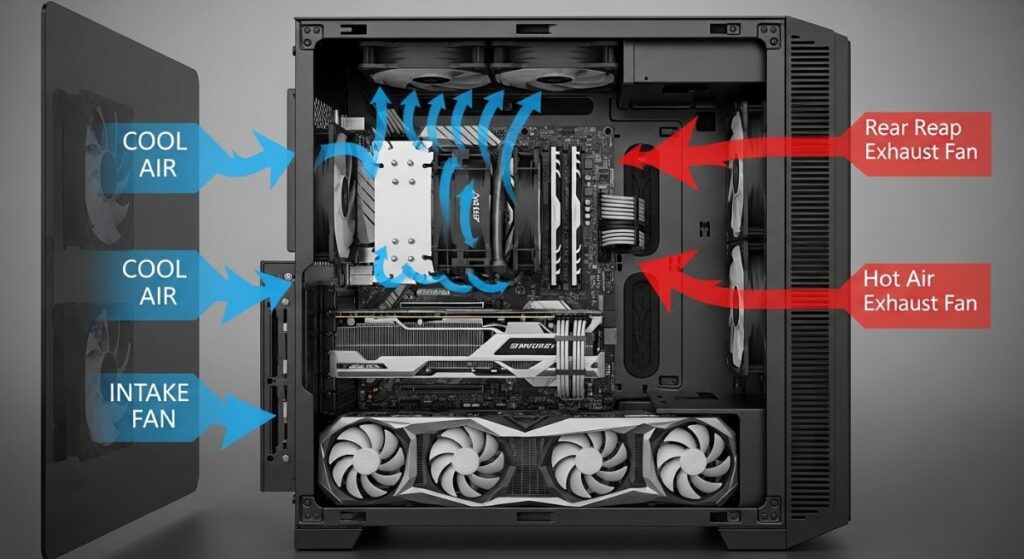
That means your “slow PC” problem might not actually be Windows at all.
It might be:
- dust-clogged cooling vents
- dried thermal paste
- a dying laptop fan
- poor airflow
- old cooling systems struggling with modern workloads
This becomes especially common on older laptops because cooling performance quietly degrades over time. A laptop that ran fine five years ago can slowly become a throttling disaster without the owner realizing what’s happening. And here’s the frustrating part:
Reinstalling Windows does absolutely nothing to fix overheating hardware.
That’s why some systems behave like this:
- fast for the first few minutes after booting
- then suddenly sluggish later
- games losing FPS over time
- fans screaming constantly
- mouse movement becoming choppy during heavy tasks
- random stutter appearing after updates or gaming sessions
The hardware is literally slowing itself down to survive. Many users mistake this for:
- Windows corruption
- driver problems
- bad updates
- “Windows being bloated”
Meanwhile the CPU is sitting at 95°C desperately trying not to become a small indoor volcano.
This is also why weak gaming laptops often feel dramatically worse over time even after fresh installs. The cooling system slowly deteriorates while Windows and modern software continue getting heavier.
If you want a deeper breakdown of hidden thermal performance loss, our guide on the hidden throttles killing FPS explains how overheating quietly destroys gaming performance on older systems.
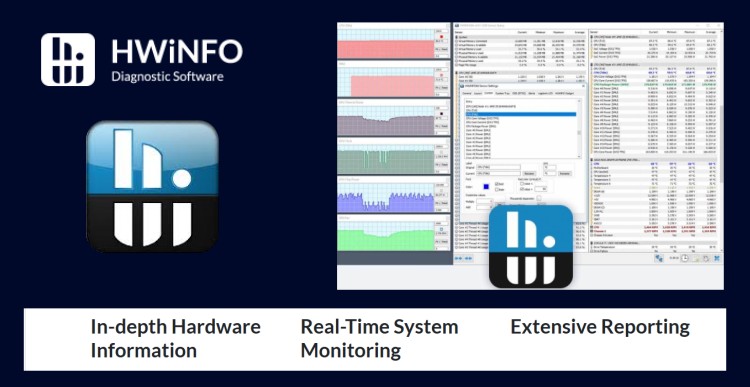
And if you want to actually monitor temperatures properly instead of guessing, the HWiNFO64 guide is one of the best ways to check whether your CPU or GPU is throttling under load.
One important thing to understand is that thermal throttling often creates inconsistent performance, which makes diagnosis confusing. A storage bottleneck usually feels consistently slow.
Thermal throttling feels more like:
- performance dropping over time
- random stutter appearing after gaming
- FPS collapsing during long sessions
- the laptop becoming slower as it heats up
That inconsistency tricks users into thinking the problem is software related when the hardware cooling system is actually screaming for help. And honestly, some older systems regain surprising amounts of performance just from:
- cleaning dust buildup
- replacing thermal paste
- improving airflow
- stopping the CPU from cooking itself alive
Not every weak PC needs a full replacement immediately. Some are simply overheating so badly that they never get a chance to perform properly anymore.
When Reinstalling Windows Actually DOES Help
Now to be fair, reinstalling Windows is not useless. Sometimes it genuinely makes a massive difference. This is important to acknowledge because otherwise articles like this start sounding like: “Everything is hardware. Give up immediately.”
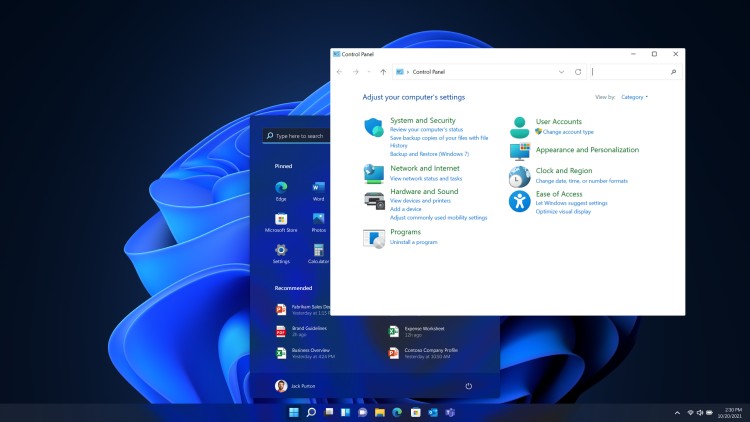
That’s not true either. A clean Windows installation can absolutely rescue systems suffering from:
- years of accumulated junk software
- malware infections
- broken drivers
- corrupted Windows files
- bad startup environments
- registry damage
- old antivirus leftovers
- software conflicts
If your PC was drowning in garbage beforehand, reinstalling Windows can remove a huge amount of overhead and instability.
That’s why people sometimes describe fresh installs as making their PC “feel new again.” But there’s a critical difference between:
- removing software clutter
- improving actual hardware capability
A clean install can improve responsiveness. It cannot:
- increase CPU power
- upgrade integrated graphics
- reduce HDD latency limitations
- add missing RAM
- fix thermal degradation
That’s the line many users accidentally cross without realizing it.
They expect the reinstall to completely reset the machine back to its original speed, but modern workloads have changed dramatically over the years. Even a perfectly clean Windows install may still feel slow on older hardware because the demands placed on the system are now much heavier than when the PC was originally released.
This becomes especially obvious on old laptops that originally shipped with Windows 7 or early Windows 10 builds. Back then:
- browsers were lighter
- background tasks were simpler
- games required less memory
- launchers were smaller
- streaming services used fewer resources
Now the exact same hardware is trying to survive in a much heavier software ecosystem. So yes, reinstalling Windows can absolutely help.
But if your system still feels painfully slow afterward, that usually means the reinstall successfully removed the software clutter and exposed the real bottleneck underneath.
How to Tell What’s ACTUALLY Slowing Down Your PC
At this point, the goal is no longer: “How do I reinstall Windows again?” The goal becomes:
“What is the real bottleneck?”
This is where many people finally stop guessing and start understanding why their PC behaves the way it does. The good news is that you do not need to become a hardware engineer overnight. You just need to learn how to spot the obvious warning signs. The easiest place to start is Task Manager.
Press: Ctrl + Shift + Esc
Then open the Performance tab and watch what happens while your PC feels slow. You’re looking for components sitting near maximum usage consistently.
| What You See | What It Usually Means |
|---|---|
| Disk stuck near 100% | Old HDD or storage bottleneck |
| CPU near 100% | Weak processor or heavy background tasks |
| RAM completely full | Memory starvation and paging |
| Temps extremely high | Thermal throttling |
| GPU maxed constantly in games | Graphics limitation |
This immediately gives you a much clearer picture of where the slowdown is actually happening.
For example:
- If your disk usage spikes to 100% every time you open apps, your storage is likely the problem.
- If RAM usage stays maxed while multitasking, the system is probably relying heavily on the paging file.
- If CPU usage constantly pegs near maximum during simple tasks, the processor may simply be too weak for modern workloads.
And if temperatures shoot into the danger zone while performance drops, thermal throttling becomes the prime suspect.
This is where monitoring tools become incredibly useful because they help separate “Windows feels slow” from the actual hardware problem underneath.
If you want a deeper walkthrough on reading temperatures, clocks, usage percentages, and bottlenecks properly, the Ultimate HWiNFO64 Guide is one of the best places to start.
You should also understand that not every slowdown means the hardware is completely doomed. Sometimes the system is simply buried under unnecessary background junk again.
That’s why removing bloated startup apps and unnecessary software can still help weaker PCs feel more responsive, especially after months of accumulated clutter.
If your system has slowly filled up with background nonsense again, this guide on disabling bloatware on Windows can help clean things up without turning your operating system into a science experiment. But this is the key mindset shift the article has been building toward the entire time:
You should diagnose before you optimize.
Too many people blindly reinstall Windows over and over without ever checking:
- disk usage
- temperatures
- CPU load
- RAM pressure
- storage health
That’s how users waste entire weekends reinstalling operating systems while the real problem quietly sits there untouched.
Some Old PCs Are Still Worth Saving, Others Aren’t
This is probably the hardest part for people to hear, but it’s also the most honest. Not every old PC is doomed. And not every old PC is worth endlessly fighting either.
Some systems are actually one smart upgrade away from becoming perfectly usable again. Others are simply too outdated for modern expectations no matter how many reinstalls, tweaks, and “ultimate optimization” videos you throw at them. The trick is learning the difference.
Systems That Are Often Worth Saving
Older PCs can still be surprisingly usable if the main problem is something fixable like:
- an old mechanical HDD
- thermal throttling
- insufficient RAM
- bloated startup environments
- years of neglected maintenance
This is why some old office desktops suddenly feel dramatically better after:
- installing an SSD
- upgrading from 4GB to 8GB RAM
- cleaning dust buildup
- replacing thermal paste
- reducing unnecessary startup apps
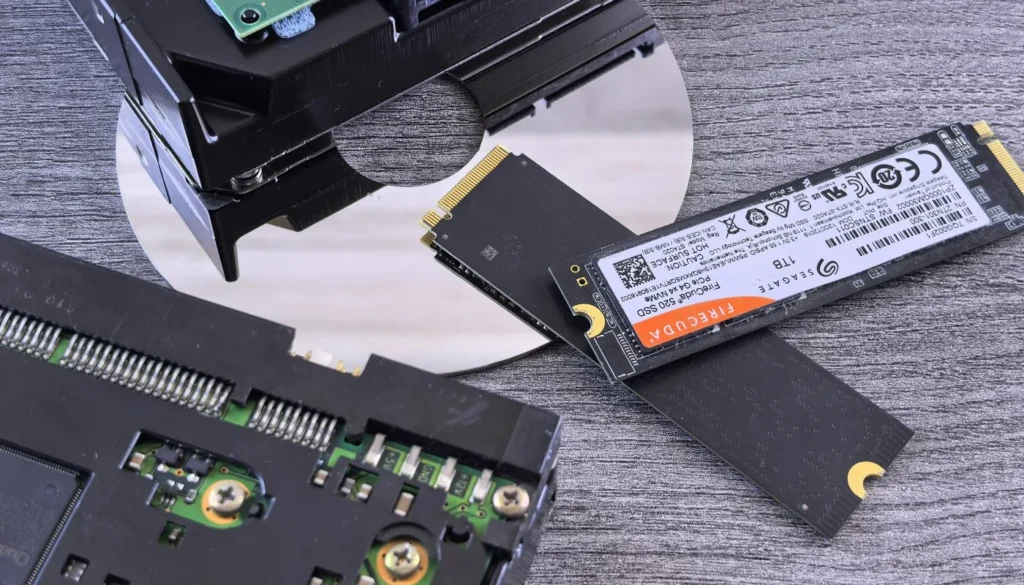
These systems may still have weak hardware, but they become usable because the biggest bottlenecks were removed.
And honestly, this is where many people accidentally overspend. They assume the entire PC is dead when the real issue was a miserable hard drive and memory starvation all along.
Systems That Are Much Harder to Save
Now for the uncomfortable reality check. Some hardware simply struggles too much with modern software demands. This becomes especially true on:
- very old dual-core CPUs
- soldered 4GB RAM laptops
- ancient low-power notebook chips
- systems limited to extremely slow storage
- aging integrated graphics platforms
At a certain point, the hardware itself becomes the wall. That doesn’t mean the PC becomes completely useless. It just means expectations need to change realistically.
For example:
- basic browsing may still be fine
- retro games may still run perfectly
- older esports titles may still be playable
- light office work may still work well
If the PC is an older laptop with very limited upgrade options, that does not necessarily mean you have to stop gaming on it. You just need to choose games that match what the hardware can realistically handle. Our guide to games for low-end laptops is specifically built around finding playable options for weaker laptop hardware.
But expecting a decade-old low-end laptop to behave like a modern gaming system after reinstalling Windows is where frustration starts taking over. This is also where people accidentally fall into the endless optimization loop:
- reinstall Windows
- watch tweak videos
- disable random services
- edit registry entries
- gain 3% performance
- repeat forever
Meanwhile the real issue is simply that the hardware platform itself is running out of breathing room in modern Windows.
And honestly, understanding that can actually save you money because now you can make smarter decisions instead of blindly replacing parts or reinstalling Windows repeatedly hoping for miracles.
The Best Upgrades for a Slow Low-End PC
If your PC is still painfully slow after reinstalling Windows, this is the point where upgrades start making more sense than endless tweaking.
But this is also where a lot of people waste money. They buy random parts without understanding the actual bottleneck, then wonder why the system still feels terrible afterward.

The goal is not: “Throw expensive hardware at the problem.” The goal is:
“Remove the biggest bottleneck first.”
That one mindset shift alone saves people an incredible amount of frustration. If you want the full breakdown of upgrade priorities for weak systems, our guide on what to upgrade first on a low-end PC walks through the smartest upgrade paths in detail.
1. Upgrading From an HDD to an SSD
For most old systems, this is the single biggest upgrade you can make. Not because SSDs magically increase FPS, but because they massively reduce the waiting time caused by modern Windows workloads.
This affects:
- boot times
- Windows responsiveness
- app launches
- game loading
- system freezing
- background task delays
This is why so many users describe SSD upgrades as making their PC “feel new again.” The reality is that the CPU suddenly spends less time waiting for painfully slow storage operations.
If your system still runs on a mechanical hard drive, an SSD upgrade often makes a bigger real-world difference than reinstalling Windows ever will. Our guide on SSD performance for gaming explains what actually matters before buying one.
2. Adding More RAM
If your PC constantly freezes during multitasking, browser use, or gaming, RAM is often the next major bottleneck.
Moving from:
- 4GB → 8GB
- 8GB → 16GB
can dramatically reduce:
- stutter
- paging
- tab freezing
- background slowdowns
- frametime spikes
And unlike endless “Windows tweak” videos, RAM upgrades solve an actual physical limitation. That matters.
Just make sure your motherboard and laptop actually support the upgrade before buying anything. Some older systems, especially ultra-budget laptops, are heavily restricted or use soldered memory that cannot be upgraded at all.
3. Cleaning and Cooling Maintenance
This one gets ignored constantly because it doesn’t sound exciting. But some older PCs are losing massive performance simply because they’re overheating.
Cleaning dust buildup, replacing thermal paste, and improving airflow can sometimes restore surprisingly large amounts of lost performance, especially on laptops.
If your PC:
- starts fast then slows down later
- runs extremely hot
- sounds like a vacuum cleaner
- drops FPS during long gaming sessions
cooling maintenance may genuinely matter more than another reinstall.
4. Knowing When NOT to Upgrade
This is just as important as knowing what to upgrade. Some systems are too limited to justify major spending.
For example:
- very old dual-core CPUs
- DDR3-era laptops with soldered RAM
- ancient integrated graphics platforms
- systems stuck on extremely outdated chipsets
At a certain point, upgrading one part simply moves the bottleneck somewhere else. That’s why cheap, targeted upgrades usually make more sense than trying to fully modernize ancient hardware.

If you want practical upgrade ideas that actually improve weak gaming systems without wasting money, check out our guide on cheap gaming upgrades that boost FPS.
The important thing is understanding that reinstalling Windows should never be the only troubleshooting strategy.
Sometimes the system genuinely just needs cleanup. Sometimes it needs an SSD. or most of the times it needs more RAM. And most often the hardware is simply reaching the realistic end of what modern Windows and modern applications expect from it.
Final Thoughts
Reinstalling Windows can absolutely help a struggling PC.
It can remove:
- software clutter
- malware
- broken drivers
- years of accumulated junk
But what it cannot do is erase physical hardware limitations. That’s the part most optimization guides avoid saying because “just reinstall Windows” sounds easier than explaining bottlenecks, thermals, RAM pressure, and storage latency.
If your PC is still slow after reinstalling Windows, that usually means the clean install already removed the software problems and exposed the real issue underneath.
For some systems, that issue is:
- an aging hard drive
- low RAM
- thermal throttling
- a weak CPU struggling with modern workloads
And honestly, understanding that is actually a good thing. Because now you can stop endlessly reinstalling Windows hoping for miracles and start making smarter decisions based on what the machine is genuinely struggling with.
Some older PCs are still absolutely worth saving. Others simply need realistic expectations. But once you understand where the real bottleneck is, you finally stop guessing, and that’s usually the moment weak PCs become much less frustrating to deal with.
FAQ
Why is my PC still slow after reinstalling Windows?
If your PC is still slow after reinstalling Windows, the problem is usually hardware related. Old hard drives, weak CPUs, low RAM, thermal throttling, and background Windows tasks can still overwhelm older systems even after a clean install.
Does reinstalling Windows improve FPS?
Sometimes slightly, especially if the old installation had malware, broken drivers, or years of accumulated junk software. But reinstalling Windows cannot improve the actual performance capability of weak hardware.
Can an HDD make a PC feel slow?
Absolutely. Mechanical hard drives are one of the biggest reasons old PCs feel painfully slow on modern versions of Windows. Upgrading to an SSD often improves responsiveness far more than reinstalling Windows.
Is 4GB of RAM enough for Windows 11?
Technically yes, realistically not really. Windows 11 can run on 4GB RAM, but multitasking, gaming, browser use, and background services can quickly overwhelm low-memory systems.
Should I upgrade RAM or an SSD first?
For most older systems still using mechanical hard drives, an SSD upgrade usually provides the biggest real-world improvement. If the system already has an SSD but constantly freezes during multitasking, RAM may be the better upgrade.