The best PC upgrades for more FPS are not automatically more RAM, a faster SSD or a new graphics card. The right upgrade is the least expensive change that fixes the part currently limiting your gaming performance.
If your graphics card is already working at full capacity, a meaningful GPU upgrade can increase FPS. If your 8 GB of RAM is full, moving to 16 GB may reduce stutter and improve frametime consistency. If your games are still installed on a hard drive, an SSD will dramatically shorten loading times—but it will rarely produce much more average FPS.
This guide ranks the best cheap PC upgrades by the problem they solve. It will help you decide what to upgrade on an older gaming PC, what result to expect and which popular upgrades are unlikely to be worth your limited budget.
Which Cheap PC Upgrade Should You Make First?
Use the symptoms below to identify the most sensible starting point. An upgrade only provides good value when it addresses the right limitation.
| Your current problem | Best affordable upgrade or fix | What it usually improves | Will it increase average FPS? |
|---|---|---|---|
| 8 GB RAM is nearly full while gaming | Upgrade to 16 GB, preferably using a compatible dual-channel configuration | Stutter, 1% lows and multitasking | Sometimes, but smoother performance is the bigger benefit |
| Games are installed on a mechanical hard drive | Move Windows and frequently played games to an SSD | Loading, responsiveness and storage-related hitching | Usually not by much |
| CPU or GPU clocks fall as temperatures rise | Clean the PC and repair the cooling problem | Restores performance lost through thermal throttling | Only if heat was reducing performance |
| GPU usage stays near full and FPS is below your target | Save for a meaningful GPU upgrade | Average FPS, visual settings or resolution | Usually yes |
| GPU usage falls while one or more CPU cores are heavily loaded | Consider a worthwhile CPU or platform upgrade | CPU-limited FPS and 1% lows | Yes, in CPU-limited games |
| Neither the CPU nor GPU appears fully used | Check temperatures, RAM, power settings and background software first | Recovers performance already available | Sometimes, without buying hardware |
The short answer: Upgrade from 8 GB to 16 GB only if memory is running low. Buy an SSD for loading and responsiveness, not as an FPS upgrade. Fix overheating before replacing working hardware. If you want substantially more FPS, the GPU or CPU normally has to be the real performance limit.
Competitive games played at low settings need particular care. Reducing graphics settings takes pressure off the GPU, which can expose a CPU limitation. Buying a faster graphics card may then produce a much smaller improvement than expected. Check what the game is actually using before choosing the part with the most impressive benchmark result.
Check What Is Limiting Your PC Before Spending Money
A cheap upgrade can be excellent value on one PC and almost useless on another. The difference is whether it fixes the component or condition preventing the system from performing better.
Average FPS also does not tell the whole story. Some upgrades produce more frames, while others reduce stutter, improve 1% lows, shorten loading times or make Windows more responsive. Those are all useful improvements, but they are not interchangeable.
Before buying anything, play one of the games you actually want to improve and check:
- GPU usage: Consistently high usage usually means the graphics card is setting the current performance limit.
- CPU usage: A game can be CPU-limited even when total CPU usage is below 100%, because one or more important cores may be heavily loaded.
- RAM usage: If memory is almost full and the system begins using storage heavily, additional RAM may reduce stutter.
- Temperatures and clock speeds: Rising temperatures followed by falling clock speeds can indicate thermal throttling.
- Frametime behaviour: Sharp spikes can reveal stutter that an average-FPS number hides.
If you need help interpreting these readings, use our guide to identify what is bottlenecking your gaming PC. You do not need to become a hardware expert; you only need enough evidence to avoid upgrading the wrong component.
If you already bought a part and performance barely changed, use Why Your PC Upgrade Didn’t Improve FPS to diagnose what happened. That guide deals specifically with a disappointing upgrade after installation; this one helps you choose the right upgrade before spending the money.
Upgrade From 8 GB to 16 GB When Memory Is Running Out
Moving from 8 GB to 16 GB is one of the best cheap PC upgrades when your current memory is nearly full during gaming. It may not transform average FPS, but it can reduce stutter, improve 1% lows and stop background applications from competing with the game for limited memory.
This matters most in newer games, large open worlds and systems running browsers, launchers, voice chat or other software in the background. Once available RAM becomes scarce, Windows must move more data between memory and storage, which can make gameplay feel inconsistent.
However, 8 GB is not automatically the cause of every performance problem. Lightweight games and older esports titles may still run acceptably within 8 GB, particularly when unnecessary background applications are closed. If RAM usage remains comfortably below capacity, adding more memory is unlikely to fix a CPU or GPU bottleneck.
A RAM upgrade is most likely to help when:
- Memory usage remains close to full while playing.
- The game stutters when entering new areas or loading assets.
- Alt-tabbing or opening another application causes severe slowdowns.
- Storage activity increases when memory usage is high.
- You currently use one RAM stick and the system supports a dual-channel configuration.
Before ordering memory, confirm whether your motherboard uses DDR3, DDR4 or DDR5, how many slots are available, the capacity of the installed modules and what configurations the motherboard supports. Faster or larger RAM is not useful if it is incompatible with the system.

Check compatibility before buying RAM
If high memory usage confirms that RAM is limiting the system, do not simply buy the fastest module you can afford. Check the following first:
- Whether the motherboard uses DDR3, DDR4 or DDR5
- The capacity, speed and type of the memory already installed
- How many RAM slots are available
- The maximum capacity and supported configurations listed by the motherboard or PC manufacturer
- Whether the new configuration will run in dual-channel mode
For most budget gaming PCs that are running out of memory, 16 GB is the sensible target. Moving beyond 16 GB can help with heavily modded games, demanding new releases or substantial multitasking, but it usually provides little extra gaming performance when the existing 16 GB is not full.
For a deeper explanation of capacity requirements, read How Much RAM Do Games Actually Need?. If your main problem is hitching rather than low average FPS, use our dedicated guide to cheap PC upgrades that can fix stutter on a weak PC.
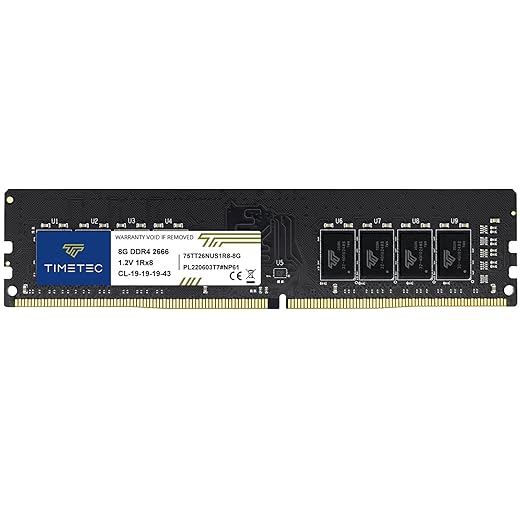
Choose the RAM option that matches your existing PC: The single 8GB Timetec module is intended for readers trying to match and expand an existing compatible DDR4 configuration. The 16GB Timetec kit replaces the memory configuration with a matched 2×8GB set, but its DDR4-2400 speed is most appropriate for older systems that support or are limited to slower DDR4 memory.
Before buying either option, confirm that your desktop uses 288-pin DDR4 UDIMM memory. Check the motherboard or PC manufacturer’s supported capacity, memory speed and slot configuration. These modules are not suitable for DDR3, DDR5 or laptop SODIMM slots.

Replace an HDD With an SSD for Faster Loading, Not More FPS
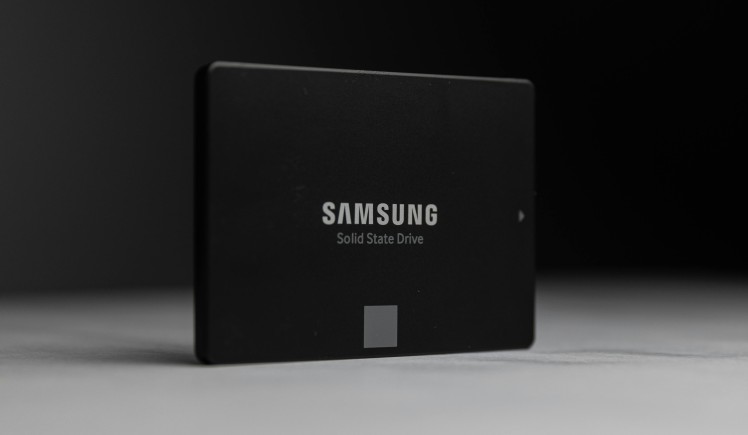
Moving from a mechanical hard drive to an SSD is one of the most noticeable upgrades for an older PC, but it must be purchased for the right reason. An SSD can make Windows more responsive, shorten loading screens and reduce storage-related pauses. It does not normally fix low FPS caused by a weak CPU or graphics card.
The greatest improvement comes when Windows and frequently played games are still running from an HDD. Mechanical drives are much slower at retrieving the many small files used by modern games, which can contribute to delayed textures, slow area loading and asset-streaming hitching.
An SSD cannot cure every type of stutter. It will not fix shader-compilation stutter, insufficient RAM, CPU limitations, thermal throttling or a graphics card that is too weak for the chosen settings.
An SSD upgrade is worth considering when:
- Windows or your games are still installed on a mechanical hard drive.
- Loading screens and startup times are unusually long.
- Textures or world assets load late while moving through a game.
- Drive activity reaches 100% during storage-related slowdowns.
- The PC becomes unresponsive while games, updates or background applications access the drive.
An SSD will probably not solve the problem when:
- The GPU is already at full load and cannot produce your target FPS.
- The game is limited by CPU performance.
- Integrated graphics are too weak for the game or settings.
- The game is stuttering because available RAM is exhausted.
- Your games already run from a healthy SATA or NVMe SSD.
If you already use an SSD, replacing it with a premium high-speed NVMe drive is unlikely to provide a noticeable FPS improvement. For an older PC still using an HDD, an affordable compatible SATA SSD can deliver most of the everyday benefit without paying for benchmark speeds the system may never use.
Choose by capacity rather than expecting different FPS: The Kingston A400 480GB is the lower-capacity option for Windows and a small selection of games. The 1TB Crucial BX500 is more practical if you want to move several large games from an HDD. Both are 2.5-inch SATA drives and provide their greatest benefit when replacing mechanical storage.
Confirm that the PC has a SATA data connection, an available SATA power connector and somewhere to mount a 2.5-inch drive. A mounting bracket may be required in an older case. Neither drive is an NVMe or M.2 SSD.


Fix Overheating Before Buying a Faster CPU or GPU
Cooling does not normally create extra performance. It restores performance only when excessive heat is forcing the CPU or GPU to reduce its clock speeds.
This distinction matters on a limited budget. Installing an expensive liquid cooler on a processor that already maintains safe temperatures will usually do little for gaming performance. Cleaning blocked vents, removing dust, correcting poor airflow or replacing a failing fan may solve a genuine thermal problem for much less money.
Signs heat may be reducing gaming performance
- FPS or smoothness becomes worse during longer gaming sessions.
- CPU or GPU clock speeds fall as temperatures rise.
- Fans become unusually loud but temperatures remain high.
- The case, vents or heatsinks contain substantial dust buildup.
- The system shuts down, restarts or reduces performance under sustained load.
A high temperature reading by itself does not prove that cooling is the bottleneck. The useful evidence is high temperature combined with falling clock speeds, reduced performance or instability. Our guide to the hidden throttles that can reduce FPS explains how to confirm the problem before buying a cooler.
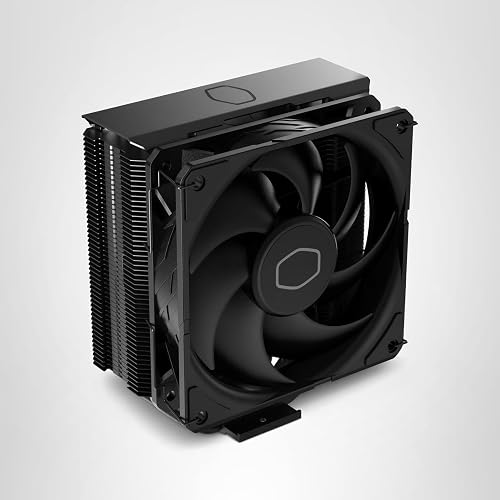
Start with the cheapest sensible actions: clean the system, make sure every fan works, clear blocked vents and check whether cables obstruct airflow. Replace the CPU cooler only if the existing cooler is inadequate, damaged, badly mounted or unable to prevent throttling.
Only buy a CPU cooler after confirming a thermal or noise problem: The Cooler Master Hyper 212 Black is the more conventional mainstream replacement for an inadequate stock cooler. The be quiet! Pure Rock Pro 3 Black is intended for a hotter CPU or a reader who needs greater cooling capacity with controlled noise.
Before ordering, check the exact CPU socket, motherboard clearance, RAM clearance and maximum cooler height supported by the case. A cooler can support the processor socket and still be too tall or wide for the rest of the system.

Try These Free Performance Fixes Before Buying Hardware
Some apparent hardware limitations are caused or worsened by heat, background software, incorrect settings or a component that is not performing as intended. Free fixes cannot turn a weak PC into a powerful one, but they can recover performance you already paid for.
Close unnecessary background applications
Browsers, game launchers, recording tools, RGB utilities and startup applications can consume RAM or CPU resources while you play. Close software you do not need and test the same game again. Do not disable unfamiliar Windows services or security software simply because an optimization tool labels them unnecessary.
Correct the game settings
Lowering settings that pressure the component currently limiting performance can be more effective than lowering everything. Resolution and image-quality settings normally affect the GPU most, while simulation, crowd density, view distance and some physics settings can increase CPU load.
Check for thermal throttling
Clean dust, confirm that fans are operating and compare temperature and clock-speed behaviour during a sustained gaming session. Cooling work is only a performance fix when heat is causing reduced clocks or instability.
Consider GPU undervolting only when appropriate
A careful GPU undervolt can reduce power consumption and temperatures while preserving similar performance. It may help a hot graphics card maintain steadier boost clocks, but it is not a universal FPS upgrade and an unstable undervolt can cause crashes. If heat or noise is a real problem, follow our guide to undervolting a GPU safely and testing stability.
If one of these changes resolves the problem, you have avoided spending money on hardware that was not necessary.
When a Cheap Upgrade Is No Longer Worth It
An old PC is not automatically a bad upgrade candidate. A low-cost SSD, additional compatible RAM or basic cooling repair can still make an older machine more pleasant for lightweight and older games. The important question is whether the upgrade supports the games and performance target you actually have.
Saving toward a replacement system is usually smarter when:
- The processor is below the practical requirements of the games you want to play.
- A useful CPU upgrade also requires a new motherboard and RAM.
- The power supply, case or motherboard prevents a meaningful graphics-card upgrade.
- Several major components would need replacement to reach your target performance.
- The affordable upgrade available for your platform is too small to produce a noticeable result.
DDR3 memory or an old processor does not automatically mean the computer is useless. A cheap second-hand RAM upgrade or SSD may still be sensible for older games. However, avoid investing heavily in a platform with no affordable path to the performance required by modern games.
The practical rule: Fix one clear and affordable bottleneck. If the CPU, motherboard, RAM, power supply and graphics card all need attention, stop buying temporary upgrades and save toward a balanced replacement.
Use our upgrade versus rebuild guide if you need to compare the total cost of extending the current PC with the cost of replacing its core platform.
PC Upgrades That Sound Good but Barely Improve Gaming
Some upgrades are technically better without being noticeably better for gaming. They may produce a larger benchmark number, add features or make the PC look more impressive, but none of that guarantees more FPS or smoother gameplay.
The upgrades below are not always bad purchases. They become poor-value gaming upgrades when the existing component is already sufficient and the change leaves the real CPU, GPU, memory or thermal limitation untouched.
Upgrading from 16 GB to 32 GB or 64 GB without needing it
More RAM capacity does not automatically make a game run faster. If your games and background applications remain comfortably within 16 GB, installing 32 GB or 64 GB will usually provide little or no improvement to average FPS.
Additional capacity can be worthwhile for heavily modded games, memory-intensive new releases, content creation, virtual machines or substantial multitasking. For ordinary gaming on a limited budget, that money may produce a greater improvement when saved toward the component currently limiting performance.
Paying heavily for a small increase in RAM speed
Memory speed can affect gaming performance, particularly in CPU-limited systems and PCs using integrated graphics. However, replacing an already sensible dual-channel kit with slightly faster memory often produces a much smaller improvement than marketing and isolated benchmark results suggest.
Capacity and configuration normally deserve attention first. Moving from one RAM stick to a compatible dual-channel pair or fixing insufficient capacity can matter far more than paying heavily for a small frequency increase.
Replacing a working SSD with a premium NVMe drive for more FPS
Replacing an HDD with an SSD is a major usability upgrade. Replacing a healthy SATA or ordinary NVMe SSD with a premium Gen 4 or Gen 5 drive is a very different proposition.
The faster drive may improve large file transfers and reduce some loading times, but most games will not gain meaningful average FPS. If the existing SSD is healthy and large enough, a faster benchmark result is rarely the best use of a limited gaming budget.
Buying expensive cooling when the CPU is not throttling
A larger air cooler or liquid cooler may reduce temperatures and fan noise, but lower temperatures do not automatically create more FPS. If the processor already maintains its intended clock speeds without overheating, an expensive cooling upgrade will usually make little difference to gaming performance.
Better cooling is justified when the current cooler is failing, excessively noisy, unable to control the processor or preventing it from maintaining normal performance. Buy it to solve an identified thermal or noise problem—not simply because the cooler is marketed toward gamers.
Adding more case fans after temperatures are already controlled
One or two correctly positioned fans can transform airflow in a badly ventilated case. Continuing to add fans after CPU and GPU temperatures are already controlled usually provides diminishing returns.
Before filling every fan mount, compare temperatures and clock speeds with the side panel fitted correctly. More fans can add noise and cost without increasing FPS if heat is not limiting either component.
Buying a larger power supply expecting more performance
A higher-wattage power supply does not push more FPS into the graphics card. Components draw the power they require; replacing a suitable 650W unit with an 850W unit will not make them run faster.
A new power supply can still be necessary when the current unit is unsafe, unreliable, lacks the required connectors or cannot support a planned CPU or GPU upgrade. It is a compatibility and reliability purchase, not a direct gaming-performance upgrade.
Replacing the motherboard without changing the performance limit
A premium motherboard can add expansion slots, connectivity, stronger power delivery and better upgrade support. It usually provides little direct gaming benefit when the same CPU, GPU and memory continue operating under similar conditions.
Replace a motherboard when it unlocks a worthwhile CPU upgrade, solves a compatibility problem or provides features you genuinely need. Do not expect the board itself to produce a large FPS increase.
Making a CPU or GPU upgrade too small to notice
Not every newer component is a meaningful upgrade. Moving to a slightly faster processor on the same old platform or buying a graphics card only marginally faster than the current one can consume most of the budget without changing the gaming experience enough to justify the cost.
Compare the proposed part against the hardware already installed, not against its marketing category. A new “gaming” GPU is not good value if it remains too weak for your performance target, and a modest CPU upgrade will not help much when the graphics card is already the clear limit.
Buying cosmetic gaming parts as performance upgrades
RGB fans, illuminated cables, decorative RAM covers and more expensive cases can improve the appearance of a PC. There is nothing wrong with buying them for that reason, but they should not be counted as FPS upgrades.
On a restricted budget, decide honestly whether you are buying appearance, noise reduction, convenience or performance. Those are all legitimate goals, but they solve different problems.
Paying for FPS booster software and random tweak packs
Software advertised as an automatic FPS booster often closes background processes, changes Windows settings or clears temporary files. Any genuine improvement normally comes from reducing unnecessary background load—not from a hidden method of making weak hardware faster.
Avoid programs and tweak packs that make unexplained registry, service, security or power-setting changes. They can create instability while producing little measurable gaming benefit. Make one understandable change at a time and test the result.
The common thread is simple: A part can be faster, cooler, larger or more expensive without fixing the limitation that determines your gaming performance.
If you have already installed an upgrade and the entire PC still feels slow, use Why Your Upgraded PC Still Feels Slow to check the remaining system-wide bottlenecks.
How to Verify That Your Upgrade Actually Worked
Test the PC before and after the upgrade under comparable conditions. A faster loading screen, steadier frametimes and higher average FPS are different results, so measure the outcome the upgrade was supposed to improve.
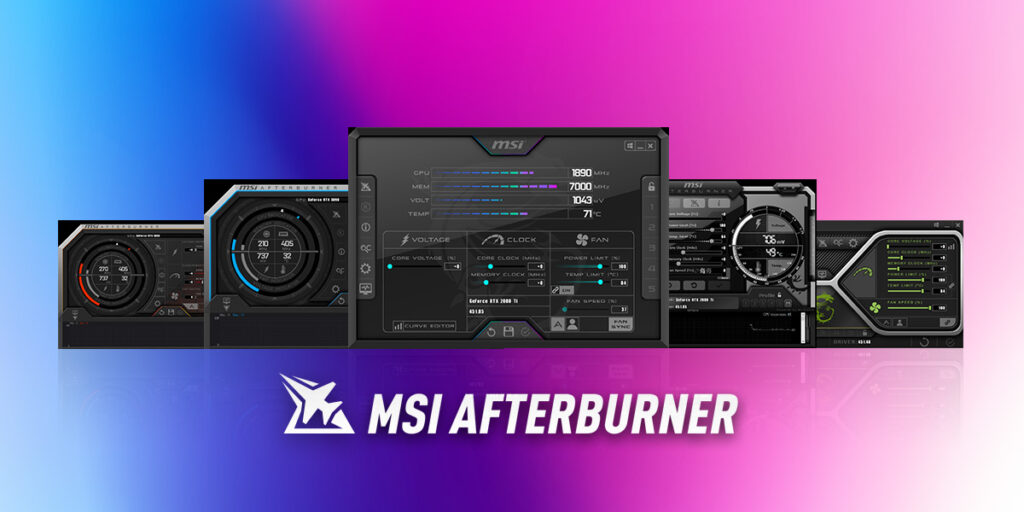
- Use the same game and repeatable scene. A built-in benchmark is useful when available.
- Keep the resolution and graphics settings unchanged. Otherwise, you are testing two variables at once.
- Record average FPS and 1% lows. Average FPS shows overall speed, while 1% lows help reveal consistency.
- Check frametimes. This can reveal stutter that a simple FPS average hides.
- Measure loading separately. An SSD may succeed by shortening loads even when average FPS remains unchanged.
- Monitor temperatures, clock speeds and usage. Confirm that the new part is operating correctly and that another component has not become the new limit.
Our guide to testing gaming PC performance safely explains how to collect repeatable results without relying on impressions alone.
Cheap Gaming PC Upgrade Priority Cheat Sheet
If you only want the practical decision, use the table below. Start with the problem you have confirmed rather than the cheapest or most heavily advertised component.
| What you find | What to do first | What not to expect |
|---|---|---|
| 8 GB RAM is nearly full | Move to a compatible 16 GB configuration | More RAM will not fix a weak CPU or GPU |
| Only one RAM stick is installed | Consider a compatible dual-channel configuration | The improvement varies by CPU, game and graphics hardware |
| Windows or games still run from an HDD | Add a compatible SSD | Loading and responsiveness will improve more than average FPS |
| Clock speeds fall as temperatures rise | Clean the PC and repair the cooling problem first | An expensive cooler is unnecessary if basic maintenance prevents throttling |
| GPU usage remains high and FPS is below your target | Save for a meaningful graphics-card upgrade | A faster SSD or additional unused RAM will not remove a GPU limitation |
| GPU usage falls while one or more CPU cores are heavily loaded | Consider a meaningful CPU or platform upgrade | A small same-platform CPU change may not improve performance enough to justify its cost |
| Several core components need replacement | Compare the total upgrade cost with a rebuilt or replacement PC | Several inexpensive purchases can become an expensive dead end |
Fix the measured limitation, not the most heavily advertised component.
The best-value upgrade is not automatically the cheapest product or the one with the strongest specifications. It is the compatible change that solves the limitation you have confirmed. If none of the recommended RAM, SSD or cooling options addresses that limitation, keep the money and save toward an upgrade that will.
Frequently Asked Questions
What PC part increases FPS the most?
The graphics card normally produces the largest FPS increase when the current GPU is the limiting component. In CPU-limited games, particularly competitive games played at low settings, a stronger CPU may provide the larger improvement. RAM and storage only increase FPS substantially in specific bottlenecked situations.
Which upgrade gives the best FPS improvement for the money?
The best-value upgrade is the cheapest one that removes the current bottleneck. A well-priced graphics card can provide the largest direct FPS gain in a GPU-limited system. Moving from one RAM stick to a compatible dual-channel configuration can be excellent value in some CPU-limited or integrated-graphics systems. No component provides the best value in every PC.
What should I upgrade for competitive games at low settings?
Competitive games at low settings often become CPU-limited because reducing visual quality lowers the work required from the GPU. If GPU usage is below full while one or more CPU cores are heavily loaded, a CPU or platform upgrade may improve high-refresh-rate performance more than a faster graphics card. Confirm this in the games you play before purchasing either component.
Does more RAM always increase FPS?
No. More capacity mainly helps when the PC is running out of memory. Moving from 8 GB to 16 GB can improve consistency and sometimes average FPS when memory was exhausted. Moving from 16 GB to 32 GB usually provides little gaming benefit when the original 16 GB was sufficient.
Does an SSD increase FPS?
An SSD usually has little effect on average FPS. Moving from an HDD to an SSD can dramatically shorten loading, improve general responsiveness and reduce some storage-related hitching. It will not fix a CPU, GPU or memory limitation, and it cannot cure every type of stutter.
What is the cheapest upgrade that noticeably improves gaming?
It depends on the existing problem. Moving from 8 GB to 16 GB can be excellent value when memory is full. Adding an SSD is highly noticeable when games still run from an HDD. Cleaning a thermally throttling PC may restore performance for almost no cost. If the graphics card is simply too weak, however, small RAM, storage and cooling purchases will not replace the need for a meaningful GPU upgrade.
Should I upgrade the CPU or GPU first?
Upgrade the component preventing you from reaching your performance target. Consistently high GPU usage usually indicates a GPU limit. Low or fluctuating GPU usage combined with heavy load on one or more CPU cores may indicate a CPU limit. Total CPU usage does not need to reach 100% for a game to be CPU-limited.
How do I know whether my PC is too old to upgrade?
Consider rebuilding when the required performance would involve replacing several core components, such as the CPU, motherboard, RAM, power supply and graphics card. An older DDR3 PC can still benefit from an inexpensive SSD or used RAM for lightweight games, but substantial investment is difficult to justify when the platform cannot support the games you want to play.
Why does my PC still feel slow after an upgrade?
The upgrade may have solved a different problem from the one you notice. An SSD improves loading but cannot fix a weak GPU. More RAM does not help when sufficient memory was already available. The new component may also expose a second bottleneck that was previously hidden.