Does your gaming PC feels slower than it used to? Does it need Gaming PC Health Check?
Ig games that once ran smoothly now stutter. Loading screens seem to last forever. Your fans sound like they’re preparing for takeoff. Maybe you’ve even started looking at expensive upgrades because surely your hardware is getting old.
Maybe. But maybe not.
One of the biggest mistakes PC gamers make is throwing money at a problem they haven’t actually diagnosed. A new graphics card won’t fix overheating. More RAM won’t help if Windows is chewing through your CPU. An expensive SSD won’t magically increase your FPS if your processor is constantly throttling. Before spending a single cent, you need to know what is actually wrong.
That’s exactly what this guide is designed to help you do. Over the next few minutes, we’ll inspect every major part of your gaming PC using free tools and simple checks. By the end, you’ll know whether your system is healthy, which component is holding you back, and whether you need maintenance, optimization, or a genuine hardware upgrade.
This isn’t another generic checklist that tells you to restart Windows and update your drivers. This is a complete diagnostic process that helps you make smarter decisions and avoid wasting money.
First, identify the symptom: If a game’s picture stops completely while sound keeps playing, use our game freeze troubleshooting guide to check whether Windows still responds. That quick distinction can tell you whether to start with the game, graphics, or wider PC stability before working through a full health check.
Step 1: Check Your Temperatures
If there’s one thing every gamer should check before buying new hardware, it’s temperatures. Heat silently reduces performance long before your PC crashes. Modern CPUs and GPUs protect themselves by lowering their clock speeds whenever they become too hot.
This is called thermal throttling, and it can easily cost you dozens of FPS without any obvious warning. Fortunately, checking temperatures only takes a few minutes.
Check Temps: Use the Right Monitoring Software
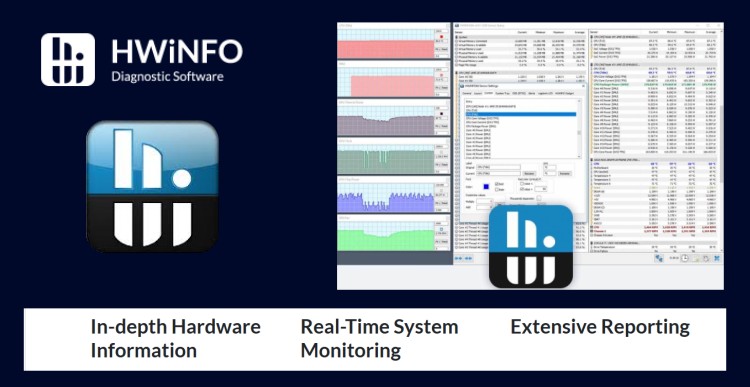
For a complete overview of your system, install HWiNFO64 and monitor your temperatures while gaming. If you prefer seeing live information on screen during gameplay, MSI Afterburner is one of the best tools available.
If you’re new to hardware monitoring, our Ultimate HWiNFO64 Guide: Bottlenecks, Temps, and Sanity Checks explains exactly what each sensor means, while Master How to Monitor Temps, Clocks and Usage Like a Pro shows you how to interpret the numbers without feeling overwhelmed.
How to Check Temperatures with HWiNFO64
If you’ve never used HWiNFO64 before, don’t worry. It looks intimidating the first time you open it, but you only need a handful of sensors.
- Launch HWiNFO64 and choose Sensors Only.
- Scroll until you find your CPU temperature section.
- Locate your GPU temperature section.
- Start your game and play normally for at least 10 minutes.
- Alt-Tab back to HWiNFO64 and look at the Maximum temperature rather than the Current value.
The maximum temperature tells you how hot your hardware became during gameplay, which is much more useful than checking it while the game is paused.
Ignore the hundreds of other sensors for now. CPU temperature, GPU temperature and clock speeds are all you need for this health check.
Healthy Temperature Ranges
| Component | Healthy | Concerning | Critical |
|---|---|---|---|
| CPU | 50°C to 75°C | 80°C to 90°C | Above 90°C |
| GPU | 60°C to 80°C | 80°C to 85°C | Above 85°C |
Don’t panic if your temperatures briefly spike during loading screens or intense moments. What matters is whether they stay excessively high during normal gameplay.
Signs Your PC Is Running Too Hot
- FPS gradually drops during long gaming sessions.
- Your fans constantly run at maximum speed.
- The PC becomes noticeably louder than usual.
- Games begin stuttering after 20 to 30 minutes.
- The system unexpectedly shuts down or restarts while gaming.
These symptoms often point toward cooling issues rather than weak hardware.
What Causes High Temperatures?
Most overheating problems come down to simple maintenance rather than expensive repairs.
- Dust blocking airflow.
- Old or dried thermal paste.
- Poor case airflow.
- Broken or slow fans.
- High ambient room temperature.
Many gamers immediately blame their CPU or graphics card when the real culprit is several years’ worth of accumulated dust.
If your temperatures are higher than expected, our Gamer’s Guide to PC Maintenance walks through proper cleaning and routine maintenance, while How to Apply Thermal Paste Correctly explains when replacing thermal paste actually makes a difference.
Should You Buy Anything Yet?
No. High temperatures tell you there’s a cooling problem, not necessarily a hardware problem.
Only after cleaning the system and verifying temperatures should you consider upgrading your cooler or replacing components.
Step 2: Check CPU Usage
Your processor controls almost everything happening in a game. AI, physics, game logic, player input, background calculations, draw calls, and hundreds of other tasks rely on the CPU.
When it becomes overloaded, your graphics card often sits waiting for instructions instead of rendering more frames. This is one of the most common reasons gamers experience disappointing FPS even after installing a powerful GPU.
How to Check CPU Usage
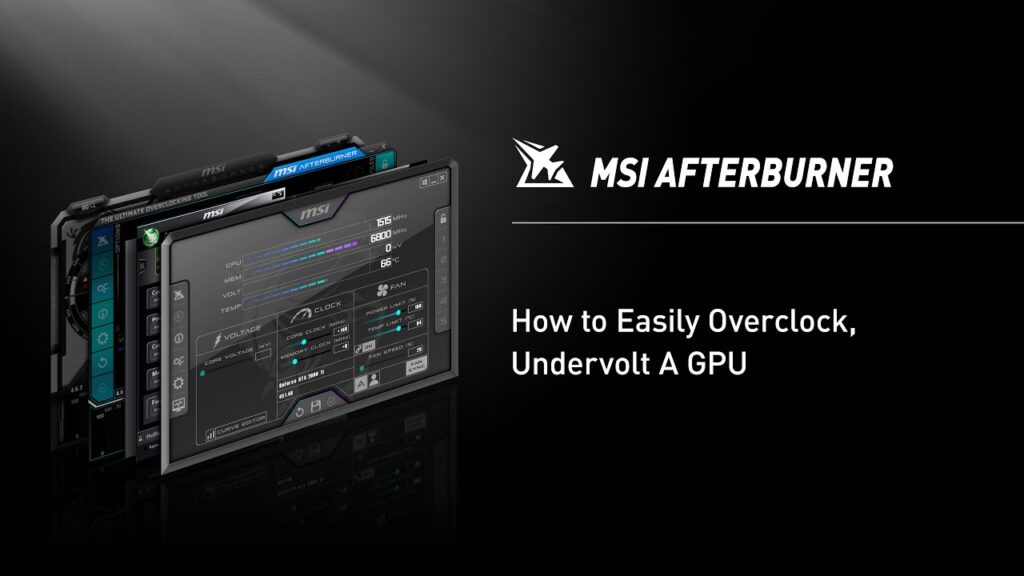
Launch one of your usual games and monitor CPU utilization using MSI Afterburner or HWiNFO64. Watch usage during normal gameplay instead of menus or loading screens.
Setting Up MSI Afterburner’s On-Screen Display
MSI Afterburner becomes incredibly useful once you can see your hardware while you’re actually playing.
- Open MSI Afterburner.
- Open Settings.
- Select the Monitoring tab.
- Enable CPU Usage.
- Enable GPU Usage.
- Enable CPU Temperature.
- Enable GPU Temperature.
- Enable RAM Usage.
- Tick Show in On-Screen Display for each one.
- Launch your game.
You now have a live dashboard showing exactly how your PC behaves while gaming.

What the Numbers Mean
| CPU Usage | Meaning | Recommended Action |
|---|---|---|
| 20% to 60% | Healthy | No action needed |
| 60% to 85% | Normal under load | Monitor temperatures |
| 90% to 100% | Potential CPU bottleneck | Investigate further |
Remember that overall CPU usage doesn’t tell the whole story. Some games rely heavily on one or two cores while leaving the others relatively idle. That’s why individual core usage is often more useful than total utilization.
When High CPU Usage Is Normal
Strategy games, simulation titles, city builders, and large multiplayer games naturally put heavy demands on processors.
For example, games like Cities: Skylines, Civilization, Microsoft Flight Simulator, or large Battlefield matches can legitimately push CPUs much harder than many GPU-heavy games. High CPU usage alone isn’t automatically bad.
The important question is whether it’s preventing your graphics card from reaching its full potential. We’ll answer that in the next section.
Step 3: Check GPU Usage
Your graphics card is responsible for rendering every frame you see on screen, but high GPU usage isn’t always a bad thing. In fact, for most games, you want your graphics card working hard.
A healthy gaming PC often runs with the GPU close to full utilization while the CPU has some headroom left. This usually means you’re getting everything possible from your graphics card. The problem starts when GPU usage is unexpectedly low.
How to Check GPU Usage
Using MSI Afterburner or HWiNFO64, monitor your GPU usage while playing one of your usual games. Ignore menus and cutscenes, and instead observe gameplay during demanding moments.
If you haven’t already configured an on-screen display, our guide on How to Use MSI Afterburner Without Frying Your Rig walks you through the setup.
What Your GPU Usage Means
| GPU Usage | Likely Meaning | Action |
|---|---|---|
| 95% to 99% | Graphics card fully utilized | Healthy |
| 70% to 90% | Depends on the game | Monitor CPU usage |
| Below 70% | Possible bottleneck elsewhere | Investigate CPU, RAM or software |
Don’t assume low GPU usage means your graphics card is defective. Before investigating the CPU, RAM or other software, confirm that the game is actually using your dedicated GPU. Low usage on that GPU tells you very little if the game is rendering on a different adapter.
Common Reasons GPU Usage Drops
- The CPU can’t prepare frames quickly enough.
- System RAM is completely full.
- Storage is struggling to stream game assets.
- Background software is consuming resources.
- Power-saving settings are limiting performance.
- The game itself is poorly optimized.
This is why diagnosing the entire system is so important. Looking at GPU usage in isolation rarely tells the full story.
CPU Bottleneck or GPU Bottleneck?
| Symptom | Most Likely Cause | Recommended Next Step |
|---|---|---|
| CPU at 100%, GPU below 70% | CPU bottleneck | Investigate processor workload |
| GPU at 99%, CPU below 70% | GPU limitation | Lower graphics settings or consider a GPU upgrade later |
| Both are unusually low | Software, RAM, storage or Windows issue | Continue through this health check |
| Both near 100% | Very demanding game | Normal for some modern titles |
If you’re unsure which component is holding your system back, our guides on How to Tell What’s Actually Bottlenecking Your Gaming PC and Low FPS or Weird Usage? Here’s How to Tell If Your CPU or GPU Is the Problem explain exactly how to interpret these situations.
Step 4: Check RAM Usage
System memory is one of the easiest components to misunderstand.
Many gamers assume that more RAM automatically means more FPS. In reality, insufficient RAM usually causes stuttering, hitching, slow loading, and inconsistent frame pacing rather than dramatically lower average frame rates.
How to Check RAM Usage
Open Task Manager or monitor RAM usage using MSI Afterburner while gaming.
Pay attention to how much memory is in use during actual gameplay rather than immediately after launching the game.

Checking RAM with Task Manager
If you don’t want to install any software yet, Windows already includes a useful performance monitor.
- Press Ctrl + Shift + Esc.
- Select the Performance tab.
- Choose Memory.
- Leave Task Manager open on a second monitor or Alt-Tab after a gaming session.
Watch how close your memory gets to its maximum capacity during gameplay rather than while sitting on the desktop.
Understanding RAM Usage
| RAM Usage | Meaning | Recommended Action |
|---|---|---|
| Below 70% | Healthy | No action required |
| 70% to 90% | Approaching capacity | Monitor for stutter |
| Above 90% | Memory pressure | Investigate further |
| 100% | Paging likely occurring | Close background apps or consider more RAM |
What Happens When RAM Fills Up?
Once physical memory is exhausted, Windows begins moving data between RAM and your storage drive using the page file.
Even on a fast NVMe SSD, this process is dramatically slower than accessing system memory directly.
The result is familiar to many gamers:
- Random stutters.
- Long pauses when entering new areas.
- Texture pop-in.
- Frame pacing issues.
- Applications becoming sluggish when alt-tabbing.
If your browser has dozens of tabs open, Discord is running, Steam is downloading updates, and RGB software is using additional resources, your available memory disappears surprisingly quickly.
Should You Upgrade Your RAM?
Not necessarily. If your system rarely exceeds 70% memory usage, buying additional RAM probably won’t improve gaming performance.
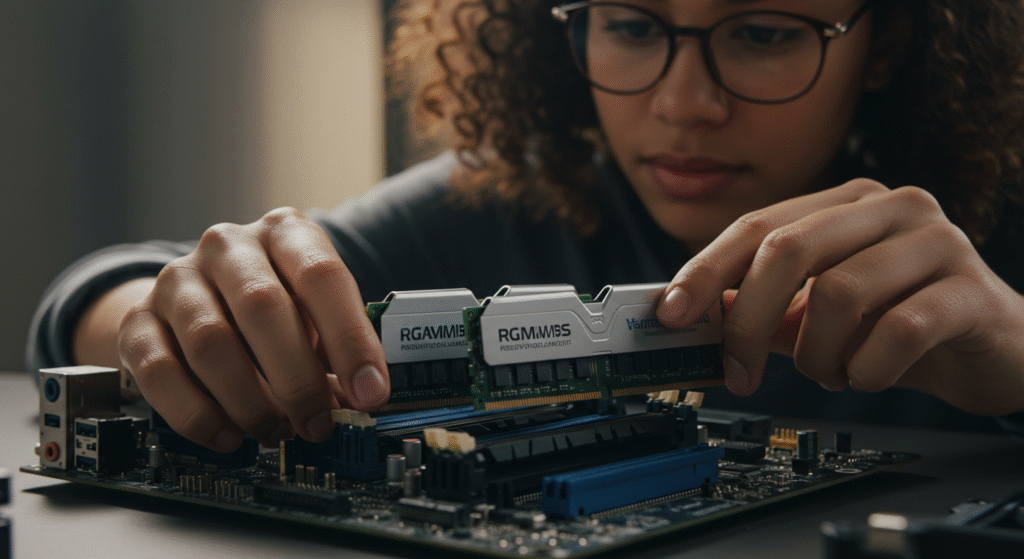
Only consider an upgrade after you’ve confirmed that memory is consistently reaching its limits during the games you actually play.
If you’re still unsure whether you actually need more memory, our How Much RAM Do Games Actually Need? guide will help you decide.
If you’ve confirmed that RAM is the limitation and you’re ready to upgrade, use our RAM Buying Guide for Gaming PCs to choose the right DDR4 or DDR5 kit for your system.
Step 5: Check VRAM Usage
VRAM is separate from your system RAM. It’s the dedicated memory on your graphics card that stores textures, models, shaders, lighting information, and other graphical assets.
Running out of VRAM doesn’t usually crash your PC, but it can make games feel awful to play.
Symptoms of Insufficient VRAM
- Textures suddenly become blurry.
- Objects load several seconds late.
- Frame times spike while moving around large maps.
- Stuttering appears despite acceptable average FPS.
- Performance gets worse after playing for a while.
Why VRAM Matters More Than Ever
Modern games use significantly larger texture packs than titles from just a few years ago. Increasing texture quality is one of the quickest ways to consume additional VRAM, especially at higher resolutions.
Fortunately, texture quality is also one of the easiest graphics settings to lower with very little impact on gameplay. If reducing texture quality immediately improves smoothness, you’ve likely found the cause.

Should You Replace Your Graphics Card?
Not yet. First try lowering:
- Texture quality.
- Shadow quality.
- Ray tracing.
- High-resolution texture packs.
If those changes solve the problem, you’ve confirmed a VRAM limitation without spending any money.
If you’re considering a future graphics card upgrade, our guides on Should You Buy an 8GB, 12GB, or 16GB GPU? and Why 8GB VRAM GPUs Are Already Struggling in Modern Games explain what makes sense for today’s games.
Step 6: Check Storage Health
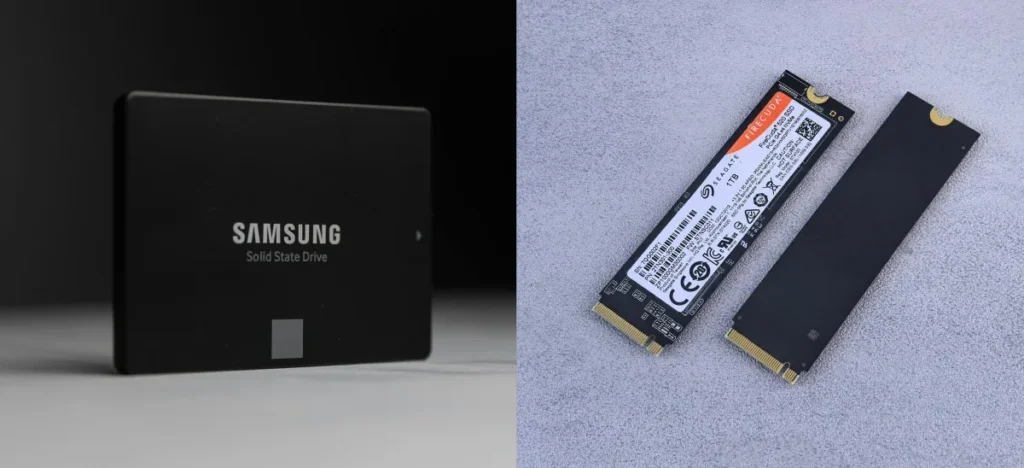
Storage rarely affects average FPS, but it has a massive impact on how responsive your gaming PC feels.
Slow drives cause longer loading screens, delayed texture streaming, sluggish Windows performance, and games that seem to pause while loading new areas.
Many people mistake these symptoms for an aging processor or graphics card when the real problem is a struggling SSD or an old mechanical hard drive.
Check Drive Health
CrystalDiskInfo is one of the simplest free utilities for checking the health of both SSDs and HDDs. Pay attention to the overall health status rather than obsessing over every SMART value.
Reading CrystalDiskInfo
CrystalDiskInfo summarizes your drive’s condition with a simple health indicator.

- Good means your drive is healthy.
- Caution means it’s time to monitor the drive more closely.
- Bad means you should back up your files immediately.
You don’t need to understand every SMART attribute. For most gamers, the overall health status tells you everything you need to know.
Storage Health Checklist
| Symptom | Likely Cause | Recommended Fix |
|---|---|---|
| Very long game loading | Slow HDD | Consider moving games to an SSD |
| Windows feels sluggish | Drive nearly full | Free up storage space |
| Random freezes while loading | Failing drive | Back up data immediately |
| Healthy drive but slow launches | Background software | Continue diagnosing Windows |
If your drive health looks fine but games still load slowly, our guides on Why Your Games Take Forever to Load on a Weak PC, Stop Buying SSDs Based on Speed Alone, and SSD Performance for Gaming explain what actually improves real-world gaming performance.
Step 7: Check Windows & Background Processes
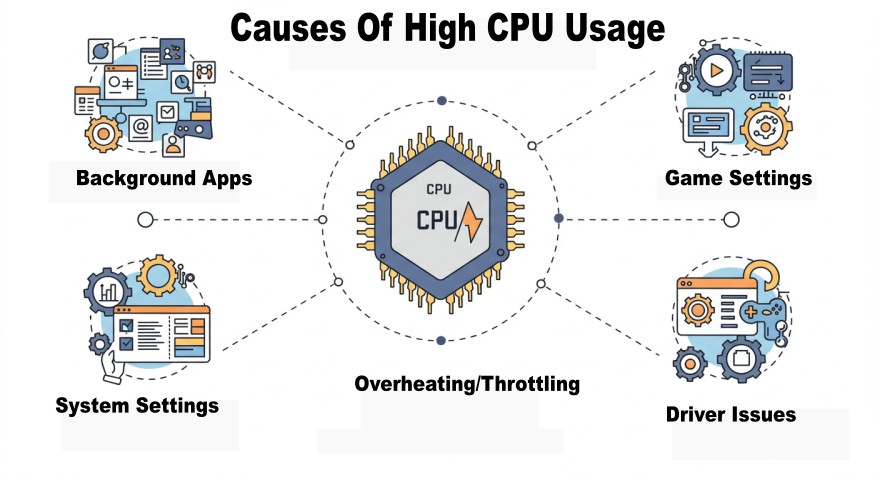
Your hardware isn’t always the problem. Windows itself can quietly consume resources through unnecessary startup programs, background applications, outdated drivers, or poorly configured settings.
Before blaming your CPU or GPU, make sure your operating system isn’t working against you.
Check Startup Programs
Open Task Manager and switch to the Startup Apps tab.
Finding Startup Apps
- Press Ctrl + Shift + Esc.
- Open the Startup Apps tab.
- Sort by Startup Impact.
- Disable applications you don’t need launching every time Windows starts.
Be cautious with unknown entries. If you’re unsure what something does, leave it enabled until you’ve researched it.
If dozens of applications launch every time Windows starts, your PC is wasting valuable memory and processor time before you even launch a game. Disable anything you don’t genuinely need running in the background.
Close Resource-Hungry Background Applications
It’s surprisingly common to find that one of these is quietly eating performance:
- Chrome or Edge with dozens of tabs open.
- RGB lighting software.
- Cloud storage syncing.
- Game launchers downloading updates.
- Recording or streaming software.
- Unused overlays.
Closing unnecessary applications won’t magically double your FPS, but it often smooths out gameplay and frees up valuable RAM.
Check Windows Updates and Drivers
Outdated chipset drivers, graphics drivers, or broken Windows updates can all create strange performance problems.
Windows Health Tip: If your PC has been running the same Windows installation for years, make sure it’s properly activated and fully updated before chasing hardware problems. A genuine Windows licence helps ensure you continue receiving important security patches, driver compatibility improvements, and feature updates that can improve system stability and gaming performance. If you need a genuine Windows licence, we’ve had a good experience using The Macrosoft Store
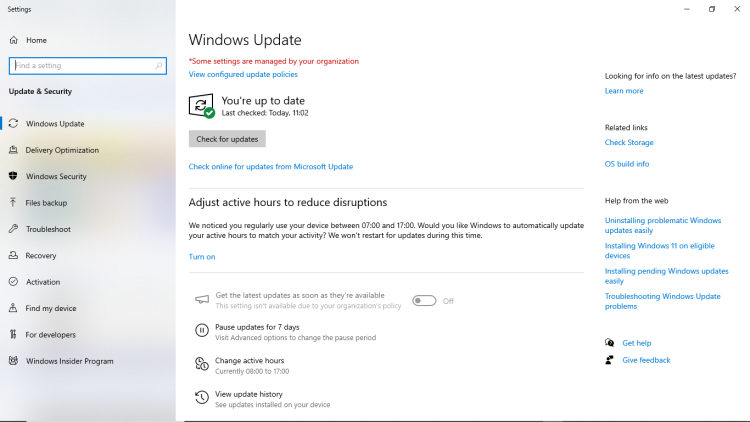
If Windows recently updated and your PC suddenly became unstable, our guides on Fix Windows Update Loop and Driver Failures and Windows 11 Running Slow? 11 Fixes That Actually Work walk through the most common causes.
Remove Unnecessary Software
Many prebuilt PCs arrive packed with software you’ll never use. Manufacturer utilities, trial antivirus packages, promotional apps, and duplicate update managers all consume storage and system resources.
If your PC feels cluttered, our guide on How to Disable Bloatware in One Sweep explains what you can safely remove.
Step 8: Run a Real Gaming Test
Now that you’ve inspected each individual component, it’s time to see how everything works together. Benchmarks are useful, but your favourite games are the tests that actually matter.

Choose a Game You Play Regularly
Use something familiar. You’ll immediately notice if performance has improved or deteriorated compared to what you’re used to.
How to Run a Consistent Test
For meaningful results, try to make each test as consistent as possible.
- Use the same game.
- Load the same save or map.
- Play for at least 10 minutes.
- Avoid changing graphics settings halfway through the test.
- Record your average FPS, temperatures and hardware usage.
This makes it much easier to see whether your changes actually improved performance.
Enable an on-screen display showing:
- FPS.
- Frame time.
- CPU usage.
- GPU usage.
- CPU temperature.
- GPU temperature.
- RAM usage.
- VRAM usage.
What You’re Looking For
- Stable frame times.
- Consistent GPU utilization.
- Temperatures that remain under control.
- No sudden spikes in CPU or RAM usage.
- Smooth gameplay during demanding scenes.
Don’t focus only on average FPS. A game averaging 90 FPS with constant stutters usually feels far worse than one running steadily at 60 FPS.
If your FPS and frame times remain stable but other players teleport, voice chat cuts out or the game reports ping spikes and packet loss, the problem is probably network-related rather than a CPU, GPU or memory bottleneck. Follow our guide to testing whether your WiFi adapter is causing lag to determine whether the instability begins between your PC and router or farther out on the internet.
If you’re unsure how to benchmark safely, our guide on How to Test Gaming PC Performance the Safe Way explains exactly what to monitor.
Step 9: Interpret Your Results
You’ve gathered the data.
Now it’s time to make sense of it.
| If You Found… | Most Likely Cause | What To Do Next |
|---|---|---|
| High CPU usage | CPU bottleneck | Read Why Is My CPU at 100% While Gaming? |
| High GPU temperatures | Cooling issue | Clean your PC and improve airflow |
| RAM consistently full | Memory limitation | Close background apps or consider upgrading RAM |
| Storage health warning | Failing drive | Back up your data immediately |
| Slow loading times | Storage bottleneck | Investigate SSD performance |
| Low GPU usage | CPU or software bottleneck | Continue investigating before upgrading |
The important thing to remember is that you’ve now diagnosed the problem using evidence instead of assumptions.
That’s exactly how expensive upgrade mistakes are avoided.
Step 10: Should You Upgrade?
Only now should you start thinking about spending money.
If your temperatures are healthy, Windows is running properly, storage is in good condition, and you’ve identified a genuine hardware limitation, then an upgrade probably makes sense.
Otherwise, maintenance or optimization may solve the problem for free.
| Problem | Upgrade Needed? | Recommended Solution |
|---|---|---|
| Dust and overheating | No | Clean the PC and replace thermal paste if necessary |
| High CPU utilization | Sometimes | Verify bottleneck before buying a new processor |
| GPU constantly at 99% | Possibly | Lower settings first, then consider a GPU upgrade |
| RAM constantly full | Often | Add more memory if your motherboard supports it |
| Failing HDD | Yes | Move to an SSD |
| Windows clutter | No | Optimize Windows first |
If an upgrade really is the right solution, these guides will help you make the smartest decision:
- Which PC Upgrade Gives the Biggest FPS Boost?
- How to Upgrade a Gaming PC in the Right Order
- What Should You Upgrade First on a Low-End PC?
- Should You Upgrade Your Old PC or Buy a New One?
Gaming PC Health Check Summary
Diagnosing a gaming PC isn’t about finding excuses to upgrade. It’s about understanding what your system is telling you.
By checking temperatures, CPU usage, GPU usage, RAM, VRAM, storage, Windows, and real-world gaming performance, you’ve built a complete picture of your PC’s health. Sometimes the answer will be a hardware upgrade.
Often, it will simply be cleaning your PC, fixing Windows, closing unnecessary software, or adjusting a few graphics settings. The key is that you’re now making decisions based on evidence instead of guesswork.
That’s exactly how you get the most from older, weaker, and budget gaming PCs without wasting money.
Frequently Asked Questions
How often should I perform a gaming PC health check?
For most gamers, every three to six months is enough. If you notice higher temperatures, more fan noise, or worsening performance, it’s worth checking sooner.
What’s the easiest way to monitor my gaming PC?
MSI Afterburner combined with HWiNFO64 gives you an excellent overview of temperatures, usage, clock speeds, and performance while gaming.
Should my GPU always run at 99%?
In GPU-intensive games, yes. High GPU utilization usually means your graphics card is being fully used. Low GPU usage often points to another bottleneck somewhere else in the system.
Does installing an SSD increase FPS?
Usually not. An SSD dramatically improves loading times and overall responsiveness, but average frame rates are normally limited by the CPU or GPU.
Should I reinstall Windows if my PC feels slow?
Only as a last resort. Most performance problems can be diagnosed and fixed without wiping your system. If you’re considering a reinstall, first read Reinstalled Windows and Your PC Is STILL Slow? Here’s Why.
What’s the biggest mistake gamers make before upgrading?
Buying new hardware before identifying the actual bottleneck. Spending a few minutes running a proper health check can save you hundreds of dollars on unnecessary upgrades.