If you are asking, “Why is my Windows 11 PC so slow?” several completely different problems could be responsible. The processor may be overloaded, memory may be running out, the storage drive may be struggling, or startup software may be consuming resources. Heat, a recent update or aging hardware can produce similar symptoms.
Those problems do not have the same fix. Adding RAM will not repair a failing drive, and reinstalling Windows will not make inadequate hardware more capable. This guide will help you classify the slowdown, measure it while it occurs, confirm the likely cause and apply the smallest appropriate fix.
CPU, memory and disk percentages are clues, not diagnoses. What matters is which resource is under pressure, which process is using it and whether that activity coincides with the slowdown.
Quick Diagnosis: Find the Type of Slowdown First
Before changing a Windows setting, ask: When does the PC become slow? Start with the symptom you can reproduce most consistently.
| What you experience | First evidence to inspect | Possible causes | Where to continue |
|---|---|---|---|
| Slow boot before reaching the desktop | Startup time, drive type and update activity | HDD, update processing or startup service | Startup and login |
| Desktop slow immediately after login | Startup apps and Task Manager | App overload, security scan, cloud sync or background utility | Startup and login |
| Applications open slowly while CPU and RAM look normal | Disk activity, drive type and free space | Slow storage, background activity or drive trouble | Disk usage |
| PC slows with many tabs or programs open | Memory use and paging symptoms | Insufficient RAM or a memory-heavy application | RAM usage |
| PC becomes slower after several hours | Memory growth, temperatures and clock speeds | Memory leak, throttling or recurring task | Slowdowns over time |
| PC became slow after installing something | Recent apps, drivers and startup services | New utility, driver, service or application | Recent changes |
| PC became slow after a Windows update | Update history and resource activity | Post-update work, driver change or update fault | Recent changes |
| Only games are slow or stuttery | GPU/CPU load, temperatures and frametime | Game settings, bottleneck or throttling | Gaming or internet |
| Only websites or downloads are slow | Local responsiveness and network behaviour | Browser, Wi-Fi, router or internet service | Gaming or internet |
Not every performance problem is a Windows problem. Slow Windows, low FPS and internet lag are different symptoms. If local applications respond normally but websites crawl, investigate the network. If the desktop remains responsive but one game performs badly, follow the gaming-performance route.
Before You Change Anything, Establish a Baseline
You need to reproduce the slowdown before you can test a fix. Save your work and use Start > Power > Restart, not sleep or hibernate. A restart is not the proposed solution; it provides a cleaner starting point.
Restart and Reproduce the Problem
- Restart Windows and wait several minutes after signing in so startup activity can settle.
- Open only the application or workload that normally triggers the slowdown.
- Repeat the affected action and note whether the problem appears immediately or develops gradually.
If the PC is responsive after restarting but slows once your usual applications are open, startup software or the combined workload may be responsible.
Record What “Slow” Means on Your PC
Write down the exact symptom:
- Approximate time to reach a usable desktop
- The application or action that feels delayed
- Whether the mouse, Start menu and other applications remain responsive
- Whether the slowdown begins immediately or after sustained use
- Whether it affects local applications or only online activity
- Whether the fans become louder
- Whether the problem followed an update, installation or hardware change
Change One Thing at a Time
Make one relevant change, then repeat the same baseline test. Changing several settings or drivers at once prevents you from knowing what fixed the problem—or what created a new one.
Do not install PC optimiser software or update every driver yet. First identify which resource is under pressure and what is using it.
Use Task Manager to Find the Resource Under Pressure
Task Manager must be observed while the slowdown occurs. Readings taken when the PC feels normal may miss an intermittent problem.
Open and Prepare Task Manager
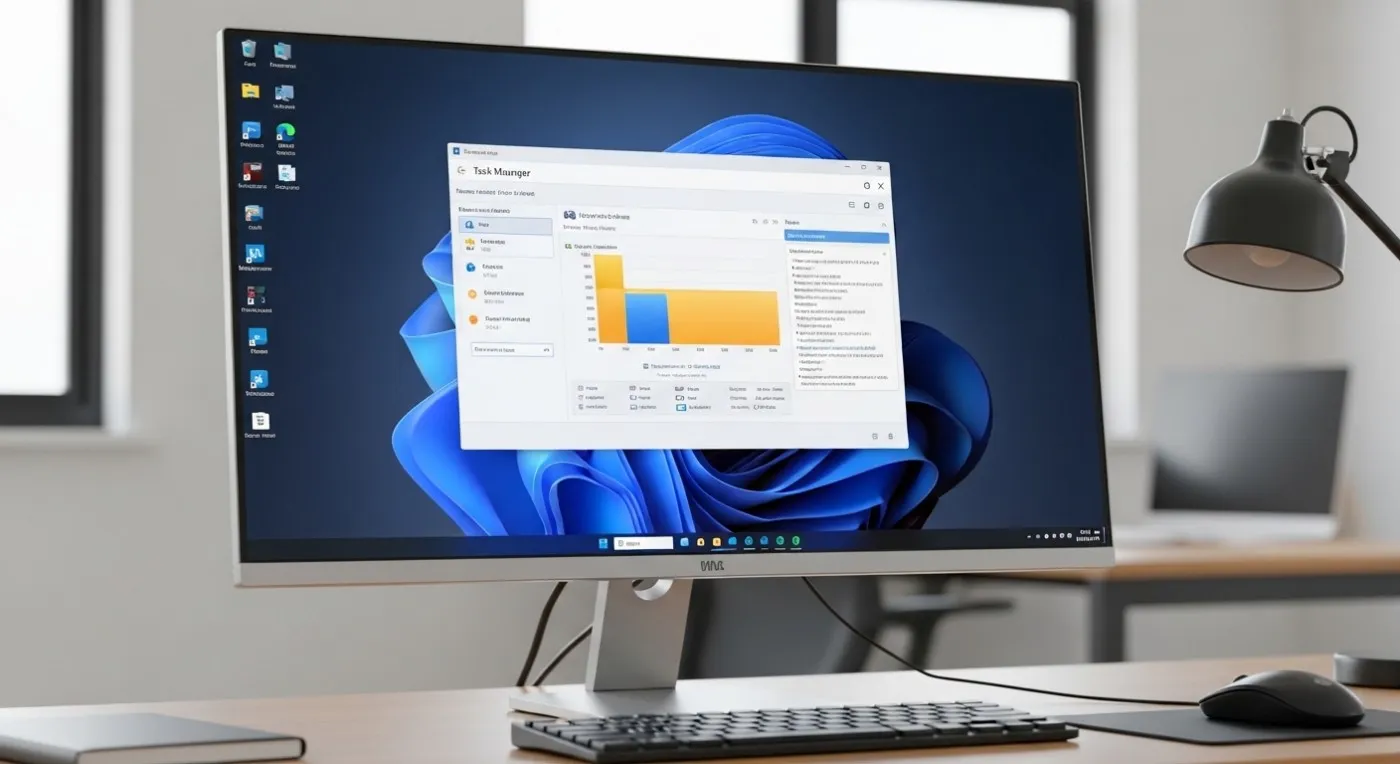
- Press Ctrl + Shift + Esc and open Processes.
- Sort separately by the CPU, Memory and Disk columns.
- Open Performance to identify the processor, installed memory and storage drives.
- Select each disk to check whether Windows identifies it as an HDD or SSD.
- Leave Task Manager open and reproduce your baseline.
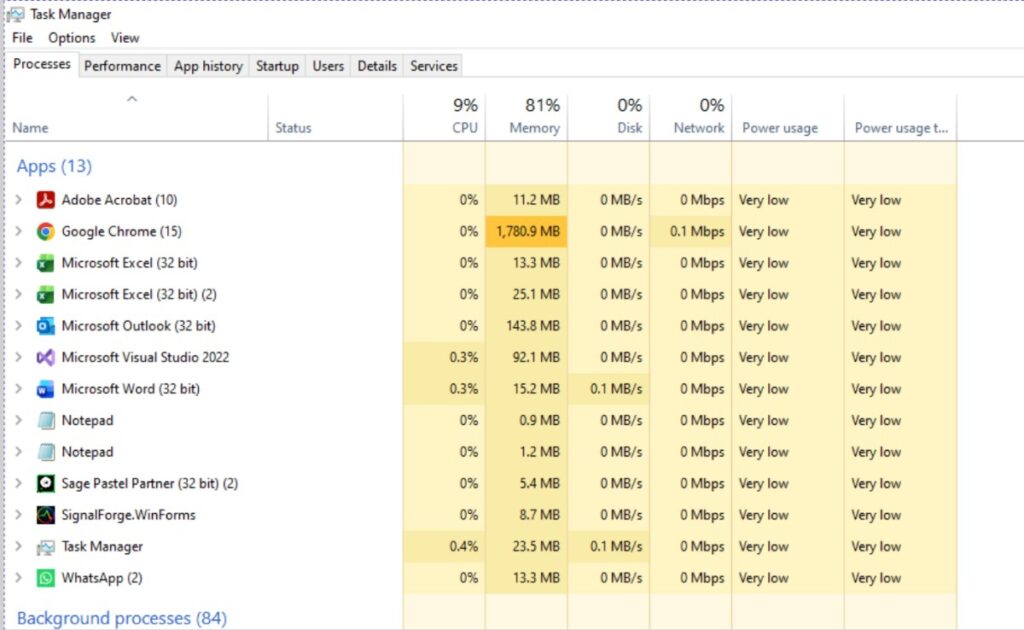
Do Not Diagnose the Problem from One Percentage
A brief CPU spike can be normal, and well-used memory is not automatically harmful. A drive can also reach 100% active time at low transfer speeds when handling many small requests. Interpret each reading alongside the workload and the moment responsiveness deteriorates.
| What Task Manager shows | What it may mean | What it does not prove | Next test |
|---|---|---|---|
| CPU remains heavily used during the slowdown | A process or service is keeping it busy | The processor needs replacing | Sort by CPU and identify the process |
| Memory stays close to full while responsiveness worsens | The workload may exceed available memory | Adding RAM will always help | Close large applications individually and retest |
| Disk active time remains saturated | Storage requests may be queuing | The drive is failing | Check the process, drive type, free space and health |
| Usage looks normal while the PC remains slow | Heat, power limits, latency or one application may be involved | Windows needs reinstalling | Check temperatures, clocks and the affected application |
| One process repeatedly rises to the top | It may be connected to the slowdown | It is safe to end or remove | Identify its purpose before changing it |
How Long Should You Observe Task Manager?
Watch long enough to distinguish a brief spike from sustained activity. Repeat the affected action at least twice and record the process, resource and whether performance returns when that activity stops. Then follow the CPU, RAM or disk section that matches the evidence.
If CPU Usage Is High, Find What Is Keeping It Busy
High CPU usage may explain the slowdown, but it does not prove that the processor needs replacing. First identify which process remains busy while the PC struggles.
Identify the Process Before Ending It
In Task Manager > Processes, sort by CPU and watch which process repeatedly stays near the top.
| Process type | What to check |
|---|---|
| Application you opened | Is it completing a demanding task, and does usage fall afterward? |
| Windows Update or security software | Is an update or scan currently running? |
| Game launcher or browser | Check downloads, verification, streaming, tabs and extensions. |
| RGB, peripheral or motherboard utility | Check for updates, hardware polling or unused background features. |
| Unknown or Windows process | Check its publisher, file location and purpose before taking action. |
Do not end or disable an unfamiliar Windows process merely because its name looks strange.
Compare Idle CPU Use with Workload CPU Use
High use during gaming, video export, software installation or another demanding task may be expected. Persistent activity after startup, updates and scans have settled deserves investigation. An older low-power processor can also be overwhelmed by an ordinary modern workload without being defective.
There is no universal percentage that proves a CPU problem. Look for sustained usage, poor responsiveness and a repeatable connection to the same process.
If One Application Is Responsible
- Close and reopen the application.
- Check for downloads, updates, scans or synchronisation.
- Disable optional overlays, recording tools or background features.
- Update or repair that application. Reinstall it only if the behaviour remains specific to it.
If Windows Update or Antivirus Activity Is Responsible
Allow a confirmed update or security scan to finish, restart if requested and repeat the baseline after activity settles. Investigate further only if the same excessive activity repeatedly returns or never completes.
If System Interrupts Remains Busy
Persistent use from System interrupts can indicate a driver, peripheral or hardware communication problem. It is not an application you should end. Consider whether the issue began after connecting a device, changing a driver or installing hardware.
If saturation occurs specifically during games, use our guide to fix high CPU usage while gaming.
If RAM Usage Is High, Check for Memory Pressure
High memory use does not automatically mean you need more RAM. It becomes relevant when memory remains close to full while the PC pauses, applications close, switching becomes slow or disk activity rises because Windows is paging data to storage.
Identify What Is Consuming Memory
Sort Task Manager by Memory. Common sources include browser tabs and extensions, games and launchers, creative applications, virtual machines, cloud-sync tools and vendor utilities. Look for a repeatable pattern rather than closing every large process.
Test Whether an Application Is Leaking Memory
- Record the application’s memory use after opening it.
- Use it normally and watch whether memory continually grows.
- Close it and confirm whether memory is released and responsiveness returns.
- If the pattern repeats, update, repair or replace the application before buying hardware.
Determine Whether You Genuinely Need More RAM
| Evidence more RAM may help | Evidence RAM is not the problem |
|---|---|
| Your required workload repeatedly fills memory while responsiveness deteriorates. | Plenty of memory remains available during the slowdown. |
| Closing necessary applications restores responsiveness. | CPU, disk or heat matches the slowdown more closely. |
| You need those applications running together. | Only one faulty application causes the problem. |
| The PC supports a suitable capacity and configuration. | The proposed memory is incompatible or would remain unused. |
If a game’s memory use grows as performance worsens, read why a game may be using too much RAM. Without evidence of memory pressure, investigate disk activity or heat before buying RAM.
If Disk Usage Is High, Determine Whether the Drive Is Busy, Slow or Failing
Storage problems can delay applications, freeze File Explorer and make the desktop pause. High disk usage does not automatically mean the drive is failing; identify what is using it and whether Windows runs from an HDD or SSD.
Why 100% Active Time Can Appear at Low Transfer Speeds
Active time measures how occupied the drive is, not whether it is reaching its advertised transfer speed. An HDD can become saturated by many small, scattered requests while moving little data. Insufficient RAM can also increase disk activity when Windows uses the page file.
Identify Which Process Is Using the Disk
Sort Task Manager by Disk while the PC is slow.
| Possible source | What may be happening | First response |
|---|---|---|
| Windows Update or installer | Files are downloading, installing or being cleaned up. | Allow completion, restart if required and retest. |
| Antivirus or search indexing | Many files are being scanned or indexed. | Confirm the activity and check whether it settles. |
| Cloud service or launcher | Files are synchronising, patching or being verified. | Finish or pause the task and repeat the baseline. |
| Browser | A download, stream or tab is writing data. | Stop the activity and check whether usage falls. |
| Memory paging | Windows is moving data between RAM and storage. | Check whether memory is also close to full. |
| Unknown process | Its purpose is not yet established. | Check its publisher and file location before ending it. |
Temporary activity that completes may not require a fix. Repeated saturation during ordinary use deserves further investigation.
Confirm Whether Windows Is Installed on an HDD or SSD
Open Task Manager > Performance and select each disk. Windows normally identifies it as an HDD or SSD; the Windows drive usually contains C:.
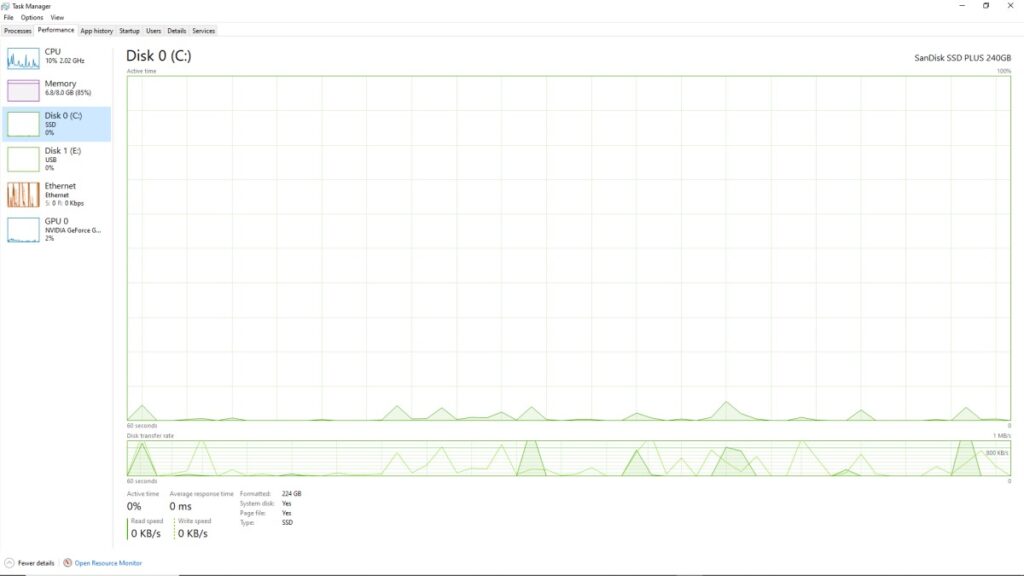
A healthy HDD can still feel painfully slow under modern Windows activity. An SSD handles small requests far better but can still struggle if it is nearly full, overheating, unhealthy or unusually busy. It cannot solve CPU, RAM or application problems.
Check Free Storage Before Deleting Files
Temporary files do not slow Windows merely by existing. Check Settings > System > Storage. If the Windows drive is genuinely tight on space, review Temporary files before removing anything.
Storage Sense can remove selected temporary files and older items automatically. Inspect settings for Downloads, the Recycle Bin and locally stored cloud files before enabling automatic deletion. Microsoft explains these controls in its Storage Sense guidance.
Check Drive Health Before Reinstalling Windows
Back up important files and investigate drive health if you experience:
- Increasing freezes during disk activity
- Unreadable files or repeated file errors
- Clicking, grinding or repeated spin-up sounds from an HDD
- Very long response times or failed health checks
- Windows repeatedly repairing the file system
Back up important files immediately if failure is suspected. Reinstalling Windows cannot repair physical drive damage.
When an SSD Upgrade Is Justified
An SSD is justified when Windows runs from an HDD, disk activity repeatedly saturates during ordinary use and the rest of the PC remains suitable. Verify SATA or NVMe compatibility and back up your files before cloning or reinstalling Windows.
An SSD is not the solution when Windows already runs from a healthy SSD, CPU or RAM is saturated, heat is reducing clock speeds, only the network is slow or one faulty application causes the problem.
If the PC Is Slow After Login, Test Startup Apps and Background Services
A delay before login can involve storage, firmware, updates or Windows startup. If the desktop becomes slow only after signing in, applications and services launched with your user account are stronger suspects.
Inspect Startup Apps Safely
- Open Task Manager > Startup apps.
- Review enabled entries and their reported startup impact.
- Identify an application before disabling it and record every change.
- Restart and repeat the post-login baseline.
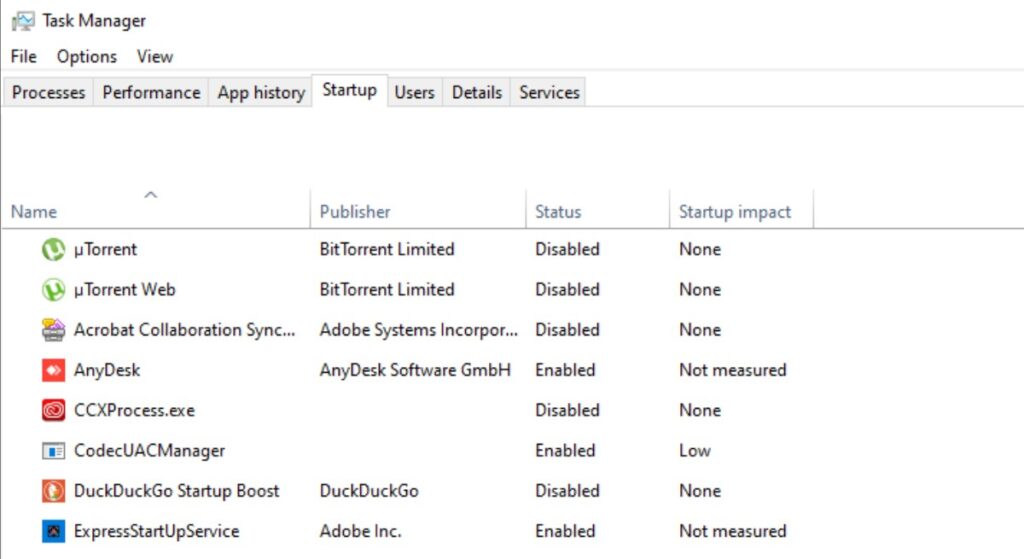
Optional launchers, chat applications and updater utilities may be suitable test candidates. Do not disable security software, hardware services or unfamiliar Windows entries without understanding their purpose. Microsoft provides additional guidance for managing startup applications.
Use a Clean Boot When Startup Testing Is Inconclusive
A clean boot starts Windows with third-party startup items and services disabled. If performance improves, one of those items is probably contributing, but the test does not identify it automatically.
- Open System Configuration and select Services.
- Select Hide all Microsoft services before disabling the remaining services.
- Open Task Manager from the Startup tab and disable enabled startup items.
- Record all changes, restart and reproduce the slowdown.
Clean-boot warning: Some applications, peripherals or features may temporarily stop working. Follow Microsoft’s complete clean-boot instructions and ensure Microsoft services remain hidden before disabling third-party services.
Isolate the Offending Startup Item
If the PC performs normally after a clean boot, re-enable items in controlled groups and retest after each restart. When the slowdown returns, narrow the most recently enabled group until the responsible item is identified. Update, repair, reconfigure or remove that item, then restore everything unrelated.
If the PC Becomes Slower Over Time, Check Heat and Resource Growth
If performance starts normally and deteriorates later, something is changing during the session. Common possibilities include rising temperatures, growing memory use or a recurring background task.
Look for Signs of Thermal Throttling
Thermal throttling occurs when a CPU or GPU reduces its speed to remain within temperature or power limits. Possible signs include:
- Performance is normal when cold but worsens during sustained use.
- Fans become louder as performance falls.
- CPU or GPU clock speeds fall while the workload continues.
- Temperatures remain high when the clock reduction occurs.
- Performance returns after the PC cools.
Monitor Temperature, Clock Speed and Usage Together
Temperature alone does not prove throttling. Stronger evidence appears when load remains high, temperatures stay elevated and clock speeds fall as performance deteriorates. Compare readings near the beginning of the workload with those taken after the slowdown starts.
Laptops operate within tighter cooling and power limits than desktops, so charger use and power mode also matter. Our guide to monitoring temperatures, clock speeds and hardware usage explains how to collect the required readings.
Distinguish Heat from a Memory Leak
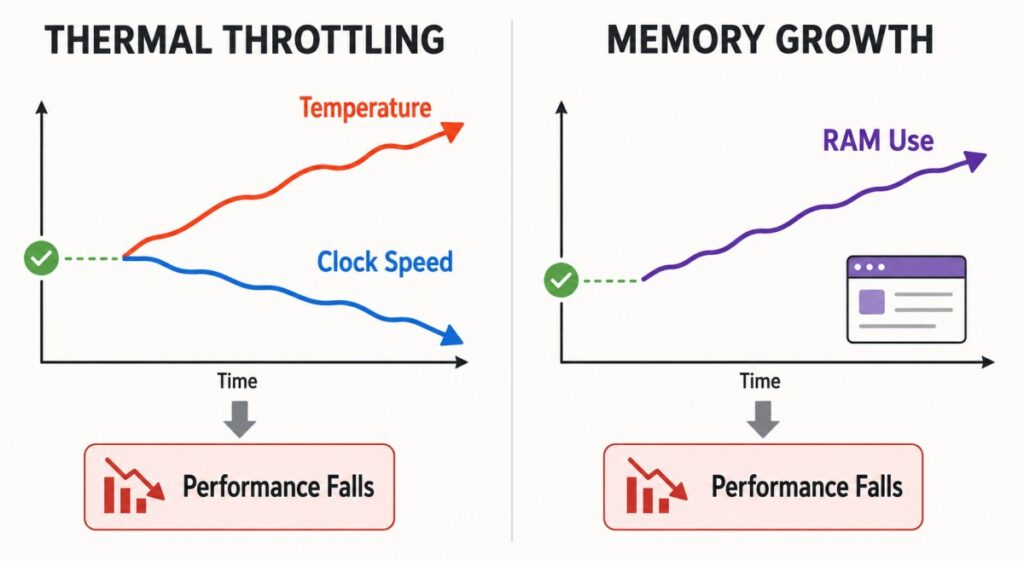
| Behaviour | More consistent with heat | More consistent with memory growth |
|---|---|---|
| Performance worsens during sustained load | Yes | Sometimes |
| Fans become louder | Usually | Not necessarily |
| Clock speeds fall while load continues | Often | Usually not |
| One application’s RAM use keeps increasing | No | Yes |
| Closing one application restores performance | Less likely | More likely |
| A cooling period restores normal performance | More likely | Less specific |
If neither pattern fits, look for a scan, update or synchronisation task that begins later in the session.
If the Slowdown Started After a Change, Reverse the Timeline
A sudden slowdown gives you a valuable lead. Check whether it followed a Windows or driver update, new application, security tool, peripheral, hardware upgrade, BIOS change, cloud-sync service or motherboard utility.
If Windows Became Slow After an Update
The cause may be temporary cleanup or indexing, a changed driver, or a genuine update problem.
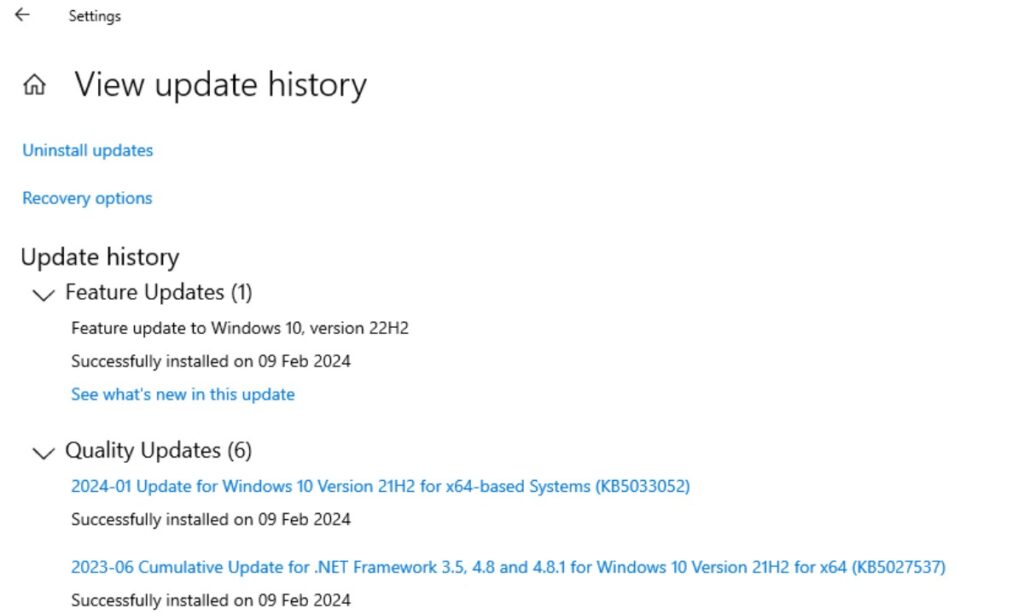
- Open Settings > Windows Update > Update history.
- Check Task Manager for continuing update or disk activity.
- Allow processing to complete, restart and repeat the baseline.
- Consider rollback only when timing and repeated tests consistently implicate the update.
If the PC Became Slow After a Driver Update
Identify the affected device in Device Manager, check its driver date and version, then repeat the relevant workload. Roll back only the implicated driver when the connection is repeatable. Do not change several drivers at once.
If the Slowdown Started After Installing Software
Disable the application from Startup apps, exit it fully and repeat the baseline. Use a clean boot if one of its background services may be responsible. If performance returns, update, repair, reconfigure or uninstall that software.
If the Slowdown Started After Adding Hardware
- Confirm that Windows and the BIOS detect the component correctly.
- Verify RAM capacity, speed and channel configuration.
- Check whether temperatures or airflow changed.
- Confirm the intended storage slot, interface and controller path.
- Ensure the power supply and cooling remain adequate.
If reversing the recent change restores performance, you have stronger evidence than a general assumption that Windows 11 is responsible.
When Task Manager Looks Normal but Windows Still Feels Slow
Normal CPU, memory and disk readings do not prove that nothing is wrong. The problem may affect one application, occur too briefly to capture, involve laptop power limits or come from damaged Windows components.
Check Whether the Problem Is Application-Specific
Check whether only File Explorer, one browser, one game or one application is slow while the mouse, Start menu and other programs remain responsive. If so, update or repair that application, disable optional extensions or overlays and test a new profile where applicable. Resetting Windows for an isolated application fault is excessive.
Check Power Mode and Laptop Behaviour
Connect the laptop to its correct charger and open Settings > System > Power & battery. Check Battery Saver and compare the same workload on battery and AC power.
If performance improves on AC power, the charger, battery settings or manufacturer power controls may be involved. Do not automatically select the highest-performance mode: higher power limits can increase heat, fan noise and battery use.
Check for Corrupted Windows Components
Use Windows repair tools when built-in features malfunction, system errors occur or Windows becomes unresponsive. Microsoft recommends running DISM first to repair the component store, followed by System File Checker.
- Open Command Prompt as an administrator.
- Run the following command and allow it to finish:
DISM.exe /Online /Cleanup-image /RestorehealthAfter DISM completes, run:
sfc /scannow| SFC result | Next step |
|---|---|
| No integrity violations found | Continue investigating the application, hardware or performance symptom. |
| Corrupt files found and repaired | Restart and repeat the baseline. |
| Some corrupt files could not be repaired | Follow Microsoft’s result-specific repair guidance. |
| The requested operation could not be performed | Follow Microsoft’s instructions for running SFC in Safe Mode. |
Microsoft documents the command order and results in its official DISM and System File Checker guidance.
What DISM and SFC Will Not Fix
These tools cannot upgrade slow hardware, add RAM, physically repair a drive, fix every third-party application, improve internet latency or increase gaming performance. If SFC finds no integrity violations, do not keep running it in the hope that an unrelated bottleneck will disappear.
Is Windows Slow, or Is It Only Gaming, Browsing or Internet Performance?
If Only Games Are Slow
Low FPS and stutter are not the same as a sluggish Windows desktop. If only games are affected, inspect GPU and CPU usage, temperatures, clock speeds and frametime. Use our Complete Gaming PC Health Check instead of applying generic Windows cleanup. If the PC itself is working normally but your laptop hardware is simply too weak for the games you are trying to play, our guide to games for low-end laptops will help you find titles better suited to limited hardware.
If Only Websites, Downloads or Online Games Are Slow
If File Explorer and local applications respond normally while online activity struggles, the computer itself may not be slow. Test the network separately. If the problem occurs specifically on Wi-Fi, check whether your Wi-Fi adapter is causing lag.
If Only the Browser Is Slow
Close unnecessary tabs, disable optional extensions and compare the same website in another browser. A damaged profile, cache, extension, hardware-acceleration problem or one memory-heavy website should be repaired at the browser level.
When Is a Hardware Upgrade the Correct Fix?
Upgrade hardware only when the evidence identifies a hardware limitation.
| Evidence | Possible upgrade or repair | What it improves | What it will not fix |
|---|---|---|---|
| Windows runs from an HDD and disk activity repeatedly saturates | SSD | Boot, loading and responsiveness | CPU saturation or network lag |
| Required workloads repeatedly exhaust memory | More RAM | Multitasking and paging-related slowdowns | Slow CPU or failing storage |
| CPU remains saturated after software causes are excluded | CPU or platform upgrade | Processing-heavy workloads | Poor Wi-Fi or faulty applications |
| Heat causes clock speeds to fall | Cooling maintenance or repair | Sustained performance | Insufficient RAM |
| Only wireless performance is unstable | Network diagnosis and confirmed hardware improvement | Network reliability | Windows responsiveness |
When More RAM Will Not Help
More RAM will not accelerate the processor, repair storage or fix an application when the current workload already fits comfortably in memory. Upgrade only when required workloads repeatedly create memory pressure and the PC supports the intended capacity and configuration.
When an SSD Will Not Help
An SSD can transform HDD-based startup and application loading, but it will not fix CPU saturation, insufficient RAM, thermal throttling, Wi-Fi problems or a broken application. It may improve game loading and asset streaming, but it is not a general cure for low average FPS.
When the Whole Platform Is Too Old
An older PC may benefit from one inexpensive used upgrade. However, a DDR3-era system with an old dual-core processor, HDD and limited memory may require several incompatible improvements. Compare the complete upgrade cost with a suitable refurbished or new PC before replacing the processor, motherboard, RAM, storage and power supply separately.
When Should You Reset or Reinstall Windows 11?
Reset or reinstall Windows only after the problem has been shown to affect the operating system broadly and less destructive tests have failed.
Conditions That Justify Considering Recovery
- Multiple Windows features and applications are affected.
- Storage and other relevant hardware appear healthy.
- A clean boot did not isolate third-party software.
- Relevant update and driver changes were investigated.
- DISM and SFC did not resolve suspected Windows corruption.
- Files and credentials are backed up and you understand what recovery may remove.
Reset This PC Versus Reinstalling Windows
| Option | What it does | Important limitation |
|---|---|---|
| Keep my files | Reinstalls Windows and retains personal files | Applications and settings are removed or reset |
| Remove everything | Removes files, applications and settings | Unbacked data should be treated as lost |
| Cloud download | Downloads a fresh Windows image | Requires a reliable internet connection |
| Local reinstall | Uses Windows files stored on the PC | May be unsuitable if local recovery files are damaged |
| Clean installation | Installs Windows from bootable media | Can remove everything and requires careful drive selection |
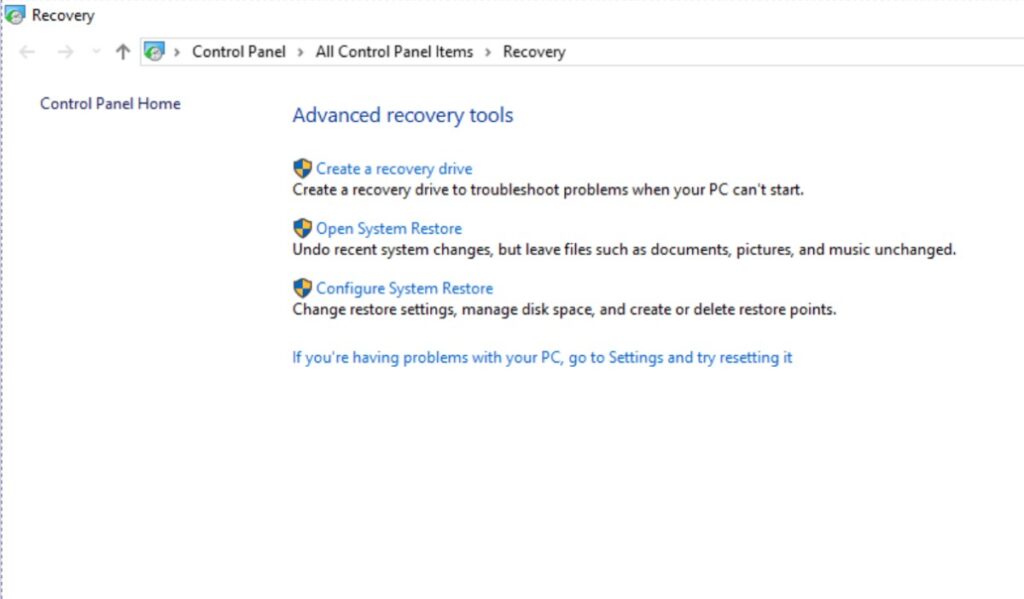
Reset options are under Settings > System > Recovery > Reset this PC. Microsoft explains the current choices in its Reset your PC guidance.
Back Up and Verify Everything Before Proceeding
Back up personal files, browser data, local game saves, licence information, the BitLocker recovery key, application installers and important configurations. Open several files from the backup destination to confirm that the copy is readable.
“Keep my files” is not a substitute for a verified backup. Do not proceed until important files can be opened from another location.
Why Reinstalling Windows May Not Fix the Slowdown
A failing drive, insufficient RAM, an inadequate processor and thermal throttling remain after reinstalling Windows. Reinstalling the same launchers and utilities can also recreate the original problem.
Reinstalling the same Windows edition on an activated PC does not normally require another licence. Activation usually occurs automatically after reconnecting to the internet, although major hardware changes may require reactivation. See Microsoft’s Windows reinstallation guidance.
If performance remains poor after a clean installation, read why your PC can still feel slow after reinstalling Windows.
Final Diagnostic Checklist
- Define when and where the slowdown occurs.
- Restart and reproduce it under the same conditions.
- Watch CPU, memory and disk during the slowdown.
- Identify the responsible process or constrained resource.
- Run one controlled confirmation test.
- Apply the smallest appropriate fix.
- Repeat the original test.
- Escalate to clean boot, repair or recovery only when justified.
- Buy hardware only after confirming the bottleneck.
A slow PC is a symptom, not a diagnosis. The correct fix depends on which resource is constrained, what process is using it and what changed before the problem began.
For other confirmed Windows or gaming-PC problems, continue to our Windows 10 and 11 troubleshooting hub.