If your game freezes and Task Manager shows 100% disk usage while gaming, do not rush to replace your SSD. First, check whether the disk spike happens at the same moment as the freeze, identify the program accessing the drive, and check whether your PC is running out of RAM. On older PCs with 4GB or 8GB of memory, heavy paging can make a healthy drive look like the problem.
This guide is for Windows 10 and 11 PCs where disk activity reaches 100% during gameplay or shortly after launching a game. It uses built-in Windows tools and starts with reversible checks. If your game simply takes a long time to reach the main menu without showing high disk activity, see our separate guide to games that take forever to load.
Step 1: Confirm That Disk Usage Spikes When the Game Freezes
Press Ctrl + Shift + Esc to open Task Manager. Select Performance, then choose the disk that contains your game. Watch its active time while you reproduce the issue. If necessary, run the game in borderless-windowed mode or use a second screen so you can watch both without constantly switching applications.
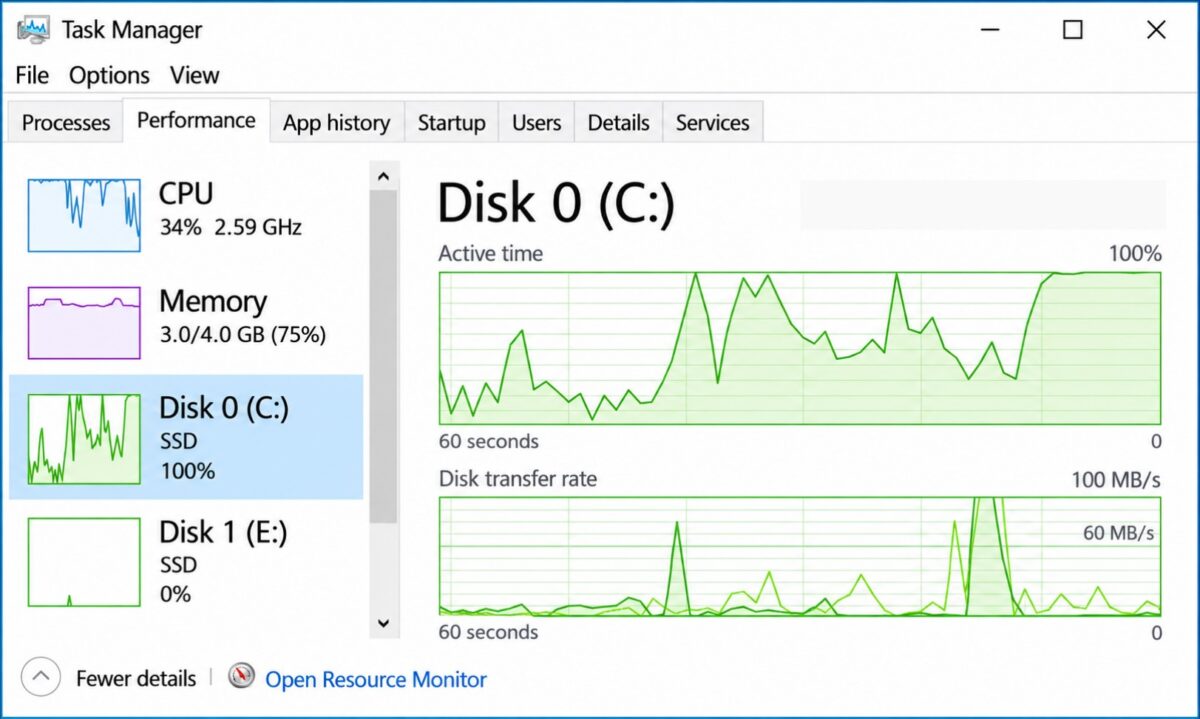
Record three observations: when active time hits 100%, whether the game freezes at that exact moment, and whether the disk stays busy after the freeze ends. A short spike during a loading screen or game update may be normal. A repeated spike that coincides with a visible pause is worth investigating—but correlation alone does not prove the drive caused it.
100% active time is not the same as maximum SSD speed
The Disk percentage is an activity indicator, not a speed benchmark. A drive can be busy servicing many small or delayed requests even when the reported transfer rate looks modest. Equally, a quick 100% reading does not by itself mean the SSD is faulty. The next step is to identify the workload.
Step 2: Find Out What Is Using the Disk
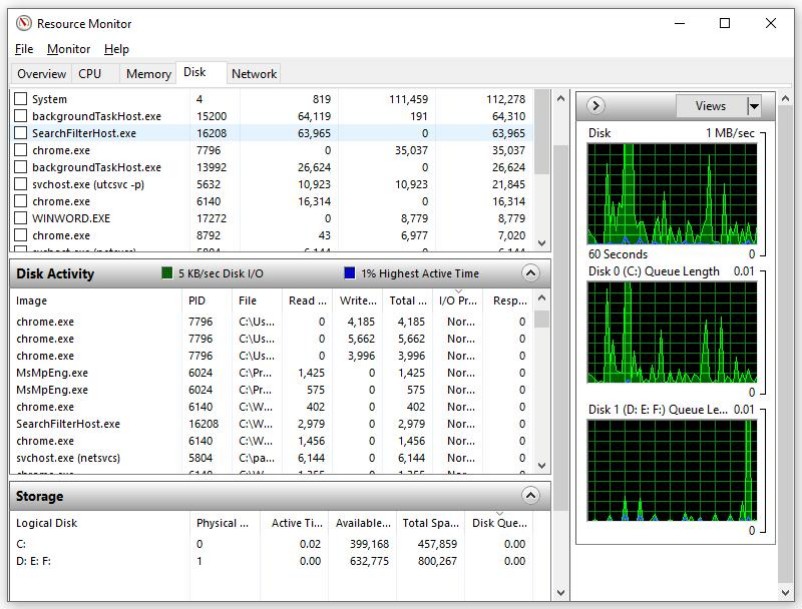
- In Task Manager, open Processes and click the Disk column to sort the busiest programs to the top.
- For more detail, press Win + R, type
resmon, and press Enter. Open the Disk tab in Resource Monitor. - Check which processes and files show sustained read or write activity during the freeze. Note the drive letter: Windows may be busy on C: even if the game is installed on D:.
- Repeat the test once more to avoid blaming a one-off update or installation task.
| What is busy? | What it suggests | Next check |
|---|---|---|
| Steam, another launcher or an installer | Downloading, unpacking, patching or verifying game files | Let the task finish, then retest the game |
| Antivirus or a Windows maintenance process | Background scanning or maintenance may be competing with game I/O | Check whether a scan or update is running |
| System activity alongside nearly full RAM | Memory pressure and paging may be contributing | Continue to Step 3 |
| The game itself | Game assets may be loading, or the title may be doing unusually heavy disk work | Compare normal loading with freezes during gameplay |
| No obvious high-throughput process, but long disk response times | Possible latency, drive, driver or I/O issue | Continue to drive-health checks |
Do not end random Windows processes just because they appear near the top. If the culprit is a scheduled game update or backup, testing after it finishes is safer than disabling services permanently.
Step 3: On a 4GB or 8GB PC, Check RAM Before Blaming the SSD
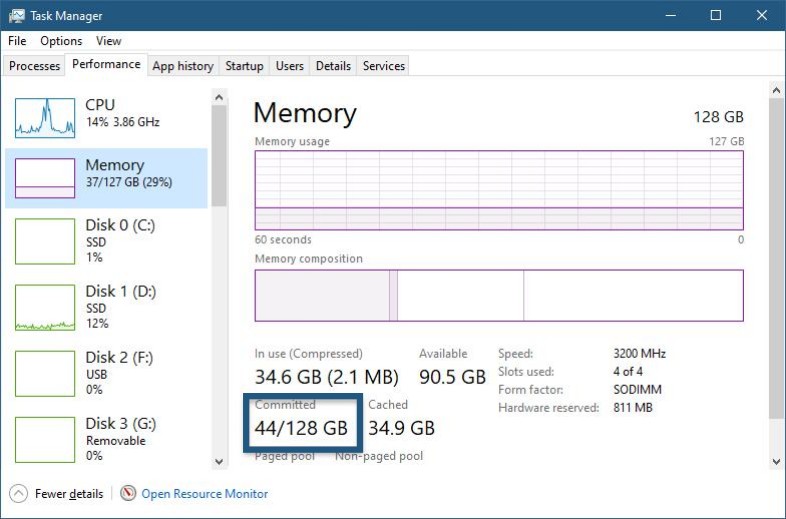
Open Task Manager → Performance → Memory while the game is running. Check available memory and the Committed reading. Very little available RAM, particularly when committed memory exceeds installed RAM, can suggest memory pressure. However, these readings do not prove that paging is causing your disk spikes. To investigate further, use Resource Monitor’s Memory tab to observe hard faults while reproducing the freeze. Hard faults can involve retrieving memory pages from storage, but occasional hard faults are normal and are not automatically evidence of a problem.
For a fair comparison, close browsers, unnecessary launchers and other memory-hungry applications, then run the same scene again. If disk spikes and freezes ease substantially, memory pressure is a stronger suspect. This is especially worth checking on 4GB systems and some 8GB systems, but memory capacity alone does not establish the cause.
Do not disable the Windows page file as a shortcut. That can create new crashes or out-of-memory problems. If evidence points to insufficient RAM, our guide to how much RAM games actually need covers the upgrade decision separately. Microsoft also explains how memory commitments and paging affect performance in its virtual memory documentation.
Step 4: Apply the Fix That Matches Your Findings
A launcher is updating or unpacking files
Pause gameplay until the install, patch or verification completes. Then relaunch the same game and repeat the test. Download progress and disk activity do not always move together: a launcher can be processing files locally rather than receiving data from the internet. If Steam repeatedly stalls during this process, use our focused Steam download speed drops to zero troubleshooting guide.
Windows maintenance, antivirus or syncing is competing with the game
Check Windows Update, the security scan status and any cloud-sync application. Let legitimate scans or updates finish, or temporarily pause a nonessential sync task using that app’s normal controls, then retest. Do not permanently disable Microsoft Defender, Windows Update or essential services merely to make a percentage drop.
The drive is running low on free space
Open Settings → System → Storage and inspect the available space on the affected drive. Remove files you no longer need, uninstall unused games or move large personal files after checking backups. Windows provides Storage Sense for supported cleanup tasks. It primarily targets the Windows system drive; inspect secondary game drives separately. Low free space is a useful clue, not a guarantee that cleanup will resolve the freeze.
The game alone causes the spike
Confirm the game’s installation files through its launcher if corruption is suspected, and check the game’s published storage requirements. A title that explicitly requires an SSD should not be assumed to perform properly from a hard drive. If disk usage is brief and happens only during ordinary loading, there may be nothing to fix. If freezing persists without matching disk spikes, follow the broader low-end PC stuttering diagnosis instead of continuing to tweak storage settings.
Step 5: Check for Drive Problems Without Risking Your Files
If the drive remains unresponsive under light workloads, reports unusually long response times, disconnects, produces repeated storage errors, or Windows warns about its reliability, back up important files before attempting intensive tests or repairs. Avoid repeated stress benchmarks on a potentially failing drive.
Check Windows and SSD Health
- Open Windows Security → Device performance & health to check for reported storage-capacity and general system problems. This is an initial Windows health check, not a complete SSD diagnostic. A clean report cannot rule out drive failure or abnormal storage latency.
- For a supported NVMe drive, inspect available health information in Windows storage settings or an appropriate manufacturer utility. Check the exact drive model before choosing firmware tools.
- Review whether the issue affects one game, every game, or ordinary desktop use. Problems outside gaming increase the need for broader storage diagnosis.
- If health warnings or persistent I/O errors appear, prioritize backups and consider professional diagnosis or replacement rather than registry tweaks.
Windows also has an official device health report. Health reporting varies by device and is not a substitute for a reliable backup.
Step 6: Retest the Same Game Before Calling It Fixed
Retest using the same game, scene and graphics settings as your original test. Keep other conditions as consistent as possible, but make the specific change you are testing, such as closing a background application or allowing an update to finish. Record whether the freeze still occurs, whether it coincides with 100% disk active time, and which process is responsible. Change one thing at a time so you can identify what actually helped.
| After retesting | What to conclude |
|---|---|
| Freezes stop and abnormal disk spikes disappear | The change likely addressed a contributing factor; monitor for recurrence |
| Disk still reaches 100%, but the game is smooth | The percentage alone is not a reason to replace hardware |
| Game still freezes, but disk activity no longer aligns | Investigate RAM, CPU, GPU or game-specific issues instead |
| Persistent slow response, storage errors or health warnings | Back up files and escalate storage diagnosis |
Bottom line: 100% disk usage while gaming is a symptom, not a diagnosis. Find the workload, check memory pressure, resolve the specific cause, and retest before spending money on a faster drive. The successful result is a game that no longer freezes—not necessarily a disk percentage that never reaches 100%.