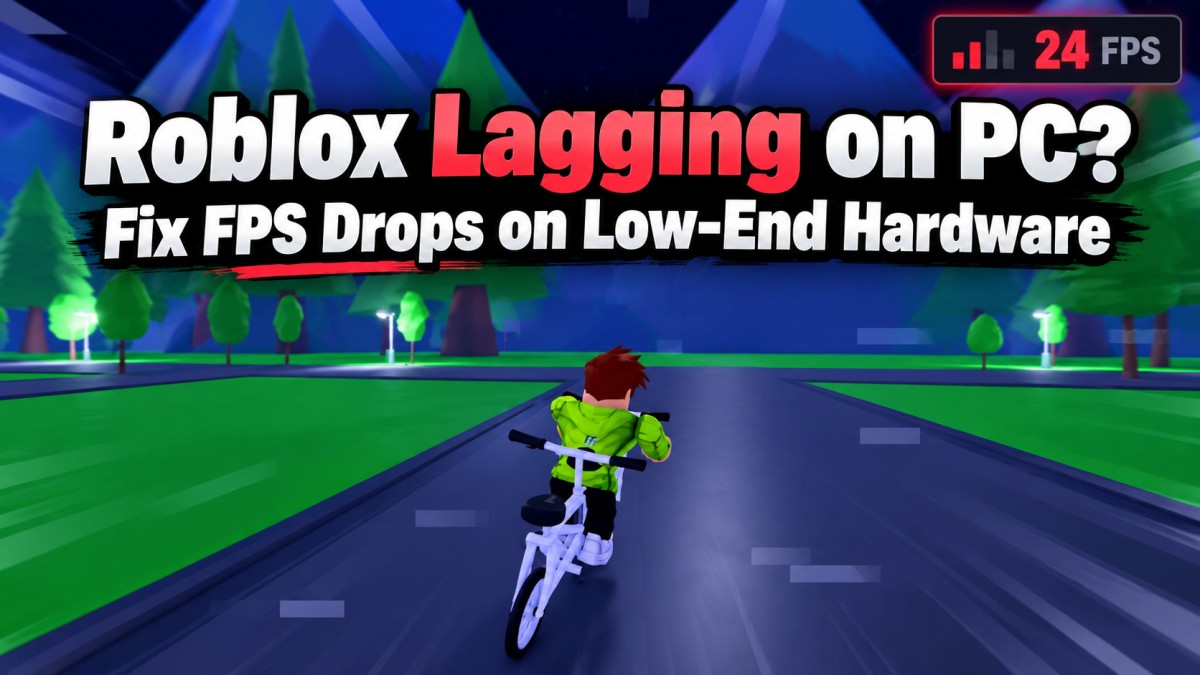
Roblox lagging on your PC? Start by setting Graphics Mode to Manual, lowering Graphics Quality, and closing anything heavy running behind the game. On an older laptop or a PC with 4GB to 8GB RAM and integrated graphics, those are sensible first checks. But if Roblox still stutters, the next step is to find out whether you have FPS drops, a memory or CPU problem, or network lag. They can look similar, but they need different fixes.
This guide is for Windows PCs that can launch Roblox but struggle with choppy movement, sudden frame drops, or performance that gets worse during play. We’ll test the problem before changing half of Windows. No sketchy FPS boosters, no miracle claims, and no assumption that every Roblox experience is equally easy to run.
First: try this quick Roblox lag fix
- Lower graphics: Join an experience, press Esc, open Settings, change Graphics Mode to Manual, then move Graphics Quality towards the lowest setting.
- Close competing apps: Exit unnecessary browser tabs, downloads, recording software, and other programs before launching Roblox again. Do not close unfamiliar Windows processes just because they appear in Task Manager.
- If you’re on a laptop, test while plugged in: Use the normal charger and a firm surface that does not block the cooling vents.
- Restart Roblox and retry the same scene: A real improvement should show up where the drops were happening, not just while you stand in an empty area.
Roblox itself recommends lowering graphics quality and reducing other system load for graphics and system lag. Those changes may improve performance; they cannot overcome every CPU, graphics, memory, or experience-level limitation. See Roblox’s official lag troubleshooting guidance.
Still choppy? Do not keep randomly lowering settings. Check which kind of lag you actually have.
Is Roblox dropping FPS, or is your internet lagging?
Players call almost every Roblox problem “lag,” but the symptoms point in different directions. Use this as a starting diagnosis, not absolute proof of the cause.
| What you see | Likely direction to investigate | First useful check |
|---|---|---|
| The whole image looks jerky and the FPS reading falls | Graphics or CPU workload | Lower Graphics Quality and retest the same spot |
| The game pauses, especially with lots of apps open | RAM, CPU or storage pressure | Check Task Manager while the problem happens |
| Other players teleport, actions register late, but your view stays smooth | Connection or server latency | Check Roblox ping and test a more stable connection |
| Only one Roblox experience runs badly | That experience’s workload or server | Compare it with a lighter experience |
| Everything runs well at first, then becomes choppy | Heat, memory growth or background activity | Compare FPS and system load early and later in the session |
Important: Internet speed and FPS are not interchangeable. A faster connection will not make an overloaded integrated GPU draw frames faster. Lower graphics settings will not repair unstable Wi-Fi. Roblox distinguishes network lag from graphics lag for exactly this reason.
Check your Roblox FPS before changing more settings
We want to know whether a change fixes the actual frame drops. You do not need a paid monitoring program to start.
- Open the Roblox experience that is causing trouble. Let the initial loading settle.
- Press Shift + F5 on the Windows client to display Roblox’s FPS debug summary. On some laptops, you may also need the Fn key. Alternatively, open the in-game Settings menu and enable Performance Stats if available. These are different diagnostic displays: the Shift + F5 shortcut provides an FPS debug summary, while the Performance Stats option can show additional information about rendering, memory and network performance. The available readings may vary by client version.
- Note the FPS while standing still, moving through the same area, and entering the spot where performance normally drops.
- Change one setting, then repeat the route under similar conditions. If you’re comparing sessions, try to keep the same experience and a similar player count.
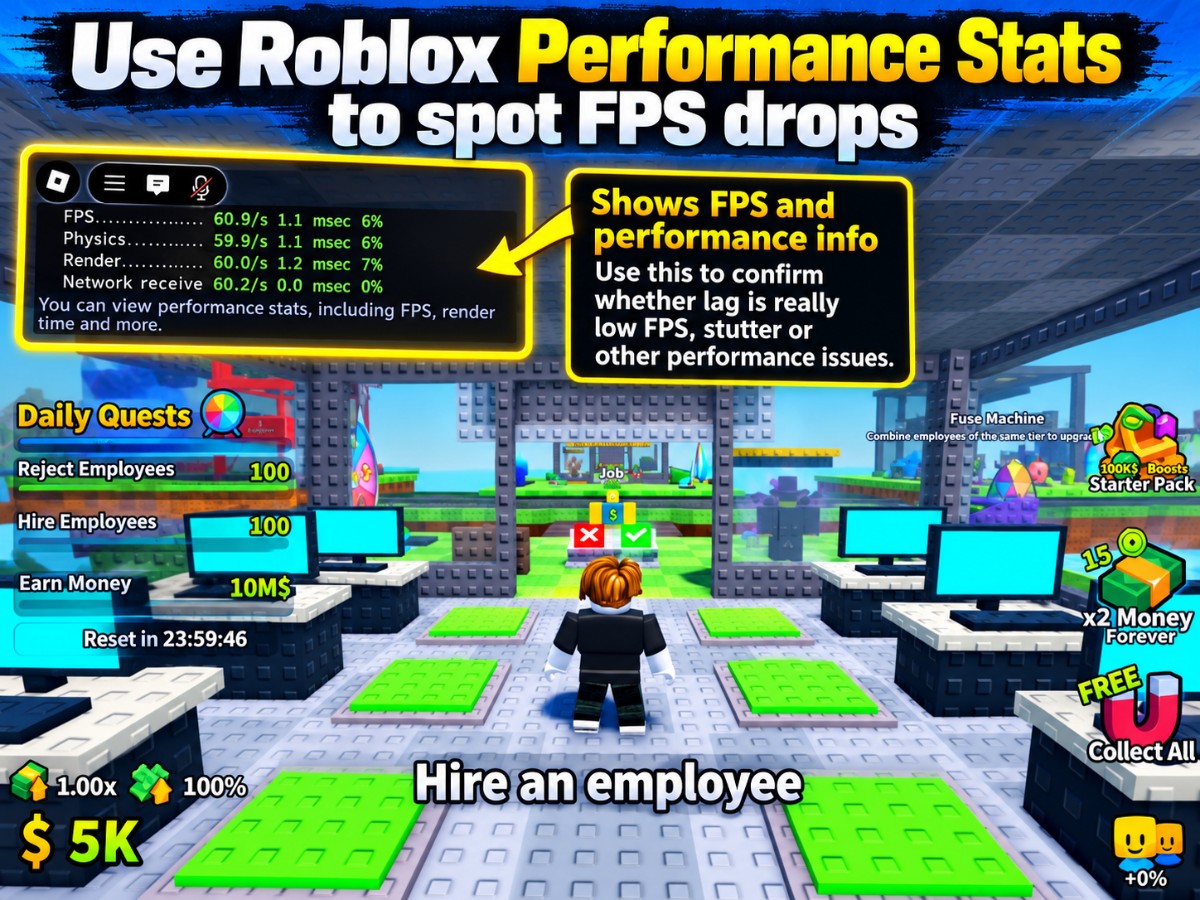
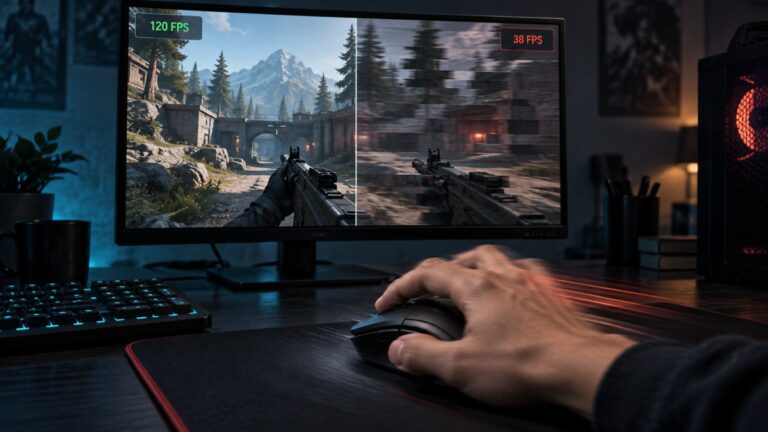
As a rough reading: if your FPS falls sharply at the same busy moment, you have evidence of a frame-rate problem. If the picture remains smooth but other players jump across the screen, investigate latency instead. A stable 30 FPS can feel more predictable than a frame rate that swings wildly, but there is no universal FPS figure that makes every Roblox experience playable.
Roblox documents the Shift + F5 FPS display in its performance diagnostics guide. It also notes that different devices can behave very differently in the same experience.
Best Roblox graphics settings to try on a low-end PC
Start with Graphics Mode: Manual and Graphics Quality: low. If Roblox becomes smoother, raise the slider gradually until the drops return, then step back. That gives you a more useful result than copying somebody else’s “ultimate FPS settings” without knowing their hardware or the experience they tested.
- While in Roblox, press Esc and open Settings.
- Find Graphics Mode and select Manual.
- Move Graphics Quality close to its minimum. Test at the lowest level first if the PC is struggling badly.
- Resume play and repeat the difficult section. Only increase quality if there is spare performance headroom.
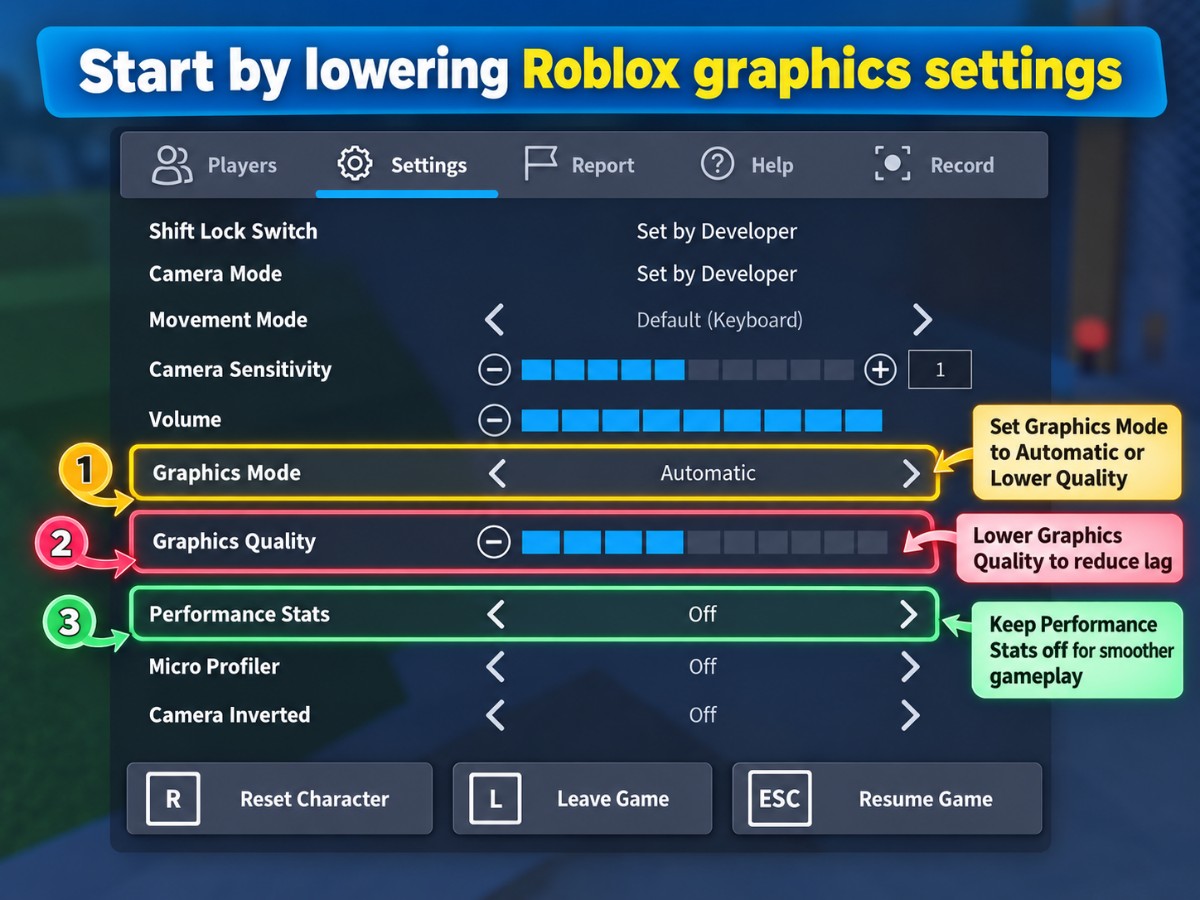
Lowering quality can reduce rendering detail and some visual effects, but exactly what changes depends on the experience and its settings. Roblox’s graphics quality instructions confirm the Automatic and Manual options. If the FPS barely moves between very low and higher settings, your graphics chip might not be the main limit. CPU workload, memory pressure, or the experience itself deserve attention next.
Should you increase Roblox’s maximum frame rate?
Not as a fix for a struggling PC. Roblox supports higher frame-rate limits on some Windows clients, but a higher ceiling does not create frames your hardware cannot produce. If your client shows a Maximum Frame Rate option, use its default 60 FPS setting as a sensible baseline while diagnosing stutter. Some client versions may show different options. An FPS reading sitting steadily at 60 is not, by itself, evidence of a performance fault.
Fix the Windows bottleneck your low-end PC actually has
Once you’ve tested Roblox’s graphics slider, check what Windows is doing while the game stutters. Older dual-core machines, 4GB RAM laptops, and PCs using shared-memory integrated graphics can run out of headroom quickly. But the symptom matters more than the label on the computer.
1. Check CPU, memory and disk use in Task Manager
- Press Ctrl + Shift + Esc to open Task Manager and choose Processes.
- Look at CPU, Memory and Disk use while Roblox is running. Sort a column to find which applications are using the most resources.
- If a browser, download, game recorder or updater is consuming substantial resources, close it normally and repeat the Roblox test.
- If total memory usage stays very high and disk activity spikes alongside the freezes, lack of available RAM may be contributing. A single percentage is not enough to prove it.
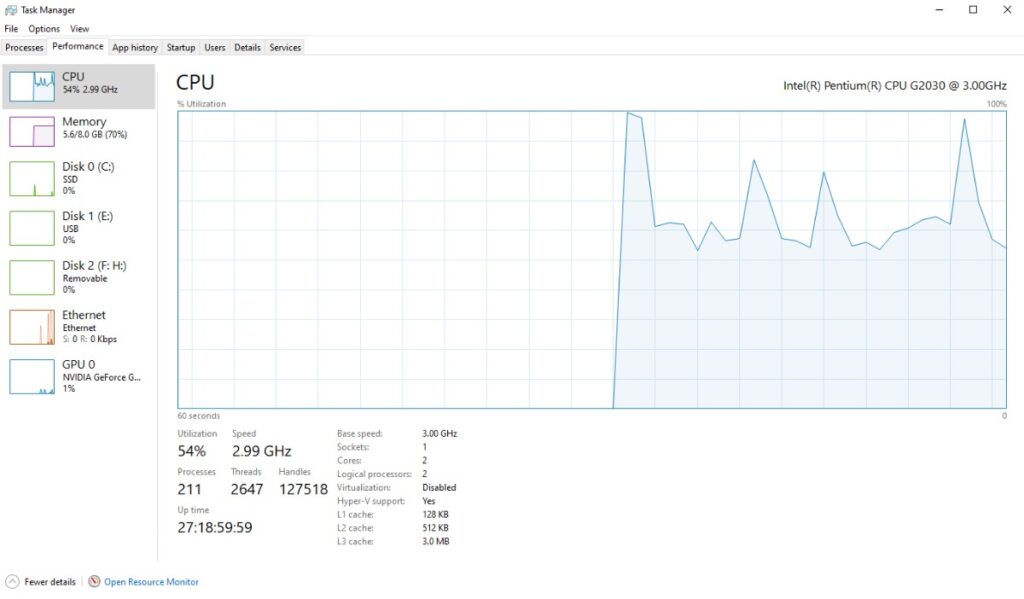
Microsoft likewise recommends monitoring resource usage and shutting down unnecessary apps when troubleshooting a slow Windows PC. If Windows itself stays overloaded even when Roblox is closed, our guide to fixing Windows problems on low-end gaming PCs covers that broader diagnosis without turning this article into a Windows maintenance checklist.
2. Check laptop power and heat
For a laptop, test Roblox with the charger connected. On Windows 11, open Settings > System > Power & battery and check the available Power mode options. You can try Best performance while plugged in, then retest. It can increase power use, fan noise and heat, so it is not always the best everyday setting.
If Roblox plays acceptably for the first few minutes but gets worse after sustained use, compare the early and later FPS readings. Heat-related throttling is one possibility, not a diagnosis. Make sure the vents are clear and the laptop is not resting on a blanket. If several games show the same decline, investigate cooling rather than endlessly changing Roblox settings.
3. Check which GPU Roblox is using—only if you have two
Some laptops have both integrated graphics and a dedicated GPU. If yours does, Windows 11 lets you check app-specific graphics preferences under Settings > System > Display > Graphics. Find the Roblox application (or add the correct installed executable), open Options, and test High performance if a separate GPU is available. Restart Roblox after changing the setting. Microsoft’s Windows graphics settings documentation explains these options.
If your PC has only Intel HD, Intel UHD or another integrated GPU, there is no hidden dedicated graphics card for Windows to switch to. Skip this step.
4. Update drivers only when there is a reason
If Roblox suddenly started stuttering after a driver change, or other games show new graphics problems, check the graphics driver through your PC maker or the appropriate official Intel, AMD or NVIDIA support channel. Use a driver compatible with your exact hardware. Updating is not a guaranteed FPS boost, and a newer driver can occasionally introduce its own problems—so note the version before changing it.
Skip random “driver booster” programs, registry speed-up packs and unofficial FPS unlockers. They add risk without identifying why Roblox is slow.
What if Roblox only lags in one experience?
This is the comparison many low-end PC guides miss: Roblox is a platform, not one fixed game workload. A small, simple experience and a crowded one filled with effects, scripted activity and large environments can demand very different amounts of processing power and memory.
- Leave the experience that stutters, then join a visually simpler Roblox experience.
- Use the same Manual graphics level and compare the FPS behavior.
- If the lighter experience is stable, try the original again, ideally in a less crowded session if one is available.
- If the same busy area still causes severe FPS drops, even at minimum graphics quality, treat the experience’s demands as a likely limitation of that PC rather than proof that Windows needs another tweak.
A different result between experiences does not conclusively identify bad game optimization—different gameplay can simply require more resources. Roblox’s own documentation explains why developers need to test on lower-end hardware. If one particular experience remains unplayable, the creator may need to optimize it, or you may need to choose a lighter experience.
If that’s the outcome, our online games for low-end PCs guide includes Roblox and other multiplayer options, with an explanation of why their hardware demands differ.
What if the FPS is fine but players keep teleporting?
That sounds more like network or server lag. Check ping in Roblox’s Performance Stats if your client displays it. Then try a wired connection if possible, stop large downloads on your network, and compare a second experience. Check the official Roblox status page for platform problems. A normal status page does not rule out a problem with one server or route.
If movement is smooth but actions arrive late, spending hours reducing graphics quality will not address the most likely cause. Roblox has a separate connection troubleshooting guide for that path.
Roblox still lagging? Know when to stop tweaking
If you have lowered graphics, closed unnecessary apps, checked FPS, and compared a lighter experience, you should have enough evidence to choose a sensible next move:
- Low graphics meaningfully raises FPS: Keep a lower quality level. You have likely found a setting your hardware handles better.
- Roblox improves after background apps close: Reduce competing workload during play, especially on 4GB RAM systems.
- Only complex experiences struggle: Accept the experience-specific limit or play a lighter alternative. A hardware upgrade is not automatically justified.
- Every experience is suddenly worse than before: Look for a recent system, driver or Roblox change; restart first and consider Roblox’s official reinstall procedure only if basic checks fail. A reinstall is for possible software problems, not for an underpowered CPU.
- Several games struggle and memory is repeatedly exhausted: A RAM upgrade may be worth investigating if the machine supports it, but confirm the bottleneck and upgrade cost before buying anything.
Roblox’s published Windows requirements are a compatibility floor, not a guarantee of smooth FPS in every user-created experience. A Windows PC meeting the basic requirements may still struggle in demanding games. On extremely old hardware, lowering settings may improve playability without making every experience run well. See Roblox’s official PC requirements before assuming an unsupported system can be fixed through settings alone.
The goal isn’t a magical FPS number. It’s a Roblox experience that runs predictably on the hardware you own. Measure the problem, make one change, retest the same scene, and stop when you have a usable result—or clear evidence that the experience is simply too demanding for that PC.