A powerful GPU, modern CPU and plenty of RAM do not guarantee perfectly smooth gameplay. Games stuttering on a high-end PC may still produce an excellent average frame rate while brief frametime spikes cause visible hitches, micro-freezes or uneven movement.
The fastest way to find the cause is not to change every Windows and graphics setting. First determine whether the stutter affects one game or several unrelated games, then match the fix to what happens at the moment of the hitch.
Start Here: Diagnose the Pattern Before Changing Anything
Use the pattern below to choose your first test. These symptoms do not prove a cause by themselves, but they stop you from applying fixes that have nothing to do with the problem.
| What you experience | Most likely direction | What to test first |
|---|---|---|
| Only one game stutters | A game patch, shader compilation, asset streaming or a game-specific setting | Check current known issues and repeat the same scene |
| Several unrelated games stutter | A shared driver, background program, unstable setting, temperature or memory problem | Test a clean baseline and monitor frametimes and system behaviour |
| The hitch occurs at the same doorway, corner or area | Traversal stutter or asset streaming | Repeat the same route and watch storage, memory and frametime |
| The hitch occurs the first time a new effect appears | Shader compilation | Repeat the sequence and see whether the hitch disappears |
| Stutter becomes worse after playing for a while | Thermal throttling, rising memory use or another accumulating problem | Watch temperatures, clock speeds, RAM and VRAM over time |
| Stutter began after a driver, Windows or game update | A software regression or rebuilt shader cache | Identify the last relevant change before altering anything else |
Rule out a different problem first: If the game reacts badly only while you move the mouse, use our focused guide to FPS drops when you move the mouse. If the picture stops entirely while sound keeps playing, follow our game freeze checks to see whether Windows still responds; that is different from a brief stutter.
If online players teleport or rubber-band while the local frametime graph remains stable, check ping, packet loss and server status instead of changing graphics settings. Network lag can feel like stutter, but it requires a different diagnosis.
How to Monitor What Happens During the Stutter
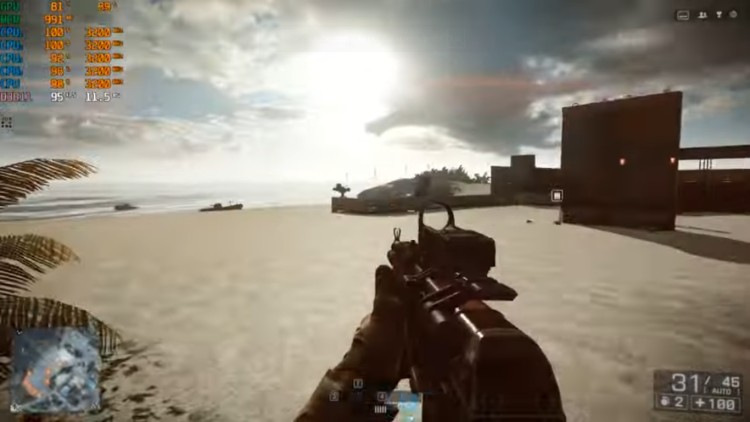
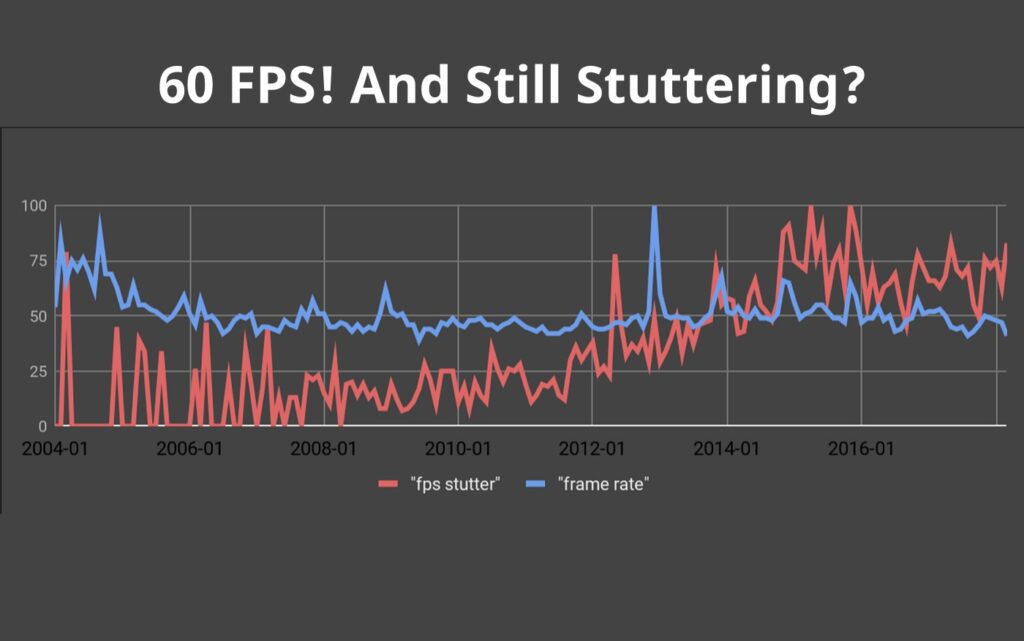
An FPS counter is not enough. If a game runs at 100 FPS most of the time but one frame takes far longer to arrive, the average can still look healthy while you feel a sharp hitch. Display a frametime graph alongside the following measurements using a trusted hardware-monitoring overlay:
- GPU utilization and VRAM use
- CPU utilization per core, not only the total CPU percentage
- System RAM use
- CPU and GPU temperatures
- CPU and GPU clock speeds
- Frametime as a graph
Return to the same area and perform the same movement while watching the graph. Change only one setting or background program, then repeat the test. The useful evidence is not merely a high number: it is a change that occurs at the same moment as the frametime spike.
| What changes during the hitch | What it suggests | How to confirm it |
|---|---|---|
| VRAM is at or near capacity | Textures or other graphics data may be spilling into slower memory | Lower texture quality and repeat the same test |
| One or more CPU cores reach their limit while GPU use falls | The game may be limited by a CPU-heavy workload | Reduce CPU-heavy settings such as crowd density, simulation or view distance |
| GPU use remains at its limit and a cap improves consistency | The GPU had too little performance headroom | Use a frame-rate target the system can sustain in demanding scenes |
| Clock speed drops as temperature or a reported limit rises | Thermal or power-limit throttling may be involved | Compare the behaviour across several repeatable runs |
| RAM use keeps rising and stutter worsens over time | Memory pressure or a game-related memory problem is possible | Close background programs and compare a fresh launch with a longer session |
| No system measurement changes, but the hitch repeats in one location | Game-engine traversal or asset-streaming behaviour is more likely | Repeat the route and compare reports from other players |
If memory use steadily increases or the problem becomes worse the longer you play, our guide to a game using too much RAM explains how to distinguish normal allocation from genuine memory pressure.
If Only One Game Stutters
When demanding games and benchmarks run normally but one game stutters, do not begin by replacing hardware. A game-specific patch, shader process, engine limitation or corrupted installation is more likely, although one unusually demanding game can still expose instability that lighter games do not.
Check for a Patch or Known Problem
If the stutter began immediately after a game update, check the official patch notes and recent player reports. Widespread complaints from systems using different hardware are stronger evidence of a game problem than one isolated report. Verify the game files through its launcher before changing Windows or reinstalling drivers.
Separate Shader Compilation from Traversal Stutter
Shader-compilation stutter often appears the first time a new effect, material or scene is rendered. It may be most noticeable during a first playthrough, after an update or after the shader cache has been cleared. Repeat the same sequence: if the first hitch disappears, shader compilation becomes more likely.
Traversal stutter appears when the game loads or processes assets as you move through its world. It commonly repeats at the same boundary, doorway or change of area. Faster storage and enough memory can reduce it in some games, but powerful hardware cannot remove traversal hitches built into an engine.
If the game compiles shaders during every launch rather than after an update or driver change, see why a game keeps compiling shaders and which causes you can realistically correct.
Test Only Settings Connected to the Symptom
Lower textures if VRAM is full. Reduce crowd density, simulation or view distance when individual CPU cores are repeatedly saturated. If the game officially supports more than one rendering mode, compare them using the same scene. Avoid dropping every setting at once: that can hide the responsible limit without showing which change mattered.
If Several Games Stutter on the High-End PC
Stuttering across unrelated games points more strongly toward something they share: Windows, a driver, background software, unstable settings, temperatures, memory configuration or storage. Establish a clean baseline before attempting advanced changes.
1. Test a Clean Gaming Baseline
Restart the PC and launch one affected game before opening browsers, RGB utilities, recording programs or hardware-monitoring tools other than the overlay needed for the test. Temporarily disable Steam, Discord, GeForce and Xbox Game Bar overlays, along with OBS or other capture software. If the stutter disappears, restore programs individually until it returns.
Microsoft’s guidance on checking resource-heavy processes in Windows can help identify background applications competing for system resources.
2. Reverse the Most Recent Relevant Change
If several games began stuttering after a graphics-driver update, use the driver’s clean-install option or test the previously stable version. If the problem followed a hardware change, recheck driver installation, temperatures, power connections, RAM placement and relevant BIOS settings before assuming the new component is defective.
Temporarily return CPU and GPU overclocks or undervolts to known-stable defaults. If the behaviour appeared after enabling XMP or EXPO, test at default memory settings. This is an isolation step, not a claim that performance profiles are inherently harmful.
3. Check Temperatures, Clocks and Memory Together
A high temperature alone does not prove throttling. Look for the CPU or GPU clock speed falling at the same moment as a frametime spike and a temperature or power limit. Similarly, high RAM or VRAM usage matters when relieving that pressure also removes the hitch.
If you need a broader baseline, the Complete Gaming PC Health Check explains how to inspect temperatures, utilization, memory, storage and Windows without immediately buying replacement parts.
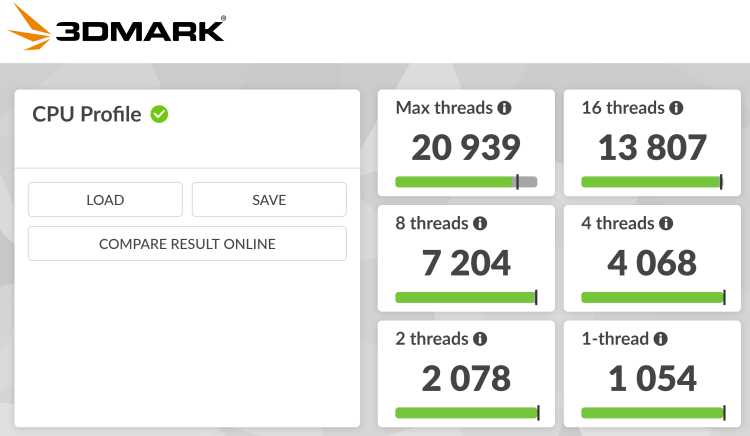
Compare a suitable benchmark only with systems using closely comparable hardware. A small difference is normal; a large and repeatable shortfall matters more when it appears alongside abnormal temperatures, falling clock speeds or poor performance across several games. If you are unsure whether you have stuttering, consistently low performance or a hardware bottleneck, our guide to why PC games run badly explains the difference.
Apply the Fix That Matches the Evidence
Do not treat the following as a checklist that every PC needs. Apply only the fix supported by your repeatable test.
| Evidence | Appropriate action | What it will not fix |
|---|---|---|
| GPU stays fully loaded and frametimes improve when demand is reduced | Use an FPS cap the system can sustain in demanding scenes. Our FPS-capping guide explains how to choose and apply one. | Shader compilation or a repeatable engine hitch |
| VRAM reaches capacity and lowering textures removes the hitch | Reduce texture quality, ray tracing or another VRAM-heavy option | Network lag or a background-software conflict |
| A CPU-heavy scene saturates individual cores | Reduce crowds, simulation, physics or view distance. See how to reduce demanding settings without unnecessarily sacrificing graphics. | A corrupt driver or shader hitch |
| Stutter occurs while entering areas and the game is on a hard drive | Move it to an SSD and repeat the route. Our real-world SSD gaming tests explain what this can and cannot improve. | Every traversal hitch or shader compilation |
| Clock speeds fall when a thermal limit is reached | Clean obstructed vents, confirm fans work and correct the cooling problem. Replace thermal paste only when poor mounting or heat transfer is plausible; use the thermal-paste application guide if needed. | A game-specific engine problem |
| A clean startup stops the stutter | Restore overlays and utilities one at a time until the conflict returns | Stutter that remains under the clean baseline |
| The issue began with a graphics-driver update | Clean-install the current driver or test the last stable version | A long-standing problem that predates the driver |
Settings to Test Carefully, Not Apply Blindly
Confirm that Windows is using the monitor’s intended refresh rate. If you use G-Sync, FreeSync or another variable-refresh-rate mode, test it enabled and disabled while keeping the rest of the test unchanged. VRR can smooth moderate frame-rate variation, but it cannot repair a severe frametime spike produced by the game.
Hardware-Accelerated GPU Scheduling can help, hurt or make no visible difference depending on the system and game. Record a baseline, change only that setting, restart the PC and retain whichever state produces the more consistent repeatable result.
Do not disable Windows security protections as routine performance advice. Memory Integrity can affect performance on some systems, but disabling it removes a security feature. Test it only if you understand the trade-off and already have strong evidence that it is involved.
Undervolting is also not a universal stutter fix. Consider it only after confirming thermal or power-limit behaviour. A stable undervolt may reduce heat and help a GPU maintain steadier clocks, but every change requires proper stability testing. Our GPU-undervolting guide covers the controlled process.
When the Stutter Is Probably Not Fixable on Your PC
The game becomes the stronger suspect when it is the only title affected, benchmarks and other demanding games behave normally, the hitch repeats at the same location, or players using very different hardware report the same problem after the same patch.
At that point, stop applying unrelated Windows tweaks. Use stable settings, keep a sensible FPS cap if it improves frame pacing, and monitor official game and driver updates. Reinstalling Windows or replacing a graphics card cannot guarantee the removal of shader compilation, traversal stutter or a faulty game patch.
If the stutter is accompanied by crackling or distorted audio across several games, that extra symptom may point toward an audio driver, device or Windows latency problem. Use the focused guide to fixing audio crackling in games instead of treating it as an ordinary graphics-setting problem.
The final rule is simple: measure the stutter, identify what changes at the same moment, apply one relevant fix and repeat the same test. A high-end PC does not need random optimization; it needs evidence that separates a game problem from a system problem.