Audio crackling, popping, or distorted sound can ruin an otherwise great gaming session. One minute everything sounds normal, then explosions crackle, voices distort, or your audio starts cutting in and out for no obvious reason.
The good news is that your headset or speakers are rarely to blame. Most audio crackling in games comes down to Windows settings, outdated or conflicting audio drivers, USB devices, background software, or your PC struggling to process audio while the game is running.
In this guide, we’ll walk through ten proven fixes that solve the vast majority of audio crackling issues on Windows PCs. Start with the first solution and work your way down, many of these fixes take less than five minutes and could have your game sounding normal again.
Quick Fixes for Audio Crackling in Games
If you want to try the fastest fixes first, start here. These are the most common solutions that solve audio crackling in games for many players.
- Disable Windows audio enhancements
- Update or reinstall your audio drivers
- Change the audio sample rate in sound settings
- Disable NVIDIA HD Audio drivers
- Plug USB headsets into rear motherboard ports
- Close CPU heavy background apps
- Switch Windows power plan to High Performance
- Update motherboard chipset drivers
- Restart the Windows Audio service
If the problem continues, the detailed fixes below will help you identify exactly what is causing the audio glitches.
Why Audio Crackling Happens in Games
Audio crackling during games usually happens when your PC cannot deliver audio data to the sound device quickly enough. When this happens, the audio buffer runs empty and produces pops or crackling sounds.

This can happen for several reasons. Windows audio enhancements sometimes conflict with games. Drivers may be outdated or corrupted. USB headsets can also run into bandwidth or controller issues. In many cases the root cause is actually a performance problem, especially if your CPU is under heavy load.
If you are unsure whether performance is the cause, you can also check our guide on how to tell if your CPU or GPU is the problem during gaming.
Fix 1: Disable Windows Audio Enhancements
Windows audio enhancements are designed to improve sound quality, but they frequently cause problems during games. Many players report crackling or distortion when these enhancements are enabled.
Turning them off is one of the fastest fixes for audio issues on Windows 10 and Windows 11.
Windows audio enhancements can sometimes cause crackling or distortion during gameplay.
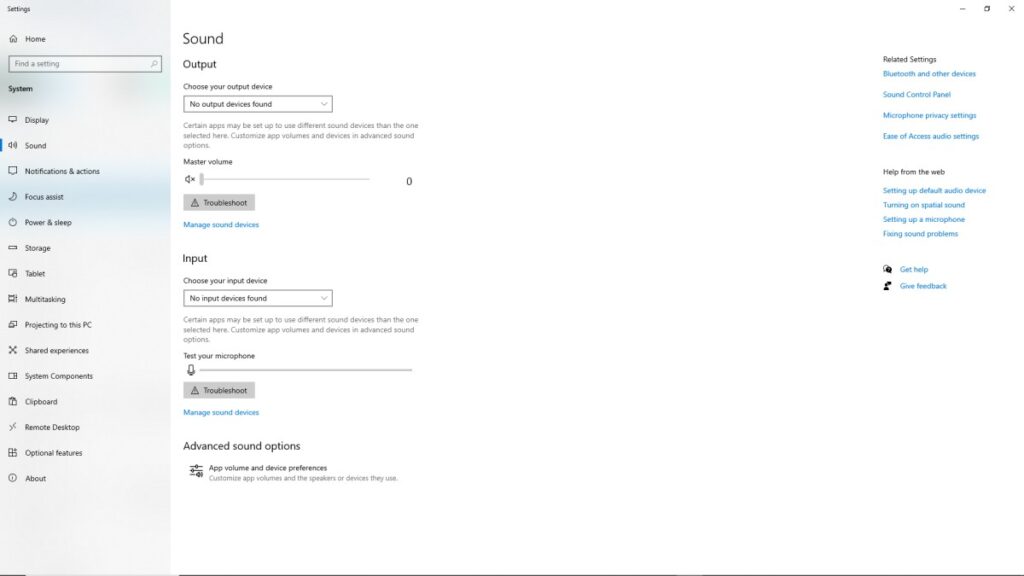
To disable them:
- Right click the speaker icon in the taskbar
- Select Sound Settings
- Open your playback device properties
- Find the Enhancements tab
- Disable all enhancements
Restart your game and see if the crackling disappears.
Fix 2: Update or Reinstall Audio Drivers
Outdated or corrupted audio drivers are another common cause of sound glitches. Many systems use Realtek drivers that may become unstable after Windows updates.
The safest approach is to uninstall the existing driver and reinstall the latest version from your motherboard manufacturer.
You can also download the newest drivers from the Realtek driver download page.
After reinstalling the drivers, restart your PC before testing your game again.
Fix 3: Change the Audio Sample Rate
Your sound device uses a sample rate to process audio. Some combinations of games and drivers behave poorly with certain sample rates, which can lead to popping or crackling.
Switching the sample rate can sometimes eliminate these issues completely.
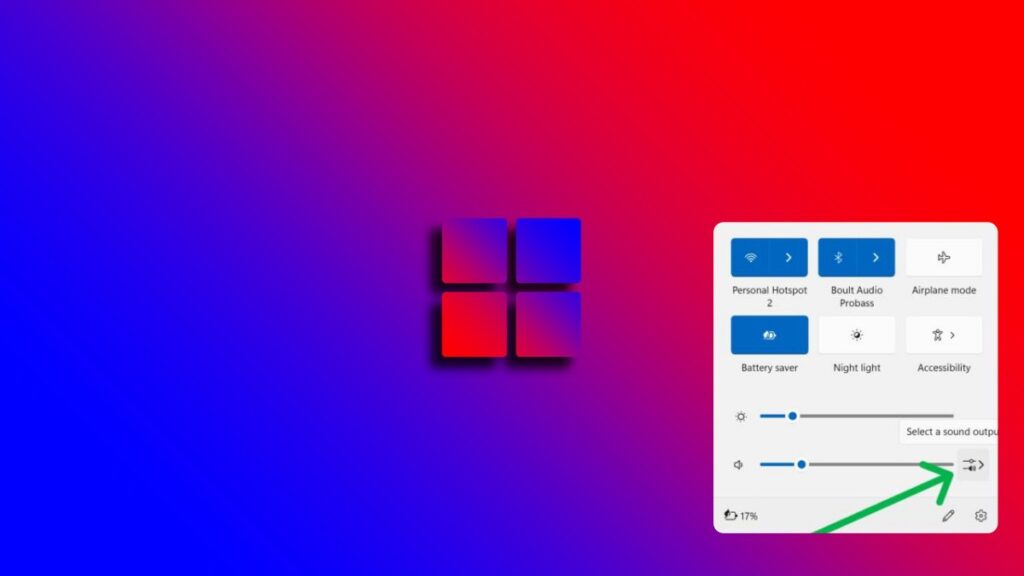
Changing the audio sample rate can fix popping or distorted game audio.
Try setting the format to:
- 16 bit, 44100 Hz
- 16 bit, 48000 Hz
Many games behave more reliably at 48000 Hz.
Fix 4: Disable NVIDIA HD Audio Drivers
NVIDIA graphics drivers install additional audio drivers used for HDMI audio output. These drivers sometimes conflict with motherboard audio devices.
If you are not using HDMI audio through your GPU, disabling these drivers can remove the conflict.
Open Device Manager, locate NVIDIA HD Audio devices, and disable them. Your main audio device should continue working normally.
Fix 5: Fix USB Headset Connection Problems
USB gaming headsets rely on stable USB controller bandwidth. Front panel USB ports and hubs often introduce instability that can lead to audio glitches.
Rear motherboard USB ports usually provide the most stable connection for gaming headsets.
If your headset is plugged into a front port or hub, try moving it directly to a rear motherboard USB port.
This simple change fixes many crackling issues.
Fix 6: Close CPU Heavy Background Apps
Background applications can interrupt the CPU long enough to cause audio buffers to run empty. This results in crackling or popping sounds during gameplay. Many systems ship with unnecessary background software. Removing it can improve system stability. Our guide on disabling Windows bloatware explains how to clean up your system safely.
Common culprits include:
- Discord hardware acceleration
- Web browsers with many tabs open
- RGB software like iCUE or Armoury Crate
- Game launchers updating in the background
If you suspect your system is struggling, our guide on why games stutter on low end PCs explains how performance spikes affect gameplay. If your CPU usage is constantly maxing out during gameplay, it can interrupt audio processing. Our guide on fixing high CPU usage while gaming shows how to stabilize your system.
Fix 7: Switch Windows Power Plan
Power saving modes can aggressively reduce CPU speed. When this happens during gameplay, the CPU may not process audio quickly enough.
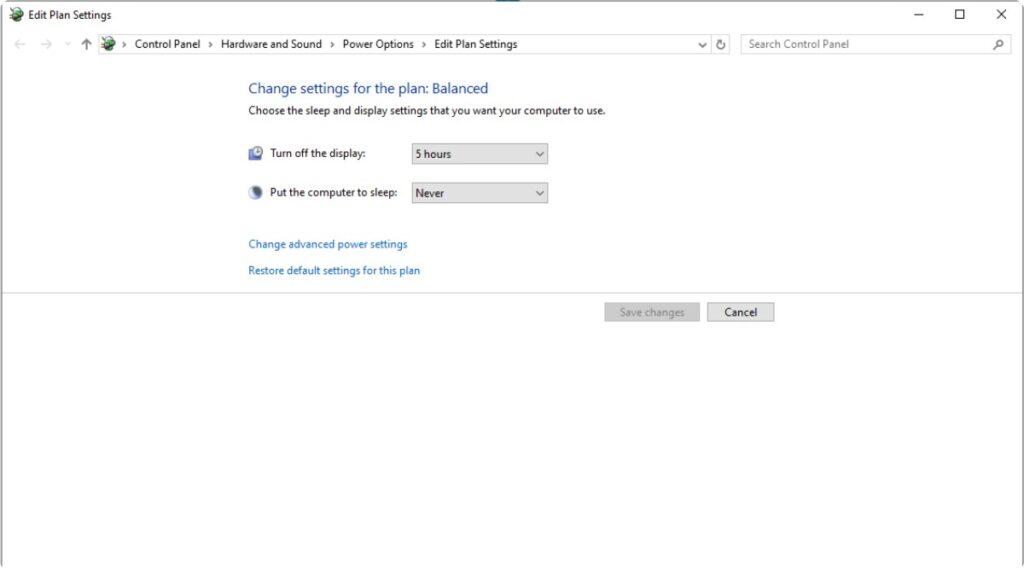
Switch your system to the High Performance power plan in Windows settings and test the game again.
If the audio crackling is accompanied by general system sluggishness, use our guide to diagnose why Windows 11 is running slowly.
If Windows remains responsive and the problem appears only while gaming, review the Windows settings that may interfere with gaming.
Fix 8: Update Motherboard Chipset Drivers
Chipset drivers control how your motherboard handles USB controllers, PCIe devices, and system communication. If these drivers are outdated, USB audio devices can behave unpredictably.
Visit your motherboard manufacturer’s website and install the latest chipset driver package. This often resolves stability problems that basic audio troubleshooting misses.
Fix 9: Restart the Windows Audio Service
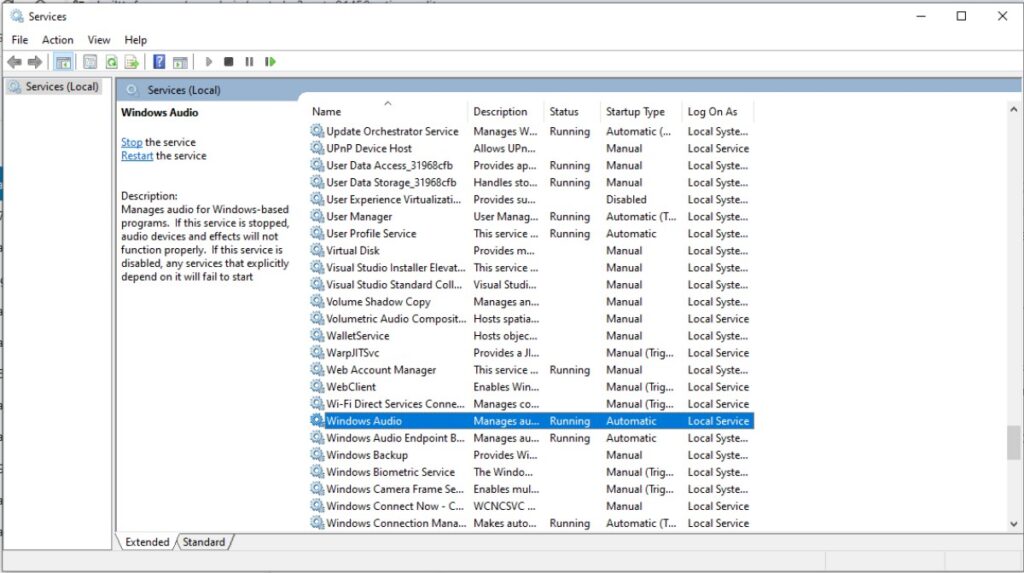
Sometimes the Windows Audio service simply becomes unstable after running for long periods.
Restarting the service refreshes the audio pipeline and can instantly remove crackling.
- Press Windows + R
- Type services.msc
- Locate Windows Audio
- Right click and select Restart
Fix 10: Disable Exclusive Mode
Sometimes Windows allows applications to take exclusive control of your audio device. While this can reduce latency for certain software, it can also cause crackling, popping, or audio dropouts when games, Discord, browsers, or other applications compete for control of the same device.
If you notice audio problems only while gaming or when switching between applications, disabling Exclusive Mode is worth trying.
To disable it:
- Open Settings → System → Sound.
- Select your playback device.
- Open Additional sound settings.
- Right-click your playback device and choose Properties.
- Open the Advanced tab.
- Under Exclusive Mode, uncheck:
- Allow applications to take exclusive control of this device
- Give exclusive mode applications priority
- Click Apply, then restart your game.
For many players, this eliminates random crackling that only appears when multiple applications are using audio at the same time.
Why Audio Crackling Can Actually Be a Performance Problem
Many gamers assume audio crackling means their headset or sound card is broken. In reality, it is often a side effect of performance issues elsewhere in the system. If your system is struggling to maintain stable frame timing, you may also want to read our guide on reducing lag without sacrificing graphics.
When your CPU spikes or becomes overloaded, the audio buffer may not receive data in time. This leads to crackling or popping sounds even when the audio hardware is working perfectly.
Thermal throttling can also contribute to these issues. If your CPU temperature climbs too high, it may slow down suddenly. Our guide on hidden temperature throttles killing FPS explains how this happens.
If performance problems continue, you may also want to read real fixes for games that keep stuttering.
When Audio Hardware Is Actually the Problem
Hardware failures are less common, but they do happen. Faulty DACs, damaged headset cables, or interference from poorly shielded motherboard audio circuits can create persistent noise.
USB DACs or external sound cards often solve these issues because they bypass the motherboard audio completely.
Older systems can also struggle with modern audio drivers. If you are running legacy hardware, especially older DDR3 era platforms, compatibility issues may appear with newer Windows versions.
In those cases, using older drivers or inexpensive USB audio adapters can provide a stable workaround. Once the audio problem is fixed, our PC Gaming Setup Guide can help you improve the rest of your setup too.
FAQ
Why does audio crackle only in some games?
Different games place different demands on your CPU, audio drivers, and storage. A game with heavy CPU usage or poor optimization can interrupt audio processing more often than lighter games, causing crackling or popping even when other titles sound perfectly normal.
Can high CPU usage cause audio crackling?
Yes. If your CPU is consistently running at or near 100% usage, Windows may struggle to process audio buffers in time. This often results in crackling, popping, or distorted sound during gameplay. Closing unnecessary background applications and reducing CPU load usually helps.
Does RAM affect audio performance?
Indirectly, yes. If your system runs out of available memory and starts using the page file on your storage drive, sudden performance spikes can interrupt audio processing. While RAM is rarely the direct cause, insufficient memory can make existing performance problems much worse.
If you want to confirm whether your system is struggling during gameplay, follow our guide on testing gaming PC performance.
Can outdated audio drivers cause crackling?
Absolutely. Corrupted or outdated Realtek, USB, or motherboard audio drivers are one of the most common causes of crackling and distorted sound. Reinstalling the latest drivers from your motherboard or audio device manufacturer often resolves the issue.
Why does my USB gaming headset crackle?
USB headsets can experience audio problems if they’re connected through a front-panel USB port, an external hub, or a busy USB controller. Connecting the headset directly to a rear motherboard USB port often provides a more stable connection.
Can Windows updates cause audio crackling?
Yes. Windows updates occasionally replace or modify audio drivers and sound settings, which can introduce conflicts. If the problem started immediately after an update, reinstalling your audio drivers or checking your Windows sound settings is a good place to begin.
Should I replace my headset if my game audio crackles?
Usually not. In most cases, audio crackling is caused by Windows settings, drivers, USB connection issues, or system performance rather than faulty speakers or headphones. Hardware should only be suspected after you’ve worked through the software fixes in this guide.
Final Thoughts
Audio crackling in games can be frustrating, but the cause is usually easy to fix. Most problems come from Windows audio settings, outdated drivers, USB device conflicts, or temporary performance spikes. Regular system maintenance also helps prevent strange issues like audio glitches. Our PC maintenance and optimization guide explains the best routine checks every gamer should perform.
Start with the simple fixes in this guide, especially disabling audio enhancements and checking background apps. In many cases those two steps alone solve the issue.
If the problem continues, work through the remaining fixes one by one until your audio is stable again.