If your GPU sounds like it’s trying to take off every time you boot a game, you’re not alone. It’s 2025, and graphics cards are more powerful, and hotter than ever. But here’s the fix you’re probably not using: undervolting.
This guide will show you how to undervolt your GPU safely using MSI Afterburner, without nuking your performance or bricking your card. You’ll lower temps, kill fan noise, and maybe even gain a few FPS in the process.
What Is Undervolting and Why Should You Care?
Undervolting is exactly what it sounds like, feeding your GPU less voltage than it normally requests under load. Less voltage means less heat, less power draw, and (usually) a lot less noise. And no, you don’t lose performance if you do it right.
Most modern GPUs, including the RTX 3060, 3070, 4060, and AMD RX 6000 series, are overvolted out of the box for stability across all chips. That means there’s room to trim things down safely with minimal tweaking, a bit like how indie games vs AAA design approaches leave space for refinement without breaking the core experience.
Undervolting Myths That Need to Die
Let’s squash a few persistent myths:
- “It’ll ruin performance.” Nope. If anything, you might get more stable clocks because your GPU isn’t throttling from heat.
- “It’s dangerous.” Only if you drag every slider to zero and pray. Which we’re not doing.
- “Only pros do it.” You’re a pro now. Welcome aboard.
- “It voids your warranty.” It doesn’t, unless you flash BIOS or overvolt into the danger zone. We’re staying safe here.
If you’re tracking temps and spot weird readings, this breakdown of Steam’s CPU overlay explains what’s real and what’s just panic mode.
Tools You’ll Need (Don’t Worry, It’s Just One App)
You’ll need:
- MSI Afterburner – This is your main tool for editing voltage curves
- Optional: HWiNFO64 or HWMonitor for monitoring temps
- Optional: Heaven Benchmark or Superposition for stress testing
Also check out our full MSI Afterburner Guide if you want extra tips on using it without frying anything. Also Before undervolting, make sure your cooling foundation is solid, poor thermal paste application can sabotage temps, so review these best thermal paste techniques first.
Step-by-Step: How to Undervolt Your GPU Safely
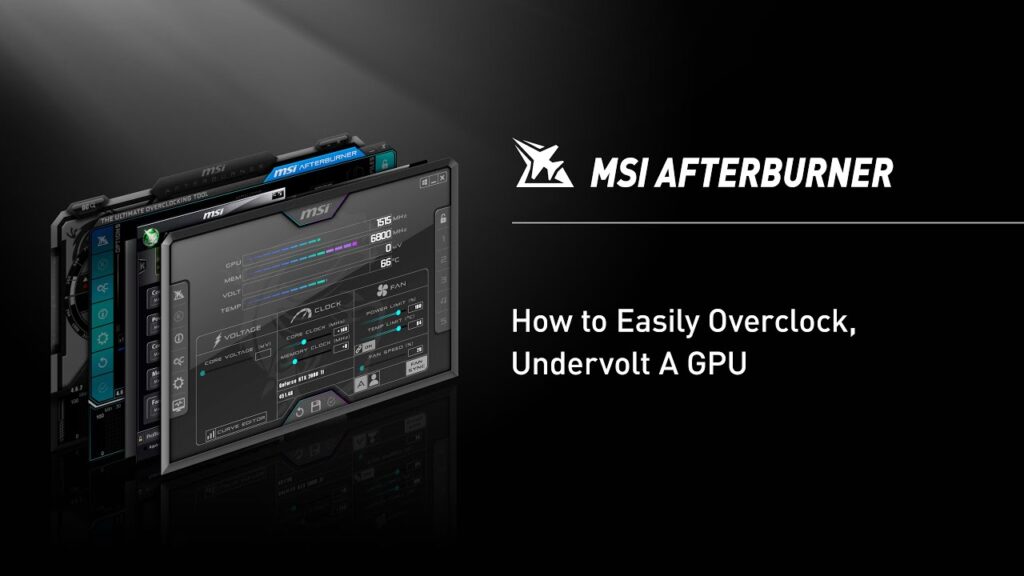
This is where the magic happens, and where most people get cold feet. Don’t. You’re not tweaking nuclear launch codes here. You’re just telling your GPU to chill the hell out.
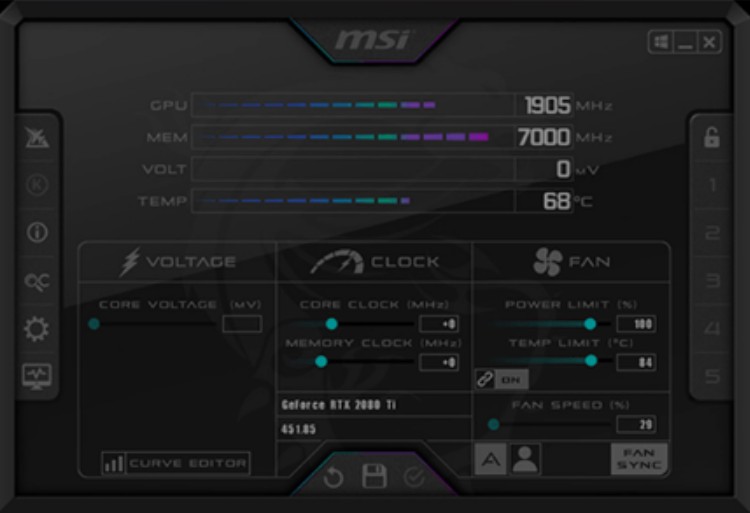
- Launch MSI Afterburner. If the voltage control sliders are grayed out, go into Settings > General and check “Unlock voltage control” and “Unlock voltage monitoring.” Restart the app afterward.
- Hit
Ctrl + Fto open the Voltage/Frequency Curve Editor. This brings up a graph with voltage on the X-axis (horizontal) and clock speed on the Y-axis (vertical). - Identify your GPU’s current boost voltage. Run a demanding game or benchmark in windowed mode (Heaven, Superposition, or something like Atomic Heart) and note what voltage your GPU hits under full load — likely around 1000–1100mV.
- Find that voltage point on the curve. Move the mouse cursor on the line and You’ll see little boxes forming a curve line, each represents the clock speed tied to a voltage step. Look for the one around your load voltage and click it. See image below.
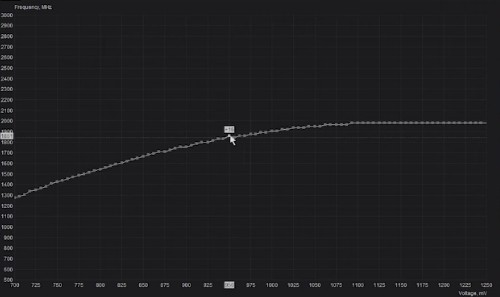
- Now drag that point downward. For example, instead of running at 1950 MHz at 1050mV, you might aim for 1900 MHz at 950mV. Hold
Shiftif you want to move the entire curve more smoothly. - Flatten the curve to the right. This is crucial: drag the points to the right of your target so that they’re the same or lower. This “locks” the voltage and prevents the card from trying to spike higher when under load.
- Close the curve editor, click the checkmark to apply. Your GPU will now run at that set clock speed and voltage under load — unless it crashes, in which case…
- Test it. Run your benchmark or game again for at least 15–30 minutes. If it doesn’t crash, glitch, or artifact, congrats — you’ve just undervolted successfully. If it does crash, bump the voltage up slightly and try again.
Pro tip: don’t go lower than ~875mV unless you really know your silicon. Most RTX 30/40-series and RX 6000 GPUs play nicely in the 900–950mV range. Or After you undervolt your GPU, check out Your Temps Are Lying, The Hidden Throttles Killing FPS to make sure hidden power and hotspot limits are not still choking your frames.
How to Test Your Undervolt for Stability
Run a stress test like Heaven or Superposition for 15–30 minutes. If your game of choice is a heavy hitter (like Atomic Heart), use that instead.

Watch for crashing, screen flickering, or weird artifacts. If it passes cleanly, congrats — you just got a cooler, quieter GPU for free.
You can also use our HWiNFO64 sanity check guide to track temps and power draw like a pro.
Results: What You’ll Actually Gain
Here’s what you’ll see when you undervolt correctly:
- Lower temps (by 5–15°C)
- Lower fan noise, especially under load
- Same or improved performance (no more thermal throttling)
- Lower power draw = less PSU strain
It’s like buying a quieter GPU without actually buying anything. If you’re gaming on a compact case or laptop, this can be a total game-changer. If you want more performance without replacing hardware, start with these cheap gaming upgrades that actually boost FPS.
When Not to Undervolt
Undervolting isn’t for everyone. Here’s when you might skip it:
- Your GPU is already cool and quiet
- You’ve got poor silicon that crashes easily when undervolted
- Your card is factory undervolted (common with some laptop chips and low-watt GPUs)
But for most gamers? It’s worth it.
Watch It in Action
Need a visual walkthrough? This video explains the whole undervolt process step-by-step using MSI Afterburner:
Work Smarter
If you’re tired of your GPU turning your room into a sauna, undervolting is your free, surprisingly simple fix. It’s not about “squeezing performance”, it’s about making your gear work smarter.
Give it a try. Worst case, you raise the voltage back. Best case? Your GPU becomes a stealthy, silent workhorse, and you never hear its fans again. Want to keep every part of your rig cool and efficient? This guide covers the upkeep habits that actually make a difference.
Also if you are in the market for a GPU and not sure which card to even start with? See our list of the best GPUs for 1080p vs 1440p in 2025.
For more sanity-saving tweaks, check out our guide to disabling Windows bloat
if you have just built a new Pc and it wont boot read then GPU running hot is a later problem, start by solving your first-boot failures here: New PC Won’t Boot? Fix First Boot Mistakes