Updated 16 February 2026, refreshed with modern CPU behavior, Windows quirks, and practical gaming-focused fixes.
You launch your game, your fans spin like a jet engine, and Task Manager says your CPU is glued to 100%. Naturally, panic sets in. Is your processor dying, is Windows doing something weird again, or is this actually normal?
This guide breaks down when high CPU usage while gaming is expected, when it is a real problem, and what actually works to fix it. No magic registry hacks, no nonsense tweaks, just practical steps. If your system struggles before gameplay even begins, check this guide on why games take forever to load on a weak PC to identify the real bottleneck.
Is 100% CPU Usage Always Bad While Gaming?
Short answer, no. Some games are CPU bound by design. Large simulations, heavy AI, strategy titles, city builders, and physics driven games can fully load a processor. That alone is not a failure state. If your processor is getting hammered in every game you launch, this guide to low end pc games that actually run will help you choose titles that are less likely to choke your system.
What matters is what happens next. If your CPU sits at 100% but:
- your frametime is stable
- your FPS is consistent
- your temperatures are under control
- your system feels responsive
then your CPU is simply being used properly.
It becomes a problem when high usage comes with stutter, hitching, input delay, or thermal throttling. That is when we start fixing. Before you assume you “need a new CPU,” use this safety checklist from Buying a Used CPU for Gaming to confirm your current chip is actually the problem.
If you also see update errors or background install loops, fix those first. Background update failures can quietly eat CPU cycles. Start here: fix Windows Update loops and driver failures.
How 100% CPU Usage Shows Up on Real Gaming PCs
On real systems, CPU saturation usually looks like this:
- GPU usage drops below 70% while CPU is maxed
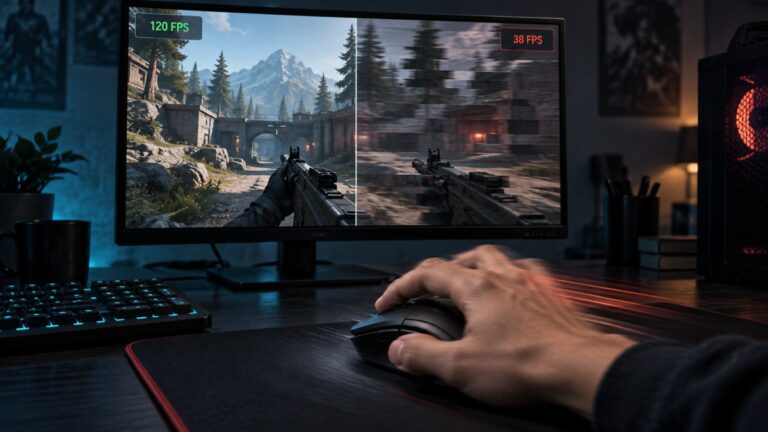
- 1% and 0.1% lows collapse even if average FPS looks fine
- frametime graph shows spikes instead of a flat line
- camera turns and crowded scenes feel worse than open areas
- background apps cause sudden hitching
- High CPU spikes can also cause sound distortion during gameplay. If your audio starts popping or crackling, see our guide on how to fix audio crackling in games.
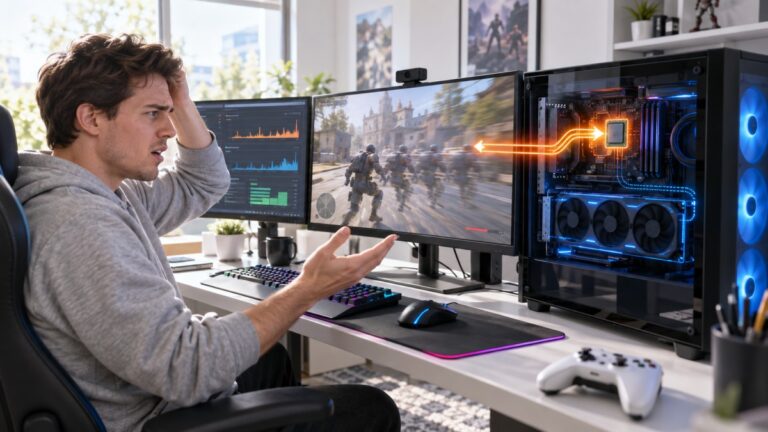
This is why we focus on behavior, not just the percentage number. If your performance still feels off, it might not be your settings. This guide helps you figure out whether your CPU or GPU is holding you back: CPU or GPU problem during gaming.
If you want deeper monitoring setup, use our full guide here: monitor temps, clocks and usage like a pro. NB! If you suspect malware might be involved, especially from another connected device, check how to remove rootkit from Android before digging deeper into CPU issues.
Step 1, Check What Is Actually Eating Your CPU
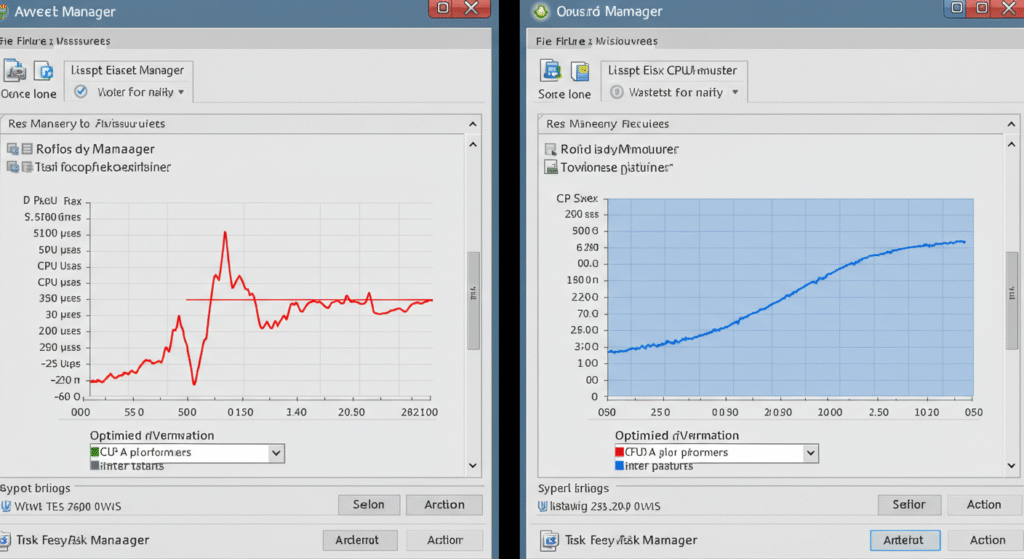
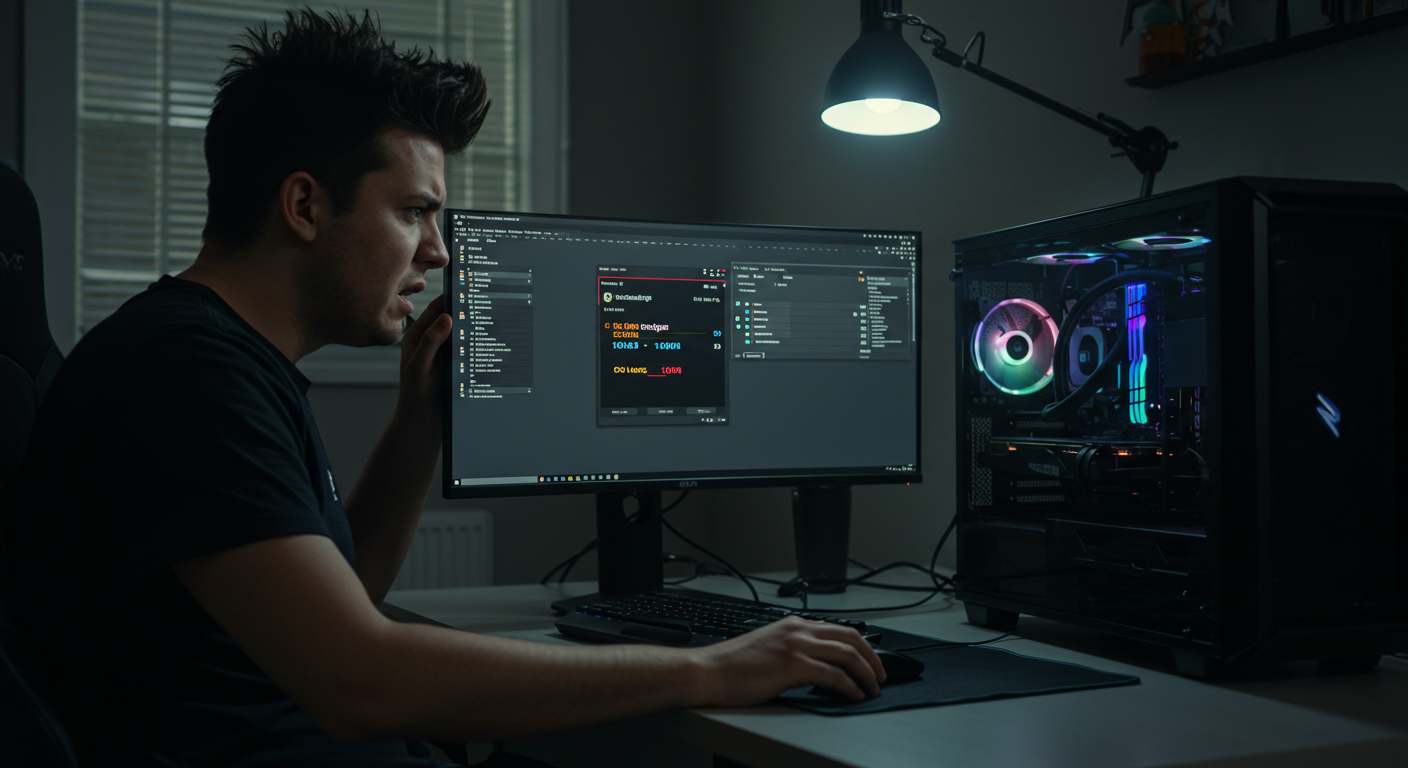
Press Ctrl + Shift + Esc and open Task Manager. Sort processes by CPU usage.
You want to answer one simple question. Is it the game, or something else?
- If the game is on top, continue with game and system tuning below
- If a background app is on top, that is your real problem
- If usage jumps between services, you likely have background conflicts
For deeper visibility, use monitoring tools with per core graphs and logging. They show if one core is being hammered while others sit idle.
After you fix the CPU spikes, don’t waste the gains, here are co-op shooters on PC that still run well and still have players.
Step 2, Kill Background Bloat
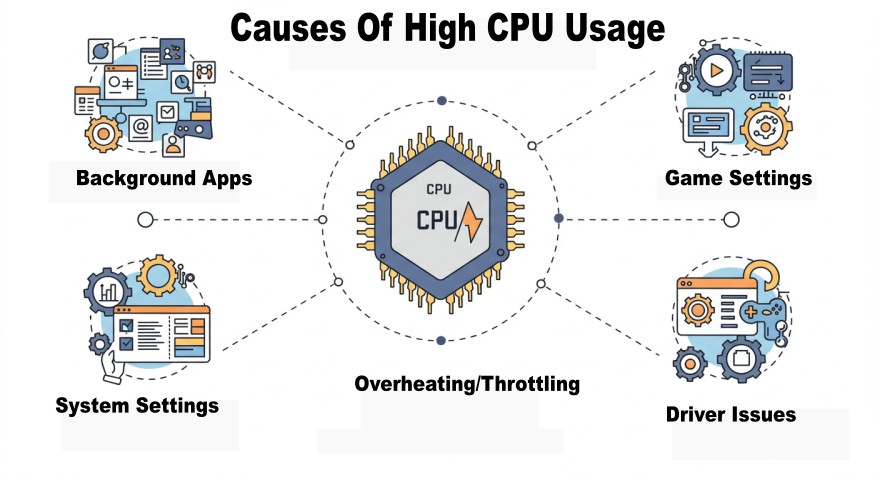
Modern Windows installs run a lot of extras. Launchers, overlays, sync tools, AI features, telemetry, and update agents all compete for CPU time. This can be especially noticeable on older quad-cores with limited thread headroom, so if you’re still running one, our guide to whether a 4-core CPU is still enough for gaming can help you decide if the processor itself is becoming the limitation. If your CPU is still maxing out after a reinstall, this guide explains why your PC still feels slow after reinstalling Windows.
Before gaming:
- Disable unnecessary startup apps in Task Manager
- Pause game downloads and updates
- Close browser tabs and hardware control panels you do not need
- Disable Discord overlay and advanced voice processing
- Pause heavy antivirus scans
If your system is cluttered, run a proper cleanup pass: disable Windows bloatware safely. If your games still feel terrible even after upgrading hardware, this performance breakdown explains why bottlenecks, stutter and system imbalance matter more than raw FPS numbers: Why PC Games Run Badly, FPS Drops, Stutter & Bottlenecks Explained.
Step 3, Game Settings That Reduce CPU Load
Not all graphics settings hit the GPU. Several hit the CPU first.
- Lower draw distance and level of detail
- Reduce crowd, traffic, and NPC density
- Reduce simulation and physics quality
- Cap FPS to a sane limit like 60 or 120
- Test V Sync on and off for frametime stability
Some titles are CPU hogs even on strong hardware, so on an older processor there is only so much tuning can achieve. If your CPU is maxing out constantly, see what is still playable in our games for dual-core CPUs guide. If you are gaming on an older or budget laptop instead, these games for low-end laptops are a better place to find titles suited to limited mobile hardware.
If you want a clear CPU bound example, see this breakdown: why some games stay CPU bound even after a GPU upgrade. NB! Not all CPU bottlenecks look the same. Strategy games often become dramatically slower in the late game due to AI and pathfinding calculations. Learn more in Why Strategy Games Lag in the Late Game.
Step 4, Driver and Windows Level Fixes That Actually Work
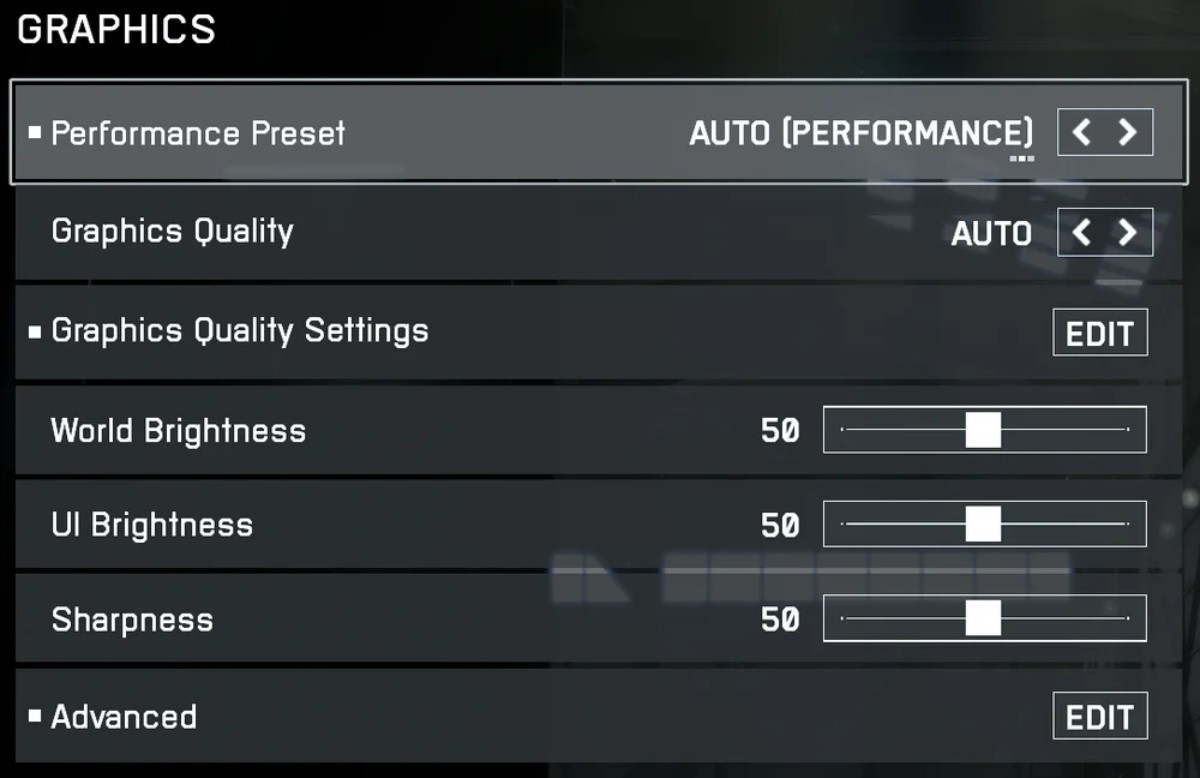
This is the part people skip, then wonder why nothing changes.
- Update GPU and chipset drivers
- Install BIOS and firmware updates on newer boards
- Use High Performance or Ultimate Performance power plan
- Disable Game Bar and background capture features
- Check virtualization based security and memory integrity settings
- Test a clean boot to isolate service conflicts
If this is a work PC or anti cheat sensitive system, change one setting at a time and test. Do not flip every switch blindly.
For broader system fixes, use the full pillar guide: Windows 10 and 11 problems and how to fix them. For deeper OS-level diagnostics, Microsoft’s official high CPU usage troubleshooting guide is worth a quick read: Microsoft CPU troubleshooting documentation.
When 100% CPU Usage Is Not a Problem
Here is the counter case most guides ignore.
If all of these are true, you may not need to fix anything:
- FPS is stable and matches your hardware class
- No stutter or hitching
- CPU temperature stays in safe range
- No throttling flags in monitoring tools
- GPU usage is also high in demanding scenes
In that case your CPU is simply fully utilized. That is what you paid for. Leave it alone and go play. If CPU usage is still wrecking performance after basic fixes, here’s what to upgrade first on a low-end PC so you can stop guessing and upgrade smart.
Quick CPU Bottleneck Test
Run this fast check:
- Lower resolution and graphics settings
- Run the same scene again
- Watch FPS and GPU usage, GPU crashes can be misdiagnosed fast, use this GPU crash diagnosis guide to narrow the real cause before you waste time on random “fixes.”
If FPS barely increases and GPU usage drops, you are CPU limited. If FPS jumps strongly, you were GPU limited. The difference between a CPU bottleneck and a GPU bottleneck becomes even more noticeable when streaming and gaming on the same PC, which is why a well-balanced single PC streaming setup matters.
If you’re using an Intel 13th or 14th Gen processor, don’t overlook your motherboard’s BIOS either, outdated firmware can cause crashes, instability, and inconsistent performance that closely resemble a CPU bottleneck. Read our guide on Intel BIOS updates and gaming stability before deciding your hardware needs replacing.
This 2 minute test prevents a lot of wrong upgrades.
Step 5, When It Is Actually Your CPU

Sometimes the answer is simple. The processor is just too old for modern game workloads.
Upgrade is likely justified when:
- CPU sits near 100% in most modern games
- GPU is often underutilized
- stutter appears in busy scenes
- temps spike into throttling range
- you are on older 4 core or early 6 core chips
Before replacing parts, confirm with proper testing. Use this guide: how to test gaming PC performance correctly. If you need to replace your cpu check out how to select the right one: Best Gaming CPUs by Actual Value, Backed by Performance
Performance Toolkit, What I Actually Use
If you want repeatable results, you need stable temps and proper monitoring. Not a lab, just a sane toolkit.
- Hardware monitor software for temps and throttling(Free to download)
- In game overlay with per core usage
- Reliable air or liquid CPU cooler
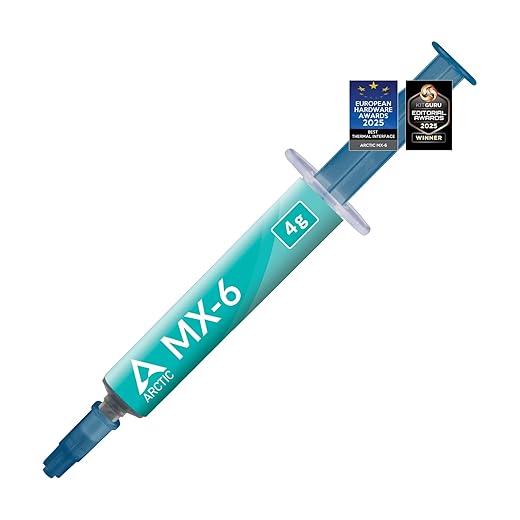
- Quality thermal paste
- Good case airflow
Cooling and airflow upgrades often reduce throttling and smooth out frametimes more than people expect. If your storage is also overloaded and causing asset streaming stalls, faster drives help too. See: best external SSDs for gaming.
Toolkit Suggestions


Final Word
High CPU usage while gaming is not automatically a crisis. Sometimes it is normal, sometimes it is a configuration mess, and sometimes it is a real hardware limit.
Work through the checks in order. Measure first, change one variable at a time, and verify results. If after all that your CPU is still pinned and your frametimes look like a heart monitor, then yes, it is upgrade season.
But before you spend money, make sure you know what is actually bottlenecking your gaming PC so you do not upgrade the wrong part.
If stutter remains even after CPU fixes, branch out here: why games stutter even on high end PCs.