

Updated 27 February 2026, built for real-world gaming PCs, not lab unicorns.
If you are here because your game crashed, your screen went black, or Windows just did that cute little “driver recovered” thing, you are not alone. The problem is most guides tell you to “update drivers” and pray. This guide does the opposite. We diagnose first, then fix the actual cause and get you to stop asking Why Does My GPU Keep Crashing!
Before we touch anything, here is your first sanity check: this is not always a GPU problem. If you need a quick split between the two, start here: CPU or GPU problem during gaming, how to tell.
Why your GPU keeps crashing, the 4 real causes
Most “GPU crashes” fall into one of these buckets. The trick is spotting which one you have, so you stop wasting time on fixes that do nothing.
1) Driver problems
Drivers can crash because of bad updates, corrupted installs, conflicts with certain games, or unstable settings. If your crashes started right after a driver update, that is a big clue.
Also, if you have been tweaking overlays and monitoring tools, do it safely. These guides will keep you out of trouble:
- How to use MSI Afterburner safely
- How to monitor temps, clocks and usage
- HWiNFO guide for bottlenecks and sanity checks
Authoritative reference for driver timeout behavior: Microsoft Learn documentation (search for GPU driver timeout / TDR behavior).
2) Overheating and thermal throttling
Overheating does not always look like “my GPU is at 95C.” It can look like unstable boost clocks, hot spots, or VRAM temps creeping up until the driver bails. If your case airflow is mediocre, crashes can show up only after 10 to 30 minutes.
If you suspect temps, your next step is monitoring, not guessing. Use the monitoring guide above, then compare your behavior to this performance trap list: the hidden throttles killing FPS.
If you are due for a cleanup or you are redoing thermals, do it properly: best thermal paste techniques.

3) Power issues
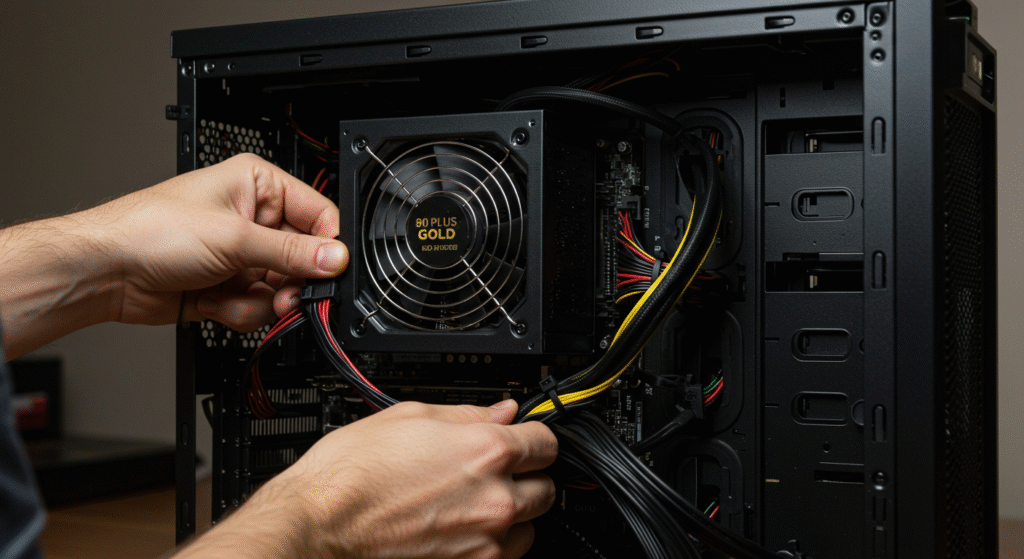
Power problems are the silent killer because they look like GPU instability. Under load, a weak PSU, bad cables, or sketchy adapters can cause black screens, driver resets, or full system restarts.
If you are not sure whether your power setup is solid, these two will save you:
4) Hardware failure
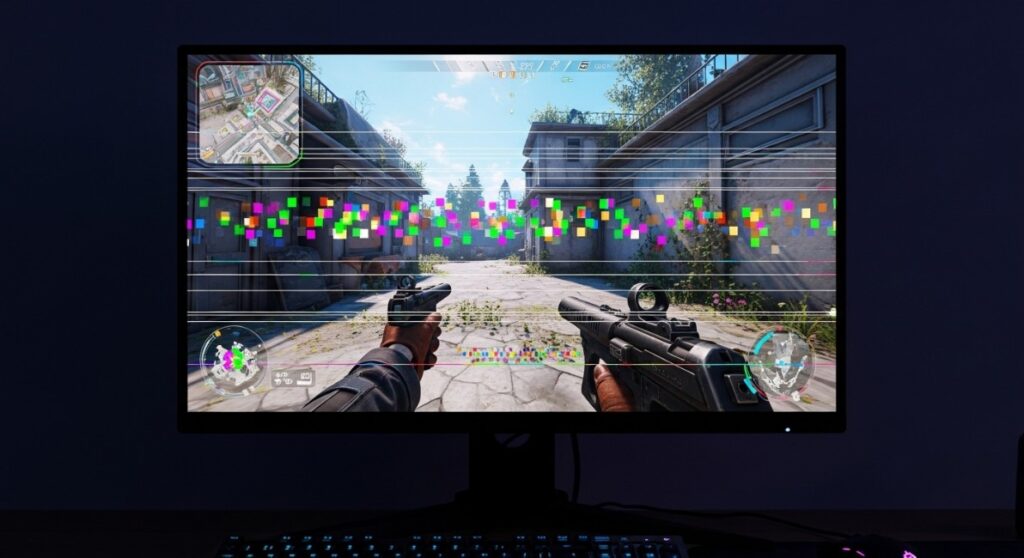
Sometimes the GPU really is dying. It is not common, but it is real. The usual tells are artifacts, crashes across multiple games, or instability even at stock settings.
Step 1: figure out what kind of crash you are getting
This is the fastest way to narrow the cause. You do not need a degree, you need pattern recognition.
Crash to desktop, no error
- Most likely: game bug, driver conflict, unstable undervolt/overclock, RAM instability
- Less likely: PSU
Black screen, but the PC is still running
- Most likely: driver timeout (TDR), GPU power spike, unstable GPU settings
- Also common: display cable/port issues, monitor handshake weirdness
Full system restart
- Most likely: power delivery (PSU) or severe instability under load
- Also possible: CPU overheating or VRM limits
Full freeze, needs hard reset
- Most likely: driver hang, RAM instability, overheating
- Also possible: storage issues or Windows behaving like Windows
If your PC is “fine” but games still crash, you may have broader system issues. This one helps when performance feels cursed even after upgrades: why your PC still feels slow after an upgrade.
Step 2: quick tests that actually tell you something
These are not “try 30 things and hope.” Each test narrows the cause.
1) Monitor the crash
Run a simple overlay and watch what changes right before the crash: GPU temperature, GPU usage, clocks, CPU usage, and RAM usage. If you do not already have a clean workflow, use this: monitor temps, clocks and usage like a pro.
2) Change one thing only
If you change five settings and it “fixes” the issue, you learned nothing. One change at a time. Yes, it is slower. No, it is not optional if you want the real cause.
3) Stress test, but do not be dramatic about it
You are not trying to “prove your GPU is strong.” You are checking stability. If a stress test crashes quickly, you likely have power, thermals, or unstable settings.
4) Test another game
If it only crashes in one title, the GPU may be innocent. If it crashes across multiple games, you have a system stability issue.
When stutter and crashes show up together, this is worth reading: why does my game stutter on a high end PC.
Step 3: fix the actual problem, based on what you found
Now we earn the “without guessing” promise.
If it is a driver issue
- Do a clean driver reinstall: remove old drivers fully, then reinstall fresh.
- Roll back one version: if crashes started after an update, do not keep smashing your head into the same wall.
- Remove unstable tweaks: reset GPU overclocks, undervolts, and aggressive fan curves to stock while testing.
Get drivers from official sources, not random “driver updater” apps: NVIDIA drivers or AMD support and drivers.
If it is overheating
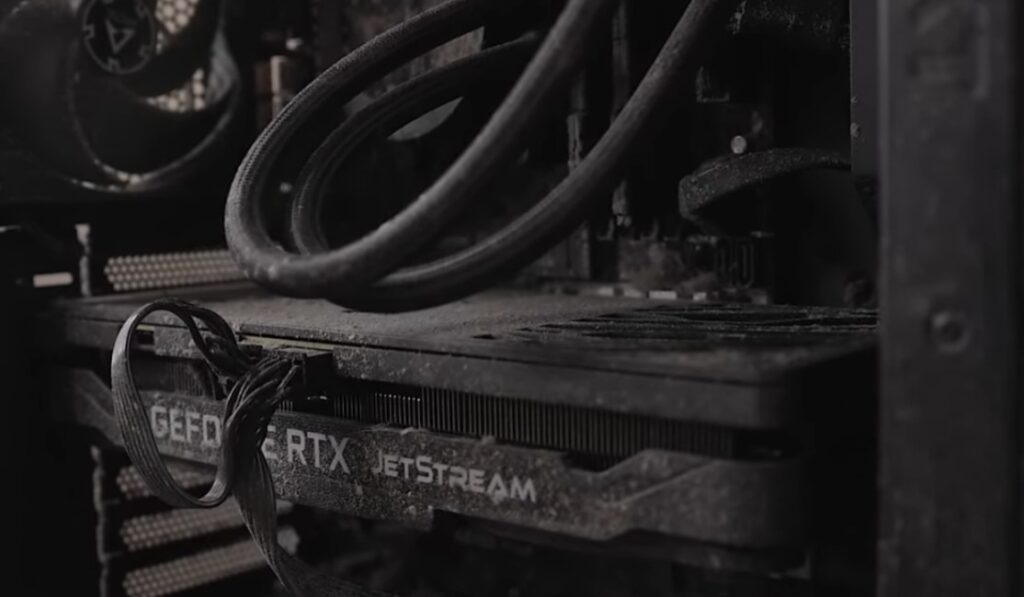
- Clean dust: GPU heatsinks and filters matter more than vibes.
- Improve airflow: front intake, rear/top exhaust, and a not-blocked front panel.
- Re-check hotspot behavior: hotspots can spike even when “GPU temp” looks normal.
If your performance tuning is aimed at smoother gameplay without ruining visuals, this guide pairs well with crash prevention: reduce lag without sacrificing graphics.
If it is power related
- Check GPU power cables: reseat them, avoid daisy chaining when possible, and do not use mystery adapters.
- Watch for restarts under load: that is a classic PSU tell.
- Reality check your PSU: age, tier, and headroom matter.
If you are building or upgrading and want to avoid stability problems from day one, this hub helps: gaming PC upgrades that actually matter.
If your GPU might be failing
- Remove all overclocks and undervolts: test at stock.
- Lower power limit slightly: if stability improves, power delivery or silicon aging may be involved.
- Look for repeated artifacts: especially across multiple games.
- Stop “optimizing” and start deciding: sometimes the right fix is replacement, not more tweaking.
Before you buy anything, read this so you do not repeat the same mistake with a new card: GPU upgrade mistakes gamers avoid.
When it is NOT your GPU (and you should stop blaming it)
This is where a lot of people waste a week.
High CPU usage can crash games too
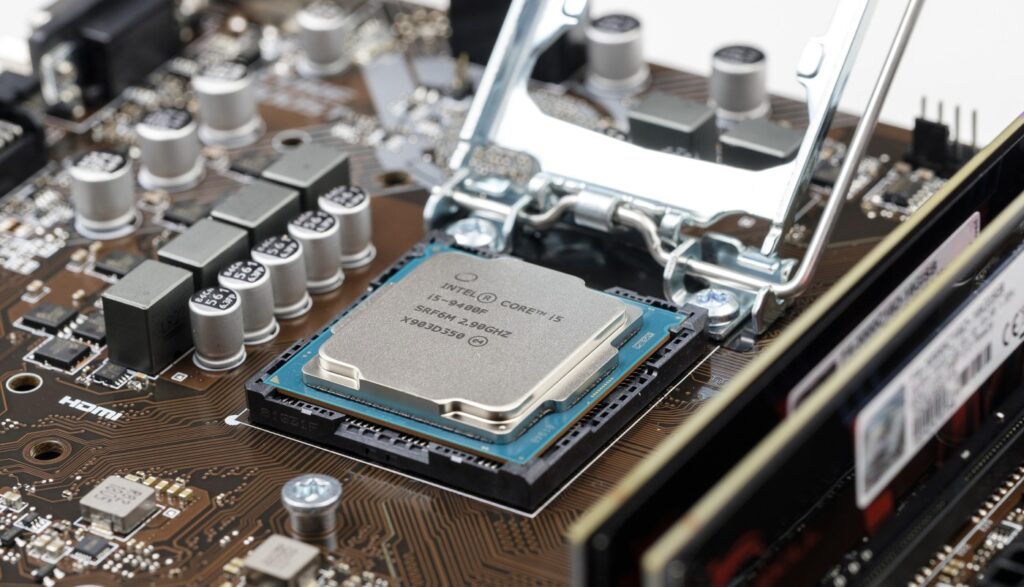
If your CPU is pinned at 95 to 100% during gameplay, it can cause stutter, hangs, and crashes that look like GPU issues. Fix this first: fix high CPU usage while gaming.
RAM instability is sneakier than you think
Bad RAM settings can cause random crashes with no clear error. If you are unsure about your memory setup, these two will help you sanity check expectations and upgrades:
Windows and driver updates can break things
If crashes started around Windows updates or driver installation loops, do not ignore that timeline. This is the rabbit hole guide for update failures: fix Windows update loop and driver failures.
Also worth doing, once, and only once: turn off obvious junk that can cause background conflicts. Start here: disable bloatware on Windows.
How this behaves on real PCs (performance reality check)
Here is what “GPU crashing” often looks like in the real world:
- Frametime spikes right before the crash, even if your average FPS looks fine.
- GPU usage drops suddenly, then the driver resets or the screen goes black.
- Stutter increases over time as temps rise or power limits get hit.
If you keep chasing FPS but your rig feels unstable, do not ignore throttling and hidden limits: the hidden throttles killing FPS. And if your “lag” fixes have been turning your game into blurry soup, use this instead: reduce lag without sacrificing graphics.
One cheeky truth: if your PC only crashes when you finally start enjoying the match, that is not “bad luck.” That is unstable hardware or software you have not pinned down yet.
When you should stop fixing and upgrade
This is the decision point. If you hit multiple points below, stop “tweaking” and start planning.
- Crashes happen in multiple games, even after clean drivers
- Artifacts show up (blocks, lines, sparkles, texture corruption)
- Black screens happen under load, especially with restarts
- Stability only returns when you severely underclock or cut power
If you are replacing the card, keep it simple and buy for your real resolution and goals: best GPU picks for 1080p and 1440p.
Second cheeky truth: a GPU that only behaves when it is nerfed is not “fine,” it is negotiating.
Quick checklist, save this before you panic again
- Identify the crash type (CTD, black screen, restart, freeze)
- Monitor temps and clocks during the crash
- Reset all GPU tweaks to stock while testing
- Clean reinstall or roll back GPU drivers
- Check power cables and PSU headroom
- Confirm it is not CPU or RAM instability
- If artifacts show up across games, stop troubleshooting and plan replacement
FAQs
Why does my GPU keep crashing but temps are fine?
Temps “looking fine” does not rule out instability. Hotspot temps, VRAM temps, power spikes, driver issues, or undervolt instability can still crash your system. Start by monitoring behavior properly with temps, clocks, and usage, then test at stock settings.
My screen goes black but the PC is still running, what does that mean?
That often points to a driver timeout or power related instability. Check GPU power cables, then consider driver rollback or a clean reinstall. If it also restarts under load, your PSU becomes a prime suspect. Use this PSU buying guide as a reality check.
Why do crashes start after a driver update?
New drivers can introduce conflicts with specific games, settings, or Windows updates. Rolling back one version is often faster than fighting it. Get drivers from official sources like NVIDIA or AMD.
Can a bad PSU cause GPU crashes?
Yes. Power spikes under load can trigger black screens, driver resets, or full restarts. If you want the plain-English version of why this happens, read power supplies explained.
Where to go next
If you made it this far, you are already ahead of most “try random fixes” guides. Identify the crash pattern, test one change at a time, and fix the cause, not the symptom.
If you are still unsure whether this is CPU, GPU, or something else, start with this diagnostic split: CPU or GPU problem during gaming. If your system is unstable in general, work through your broader optimization stack here: PC maintenance and optimization guide.
Final cheeky line, and then I will stop: your GPU is not “randomly crashing,” it is sending you a message. This guide is how you translate it.


