Game mods feel like magic when they work and pure chaos when they do not. One minute you drop in a file and your game has new quests, better textures, or smarter UI. Next minute nothing loads and you are staring at a vanilla menu wondering what you broke.
This guide explains how game mods actually work under the hood and where they install on your PC. No install walkthroughs, no mod lists, just the mechanics. Once you understand the pipeline, modding stops feeling risky and starts feeling predictable.
If you want the full safety and setup walkthrough, start with our complete game mods beginner guide. This article focuses on what is happening behind the scenes.
What a Game Mod Really Is (At File Level)
A mod is not a special object. It is a collection of files that change how a game behaves. Those files can replace assets, add new data, inject scripts, or hook into the engine at startup.
- Textures and models that replace visuals
- Audio files that replace or extend sound
- Data tables that rebalance items and stats
- Scripts that add logic and systems
- Plugin records that register new content
- Config files that change behavior
The game does not see “a mod.” It sees files and records that load with priority rules. If two files try to change the same thing, whichever loads last usually wins. That single rule explains a lot of mod conflicts.
The Mod Loading Pipeline (Simple Version)
Every mod setup follows the same basic pipeline. Different tools change the details, but the flow stays consistent.
Step 1: Mod Files Exist Somewhere
They might be downloaded through a manager, subscribed through a platform, or copied manually. At this point they are just stored data.
Step 2: A Loader or the Game Detects Them
At launch, the game or a mod loader scans specific folders, plugin lists, or manifest files. Only locations it knows about get scanned.
Step 3: The Engine Applies Overrides
Matching assets are replaced, new records are added, scripts are registered, and hooks attach to engine functions. The result is your modded behavior.
If the game never scans the folder, the mod might as well not exist. That is why correct install location matters so much.
The Three Main Mod Installation Models
Platform Managed Mods (Workshop Style)
Platform systems handle download, placement, and updates automatically. You click subscribe and the client pulls the files.
- Platform controls folder location
- Auto updates are common
- Easy to enable and disable
- Less manual control
This model is common in Steam Workshop supported games and similar in-game mod browsers. It is beginner friendly but not always flexible.
Mod Manager Deployment
Managers like Vortex or Mod Organizer 2 download mods into a staging area, then deploy them into the game using rules.
- Mods stored in manager folders first
- Deployment copies or links files into the game path
- You can enable, disable, and reorder easily
- Profiles keep setups separate
If you want a safety breakdown of download sources, read our safest PC game mod sites guide.
Manual File Drop Mods
This is the old school method. You copy files directly into the game directory.
- Maximum control
- No manager required
- Easy to make mistakes
- Harder to roll back
Manual installs are fine for small mods. For larger stacks, a manager saves your sanity.
Where Mods Actually Live on Your PC

Different systems store mods in different places. Knowing which model you are using tells you where to look.
Steam Workshop Style Paths
Workshop mods are usually stored under Steam’s workshop content directory:
C:\Program Files (x86)\Steam\steamapps\workshop\content\[GameID]\
The platform manages these folders. You generally do not edit them directly.
Manager Staging Folders
Managers download to their own directories first, for example:
C:\Users\Name\AppData\Roaming\Vortex\mods\
From there, files are deployed into the game folder based on your enabled list and rules.
Game Mod Directories
Some games scan a dedicated mod folder inside the game directory:
C:\Games\ExampleGame\Mods\
Minecraft loader setups are a classic example, using a “mods” folder tied to the selected loader and version.
Virtual File Systems (MO2 Method)
Mod Organizer 2 uses a virtual file system. Mods stay outside the game folder and are presented to the game at launch through a virtual layer.
- Game folder stays clean
- Profiles are isolated
- Conflicts are easier to inspect
- Uninstall is cleaner
This is why MO2 is popular for heavy setups like our best Starfield mods stacks and other plugin heavy games.
Mod Managers vs Mod Loaders vs Script Extenders
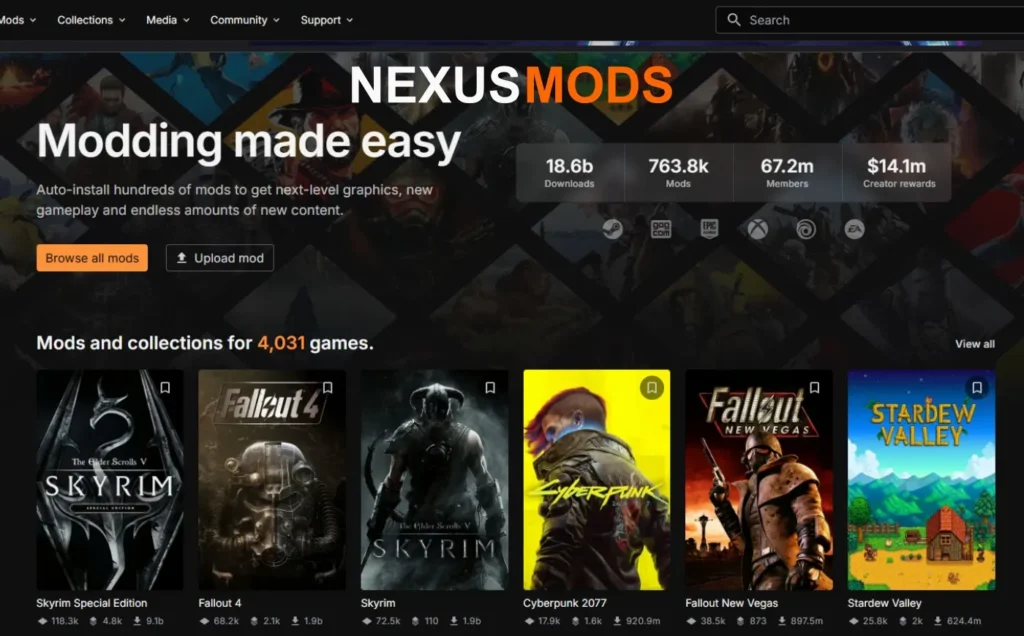
People mix these up constantly. They do different jobs.
- Mod Manager: Downloads, organizes, and deploys files
- Mod Loader: Hooks into game startup and tells the engine how to read mods
- Script Extender or Framework: Expands engine capability so advanced mods can exist
If versions mismatch between game and extender, mods fail to load. That is a top cause behind issues covered in our mods keep crashing guide.
Plugins vs Loose Files vs Injectors
Plugin Based Mods
These register new records with the engine. Common in large RPG engines. They rely on load order and dependency chains.
Loose File Mods
These replace assets directly. If the filename matches, the new file overrides the original.
Injectors and Hook Mods
These attach at runtime and modify behavior or rendering. Graphics injectors and tweak frameworks live here.
They are powerful, but also more sensitive to game updates. Mod loaders hook into the game at startup and tell the engine how to read mod files. If you want to see a real example of how a loader expects mods to be structured, the official Fabric loader documentation explains the process clearly at a system level: Fabric mod loader documentation.
Why Load Order Exists (And Why It Breaks Things)

When multiple mods change the same record or asset, priority decides the winner. That priority is load order.
- Base mod loads first
- Overhaul loads after
- Patch loads last
If the order is wrong, patches apply before the mod they are meant to fix. Result, broken behavior. Tools and managers help sort this, but the rule is simple: later overrides earlier.
Game updates can also shift behavior. That is why mod stacks around big patches, like those covered in the Starfield mods and updates hub, often need reorder passes.
How Mods Affect Real PC Performance

Mods are not free from a performance perspective. They add assets, scripts, and draw calls.
- High resolution texture packs increase VRAM use
- Script heavy mods increase CPU time
- Large overhauls increase memory usage
- Shader and injector mods add GPU cost
If you run big mod lists, storage speed also matters. Fast drives reduce streaming hiccups. See our best NVMe SSDs for gaming and modded games guide for smart picks.
Memory pressure is another common limit with large mod lists. If you’re not sure whether your games and mods are actually exceeding your current capacity, start with our guide to how much RAM games actually need.
If you’ve confirmed that you need more memory, use our RAM buying guide for gaming PCs to choose the right capacity and kit for your system.
Measure, do not guess. Use tools from our performance guides like measure performance with MSI Afterburner and our monitoring pillar to track frametime and usage. For stutter behavior, see fix game stutter and frametime spikes.
The Safe Mental Model for Modding
Think in layers, not magic.
- Mods are layered file changes
- Managers are traffic controllers
- Loaders are translators
- The engine is the final referee
When something fails, it is usually one of three causes: wrong location, wrong version, wrong priority.
Quick Takeaways
- Mods are just files plus load rules
- Games only load from known folders and lists
- Managers stage and deploy, loaders hook startup
- Script extenders expand engine capability
- Install model decides where mods live on disk
- Load order controls which mod wins conflicts
- Heavy mods can affect CPU, GPU, RAM, and storage
Once you understand how game mods actually work and where they install, you stop guessing and start controlling your setup. That is when modding becomes fun instead of fragile.