







Article Updated 28/07/2025
Why Your Games Still Stutter (Even with Good Specs)
You’ve got decent hardware a solid GPU, modern CPU, fast RAM and the question Why Does My Game Stutter On High End PC rolls around in your head! Not to mention hitches, or micro-freezes. Everything should be smooth, but it just isn’t.
Welcome to PC gaming in 2025, where frame counters say everything’s fine, but the game feels off. You’ve updated drivers, killed background apps, and tried every YouTube “fix.” Still no luck? Let’s change that.
This guide pulls together real solutions, from user-tested fixes on Reddit to battle-hardened system tweaks! to help your PC run like it’s supposed to. For ongoing performance tuning beyond stutter fixes, don’t miss our PC Maintenance & Optimization Guide.
“My Specs Are Good, So Why Is This Happening?”

This is one of the most common complaints among PC gamers. You’ve got a capable build, RTX 3060 or better, Ryzen 5 or i5, 16GB RAM, SSD, and yet the experience stutters or skips at random.
Sometimes those “stutters” are just your overlay misreporting temps. Here’s how to tell the difference and stop chasing ghost problems.
Here’s what might be going on:
- Background bloat: RGB software, overlays, or system monitors quietly chewing resources.
- Thermal throttling: Your GPU or CPU may be hitting temp limits and scaling back under load.
- Power delivery issues: Weak PSUs or VRMs can limit performance without obvious warnings.
- VRAM pressure: Newer games easily use 8–12GB of VRAM, pushing mid-range cards to the limit.
And Windows? It occasionally resets settings or enables features that mess with performance. Nothing new there.
When It’s Not the Hardware (But Feels Like It Is)
Not all performance problems come from your GPU or CPU. Sometimes it’s everything else, Or If your high end rig still stutters even with safe temperatures, Your Temps Are Lying, The Hidden Throttles Killing FPS digs into the silent limits that can cause those drops.
It’s Probably Software If:
- The game is poorly optimized: Some titles just run badly, even on high-end systems.
- You’re multitasking: Streaming, recording, or having a dozen background apps running.
- Lag feels network-based: If it’s online stutter, check your connection and ping first.
But It Could Be Hardware If:
- You’re using a very old GPU: Something like a GTX 1050 will struggle in modern games, no matter what.
- Low FPS in all games: Even basic titles drop frames? Your system might be underpowered.
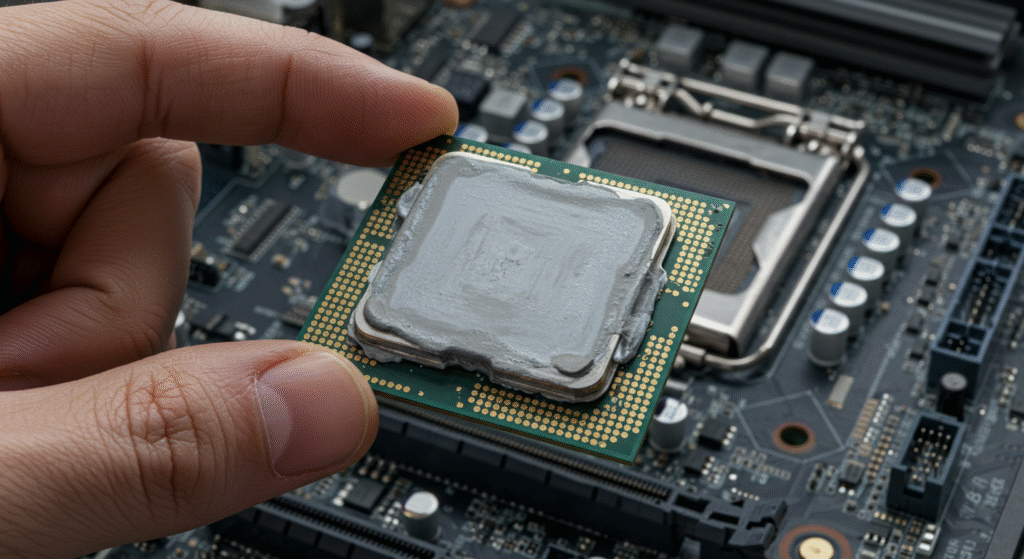
- High temperatures: 85°C+ on GPU or CPU can trigger throttling and cause inconsistent frame times.
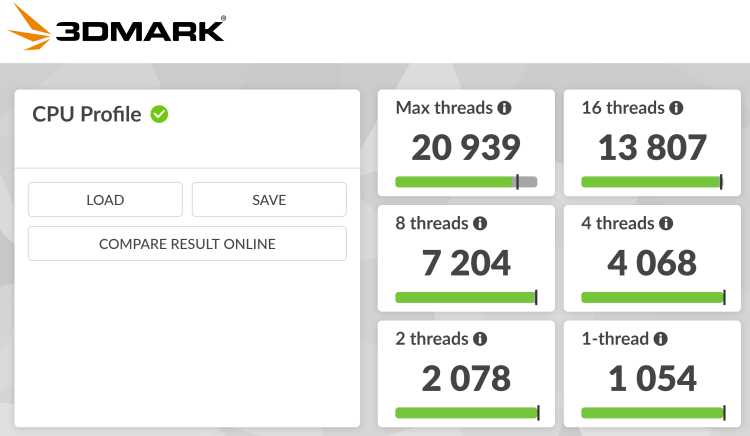
Quick test: Run 3DMark or UserBenchmark. If your results are well below expected, start by checking thermals, BIOS settings, and driver history. Sometimes stutter isn’t the game’s fault, it’s a sloppy hardware upgrade. Our guide to GPU upgrade mistakes covers exactly how overlooked steps during installation can create those annoying hitches, NB! Game stutter comes later, if your PC won’t even boot, start with this first-boot fix guide: New PC Won’t Boot? Fix First Boot Mistakes
Reddit-Discovered Fixes You Shouldn’t Ignore
In one of the more useful threads we found, a user fixed high-FPS stuttering by disabling extra audio devices in Device Manager. No exaggeration, that single change fixed micro-freezes completely for them. Here are some others that stood out:
- Disable unused audio devices: In Device Manager, right-click and disable any audio outputs you’re not actively using.
- Turn off fullscreen optimization: Right-click your game’s .exe → Properties → Compatibility → check “Disable fullscreen optimizations.”
- Disable FreeSync or G-Sync (if causing issues): Some systems don’t handle adaptive sync smoothly — test with it off.
- Set Windows to High Performance power plan: Ensures consistent CPU and GPU clocks under load.
- Disable Core Isolation / Memory Integrity: Found in Windows Security. It protects your system but can lower gaming performance.
Each of these has solved stuttering for different users — including some we tested ourselves.
Fixes That Actually Work (Backed by Data or Experience)
- Cap your FPS: Unlimited FPS often causes uneven frame pacing.
👉 Read: Why capping FPS actually helps - Use FreeSync or G-Sync, not V-Sync: V-Sync can add input delay and stutter.
👉 Fix screen tearing with adaptive sync - Roll back problematic drivers: Newer versions aren’t always better.
👉 How to roll back a GPU driver - Disable post-processing effects: Motion blur and film grain don’t add performance.
👉 Community: What settings help FPS - Install games on an SSD: HDDs cause longer load times and occasional stutters.
👉 See SSD gaming benchmarks - Shut down unnecessary background apps: Especially RGB sync tools and hardware monitoring apps.
👉 Watch: Kill the bloat - Undervolt instead of overclocking: Reduces heat and improves consistency.
👉 Beginner’s guide to undervolting - Drop from Ultra to High settings: Visual loss is minimal, but performance gain can be significant.
👉 Read: Smart settings tweaks - Turn off HAGS: Hardware Accelerated GPU Scheduling can introduce problems.
👉 Should you disable it? - Improve airflow: Clean your case, reconfigure fans, or upgrade cooling if temps are too high.
👉 Check affordable cooling gear
Stuttering and Freezing, It’s Not Just You
Stuttering, freezing, or frame skipping in games isn’t always about having the newest GPU. Sometimes it’s software conflicts, overheating, or a simple setting buried three menus deep.
The good news? Most of it’s fixable. And you don’t need to rebuild your PC or spend a cent to solve it. From disabling bloated services to tuning Windows 11 to run smoother, small tweaks can make a big difference.
Use tools like MSI Afterburner, HWiNFO, or ThrottleStop to monitor what’s happening. Then apply real fixes, whether that’s undervolting your GPU to lower temps or adjusting graphics settings without butchering visuals.
Your PC can perform better. Sometimes it just needs a few smart tweaks and less software getting in the way.