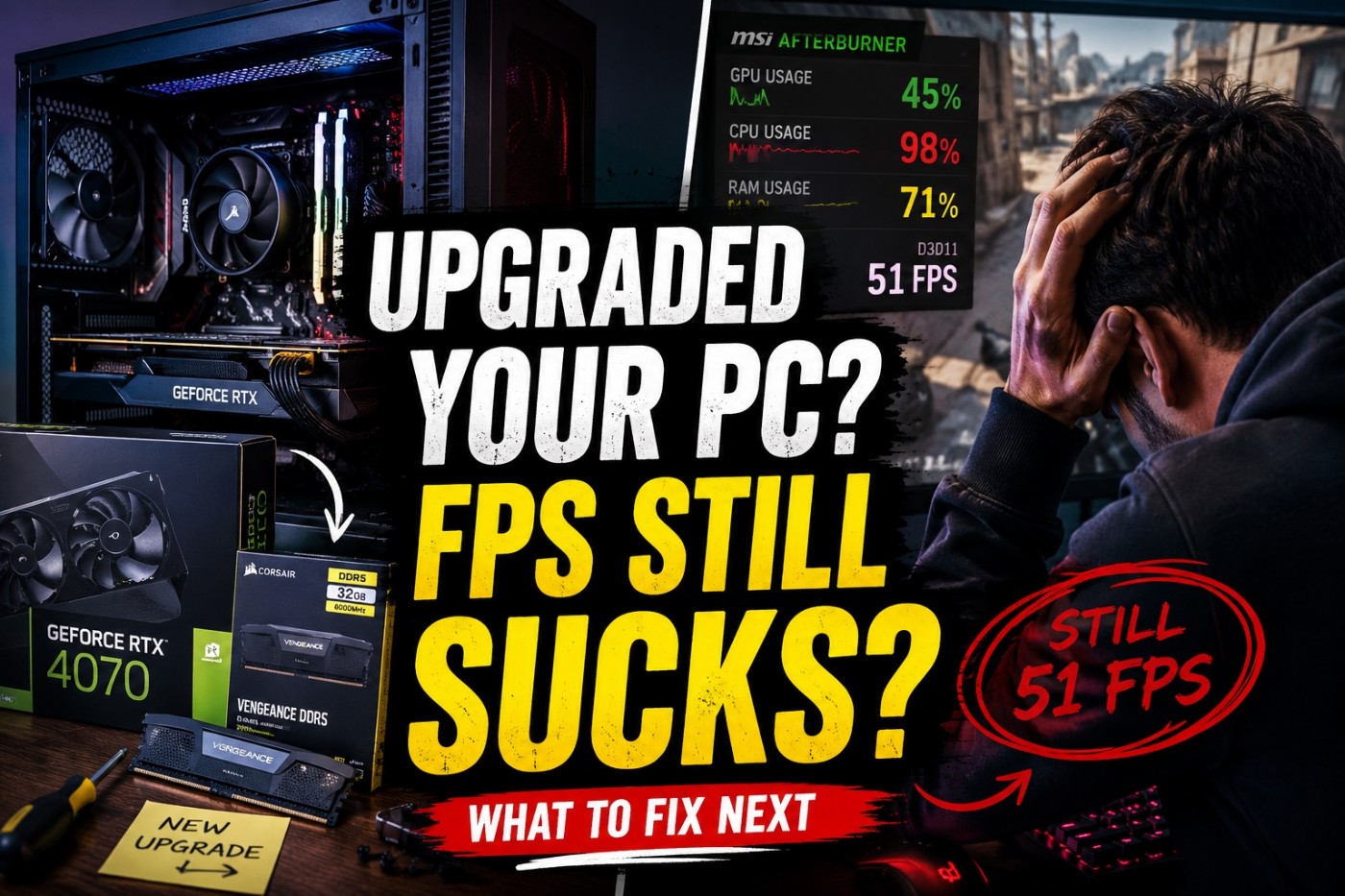
You upgraded your PC expecting more FPS. You installed the part, launched your game, stared at the frame counter, and somehow your old potato still behaved like a potato with a receipt.
If your PC upgrade didn’t improve FPS, the most likely reason is simple: you fixed the wrong bottleneck. A new GPU will not magically fix a CPU-limited game. More RAM will not rescue a weak graphics card. A faster SSD will not turn 42 FPS into 120 FPS. That is not how gaming performance works, no matter how loudly the box screams “gaming.”
This guide will help you figure out why your upgrade failed, what was actually holding your system back, and what to fix next before you waste more money on another part that barely moves the needle.
Quick Answer: Why Your PC Upgrade Didn’t Improve FPS
Your PC upgrade probably didn’t improve FPS because the part you upgraded was not the part limiting performance. Gaming performance depends on the whole system, not one shiny box with RGB and marketing nonsense on the side.
Before spending any more money, work through our Complete Gaming PC Health Check. It takes you through a complete diagnostic process, including temperatures, CPU and GPU usage, RAM, storage, and Windows, so you can identify the real bottleneck before buying another upgrade.
The most common reasons are:
- Your CPU is bottlenecking the GPU. The graphics card is waiting for the processor to feed it frames.
- Your GPU was not the main problem. This happens often in esports, simulation, MMO, and strategy games.
- You added RAM when capacity was not the issue. More RAM helps only when you were actually running out.
- You upgraded to an SSD expecting more FPS. SSDs improve load times and responsiveness, not raw frame rates in most games.
- Your system is overheating or throttling. New parts cannot perform properly if heat is choking them.
- Your old platform is holding everything back. DDR3-era CPUs, weak motherboards, poor power delivery, and old chipsets can limit modern upgrades.
- The game itself does not scale well. Some games are badly optimized, engine-limited, or capped by one overloaded CPU thread.
Before buying anything else, check usage, temperatures, frame caps, game settings, and whether the game is CPU-heavy or GPU-heavy. If you need the broader diagnosis first, start with Low FPS or Weird Usage? Here’s How to Tell If Your CPU or GPU Is the Problem.
Why Upgrades Fail More Often Than People Think
PC upgrades fail because most people upgrade based on vibes, YouTube comments, and whatever part has the loudest fanbase that week. That is not a plan. That is financial parkour.
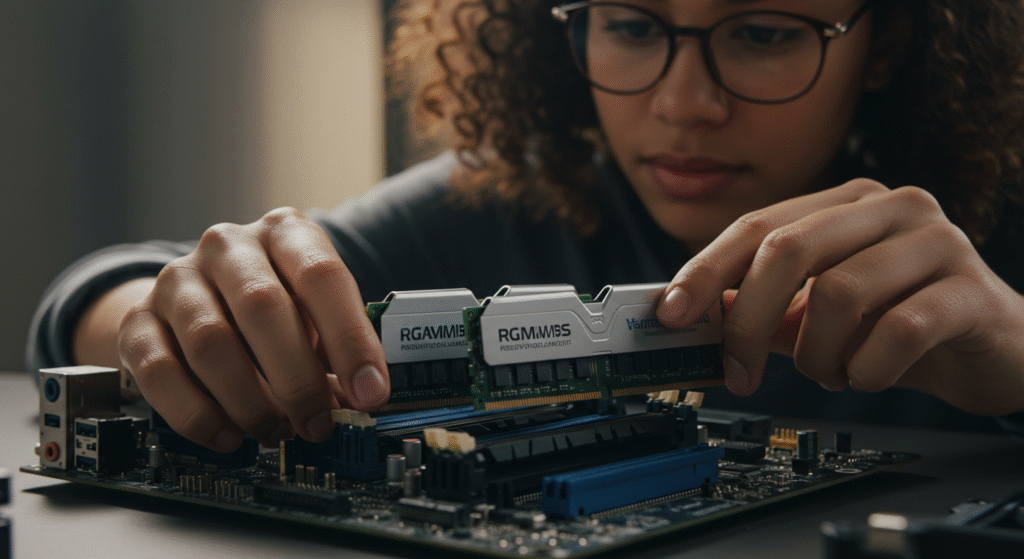
A gaming PC is a chain. The slowest link controls the result. If your CPU cannot keep up, a better GPU will sit underused. If your GPU is maxed out, a better CPU may barely change average FPS. If your RAM is full, everything stutters. And even when you have enough capacity, a single-channel RAM configuration can restrict memory bandwidth and become another hidden performance limit.
That’s why upgrading parts at random often leads to disappointing results. Before buying new hardware, follow our guide on how to upgrade a gaming PC in the right order to identify the component that’s truly holding your system back and avoid spending money on upgrades that won’t make a noticeable difference.
If your temperatures are terrible, your hardware may downclock before you ever see the performance you paid for. If you’re not sure which component is really holding your system back, learn how to identify your gaming PC’s actual bottleneck before upgrading anything, so you spend your money where it will make the biggest difference.
This is why two people can buy the same upgrade and get completely different results. One person upgrades from a weak GPU in a GPU-heavy game and sees a huge jump. Another person upgrades the GPU while playing a CPU-heavy game and gets almost nothing. Same part. Different bottleneck. Different result.
If you’re not sure which component is actually limiting your PC, our guide on which PC upgrade gives the biggest FPS boost shows you how to identify the real bottleneck before spending money on new hardware.
That is also why your upgrade needs to match your actual problem. If you want a deeper buying path, read What Should You Upgrade First on a Low-End PC? before making the next move.
You Upgraded The Wrong Thing
This is the big one. Most failed upgrades happen because the user bought a part that was not responsible for the performance problem. It feels brutal, but it is better to know now than after buying another “quick fix” that does nothing.

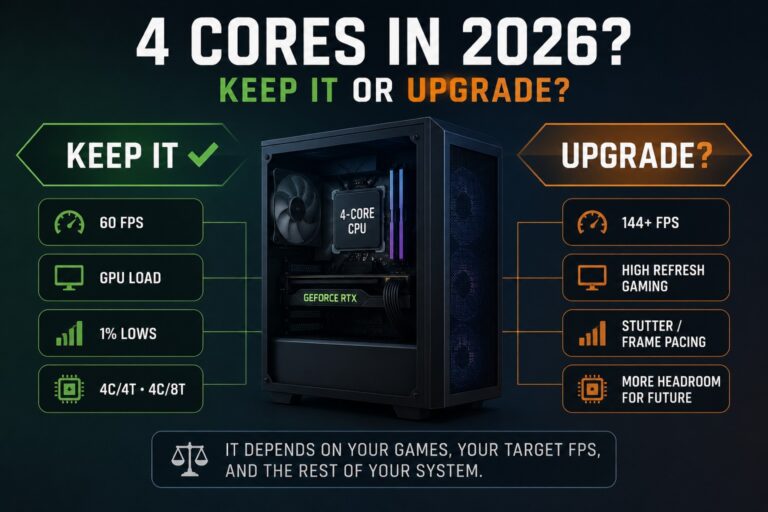
Every upgrade has a job. A GPU upgrade helps when the graphics card is the limit. A CPU upgrade helps when the processor is holding the game back, but if you’re still using a quad-core, first check whether your 4-core CPU actually needs replacing. A RAM upgrade helps when memory pressure is causing stutter or paging. An SSD helps when storage speed is causing loading, streaming, or responsiveness problems.
Before spending money on a new CPU, though, make sure your motherboard is running the latest BIOS, especially if you have an Intel 13th or 14th Gen processor, where firmware updates have resolved stability issues for many gamers. Read our guide on Intel BIOS updates and gaming stability before deciding it’s time to upgrade.
When you buy the right part for the wrong problem, the upgrade can be technically successful and still feel useless. The PC is not broken. Your diagnosis was.
CPU Bottleneck: Your GPU Is Waiting Around
A CPU bottleneck happens when your processor cannot prepare frames fast enough for the GPU. In plain English, the graphics card is ready to work, but the CPU is dragging its feet like it has a Monday morning meeting.
Signs of a CPU bottleneck include:
- GPU usage sitting well below 90% in-game.
- One or more CPU cores hitting very high usage.
- FPS barely changes when you lower graphics settings.
- Stutter in busy towns, battles, cities, or late-game strategy maps.
- Huge drops in simulation-heavy or multiplayer games.
Low GPU usage alone does not prove that your CPU is the bottleneck. Before blaming the processor, confirm that the game is actually using your dedicated GPU, especially if the performance is much worse than your hardware should deliver.
This is common in strategy games, large open-world games, MMOs, survival games, and competitive shooters that demand high frame rates. If this sounds familiar, your new GPU may be fine. Your CPU just cannot feed it properly.
For a real example of how CPU limits can ruin performance, read Why Strategy Games Lag in the Late Game.
GPU Bottleneck: Your Graphics Card Is Still The Limit
A GPU bottleneck happens when your graphics card is the part doing all the heavy lifting. This is the most normal bottleneck in modern games, especially at higher resolutions, higher settings, ray tracing, and VRAM-heavy titles.

Signs of a GPU bottleneck include:
- GPU usage sitting around 95% to 100%.
- FPS improves clearly when you lower resolution or graphics settings.
- Ray tracing destroys performance.
- VRAM fills up and textures stutter or pop in.
- CPU usage looks moderate, but FPS is still low.
If you upgraded your CPU and expected a huge FPS jump while your old GPU is already pinned at 100%, that upgrade was never going to save you. The CPU may be better, but the graphics card is still the wall.
This is also where VRAM matters. Some older 6GB and 8GB cards can still perform well, but modern games are getting uglier for low-VRAM GPUs. Read Why 8GB VRAM GPUs Are Already Struggling in Modern Games if your GPU looks fine on paper but struggles in newer titles.
RAM Bottleneck: More RAM Only Helps If You Needed It
RAM upgrades are useful when your system is actually running out of memory. If you had 8GB and moved to 16GB, some modern games may feel much smoother. If you already had enough RAM, adding more will not magically increase FPS.

Signs RAM was the issue include:
- Games stutter when loading new areas.
- Windows uses the page file heavily.
- Background apps make games worse.
- RAM usage is near full while gaming.
- Performance improves after closing browsers, launchers, or recording software.
But if you upgraded from 16GB to 32GB and expected your GTX 1650 to suddenly become a monster, that was never happening. RAM gives the system breathing room. It does not replace the CPU or GPU.
For a proper breakdown, read How Much RAM Do Games Actually Need?.
The SSD Myth: Why Faster Storage Did Not Improve FPS
An SSD is one of the best upgrades for making a weak PC feel less miserable. It can make Windows boot faster, games load faster, and the whole system feel more responsive. But in most games, it will not massively increase average FPS.
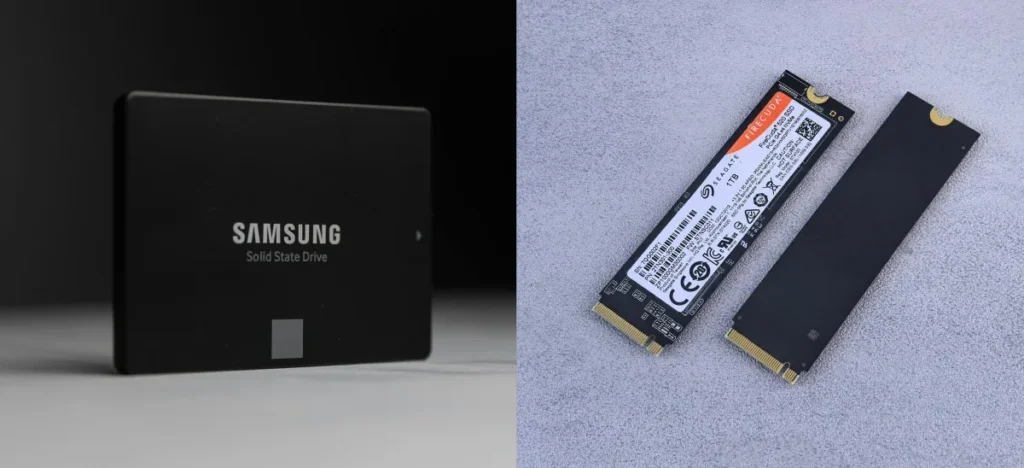
That is where many people get caught. They see “faster gaming SSD” and assume it means more frames. Usually, it means faster loading and less waiting. That is still useful, but it is not the same thing.
An SSD can help with:
- Faster game launches.
- Shorter loading screens.
- Less hitching when games stream assets.
- Better Windows responsiveness.
- Less pain when opening apps while gaming.
An SSD usually will not fix:
- A weak GPU.
- A CPU bottleneck.
- Low VRAM.
- Poor cooling.
- Bad game optimization.
- Low FPS caused by graphics settings.
If your old hard drive was causing horrible loading and texture streaming problems, an SSD upgrade can feel massive. But if your FPS is low because your GPU is choking, a faster SSD is not the hero of this movie.
For more detail, read Do Faster SSDs Improve FPS or Just Load Times? and SSD Performance for Gaming: What Actually Matters.
When Games Don’t Scale With Your Upgrade
Some games simply do not reward certain upgrades as much as others. This is where expectations get messy. A part can be objectively better and still barely change the game you actually play every night.
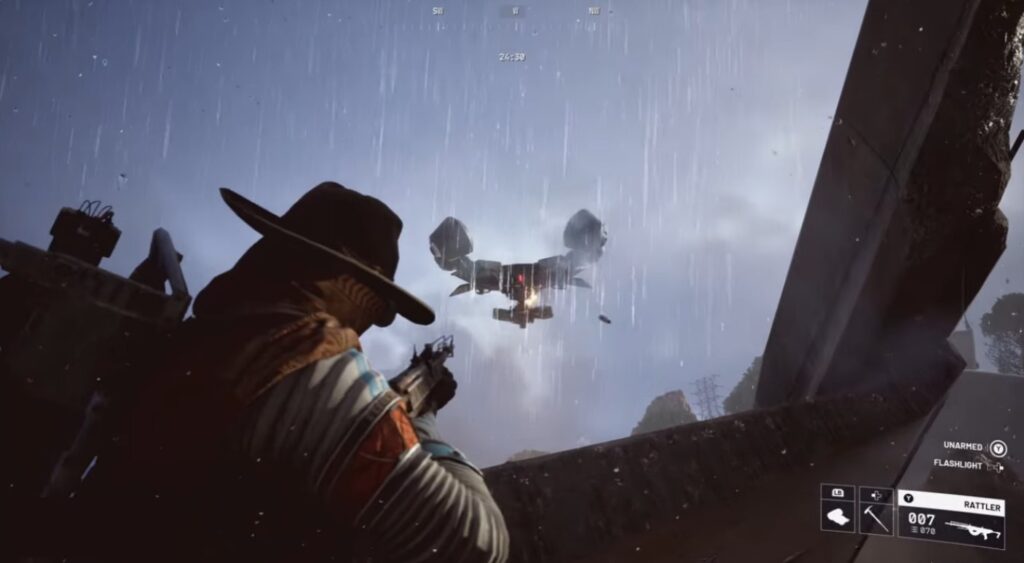
Different games stress different parts of your PC. A cinematic single-player game at ultra settings may hammer the GPU. A large strategy game may punish the CPU. A competitive shooter may care about CPU speed, memory latency, and consistent frametimes. A badly optimized live-service game may just wake up and choose violence.
Here is the simple version:
- Competitive shooters often care about CPU performance, high refresh rates, and stable frametimes.
- Strategy games often become CPU-limited in the late game.
- Open-world games can hit CPU, GPU, RAM, and storage depending on the engine.
- Ray-traced games hammer the GPU hard.
- MMOs and survival games can behave wildly depending on servers, crowds, bases, and engine limits.
- Older games may not scale well with modern hardware at all.
This is why testing one game after an upgrade can mislead you. Your new part might improve performance in one game but do almost nothing in another. If you only test the game that does not scale with that upgrade, you may think the part was useless.
Old Hardware Problems: When Your Platform Is The Real Limit
This is the part many upgrade guides politely avoid. Some old PCs can be upgraded. Some old PCs are money traps wearing a side panel.
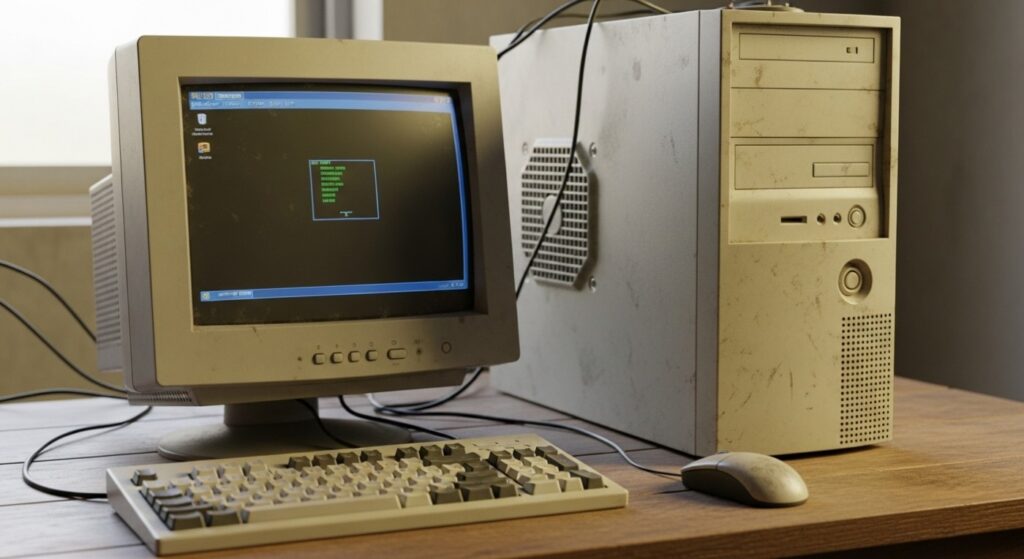
If you are on a DDR3-era system, an old AMD FX platform, early Intel Core i5 or i7 hardware, or a cheap office PC motherboard, you need to be careful. Modern parts may technically fit in some cases, but that does not mean the system will use them well.
Watch out for:
- Old DDR3 platforms with weak single-core CPU performance.
- Budget motherboards with poor power delivery.
- Weak or unknown PSUs that should not be trusted with modern GPUs.
- Small office cases with poor airflow and limited GPU clearance.
- Older BIOS limitations that may block CPU support.
- No NVMe support on older boards.
- PCIe slot or case limitations that restrict GPU choices.
- Proprietary prebuilt parts that make upgrades painful or impossible.
This does not mean every old PC should be thrown away. It means you need to know when an upgrade makes sense and when you are building a very expensive shrine to bad decisions.
If your system is old enough, second-hand parts may make more sense than modern upgrades. A used CPU, used GPU, or cheap RAM kit can be smarter than forcing new hardware into a platform that is already at the end of its life.
Before upgrading an older system, read Upgrade Your Old PC the Right Way
How To Find The Real Bottleneck Before Buying Anything Else
You do not need a lab, a spreadsheet, and a ceremonial sacrifice to diagnose a gaming bottleneck. You need a few simple checks and enough patience not to buy another part out of pure rage.
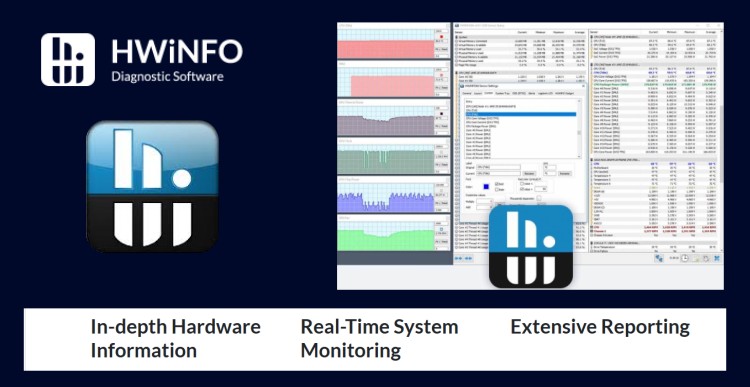
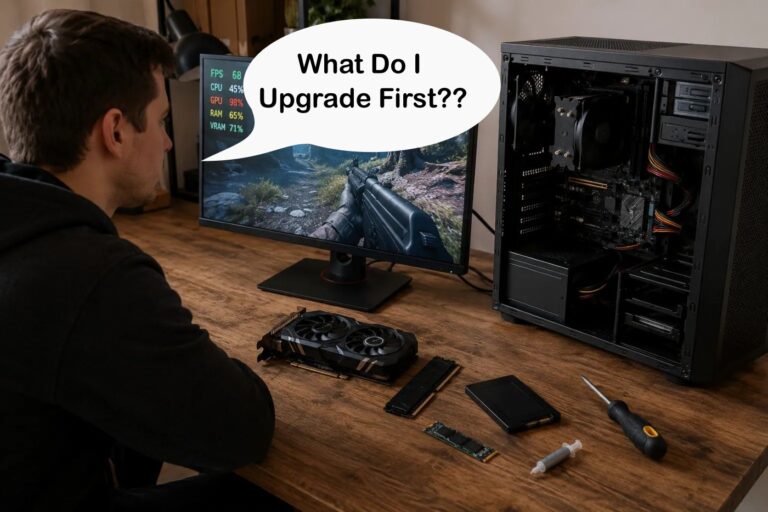
Use tools like MSI Afterburner, HWiNFO, or your GPU software overlay to check what your system is doing while the game is running. The goal is not to become a professional benchmark goblin. The goal is to identify which part is struggling.
Check GPU Usage
If your GPU is sitting at 95% to 100% usage, your graphics card is probably the limit. Lowering settings, resolution, ray tracing, or upscaling options should improve performance if the GPU is the main bottleneck.
If your GPU usage is low while FPS is also low, look at the CPU next.
Check CPU Usage Per Core
Do not only look at total CPU usage. A game can be CPU-limited even if total CPU usage says 45%. One or two overloaded cores can still hold everything back.
If one core is slammed and your GPU is underused, that is a strong CPU bottleneck sign.
Check RAM Usage
If RAM usage is near full, close background apps and test again. Browsers, launchers, recording software, Discord overlays, and update tools can all make a weak PC feel worse.
If closing apps improves stutter, RAM capacity or background bloat may be part of the problem.
Check Temperatures and Clock Speeds
High temperatures alone do not tell the whole story. Watch clock speeds too. If your CPU or GPU clocks drop hard during gaming, your system may be throttling.
For monitoring help, use Ultimate HWiNFO64 Guide: Bottlenecks, Temps, and Sanity Checks or Master How to Monitor Temps, Clocks and Usage Like a Pro.
Test More Than One Game
Never judge an upgrade from one game only. Test a GPU-heavy game, a CPU-heavy game, and the main game you actually care about.
If performance improves in GPU-heavy games but not your esports title, your upgrade probably worked. Your main game is just limited elsewhere.
What To Fix Next Based On Your Situation
This is where you stop guessing. Match the symptom to the likely cause, then choose the next fix. Not every fix requires buying something, which is annoying for affiliate income but great for your wallet.
| What You See | Likely Problem | What To Fix Next |
|---|---|---|
| GPU usage is low, FPS is low | CPU bottleneck | Check CPU usage per core, background tasks, game engine limits, and CPU upgrade options |
| GPU usage is 95% to 100% | GPU bottleneck | Lower graphics settings, reduce resolution, use upscaling, or plan a better GPU upgrade |
| RAM is nearly full | Memory capacity problem | Close background apps or move to 16GB/32GB if your games need it |
| FPS drops after a few minutes | Thermal throttling | Clean the PC, improve airflow, replace thermal paste, adjust fan curves, or undervolt |
| Load times improved but FPS did not | SSD did its job | Stop expecting storage to fix CPU or GPU limits |
| New GPU performs badly in an old PC | Platform limitation | Check CPU, PSU, motherboard, case airflow, and whether the build is worth saving |
| One specific game still runs badly | Game engine or optimization issue | Test other games before blaming the upgrade |
If your next move is a serious upgrade, this is where your buying path matters. For a broader upgrade plan, use Smart PC Upgrades for Weak Systems. If you are choosing a CPU, read Best Gaming CPUs by Actual Value. If your GPU is the real limit, read Stop Wasting Money on GPUs That Won’t Improve FPS.
Sometimes The Upgrade Actually Worked
Here is the uncomfortable counter-argument: your upgrade may have worked perfectly. You may just be measuring the wrong thing or testing the wrong situation.
Average FPS is not the only useful performance metric. Your upgrade might have improved 1% lows, reduced stutter, shortened loading, improved texture streaming, allowed higher settings, or made the system more stable. That still matters, even if the big FPS number did not explode upward like a benchmark thumbnail promised.
Also check the obvious stuff:
- Is V-Sync capping your FPS?
- Is your monitor set to the correct refresh rate in Windows?
- Is the game capped internally?
- Are you testing the same area, settings, and resolution as before?
- Did your settings reset after installing the new part?
- Is the display cable plugged into the GPU and not the motherboard?
- Are your drivers installed properly?
That last one sounds too stupid to mention until you realize how many “new GPU is broken” stories end with the HDMI cable plugged into the motherboard. Painful, but educational.
Stop Upgrading Blindly
If your PC upgrade didn’t improve FPS, the part may not be the problem. The problem is usually the diagnosis that came before the purchase.
A good upgrade fixes the actual bottleneck. A bad upgrade fixes something that was never holding you back. That is why a GPU upgrade can be useless in a CPU-limited game, why more RAM can do nothing when you already had enough, and why a faster SSD can make your PC feel better without changing your frame rate.
Before buying anything else, check usage, temperatures, RAM pressure, frame caps, and how your specific games behave. Then upgrade with a plan, not panic.
That is the difference between building a smarter gaming PC and slowly creating an expensive museum of parts that almost helped.