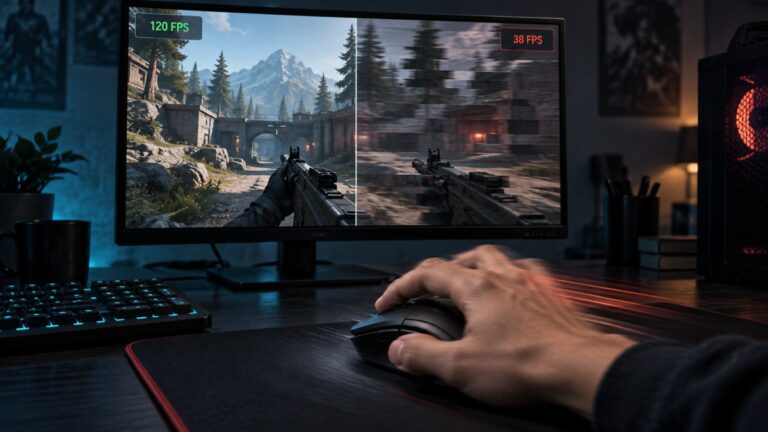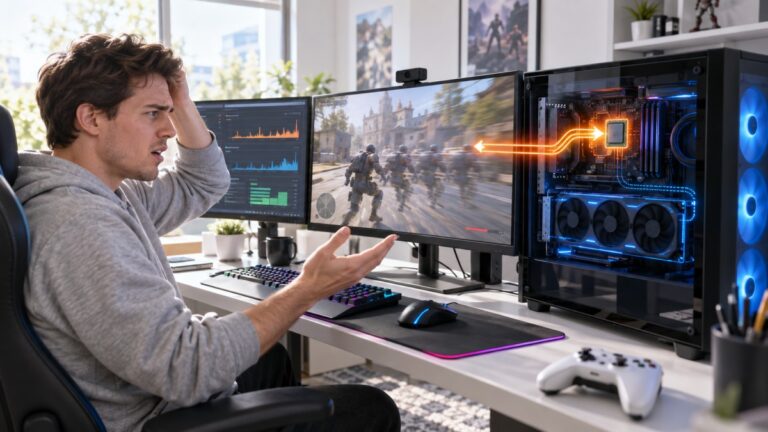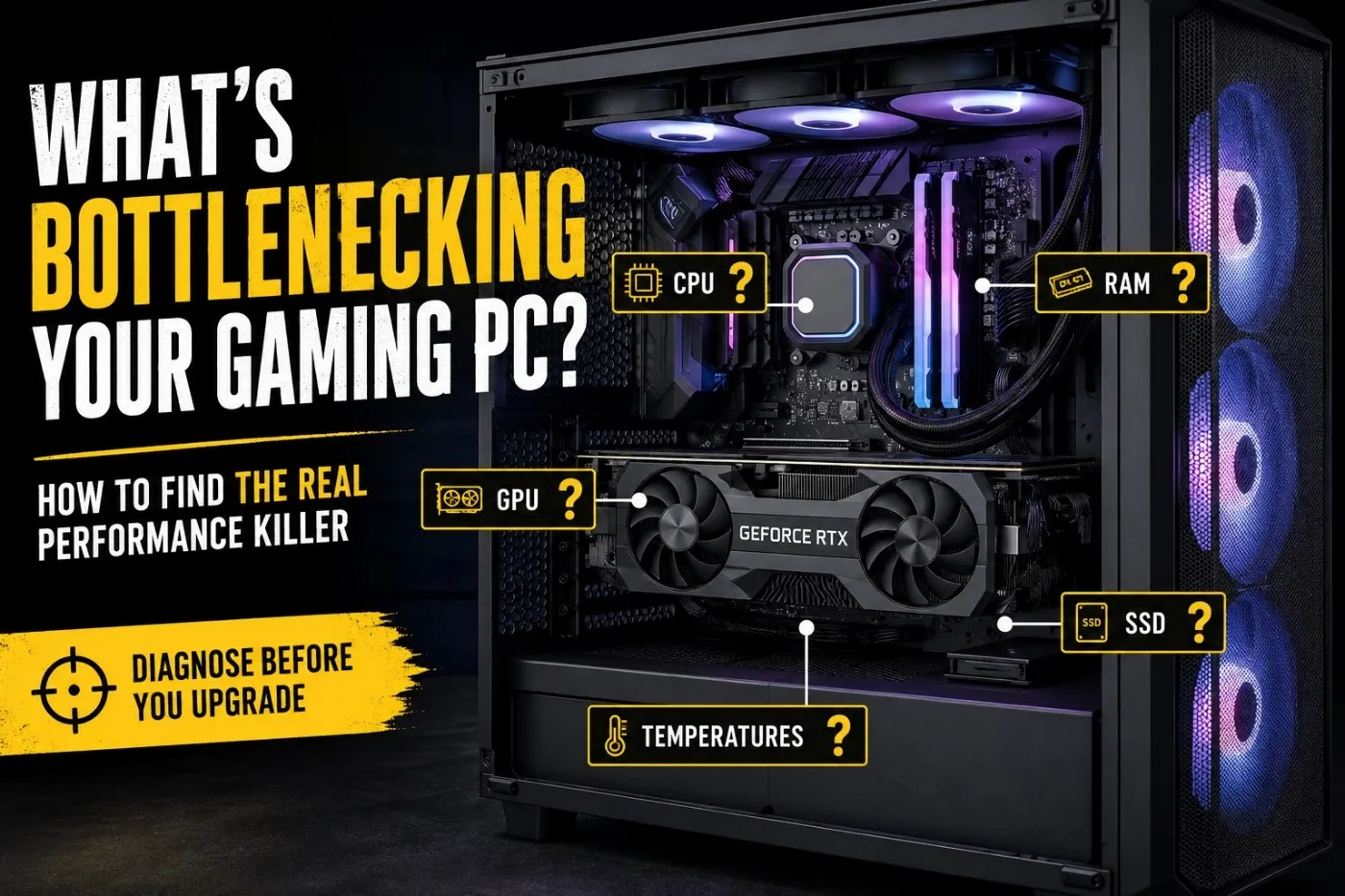
If you’re wondering how to tell what’s bottlenecking your gaming PC, low FPS, stuttering and inconsistent performance can make the answer frustratingly unclear. The cause could be your CPU, GPU, RAM, storage, temperatures, Windows or even the game itself, and upgrading the wrong part wastes money.
Every gaming PC has a bottleneck somewhere, but that doesn’t automatically mean you need new hardware. If you want to examine the entire system first, work through our Complete Gaming PC Health Check, which covers temperatures, component usage, memory, storage, Windows and real-world gaming performance.
This guide shows you how to identify the actual bottleneck using free tools and real-world symptoms, so you’ll know whether an upgrade is justified or whether you can fix the problem without spending a cent.
What Is a Gaming PC Bottleneck?
A gaming PC bottleneck happens when one component limits the performance of the rest of your system. Think of it like a traffic jam on a motorway. It doesn’t matter how fast the cars behind are if one lane slows everything down.
Understanding which component is causing the bottleneck is the first step toward making a worthwhile upgrade. If you’re unsure where to start, our guide on how to upgrade a gaming PC in the right order walks you through identifying the real bottleneck and choosing the upgrades that deliver the biggest improvement without wasting money.
In a gaming PC, every major component has a different job.
- Your CPU handles game logic, AI, physics and prepares frames for the graphics card.
- Your GPU renders every frame you see on screen.
- RAM stores active game data while you’re playing.
- VRAM stores textures, shaders and graphical assets.
- Your SSD or hard drive loads game files and streams data as you move through the world.
If one of these components can’t keep up, the others spend part of their time waiting instead of working.
For example, pairing a powerful graphics card with an older quad-core processor may result in the GPU sitting idle because the CPU can’t feed it work quickly enough. On the other hand, installing the fastest gaming CPU available won’t magically increase FPS if your graphics card is already running flat out. If you’re unsure what makes a balanced system, our guide explains how to match your CPU with the right graphics card to avoid costly bottlenecks and wasted upgrades.
Low dedicated-GPU usage does not automatically prove that the CPU is holding it back. If your system has integrated and dedicated graphics, first confirm which GPU the game is actually using. Otherwise, you could diagnose a CPU bottleneck when the game is simply rendering on the wrong graphics adapter.
One of the biggest misconceptions online is that having a bottleneck automatically means your PC is badly balanced. That’s simply not true.
Every gaming PC has a bottleneck somewhere. The important question isn’t whether one exists, it’s whether that bottleneck is actually hurting your gaming experience.
In fact, in most modern games, seeing your graphics card running close to full utilisation is completely normal. That’s usually a sign you’re getting the most from your GPU rather than leaving performance on the table. If you’re unsure whether your graphics card is really the component holding you back, our guide on which PC upgrade gives the biggest FPS boost explains how to identify the true bottleneck before spending money on new hardware.
Why Bottleneck Calculators Aren’t Enough
If you’ve searched for bottlenecks before, you’ve almost certainly come across online bottleneck calculators. They promise to tell you whether your CPU is too weak for your GPU or whether one upgrade will magically solve your FPS problems.
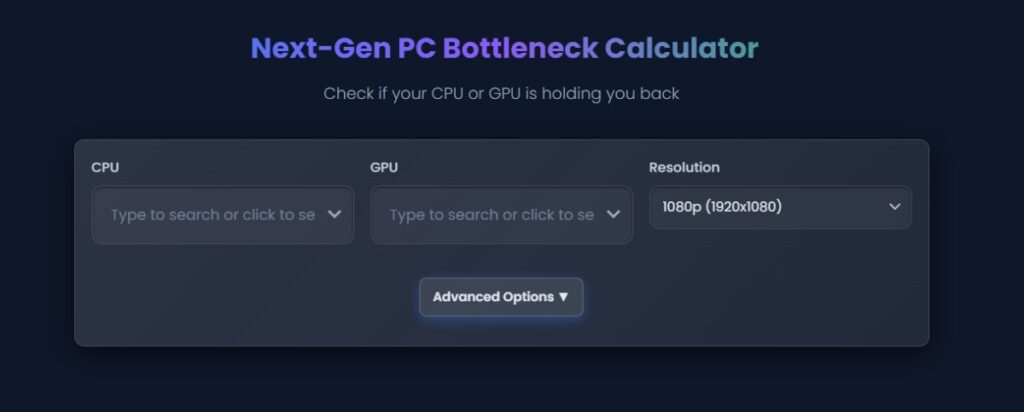
They’re useful as a rough estimate, but that’s all they are. Most calculators compare theoretical hardware performance. They don’t know anything about your actual gaming PC.
They can’t see:
- What games you play
- Your graphics settings
- Your screen resolution
- Your Windows installation
- Your driver version
- Your temperatures
- Your RAM usage
- Your VRAM usage
- Your storage performance
- Background software running while you play
They also can’t account for the fact that different games stress hardware in completely different ways.
A competitive shooter running at 1080p may place enormous demand on your CPU, while a visually stunning single-player RPG at 1440p may be limited almost entirely by your graphics card. In those CPU-limited situations, even single vs dual channel RAM can affect gaming performance because memory bandwidth becomes more important.
Nothing about your hardware changed. The workload did. That’s why experienced PC builders spend more time looking at real monitoring data than online calculators.
Instead of relying on percentages generated by a website, you’ll get far more useful answers by watching what your own hardware is doing while you’re actually playing.
If you’re already considering an upgrade, our guide on What Should You Upgrade First on a Low-End PC? explains how to prioritise upgrades without wasting money.
Quick Bottleneck Diagnosis Guide
If you just want a quick idea of what’s slowing your PC down, the table below is a great starting point.
| Symptom | Most Likely Cause |
|---|---|
| GPU usage stays around 95–99% while CPU usage is much lower | GPU bottleneck |
| CPU stays near full utilisation while GPU usage remains much lower | CPU bottleneck |
| Random stuttering despite acceptable FPS | RAM, storage or background processes |
| Textures become blurry or suddenly pop into view | VRAM bottleneck |
| FPS starts high but drops after 20–30 minutes | Thermal throttling |
| Games take forever to load and textures stream slowly | Storage bottleneck |
| Performance became worse after a Windows or driver update | Software or driver issue |
| Only one game performs badly while others run normally | Poor game optimisation |
Think of this table as a guide rather than a final diagnosis. Several different issues can produce similar symptoms, which is why we’ll go through each type of bottleneck individually in the rest of this article.
Don’t Judge Performance by FPS Alone
One mistake almost every new PC gamer makes is looking only at average FPS. FPS tells you how many frames your system is producing, but it doesn’t tell you how smoothly they’re arriving.

Two computers can both average 60 FPS while feeling completely different to play. One might deliver a perfectly consistent experience, while the other constantly freezes, hitches or stutters every few seconds.
On older quad-core systems, limited CPU headroom can be one possible cause, so our guide to whether a 4-core CPU is actually hurting your gaming experience explains how to check 1% lows, frametimes and CPU behaviour before assuming you need an upgrade.
This is where frame time consistency becomes far more useful than average FPS. If your frame times are smooth, your game feels responsive.
If they’re constantly spiking, gameplay feels inconsistent even though the FPS counter still looks respectable.
This is one of the reasons we recommend using monitoring software rather than relying on in-game FPS counters alone.
If your game feels jerky despite decent frame rates, our guide on Why Your Games Stutter Even on Low Settings covers many of the underlying causes in much greater detail.
Ask Yourself These Questions First
Before downloading monitoring tools or shopping for upgrades, spend a few minutes answering these simple questions.
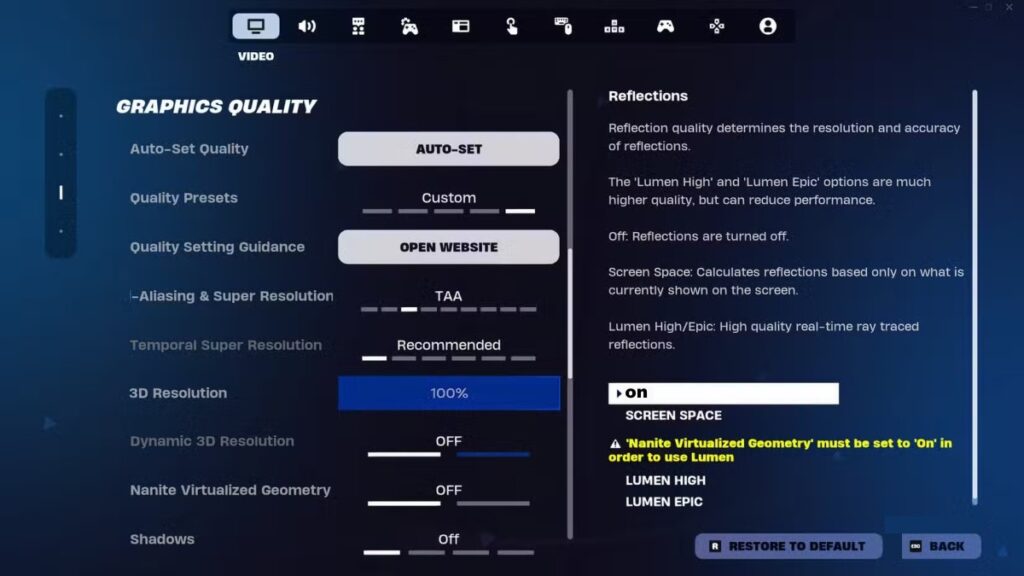
Does lowering your graphics settings improve FPS?
If dropping from Ultra to Medium immediately boosts performance, your graphics card is probably doing most of the work. If performance barely changes, the problem may lie elsewhere.
Does every game perform badly?
If only one title struggles while everything else runs well, poor game optimisation is far more likely than faulty hardware.
Did performance suddenly become worse?
Sudden FPS drops often point towards:
- Driver problems
- Windows updates
- Background software
- Corrupted game files
- Incorrect graphics settings
Hardware rarely becomes dramatically slower overnight.
Does performance get worse the longer you play?
If your game starts smoothly but gradually becomes slower after 20 or 30 minutes, overheating should immediately become one of your main suspects.

We’ll cover thermal throttling later because it’s one of the most common, and most overlooked reasons older gaming PCs lose performance.
Now that you understand what a bottleneck actually is, let’s start diagnosing the individual components, beginning with the processor that drives your entire gaming system.
CPU Bottlenecks: When Your Processor Is Holding the Game Back
A CPU bottleneck happens when your processor cannot prepare game data fast enough for the rest of the system, especially the graphics card.
This does not always mean your CPU is broken or useless. It means the game you are playing is asking more from the processor than it can comfortably deliver.
CPU bottlenecks are common in:
- Competitive shooters chasing high FPS
- Open-world games with lots of NPCs, traffic, physics or simulation
- Strategy games with many units
- MMOs and multiplayer games with crowded areas
- Older PCs paired with newer graphics cards
Common CPU Bottleneck Symptoms
| Symptom | What It Usually Means |
|---|---|
| CPU usage is very high while GPU usage stays low | Your CPU may not be feeding the GPU fast enough |
| Lowering graphics settings does not improve FPS much | The GPU was not the main limit |
| FPS drops badly in busy towns, cities or multiplayer fights | The CPU is struggling with game logic, AI or player data |
| Average FPS looks okay but 1% lows feel awful | The CPU may be causing inconsistent frame delivery |
| One or two CPU cores are maxed out | The game may rely heavily on limited CPU threads |
The tricky part is that total CPU usage can be misleading. A game may only use a few cores heavily, so Windows might show 60% total CPU usage even though the specific cores the game needs are already maxed out.
That is why you should not diagnose a CPU bottleneck from Task Manager alone.
If your CPU sits near full usage while gaming, read Why Is My CPU at 100% While Gaming? before assuming you need a new processor.
How to Test for a CPU Bottleneck
Use this simple test:
- Launch the game that is giving you problems.
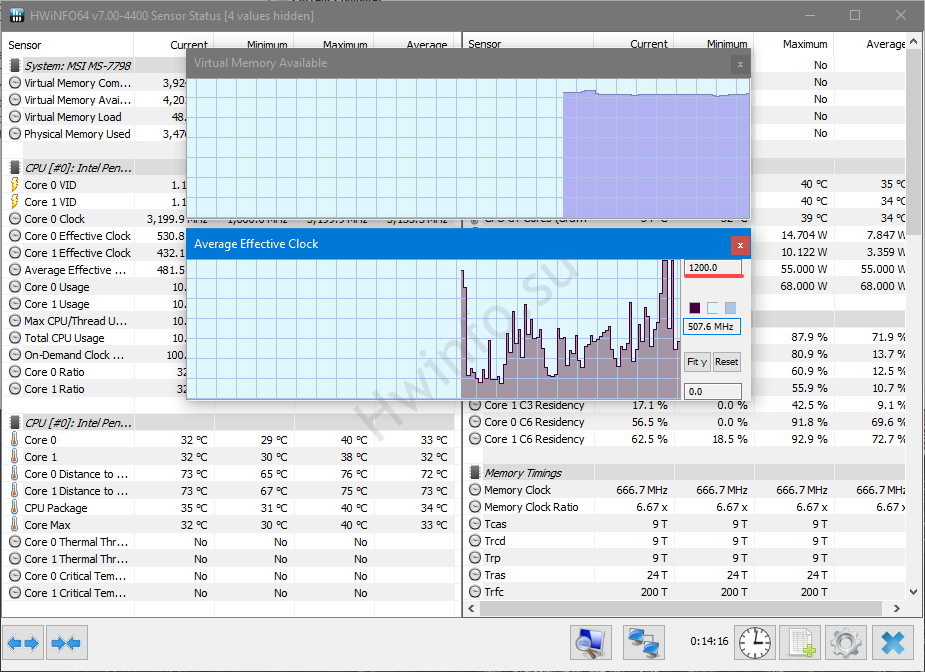
- Use MSI Afterburner or HWiNFO64 to monitor CPU usage, GPU usage, temperatures and frame times.
- Play in the same area where performance feels bad.
- Lower graphics settings such as shadows, textures, effects and resolution.
- Watch whether FPS improves meaningfully.
If lowering graphics settings barely improves performance, your graphics card probably was not the main problem.
That does not automatically prove your CPU is the bottleneck, but it does move the investigation in that direction.

For a deeper comparison, our guide on Low FPS or Weird Usage? Here’s How to Tell If Your CPU or GPU Is the Problem walks through this exact CPU versus GPU diagnosis in more detail.
When a CPU Upgrade Makes Sense
A CPU upgrade starts making sense when:
- Your CPU is consistently maxed out in the games you actually play
- Your GPU is sitting underused even at sensible settings
- You want higher FPS in CPU-heavy games
- Your motherboard platform still has a realistic upgrade path
- You have already ruled out overheating, RAM limits and Windows background problems
Do not upgrade your CPU just because one calculator says there is a bottleneck. Upgrade because your own monitoring data shows the CPU is the part holding back the games you care about.
If you’re unsure which background applications are consuming your system resources, Microsoft’s guide to using Task Manager to view running apps and processes can help you identify unnecessary software before you assume your hardware is the problem.
GPU Bottlenecks: When Your Graphics Card Is the Limit
A GPU bottleneck happens when your graphics card is working as hard as it can and cannot render frames any faster.
This is usually the easiest bottleneck to understand because it often responds clearly to graphics settings.
If lowering resolution, shadows, anti-aliasing, effects or texture quality improves FPS, your GPU is probably the main limit.
Common GPU Bottleneck Symptoms
| Symptom | What It Usually Means |
|---|---|
| GPU usage stays around 95–99% | Your graphics card is being fully used |
| Lowering graphics settings improves FPS | The GPU was the main performance limit |
| Higher resolution causes a big FPS drop | The GPU is struggling with the rendering workload |
| Ray tracing destroys performance | The GPU cannot handle that feature comfortably |
| CPU usage is moderate while GPU usage is maxed | The system is likely GPU-limited |
Here is the important part: high GPU usage is not automatically bad.
In many games, GPU usage near 99% is exactly what you want. It means your graphics card is doing the heavy lifting instead of sitting idle.
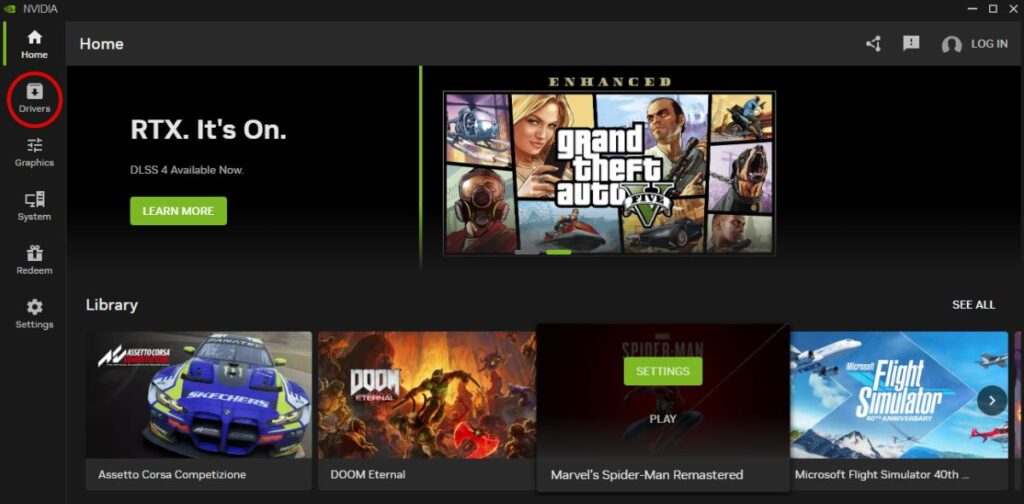
The problem is not the usage number itself. The problem is whether the performance you get from that usage is good enough for the game, settings and resolution you want.
How to Test for a GPU Bottleneck
Try this:
- Open the game and go to an area where FPS is low.
- Check GPU usage with MSI Afterburner.
- Lower resolution or use a lower render scale.
- Reduce shadows, reflections, effects and anti-aliasing.
- Check whether FPS improves clearly.
If FPS improves when you reduce graphics load, your GPU is probably the main limitation. If FPS barely changes, the bottleneck is probably somewhere else.
When a GPU Upgrade Makes Sense
A GPU upgrade makes sense when:
- Your GPU is constantly maxed out
- Lowering settings clearly improves FPS
- Your CPU has enough headroom
- Your power supply can handle the new card
- Your case has enough space and airflow
- You play games that genuinely need more graphics power
But do not rush into a graphics card upgrade if your main issue is stuttering, long loading, overheating or Windows background junk. Those problems can survive a GPU upgrade completely.
That is exactly why our guide on Why Your PC Upgrade Didn’t Improve FPS exists. Sometimes the expensive part was never the real problem.
RAM Bottlenecks: When Your PC Runs Out of Breathing Room
A RAM bottleneck happens when your system does not have enough memory for the game, Windows and background apps at the same time.
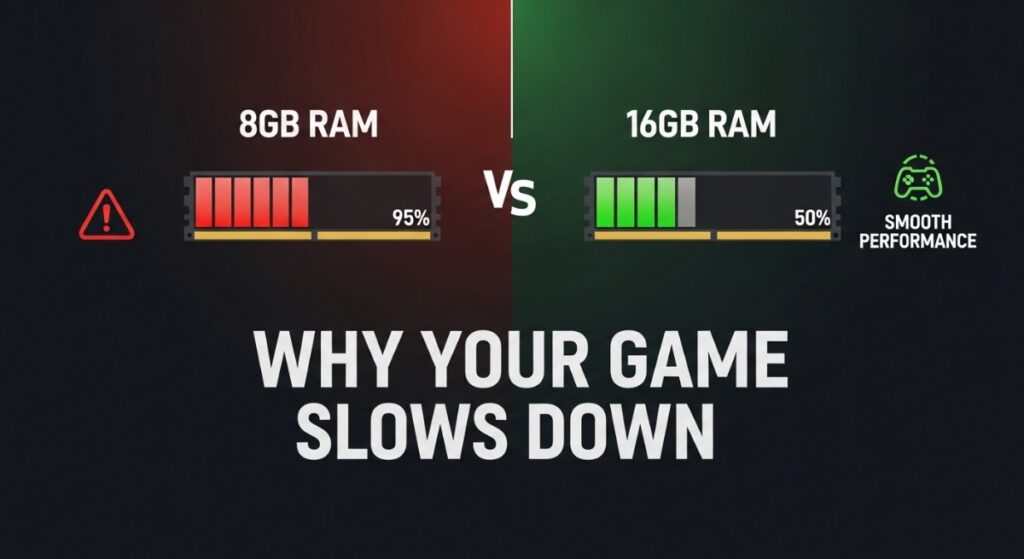
This is one of the most common problems on older and budget gaming PCs, especially systems still running 8GB of RAM.
When RAM fills up, Windows starts relying more heavily on your storage drive. That process is much slower than using actual memory, which can cause stuttering, hitching and delayed loading during gameplay.
Common RAM Bottleneck Symptoms
| Symptom | What It Usually Means |
|---|---|
| Game stutters when entering new areas | The system may be swapping data in and out of memory |
| FPS average looks fine but gameplay feels uneven | Memory pressure may be hurting frame consistency |
| Performance gets worse with Chrome, Discord or launchers open | Background apps are eating limited RAM |
| Disk usage spikes while gaming | Windows may be using the page file heavily |
| Alt-tabbing feels painfully slow | The system is running out of usable memory |
RAM bottlenecks are especially annoying because they do not always show up as low average FPS. Instead, they often show up as ugly frame time spikes.
The game might say 60 FPS, but it feels like your PC is coughing every few seconds.
For a deeper breakdown, read How Much RAM Do Games Actually Need? before buying more memory.
How to Test for a RAM Bottleneck
Open the game, play normally and monitor total system memory usage. If your RAM usage is constantly close to full while gaming, especially with stutters or disk activity, memory is a serious suspect.
Also test with unnecessary apps closed:
- Close browser tabs
- Close Discord if you are not using it
- Exit game launchers you do not need
- Pause cloud sync apps
- Disable unnecessary overlays
If performance improves after closing background software, you may not need an immediate RAM upgrade. You may just need to stop Windows from wasting the memory you already have.
When a RAM Upgrade Makes Sense
A RAM upgrade makes sense when:
- You constantly run out of memory in the games you play
- Closing background apps helps but does not fully solve the issue
- Your motherboard has available RAM slots
- You are still on 8GB and modern games are stuttering badly
- Your current RAM setup is mismatched, slow or running in single-channel mode
One important warning: do not just buy random RAM and hope for the best. Check compatibility, speed, capacity and whether your current setup is single-channel or dual-channel.
VRAM Bottlenecks: When Your Graphics Card Runs Out of Memory
VRAM is the memory built into your graphics card. It stores textures, models, shaders and other visual data the GPU needs quickly. A VRAM bottleneck is different from a normal GPU bottleneck.

Your GPU might have enough raw power, but if it runs out of VRAM, the game has to shuffle data between slower system memory and storage. That can cause stuttering, blurry textures, pop-in and sudden performance drops.
Common VRAM Bottleneck Symptoms
| Symptom | What It Usually Means |
|---|---|
| Textures look blurry even on higher settings | The game may not have enough VRAM available |
| Objects and textures pop in while moving | The GPU is struggling to keep assets loaded |
| FPS drops sharply after increasing texture quality | VRAM usage may be exceeding your card’s capacity |
| Stuttering happens when turning the camera quickly | The game may be streaming new assets into VRAM |
| Lowering texture quality fixes hitching | VRAM pressure was likely part of the problem |
VRAM problems are becoming more common because modern games use larger textures and heavier assets than older budget GPUs were designed for.
This does not mean every gamer needs a monster graphics card. It means you need to choose settings that fit the VRAM your GPU actually has.
If you want a full breakdown of this topic, read Why 8GB VRAM GPUs Are Already Struggling.
How to Test for a VRAM Bottleneck
Use monitoring software to watch VRAM usage while playing.
Then test these settings one by one:
- Lower texture quality
- Disable high-resolution texture packs
- Lower shadow quality
- Reduce draw distance
- Turn off ray tracing
- Lower resolution or render scale
If stuttering improves after reducing texture quality specifically, VRAM was probably part of the problem.
If only lowering general graphics settings helps, you may simply be dealing with a normal GPU bottleneck instead.
Storage Bottlenecks: When Your Drive Is Slowing the Game Down
Storage bottlenecks are often misunderstood because people expect SSDs to magically increase FPS. In most cases, a faster SSD will not turn 40 FPS into 90 FPS. What storage affects most is loading and data streaming.

A slow hard drive or overloaded SSD can cause:
- Long loading screens
- Texture pop-in
- Delayed world loading
- Hitching in open-world games
- Slow shader compilation
- Stutters when new areas load
This is especially noticeable in large open-world games where the engine constantly streams assets while you move.
Common Storage Bottleneck Symptoms
| Symptom | What It Usually Means |
|---|---|
| Games take forever to launch or load | Your drive may be slow or overloaded |
| Open-world games hitch while travelling | The game may be streaming assets from storage |
| Disk usage spikes to 100% during gameplay | The drive is struggling to keep up |
| Textures or objects appear late | Assets are not loading fast enough |
| Performance is worse when the drive is nearly full | The drive may have limited breathing room |
If your biggest problem is loading screens, read Why Your Games Take Forever to Load on a Weak PC.
If you are wondering whether an SSD will actually improve FPS, read Do Faster SSDs Improve FPS? before spending money on a drive upgrade.
When a Storage Upgrade Makes Sense
A storage upgrade makes sense when:
- You are still gaming from an old hard drive
- Games take painfully long to load
- Open-world games constantly hitch while streaming assets
- Your current SSD is nearly full
- Disk usage frequently hits 100% while gaming
But be honest about what storage can and cannot fix.
An SSD can make a weak PC feel far more responsive. It can reduce loading times and help with asset streaming. But if your GPU cannot render the game fast enough, a new SSD will not solve that.
Thermal Throttling: The Hidden Performance Killer
One of the biggest mistakes gamers make is assuming poor performance automatically means old hardware. Sometimes your CPU or GPU is perfectly capable of delivering good performance, it simply can’t stay cool enough to do it.
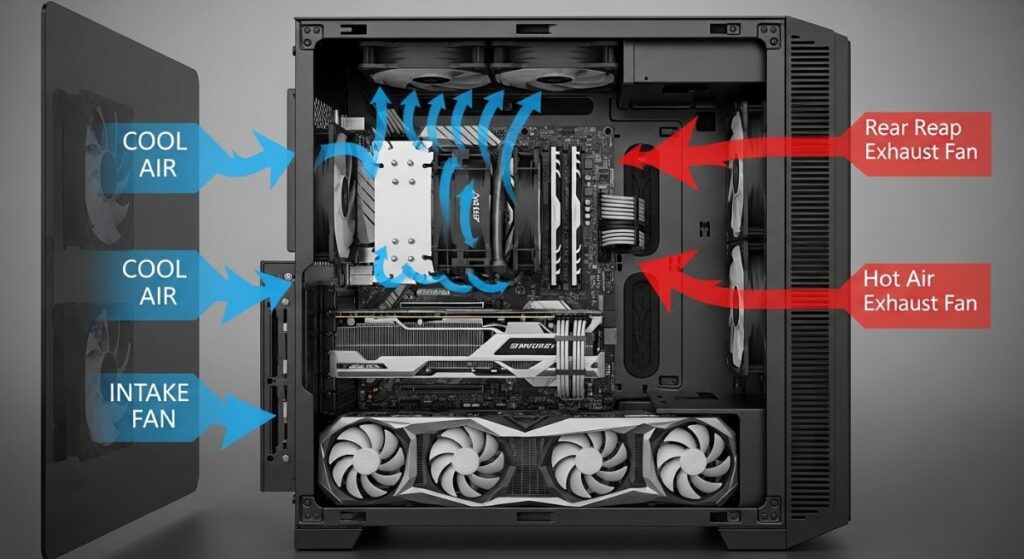
This is called thermal throttling.
Modern processors and graphics cards constantly monitor their temperatures. When they become too hot, they deliberately reduce their clock speeds to protect themselves from damage.
The result?
- Lower FPS
- Worse 1% lows
- Random stuttering
- Performance that gets worse the longer you play
The frustrating part is that many gamers never realise this is happening because the game still runs, just much slower than it should.
Common Thermal Throttling Symptoms
| Symptom | What It Usually Means |
|---|---|
| Game starts smoothly but loses FPS after 20–30 minutes | Temperatures are climbing until throttling begins |
| CPU or GPU clock speeds suddenly drop during gameplay | Thermal protection is reducing performance |
| Laptop becomes extremely hot and loud | Cooling system is struggling to keep up |
| Fans constantly run at maximum speed | The system is trying to control heat |
| Removing the side panel temporarily improves performance | Case airflow may be poor |
What Causes Thermal Throttling?
- Dust blocking heatsinks
- Old or dried thermal paste
- Poor airflow inside the case
- Small laptop cooling systems
- High ambient room temperatures
- Overclocking without adequate cooling
- Failing CPU or GPU fans
Before buying new hardware, spend a few minutes checking temperatures while gaming. You may discover that your expensive “upgrade” is actually a can of compressed air, better airflow or fresh thermal paste.
If temperatures are higher than expected, read our guides on Best Thermal Paste Techniques and The Hidden Throttles Killing FPS before replacing perfectly good hardware.
Windows Problems That Look Like Bottlenecks
Not every performance issue comes from your hardware. Windows itself can create problems that feel almost identical to a bottleneck.
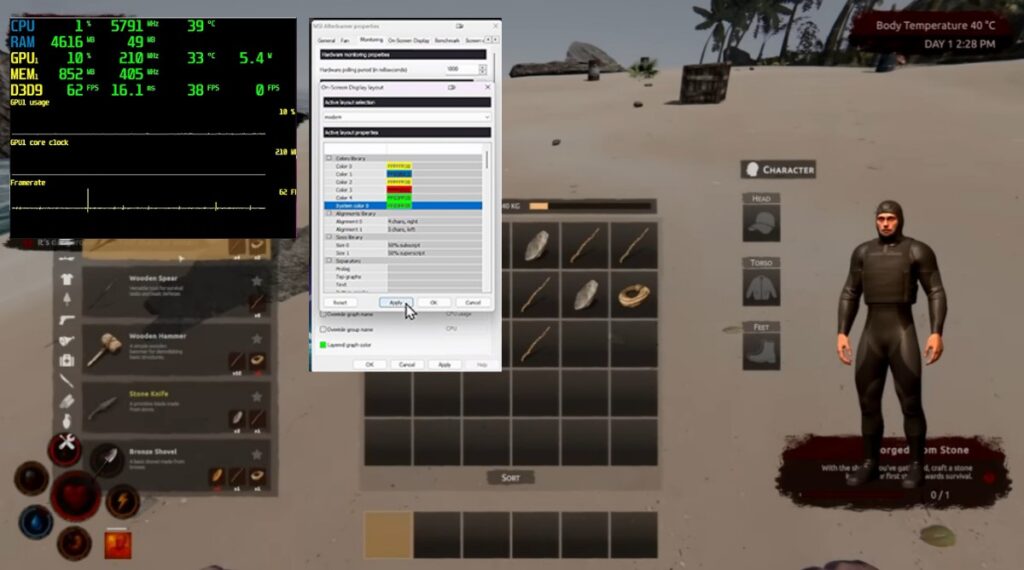
Background applications compete for CPU time, memory, storage bandwidth and even graphics resources. The more unnecessary software running while you game, the harder your PC has to work.
Common Windows Performance Culprits
- Windows Update running in the background
- Cloud syncing software
- RGB control software
- Game launchers left open
- Multiple browser tabs
- Recording software
- Overlays from Discord, Steam or GeForce Experience
- Antivirus scans
One background process might not matter much. Five or six of them running together absolutely can.
Quick Windows Health Checklist
| Check | Why It Matters |
|---|---|
| Restart the PC | Clears temporary software problems |
| Close unnecessary applications | Frees CPU and RAM resources |
| Disable unnecessary startup apps | Reduces background activity |
| Pause cloud sync software | Prevents unexpected storage activity |
| Update Windows fully | Fixes known bugs and compatibility issues |
If performance suddenly became worse after installing new software, don’t ignore the timing. The newest program you installed is often the first place to investigate.
Driver Problems Can Mimic Hardware Problems
Drivers act as translators between your operating system and your hardware. If that communication breaks down, gaming performance often suffers.
Common symptoms include:
- Lower FPS after updating drivers
- Random crashes
- Screen flickering
- Graphical corruption
- Games refusing to launch
- Poor GPU utilisation
While keeping drivers reasonably current is good practice, the newest driver is not always the best driver for every game.
If performance suddenly falls after updating graphics drivers, try rolling back to the previous stable version before assuming your hardware has become outdated.
Likewise, if you’ve ignored driver updates for years, installing a stable current release may solve issues you thought required expensive upgrades.
Poor Game Optimisation Isn’t Your Fault
Sometimes your PC isn’t the problem at all. Every year, several PC games launch with performance issues that affect thousands of players regardless of their hardware.

Examples include:
- Shader compilation stutter
- Poor DirectX optimisation
- CPU-heavy game engines
- Memory leaks
- Poor PC ports
- Early Access performance issues
If one game performs badly while everything else runs smoothly, resist the temptation to immediately upgrade your PC.
Instead:
- Check recent patch notes.
- Read community forums.
- Look at current Steam reviews.
- See whether other players report similar issues.
If everyone with similar hardware is experiencing the same problems, the game itself is probably responsible.
The Best Free Tools for Diagnosing Bottlenecks
You don’t need expensive software to understand what your PC is doing. The following free tools provide almost everything you need.
| Tool | Best Used For |
|---|---|
| MSI Afterburner | FPS, frame times, GPU usage and in-game monitoring |
| HWiNFO64 | Detailed temperatures, clocks, voltages and sensors |
| Windows Task Manager | Quick CPU, RAM, GPU and disk checks |
| Resource Monitor | Advanced storage and memory activity |
Why We Recommend MSI Afterburner
MSI Afterburner remains one of the best free monitoring tools available because it lets you see what your hardware is doing while you are actually playing.
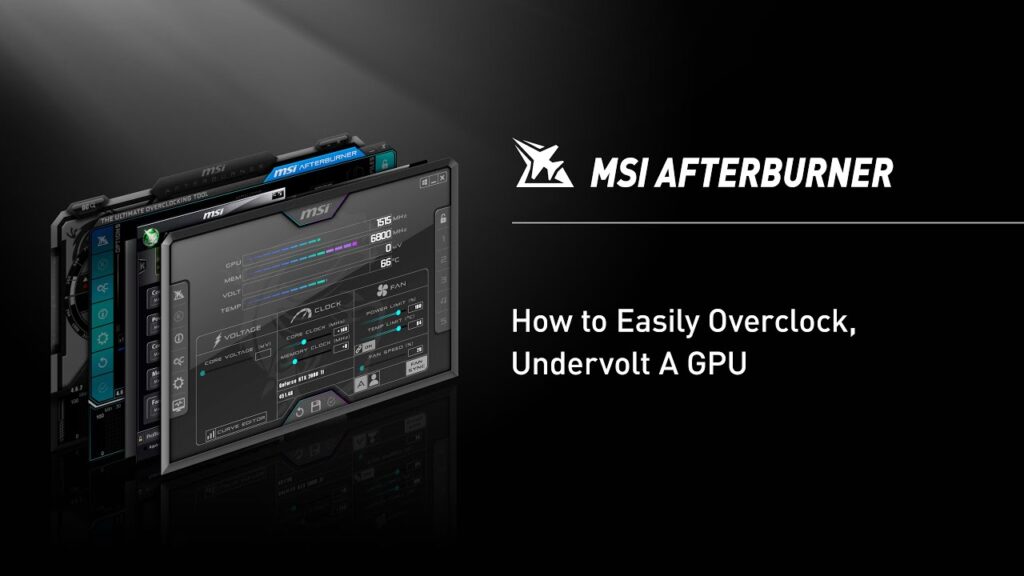
Useful statistics include:
- GPU usage
- CPU usage
- VRAM usage
- RAM usage
- Frame times
- Average FPS
- CPU temperatures
- GPU temperatures
Seeing these values together gives you a far more accurate picture than any online bottleneck calculator.
If you’ve never used it before, our guide on How to Use MSI Afterburner Without Frying Your Rig explains exactly how to set up the on-screen display safely.
Why HWiNFO64 Is Worth Installing
While MSI Afterburner focuses on gaming overlays, HWiNFO64 gives you access to almost every sensor inside your PC.
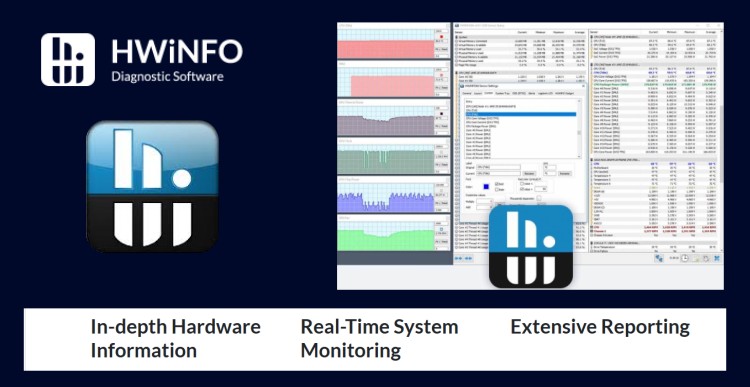
It can show:
- CPU clock speeds
- GPU clock speeds
- Thermal throttling flags
- Power consumption
- Fan speeds
- Motherboard temperatures
- Memory statistics
This makes it invaluable when diagnosing overheating, unstable hardware or unexplained performance loss.
If you’re new to the software, our Ultimate HWiNFO64 Guide walks through every important screen.
You can also learn how to interpret all those numbers in Master How to Monitor Temps, Clocks and Usage.
Putting Everything Together
By this point, you should have enough information to identify where your performance problem is coming from.
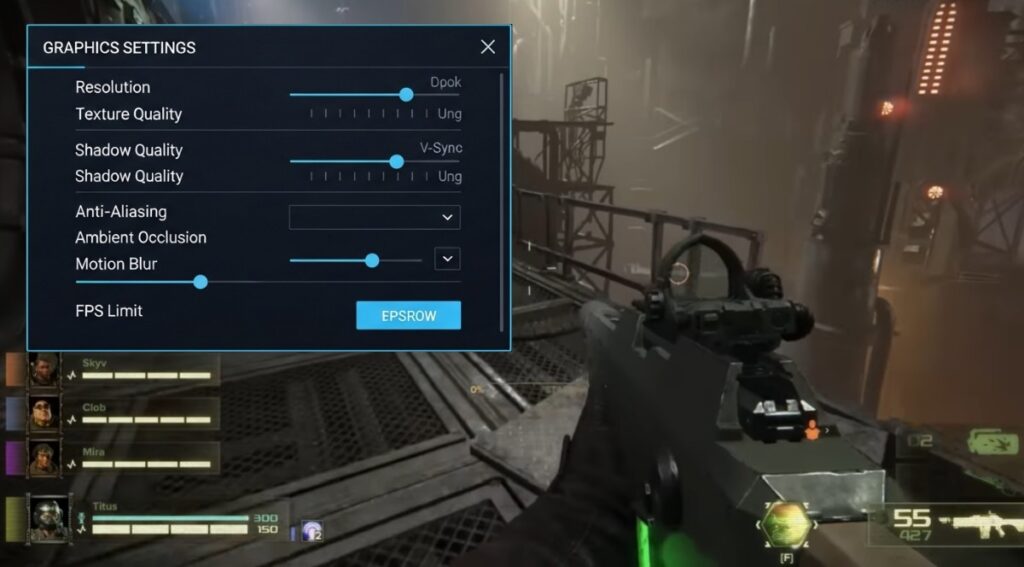
Instead of relying on guesswork, you’ll be looking at:
- CPU usage
- GPU usage
- RAM usage
- VRAM usage
- Temperatures
- Storage activity
- Frame times
That combination tells a much more accurate story than average FPS ever could.
In the final part of this guide, we’ll use everything you’ve learned to decide whether you actually need an upgrade, which component deserves your money first and when spending nothing is the smartest decision you can make.
Should You Upgrade? A Simple Decision Framework
By now, you should have a much clearer picture of what your PC is actually doing while you game. The final step is deciding whether an upgrade is genuinely the right solution.
Too many gamers skip straight to buying new hardware because they assume low FPS always means an upgrade is needed.
In reality, some of the biggest performance improvements come from fixing the problem rather than replacing the component.
Use the framework below before spending any money.
| If You Find… | Your Best Next Step |
|---|---|
| GPU usage consistently sits around 95–99% and lowering graphics settings improves FPS | Consider upgrading your graphics card if you want higher settings or frame rates. |
| CPU usage is consistently maxed while GPU usage stays much lower | Investigate a CPU upgrade or platform upgrade after ruling out thermal issues. |
| RAM is constantly full and Windows is using the page file heavily | Upgrade your memory or reduce unnecessary background applications. |
| VRAM usage is constantly hitting the limit | Lower texture settings or consider a GPU with more VRAM. |
| Games load slowly and storage usage stays maxed | Upgrade from a hard drive to an SSD or replace an aging SSD. |
| Temperatures become excessive during gaming | Improve cooling before replacing hardware. |
| Only one game performs badly | Look for game patches, optimisation updates or community fixes before upgrading. |
The goal isn’t to remove every bottleneck. That’s impossible.
The goal is to make sure your hardware is limiting performance in the way you expect, rather than because something is broken, overheating or misconfigured.
Upgrade the Right Component, Not the Most Expensive One
It’s surprisingly common to see gamers spend hundreds of pounds or dollars on the wrong upgrade.

For example:
- Buying a flagship graphics card while an old quad-core CPU is already struggling.
- Installing 64GB of RAM when only 14GB is ever being used.
- Replacing perfectly good hardware when overheating was the real problem.
- Buying a faster SSD expecting huge FPS gains.
Every upgrade should solve a problem you’ve already confirmed through testing—not one you’re simply guessing at.
If you’re still deciding where your money will have the biggest impact, our guides on Cheap PC Upgrades That Actually Fix Stutter and Gaming PC Upgrades That Actually Matter can help you prioritise your next purchase.
When You Should Not Upgrade
This is the section many hardware websites never talk about. Sometimes the smartest upgrade is no upgrade at all.
Hold off on buying new hardware if:
- Your CPU or GPU is thermal throttling.
- Your drivers became unstable after a recent update.
- Windows is overloaded with unnecessary background software.
- Your storage drive is nearly full.
- Your RAM is installed incorrectly or running in single-channel mode.
- XMP or EXPO memory profiles are disabled.
- The game itself is poorly optimised.
- You haven’t actually monitored your system yet.
In these situations, replacing hardware often treats the symptom rather than the cause. Diagnosing the issue first can save you a significant amount of money.
Common Gaming PC Bottleneck Myths
Myth: 100% GPU Usage Means Something Is Wrong
Not at all. In most games, high GPU usage simply means your graphics card is being fully utilised. That’s exactly what you want if your frame rate meets your expectations.
Myth: Bottleneck Calculators Are Always Accurate
They aren’t. They provide rough estimates based on hardware combinations but cannot account for temperatures, drivers, RAM usage, game engines, Windows configuration or the specific settings you use.
Real monitoring data will always be more valuable than an online percentage.
Myth: Every Low FPS Problem Needs a Hardware Upgrade
Many don’t. Low FPS can be caused by:
- Overheating
- Driver issues
- Background software
- Poor game optimisation
- Incorrect graphics settings
- Windows problems
Replacing hardware without checking these first is one of the easiest ways to waste money.
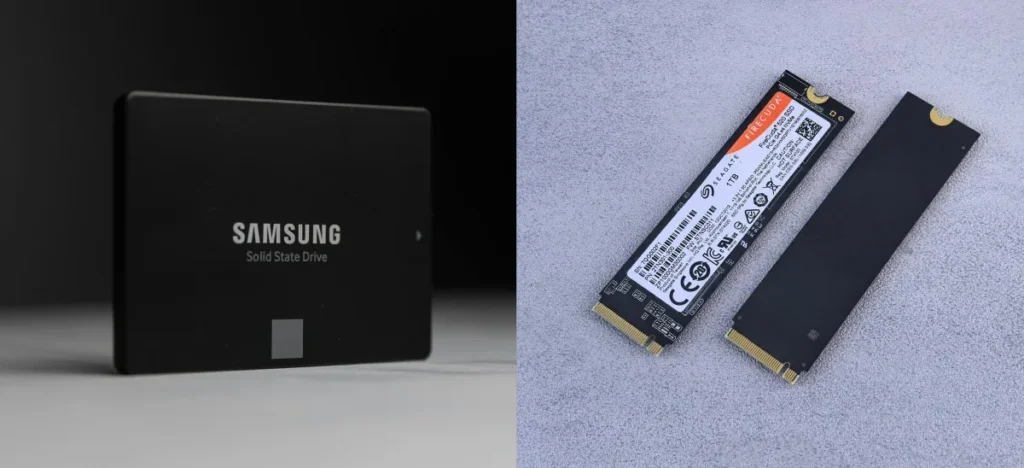
Myth: Faster SSDs Always Increase FPS
Modern SSDs dramatically improve loading times and game responsiveness, but they rarely increase average FPS in GPU-limited games.
What they can improve is texture streaming, world loading and overall system responsiveness.
Myth: More RAM Is Always Better
Not necessarily. If your games only use 12GB of memory, upgrading from 32GB to 64GB won’t suddenly increase performance.
Buy enough RAM for the games you actually play rather than chasing the biggest number on the box.
Frequently Asked Questions
How do I know if my CPU or GPU is bottlenecking my gaming PC?
Monitor both components while gaming. If your GPU is consistently near full utilisation while your CPU still has headroom, your graphics card is likely the limiting factor. If the CPU is saturated while the GPU isn’t being fully used, the processor is probably holding performance back.
Are bottleneck calculators accurate?
They can provide a rough estimate, but they should never replace real monitoring. They cannot account for temperatures, drivers, Windows processes, game optimisation or your actual graphics settings.
Can overheating cause FPS drops?
Yes. As temperatures increase, modern CPUs and GPUs reduce their clock speeds to protect themselves. This thermal throttling can significantly reduce gaming performance.
Does upgrading to an SSD improve FPS?
Usually not. An SSD mainly improves loading times, game responsiveness and asset streaming. If your graphics card or processor is the bottleneck, average FPS is unlikely to change significantly.
Can adding more RAM improve gaming performance?
Yes, but only if you’re currently running out of memory. If your existing RAM capacity is already sufficient, adding more won’t provide noticeable FPS gains.
Should I upgrade my CPU or GPU first?
Upgrade the component that monitoring proves is limiting your games. Guessing often leads to expensive mistakes.
Final Thoughts
A gaming PC bottleneck isn’t something to fear, it’s something to understand.
Every computer has a component that limits performance depending on the game, graphics settings and resolution you’re using. The trick is identifying which component is responsible before you spend money trying to fix the wrong problem.
By using free tools like MSI Afterburner and HWiNFO64, monitoring temperatures, watching frame times and understanding how CPU, GPU, RAM, VRAM and storage interact, you can diagnose most performance problems yourself without relying on questionable bottleneck calculators.
Sometimes the solution really is a hardware upgrade. But just as often, it’s cleaning your PC, improving cooling, closing unnecessary background applications, updating drivers or adjusting graphics settings.
That’s the philosophy we follow here at BuiltToFrag.
Our goal isn’t to convince you to buy more hardware. It’s to help you get the absolute best gaming experience from the PC you already own—and only spend money when it will genuinely make a difference.