

Updated 24 February 2026: Built for real-world PC gaming, not lab numbers.
You open MSI Afterburner, see your CPU or GPU doing something weird, and suddenly your whole PC feels broken.
Relax. Most of the time, it isn’t.
The problem is not your hardware, it’s understanding what those numbers actually mean. This CPU or GPU Problem During Gaming guide will help you figure out what’s actually limiting your performance, what normal usage looks like, and when you should actually worry.
Quick clarity before we start:
- Low FPS = consistently low performance
- Stutter = inconsistent frame delivery (feels worse than low FPS)
- Bottleneck = the part of your PC currently limiting performance
Why Your Usage Numbers Look Wrong (But Aren’t)
Let’s clear up the biggest misconception immediately.
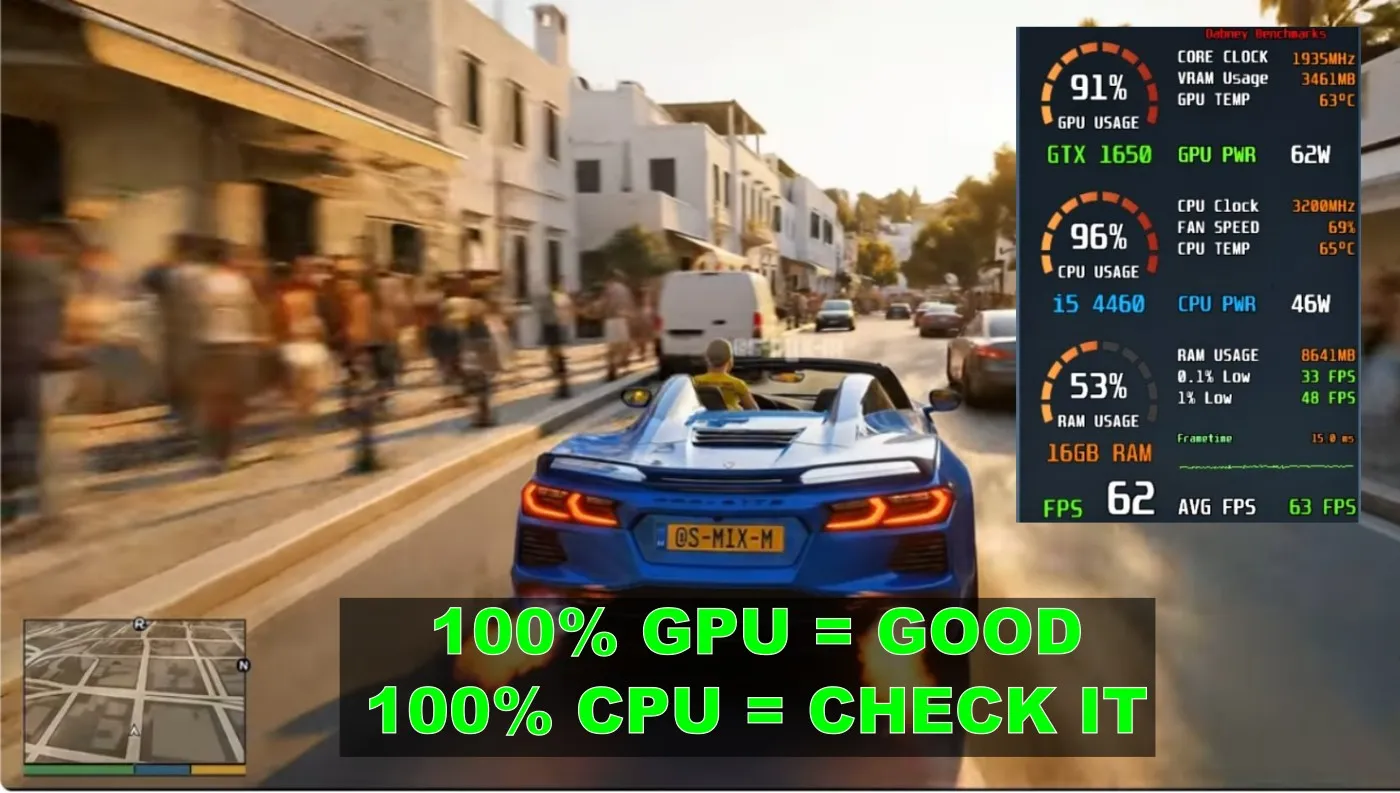
- GPU at 100%? Good. That means it’s doing its job.
- CPU at 100%? Could be fine, could be your bottleneck.
- RAM nearly full? Normal. Games use what’s available.
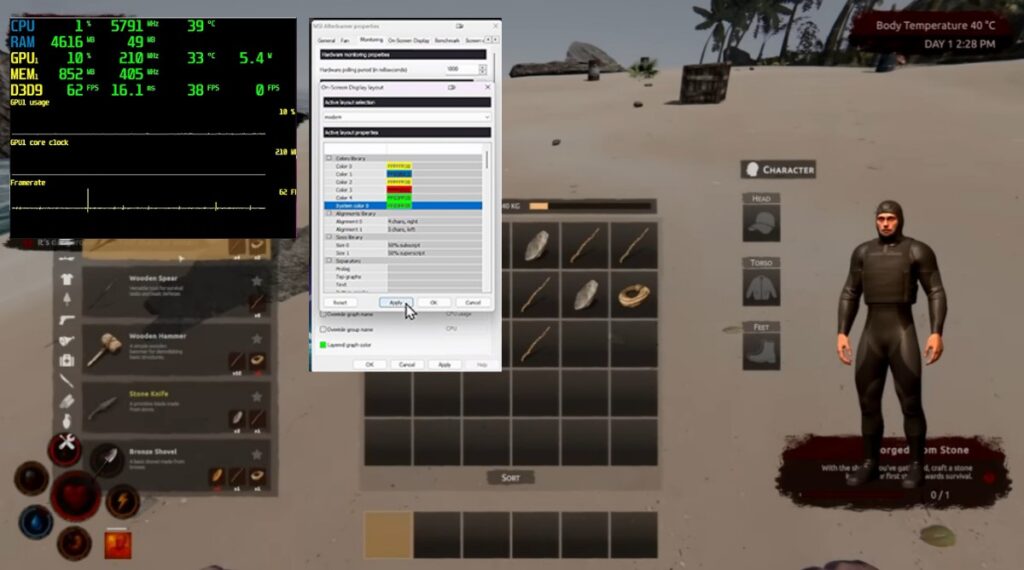
If you’re not monitoring properly, you’re just guessing. Start with a proper setup using MSI Afterburner or go deeper with HWiNFO.
Full guide here: monitor temps, clocks and usage properly.
What “Normal” Actually Looks Like While Gaming
CPU Usage While Gaming
- 40–80% = normal
- 80–95% = heavy load, still fine
- 100% + stutter = likely bottleneck
If your CPU is pinned and FPS feels unstable, start here: fix high CPU usage while gaming.
GPU Usage While Gaming
- 95–100% = ideal
- 80–95% = normal
- Below 80% = something is limiting performance
Low GPU usage is not random. It always has a reason.
RAM Usage While Gaming
- 8GB = tight, expect issues
- 16GB = baseline
- 32GB = comfortable
If RAM is maxed and disk usage spikes, stutter is guaranteed.
The 4 Clear Signs Something Is Actually Wrong
- CPU 100% + GPU below 80% + stutter
→ CPU bottleneck (high confidence) - GPU low usage + low FPS
→ Something is limiting performance (CPU, cap, or throttling) - GPU 100% + smooth gameplay
→ Everything is working correctly - RAM maxed + disk activity spikes
→ Memory bottleneck causing stutter
If your issue is lag rather than stutter, fix it here: reduce lag without sacrificing graphics.
Why Your GPU Isn’t at 100%
This is one of the most misunderstood performance signals.
If your GPU isn’t hitting 95–100%, something else is limiting your system.
Common Reasons
- CPU bottleneck → common in esports and open-world games
- FPS cap or V-Sync → stops GPU from pushing further
- Resolution too low → GPU has nothing to do
- Thermal or power limits → GPU downclocks itself
- Background processes → stealing CPU resources
Real Example
At 1080p, your CPU often limits performance first. At 1440p or 4K, the GPU becomes the main limiter.
So if your GPU sits at 70% at 1080p, that is not broken, it just means your CPU is the limiting factor.
Check for hidden limits here: throttling and power limits.
How to Check This Properly (Without Guessing)
If you’re using Task Manager, you’re missing half the story.
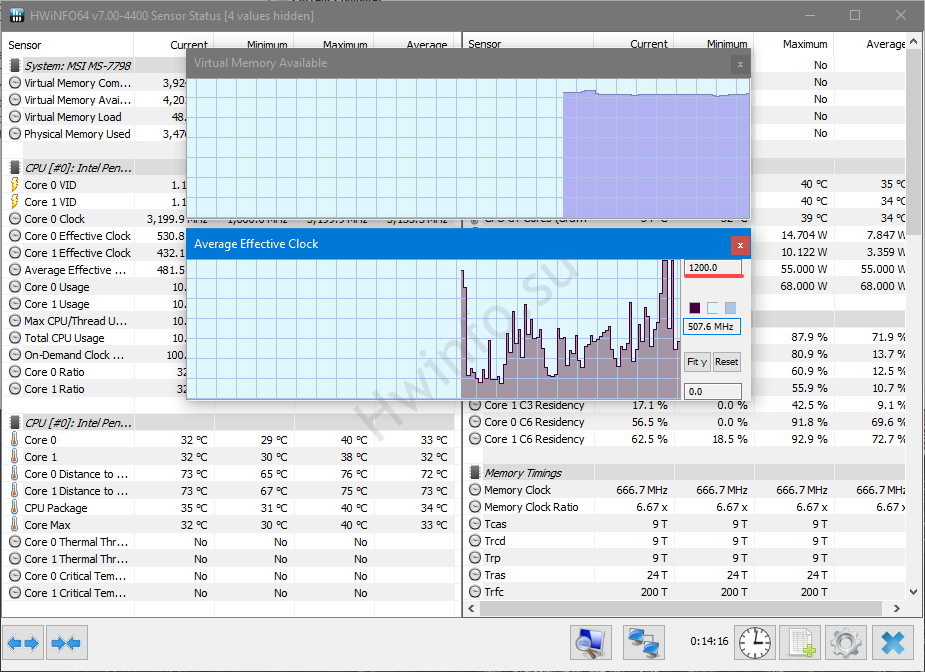
- MSI Afterburner → in-game overlay
- HWiNFO → deep system data
Structured testing guide: test your gaming PC performance properly. Windows itself can affect how your hardware behaves in games. Microsoft explains how background processes and system settings impact performance here: Windows performance and optimization basics.
The 60-Second Test (Stop Guessing)
If you want a fast answer, do this:
- Load into a demanding part of your game
- Stand still for consistency
- Remove FPS caps (disable V-Sync)
- Watch CPU and GPU usage
What you’ll see:
- GPU hits 95–100% → GPU is your limit
- CPU hits 100% + GPU stays low → CPU is your limit
- Both look fine but game stutters → not a hardware bottleneck
This alone solves most confusion.
When It’s NOT Your CPU or GPU
This is where people go wrong.
If your usage looks normal but your game runs badly, the issue is often elsewhere:
- Shader compilation stutter
- Bad drivers
- Game engine issues
- Slow storage or asset streaming
- Background apps or overlays
Start here: stutter on high-end PC.
When It’s Not a Problem, It’s Your Expectations
- Some games are CPU-heavy
- Some engines barely use your GPU fully
- Ultra settings are rarely optimal
Sometimes your PC is fine. The game just isn’t efficient, or your settings are unrealistic.
When You Actually Need an Upgrade

- CPU always maxed → upgrade CPU
- RAM constantly full → upgrade RAM
- GPU maxed + low FPS → upgrade GPU
Before upgrading: gaming PC upgrades that actually matter.
Quick Diagnosis Table
| What You See | What It Means |
|---|---|
| GPU 100% + smooth | Normal, GPU is doing its job |
| CPU 100% + GPU low | CPU bottleneck |
| GPU low + low FPS | Something is limiting performance |
| RAM maxed + disk spikes | Memory bottleneck |
| Usage normal + stutter | Likely game, driver, or storage issue |
FAQs
Is 100% GPU usage bad?
No, it means your GPU is working properly. It only becomes a problem if temperatures or stability are bad.
Why is my CPU at 100% while gaming?
Usually a bottleneck or background processes. Start with CPU usage fixes first.
How much RAM should games use?
16GB is the baseline. 32GB gives smoother performance in modern games.
Final Thought
If your FPS feels wrong, your PC isn’t broken, it’s just giving you signals.
The difference between a smooth system and a frustrating one is knowing how to read those signals and act on them.
Once you understand what your CPU, GPU, and RAM are actually telling you, you stop guessing, and that’s when your PC starts performing the way it should.


