

Updated On 16/02/2026
You installed HWiNFO64. You opened Sensors. Now your screen looks like a spaceship dashboard having a panic attack.
Relax. This guide strips the noise and shows you exactly what matters, what to ignore, and how to use HWiNFO64 to spot real performance problems without melting your brain.
This is a practical, gamer focused HWiNFO64 guide. We are not here to read 400 sensor lines. We are here to answer one question: is your PC healthy and is something holding your FPS back?
What HWiNFO64 Actually Does
HWiNFO64 is a deep hardware sensor reader. Think of it as a diagnostic console for your PC. It reads live data directly from onboard sensors and controllers.
- CPU and GPU temperatures
- Clock speeds and throttling behavior
- Per core usage
- Power draw and limits
- Fan speeds
- Drive SMART health data
Important truth: you will ignore most of the numbers. Power users love the depth. Gamers only need a focused subset. HWiNFO gives you deep data, but knowing what to look for matters more. Use this guide to interpret your CPU and GPU usage correctly: is your system bottlenecked.
Installer vs Portable: Which Should You Use
You get two versions:
- Installer – Start menu entries, shared memory support, easier long term use
- Portable – single folder, no install, ideal for troubleshooting sessions
If this is part of your regular monitoring toolkit, use the installer. Portable is great for emergency diagnostics and USB stick toolkits.
Do You Need the HWiNFO Driver
During setup you may see an option to enable the low level driver.
For normal gaming monitoring, temps and loads, you can skip it.
Enable it if you are:
- doing deep diagnostics
- testing power behavior
- running advanced sensor logging
- overclocking and validating stability
It is not spyware. It just unlocks lower level sensor access.
Understanding the Sensors Window
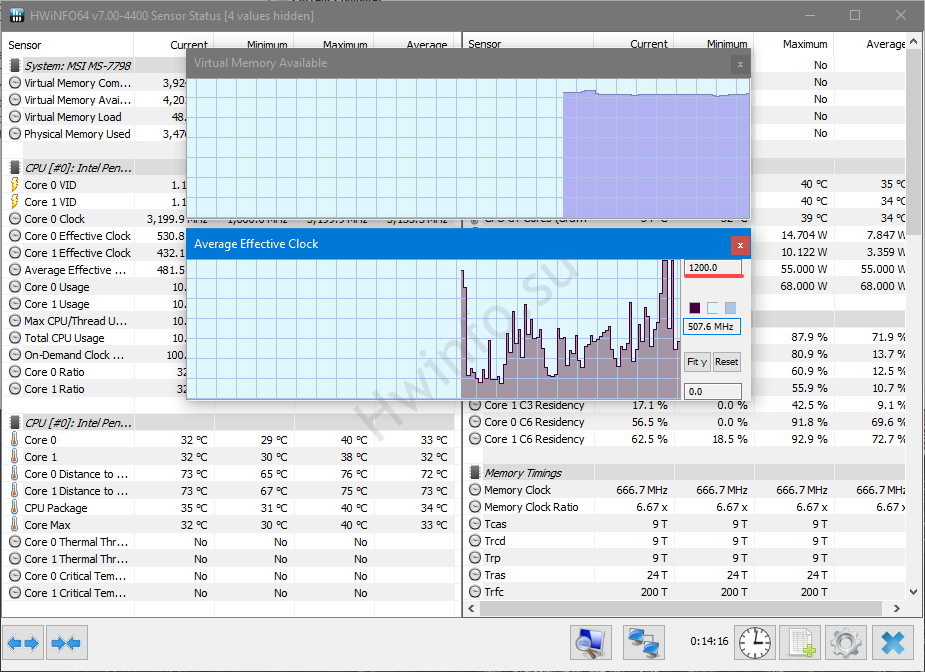
The Sensors panel is where people panic. It is long, dense, and constantly updating.
Two things you must know:
- Sensor names vary by motherboard and laptop vendor
- Not every labeled value is accurate or relevant
Different boards label CPU temp differently. You may see CPU Package, CPU Die, Tctl, or similar names. That is normal.
Hover tooltips help. Use them.
The Only Metrics That Actually Matter for Gamers
Here is your cheat sheet. These are the core signals for gaming performance checks.
- CPU Package Temperature – typical desktop gaming target under about 85C
- GPU Temperature – many desktop cards are comfortable under about 80 to 85C
- GPU Utilization – near 95 to 100 percent in GPU bound games
- Per Core Usage – one core pinned can indicate a CPU limit
- Fan Speed – should ramp under load
- Power Limit or PerfCap Reason – shows if the GPU is being limited by power or thermals
Laptops and small form factor systems may run hotter by design. Always judge temps in context of your hardware class.
When you’re using HWiNFO to diagnose performance, pair it with Buying a Used CPU for Gaming so you know what healthy CPU behavior looks like, especially on used parts.
How to Spot Bottlenecks Without Guessing
If your game stutters or refuses to scale FPS, check these patterns:
- GPU at 60 to 80 percent, CPU core maxed – likely CPU bottleneck
- GPU at 99 percent, CPU moderate – GPU bound, normal behavior
- PerfCap shows Thermal or Power – GPU is hitting a limit wall
Pair this with our deeper guide here:
How to Monitor Temps, Clocks and Usage Like a Pro
If you confirm a limit, move to a fix guide instead of guessing:
Why Your Game Stutters on a High End PC
Logging to CSV for Real Test Sessions
Logging helps you catch spikes that overlays miss.
- Open Sensors
- Click the logging or graph icon
- Choose Start Logging
- Save as CSV
- Review in Excel or a graph tool after your test run
This is ideal for benchmark runs and long gaming sessions.
Stop Waking Your Drives for No Reason

Default settings can ping sleeping drives and spin them up.
Fix it:
- Open Settings
- Go to Safety
- Disable IDE Drive Scan
- Disable SATA Drive Scan
Your archive drives will thank you.
When HWiNFO64 Is Overkill
Honest truth. Not everyone needs HWiNFO64 open all the time.
- Quick temp checks – lighter tools are faster
- In game overlays – Afterburner plus RTSS is simpler
- Laptop vendor tools – sometimes more accurate for that model
If you only want an overlay and nothing else, HWiNFO may be too much tool for the job.
Monitoring Tool Alternatives
- HWMonitor – simpler, fewer metrics, faster glance checks
- MSI Afterburner – best overlay plus GPU tuning
- Vendor tools – sometimes tuned for specific laptops and boards
Afterburner guide here:How to Use MSI Afterburner Safely ,Official download source: Download HWiNFO64 from the official site
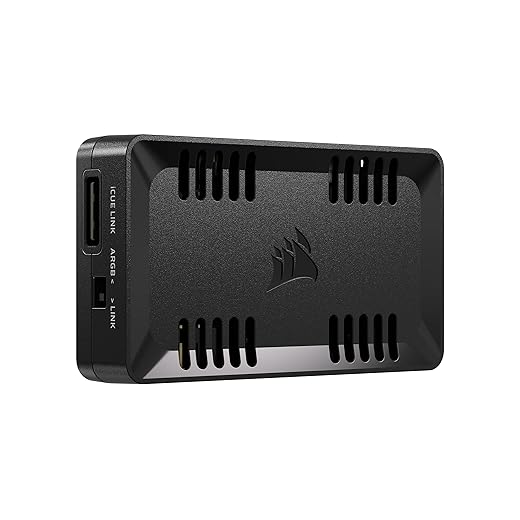
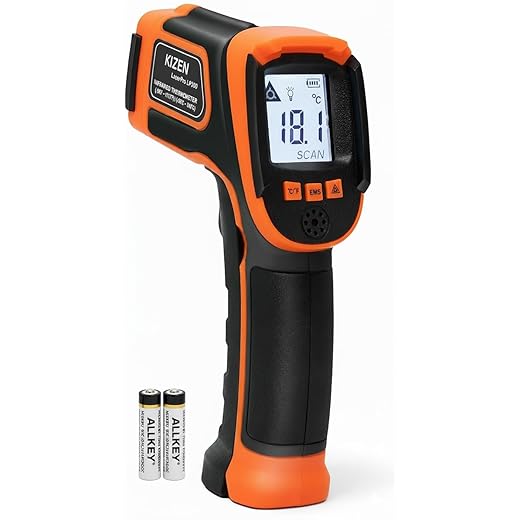
Hardware That Helps in Cooling and Fan Control


Wrap Up: What Actually Matters
You do not need to read every sensor line. You need to read the right ones.
Watch package temps. Watch GPU load. Watch per core behavior. Confirm limits before you blame your hardware.
If something looks off, validate with a second tool and then follow a proper fix guide like:
Cheap Gaming Upgrades That Actually Boost FPS
Maintenance still matters too:
PC Maintenance and Optimization Guide
Monitor smart, test under load, and stop panicking at 70C. Your PC is not on fire. Probably.


