


Part of our PC Monitoring Series
This is your complete guide to monitoring temps, clocks, and usage on a gaming PC. Think of it as the master hub that explains why monitoring matters, which tools to use, how to read the numbers, and where to go for step by step setup. Whether you are gaming, editing, or hoarding Chrome tabs, watching the right stats helps prevent throttling, stutters, and nasty surprises.
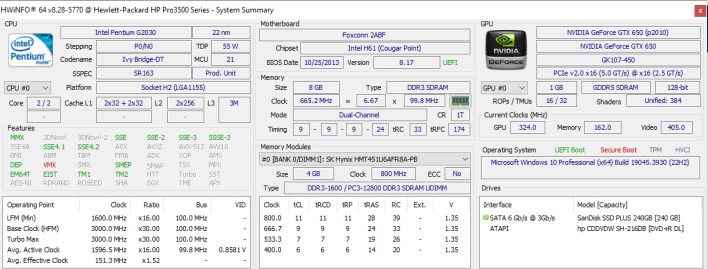
Temps: The heat your components generate.
Clocks: The operating speed of your CPU or GPU in GHz or MHz.
Usage: How much of your component’s capacity is currently being used.
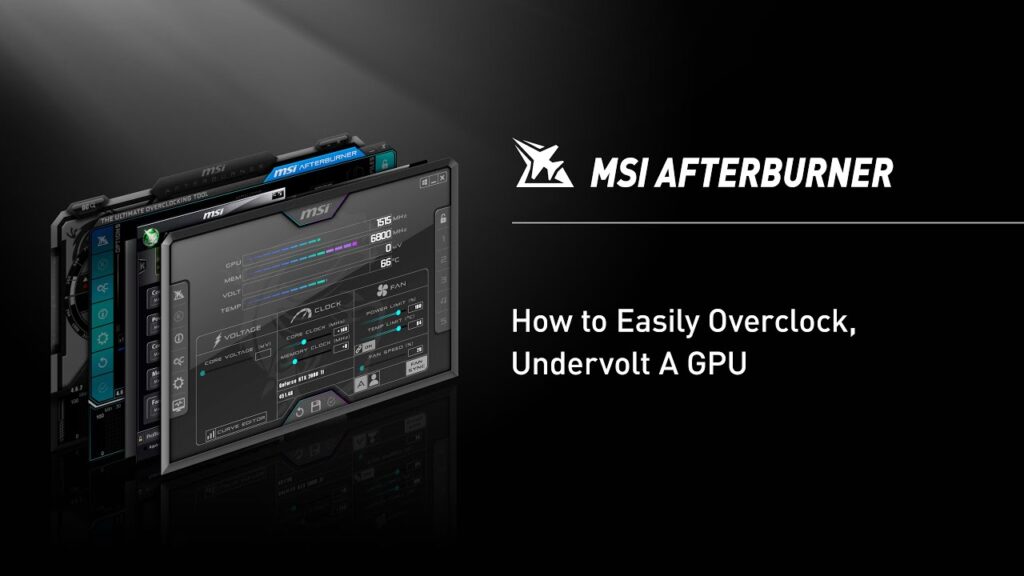
Use this quick shortlist to pick your starting point, then dive into the full guides below.
Need help configuring HWiNFO without overload? Use our HWiNFO Setup Guide for recommended settings that avoid noise.
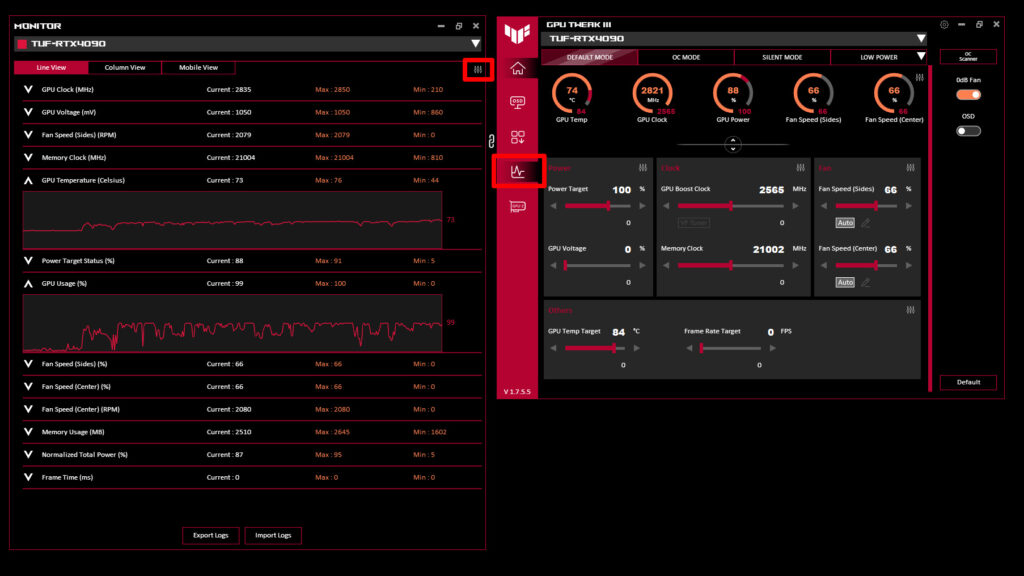
| Component | Idle Temp | Load Temp | Safe Usage |
|---|---|---|---|
| CPU | 30–45°C | Up to 85°C | 80–100% |
| GPU | 35–50°C | Up to 85°C | 95–100% |
| RAM | — | — | Below 80% recommended |
Use HWiNFO or MSI Afterburner to log performance stats to a file. Logs help you analyze stutters after a crash, track spikes, and prove if the issue is your rig or the game. They are also handy when comparing changes after a driver update or a new cooler.
MSI Afterburner with RivaTuner lets you overlay live stats like FPS, temps, usage, and clocks while gaming. It is perfect for troubleshooting and for sanity checking performance tweaks in real time. See our safe setup guide to avoid common pitfalls.
Monitoring helps you spot airflow problems, failing thermal paste, or weird spikes from apps you did not know were running. Use the data to make real improvements, not to chase numbers for the sake of it.
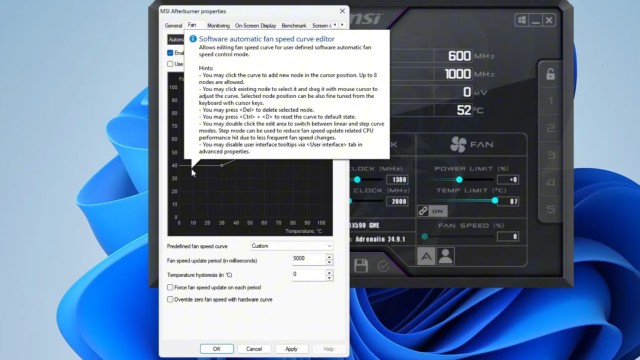
These detailed guides will walk you through each tool step by step, whether you just want clean temps or you are chasing every last MHz.
System monitoring is not just for nerds and YouTubers. It is for anyone who wants a faster, quieter, and longer lasting PC. Set it up once, glance at it during high loads, and act before your rig heats up and slows down.
Bonus tip: Save your logs or screenshots before making hardware changes. You will thank yourself when troubleshooting later.


A high-end, no-nonsense guide to building the best 4K gaming PC without wasting money. Learn where real performance peaks and…

No GPU? No problem. These FPS games run on integrated graphics, office PCs, and older hardware, plus tips to squeeze…
This is your no-nonsense breakdown of Power Supplies Explained Wattage, Efficiency And Safety in plain English. No guesswork, no marketing…
Tired of free shooters that turn your PC into a space heater? These lightweight FPS games run smooth on weak…