Updated 13 August 2026: Expanded with a practical prebuilt buying checklist, common hardware red flags, performance risks, and safer budget alternatives.
A cheap prebuilt gaming PC is not automatically a bad buy. The problem is knowing where the manufacturer saved money to hit that price. A system can advertise a decent graphics card and plenty of RAM while hiding a weak power supply, single-stick memory, poor cooling, or components that make future upgrades difficult.
That is why the headline specifications are only half the story. Before buying a budget prebuilt, you need to know which parts to check, which missing specifications should make you suspicious, and whether the hardware is actually balanced for gaming.
This guide shows you what to look for in a prebuilt gaming PC, the seven biggest red flags to watch for, and how those compromises can affect FPS, stuttering, temperatures, stability, and upgradeability. By the end, you should be able to look at a cheap gaming PC listing and decide whether it is genuinely good value or simply looks good on the spec sheet.
Quick Answer: Are Cheap Gaming PCs Worth It?
Yes, a cheap gaming PC can be worth it, but only if the important components are properly balanced and the manufacturer is transparent about what is inside. A budget prebuilt with a sensible CPU and GPU, dual-channel RAM, a decent power supply, adequate cooling, and standard upgradeable parts can be an excellent entry point into PC gaming.

The red flags appear when a seller advertises one impressive component while hiding everything else. A powerful GPU does not make a good gaming PC if it is paired with weak memory, poor cooling, a questionable PSU, or proprietary parts that limit future upgrades. Judge the entire system, not the biggest number on the product page.
The 30-Second Prebuilt Gaming PC Test
You do not need to be a PC hardware expert to spot a questionable prebuilt. Before you buy, open the full specifications and check the components below. The more information the seller hides behind vague descriptions, the more cautious you should be.
| What to Check | Good Sign | Red Flag |
|---|---|---|
| CPU | Exact model and generation listed | Only says “Core i7,” “Ryzen 7,” or similar |
| Graphics | Exact GPU model listed | “Gaming graphics” or unclear integrated/dedicated graphics |
| RAM | Capacity, speed, and configuration shown | Capacity only, with no indication of 1×16GB or 2×8GB |
| Power Supply | Brand, model, wattage, and rating available | Only a wattage such as “500W gaming PSU” |
| Motherboard | Board or chipset clearly identified | No motherboard information at all |
| Storage | Capacity and drive type clearly stated | Vague “1TB storage” with no SSD/HDD details |
| Cooling | Clear intake/exhaust airflow and adequate fans | Restricted case airflow or cooling details omitted |
| Upgradeability | Standard motherboard, PSU, case, and connectors | Proprietary components or upgrade information unavailable |
| Gaming Claims | FPS includes game, resolution, and settings | “Runs every game at high FPS” with no test conditions |
One red flag does not automatically make a cheap gaming PC a bad buy. But if several important specifications are missing, do not assume the unlisted parts are good enough. Find the exact specifications before spending your money.
Why Cheap Gaming PCs Can Look Better Than They Really Are
A gaming PC has to hit a price somewhere. On a well-balanced budget system, that means sensible compromises that have little effect on the gaming experience. On a poorly designed prebuilt, the money often goes toward the components that are easiest to advertise while savings are made on parts buyers are less likely to notice.
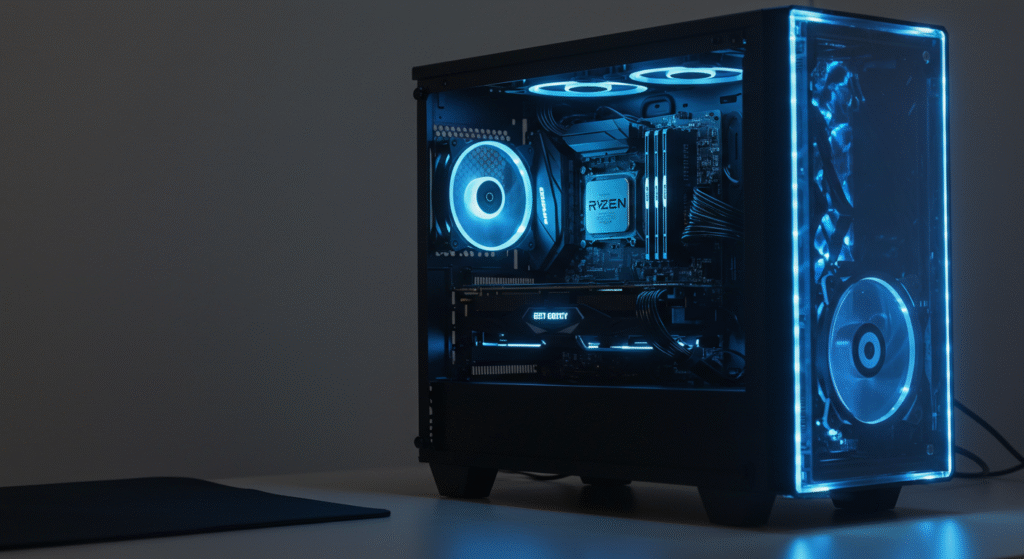
A listing might proudly advertise an RTX or Radeon graphics card, a Core i7 or Ryzen 7 processor, 16GB of RAM, and 1TB of storage. Those numbers sound impressive, but they do not tell you the RAM configuration, PSU quality, motherboard, SSD type, cooling performance, or whether the system uses proprietary parts that could complicate future upgrades.
That is the spec-sheet trap: one or two recognizable specifications can make the entire PC look better than it really is. The seven red flags below are the parts of the listing you need to look at more closely.
For examples of how these compromises show up inside real systems, Gamers Nexus regularly tears down and tests prebuilt gaming PCs, including their component choices, cooling, assembly quality, and performance.
Why So Many Cheap Gaming PCs Cut the Wrong Corners
Building a gaming PC to a low price is always about compromise. That is not necessarily a problem. A well-designed budget PC saves money on parts that have little impact on gaming while protecting the components that actually affect performance, stability, and reliability.

The trouble starts when a cheap prebuilt is designed around the parts that look impressive on a product page. A recognizable graphics card, “16GB RAM,” and a large storage number are easy to advertise. The power supply, motherboard, memory configuration, cooling, and upgrade restrictions are much easier to leave buried in the specifications—or not mention at all.
- One headline component gets the attention. Usually the GPU, CPU, or total RAM capacity.
- Less visible components absorb the savings. The PSU, motherboard, SSD, RAM configuration, or cooling may be considerably cheaper.
- Upgradeability can suffer. Proprietary cases, power supplies, motherboards, or connectors can make future upgrades more difficult.
- The weaknesses may only appear during gaming. Poor cooling, limited memory bandwidth, CPU bottlenecks, or unstable power delivery are not obvious from a product photo.
This is why you should evaluate a prebuilt as a complete system rather than buying it because one component looks impressive. Gamers Nexus regularly tears down and tests prebuilt systems, providing useful examples of the kinds of component choices and build-quality problems that can be hidden behind the headline specifications: Gamers Nexus PC hardware analysis.
If you are unsure what a balanced system should look like, use our gaming PC hardware guide to understand how the major components work together, or compare the prebuilt against a balanced budget gaming PC build to see what similar money can buy.
7 Red Flags to Check in a Cheap Prebuilt Gaming PC
Red Flag #1: A Strong GPU Paired With the Wrong CPU
The graphics card is usually the easiest component to sell a gaming PC with, which makes the CPU one of the first specifications you should check. A powerful GPU paired with an older or underpowered processor can leave performance on the table, particularly in CPU-heavy games or when targeting high frame rates at 1080p.
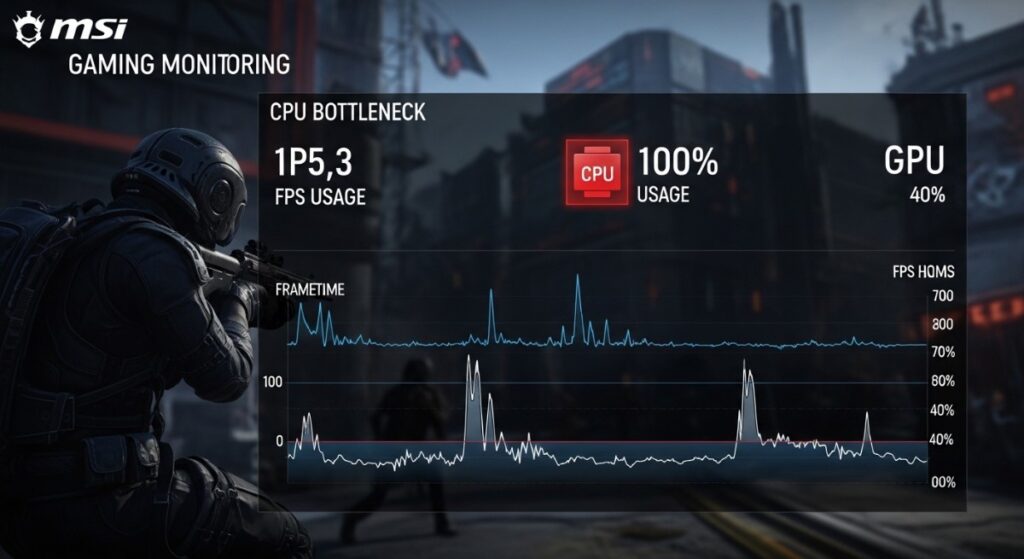
The warning sign is not simply that one component is faster than another—every gaming PC will have a limiting component somewhere. The problem is a poorly balanced CPU and GPU combination that causes the processor to become the limiting factor far earlier than you would expect for the price of the system.
That can show up as lower minimum FPS, inconsistent frame times, or stuttering even when the advertised GPU sounds impressive. If you are experiencing those symptoms already, our guide to why games stutter on low-end PCs explains the other common causes worth checking.
Red Flag #2: 16GB of RAM, But Only One Stick
Seeing “16GB RAM” on a specification sheet does not tell you how that memory is configured. A budget prebuilt may use one 16GB stick instead of two 8GB sticks, reducing the memory bandwidth available compared with a properly configured dual-channel setup.
How much this affects gaming depends on the CPU, game, GPU, resolution, and memory platform, but it can reduce performance and worsen frame-time consistency in memory-sensitive or CPU-limited situations. The impact can be even more important on systems using integrated graphics, where the GPU relies on system memory.
Before buying, look for the actual RAM configuration—such as 2×8GB rather than simply “16GB.” If the listing does not tell you, ask. Our guide to single vs dual channel RAM for gaming explains why this configuration can matter and when one stick can leave performance on the table.
Red Flag #3: A Mystery Power Supply
A listing that says only “500W PSU” or “600W gaming power supply” leaves out most of the information you actually need. Wattage alone tells you very little about the quality of the unit, its protections, connectors, warranty, or how suitable it is for the hardware inside the PC.
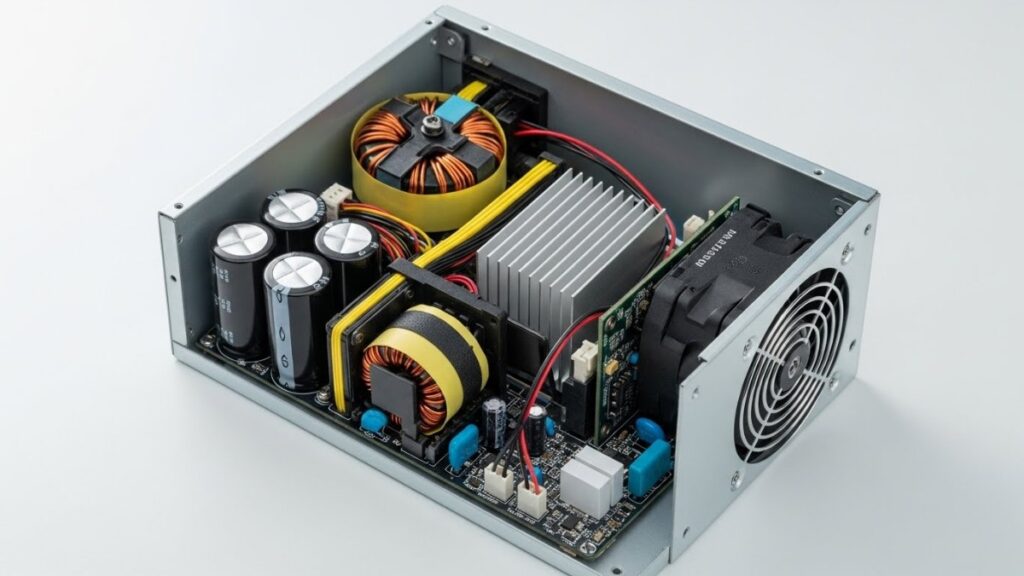
An unidentified PSU is not automatically dangerous, but you should know what is powering the system before you buy it. Look for the manufacturer and exact model, then check whether it is appropriate for the CPU and GPU in the machine. This becomes especially important if you plan to upgrade the graphics card later.
If you are unsure what to check, our PC power supply buying guide explains wattage, efficiency, protections, connectors, and how to choose a suitable PSU.
Red Flag #4: Vague Storage Specifications
Do not be distracted by labels such as “gaming SSD” or by storage capacity alone. A listing that simply advertises “1TB storage” may tell you very little about what drive is actually installed.

For a budget gaming PC, you do not need the fastest NVMe SSD on the market. What matters more is getting enough solid-state storage for Windows and your games, knowing what type of drive you are buying, and avoiding a configuration where an impressive total capacity hides a tiny SSD paired with a slower hard drive.
Check whether the PC uses an NVMe SSD, SATA SSD, hard drive, or a combination of drives and how much usable SSD capacity you actually get. If you want to understand where spending more on storage makes sense, see our NVMe SSD guide and whether faster SSDs actually improve gaming FPS.
Red Flag #5: The Motherboard Is Barely Mentioned
The motherboard is easy to overlook because it does not directly generate FPS, but it determines much of what you can do with the PC later. RAM support, available M.2 slots, expansion options, CPU compatibility, connectivity, and upgrade paths can all depend on the board inside the system.
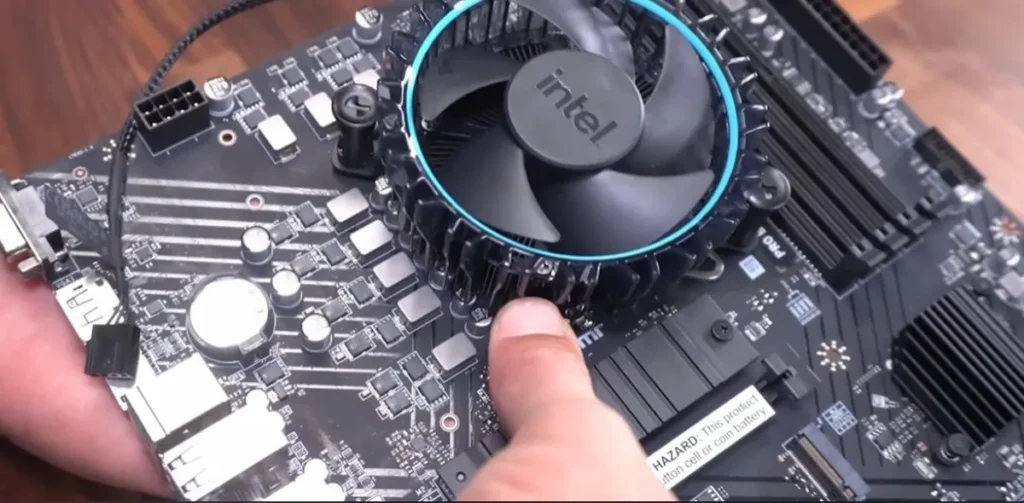
A motherboard that is not identified is not automatically bad. The red flag is that you cannot evaluate what you are buying. Some prebuilts also use proprietary motherboard layouts or connectors, which can make replacing the case, PSU, or motherboard more complicated than it would be with standard components.
If the listing does not name the motherboard, look for the model in the manufacturer’s full specifications or support documentation before assuming the system will support the upgrades you have planned.
Red Flag #6: Poor Cooling and Restricted Airflow
Cooling is difficult to advertise with a big number, so it is an easy place to save money. A restrictive case, inadequate intake fans, weak CPU cooler, or poor fan layout can allow temperatures to climb during longer gaming sessions.
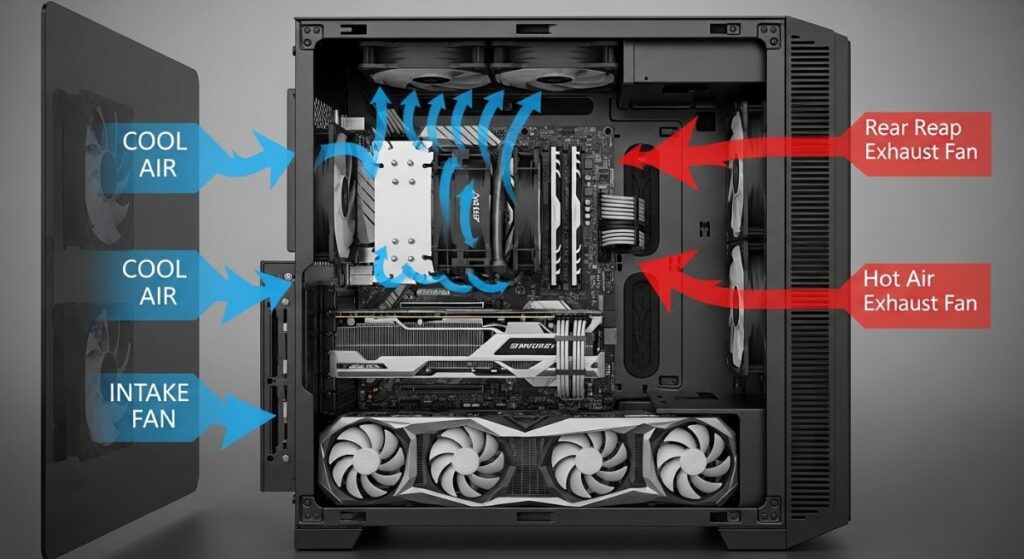
High temperatures do not automatically mean lost FPS, but once a CPU or GPU reaches its thermal limits it may reduce clock speeds to control temperature. Even before that point, excessive heat can mean more fan noise and less thermal headroom.
Look at the case rather than just the RGB fans. Check whether cool air can actually enter the front or bottom of the chassis and whether there is somewhere for hot air to escape. If you already own the PC and cooling is the weak point, some of our cheap gaming PC upgrades can improve the system without replacing the entire machine.
Red Flag #7: FPS Claims Without Resolution or Settings
“Runs every game at high FPS” tells you almost nothing. Gaming performance changes dramatically depending on the game, resolution, graphics settings, upscaling, ray tracing, and even the section of the game being tested.

A useful performance claim should tell you which game was tested, at what resolution, using which graphics settings, and roughly what performance was achieved. Without that context, a big FPS number is marketing rather than something you can use to compare two PCs.
When possible, look for independent benchmarks using the same CPU and GPU combination as the prebuilt you are considering. You can also use our 1080p and 1440p GPU guide to get a more realistic idea of the performance class you should expect.
How These Red Flags Affect Real Gaming Performance
Not every weak component costs you average FPS in the same way. Some problems reduce performance, while others affect frame-time consistency, temperatures, stability, or what you can upgrade later. That is why a cheap prebuilt can produce a respectable FPS number in a benchmark and still be frustrating to use.
| Prebuilt Weakness | What You May Notice While Gaming |
|---|---|
| Poor CPU/GPU balance | Lower FPS in CPU-heavy games, weaker 1% lows, stuttering, or the GPU not reaching its full potential |
| Single-stick RAM | Reduced memory bandwidth, with possible FPS and frame-time penalties in memory-sensitive games |
| Questionable PSU | Potential stability problems under load and limited headroom for future GPU upgrades |
| Poor storage configuration | Limited space for games, slower loading or updates depending on the drives installed, and frequent storage management |
| Limited motherboard | Fewer expansion options and restrictions on future RAM, storage, CPU, or other upgrades |
| Poor cooling | Higher temperatures, more fan noise, and potentially reduced clock speeds if components reach thermal limits |
The important distinction is that a cheap gaming PC does not need premium components everywhere to be good. It needs components that are good enough for each other. A modest but balanced system can provide a better gaming experience than a machine built around one expensive headline component with compromises everywhere else.
If you already own the PC rather than shopping for one, the symptoms can help identify where the problem lies. Start with our guide to why games stutter on low-end PCs, or check why a PC can still feel slow after an upgrade if you have already replaced hardware without getting the improvement you expected.
What to Look for in a Good Budget Prebuilt Gaming PC
A good budget prebuilt does not need premium hardware in every slot. In fact, spending heavily on components that barely affect the intended gaming experience can be just as wasteful as cutting corners in the wrong places. The goal is balance: enough performance, cooling, power, storage, and upgradeability for the games you actually want to play.
| Component | What a Good Budget Prebuilt Should Offer | What You Usually Do Not Need |
|---|---|---|
| CPU | A modern processor capable of keeping up with the GPU and your target frame rate | A flagship gaming CPU paired with a modest graphics card |
| GPU | A graphics card appropriate for the resolution and games you intend to play | More GPU performance than your monitor or games can realistically use |
| RAM | Enough memory for your games, preferably in a sensible dual-channel configuration | Huge memory capacity added purely to make the specification sheet look impressive |
| Storage | Enough SSD capacity for Windows, applications, and a useful selection of games | An expensive flagship or Gen5 SSD simply because it benchmarks faster |
| Power Supply | An identifiable, suitable PSU with enough capacity for the installed hardware | Massive wattage that the system will never use |
| Motherboard | The connectivity, RAM, storage, and expansion support you realistically need | A premium enthusiast motherboard in an entry-level gaming PC |
| Cooling | Functional case airflow and adequate CPU and GPU cooling | An expensive liquid cooler purely for appearance |
| Upgradeability | Standard components and enough flexibility for sensible future upgrades | Features or expansion options you are unlikely ever to use |
Price still matters. A perfectly respectable prebuilt can become a poor purchase if it costs far more than similarly equipped systems. Compare the complete specification rather than one headline component, and pay particular attention to the parts that are expensive or difficult to replace later.
You are not looking for the best component in every category. You are looking for a PC where none of the important components undermine the rest of the system.
When a Cheap Prebuilt Gaming PC Is Actually Worth Buying
A cheap prebuilt can be an excellent first gaming PC when the price is genuinely competitive and the manufacturer has made sensible compromises. You do not need expensive cooling, a premium motherboard, enormous storage, or a flagship CPU just to get a good gaming experience.

I would be much more comfortable buying a budget prebuilt when:
- The important specifications are clearly disclosed. You can identify the CPU, GPU, RAM configuration, storage, motherboard, and power supply rather than guessing what is inside.
- The CPU and GPU make sense together. Neither component is obviously being used to compensate for a major weakness elsewhere.
- The RAM and storage are sensible for the price. You have enough memory and SSD capacity to start gaming without immediately needing upgrades.
- The cooling is adequate. The case has a practical path for cool air to enter and hot air to escape.
- The important components can be replaced or upgraded. Standard parts are preferable if you expect the PC to grow with you.
- The price makes sense for the hardware. You are paying a reasonable premium for assembly, support, Windows, and convenience rather than dramatically overpaying for RGB and marketing.
If those fundamentals are right, there is nothing inherently wrong with buying a cheap prebuilt. A modest, balanced gaming PC is a far better purchase than a more impressive-looking machine built around one expensive component and several hidden compromises.
Already Own One? What You Can Upgrade in a Cheap Prebuilt
If you already own a budget prebuilt and have discovered one of the weaknesses in this guide, replacing the entire PC should not automatically be your next move. Some of the most common compromises are relatively easy to correct, provided the system uses compatible components.
RAM: Often the Easiest Fix
If the PC came with a single RAM stick, moving to a properly matched memory configuration can improve memory bandwidth and may improve gaming performance or frame-time consistency depending on the platform and game. Before buying anything, check the motherboard, existing memory specification, available slots, and supported RAM type.
Possible upgrade: A suitable dual-channel memory kit can make sense when the original RAM configuration is genuinely holding the system back.
If you’ve confirmed that the prebuilt needs a memory upgrade, use our RAM Buying Guide for Gaming PCs to choose the right capacity, DDR generation and matched kit without overspending on memory the system doesn’t need.
Storage: Upgrade Capacity Before Chasing Speed
If your prebuilt has a small SSD, adding more solid-state storage can be one of the most noticeable quality-of-life upgrades. More capacity means fewer deleted games, less juggling between drives, and more room for increasingly large installations and updates.
Do not assume you need an expensive flagship SSD. For most budget gaming PCs, adequate SSD capacity is more valuable than paying heavily for extreme sequential speeds. Check which M.2 or SATA connections your motherboard supports before choosing a drive.
Cooling: Fix the Airflow Problem First
If temperatures are high, do not immediately assume you need an expensive CPU cooler. Check the basics first: case airflow, dust buildup, fan placement, intake restrictions, and whether the existing cooler is installed and operating correctly.
If the CPU cooler itself is inadequate and the case has enough clearance, a sensible budget air cooler can be a worthwhile upgrade. The objective is lower temperatures and consistent performance, not filling a cheap gaming PC with unnecessarily expensive cooling hardware.
Power Supply: Upgrade Only When There Is a Reason
Do not replace a power supply simply because the prebuilt was inexpensive. First identify the PSU and determine whether its quality, capacity, connectors, or upgrade headroom are actually a problem.
A replacement makes more sense if the existing unit is unsuitable, unreliable, lacks the connectors required for a planned GPU upgrade, or does not provide enough appropriate capacity for the hardware you intend to install. Compatibility matters here: some prebuilts use proprietary power supplies or motherboard connectors that make a standard replacement more complicated.
Before spending money on any upgrade, identify the actual limitation first. Our gaming PC upgrades that actually matter guide can help you decide which component deserves your budget instead of upgrading parts at random.
Final Verdict: Cheap Is Fine, Hidden Compromises Aren’t
A cheap prebuilt gaming PC can absolutely be worth buying. The price is not the problem. What matters is where the manufacturer saved money and whether those compromises affect the gaming experience, reliability, or your ability to upgrade the system later.
Ignore the RGB and the biggest numbers on the product page for a moment. Check the exact CPU and GPU, RAM configuration, power supply, storage, motherboard, cooling, and upgradeability. If those parts make sense together and the price is competitive, you may have found a perfectly good budget gaming PC.
If the specifications are vague, several important components are hidden, or one impressive part appears to be carrying the entire sales pitch, find out exactly what is inside before you buy. You can also compare the system against our recommended gaming PC builds for every budget to see what a balanced system looks like at a similar price.
Cheap does not have to mean bad. Balanced parts, transparent specifications, and sensible compromises matter far more than flashy marketing.