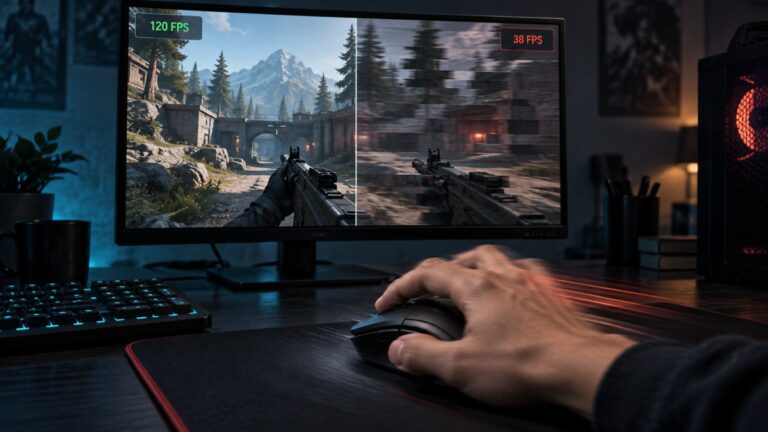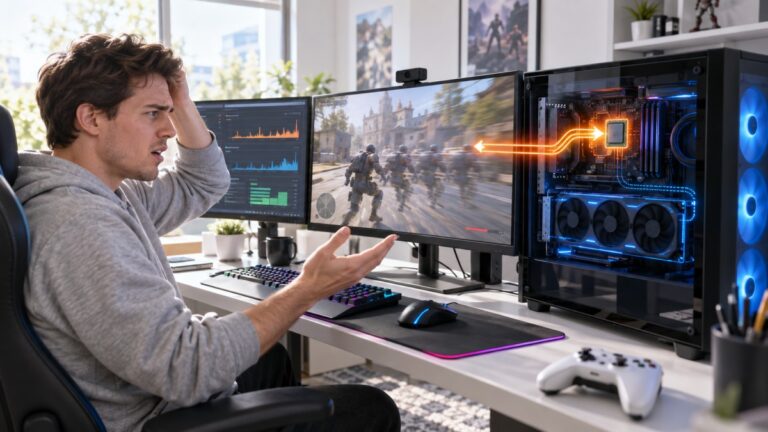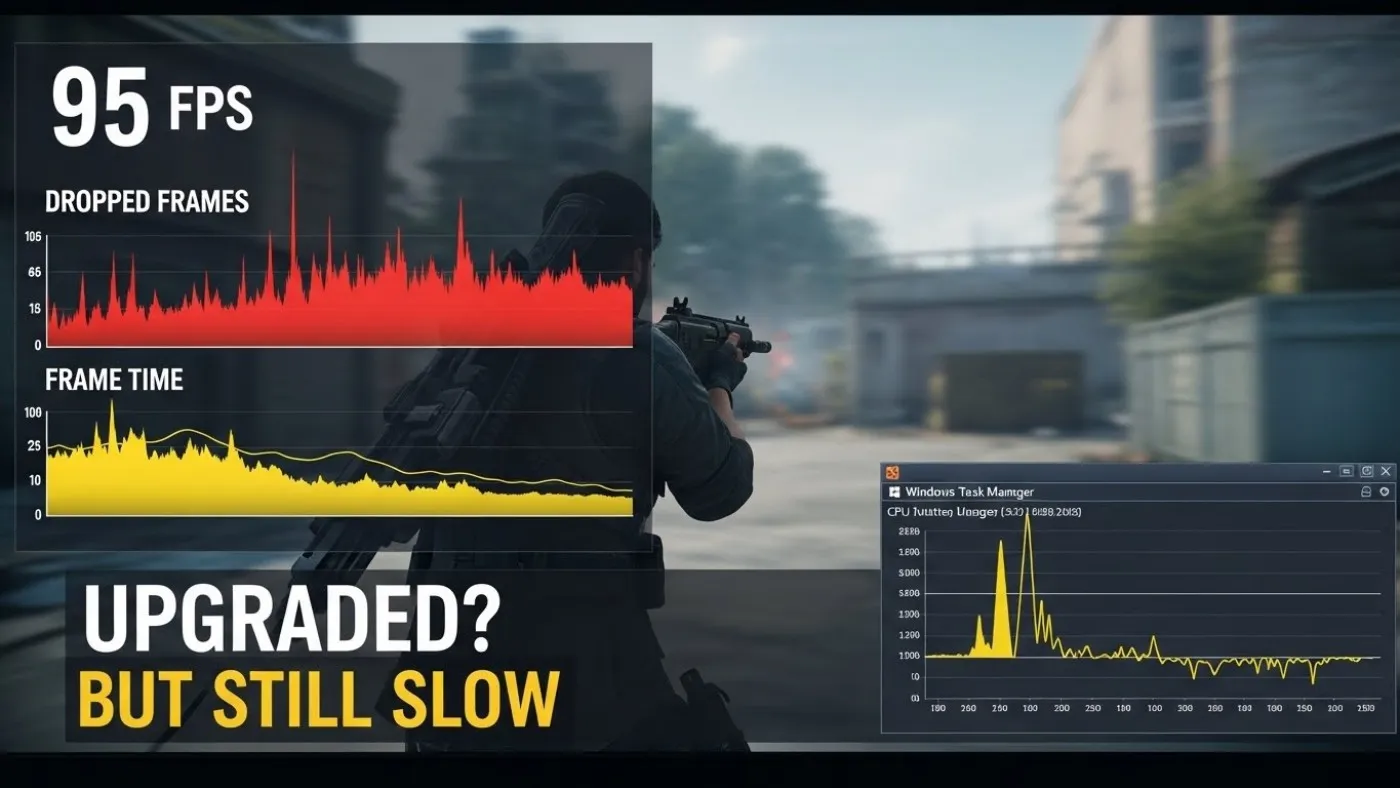
Why your PC still feels slow after an upgrade is usually not because your new part is “bad”, it’s because your system is bottlenecked somewhere else. You can slap in a faster GPU, add more RAM, or even reinstall Windows and still end up with the same annoying reality, stutter, hitching, sluggish menus, and gameplay that feels “off” even when the FPS counter looks fine.
This is the missing piece most upgrade guides skip. PC performance is not a single number, it is a chain. If one link is weak, the whole experience feels slow. In this guide, we are going to walk through the five bottlenecks that keep sabotaging “upgraded” PCs, how they feel in real games, and how to confirm what is actually holding you back before you waste more money.
Why upgrades often fail to fix performance
Most people upgrade the part they can see. The GPU is the obvious one because it has a big name, a big box, and a big price tag. But the real game is balance. Your PC is constantly moving data between the CPU, RAM, storage, Windows, and the GPU. If any one of those is lagging behind, it can make the entire system feel slow even if one component is brand new.
So if you upgraded and expected instant smoothness, here is the blunt truth, you did not buy “performance”, you bought potential. Your system still has to be able to feed that new part consistently. If you rushed the process, you may have fallen into some classic traps outlined here: cheap gaming PC mistakes. If your upgraded PC still feels slow, the issue might not be obvious. What Smooth Gameplay Actually Feels Like on a Low-End PC explains what real performance should feel like so you can spot hidden bottlenecks.
Bottleneck #1: RAM starvation (your system is choking quietly)

RAM problems are sneaky because your PC does not always crash. Instead, it just starts behaving like it is tired. Tabs take longer to switch, games hitch randomly, textures pop in late, and you get those micro-freezes that make aiming feel gross.
If you’re seeing these symptoms, learn how to identify whether RAM is actually the bottleneck or if another component is slowing your gaming PC down before upgrading.
When you run out of RAM, Windows starts using your drive as emergency memory. That is where the stutter comes from. This can happen even on decent PCs if you are running Discord, a browser, overlays, launchers, and the game all at once.
- What it feels like: random stutters, hitching when loading into new areas, delayed textures, messy 1% lows.
- Quick signs: memory usage sitting above 90% while gaming, and the drive light acting like it is trying to Morse code distress signals.
Microsoft explains this behavior as memory paging, where Windows moves data from RAM to storage when physical memory runs out. This is normal system behavior, but it is dramatically slower than real RAM and is a major cause of gaming stutter. Their documentation covers how virtual memory and paging work here: Microsoft on virtual memory and paging.
If you want the clean explanation of what gaming actually needs today, read how much RAM games actually need. If you already know you need an upgrade and want to buy smart, go straight to the RAM buying guide for gaming PCs.
Bottleneck #2: Storage stutter (your SSD is not as “fast” as you think)

“But I have an SSD” is not the end of the conversation. A lot of games stream data constantly, including textures, audio, shaders, and map chunks. If your drive is slow at the type of work games actually do, such as random reads, sustained writes, or cache management, your gameplay can stutter even when your FPS is high.
If you’re unsure whether your storage is contributing to the problem, our Complete Gaming PC Health Check shows you how to check your SSD or HDD health, monitor storage-related performance issues, and rule out drive problems before replacing hardware.
This is common when:
- you are on a cheap DRAM-less SSD,
- your drive is nearly full,
- you installed a massive game on an older SATA SSD or hard drive,
- Windows and the game are fighting for the same drive resources.
- What it feels like: stutters when turning fast, entering new areas, or when effects explode on screen.
- Quick signs: drive usage spikes during stutters, long asset loads, and inconsistent “smoothness” across the same map.
If you want the reality check on what SSD specs matter for gaming, read real world SSD performance for gaming or dive deeper into whether speeds actually matter here: do faster SSDs improve FPS. If you are ready to shop, the next step is best NVMe SSDs for gaming and performance.
Bottleneck #3: CPU bottlenecks (not about speed, about timing)
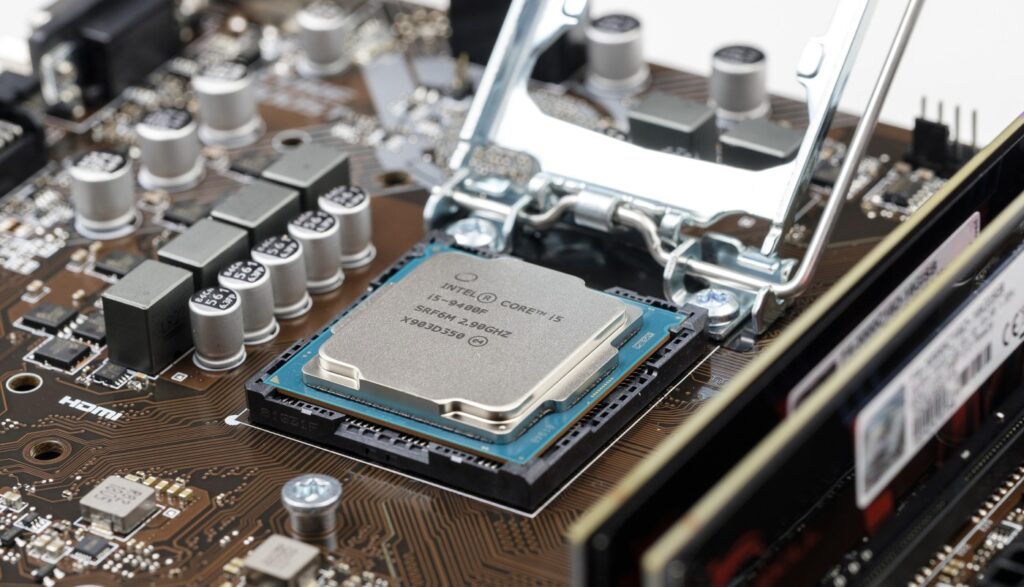
CPU bottlenecks are misunderstood because people think it only matters when your CPU is at 100%. That is not how most gaming bottlenecks work. A game can be bottlenecked by a few threads, frame scheduling, background processes, or an older architecture that just cannot keep frame times consistent.
This is where “my FPS is fine but it feels bad” starts showing up. The GPU is waiting, frames arrive unevenly, and your 1% lows drop even if the average FPS looks decent. If you are unsure which component is actually holding you back, start here: CPU or GPU problem during gaming.
- What it feels like: inconsistent smoothness, input feeling delayed, stutters during big fights, and weird dips that make no sense.
- Quick signs: GPU usage is lower than expected while the CPU is busy in bursts, not necessarily pegged.
- Other Resources – Check out our Windows Running slow article, there could also be some more insights here
If you bought used (or plan to), do not wing it. Read buying a used CPU for gaming and then follow the checklist in how to test a used CPU before it ruins your rig.
FPS problems after an upgrade usually mean the new part was not the actual limit, so this guide will help you find what to fix when a PC upgrade doesn’t improve FPS.
Bottleneck #4: GPU limits (when your upgrade was the wrong one)
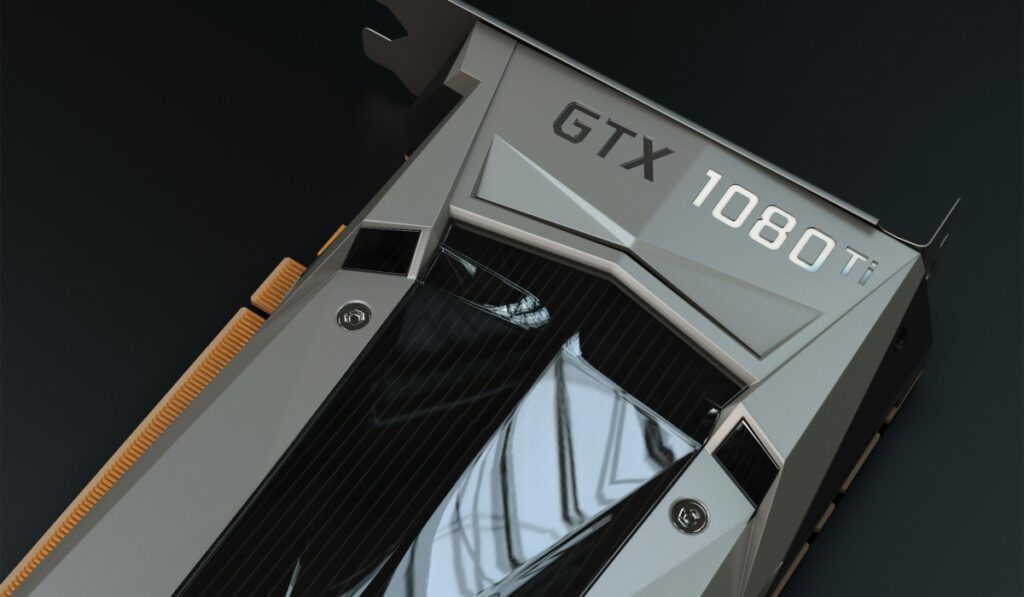
Sometimes the GPU really is the limiter, but the mistake is thinking “a newer GPU” automatically matches your setup and your goals. If you are gaming at higher resolutions, using texture-heavy games, or pushing modern effects, VRAM and memory bandwidth can become the real ceiling.
And when VRAM runs out, performance can fall off a cliff. If your rig still feels slow after upgrades, start with this old PC upgrade guide before spending another cent.
- What it feels like: sudden hitching after playing for a while, inconsistent performance between areas, stutters when loading new textures.
- Quick signs: VRAM usage is maxed, and lowering textures helps more than lowering other settings.
If you want a straight answer on what makes sense for most gamers, use best GPU picks for 1080p and 1440p as your baseline instead of guessing. Also before you buy a new GPU, check these optimized gaming PC builds to avoid mismatched components.
Where the FPS counter lies to you (and why “smooth” is not a number)
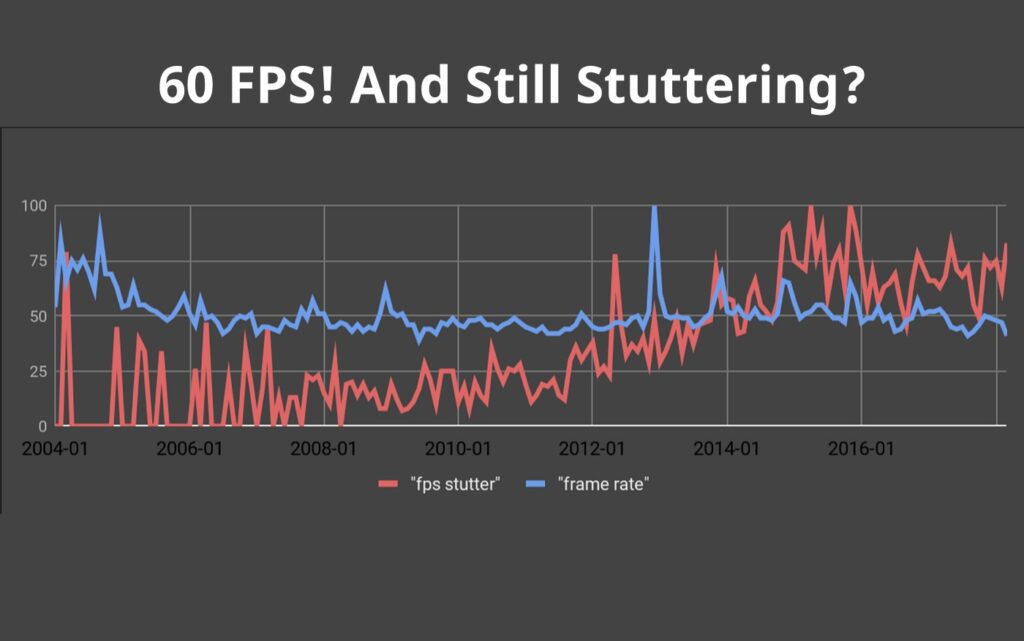
Here is the part nobody wants to hear, FPS is not the same as smoothness. FPS is how many frames you get. Smoothness is how evenly you get them. If frame times are uneven, the game feels jittery even if the FPS looks respectable. If you are chasing smoothness, this concept matters more than raw FPS: capping your FPS.
That is why you can be sitting at 90 FPS and still feel like the game is dragging. Your FPS counter is not a therapist. It does not know how you feel. Frame pacing does.
When we talk about bottlenecks, what we are really talking about is frame time consistency, how reliably your system can deliver the next frame without waiting on RAM, storage, CPU scheduling, drivers, or background tasks. If a hardware upgrade didn’t magically fix everything, it’s worth understanding why your PC can still feel slow even after reinstalling Windows.
Frame pacing and frame time consistency matter more than raw FPS for perceived smoothness, which is why NVIDIA themselves focus on frame time stability rather than just higher frame counts. Their documentation explains how uneven frame delivery is what causes visible stutter and jitter even when FPS appears high. See NVIDIA’s breakdown here: NVIDIA on frame pacing and smooth gameplay.
Bottleneck #5: Windows and software sabotage (the invisible performance tax)

Windows can ruin performance without ever showing you a big red warning. Driver issues, background apps, overlays, update processes, power plan nonsense, and “helpful” features can all steal consistency from your games. A good starting point is cleaning up unnecessary junk here: disable bloatware on Windows.
- What it feels like: random performance drops, inconsistent input, stutters that come and go, and “it was fine yesterday” vibes.
- Quick signs: CPU spikes from background tasks, high DPC latency symptoms (audio crackle, hitching), and new issues after updates or driver changes.
If your system feels laggy but you are not sure where it is coming from, start with how to reduce lag without sacrificing graphics. If your issue smells like classic stutter behavior on weaker hardware, this breakdown helps: why games stutter on low end PCs. Also If you’ve recently connected other devices like your phone, it’s worth checking for hidden issues. Here’s how to remove rootkit from Android and eliminate one possible cause.
How to identify which bottleneck you actually have
You do not need to guess. You need basic monitoring and a bit of logic. The goal is not to stare at graphs for fun, it is to catch what spikes during the exact moment your game feels slow.
- RAM: memory usage climbs into the danger zone and stutters follow.
- Storage: drive activity spikes during hitching and asset loads.
- CPU: GPU usage dips while the CPU is spiking in bursts.
- GPU: VRAM maxes, and lowering textures suddenly helps.
- Windows: background tasks steal resources or timing consistency.
To do this properly, use the HWiNFO setup guide I actually use and pair it with how to use MSI Afterburner safely so you can log frame time behavior and usage correctly.
If you want a safe check for your whole system, this walkthrough is the clean starting point: how to test gaming PC performance.
The upgrade priority order (stop guessing, fix the chain)

If you want the most reliable “what should I upgrade first” order, here is the one that prevents the most regret:
- Fix Windows and drivers first. If software is sabotaging you, hardware will not save you.
- Fix RAM problems next. If your system is paging, nothing else feels right.
- Fix storage stutter. Data streaming issues make smooth gameplay impossible.
- Fix CPU limits. Frame time consistency lives here.
- Then upgrade the GPU. Now the GPU can actually stretch its legs.
If you want the bigger map for how your hardware choices connect, use the gaming PC hardware guide as your navigation center.
Why your PC still feels slow after an upgrade And When you actually should upgrade
Upgrade when you can answer this question clearly: what bottleneck am I removing? If you cannot name it, you are about to spend money to feel the same frustration in higher resolution.
The whole point of this article is to stop panic buying. Once you identify the real limiter, upgrading becomes simple and targeted. RAM upgrades fix memory starvation. Storage upgrades fix streaming stutter. CPU upgrades fix timing and 1% lows. GPU upgrades fix resolution, VRAM limits, and visuals. Software fixes stop Windows from stepping on your toes.
If you’re ready to turn that diagnosis into a plan, our guide on how to upgrade a gaming PC in the right order shows you which upgrades to prioritise, helping you spend your budget where it will deliver the biggest real-world improvement instead of simply buying the newest hardware.
Final BTF Check
Why your PC still feels slow after an upgrade is almost always a bottleneck problem, not a “bad part” problem. Diagnose the chain, confirm the limiter, and fix the thing that is actually holding performance hostage. That is how you get smooth gameplay without throwing money at random components.
If you want to do this the BuiltToFrag way, measure first, then upgrade once, and upgrade correctly.