Upgrading a gaming PC sounds simple until you start looking at all the advice online. One website tells you to buy a new graphics card. Another says your CPU is holding everything back.
YouTube recommends 32GB of RAM, while someone else insists you need a new motherboard before anything else.
The result? Thousands of gamers spend hundreds of dollars on upgrades that barely improve performance. Our How to Upgrade a Gaming PC guide will try and remove most of the mystery and save you money in the process.
The truth is that the order you upgrade your PC matters just as much as the parts you buy. Installing the wrong component first can leave the real bottleneck untouched, making your expensive new hardware perform little better than the old part it replaced.
This guide explains the smartest order to upgrade a gaming PC, how to identify your actual bottleneck before spending money, and when it’s time to stop upgrading altogether and start planning a new build.
By the end, you’ll know exactly where your money will have the biggest impact instead of relying on guesswork.
Quick Answer: What Order Should You Upgrade a Gaming PC?
If you simply want the recommended upgrade order, here it is.
| Priority | Upgrade | Why It Comes First |
|---|---|---|
| 1 | Benchmark Your PC | Identify the real bottleneck before spending money. |
| 2 | SSD (if still using a hard drive) | Huge improvement to everyday responsiveness and loading times. |
| 3 | RAM | Fixes stuttering and improves multitasking if you’re running short. |
| 4 | Graphics Card (GPU) | The biggest gaming upgrade for most systems. |
| 5 | Processor (CPU) | Important when your processor limits game performance. |
| 6 | Motherboard | Usually only when required for newer CPUs or features. |
| 7 | Power Supply | Upgrade only when your existing PSU cannot safely support new hardware. |
While this order works for most gaming PCs, every system is different. Spending five minutes identifying your bottleneck can save you hundreds of dollars.
Why Upgrade Order Matters
Think of your gaming PC as a team rather than a collection of individual parts. If one player is much slower than everyone else, the entire team slows down to match.
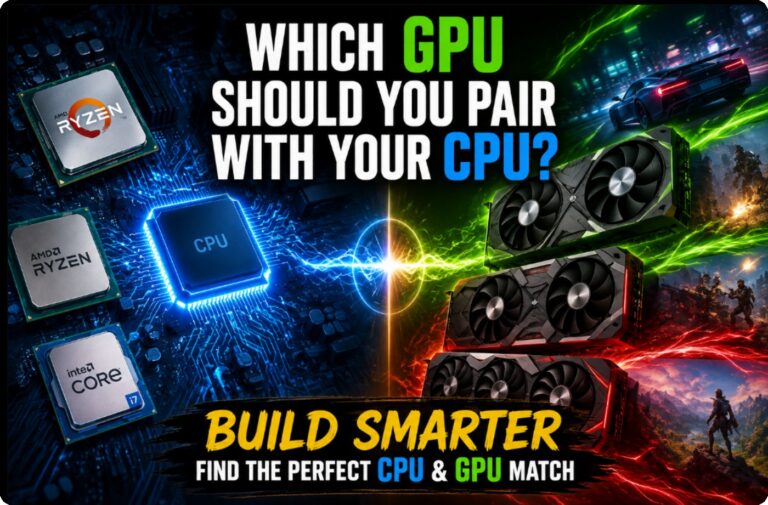
PCs work exactly the same way. That’s why learning how to balance your CPU and GPU is one of the smartest ways to avoid bottlenecks and get the most performance for your money.
This slowest component is called the bottleneck.

For example, installing a powerful graphics card into a ten-year-old quad-core processor won’t magically double your FPS if the CPU is already struggling to keep up. Likewise, buying 64GB of RAM won’t fix poor frame rates if your graphics card is the limiting factor.
That’s why random upgrades rarely deliver the results people expect.
Before replacing any hardware, it’s worth understanding what’s actually bottlenecking your gaming PC. Once you know which component is limiting performance, your upgrade decisions become much easier.
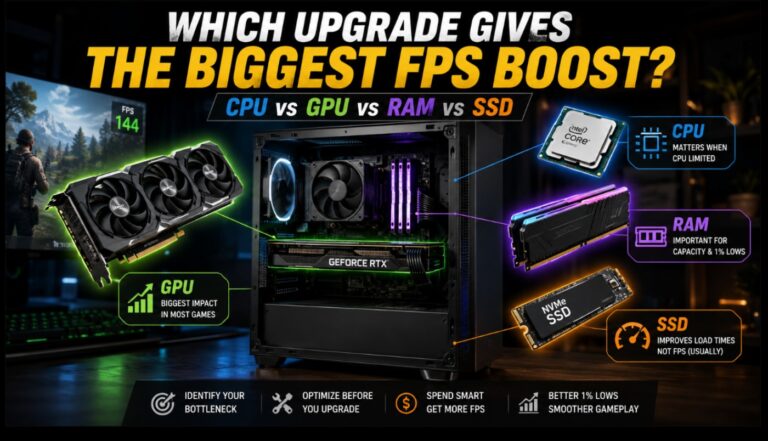
This is also why our guide on Which PC Upgrade Gives the Biggest FPS Boost? focuses on performance gains, while this article focuses on the correct order to buy those upgrades.
Common Upgrade Scenarios
Most gamers don’t know exactly which component is causing problems. They simply notice symptoms.
Here are some of the most common situations.
| If this sounds like your PC… | Your most likely upgrade |
|---|---|
| Windows takes several minutes to start. | SSD |
| Games freeze whenever you alt-tab. | RAM |
| Your GPU sits at 99-100% usage while gaming. | Graphics Card |
| Your CPU stays near 100% in most games. | Processor |
| Games constantly stutter despite decent FPS. | RAM, storage or CPU investigation. |
| Nothing seems to improve no matter what you upgrade. | Your platform may be reaching the end of its useful life. |
These aren’t guarantees, but they’re excellent starting points before opening your wallet.
Step 1: Benchmark Before Spending Money
This is the step that almost every upgrade guide skips. Before buying anything, spend a few minutes measuring how your current system performs.
You’ll quickly discover whether your processor, graphics card, memory or storage is actually holding your games back.

Free tools worth installing
- MSI Afterburner for monitoring FPS, GPU usage and CPU usage.
- HWiNFO64 for detailed temperatures, clocks and hardware monitoring.
- CPU-Z for identifying your processor, motherboard and memory.
- GPU-Z for detailed graphics card information.
- CrystalDiskInfo for checking SSD and hard drive health.
Run one of your most-played games for around ten minutes while monitoring hardware usage.
Ask yourself:
- Is the GPU constantly at 100%?
- Is one or more CPU cores fully loaded?
- Is RAM usage close to maximum?
- Are loading screens painfully long?
- Are temperatures causing thermal throttling?
The answers usually point directly toward your next upgrade.
If you’re new to monitoring hardware, our guides on using HWiNFO64 and using MSI Afterburner walk through exactly what to look for.
The Correct Gaming PC Upgrade Order
Once you’ve identified your bottleneck, it’s time to decide what to upgrade first. While every PC is different, the following order provides the best balance between cost, compatibility and real-world gaming performance.
2. Upgrade to an SSD (If You’re Still Using a Hard Drive)
If your gaming PC still boots from a mechanical hard drive, this is almost always your first upgrade. An SSD won’t usually increase FPS, but it transforms how your entire computer feels.
- Windows boots faster.
- Games load dramatically quicker.
- Texture streaming becomes smoother.
- Large open-world games spend less time waiting for data from storage.
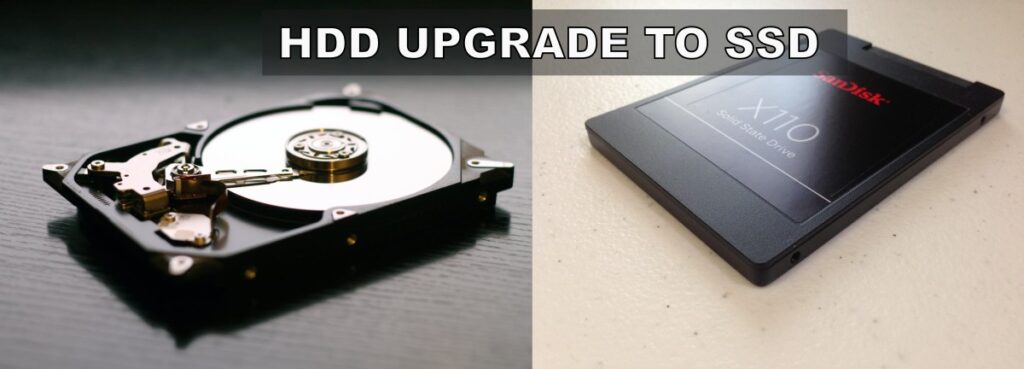
Even older gaming PCs often feel several years newer after moving Windows and your favourite games onto an SSD.
What improves?
- Windows startup time.
- Game loading screens.
- Application responsiveness.
- Patch installation speed.
- General desktop performance.
When should you skip this upgrade?
If your operating system is already installed on a healthy SSD, moving to an even faster NVMe drive probably won’t transform your gaming experience as much as replacing another bottleneck.
Our article on whether faster SSDs actually improve gaming performance explains where spending more money does and doesn’t make sense.
3. Upgrade Your RAM (When You Actually Need More)
RAM is one of the most misunderstood gaming upgrades. Some gamers believe adding more memory automatically increases FPS. Others buy 32GB or even 64GB simply because it’s affordable. In reality, RAM only improves gaming performance when your system is running out of available memory.

If Windows constantly uses all available RAM, it starts moving data to your storage drive. Even with a fast SSD, this is significantly slower than physical memory and often causes stuttering, hitching, long alt-tab times and poor multitasking.
Signs you should upgrade your RAM
- Your PC only has 8GB of RAM.
- Games stutter while Discord or Chrome is open.
- Alt-tabbing causes long pauses.
- Memory usage regularly exceeds 90% while gaming.
- Modern games recommend 16GB or more.
Expected benefits
- Smoother gameplay.
- Less stuttering.
- Better multitasking.
- More stable frame pacing.
- Fewer crashes caused by insufficient memory.
Common mistake
Don’t assume that buying more RAM will magically increase average FPS. If your current memory usage rarely exceeds 70%, you’re unlikely to notice much difference in gaming performance.
If you’re unsure how much memory you actually need, read our Gaming RAM Guide before spending money.
4. Upgrade Your Graphics Card
For most gamers, the graphics card delivers the biggest improvement in gaming performance.

If your GPU is constantly running at 99-100% usage while your processor still has plenty of headroom, you’ve found your bottleneck.
A better graphics card can provide:
- Higher FPS.
- Higher graphics settings.
- Improved ray tracing performance.
- Support for newer technologies like DLSS, FSR and XeSS.
- More VRAM for modern games.
However, buying the biggest GPU you can afford isn’t always the smartest move.
A powerful graphics card paired with an old processor may spend much of its time waiting for the CPU to prepare frames. This is why balanced upgrades almost always outperform random upgrades.
Upgrade your GPU when:
- GPU usage stays close to 100%.
- You want higher graphics settings.
- You want higher resolutions.
- Newer games exceed your available VRAM.
Skip this upgrade when:
- Your CPU is already maxed out.
- Your power supply can’t support a new GPU.
- Your processor would severely bottleneck the upgrade.
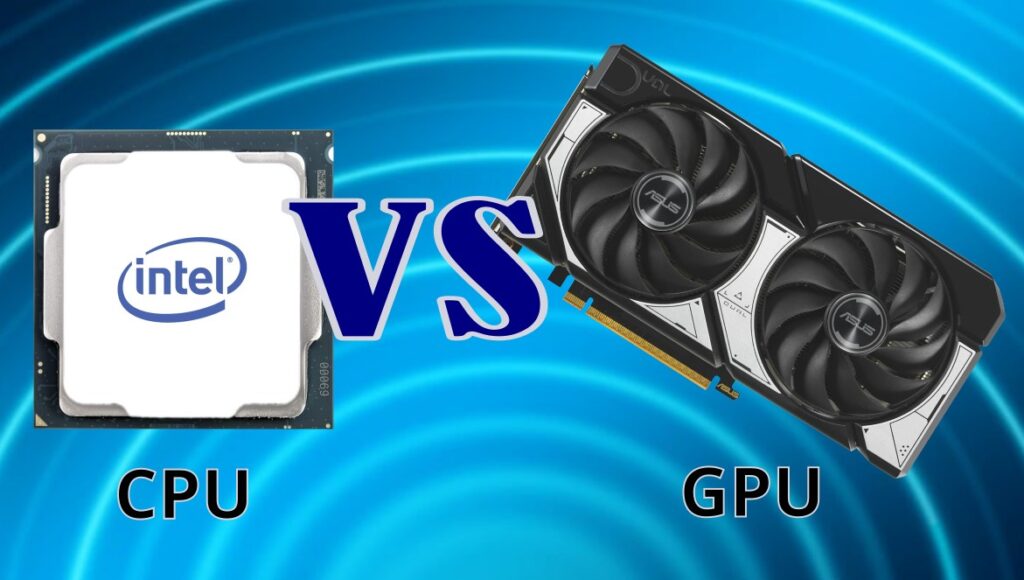
If you’re unsure whether your graphics card is actually the problem, our guide on identifying CPU vs GPU bottlenecks explains exactly what to look for.
Once you’ve confirmed that the GPU is the right upgrade, use our 8GB vs 12GB vs 16GB VRAM buying guide to decide how much graphics memory makes sense for your games, resolution and budget.
5. Upgrade Your CPU
Processors often become the limiting factor in older gaming PCs, especially when paired with newer graphics cards.
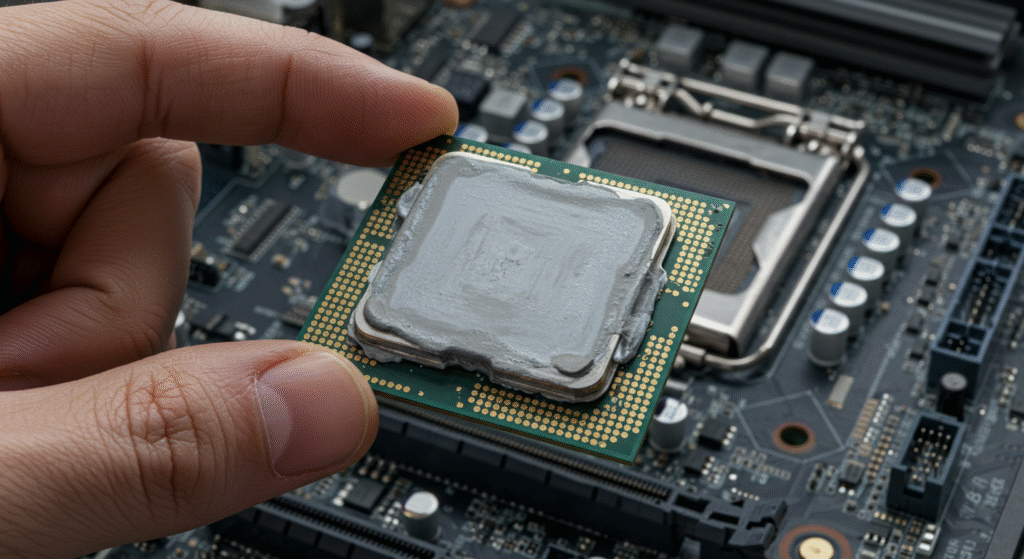
A CPU upgrade becomes worthwhile when:
- CPU usage regularly reaches 90-100%.
- One or two cores remain fully loaded.
- Games suffer from poor minimum FPS.
- Large multiplayer games struggle despite having a capable GPU.
- Simulation and strategy games slow down during complex scenes.
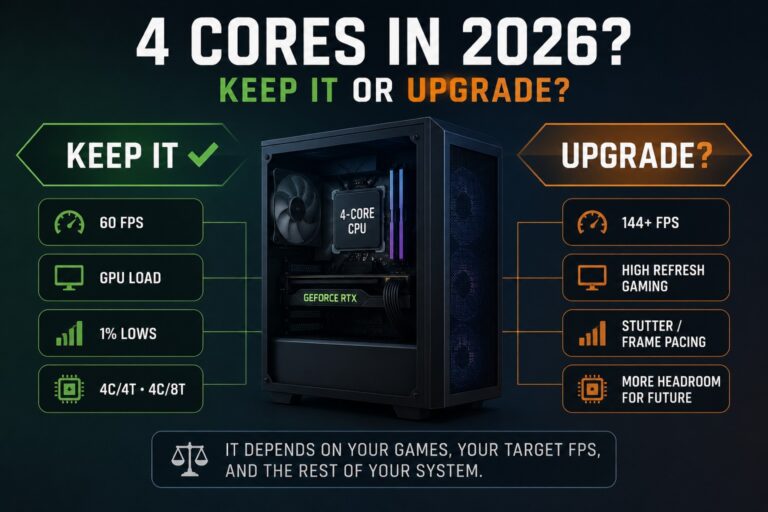
If you’re still using a quad-core, don’t assume the core count alone means it needs replacing. Our guide to whether your 4-core CPU actually needs an upgrade shows how to test for CPU limitations before spending money on a replacement.
Unlike GPU upgrades, replacing a processor isn’t always straightforward. You may also need:
- A motherboard upgrade.
- New DDR4 or DDR5 memory.
- A BIOS update.
- A stronger CPU cooler.
This is why CPU upgrades often require more planning than any other component.
Expected improvements
- Higher minimum FPS.
- Reduced CPU bottlenecks.
- Smoother gameplay in CPU-heavy titles.
- Improved multitasking while gaming.
Common mistake
Replacing your CPU while keeping an entry-level graphics card often results in disappointing gains. Always identify which component is actually limiting performance before upgrading either one.
6. Upgrade Your Motherboard and Power Supply (Only When Necessary)
Many first-time builders assume they should replace the motherboard early in the upgrade process. In reality, it’s usually one of the last components worth replacing. Your motherboard rarely increases gaming performance by itself. Instead, it enables other upgrades.
You typically replace a motherboard when:
- Your current socket doesn’t support newer processors.
- You want newer features like PCIe Gen 5 or DDR5.
- Your existing board has failed.
- You need additional storage or expansion options.
Power supplies are similar.
A new PSU won’t increase FPS. However, it may be essential before installing a more powerful graphics card or processor.
Never underestimate the importance of a quality power supply. A cheap PSU can damage expensive components and reduce long-term system reliability.
If you’re unsure whether your current unit is suitable, our Gaming PSU Wattage Guide explains how to choose safely.
Typical Upgrade Roadmaps
Different gaming PCs benefit from different upgrade paths. These examples provide a sensible progression without wasting money.
Older Intel Gaming PC
| Upgrade Order |
|---|
| SSD |
| ↓ |
| 16GB RAM |
| ↓ |
| Best GPU the CPU can realistically support |
| ↓ |
| Stop upgrading and begin saving for a new platform |
Older Ryzen Gaming PC
| Upgrade Order |
|---|
| SSD |
| ↓ |
| 16GB RAM |
| ↓ |
| Graphics Card |
| ↓ |
| CPU |
| ↓ |
| Motherboard only if required later |
Office PC Converted into a Gaming PC
| Upgrade Order |
|---|
| SSD |
| ↓ |
| RAM |
| ↓ |
| Low-power graphics card |
| ↓ |
| Power supply only if necessary |
Ultra Budget Gaming PC
| Upgrade Order |
|---|
| SSD |
| ↓ |
| 16GB RAM |
| ↓ |
| Used graphics card |
| ↓ |
| CPU upgrade if supported |
Notice that every roadmap begins with diagnosing the system and upgrading the obvious bottlenecks first instead of chasing expensive flagship hardware.
The BuiltToFrag Upgrade Decision Framework
Instead of asking, “What should I buy?”, ask, “What symptom is my PC showing?”
| Symptom | Most Likely Bottleneck | Recommended Next Step |
|---|---|---|
| GPU constantly at 100% | Graphics card | Consider a GPU upgrade. |
| CPU constantly at 100% | Processor | Investigate a CPU upgrade. |
| RAM always full | Memory capacity | Upgrade to 16GB or more if required. |
| Slow Windows startup and loading | Storage | Install an SSD. |
| Poor performance after several upgrades | Platform limitations | Evaluate whether a new build makes more financial sense. |
This simple framework prevents the most common upgrade mistake: buying hardware before understanding the problem you’re trying to solve.
Common Gaming PC Upgrade Mistakes
Even experienced PC gamers occasionally waste money on upgrades that don’t solve the real problem. Avoiding these common mistakes can save hundreds of dollars and months of frustration.
Buying a Graphics Card Before Checking the CPU
A new GPU can’t deliver its full potential if an older processor is already struggling to keep up. Always confirm whether the graphics card or processor is your actual bottleneck before upgrading.
Buying More RAM Than You Need
Moving from 8GB to 16GB is often worthwhile for modern gaming. Jumping from 16GB to 64GB usually isn’t, unless you have specific workloads that genuinely require it.
Replacing the Motherboard First
Motherboards enable upgrades rather than directly improving gaming performance. Unless you need support for a newer processor or additional features, your money is almost always better spent elsewhere.
Ignoring the Power Supply
Installing a more powerful graphics card without checking your PSU is one of the fastest ways to create instability. Make sure your power supply provides sufficient wattage and includes the correct power connectors.
Buying Incompatible Parts
Not every processor fits every motherboard. Memory generations differ, PCIe versions matter in some situations, and small form factor systems often have limited upgrade options.
Checking compatibility before purchasing can save you from costly returns and unnecessary headaches.
Chasing Benchmark Numbers
Higher benchmark scores don’t always translate into a noticeably better gaming experience.

Many gamers are happier with smoother frame pacing, shorter loading times and fewer stutters than they are with an extra 10 FPS they barely notice.
BuiltToFrag Recommended Upgrade Essentials
Every gaming PC is different, so there’s no such thing as a universal upgrade. The products below are components I regularly recommend because they provide real value when they solve the right problem.
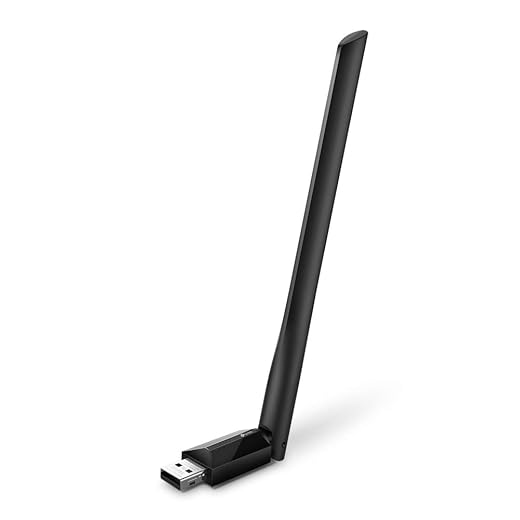
Whether you need faster storage, more memory, a better graphics card, improved cooling or a stronger Wi-Fi connection, buy only what your system genuinely needs and save your money for the upgrades that matter.
Better Your Graphics

Increase Speed

Reduce Load Times

Improve Cooling

Boost Your Wi-Fi
When NOT to Upgrade Your Gaming PC
Sometimes the smartest upgrade is no upgrade at all. If your system requires a new processor, motherboard, RAM, graphics card and power supply just to play modern games comfortably, you’re no longer upgrading. You’re rebuilding.
In those situations, continuing to spend money on outdated hardware often delivers poor long-term value.
It may be better to:
- Continue using your current PC for lighter games.
- Save toward a balanced new build.
- Sell reusable components while they still have value.
- Plan your next platform instead of extending an aging one indefinitely.
If you’re unsure where that tipping point lies, our guide on whether to upgrade your old PC or build a new one can help you make the decision.
Gaming PC Upgrade Checklist
Before ordering any new hardware, run through this quick checklist.
| Question | Completed? |
|---|---|
| Have I identified my real bottleneck? | ☐ |
| Have I monitored CPU and GPU usage while gaming? | ☐ |
| Have I checked RAM usage? | ☐ |
| Have I confirmed hardware compatibility? | ☐ |
| Is my power supply capable of supporting the upgrade? | ☐ |
| Will this upgrade still make sense in two years? | ☐ |
| Could the same money be better invested toward a future build? | ☐ |
If you can confidently answer every question, you’re much more likely to buy the right upgrade the first time.
Frequently Asked Questions
What should I upgrade first on a gaming PC?
Always identify the bottleneck first. If you’re still using a mechanical hard drive, upgrading to an SSD is usually the best first improvement. After that, the right choice depends on whether your GPU, CPU or RAM is limiting performance.
Should I upgrade my CPU or GPU first?
Whichever component is currently limiting your games. GPU usage close to 100% usually points toward a graphics card upgrade, while consistently high CPU usage suggests it’s time for a processor upgrade.
Does more RAM increase FPS?
Only if your current system is running out of memory. Otherwise, adding more RAM generally improves system responsiveness and reduces stuttering rather than dramatically increasing average frame rates.
Will an SSD improve gaming performance?
An SSD dramatically improves loading times, Windows responsiveness and game installation speeds. It usually won’t increase average FPS, but it can make your overall gaming experience feel much smoother.
How do I know if my gaming PC is worth upgrading?
If one or two upgrades will noticeably improve your experience, upgrading usually makes sense. If nearly every major component needs replacing, saving for a newer platform is often the smarter investment.
What’s the cheapest gaming PC upgrade?
An SSD often provides the biggest improvement to everyday responsiveness for the money. Memory upgrades can also be excellent value when your system only has 8GB of RAM.
Final Thoughts
Upgrading a gaming PC isn’t about buying the newest hardware. It’s about solving the right problem.
The smartest gamers don’t start with online shopping. They start with testing.
Once you understand what’s actually limiting your system, every upgrade becomes easier to justify, easier to budget for and far more likely to deliver noticeable improvements.
Whether your next purchase is an SSD, more RAM, a graphics card or a new processor, following the correct upgrade order helps you get the most performance from every dollar you spend.
And if your current platform has simply reached the end of its life, that’s valuable information too. Sometimes the best financial decision isn’t squeezing another small upgrade into an aging PC, but putting that money toward a balanced system that will serve you well for years to come.