Updated 03/08/2026
Whether you’re building your first gaming PC or replacing an older gaming computer, this guide walks every PC builder through…, but it’s also where expensive mistakes happen. Choosing incompatible parts, overspending on the wrong components, or planning a poor upgrade path can cost far more than the build itself.
Asking the right questions before building a gaming PC helps you avoid those mistakes. Whether you’re building on a tight budget or planning a high-end gaming rig, this guide walks you through the 15 most important decisions every PC builder should make before buying a single part.
Quick Answers: The Most Important Things to Know Before Building a Gaming PC
If you only read one section, make it this. These are the decisions that matter. If you’re short on time, these are the biggest decisions that will have the greatest impact on your build:
- GPU: Spend the biggest share of your budget on the graphics card, as this will have the biggest impact on gaming performance.
- RAM: 16GB is the minimum for gaming, while 32GB offers a smoother long-term experience.
- Storage: Install Windows and your games on an SSD. Use HDDs only for bulk storage.
- Power Supply: Buy a high-quality PSU with enough headroom for future upgrades.
- Compatibility: Always check that your CPU, motherboard, RAM and case work together before buying.
- Cooling: Air cooling is the best choice for most gaming PCs.
Everything else is optimisation. Get these fundamentals right first, and the rest of your build becomes much easier.
Building on a Budget (What Actually Matters Under $800)
If you’re working with a tight budget, every mistake costs you performance. This is where most first-time builders get it wrong. A balanced build almost always performs better than an expensive but poorly planned one.
Here’s the reality:
- In our experience, a well-tested used mid-range GPU often delivers far better gaming value than buying a brand-new entry-level card.
- DDR4 is still completely viable — don’t force DDR5 if it kills your GPU budget
- CPU should not overshadow your GPU
- Cheap PSU = long-term risk
If your current PC isn’t terrible, upgrading might be smarter. Read this upgrade guide before you commit to a full build.
1. How much should I actually spend on a gaming PC?
2. Should I build now or wait for new parts?
Your budget controls everything. Performance, upgrade path, and how many mistakes you can afford to recover from later. Prioritise the gaming hardware that actually improves FPS rather than cosmetic upgrades.
The biggest mistake beginners make is chasing “ultimate builds” instead of balanced ones. A well-balanced mid-range PC will outperform a flashy, poorly planned high-end build every time.
Prioritize your GPU and CPU first. Everything else supports those two. That includes your case, RGB, and fancy accessories that do absolutely nothing for performance.
When choosing the GPU, don’t judge it by VRAM capacity alone. If you’re deciding between cards with different memory capacities, our 8GB vs 12GB vs 16GB VRAM buying guide explains which tier makes sense for your resolution, games and budget.
If you’re not sure where to start, here are solid GPU picks that won’t waste your budget:


Need help structuring your budget? Use this gaming PC budget guide.
There is always something better coming. New GPUs, new CPUs, new “slightly faster” versions of what you’re already looking at. If you’re changing platforms, remember that newer CPUs often require a different chipset and motherboard.
If you keep waiting, you’ll never build. The real question is this: does current hardware meet your needs right now? If yes, build. If not, wait with a purpose, not out of fear.
Prices fluctuate, but your time matters too. A good PC today beats a perfect PC you never build.
3. Which parts matter most for performance?

This is where most money gets wasted. Your GPU controls your frame rate. Your CPU controls how stable those frames feel. Everything else supports those two. A fast GPU paired with a weak CPU can create a bottleneck, reducing gaming performance.
That means:
- GPU = FPS
- CPU = frame stability
- RAM = multitasking + consistency
- Storage = loading times only
If you’re upgrading, start here: best GPU picks.
Real Performance: What Actually Happens on Real PCs
This is the part most guides skip. On real systems, performance problems usually come from:
- CPU bottlenecks causing stutter
- RAM limitations causing frame dips
- Background processes killing consistency
If your system struggles, don’t guess. Fix it properly using this Windows performance guide.
4. Can I reuse old parts from my previous build?
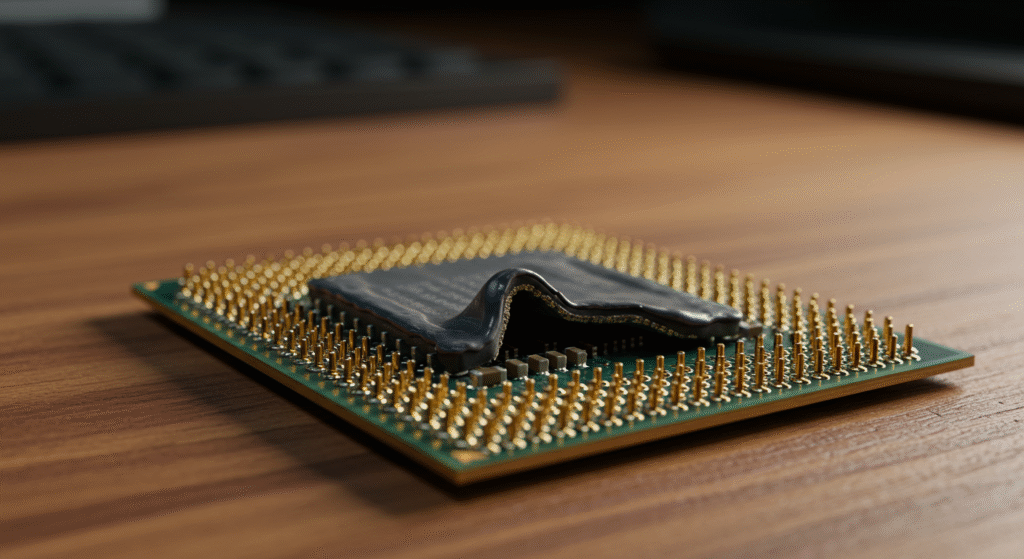
Yes, but only if those parts still make sense. Some computer components, like cases and SSDs, can often be reused for years, cooling components also usually age well. Power supplies and CPUs are more risky.
Old PSUs can fail without warning. Old CPUs may bottleneck modern GPUs. If you’re considering used parts, read this used CPU guide.
5. Is DDR5 or PCIe 5 worth paying extra for?
Short answer: not for most gamers. Unless DDR5 fits your long-term upgrade path, your money is usually better spent on a faster graphics card.
DDR5 is faster, but the real-world difference in gaming is small unless you’re pairing it with high-end CPUs.
PCIe 5 is even more extreme. The speeds are impressive on paper, but most games won’t benefit from it yet. Spend that money on a better GPU instead. You’ll actually notice the difference.
6. How big should my power supply be?
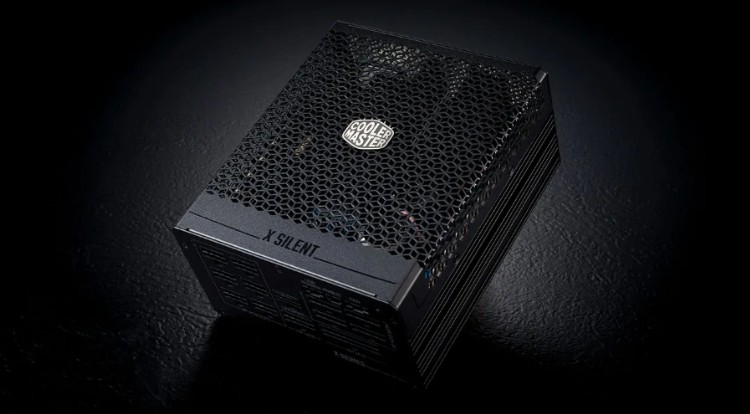
Take your system’s expected power draw and add around 30 percent headroom. This gives you stability, efficiency, and upgrade flexibility. More importantly, buy quality. A cheap PSU is one of the fastest ways to destroy an otherwise good build.
If your PSU is questionable, fix that first. These are safe, reliable options:


7. Air cooling or liquid cooling?
For most gaming PCs, air cooling is the better choice. It’s cheaper, more reliable, easier to install, and provides more than enough cooling for mainstream gaming CPUs. NB! Good airflow is often more important than expensive cooling hardware.
8. How much RAM do I really need?
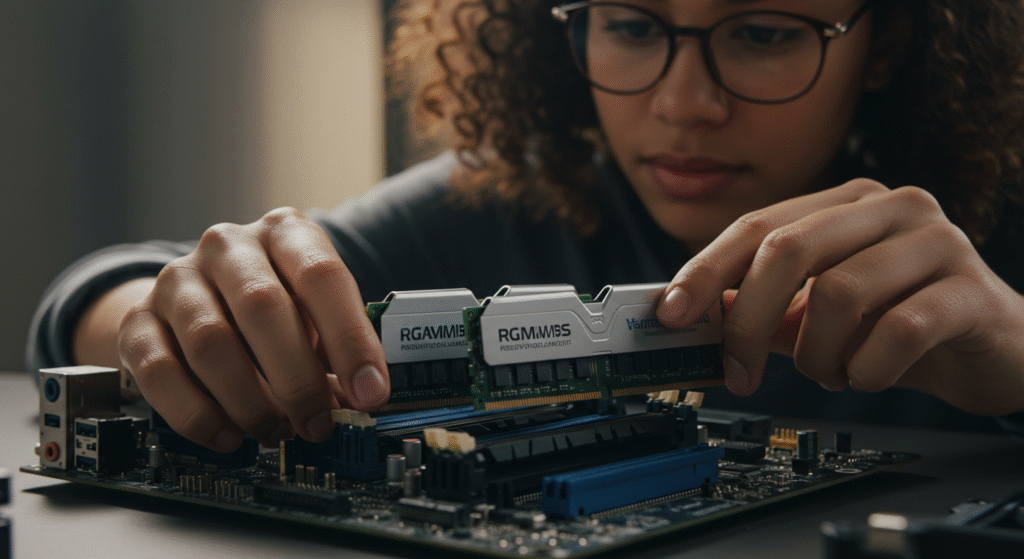
16GB is still the baseline for gaming in 2026, but that’s assuming you’re only running the game and not much else. The moment you start adding real-world usage, Discord, browsers, background apps, maybe a recording tool, that 16GB starts getting tight fast.
32GB is where things start to feel comfortable. Not because it magically boosts FPS, but because it removes bottlenecks. You get fewer stutters, more consistent frame times, and less chance of your system choking when something spikes in the background.
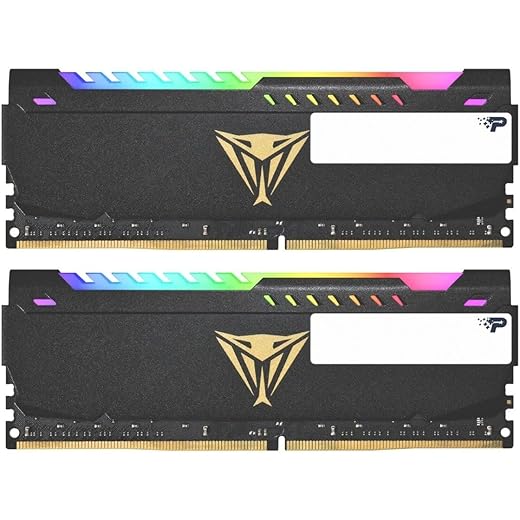
If you’re deciding between 16GB or 32GB kits, these are solid no-regret kits: All of these are 16gb or 23gb kits


9. What’s the best order to buy PC parts?
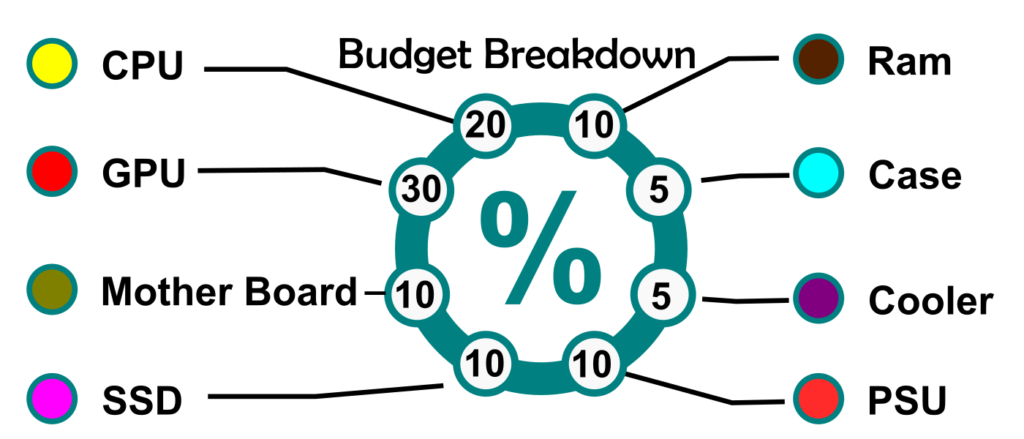
Start by deciding on your graphics card, because it has the biggest impact on gaming performance and will determine how much of your budget is left for the rest of the build. Once you’ve chosen your GPU, pick a CPU that can keep up without creating a bottleneck, then choose a compatible motherboard that supports both your processor and your planned upgrade path.
From there, add a quality power supply with enough headroom for future upgrades, followed by your RAM, storage, cooling, and case. Buying random components just because they’re on sale often leads to compatibility problems, overspending, or a system that’s difficult to upgrade later.
10. What are the most common mistakes first-time builders make?

The usual mistakes aren’t complicated, but they are expensive:
- Cheap power supplies
- Poor airflow
- Compatibility issues
- Overspending on aesthetics
- Poor cable management and restricted airflow
Most of these come from rushing or skipping research.
11. Should I build it myself or buy a pre-built?
A DIY gaming PC gives you complete control over every component, which usually means better value for your money and no mystery parts cutting corners behind the scenes. You decide where the budget goes, what gets prioritized, and how upgrade-ready your system will be down the line. It also teaches you how your system actually works, which makes troubleshooting and upgrading far easier later on.
Pre-builts, on the other hand, are all about convenience. You unbox it, turn it on, and start using it with minimal effort. If you don’t want to deal with compatibility checks, assembly, or potential troubleshooting, a reputable pre-built can make sense. Just make sure every component is clearly listed, because “unknown PSU” or vague specs usually means something was cheaped out where it matters most..
12. How long will a new PC last?
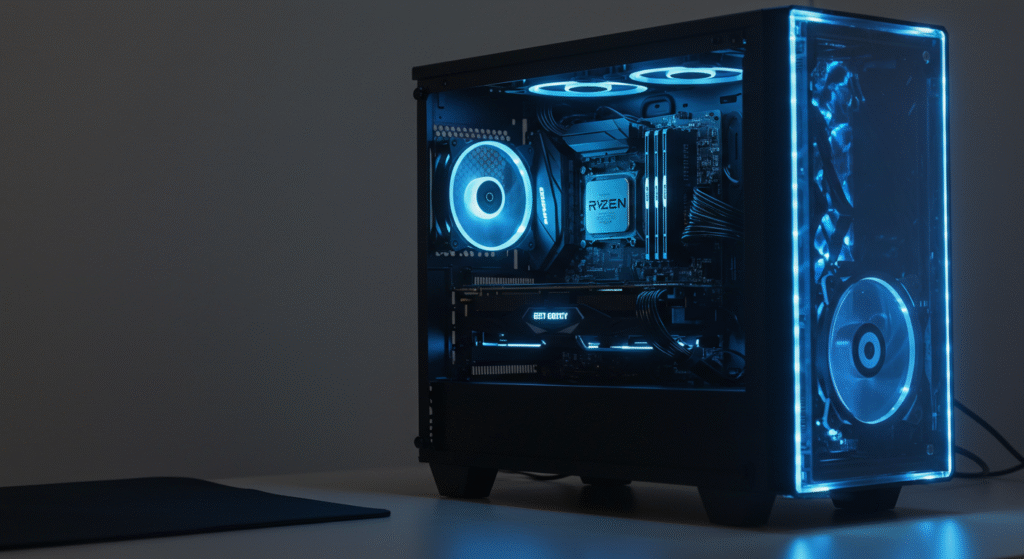
A well-balanced system should comfortably last 3 to 5 years before needing any major upgrades, assuming you matched your parts to your actual performance goals from the start. Most people don’t upgrade because something breaks, they upgrade because their expectations change, new games get more demanding, higher refresh monitors become the norm, or settings that once felt smooth start to dip. With regular maintenance and the occasional targeted upgrade, usually the GPU or adding more RAM, you can stretch that lifespan even further without rebuilding from scratch.
13. What’s the smartest way to future-proof a PC?
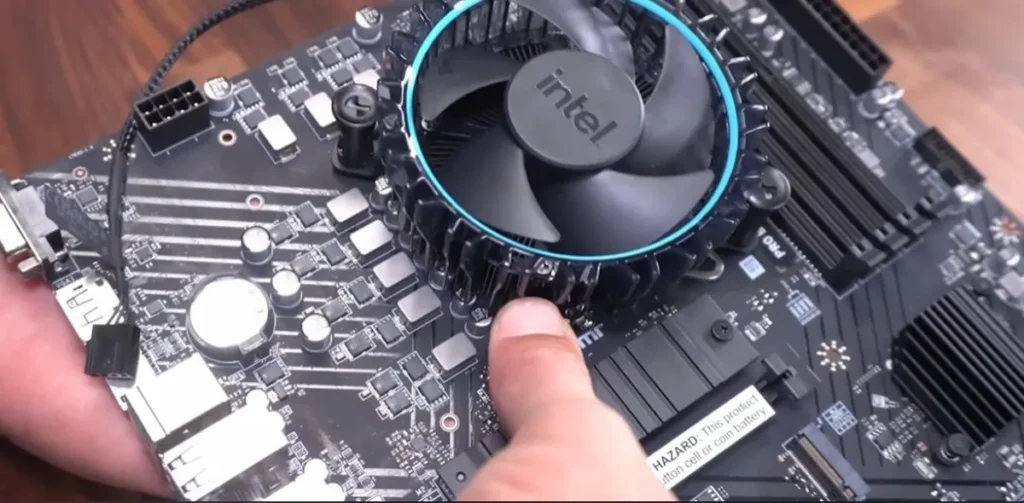
Future-proofing isn’t about buying the most expensive parts, it’s about building flexibility into your system from the start. That means choosing a motherboard with a modern chipset and a good upgrade path, investing in a reliable power supply with enough headroom for future GPUs, and making sure your case and cooling setup can handle more demanding components later.
The goal isn’t to “never upgrade,” it’s to make sure that when you do, you’re swapping a part or two, not rebuilding your entire system from scratch.
14. How do I avoid buying incompatible PC parts?
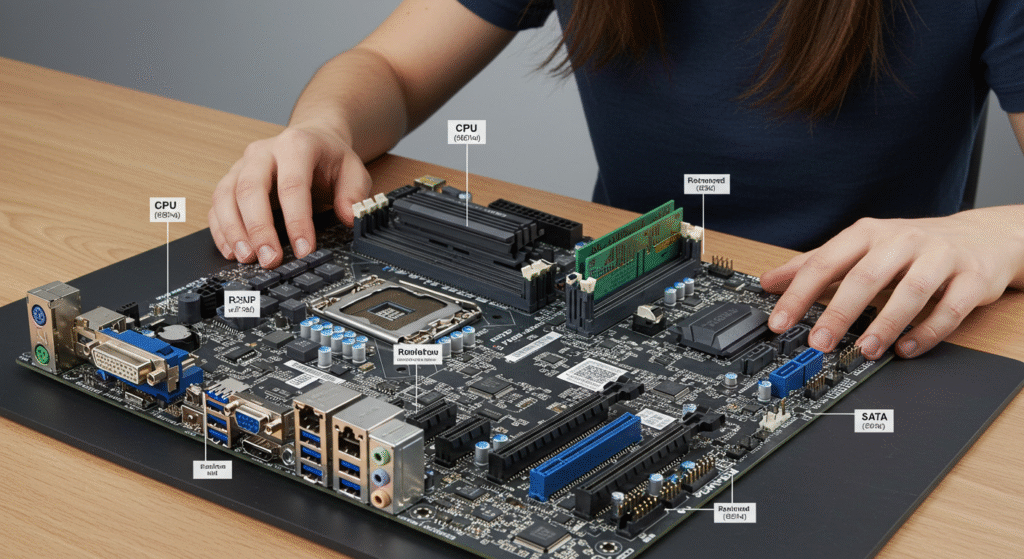
The easiest way to avoid compatibility problems is to verify every component before you buy it. Tools like PCPartPicker automatically check CPU socket compatibility, supported memory, power requirements, and physical clearances such as GPU length and CPU cooler height.
Don’t rely on product names or assume that parts from the same brand will work together. Always confirm your motherboard supports your processor, your RAM is compatible, your power supply has the required connectors, and your case has enough space for your graphics card and cooler.
Spending five minutes checking compatibility before ordering your parts is far easier than returning expensive hardware because one component doesn’t fit or isn’t supported.
15. What tools or software should I have before starting?
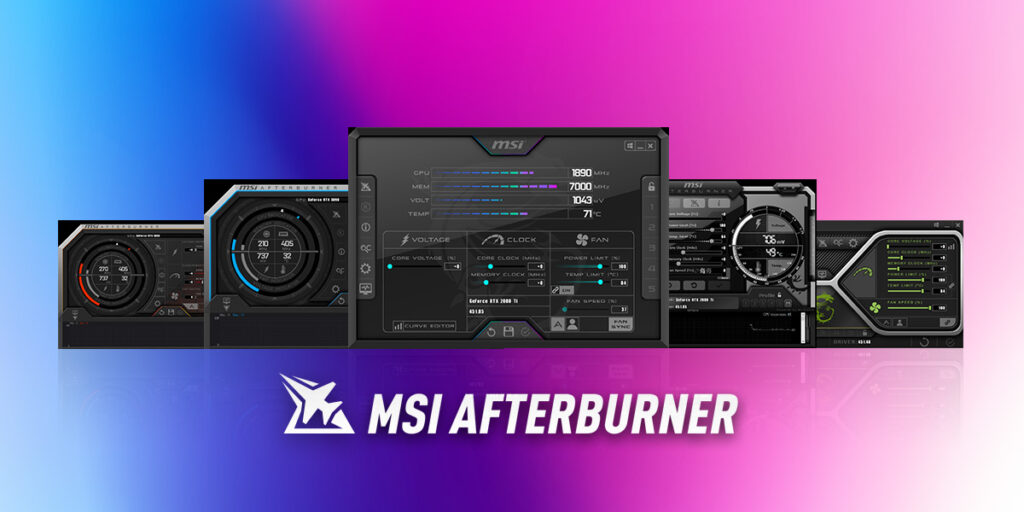
You don’t need much:
- Screwdriver
- USB installer
- Patience
After building, update your drivers and monitor performance before installing games. Before installing games, install Windows updates, your motherboard drivers and perform a BIOS update if recommended by the manufacturer.
Who Should NOT Build a PC
This is the part most guides won’t tell you, because it goes against the whole “everyone should build” narrative. The reality is, building a PC isn’t always the smartest move for every user, and knowing when to skip it can save you time, money, and a lot of frustration.
You should not build a PC if:
- You want something that works instantly
- You have no patience for troubleshooting
- You tend to overspend chasing specs
In those cases, a good pre-built is the smarter decision.
More Questions About Building a Gaming PC
Is it cheaper to build a gaming PC than buy a pre-built?
In most cases, yes. Building your own gaming PC usually gives you better performance for your budget because you choose every component yourself. Pre-built systems can still be a good choice if you value convenience or don’t want to assemble the PC yourself.
What’s the biggest mistake first-time PC builders make?
The biggest mistake is spending too much on the wrong components. Many first-time builders overspend on RGB, premium motherboards or high-end CPUs while neglecting the graphics card, which has the biggest impact on gaming performance.
Should I buy all my PC parts at once?
Buying everything within a short period is usually the safest approach. It allows you to test your components while they’re still under the retailer’s return policy and avoids compatibility issues caused by newer hardware releasing months later.
Can I upgrade my gaming PC later?
Yes. A well-planned gaming PC should be easy to upgrade. Choosing a quality power supply, a capable motherboard and a spacious case makes it much easier to install a faster graphics card, more RAM or additional storage in the future.
Do I need an expensive motherboard for gaming?
No. A reliable motherboard with the features you actually need is usually the better investment. Spending more rarely increases gaming performance, so it’s often smarter to put that money towards a better graphics card instead.
Smarter Builds Start with Smarter Questions
The difference between a smooth, reliable gaming PC and one that’s frustrating to build or upgrade usually comes down to planning. Asking the right questions before buying your components helps you avoid compatibility issues, spend your budget where it matters most, and build a system that’s easier to upgrade in the future. A well-planned gaming desktop is easier to upgrade, easier to maintain and delivers better value over its lifetime.
Whether this is your first gaming PC or your fifth, a little preparation now can save you hours of troubleshooting, unnecessary upgrades, and costly mistakes later. Build smarter from the start, and you’ll enjoy your PC for years to come.
If you want a complete blueprint, read: How to pick PC parts that actually fit and perform