


What gaming monitor can my PC handle? The answer is not automatically the sharpest or fastest screen you can afford. It is the monitor your graphics card can drive properly in the games you actually play. It is the monitor your graphics card can drive properly in the games you actually play.
A 4K 240Hz monitor may look spectacular on a product page, but it cannot make an older GPU produce 4K at 240 frames per second. At the other extreme, a powerful gaming PC connected to an old 1080p 60Hz display may be generating far more performance than the screen can show.
This guide will help you work out whether your PC is better matched to 1080p, 1440p, ultrawide or 4K, how much refresh rate you can realistically use, and whether upgrading your monitor or graphics card should come first. Once you know the type of screen your system can handle, you can use our Best Gaming Monitors by Budget guide to choose an actual model.
Quick Answer: What Gaming Monitor Can Your PC Handle?
Start with the frame rates your PC currently delivers in the games you care about. Your GPU model is useful, but actual gaming performance gives you a much better answer than labels such as entry-level, mid-range or high-end.
| Your current gaming performance | Sensible monitor target | What to understand |
|---|---|---|
| Below 60 FPS in demanding games at 1080p | 1080p with VRR, or keep your current monitor | A GPU upgrade may improve the experience more than a higher-resolution screen |
| 60–100 FPS at 1080p | 1080p 120–180Hz | You gain smoother motion without adding the load of 1440p |
| 60–100 FPS at 1440p | 1440p 144–180Hz with VRR | You will not use the maximum refresh constantly, but VRR keeps fluctuating frame rates useful |
| 100–180 FPS at 1440p | 1440p 165–240Hz | A strong all-round match for fast and visually demanding games |
| More than 200 FPS in competitive games | 1080p or 1440p 240Hz+ | High refresh becomes worthwhile when motion clarity and responsiveness matter most |
| Strong 4K performance in your chosen games | 4K 120–165Hz with VRR | Prioritise image detail, but expect much heavier GPU demand |
For many PC gamers, a 27-inch 1440p monitor with a 144Hz to 180Hz refresh rate and variable refresh rate support is the strongest general-purpose setup. It is only the right recommendation, however, if your PC can run your games acceptably at 1440p. Older and entry-level systems are often better served by a good 1080p high-refresh monitor.
Check Your Current Gaming Performance First
Do not choose a monitor from the name of your graphics card alone. The same GPU may deliver several hundred frames per second in a light esports game and struggle to maintain 60 FPS in a demanding new release. Ray tracing, graphics settings, CPU performance and upscaling can change the result again.
Instead, open the games you play most often and check their frame rates at the settings you are genuinely willing to use. Many games include a benchmark or FPS counter. The NVIDIA app, AMD Software and platforms such as Steam can also provide performance overlays.
- Test two or three games that represent what you normally play.
- Use the resolution and graphics settings you intend to keep using.
- Look at typical performance and the heavier scenes, not just the highest number you see.
- Decide whether you value sharper images, higher frame rates or a compromise between them.
If your PC already struggles at 1080p, moving to a 1440p or 4K monitor will not solve the problem. If it easily produces more than 100 FPS, you have much more room to benefit from a higher-refresh display.
Also check whether the GPU is really the limit. Competitive games at very high frame rates can become CPU-limited, while too little RAM, background activity or unstable frame delivery can make a capable system feel rough. If you are unsure, read How to Tell If Your CPU or GPU Is the Problem.
Choose Between 1080p, 1440p, Ultrawide and 4K
Resolution determines how many pixels your GPU must render for each frame. More pixels can create a sharper image, but they also increase graphics-card load. Moving from 1080p to 1440p increases the number of pixels by roughly 78%, while 4K contains four times as many pixels as 1080p.
Choose 1080p for older GPUs and high frame rates
1080p remains sensible if your graphics card is older, your PC uses integrated graphics, or you prioritise high frame rates over extra image detail. It places the least load on the GPU and makes 120Hz, 144Hz or faster gaming achievable on much more modest hardware.

It is also still useful for competitive players. Games such as Counter-Strike 2, Valorant, Fortnite and Overwatch 2 can reach high frame rates on hardware that would struggle to produce the same numbers at 1440p.
A 24-inch or 25-inch screen is normally the best physical match for 1080p at a desk. Stretching the same resolution across a 27-inch panel lowers pixel density and can make desktop text and fine game detail look softer at normal viewing distance.
Choose 1440p for the best general-purpose balance
1440p is the strongest middle ground for a PC that can handle it. It looks noticeably sharper than 1080p on a 27-inch screen, but it is far easier to drive than 4K. That makes 1440p paired with 144Hz to 180Hz a strong combination for people who play both fast multiplayer games and detailed single-player titles.
You do not need to achieve 144 FPS in every game to use a 144Hz or 165Hz monitor. A game running between 70 and 110 FPS can still feel smoother than it would on a 60Hz display, especially when variable refresh rate is working correctly. Just do not assume that buying the screen will make your GPU produce those frames.
Choose ultrawide for immersion and extra screen space
A common 3440 × 1440 ultrawide monitor renders about 34% more pixels than ordinary 2560 × 1440. That means a PC that handles standard 1440p comfortably may lose a noticeable amount of performance at ultrawide resolution.
Ultrawide can be excellent for racing games, simulators, RPGs, strategy games and general desktop use. Check that your favourite games support the aspect ratio properly, because some titles display black bars, stretch menus or restrict ultrawide views in competitive modes.
Choose 4K when image detail matters most
4K is best suited to strong graphics hardware, larger monitors and players who care more about fine image detail than reaching the highest possible frame rates. It makes the most visual sense at around 32 inches, although a 27-inch 4K display can also provide extremely sharp text and desktop images.
Modern upscaling can make 4K gaming more practical, but it does not remove the GPU requirement entirely. Performance also varies enormously between games. A PC that handles an older title at 4K may still need reduced settings, upscaling or frame generation in a demanding new release.
You can run games below a monitor’s native resolution, but the result may look softer than using a display designed for that resolution. If you are buying 4K only because you plan to run every demanding game at 1080p, a native 1080p or 1440p monitor may produce a more balanced result for less money.
How Much Refresh Rate Can Your PC Actually Use?
Refresh rate is the number of times the monitor can update its image each second. A 60Hz monitor can refresh up to 60 times per second, while a 144Hz monitor can refresh up to 144 times. Higher refresh rates can make movement look smoother and controls feel more immediate, but the computer still has to generate the frames.
| Refresh rate | Best suited to | Practical advice |
|---|---|---|
| 60–75Hz | Basic systems, slower games and strict budgets | Playable, but a new gaming monitor should usually offer more unless price or resolution takes priority |
| 120–180Hz | Most PC gamers | The largest practical improvement over an old 60Hz screen without requiring extreme frame rates |
| 200–240Hz | Fast games and powerful systems | Worth considering when your PC regularly runs well above 144 FPS |
| 360Hz and higher | Serious competitive play | A specialist choice with smaller gains and demanding CPU and GPU requirements |
Your FPS does not have to equal the monitor’s maximum refresh rate at all times. A 165Hz monitor is not wasted merely because one game runs at 90 FPS. It can still display that performance more effectively than a 60Hz screen, and less demanding games may run much faster.
However, there is little reason to pay a large premium for 240Hz or 360Hz if your favourite games normally run at 60–90 FPS. Put that money towards better panel quality, stronger HDR, a more suitable resolution or a future GPU upgrade instead.
Why variable refresh rate matters
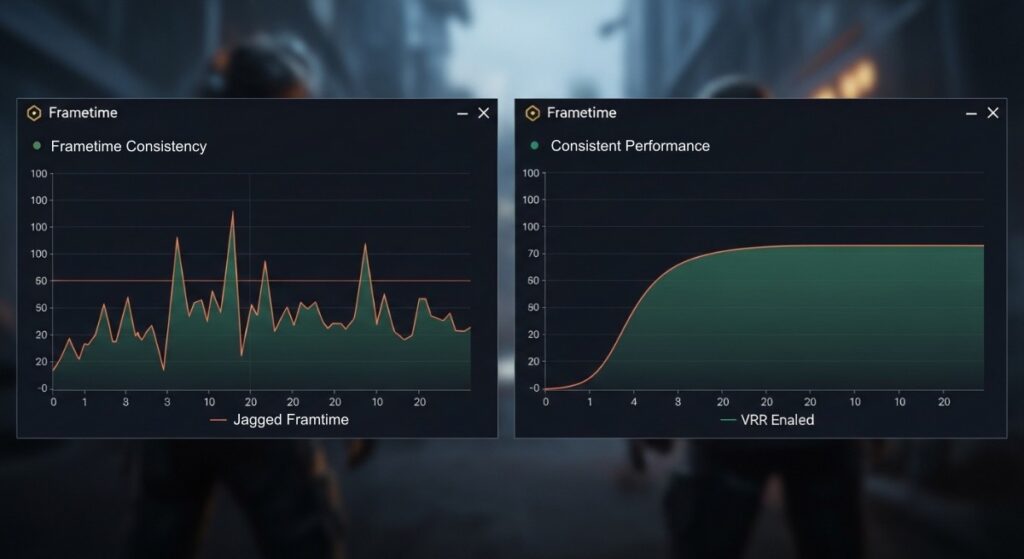
Variable refresh rate, or VRR, lets the monitor adjust its refresh timing to follow the frames being delivered by the graphics card. AMD explains how FreeSync synchronises the display’s refresh rate with the GPU’s frame rate to reduce problems such as screen tearing and stuttering. G-Sync Compatible provides a similar function for supported NVIDIA setups. This can make changing frame rates feel more consistent, provided performance remains within the monitor’s supported VRR range.
VRR is especially useful when a game fluctuates between numbers such as 70 and 110 FPS. It cannot repair severe stutter or make 35 FPS behave like 120 FPS, but it makes ordinary fluctuations less distracting.
Match the Monitor to the Games You Play
The same PC may need a different monitor priority depending on the games being played. Choose for the experience you spend the most time with rather than the most impressive number on the box.
Competitive shooters and esports
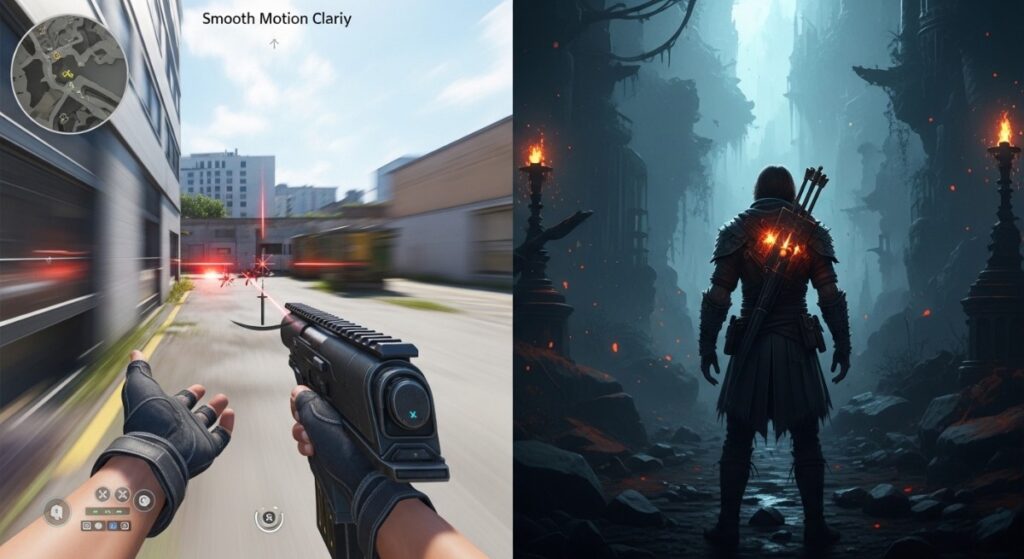
Prioritise refresh rate, motion clarity, low input latency and a resolution that lets the PC maintain high frame rates. A 1080p or 1440p 240Hz monitor may be more useful here than a 4K display. The fastest panel is only worthwhile if the PC, and especially the CPU, can generate high and consistent frame rates.
RPGs and cinematic single-player games
Prioritise resolution, contrast, HDR quality and image richness. A stable 70–100 FPS on a strong 1440p or 4K display may provide a better experience than sacrificing visual quality to chase 200 FPS. OLED and well-implemented mini-LED become more meaningful in dark scenes and games with dramatic lighting.
Strategy games, MMOs and simulators
Prioritise resolution, screen space and text clarity. A 27-inch 1440p, 32-inch 4K or supported ultrawide display can make complex interfaces easier to use. Extremely high refresh rates are less important unless you also play fast competitive games.
Choose a Screen Size That Suits the Resolution
Screen size does not add GPU load by itself. A 24-inch 1440p monitor and a 32-inch 1440p monitor contain the same number of pixels. Size changes how densely those pixels are packed and how comfortably the screen fits your viewing distance.
| Common size | Natural resolution match | Why |
|---|---|---|
| 24–25 inches | 1080p | Good clarity at normal desk distance and popular for competitive gaming |
| 27 inches | 1440p | A strong balance of usable space, sharpness and GPU demand |
| 32 inches | 4K | The added resolution keeps a larger desktop display looking sharp |
| 34 inches ultrawide | 3440 × 1440 | Extra horizontal room and immersion, with more GPU load than ordinary 1440p |
These are not laws. Viewing distance, eyesight and personal preference still matter. Measure your desk and consider where the screen will sit before choosing a large display. A bigger monitor that forces constant head movement or sits too close can be less comfortable than a smaller, sharper one.
Panel Type, VRR and HDR Come After Performance
Once you know the appropriate resolution and refresh-rate range, compare panel quality and features. These can materially change how the monitor looks and feels, but they should not distract you from matching the screen to your PC first.
IPS, VA and OLED
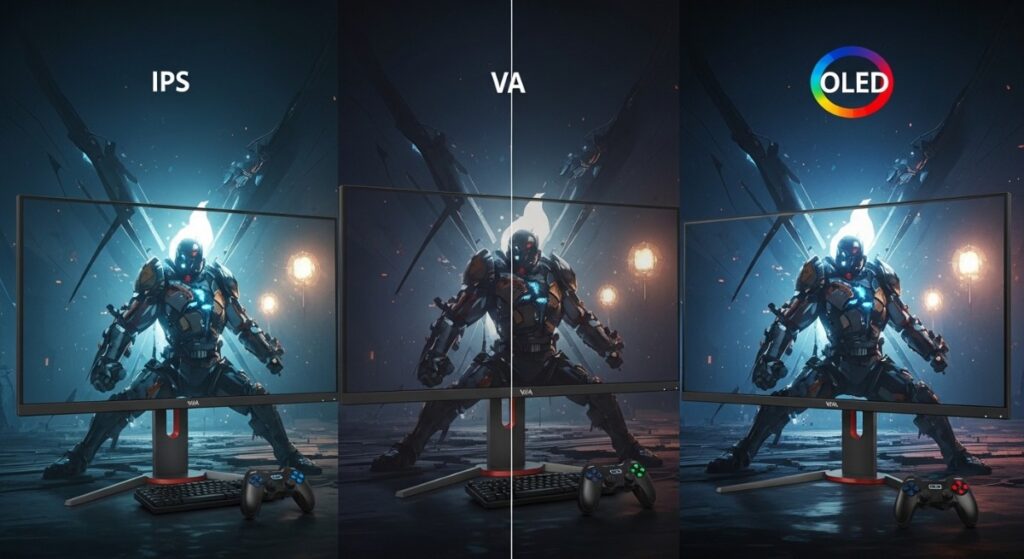
- IPS: The safest mainstream starting point. Affordable IPS monitors commonly offer good colour, viewing angles and motion performance, although native contrast is usually weaker than VA.
- VA: Often provides deeper native blacks and stronger contrast than IPS, but some models show visible dark smearing in motion. Check model-specific reviews rather than rejecting or choosing VA by name alone.
- OLED: Provides perfect black levels, excellent contrast and extremely fast pixel response. It costs more and requires consideration of burn-in coverage, brightness behaviour, text clarity and long periods of static desktop use.
Panel type is not a quality guarantee. A good monitor review should examine the behaviour of the specific model, because response performance, tuning and useful features can vary between screens using the same broad panel technology.
Do not buy HDR from the badge alone
A monitor accepting an HDR signal does not mean it can produce an impressive HDR image. Meaningful HDR needs strong contrast control as well as enough brightness to make highlights stand out. OLED can control each pixel individually, while mini-LED monitors use many local-dimming zones. Basic LCD monitors with no effective local dimming often provide little reason to choose them specifically for HDR.
Should You Upgrade Your Monitor or GPU First?
Upgrade the monitor first when your PC already produces more performance than the current display can show. Upgrade the GPU first when the system cannot deliver an acceptable frame rate at the resolution you want to use.
| Your situation | Upgrade first | Reason |
|---|---|---|
| You get well above 60 FPS but still use a 60Hz monitor | Monitor | A higher-refresh display can show more of the performance you already have |
| You struggle below 60 FPS at 1080p | GPU or system | A higher-resolution monitor will increase the graphics load |
| Your games run well at 1080p but you want sharper visuals | Depends | Test or research your GPU’s 1440p performance before buying |
| You already achieve good 1440p performance on an old 1080p display | Monitor | The PC has room to make use of the added resolution |
| Games stutter regardless of average FPS | Diagnose first | A new monitor may not fix CPU limits, RAM problems or unstable frame delivery |
Buying a higher-resolution monitor now and upgrading the GPU later can still be sensible. The monitor may last through several graphics-card upgrades, and desktop work will benefit from the added resolution immediately. Just enter that decision knowing that demanding games may require reduced settings, upscaling or a lower rendering resolution until the GPU catches up.
If your current performance is uneven rather than simply low, investigate before spending money. Read Why Games Stutter on Low-End PCs and Why Unlimited FPS Can Make Games Feel Worse.
Gaming Monitor Compatibility Checklist
Resolution and refresh rate are not the only compatibility checks. Before ordering a monitor, confirm the following:
- Graphics output: Check whether the GPU or laptop has DisplayPort or HDMI outputs that support the monitor’s intended resolution and refresh rate.
- Laptop limitations: The laptop’s display output may not offer every mode supported by its internal GPU. Check the manufacturer’s specifications for the exact model.
- VRR support: Confirm FreeSync, G-Sync Compatible or the relevant HDMI VRR support, including any limitations reported in reliable reviews.
- Included cable: Use a cable capable of carrying the intended signal. An old or unsuitable cable can prevent higher refresh-rate options from appearing.
- Stand and mounting: Check height adjustment, tilt, swivel and VESA support rather than discovering after delivery that the screen sits badly on your desk.
- Warranty: Check coverage and exclusions, especially when buying OLED and relying on burn-in protection.
- Console use: If the monitor will also serve a console, confirm supported resolution, refresh rate, VRR and HDMI features for that console.
- Real model performance: Do not trust a quoted response-time number by itself. Use reputable reviews to check motion handling, input lag, overshoot and HDR behaviour.
Now Choose a Monitor That Fits Your PC
By this point, you should know the class of monitor you need: perhaps a 24-inch 1080p 144Hz display for an older PC, a 27-inch 1440p 165Hz all-rounder, a fast 240Hz esports screen, or a 4K monitor for a system built around image quality.
The next step is choosing a reliable model at the right price. See our Best Gaming Monitors by Budget for the actual recommendations. This separation matters: this guide helps you identify what your PC can sensibly use, while the buying guide helps you decide which product deserves your money.
If you are planning more than one upgrade, use The Complete Gaming PC Hardware Guide to see how the monitor, graphics card, processor and rest of the system fit together.
What Gaming Monitor Can My PC Handle? FAQ
Can I use a 1440p monitor with a weak graphics card?
Yes. The monitor will work if your PC has a compatible display output, and desktop use does not require a powerful gaming GPU. Demanding games may run poorly at native 1440p, however, so you may need lower settings, upscaling or a lower rendering resolution. If gaming is the priority, a good 1080p monitor may be the better match until the GPU is upgraded.
Is a 165Hz monitor wasted if I only get 80 FPS?
No. An 80 FPS game can still feel smoother on a 165Hz VRR monitor than on a 60Hz display, and lighter games may run much faster. You simply will not use the monitor’s full refresh capability in the more demanding game.
Will a better gaming monitor increase my FPS?
No. The monitor displays the frames produced by the PC; it does not make the GPU render more of them. Moving to a higher native resolution can actually reduce FPS if you render the game at that resolution. A faster monitor lets you see more frames when the PC is already capable of producing them.
Can I play at 1080p on a 1440p monitor?
Yes, but 1080p does not scale perfectly into 1440p and may look softer than it would on a native 1080p screen. Using the game’s upscaling options or reducing other graphics settings while keeping the monitor at its native resolution can sometimes produce a better image.
Is 144Hz still enough for gaming?
Yes. A 144Hz monitor is a major improvement over 60Hz and remains fast enough for most PC gamers. Refresh rates of 240Hz and higher are most valuable to competitive players whose systems regularly generate very high frame rates.
Does using a second monitor reduce gaming performance?
Simply displaying a desktop or static application on a second monitor usually has little effect on gaming performance. Running video, animated pages, recording software or GPU-heavy applications on that display can use additional resources and may affect weaker systems.
The right monitor does not have to be the most advanced screen your graphics card can connect to. It should suit the performance your PC can deliver, the games you spend time playing and the upgrades you realistically plan to make. Match those three things first, and the product decision becomes much easier.

Great Read!