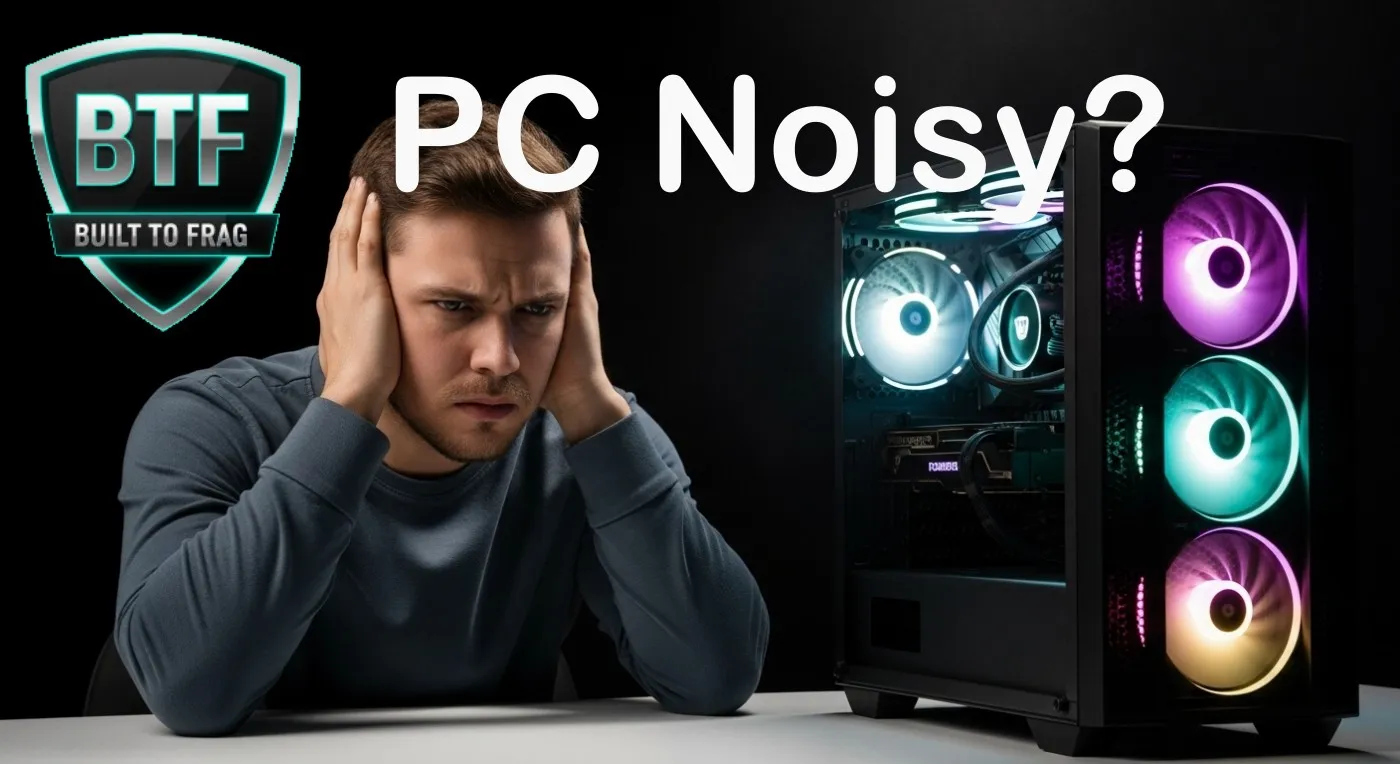
A quiet gaming PC does not need exotic cooling or an expensive soundproof case. The biggest gains usually come from controlling heat efficiently so your fans do not need to run at high RPM.
The basic formula is simple: use an airflow-friendly case, large PWM fans where practical, a CPU cooler with enough thermal headroom, a graphics card with decent cooling, a semi-passive power supply, and sensible fan curves.
You probably will not make a powerful gaming PC completely silent while gaming. But you can make it quiet enough that fan noise stops dominating the room without sacrificing temperatures or gaming performance.
Quick Answer: What Makes a Gaming PC Quiet?
For a quiet gaming PC, the goal is not simply adding more fans. You want to move enough cool air through the system without forcing those fans to spin faster than necessary.
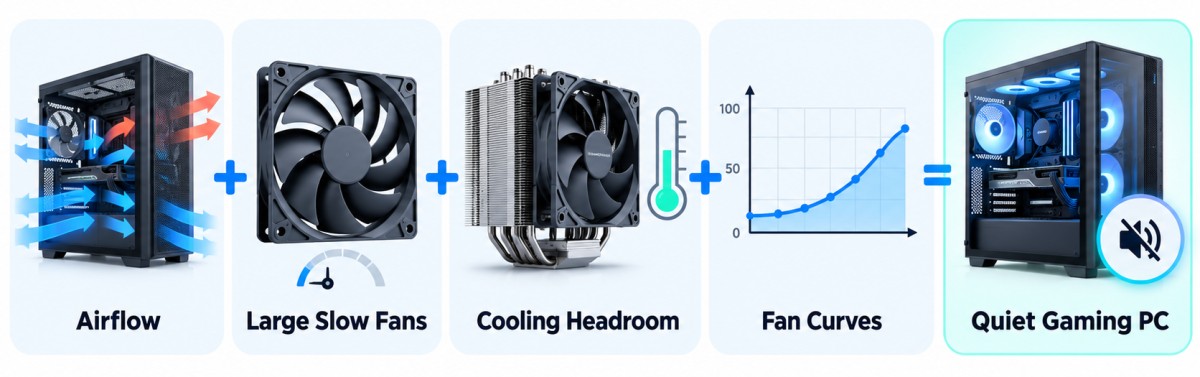
- Choose a case with unrestricted intake and exhaust airflow
- Use 140 mm PWM fans where your case supports them
- Use a CPU cooler with enough thermal capacity for your processor
- Choose a graphics card with a substantial cooler and zero-RPM idle mode where possible
- Use a quality power supply with semi-passive or zero-RPM fan operation
- Configure gradual CPU, GPU and case-fan curves
- Keep airflow paths around the graphics card clear
- Reduce unnecessary heat with sensible FPS limits or careful GPU undervolting
You are trying to balance temperature, noise and gaming performance. Chasing the lowest possible temperature usually means unnecessarily high fan speeds, while chasing complete silence can allow temperatures to rise too far.
What Actually Makes a Gaming PC Noisy?
Before choosing quiet components, it helps to understand where the noise actually comes from.
- CPU cooler fan
- Graphics card fans
- Case fans
- Power supply fan
- Liquid-cooling pump
- Mechanical hard drives
- Vibration from poorly mounted components
- Coil whine from the graphics card or power supply
During gaming, your CPU and graphics card generate heat that has to be moved away from the components and eventually out of the case. Intel’s PC cooling guidance explains that poor case ventilation can allow internal temperatures to rise and potentially affect performance, which is why airflow needs to be considered as part of the complete cooling system.
This is why simply buying fans marketed as “silent” does not guarantee a quiet gaming PC. You need to reduce the amount of work the entire cooling system has to do.
1. Start With an Airflow-Friendly Case
A quiet gaming PC starts with airflow.
That might sound backwards. A heavily enclosed case may appear quieter because there is more material between the components and your ears, but restricting airflow can also increase component temperatures and force cooling fans to spin faster.
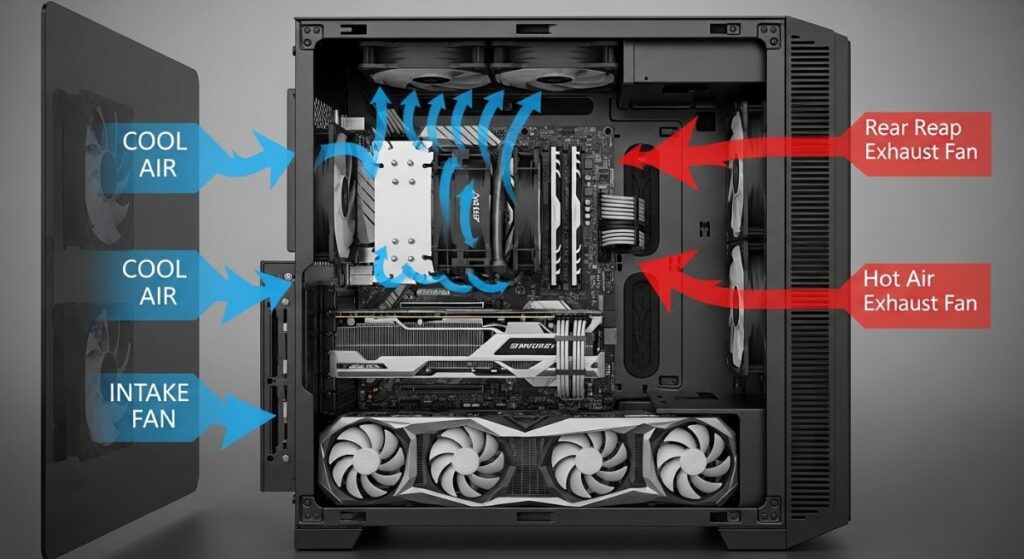
A case that allows cool air to enter easily and hot air to escape efficiently can often maintain good temperatures with lower fan speeds.
- Look for a well-ventilated front intake
- Make sure there is a clear rear or top exhaust path
- Check that the case supports large fans
- Leave enough breathing room around the graphics card
- Prefer removable dust filters that are not excessively restrictive
- Keep cable bundles away from major airflow paths
Intel recommends considering fan placement, intake and exhaust direction, case ventilation and a slight positive-pressure bias when planning PC airflow. The exact configuration will depend on your case and hardware, but the principle is straightforward: give cool air a clean path into the system and hot air an equally clear route out.


2. Use Large PWM Fans Where Possible
More fans do not automatically make a PC quieter. What matters is how much useful airflow the fans can provide without needing excessive RPM. If your case supports them, 140 mm fans are often a good choice because their larger blades can move useful amounts of air at relatively modest speeds.
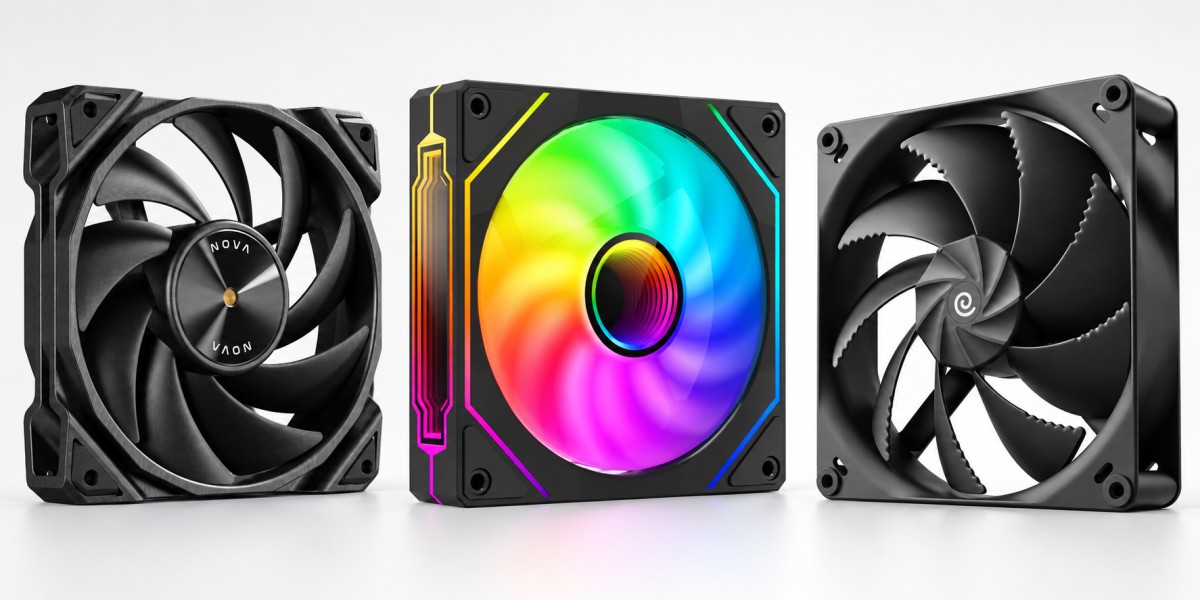
That does not mean every 140 mm fan is quieter than every 120 mm fan. Bearing quality, blade design, airflow restriction, vibration and fan speed all matter.
The principle is more important than the number printed on the box:
Move the air you need without spinning the fans faster than necessary.
PWM fans are especially useful because the motherboard can automatically adjust their speed according to temperature instead of running them at a fixed speed all the time.
How Many Case Fans Do You Actually Need?
You usually do not need to populate every available fan position.
A sensible starting point for a typical gaming PC is:
- Two or three front intake fans
- One rear exhaust fan
- Optional top exhaust if temperatures justify it
Start simple and test temperatures. Filling six or eight fan positions can introduce additional motor noise, vibration and turbulence without producing a meaningful improvement.


3. Do Not Undersize the CPU Cooler
A CPU cooler can technically keep your processor within its safe operating range and still be annoyingly loud.
This happens when the cooler has very little thermal headroom and needs high fan speeds whenever the processor is under sustained load.
For a quiet gaming build, choose a cooler capable of handling the processor without constantly operating near maximum fan speed.
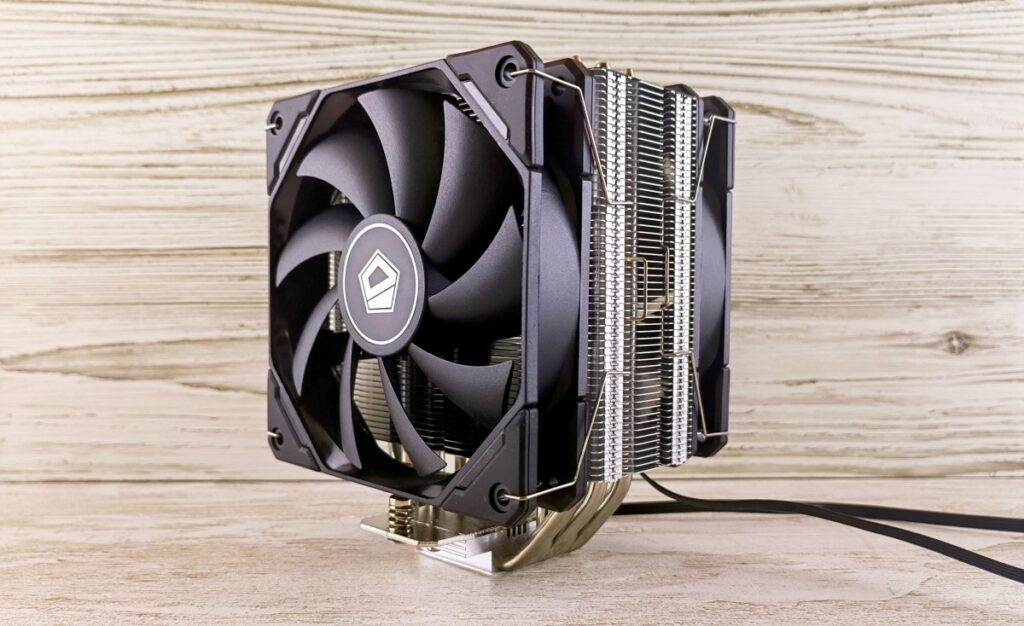
A large tower air cooler is often an excellent option. More heatsink surface area gives the cooler more opportunity to dissipate heat while allowing the fan to operate more gently.
Does Liquid Cooling Make a PC Quieter?
It can, but liquid cooling is not automatically quieter than air cooling.
A large radiator can provide substantial cooling capacity, particularly for high-power processors, but an AIO introduces another potential noise source: the pump.
A good AIO can therefore work very well in a quiet gaming PC, while a poorly configured or low-quality unit may add constant pump noise that a large air cooler does not have.
Choose the cooler according to the processor’s actual heat output, case compatibility and workload rather than assuming liquid cooling must be better.


4. Pay Close Attention to the Graphics Card
The graphics card is one of the most important components in a quiet gaming PC.
During gaming, the GPU can become one of the largest heat sources in the system. That heat affects both GPU fan speed and the temperature of the air surrounding the rest of your components.
When comparing graphics cards using the same GPU, do not look only at clock speeds.
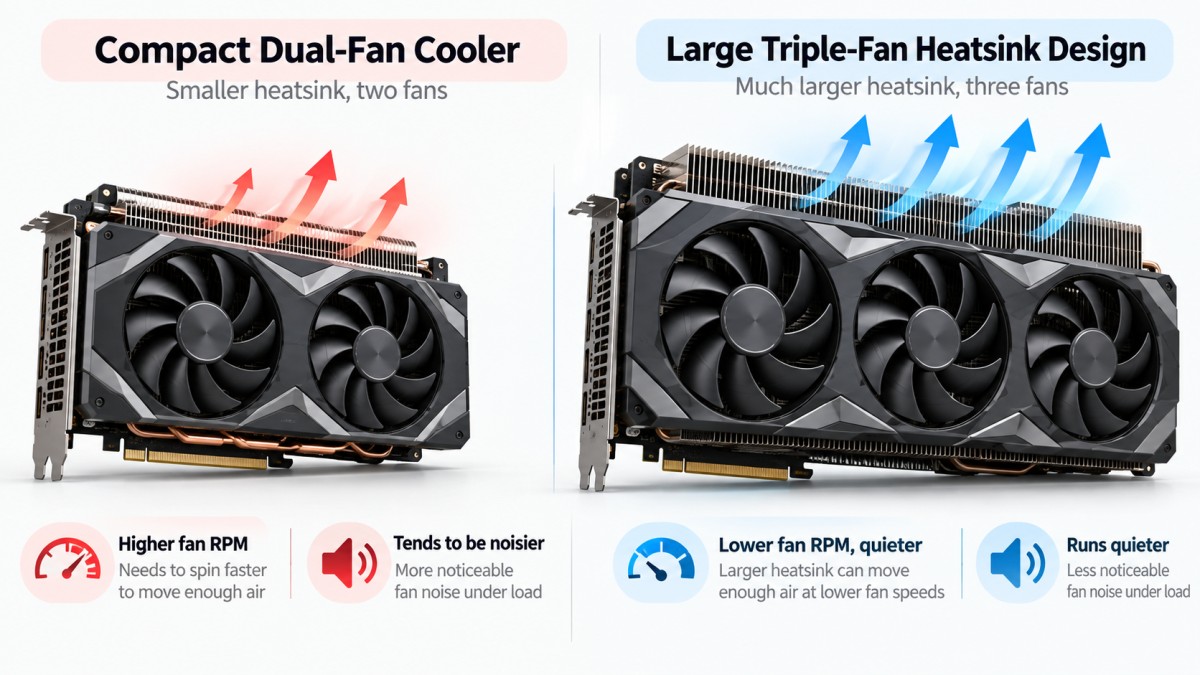
Cooler design matters.
- A larger heatsink provides more cooling surface area
- Multiple well-designed fans can reduce the RPM required from each fan
- Zero-RPM operation can eliminate GPU fan noise at idle
- A sensible factory fan curve can make a large difference under gaming load
This becomes increasingly important with high-power graphics cards. A compact cooler may save space, but if it has to operate at substantially higher fan speeds under load, that space saving can come with an acoustic penalty.
Zero-RPM GPU Modes
Many modern graphics cards stop their fans completely when the GPU is cool enough.
This means the graphics card can be effectively silent during web browsing, office work and other light workloads, with the fans starting automatically once GPU temperature or load increases.
If your PC suddenly becomes loud only once a game starts, it is worth checking whether the GPU rather than the case fans is responsible. Our guide on how to tell whether your CPU or GPU is the problem during gaming can help isolate which component is working hardest.
5. Choose a Quiet Power Supply
The power supply is easy to ignore because it sits at the back or bottom of the case, but a noisy PSU fan can undermine an otherwise quiet build.
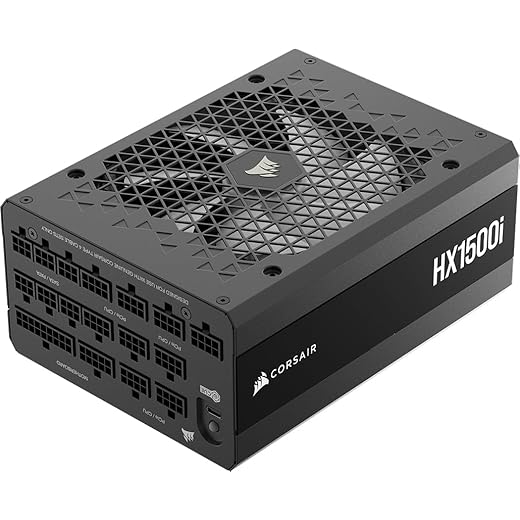
A useful feature to look for is semi-passive or zero-RPM fan operation.
If low-noise operation is a priority, a semi-passive PSU is worth considering. Corsair explains how zero-RPM power supplies work, with the fan remaining off during lighter loads and only switching on when additional cooling is needed.
That can make a noticeable difference during light workloads when the CPU and GPU fans may also be running very slowly or not at all.
You should still choose the power supply primarily according to:
- Build quality
- Appropriate wattage
- Electrical protections
- Efficiency
- Warranty
- Compatibility with your hardware
Do not massively oversize the PSU purely because you assume a higher wattage rating will automatically make the PC quieter. The goal is a quality unit operating comfortably within the requirements of your hardware.


6. Fan Curves Matter More Than Most People Realize
You can install excellent cooling hardware and still end up with a noisy computer if the fan curves are badly configured.
A fan curve determines how aggressively fan speed increases as temperatures rise.
Factory settings sometimes favour lower temperatures over lower noise, which can make fans ramp aggressively even when the hardware is nowhere near a problematic temperature.

If you want more control over GPU fan noise, MSI’s official Afterburner documentation explains how custom fan curves can be used to adjust fan speed according to GPU temperature.
The exact settings depend on your hardware, so there is no universal fan percentage that every gaming PC should use.
- Avoid unnecessary fan speed at low temperatures
- Increase fan speed gradually rather than using sudden jumps
- Allow stronger cooling as sustained gaming temperatures rise
- Test changes during actual gaming sessions
- Monitor temperatures after every major adjustment
If you are not sure which temperatures, clock speeds and usage figures you should be watching, see our guide on how to monitor temperatures, clocks and usage while gaming.
Do Not Chase the Lowest Possible Temperature
A CPU running slightly warmer with a slow fan is not automatically worse than the same CPU running cooler with an irritatingly loud fan.
The same principle applies to the graphics card.
You are looking for the best balance between temperature, noise and performance, not the lowest temperature number you can force the system to produce.
7. Reduce Heat Before Trying to Hide the Noise
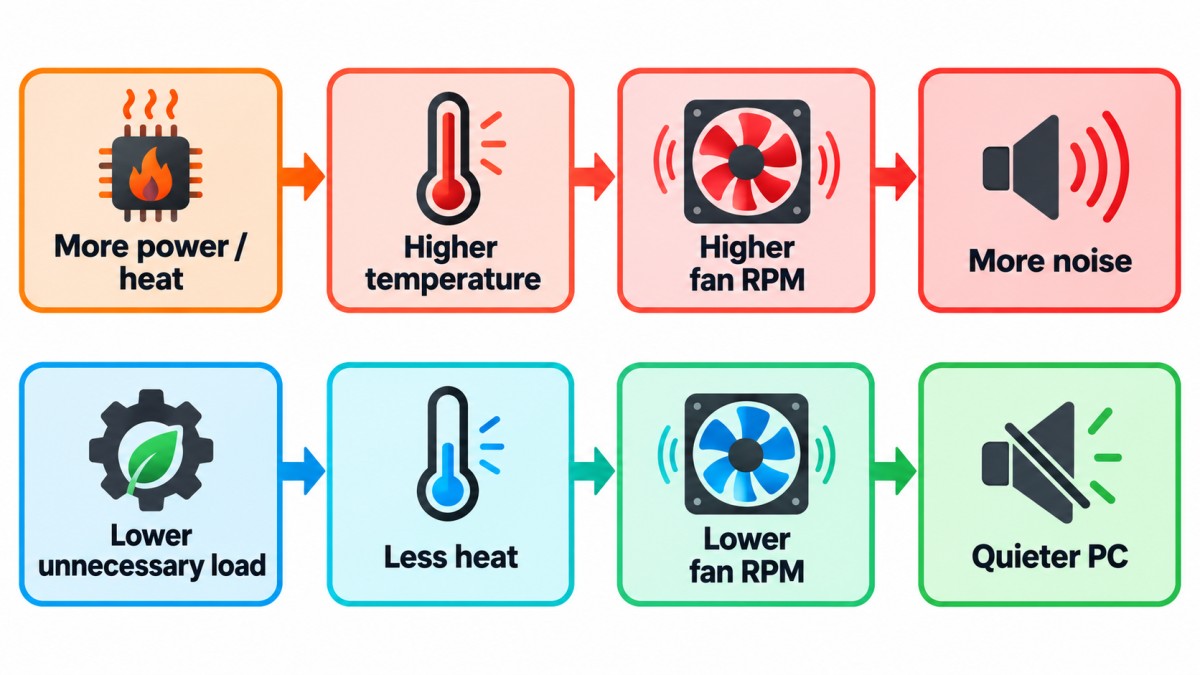
One of the easiest ways to reduce cooling noise is to generate less unnecessary heat in the first place.
If your graphics card is rendering far more frames than you can meaningfully use, it may be consuming additional power and producing additional heat for little practical benefit.
An appropriate frame-rate cap can reduce GPU workload in some games.
Less power consumption means less heat for the cooling system to remove, which can allow the GPU and case fans to operate more slowly.
GPU Undervolting Can Also Help
Undervolting attempts to run the GPU at a lower voltage while retaining useful clock speeds.
A carefully tested undervolt can potentially provide:
- Lower GPU temperatures
- Lower power consumption
- Reduced GPU fan speed
- Less cooling noise
Stability testing matters. An undervolt that appears stable on the Windows desktop may still crash or become unstable during demanding games.
Make gradual changes and test them properly. Our guide on how to test gaming PC performance can help you confirm that cooling or power changes have not created a new performance problem.
8. Avoid Blocking the Graphics Card’s Air Supply
Good case airflow does more than cool the CPU.
Your graphics card also needs access to relatively cool intake air.
A powerful GPU sitting inside a poorly ventilated case can recycle warm air. GPU temperature rises, its fans speed up, and the additional heat can raise the temperature of the rest of the system.
This creates a simple chain reaction:
Poor airflow → higher component temperature → higher fan RPM → more noise
Keep the intake path around the graphics card reasonably clear. Do not leave large cable bundles directly in the path of front intake fans or underneath the GPU where they can obstruct lower ventilation.
9. Control Vibration as Well as Fan Noise
Not all PC noise comes directly from moving air.
Fans and mechanical drives can transfer vibration into the case, turning a relatively minor vibration into an irritating hum or buzz.
- Make sure case panels are secured properly
- Check that fans are firmly mounted
- Make sure no cables are touching fan blades
- Mount mechanical hard drives correctly
- Place the PC firmly on a stable surface
- Check for loose panels or filters that may resonate
Anti-vibration fan pads will not rescue a fundamentally loud cooling system, but they can remove secondary buzzing and vibration once the major noise sources have been dealt with.
Quiet Gaming PC Component Checklist
| Component | What to Look For | What to Avoid |
|---|---|---|
| Case | Strong intake and exhaust airflow | Highly restricted ventilation |
| Case Fans | PWM control and good low-RPM behaviour | Cheap fans that require high RPM |
| Fan Size | 140 mm where practical | Choosing size without checking compatibility |
| CPU Cooler | Enough thermal headroom for your CPU | Undersized cooler running near maximum speed |
| GPU | Substantial cooler and zero-RPM idle mode | Small cooler on a high-power GPU |
| PSU | Quality unit with semi-passive fan mode | Cheap PSU with constantly loud fan |
| Fan Curves | Smooth and gradual ramp | Sudden aggressive RPM changes |
| Cooling Strategy | Efficient airflow at modest RPM | Filling every available fan slot |
What Should You Spend Money On First?
If you already own the PC and want to make it quieter, do not immediately replace everything. Identify the component or design problem that is actually creating the noise and spend money there first.
If the Case Airflow Is Poor
Improving case airflow can help several components simultaneously because both the CPU and GPU receive cooler air.
If the Case Fans Are the Loudest Component
Replace the worst fans rather than replacing everything automatically.
If the CPU Cooler Constantly Runs at High Speed
A cooler with more thermal headroom may produce a much larger improvement than adding additional case fans.
If the GPU Dominates the Noise
A new CPU cooler will do very little. Focus on GPU temperature, case airflow, the GPU fan curve and potentially a carefully tested undervolt.
If the PSU Is Making the Noise
Do not open the power supply. A PSU can retain dangerous electrical charge internally even after it has been disconnected.
Replace a faulty or excessively noisy PSU with an appropriate quality unit instead. If you are deciding where your upgrade money will make the biggest difference overall, see our guide to gaming PC upgrades that actually matter.
How Quiet Can a Gaming PC Really Be?
A modern gaming PC can be extremely quiet while idle or performing light desktop work. Completely silent operation during demanding gaming is a different matter. The CPU and GPU produce heat, and that heat has to go somewhere. Airflow requires moving air, and moving air creates some noise. The realistic target is therefore not:
“I must hear absolutely nothing.”
It is:
“The cooling system should not be distracting while I play.”
A carefully configured gaming PC can remain unobtrusive without deliberately sacrificing performance. That is a much more practical target than absolute silence.
Will Making My PC Quieter Reduce Gaming Performance?
Not if you do it properly. Better airflow and efficient cooling can maintain suitable temperatures while allowing lower fan speeds. Problems begin when fan speeds are reduced so aggressively that temperatures rise enough to cause thermal throttling.
That is why every significant cooling adjustment should be tested. Run an actual game for a reasonable period, monitor CPU and GPU temperatures, and check that clock speeds and gaming performance remain stable.
If temperatures climb too far or performance starts dropping, you have pushed the quiet tuning too far. Our guide explaining why PC games run badly, stutter or lose FPS covers thermal throttling and other performance problems in more detail. Quiet tuning is about finding the balance point, not disabling the cooling system.
Quiet Gaming PC FAQs
Can a gaming PC be completely silent?
Completely silent operation can be possible during light workloads when the GPU and PSU support zero-RPM modes and the remaining fans are running very slowly. Under sustained gaming load, however, a powerful CPU and GPU will normally require active cooling and therefore produce some noise.
Are 140 mm fans quieter than 120 mm fans?
Not automatically. Larger fans can often move useful amounts of air at lower RPM, but fan quality, bearing design, blade shape, restriction and rotational speed all affect noise.
Are liquid coolers quieter than air coolers?
Not necessarily. Large air coolers can operate very quietly and have no pump. A good AIO can also be quiet, particularly on high-power processors, but radiator-fan speed and pump noise must also be considered.
Does undervolting make a gaming PC quieter?
It can. Reducing GPU voltage can lower power consumption and heat, which may allow the graphics card fans to run more slowly. Any undervolt should be stability-tested under real gaming loads.
Do I need lots of case fans for a quiet PC?
Usually not. A smaller number of properly positioned fans providing efficient intake and exhaust airflow can be more useful than filling every available fan position.
Should my GPU fans stop when I am not gaming?
Many modern desktop graphics cards support zero-RPM operation at low temperatures. Whether this feature is available and when the fans begin spinning depends on the specific graphics card.
Is a mesh case always quieter?
No. Mesh does not block component noise as effectively as a heavily enclosed panel, but unrestricted airflow can allow the cooling system to use lower fan speeds. The final result depends on the complete combination of case, fans, CPU cooler, GPU and fan curves.
Bottom line: A quiet gaming PC is not created by buying one component with “silent” written on the box. It comes from designing the cooling system so nothing has to work harder than necessary. Start with good airflow, use quality PWM fans, give the CPU enough cooling capacity, choose a graphics card with a capable cooler, use a good semi-passive PSU, and then tune the fan curves so the system stays cool without constantly sounding like it is preparing for takeoff.