
If your game audio starts crackling, popping, or sounding distorted, you are not alone. Many PC gamers run into this problem, especially after Windows updates, driver changes, or when launching demanding games.
The good news is that your headset or speakers are rarely the real problem. In most cases, audio crackling in games is caused by Windows settings, driver conflicts, USB issues, or CPU performance spikes during gameplay.
This guide walks through nine practical fixes that actually work on Windows 10 and Windows 11. Try them in order, because many of these solutions only take a few minutes.
Quick Fixes for Audio Crackling in Games
If you want to try the fastest fixes first, start here. These are the most common solutions that solve audio crackling in games for many players.
- Disable Windows audio enhancements
- Update or reinstall your audio drivers
- Change the audio sample rate in sound settings
- Disable NVIDIA HD Audio drivers
- Plug USB headsets into rear motherboard ports
- Close CPU heavy background apps
- Switch Windows power plan to High Performance
- Update motherboard chipset drivers
- Restart the Windows Audio service
If the problem continues, the detailed fixes below will help you identify exactly what is causing the audio glitches.
Why Audio Crackling Happens in Games
Audio crackling during games usually happens when your PC cannot deliver audio data to the sound device quickly enough. When this happens, the audio buffer runs empty and produces pops or crackling sounds.
This can happen for several reasons. Windows audio enhancements sometimes conflict with games. Drivers may be outdated or corrupted. USB headsets can also run into bandwidth or controller issues. In many cases the root cause is actually a performance problem, especially if your CPU is under heavy load.
If you are unsure whether performance is the cause, you can also check our guide on how to tell if your CPU or GPU is the problem during gaming.
Fix 1: Disable Windows Audio Enhancements
Windows audio enhancements are designed to improve sound quality, but they frequently cause problems during games. Many players report crackling or distortion when these enhancements are enabled.
Turning them off is one of the fastest fixes for audio issues on Windows 10 and Windows 11.
Windows audio enhancements can sometimes cause crackling or distortion during gameplay.
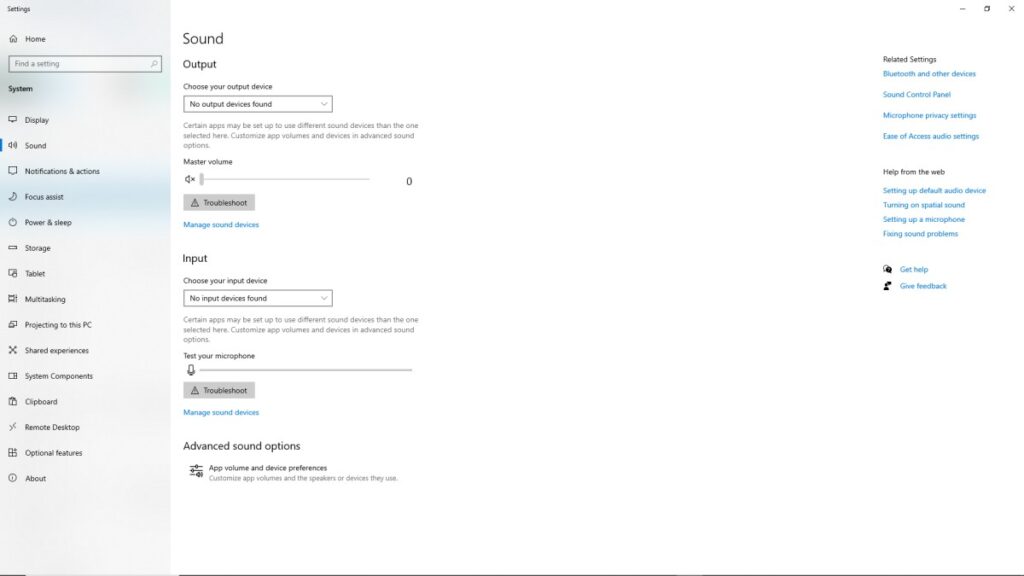
To disable them:
- Right click the speaker icon in the taskbar
- Select Sound Settings
- Open your playback device properties
- Find the Enhancements tab
- Disable all enhancements
Restart your game and see if the crackling disappears.
Fix 2: Update or Reinstall Audio Drivers
Outdated or corrupted audio drivers are another common cause of sound glitches. Many systems use Realtek drivers that may become unstable after Windows updates.
The safest approach is to uninstall the existing driver and reinstall the latest version from your motherboard manufacturer.
You can also download the newest drivers from the Realtek driver download page.
After reinstalling the drivers, restart your PC before testing your game again.
Fix 3: Change the Audio Sample Rate
Your sound device uses a sample rate to process audio. Some combinations of games and drivers behave poorly with certain sample rates, which can lead to popping or crackling.
Switching the sample rate can sometimes eliminate these issues completely.
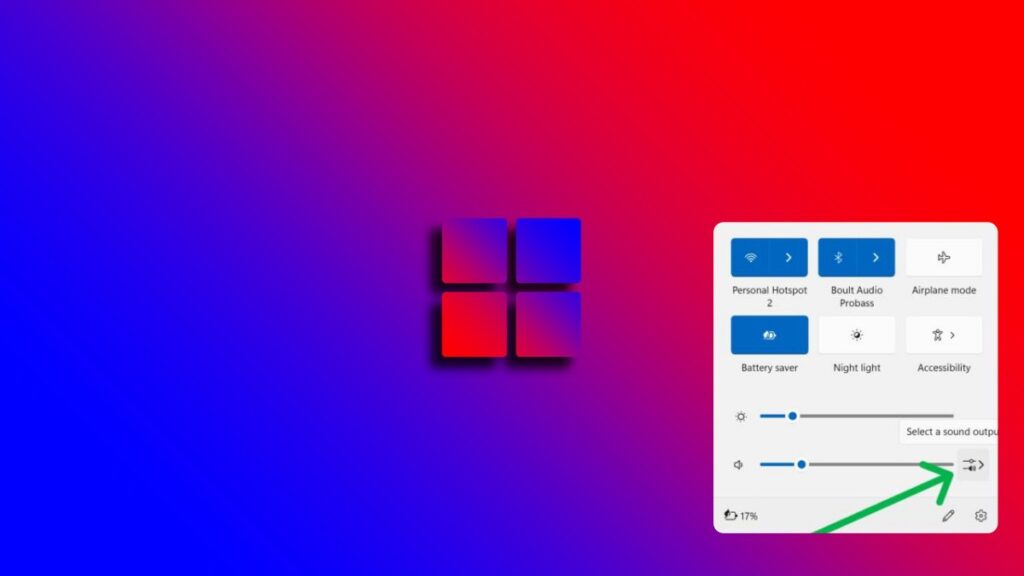
Changing the audio sample rate can fix popping or distorted game audio.
Try setting the format to:
- 16 bit, 44100 Hz
- 16 bit, 48000 Hz
Many games behave more reliably at 48000 Hz.
Fix 4: Disable NVIDIA HD Audio Drivers
NVIDIA graphics drivers install additional audio drivers used for HDMI audio output. These drivers sometimes conflict with motherboard audio devices.
If you are not using HDMI audio through your GPU, disabling these drivers can remove the conflict.
Open Device Manager, locate NVIDIA HD Audio devices, and disable them. Your main audio device should continue working normally.
Fix 5: Fix USB Headset Connection Problems
USB gaming headsets rely on stable USB controller bandwidth. Front panel USB ports and hubs often introduce instability that can lead to audio glitches.

Rear motherboard USB ports usually provide the most stable connection for gaming headsets.
If your headset is plugged into a front port or hub, try moving it directly to a rear motherboard USB port.
This simple change fixes many crackling issues.
Fix 6: Close CPU Heavy Background Apps
Background applications can interrupt the CPU long enough to cause audio buffers to run empty. This results in crackling or popping sounds during gameplay. Many systems ship with unnecessary background software. Removing it can improve system stability. Our guide on disabling Windows bloatware explains how to clean up your system safely.
Common culprits include:
- Discord hardware acceleration
- Web browsers with many tabs open
- RGB software like iCUE or Armoury Crate
- Game launchers updating in the background
If you suspect your system is struggling, our guide on why games stutter on low end PCs explains how performance spikes affect gameplay. If your CPU usage is constantly maxing out during gameplay, it can interrupt audio processing. Our guide on fixing high CPU usage while gaming shows how to stabilize your system.
Fix 7: Switch Windows Power Plan
Power saving modes can aggressively reduce CPU speed. When this happens during gameplay, the CPU may not process audio quickly enough.
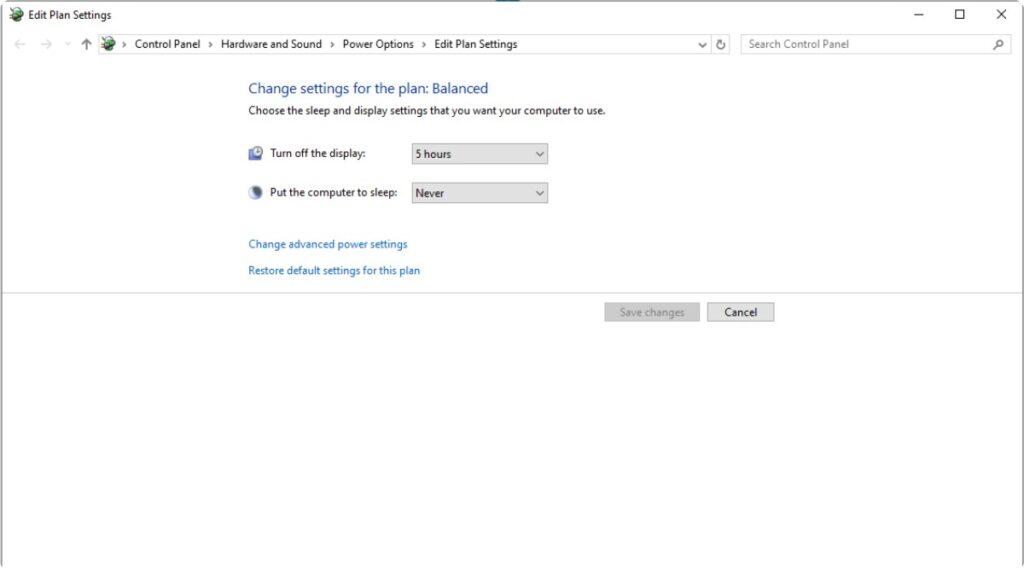
Switch your system to the High Performance power plan in Windows settings and test the game again.
If your PC also feels slow in general, see our guide on fixing Windows 11 when it starts running slow. Windows background features can also interfere with gaming performance. See our guide on Windows settings you should disable for gaming to remove unnecessary processes.
Fix 8: Update Motherboard Chipset Drivers
Chipset drivers control how your motherboard handles USB controllers, PCIe devices, and system communication. If these drivers are outdated, USB audio devices can behave unpredictably.
Visit your motherboard manufacturer’s website and install the latest chipset driver package. This often resolves stability problems that basic audio troubleshooting misses.
Fix 9: Restart the Windows Audio Service
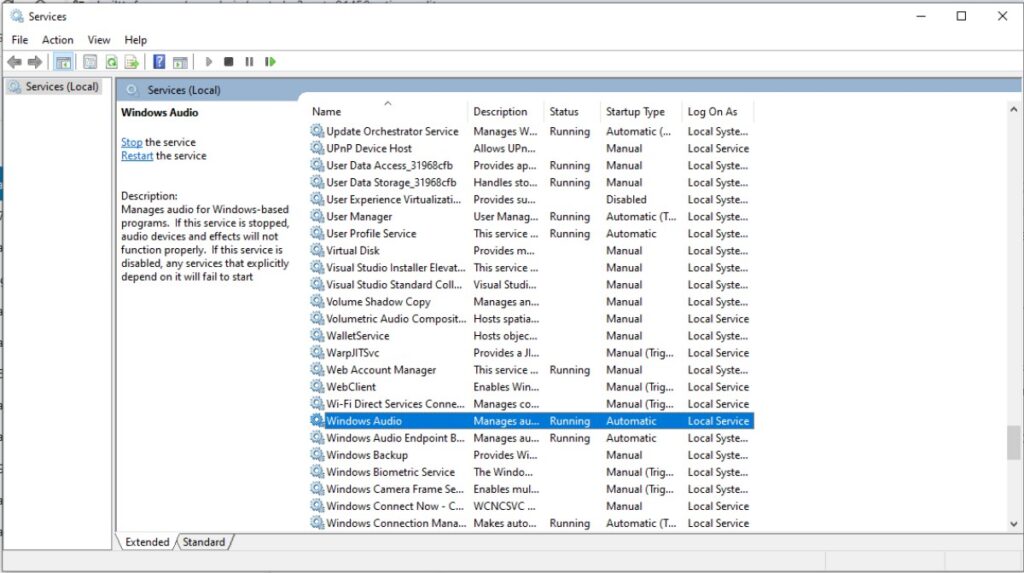
Sometimes the Windows Audio service simply becomes unstable after running for long periods.
Restarting the service refreshes the audio pipeline and can instantly remove crackling.
- Press Windows + R
- Type services.msc
- Locate Windows Audio
- Right click and select Restart
Why Audio Crackling Can Actually Be a Performance Problem
Many gamers assume audio crackling means their headset or sound card is broken. In reality, it is often a side effect of performance issues elsewhere in the system. If your system is struggling to maintain stable frame timing, you may also want to read our guide on reducing lag without sacrificing graphics.
When your CPU spikes or becomes overloaded, the audio buffer may not receive data in time. This leads to crackling or popping sounds even when the audio hardware is working perfectly.
Thermal throttling can also contribute to these issues. If your CPU temperature climbs too high, it may slow down suddenly. Our guide on hidden temperature throttles killing FPS explains how this happens.
If performance problems continue, you may also want to read real fixes for games that keep stuttering.
When Audio Hardware Is Actually the Problem
Hardware failures are less common, but they do happen. Faulty DACs, damaged headset cables, or interference from poorly shielded motherboard audio circuits can create persistent noise.
USB DACs or external sound cards often solve these issues because they bypass the motherboard audio completely.
Older systems can also struggle with modern audio drivers. If you are running legacy hardware, especially older DDR3 era platforms, compatibility issues may appear with newer Windows versions.
In those cases, using older drivers or inexpensive USB audio adapters can provide a stable workaround.
FAQ
Why does audio crackle only in some games?
Different games stress the CPU and system drivers in different ways. A game with heavy CPU usage can cause audio buffers to empty more often.
Can high CPU usage cause audio crackling?
Yes. When the CPU becomes overloaded, audio processing may be delayed, resulting in crackling or popping sounds.
Does RAM affect audio performance?
Indirectly, yes. If your system runs out of memory and begins swapping data to disk, performance spikes can interrupt audio processing.
If you want to confirm whether your system is struggling during gameplay, you can follow our guide on testing gaming PC performance.
Final Thoughts
Audio crackling in games can be frustrating, but the cause is usually easy to fix. Most problems come from Windows audio settings, outdated drivers, USB device conflicts, or temporary performance spikes. Regular system maintenance also helps prevent strange issues like audio glitches. Our PC maintenance and optimization guide explains the best routine checks every gamer should perform.
Start with the simple fixes in this guide, especially disabling audio enhancements and checking background apps. In many cases those two steps alone solve the issue.
If the problem continues, work through the remaining fixes one by one until your audio is stable again.