When comparing the best gaming monitors by budget, the right choice is not automatically the sharpest, fastest or most expensive screen you can afford. It is the monitor your PC can drive, your games can use and your budget can justify.
That distinction matters. A 4K monitor may look fantastic, but it can also force a modest graphics card into lower settings and heavy upscaling. A 260Hz display sounds impressive, but much of that refresh-rate headroom goes unused if your games normally run at 70 FPS. Meanwhile, a well-matched 1080p or 1440p monitor can make an older PC feel noticeably smoother without creating a new performance problem.
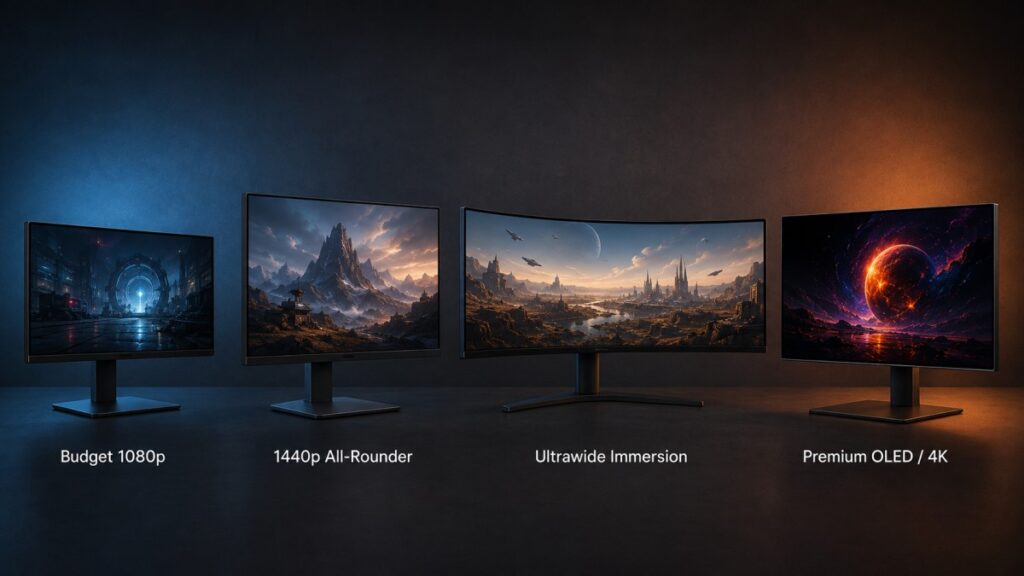
This gaming monitor buying guide starts with the performance your computer actually delivers. We will match resolution, refresh rate, screen size, and panel type to your hardware before comparing eight monitors for budget gaming, mainstream 1440p, HDR, high-refresh competition, ultrawide immersion, OLED, and 4K.
Quick Answer: What Gaming Monitor Should Most People Buy?
For most PC gamers who can run their games comfortably at 1440p, the strongest all-round choice is a 27-inch 1440p IPS monitor with a 144Hz to 180Hz refresh rate and variable refresh rate support. That combination gives you a clear improvement over 1080p, enough speed for almost every kind of game, and fewer compromises than budget VA or premium OLED alternatives.
Our current recommendation for that role is the LG UltraGear 27GS75Q-B. Its 1440p IPS panel, 180Hz native refresh rate, FreeSync and G-Sync compatibility, and adjustable stand make it the safest choice for mixed gaming and everyday PC use.
That does not make it the correct monitor for everyone. If your PC struggles at 1440p, the 24-inch AOC 24G4 is a smarter purchase. If you care more about HDR, competitive speed, ultrawide immersion, OLED contrast, or 4K clarity, one of the specialist recommendations below will suit you better.
| Your situation | Recommended monitor type | Our pick |
|---|---|---|
| Older or weaker gaming PC | 24-inch 1080p 180Hz IPS | AOC 24G4 |
| Cheapest sensible 1440p upgrade | 27-inch 1440p 180Hz VA | AOC Q27G4XN |
| Best choice for most gamers | 27-inch 1440p 180Hz IPS | LG 27GS75Q-B |
| HDR without OLED pricing | 27-inch 1440p Mini-LED | AOC Q27G3XMN |
| High-FPS competitive gaming | 27-inch 1440p 240Hz+ IPS | AOC Q27G41ZE |
| Wider, more immersive gaming | 34-inch 3440×1440 ultrawide | ASUS VG34VQ3B |
| Premium picture and motion | 27-inch 1440p 240Hz OLED | LG 27GS93QE |
| Powerful 4K gaming PC | 27-inch 4K 160Hz IPS | Gigabyte M27UP SA |
Match Your Monitor to the Performance Your PC Actually Delivers
Labels such as entry-level, mid-range, and high-end are convenient, but they do not tell you enough to choose a monitor. The same graphics card might produce more than 200 FPS in Valorant, around 90 FPS in a well-optimised racing game, and less than 60 FPS in a demanding new release.

Your useful starting point is therefore not the name of your GPU. It is the performance you get in the games you actually play at settings you are willing to use.
| Your usual gaming performance | Sensible monitor target | What it means |
|---|---|---|
| Below 60 FPS at 1080p | 1080p with VRR | Improve PC performance before paying heavily for extreme refresh rates |
| 60–120 FPS at 1080p | 1080p 144–180Hz | A strong match for older and budget gaming systems |
| Above 144 FPS in competitive games | 1080p 180Hz or higher | Prioritise clean motion and low latency |
| 60–120 FPS at 1440p | 1440p 144–180Hz | The best mainstream balance of clarity and speed |
| Above 180 FPS at 1440p | 1440p 240Hz or higher | A high-refresh specialist monitor becomes worthwhile |
| Comfortable at 3440×1440 | 34-inch ultrawide | Expect roughly 34% more pixels than ordinary 1440p |
| Comfortable at native or upscaled 4K | 4K 144–160Hz | Best reserved for powerful GPUs and premium clarity |
Run This Five-Minute Check Before Buying
- Open the most demanding game you regularly play.
- Use the graphics settings you are genuinely willing to keep.
- Check your typical FPS during real gameplay, not while standing in an empty room.
- Repeat the check in a lighter or competitive game if you play one.
- Choose the resolution first, then decide how much refresh-rate headroom is worth buying.
You do not need 180 FPS to use a 180Hz monitor. Variable refresh rate, or VRR, allows a compatible monitor to follow changing frame rates within its supported range, reducing tearing and making uneven output look smoother. Higher refresh can also reduce the delay before a newly rendered frame is shown. It simply becomes difficult to justify a large price premium for 240Hz or 320Hz when your games remain far below those figures.
If your games are already stuttering or performing unpredictably, use our guide to why games stutter on low-end PCs and learn how to tell whether your CPU or GPU is the problem before blaming the display.
The Eight Gaming Monitors We Recommend
These are not eight versions of the same recommendation at different prices. Each monitor serves a recognisably different kind of PC, game, or buyer. Pay particular attention to the main drawback: the right monitor is usually the one whose compromise matters least to you.
Transparency: BuiltToFrag did not personally test every monitor in this guide. Recommendations are based on verified manufacturer specifications, current availability, independent measurements where available, feature suitability, and the practical needs of PC gamers. Where direct testing of an exact model is limited, we do not claim measured superiority that has not been established.
| Monitor | Best for | Panel | Resolution and refresh | Main drawback |
|---|---|---|---|---|
| AOC 24G4 | Older and budget PCs | IPS | 1080p, 180Hz | Weak HDR and IPS contrast |
| AOC Q27G4XN | Affordable 1440p | VA | 1440p, 180Hz | Possible dark smearing |
| LG 27GS75Q-B | Most PC gamers | IPS | 1440p, 180Hz/200Hz OC | Ordinary IPS contrast |
| AOC Q27G3XMN | Affordable HDR | Mini-LED VA | 1440p, 180Hz | VRR flicker with unstable FPS |
| AOC Q27G41ZE | High-FPS competition | Fast IPS | 1440p, 240Hz/260Hz OC | Limited exact-model testing |
| ASUS VG34VQ3B | Ultrawide immersion | VA | 3440×1440, 180Hz | Dark smearing can occur |
| LG 27GS93QE | Premium OLED gaming | OLED | 1440p, 240Hz | Burn-in and static-use concerns |
| Gigabyte M27UP SA | 4K gaming and desktop use | IPS | 4K 160Hz/1080p 320Hz | High GPU demand |
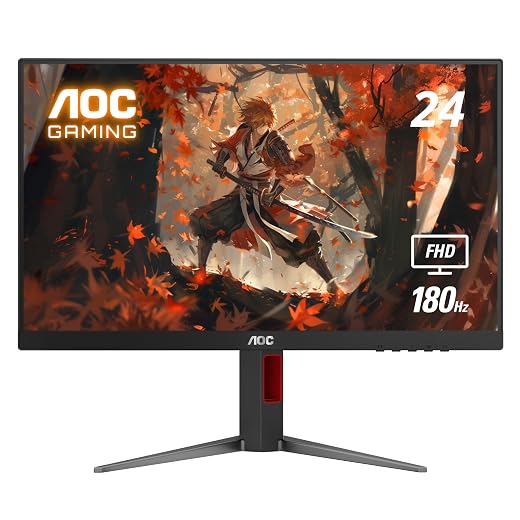
AOC 24G4: Best Gaming Monitor for Older and Budget PCs
The AOC 24G4 is the sensible upgrade for someone using an older 1080p 60Hz or 75Hz display. Its 23.8-inch size keeps 1080p reasonably sharp, while its Fast IPS panel and 180Hz refresh rate provide smoother motion without demanding the extra GPU power of 1440p.
- Screen: 23.8-inch Fast IPS
- Resolution: 1920×1080
- Refresh rate: 180Hz
- VRR: Adaptive Sync
- Connections: DisplayPort 1.4 and HDMI 2.0
- Best fit: Older GPUs, budget gaming laptops, esports, and lighter games
Independent testing found very low processing delay, supporting its role as a responsive budget monitor. The IPS panel also makes it a safer motion choice than many cheap VA screens. You still do not need to reach 180 FPS constantly: VRR and the improvement over an old 60Hz display remain useful at lower frame rates.
Main limitation: Do not buy it for HDR. The monitor can accept an HDR signal, but it lacks the contrast, local dimming, and brightness needed to make HDR its selling point.
Buy it if: Your PC is best suited to 1080p and you want a responsive, sensibly sized upgrade. Skip it if: Your PC already handles 1440p comfortably and you want a visible increase in detail.
Our rating: 4.5/5. The AOC 24G4 earns that score for its intended budget role, not because it competes with premium OLED or 4K displays.
If your PC is best suited to 1080p and you want smoother gaming without overspending on resolution, check the AOC 24G4’s current price below.
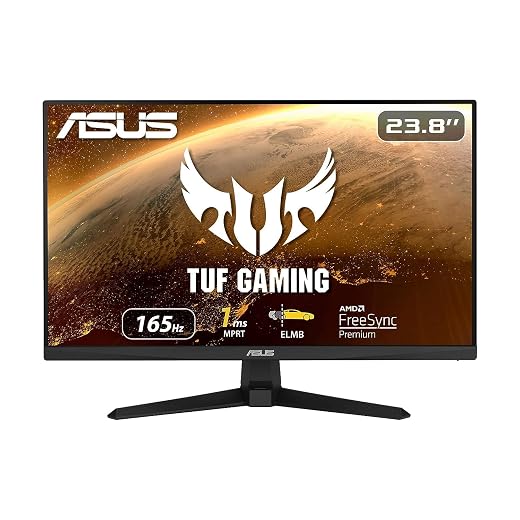
AOC Q27G4XN: Best Affordable 1440p Gaming Monitor
The AOC Q27G4XN is for the gamer who wants 1440p sharpness without paying for OLED, Mini-LED, or a premium feature set. Its 27-inch size and 2560×1440 resolution are a natural match, while its 180Hz refresh rate leaves enough headroom for everything from action games to competitive shooters.
- Screen: 27-inch Fast VA
- Resolution: 2560×1440
- Refresh rate: 180Hz
- VRR: Adaptive Sync
- Stand: Height adjustable
- Best fit: Value-focused 1440p gaming
The VA panel should provide deeper native blacks than a typical budget IPS screen, which is useful in darker games. The trade-off is motion handling: VA panels can show dark smearing, and there is not enough exact-model measurement data to repeat AOC’s “1ms” claim as proof that every transition is that fast.
Main limitation: Treat its HDR10 support as compatibility, not a reason to buy it. Choose the Mini-LED Q27G3XMN if HDR is the priority, or the IPS Q27G41ZE if competitive motion is more important.
Buy it if: You want the cheapest sensible route into high-refresh 1440p. Skip it if: You are particularly sensitive to dark smearing or want proven HDR performance.
Our rating: 4.1/5. Its value depends heavily on remaining clearly cheaper than more complete IPS alternatives.
If 1440p matters more to you than premium extras, check whether the AOC Q27G4XN is still priced far enough below the stronger all-rounders.

LG UltraGear 27GS75Q-B: Best 1440p Monitor for Most Gamers
The LG 27GS75Q-B is the monitor we would point most PC gamers toward first. It combines the clarity of 27-inch 1440p with a 180Hz native refresh rate, an IPS panel, broad VRR compatibility, and a stand that supports height, tilt, and pivot adjustment.
- Screen: 27-inch IPS
- Resolution: 2560×1440
- Refresh rate: 180Hz native, 200Hz overclocked
- VRR: AMD FreeSync and NVIDIA G-Sync compatible
- Colour: 99% sRGB typical
- Best fit: Mixed gaming, desktop use, and long-term ownership
It avoids the most important specialist compromises. You do not have the potential dark smearing of a budget VA panel, the burn-in concern of OLED, or the GPU demands of 4K. It is fast enough for most competitive play without asking the average gamer to pay for refresh-rate headroom they may never use.
Main limitation: Its ordinary IPS contrast means dark scenes will look greyer than on the Mini-LED AOC or OLED LG. HDR10 support does not turn it into a genuine HDR display.
Buy it if: You want one well-balanced monitor for several years of gaming and everyday PC use. Skip it if: Your system is limited to 1080p or picture contrast matters more than all-round versatility.
Our rating: 4.5/5. This is the guide’s best overall recommendation, not its absolute best monitor in every individual category.
If your PC handles 1440p comfortably and you want the safest balance of clarity, speed, and everyday usability, check the LG 27GS75Q-B’s current price.
AOC Q27G3XMN: Best Affordable HDR Gaming Monitor
The AOC Q27G3XMN is where HDR stops being a sticker and starts changing what games look like. Its 336-zone Mini-LED backlight, high brightness, and strong VA contrast allow bright highlights and dark scenes to appear far more convincing than they do on ordinary edge-lit HDR monitors.
- Screen: 27-inch Mini-LED VA
- Resolution: 2560×1440
- Refresh rate: 180Hz
- HDR: DisplayHDR 1000 with 336 local-dimming zones
- VRR: Adaptive Sync
- Best fit: HDR, dark-room gaming, and cinematic games
Independent measurements support the recommendation: the monitor produces deep blacks, bright HDR highlights, low input lag, and generally fast motion for a VA display. Mini-LED can still show blooming around bright objects, but this is genuine local dimming rather than a basic HDR compatibility badge.
Main limitation: VRR flicker can become distracting when frame rates fluctuate. That matters to BuiltToFrag readers because weaker PCs are more likely to move through a wide FPS range. It also shows some black smearing and lacks full HDMI 2.1 bandwidth.
Buy it if: You want meaningful HDR and strong contrast without OLED pricing or burn-in concerns. Skip it if: Your frame rate changes dramatically, you are sensitive to flicker, or competitive motion matters most.
Our rating: 4.3/5. Its image-quality value is excellent, but the VRR weakness prevents it from becoming the universal 1440p recommendation.
If HDR is the upgrade you actually want, check the AOC Q27G3XMN’s current price—but choose the LG 27GS75Q-B instead if unstable frame rates make VRR consistency more important.

AOC Q27G41ZE: Best High-Refresh 1440p IPS Monitor
The AOC Q27G41ZE is aimed at players who want competitive refresh rates without returning to 1080p. It runs at 240Hz natively and can be overclocked to 260Hz, while its 2560×1440 Fast IPS panel provides much more detail than a traditional Full HD esports monitor.
- Screen: 27-inch Fast IPS
- Resolution: 2560×1440
- Refresh rate: 240Hz native, 260Hz overclocked
- VRR: Adaptive Sync and G-Sync compatibility
- Connections: DisplayPort 1.4 and HDMI 2.0
- Best fit: High-FPS competitive gaming at 1440p
This recommendation only makes sense when the computer can feed it. If Counter-Strike 2, Valorant, Fortnite, Overwatch 2, or similar games regularly approach 200 FPS or more, the extra refresh headroom becomes useful. If demanding games normally run at 70–100 FPS, the LG 27GS75Q-B is the more proportionate purchase.
Main limitation: Exact-model independent measurements remain limited. Its specification is compelling, but we cannot responsibly call it the clearest or fastest 1440p monitor without detailed response-time and overdrive testing.
Buy it if: Your PC produces genuinely high frame rates at 1440p and competitive play is a priority. Skip it if: You would be paying mainly for a number your computer rarely approaches.
Our rating: 4.2/5. This is a cautious rating because the available evidence supports the feature proposition more strongly than claims of measured superiority.
If your system regularly pushes beyond 180 FPS at 1440p, check whether the AOC Q27G41ZE offers a worthwhile premium over a good 180Hz monitor.
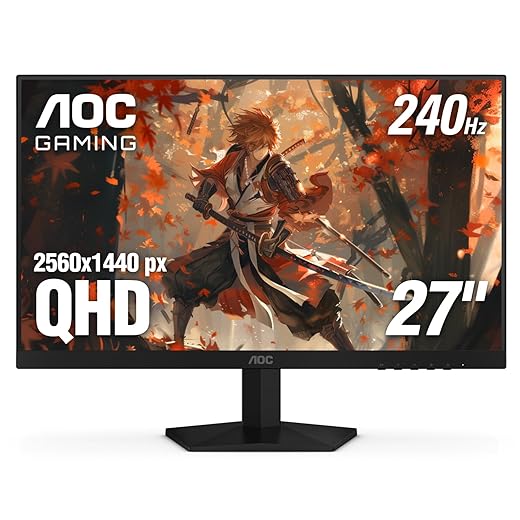
ASUS TUF VG34VQ3B: Best Affordable Ultrawide Gaming Monitor
The ASUS VG34VQ3B trades the conventional 16:9 view for a wider 34-inch 3440×1440 canvas. That can be transformative in racing games, flight simulators, open-world adventures, strategy games, and MMOs, while also providing useful desktop space outside gaming.
- Screen: 34-inch 1500R curved VA
- Resolution: 3440×1440
- Refresh rate: 180Hz
- VRR: FreeSync Premium
- Colour: 90% DCI-P3
- Best fit: Immersive games, simulation, and wider desktop use
Ultrawide 1440p contains approximately 34% more pixels than standard 2560×1440, but about 40% fewer than 4K. Your PC therefore needs more headroom than it does for an ordinary 1440p screen, though the demand remains considerably below full 4K.
Main limitation: Its VA panel can show dark smearing or ghosting in some games. The 180Hz label does not guarantee motion clarity equal to a strong high-refresh IPS display. Game support for 21:9 also varies, and videos may show black bars.
Buy it if: Immersion and screen width matter more than pristine competitive motion. Skip it if: You mainly play fast competitive shooters, dislike curved screens, or your GPU is already stretched at ordinary 1440p.
Our rating: 4.1/5. It is a strong affordable ultrawide, but its VA behaviour needs to be part of the buying decision.
If your PC has enough headroom for 3440×1440 and you want a wider gaming experience, check the ASUS VG34VQ3B’s current price.

LG UltraGear 27GS93QE: Best Premium OLED Gaming Monitor
The LG 27GS93QE offers the largest picture-quality and motion upgrade in this guide. Every OLED pixel produces its own light, allowing the monitor to display true black without Mini-LED blooming. Pixel transitions are also exceptionally fast, making motion at 240Hz look cleaner than it does on typical LCD panels.
- Screen: 27-inch OLED
- Resolution: 2560×1440
- Refresh rate: 240Hz
- HDR: DisplayHDR True Black 400
- VRR: FreeSync Premium Pro and G-Sync compatibility
- Connections: HDMI 2.1 and DisplayPort
- Best fit: Premium cinematic gaming and clean high-refresh motion
This is the choice for someone who notices contrast, dark-scene detail, pixel response, and HDR presentation every time they play. It suits cinematic single-player games exceptionally well, but its 240Hz refresh and OLED response also make it highly capable in competitive games.
Main limitation: OLED can develop permanent image retention when exposed to static elements over long periods. Text can also look less clean than on a high-density 4K LCD, brightness varies with the content shown, and VRR flicker may appear when frame rates fluctuate.
Buy it if: Gaming and media are the priority and you understand OLED care. Skip it if: You leave static applications on screen for long working days, use the monitor in an extremely bright room, or cannot justify its premium.
Our rating: 4.6/5. It leads the list for gaming picture and motion, but it is not the safest value or productivity choice.
If OLED contrast and near-instantaneous motion are worth the premium—and your usage suits OLED—check the LG 27GS93QE’s current price.

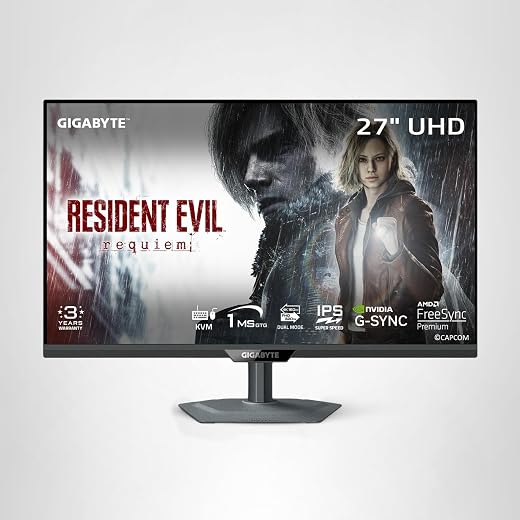
Gigabyte M27UP SA: Best Sensible 4K Gaming Monitor
The Gigabyte M27UP SA is the sensible way into high-refresh 4K without jumping directly to an expensive 4K OLED. Its 27-inch 3840×2160 IPS panel produces exceptionally sharp text and game detail, while its 160Hz refresh rate is already more than enough for most non-esports 4K gaming.
- Screen: 27-inch SuperSpeed IPS
- Resolution: 3840×2160
- Refresh rate: 160Hz at 4K; 320Hz at 1080p in dual mode
- VRR: FreeSync Premium and G-Sync compatibility
- Features: USB-C, KVM, HDMI, DisplayPort, adjustable stand
- Best fit: Strong GPUs, sharp desktop use, and mixed cinematic/competitive gaming
Its dual mode lets you switch from 4K 160Hz to 1080p 320Hz for competitive games. That is useful flexibility, but it is not identical to owning a native 24-inch 1080p esports monitor: Full HD looks softer at 27 inches, and the larger screen remains physically different.
Main limitation: 4K contains 2.25 times as many pixels as 1440p. You need a genuinely strong GPU, sensible upscaling, reduced settings, or less demanding games to use it well. Its IPS panel and DisplayHDR 400 support also do not provide premium HDR.
Buy it if: You want 4K clarity for gaming and desktop work and have the hardware to support it. Skip it if: Your GPU already struggles at 1440p or you are buying 4K only because it sounds future-proof.
Our rating: 4.3/5. Its feature set is excellent, but the recommendation remains conditional because exact-model performance measurements are limited.
If your GPU can support 4K—or you value 4K desktop sharpness enough to use upscaling in demanding games—check the Gigabyte M27UP SA’s current price.
1080p vs 1440p vs Ultrawide vs 4K
| Resolution | Pixels per frame | Common size | GPU demand | Best suited to |
|---|---|---|---|---|
| 1920×1080 | 2.07 million | 24 inches | Lowest | Older PCs and high-FPS esports |
| 2560×1440 | 3.69 million | 27 inches | Moderate | Most modern gaming PCs |
| 3440×1440 | 4.95 million | 34 inches | Moderately high | Immersive ultrawide gaming |
| 3840×2160 | 8.29 million | 27–32 inches | Highest | Powerful GPUs and premium clarity |
A monitor does not magically lower your FPS merely because it has a high native resolution. The workload increases when the game renders more pixels. You can run a game below the monitor’s native resolution, but the result may look softer. Modern upscaling such as DLSS, FSR, or XeSS can often preserve more detail than simply selecting a lower output resolution.
For weaker PCs, 1080p remains entirely sensible—especially at 24 inches. For most capable mid-range systems, 1440p offers the strongest balance. Ultrawide provides a broader view at a meaningful but manageable performance cost. Full 4K should be treated as a high-end choice, not the automatic destination of every upgrade.
How Much Refresh Rate Do You Actually Need?
| Refresh rate | Who it suits |
|---|---|
| 60–75Hz | Basic use and heavily performance-limited systems |
| 100–120Hz | A noticeable smoothness upgrade for general gaming |
| 144–180Hz | The best-value range for most PC gamers |
| 240–260Hz | Competitive players with consistently high FPS |
| 300Hz and higher | Specialist esports use |
The move from 60Hz to 144Hz is much easier to notice than the move from 144Hz to 240Hz. Higher refresh rates continue to reduce the time between display updates, but the benefit becomes more dependent on the game, the player’s sensitivity, and whether the PC produces enough frames.
Refresh rate also does not guarantee clear motion. Pixels must change quickly enough to keep up, and aggressive overdrive can create bright inverse-ghosting trails. That is why an advertised “1ms” figure should never be treated as a complete performance result.
IPS vs VA vs OLED: Which Panel Should You Choose?
| Technology | Main advantage | Main limitation | Best suited to |
|---|---|---|---|
| IPS | Balanced motion and viewing consistency | Weaker black levels | Most gamers |
| VA | Stronger native contrast | Dark smearing can occur | Affordable cinematic gaming |
| Mini-LED VA | Better HDR brightness and local contrast | Blooming, flicker, and smearing remain possible | HDR without OLED |
| OLED | Perfect blacks and near-instantaneous pixels | Burn-in, price, and text concerns | Premium gaming and media |
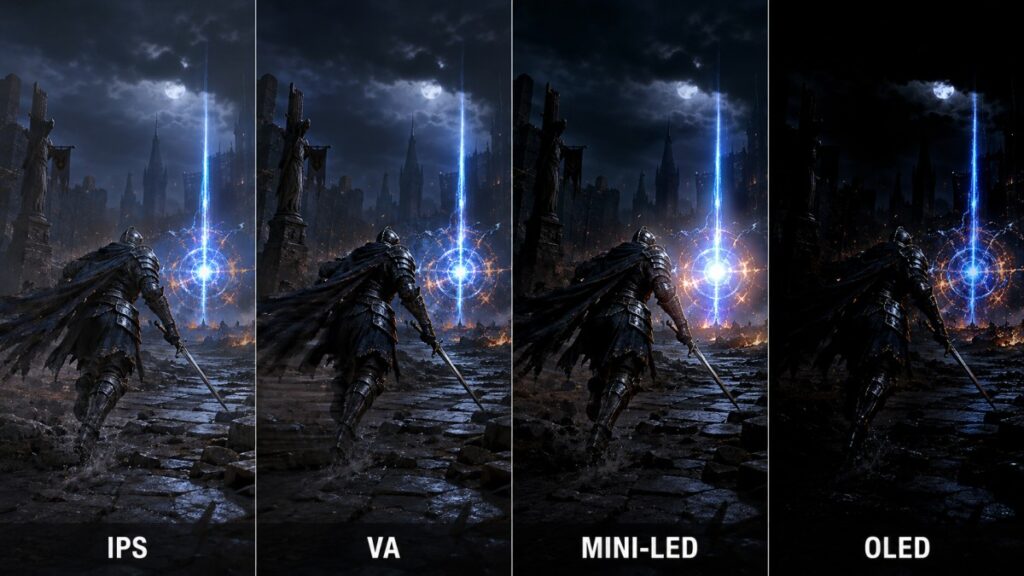
Mini-LED is a backlight system, not a separate LCD panel family. The AOC Q27G3XMN combines Mini-LED local dimming with a VA panel. OLED needs no backlight because its pixels produce their own light, which is why it can display black beside a bright object without creating the same blooming halo.
When Is HDR Actually Worth Paying For?
An HDR-compatible monitor can accept an HDR signal. That does not mean it can display an impressive HDR image. Meaningful HDR needs strong contrast, sufficient brightness, competent tone mapping, and either useful local dimming or self-emissive pixels.
- AOC 24G4: HDR support should not influence the purchase.
- LG 27GS75Q-B: HDR10 compatibility, but ordinary IPS contrast.
- ASUS VG34VQ3B: Basic DisplayHDR 400 rather than transformative HDR.
- AOC Q27G3XMN: Meaningful Mini-LED HDR with strong brightness and local dimming.
- LG 27GS93QE: OLED HDR with perfect blacks and no blooming.
Match Screen Size to Resolution
| Screen size | Sensible resolution | Practical guidance |
|---|---|---|
| 24 inches | 1080p | Good budget sharpness and compact competitive size |
| 27 inches | 1440p | The strongest mainstream balance |
| 27 inches | 4K | Extremely sharp but expensive to drive |
| 32 inches | 1440p or preferably 4K | 1080p normally looks coarse at desk distance |
| 34 inches ultrawide | 3440×1440 | A sensible ultrawide match |
This is why we did not recommend a 32-inch 1080p monitor merely because it offered a very high refresh rate. Large dimensions look impressive in product photos, but 1080p spread across 32 inches produces visibly coarse text and detail at normal desk distance.
Connections and Practical Features to Check Before Buying
A monitor can support a particular resolution and refresh rate without supporting that combination through every input. Check the manufacturer specifications for the exact connection you intend to use, especially when connecting a gaming laptop, USB-C device, or console.
- DisplayPort: Often the simplest route to maximum refresh on a desktop PC.
- HDMI: Check the supported resolution, refresh rate, and VRR mode rather than trusting the connector shape.
- USB-C: Confirm that the laptop port supports video output and whether the monitor provides charging.
- KVM: Useful when sharing one keyboard and mouse between two computers.
- Stand adjustment: Height adjustment usually matters more every day than decorative lighting.
- VESA mounting: Important if the included stand is limited or your desk is shallow.
- Audio: Built-in monitor speakers are convenient, but rarely a reason to choose a weaker display.
- Return policy: Check dead-pixel, damage, and return rules before ordering a monitor online.
- OLED warranty: Read the actual burn-in terms rather than assuming all OLED coverage is equal.
Should You Buy a Monitor for Your Next GPU?
Buying some headroom can be sensible because monitors often remain useful across several graphics-card upgrades. It becomes poor planning when the future upgrade is vague and the new monitor makes today’s games consistently worse.
Buy ahead when the GPU upgrade is planned soon, your current games remain usable, and you are comfortable using sensible upscaling or lower settings temporarily. Buy for today’s system when the upgrade is uncertain, your current performance is already poor, or the monitor premium would take money away from the GPU you actually need.
Future-proofing is not valuable if you spend the next three years running every demanding game below the monitor’s native resolution.
Common Gaming Monitor Buying Mistakes
- Buying 4K because it sounds future-proof: Check current GPU performance first.
- Choosing a large 1080p screen: 27- and 32-inch 1080p monitors can look coarse at desk distance.
- Believing every “1ms” claim: Response-time methods and transitions differ, while overdrive can create overshoot.
- Trusting an HDR badge: HDR support is not proof of good brightness, contrast, or local dimming.
- Paying for 240Hz while playing around 70 FPS: The monitor works, but the premium may produce little practical value.
- Ignoring VRR behaviour: Some displays flicker when frame rates fluctuate.
- Assuming every 34-inch monitor is ultrawide: Check for 3440×1440 and a 21:9 aspect ratio.
- Ignoring the stand: A poor viewing position remains annoying long after the specifications stop feeling exciting.
- Using the wrong connection: Maximum refresh may require a specific port and cable.
- Buying OLED without considering static use: Gaming and media are a better fit than leaving the same application visible all day.
- Ignoring the return policy: Monitor damage and pixel defects are easier to resolve when the retailer’s terms are clear.
- Assuming refresh rate guarantees clear motion: Pixel response and overdrive tuning still matter.
Final Gaming Monitor Decision Checklist
- Does the resolution suit the performance my games currently deliver?
- Does the screen size suit that resolution and my desk?
- Can my GPU output support the required resolution and refresh rate?
- Do I understand the panel’s main limitation?
- Am I paying for genuine HDR or merely an HDR badge?
- Can my games make useful use of the refresh-rate premium?
- Does the stand or VESA support suit my setup?
- Is the retailer’s return and pixel-defect policy acceptable?
- Have I checked burn-in coverage if I am buying OLED?
- Am I buying for today’s PC or a confirmed near-term upgrade?
If all ten answers are clear, you are choosing a monitor for your real setup rather than buying whichever specification has the largest number. For a broader look at how the display fits into the rest of your system, continue with our complete gaming PC hardware guide. You can also compare more price-led options in our best gaming monitors by budget.
Gaming Monitor Buying Guide FAQ
Is 1080p Still Good for Gaming?
Yes. At 24 inches, 1080p remains a sensible match for older graphics cards, budget gaming laptops, competitive games, and anyone who values frame rate more than increased detail. It becomes less attractive when stretched across 27 or 32 inches at normal desk distance.
Is 1440p Worth It Over 1080p?
1440p is noticeably sharper than 1080p at 27 inches and provides more desktop space. It also renders about 78% more pixels, so confirm that your GPU can provide acceptable performance in the games and settings you use.
Is 144Hz or 180Hz Enough for Gaming?
Yes. The 144–180Hz range is an excellent balance for most PC gamers. Refresh rates of 240Hz and higher matter most to competitive players whose systems consistently produce very high frame rates.
Do You Need 240 FPS for a 240Hz Monitor?
No. The monitor works at lower frame rates, and VRR can synchronise it with changing output. However, the closer your games get to 240 FPS, the more value you obtain from paying specifically for a 240Hz display.
Can You Use a 1440p Monitor With a Weak GPU?
Yes, but demanding games may require lower settings or upscaling. Desktop applications and lighter games can still benefit from the sharper native resolution. If you expect to run almost every game below native resolution, a good 1080p monitor may be the better purchase.
Does a Higher-Resolution Monitor Reduce FPS?
The monitor itself does not reduce FPS. The additional workload comes from rendering the game at the higher resolution. Selecting a lower rendering resolution or using upscaling reduces that workload, though the image may not look as sharp as native output.
Is OLED Worth the Burn-In Risk?
OLED can be worth it for gaming and media because it provides perfect blacks, excellent HDR contrast, and exceptionally fast pixel response. It is less comfortable for users who leave static desktop applications visible for long periods. Compare the warranty and use the panel-care features before buying.
Is Mini-LED Better Than OLED?
Neither is universally better. Mini-LED can become brighter and avoids OLED burn-in concerns, but it can show blooming around bright objects. OLED produces perfect blacks and faster pixel transitions, but carries static-use and brightness limitations.
Is Ultrawide Harder to Run Than 1440p?
Yes. A 3440×1440 ultrawide renders about 34% more pixels than a standard 2560×1440 monitor. It remains substantially less demanding than 4K, but your GPU still needs more performance headroom than it does for ordinary 1440p.
Should You Use HDMI or DisplayPort for PC Gaming?
Use whichever connection supports the monitor’s intended resolution, refresh rate, colour depth, and VRR mode with your graphics card. DisplayPort is often the simplest high-refresh PC choice, while HDMI 2.1 is particularly useful for modern consoles and some high-bandwidth displays.