







Updated: August 13, 2025
Steam’s Performance Monitor now shows The Steam CPU Temperature Overlay. On Windows the reading requires an optional kernel-mode driver that runs only when you select the detailed CPU view. On Linux it works without installing a special driver. The feature landed in the Steam Client Beta on August 8, 2025. You can read the official note here, coverage from PC Gamer, and a Linux angle here.
What actually changed in Steam’s overlay
Valve’s beta note says the Performance Monitor now supports CPU temperature on Windows and Linux. On Windows it requires a kernel-mode driver, you can disable it in settings, and it only installs and runs while the Performance Monitor is visible at full CPU detail levels. In short, it is scoped and it is under your control. See the official announcement on Steam Community.
Why Windows needs a driver for CPU temps
Windows does not provide a reliable user-mode API for real die temperature. The WMI class Win32_TemperatureProbe is typically not populated for modern CPUs. Windows focuses on ACPI thermal zones that model platform behavior, trip points, and cooling policy, not the per-core sensor values gamers expect. You can read more in Microsoft’s docs on ACPI thermal zones.
Linux is different
On Linux the kernel already exposes temperature sensors through standard interfaces, so the Steam CPU Temperature Overlay can show CPU temperatures without a separate driver. If you prefer more customization on Linux, consider MangoHud for per-game configs and a flexible overlay.
Safety, and why this is not a new risk
Multiple reports indicate Valve is using the CPUID System Information Development Kit for sensor access, the same lineage used by CPU-Z and HWMonitor. See CPUID’s pages here and here, plus PC Gamer’s summary here. Using a maintained, signed stack is preferable to older generic drivers that have had security issues. Microsoft maintains a vulnerable driver blocklist, and there are public CVEs for legacy projects like WinRing0, for example CVE-2020-14979.
If you want a broader look at kernel-level access in games and understand what the Steam CPU Temperature Overlay is on par with, read our analysis of anti-cheat systems in Battlefield 6 Javelin Anti-Cheat. That piece explains how scope and control make the difference between helpful telemetry and intrusive software.
How to enable or disable The Steam CPU Temperature Overlay
- Join the Steam Client Beta: open Steam → Settings → Interface, set Client Beta Participation to Steam Beta Update, then restart Steam.
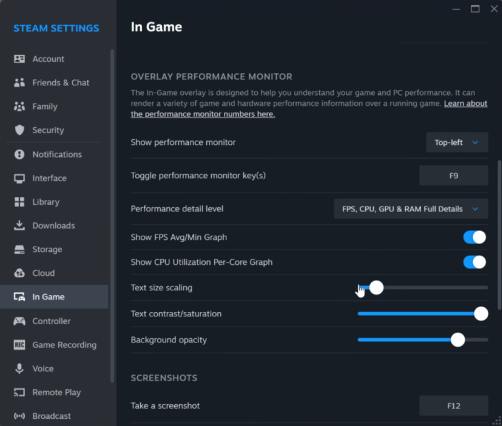
- Enable the Performance Monitor: go to Settings → In-Game. Turn on Show performance monitor, then set its position, hotkey, and detail level.
- Pick a detailed view: increase the Performance detail level so CPU metrics, including temperature, appear.
- Windows only, optional: if you prefer not to use the driver, untick Enable kernel driver-based metrics (CPU Temperature) in the same In-Game section. The driver installs and runs only while the overlay is visible with detailed CPU metrics.
When the Steam overlay is enough, and when to keep your tools

For quick checks, Steam CPU Temperature Overlay is convenient and centralizes the basics. Keep HWiNFO for exhaustive sensor lists and logging, use MSI Afterburner with RTSS for fine-grained OSD customization or GPU tuning, and try MangoHud if you want a flexible, open setup on Linux.
Troubleshooting a hitchy game session, or juggling overlays, or testing changes to power plans and drivers, start with our guide Why Does My Game Stutter on a High-End PC?. It walks through real fixes that play nicely with any overlay.
Troubleshooting quick hits
- CPU temp not showing: make sure you are on the Steam Client Beta and that the overlay’s detail level is set above basic.
- Security prompt or AV warning: Windows Defender and other suites can flag known bad drivers with Microsoft’s blocklist. Steam’s stack is different, review any notifications and keep Windows security features on.
- Overlay conflicts: if Afterburner or RTSS is already drawing an OSD, disable one overlay at a time and retest.
When the Steam overlay says your temps are fine but games tell a different story, Your Temps Are Lying, The Hidden Throttles Killing FPS shows how to catch the real limits in HWiNFO.
What we want from Microsoft
The ideal end state is a permissioned, user-mode API that exposes accurate CPU die temperature and fan control, with clear prompts and admin policy controls. Today, WMI and ACPI thermal zones model platform thermal policy, not the granular silicon sensors that gamers expect. See Microsoft’s docs on Win32_TemperatureProbe and ACPI thermal zones.
What BTF Thinks of This?
The Steam CPU temperature overlay is a practical upgrade. On Windows it uses an optional kernel driver that activates only when you ask for detailed CPU metrics. On Linux it works without extra drivers. Use Steam for the basics, then reach for HWiNFO, Afterburner, or MangoHud when you need deeper probes or heavy customization. For broader Windows fixes, visit our hub Windows 10 and 11 Problems and How to Fix Them.
FAQ
Does the driver run all the time on Windows?
No. It installs and runs only while the overlay is visible with detailed CPU metrics, and you can disable it in Settings. Is this anti-cheat?
No. This is sensor access for monitoring, similar in class to CPU-Z and HWiNFO. If you want the wider anti-cheat discussion, read our Javelin anti-cheat analysis. Do I need anything extra on Linux?
No. The overlay reads temps without a separate driver on Linux. If you want more control, try MangoHud. Can I keep using Afterburner, RTSS, or HWiNFO?
Yes. Steam covers the basics. Keep third-party tools for deep sensor lists, logging, and advanced OSD customization.
Bonus: If You just need maintenance tips to keep temps low? Check out how we maintain Our Pc’s Here or If your PC won’t boot, forget temp overlays, fix the first-boot problem here: New PC Won’t Boot? Fix First Boot Mistakes
Want more practical PC gaming tips? Subscribe to our free newsletter for hands-on guides, performance tweaks, and no-nonsense hardware advice. And if you’ve tried the new Steam CPU temperature overlay, tell us how it works for you in the comments below, your feedback helps shape our future guides.