If your game keeps crashing with mods installed, start with one simple test: disable every mod and launch the game clean.
If the game runs normally without mods, your mod setup becomes the main suspect. If it still crashes with every mod disabled, stop troubleshooting the mod list and investigate the base game, drivers, files, or system instead.
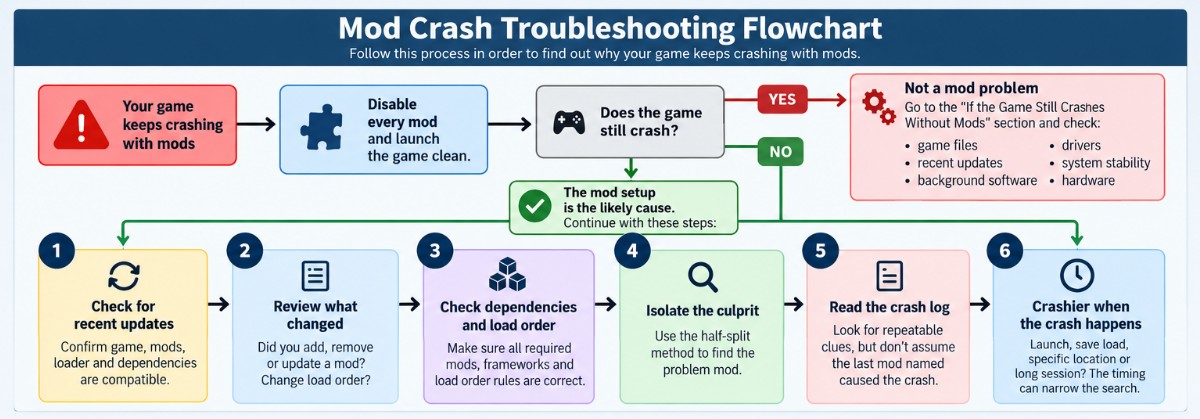
The fastest troubleshooting order is: clean test → recent updates → dependencies and load order → isolate the culprit → check the crash log → investigate when the crash happens.
Mods Keep Crashing? Start Here
Do not start reinstalling everything or disabling mods at random. Work through the problem in order.
Step 1: Disable Every Mod
Launch the game with the mod setup completely disabled.
If the game still crashes: jump to If the Game Still Crashes Without Mods.
If the game works normally: continue to the next step.
Step 2: Check Whether the Game Updated Recently
Game patches are one of the first things to check when a previously stable mod setup suddenly stops working.
- Did the game receive a recent update?
- Does your mod loader or script extender support that version?
- Do the affected mods support the current game version?
- Are required libraries or frameworks still compatible?
If the crashes started immediately after a game update, compatibility should be one of your first suspects.
Step 3: Ask What Changed
Think about the last change you made before the problem started.
- Did you install a new mod?
- Remove one?
- Update a mod?
- Change the load order?
- Update a mod manager, loader, or script extender?
- Move files manually?
- Start using a save created with a different mod setup?
If the crash started immediately after one specific change, test that change before tearing apart the entire mod list.
Step 4: Check Dependencies and Load Order
A mod can be perfectly fine on its own but still fail because something it depends on is missing, outdated, duplicated, or loading in the wrong order.
Use the checklist in Check Versions, Dependencies and Load Order.
Step 5: Isolate the Culprit
If there is no obvious cause, use the half-split method instead of testing every mod individually.
This is usually the fastest way to reduce a large mod list to a small group of suspects.
Step 6: Read the Crash Log
Crash logs can provide useful clues, but treat them as evidence rather than a final verdict.
A mod name appearing in a crash log does not automatically mean that mod caused the crash.
Step 7: Look at When the Crash Happens
A crash at launch points toward different problems than a crash that happens only while loading a save, entering one location, or after playing for an hour.
The timing can narrow the search dramatically.
Why Mods Crash Games
Most repeatable mod crashes have an identifiable trigger. Something in the mod setup is no longer matching what the game expects.
Version Mismatches
The game updates, but a mod, plugin, loader, or script extender still expects the older version.
A setup that worked normally before a patch can become unstable immediately afterwards.
Missing Dependencies
Some mods require separate libraries, frameworks, script extenders, or other base mods. If one of those requirements is missing or incompatible, the mod may fail to load or crash when a particular feature is used.
Mod Conflicts
Two mods can edit the same files, scripts, records, quests, UI elements, NPCs, locations, or gameplay systems. Either mod may work correctly on its own but fail when both are active together.
Load Order Problems
Some mods are designed to overwrite others. If they load in the wrong order, the wrong files or records may take priority and break the setup.
Corrupt or Incomplete Installations
Interrupted downloads, failed extraction, old files left behind after an update, or mixing manual and mod-manager installations can all create broken installs.
Resource Pressure
Heavy texture packs, script-heavy mods, large overhauls, or several demanding mods stacked together can increase RAM, VRAM, CPU, or scripting load.
That does not mean every long-session crash is caused by resource pressure, but it becomes one possible explanation when crashes appear only under heavier workloads. The important point is that a crash that feels random can still have a repeatable trigger.
First Prove the Mods Are Causing the Crash
Before troubleshooting individual mods, prove that the mod setup is actually involved. Disable the mods and launch the game as cleanly as possible.
Important: some games and heavily modded saves do not respond well to having major mods removed mid-playthrough. Where practical, test from the main menu, a new game, or another safe test environment rather than repeatedly loading an important save with large parts of its mod list missing.
If the Clean Game Works
If the game runs reliably without mods, the mod setup becomes the primary suspect. That does not prove your PC, drivers, or hardware are perfect. A heavily modded game can place different demands on the system.
But you have narrowed the investigation significantly.
- Compatibility
- Missing dependencies
- Load order
- Recent mod changes
- Individual broken mods
- Conflicts between mods
If the Clean Game Still Crashes
Stop spending time disabling mods one by one.
The crash is no longer isolated to the mod setup.
Jump to If the Game Still Crashes Without Mods and check the base game, game files, drivers, recent system changes, and system stability.
The Fastest Way to Find the Broken Mod
Testing 50 or 100 mods one at a time is slow.
Use the half-split method instead.
Before doing this: avoid repeatedly loading an important modded save while large parts of its normal mod list are missing. Use a safe test environment wherever the game or mod authors recommend it.
Use the Half-Split Method
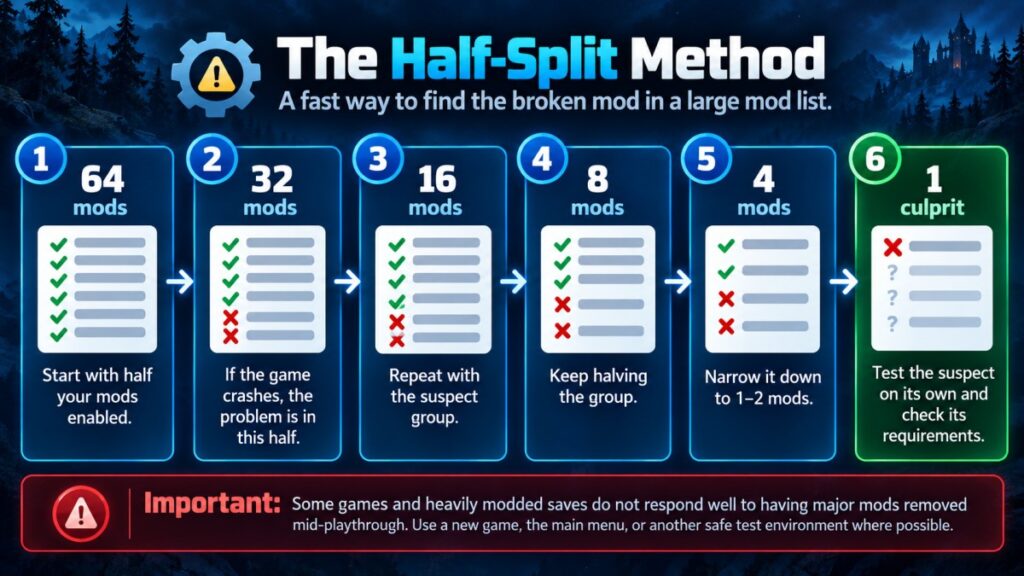
Disable every mod, then enable roughly half of the list and launch the game. If the crash returns, something in that enabled group, or an interaction involving one of those mods becomes the main suspect. If the game runs normally, the problem is more likely in the half that is still disabled.
Repeat the process with the suspect group.
64 mods → 32 → 16 → 8 → 4 → 2 → suspect
Each test removes a large number of possibilities, which is why this is much faster than testing every mod individually.
Test the Suspect Properly
- Disable the suspect mod.
- Test again.
- Check its required dependencies.
- Verify that you have the correct version.
- Read the mod author’s compatibility notes.
- Check for known conflicts with other mods you use.
Do not remove a mod permanently just because its name appears near the crash. Confirm the behaviour first.
What If Two Mods Work Separately but Crash Together?
That is a conflict rather than one independently broken mod. The half-split method can still reduce the problem to a smaller group, but you may need combination testing.
- Mod A alone works.
- Mod B alone works.
- Mod A + Mod B crashes.
Neither mod is necessarily broken by itself. They may simply modify the same system in incompatible ways.
What If Several Mods Are Broken?
Fix one confirmed problem at a time and retest after each change. If you change five things at once and the crash disappears, you will not know which change actually fixed it.
If loaders, folders, and installation methods are still confusing, our guide to how game mods actually work explains the basic structure before you continue troubleshooting.
Check Versions, Dependencies and Load Order
1. Check the Game Version
Did the game receive a recent update? If yes, confirm that the rest of the mod stack still supports it.
2. Check the Mod Version
Open the mod’s download or documentation page and confirm whether it explicitly supports your current game version. Do not assume the newest-looking file is automatically correct for your installation.
3. Check the Mod Loader or Script Extender
Many mod ecosystems depend on loaders, script extenders, or framework tools. If that foundation is outdated, every mod that depends on it may appear broken at the same time.
4. Check Required Dependencies
Read the requirements list for each suspect mod.
- Libraries
- Frameworks
- Script extenders
- Base mods
- Runtime packages
- Compatibility patches
A missing dependency can cause anything from a failed launch to a crash only when a particular feature is triggered.
5. Check Load Order
Load order determines which mod’s changes take priority when multiple mods touch the same content. A mod author may specify that their mod must load before or after another one. Follow those instructions before assuming the mod itself is broken.
6. Check for Duplicate Installations
Problems can appear when the same mod or old files are present through more than one installation method.
- Workshop plus manual install
- Mod manager plus manual install
- Old version files left behind
- Duplicate plugins
- Multiple copies stored in different folders
Remove stale files carefully and follow the mod author’s instructions rather than blindly deleting folders.
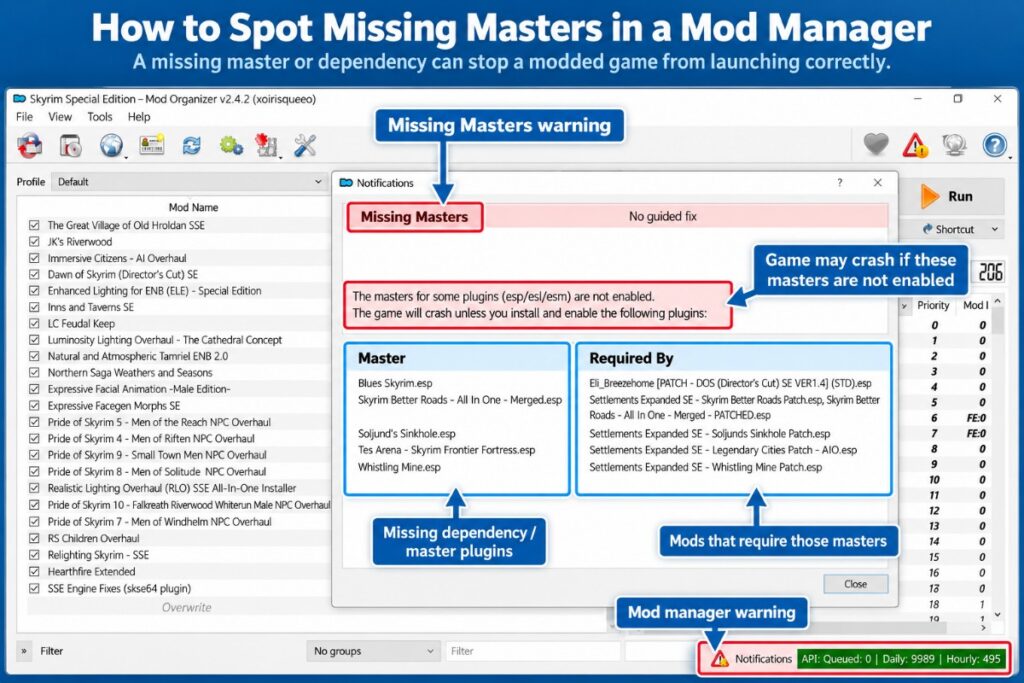
7. Read the Mod Manager Warnings
Do not ignore warnings such as:
- Missing masters
- Unresolved dependencies
- Conflicting rules
- Overwritten files
- Cyclic load-order rules
- Disabled required plugins
A warning does not always mean a crash is guaranteed, but it is evidence worth investigating.
Bad or altered downloads can also create unnecessary problems, which is why sticking to the safest PC game mod sites is worth doing.
How to Read a Mod Crash Log
Crash logs look intimidating because they contain far more information than most players need. You are not trying to understand every line. You are looking for repeatable clues.
A crash log is evidence, not a verdict.
Do Not Assume the Last Mod Named Caused the Crash
A crash log may show what the game was loading when it failed, but that does not automatically prove that the named mod created the underlying problem. Another mod, dependency, or conflict may have created the failure earlier in the process.
| What you see | What it may mean | What to check |
|---|---|---|
| Missing master or dependency | A required mod may be absent | Mod requirements |
| Missing DLL or framework | A loader, runtime, installation, or dependency issue may be involved | Loader, runtime and required files |
| Same plugin mentioned repeatedly | Possible suspect | Test that plugin |
| File not found | Possible incomplete install, path problem or missing dependency | Install location and required files |
| Access violation | Broad failure with several possible causes | Nearby entries and repeatability |
| Last-loaded plugin | Possible clue | Verify before blaming it |
Look for Repetition
One occurrence can be noise.
If the same plugin, DLL, file, or error appears across several crashes, it becomes a much stronger lead.
Search the Exact Error
If a crash log gives you a specific error message, DLL name, missing dependency, or plugin, search that exact clue together with the game name.
Specific errors are usually more useful than searching only for “game crashing with mods.”
Official resources such as Nexus Mods documentation on mod dependencies and compatibility can also help explain common installation and compatibility problems.
Why Mods Crash Mid-Game but Not at Launch
When the crash happens can tell you a lot. A game that crashes immediately after launch is giving you a different clue from one that runs for 40 minutes and then fails.
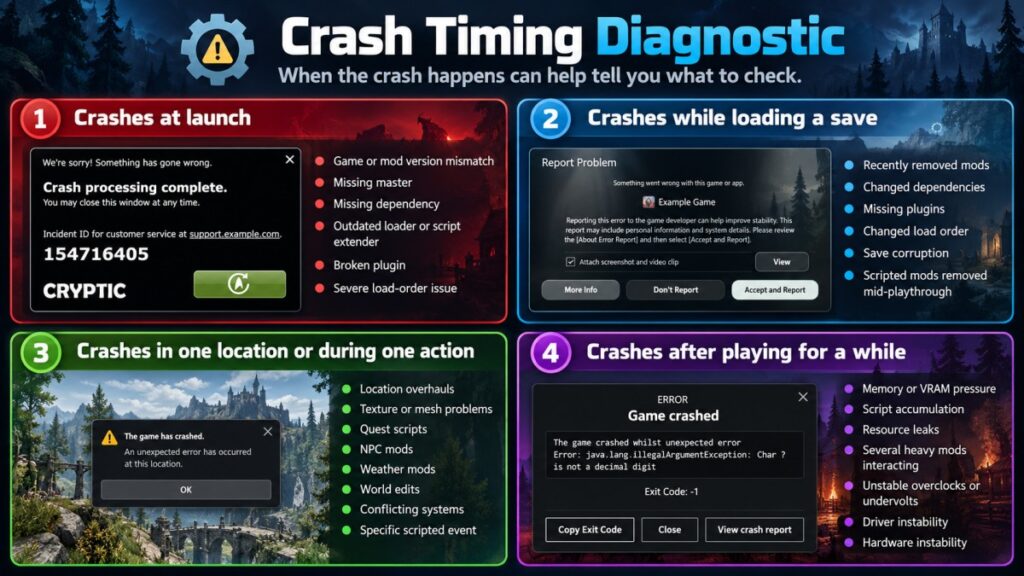
Crash Immediately on Launch
- Game or mod version mismatch
- Missing master
- Missing dependency
- Outdated loader or script extender
- Broken plugin
- Severe load-order problem
Crash While Loading a Save
- Recently removed mods
- Changed dependencies
- Missing plugins
- Changed load order
- Save corruption
- Scripted mods removed mid-playthrough
A save can retain references to content that no longer exists in the current setup.
Crash in the Same Location or During the Same Action
This points toward something more specific.
- Location overhauls
- Texture or mesh problems
- Quest scripts
- NPC mods
- Weather mods
- World edits
- Conflicting gameplay systems
- A specific scripted event
If the crash is repeatable, note exactly what happens immediately before it. Repeatability is useful evidence.
Crash After Playing for a While
Possible causes include:
- Growing memory or VRAM pressure
- Script accumulation
- Resource leaks
- Several heavy mods interacting
- Unstable overclocks or undervolts
- Driver instability
- Hardware instability
Do not assume that every long-session crash is automatically a save, script, memory, or hardware problem. Use the timing as a clue and combine it with the other evidence you have.
Quick Timing Test
Crashes in the same place every time?
Investigate location-specific mods, assets, scripts, or events.
Crashes only on one save?
The save state becomes more suspicious.
Crashes after longer sessions in different places?
Resource pressure and system stability become more plausible and should be tested alongside the mod setup.
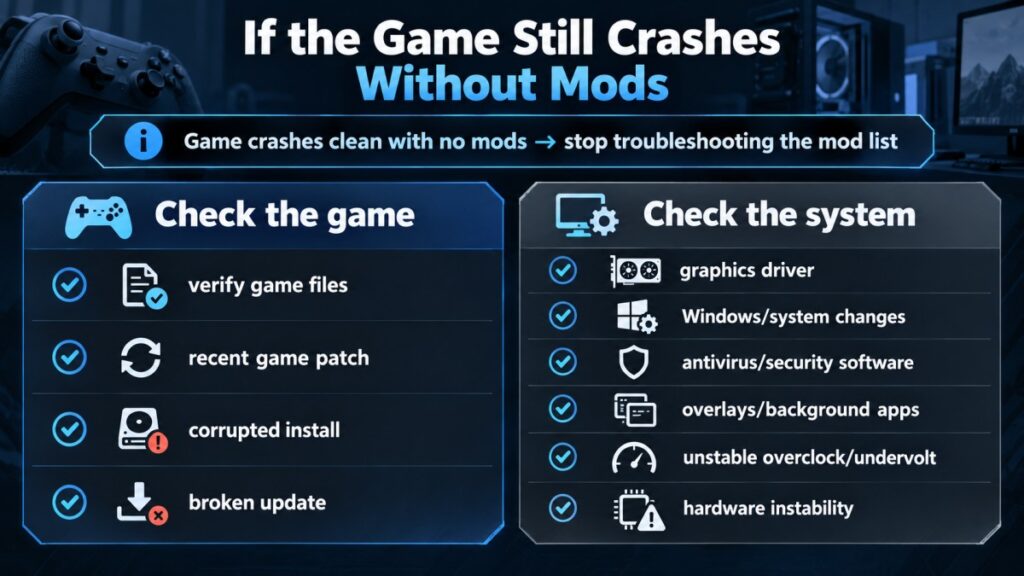
If the Game Still Crashes Without Mods
If the game still crashes with the mod setup fully disabled, stop troubleshooting the mod list.
The problem may be elsewhere.
- Damaged game files
- A recent game update
- Graphics drivers
- Recent Windows or system changes
- Antivirus or security software
- Overlays and background applications
- Unstable overclocks or undervolts
- Hardware instability
Verify the Game Files
Use the platform’s built-in verification tool where available.
Corrupt or missing base-game files can look exactly like a mod problem.
Check What Changed Recently
If the crashes started immediately after a GPU driver update, Windows update, game patch, BIOS change, overclock, or undervolt change, investigate that change first.
Do not blindly update every driver just because the game crashes.
Depending on what changed, the correct step may be an update, clean reinstall, or rollback.
Watch the Actual Symptom
If the game freezes but sound continues, that is a different failure pattern from the game instantly closing to desktop.
If that matches what you are seeing, use our game freeze troubleshooting guide instead of applying random fixes from unrelated crash guides.
Frequently Asked Questions
Why do my mods start crashing after a game update?
Game updates can change files, scripts, APIs, executable behaviour, or other systems that mods depend on. A previously stable mod may stop working until the mod, loader, script extender, or dependency is updated for the new game version.
Can one broken mod crash the entire game?
Yes. A single incompatible mod, missing dependency, corrupt file, or broken plugin can stop the game from launching or cause repeated crashes. That is why isolating suspects with the half-split method can be so effective.
Should I reinstall the entire game?
Usually not as a first step. First prove whether the game crashes without mods, then check versions, dependencies, load order, game files, and recent changes. A full reinstall is more disruptive and will not necessarily fix a mod conflict.
Can too many mods cause crashes?
The number alone is not always the problem. Larger mod lists increase conflict probability, dependency complexity, load-order complexity, script load, and potentially memory or VRAM use.
A carefully configured large mod list can be more stable than a badly configured small one.
Can two mods work separately but crash when used together?
Yes. That is a compatibility conflict. Mod A may work, Mod B may work, but if both modify the same system in incompatible ways, using them together can cause instability or crashes.
How to Prevent Mod Crashes Going Forward
- Add new mods in small batches.
- Test after each batch.
- Read the requirements before installing.
- Record which versions you installed.
- Avoid updating an entire stable mod list at once.
- Keep known-good backups where practical.
- Keep backup saves.
- Avoid removing major scripted mods mid-playthrough unless the author says it is safe.
- Avoid stacking several mods that perform the same major function unless they are explicitly compatible.
- After a major game patch, check critical mods before continuing a long-running save.
If you download mods manually, use reputable sources and verify that you are downloading the correct version for your game.
Final Check
If the game works without mods, troubleshoot the mod setup.
Start with compatibility, then dependencies and load order. If there is no obvious cause, isolate the problem with the half-split method and use crash logs as supporting evidence.
If the game still crashes with every mod disabled, stop troubleshooting the mod list and investigate the base game or system instead.