








If you are stuck in an endless Windows Update loop, or your drivers keep failing like Windows is doing it on purpose, you are not alone. The good news is this mess is usually fixable without reinstalling Windows. This guide helps you fix windows update loop issues first by stopping the loop, then by repairing the underlying cause so it does not come back. If you want the bigger toolkit that covers everything from slow boots to random crashes, start with our Windows 10 and 11 problems and how to fix them pillar.
What a Windows Update Loop Actually Is

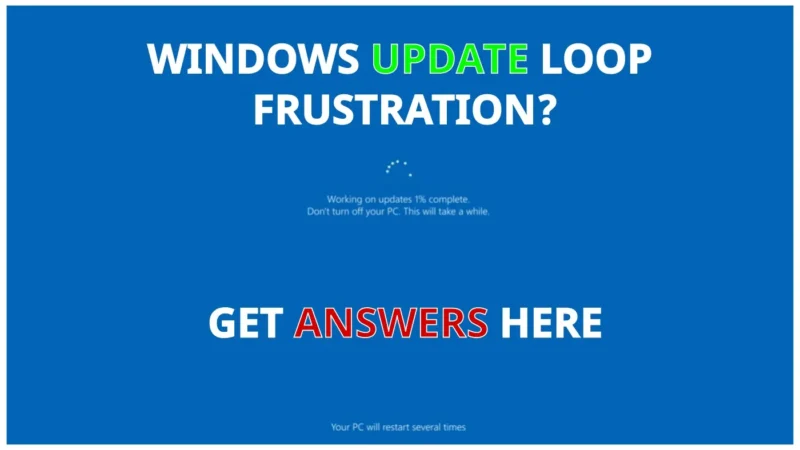
A Windows Update loop is when your PC gets trapped repeating the same update process over and over. It can look different depending on what failed, but the result is the same, you cannot get back to normal use.
- Restart loop: Windows says it needs to restart to finish updating, then repeats forever.
- Undoing changes loop: Windows fails, rolls back, then tries again on the next boot.
- Update reappears: The same update installs successfully, then shows up again like it never happened.
- Driver loop: A driver install fails and Windows keeps pushing it again through Windows Update.
Why Windows Updates and Drivers Break Each Other
Windows updates and drivers are tightly linked. When one is unstable, the other often gets dragged into the problem. This is especially true for GPU, chipset, storage, and network drivers, which Windows loves to update automatically, sometimes badly.
- Corrupted update cache: Windows stores update files locally, and corruption causes repeated failures.
- System file corruption: If core components are damaged, updates and driver installs fail mid-flight.
- Bad driver package: Windows Update can push a driver that does not match your hardware revision.
- Partial install then rollback: A failed update can leave the driver store or servicing stack in an inconsistent state.
Emergency Fix: Stop the Update Loop First
Before you try deeper repairs, you need to stop the loop so you can work. Your mission here is simple, get into Windows reliably.
1) Try Safe Mode if Windows Will Not Finish Updating
If Windows cannot boot normally, use the recovery environment:
- Power on your PC, as soon as you see the Windows logo, hold the power button to force it off.
- Repeat that 2 to 3 times until you see Preparing Automatic Repair, then Advanced options.
- Go to Troubleshoot → Advanced options → Startup Settings → Restart.
- Press 4 for Safe Mode, or 5 for Safe Mode with Networking.
Once you are in Safe Mode, do not let Windows immediately run updates again. Go straight into the fixes below.
2) Pause Updates Temporarily (Once You Are Back In)
If you can boot normally, pause updates so Windows does not keep trying the same failing install while you are fixing it:
- Windows 11: Settings → Windows Update → Pause updates.
- Windows 10: Settings → Update and Security → Windows Update → Pause updates.
This is not a forever solution, it is a temporary muzzle.
Identify the Real Culprit (Windows Update or Driver Failure)
Do not shotgun fixes. First, figure out whether Windows Update itself is failing, or a driver is failing inside the update process.
Signs It Is a Windows Update Problem
- Multiple updates fail, not just one driver.
- You see repeated cumulative update failures.
- Errors mention servicing, components, or update files.
- Windows gets stuck at a percentage during install.
Signs It Is a Driver Failure
- Everything installs except a driver update.
- You notice new stuttering, lag, black screens, Wi-Fi drops, or missing audio after an update attempt.
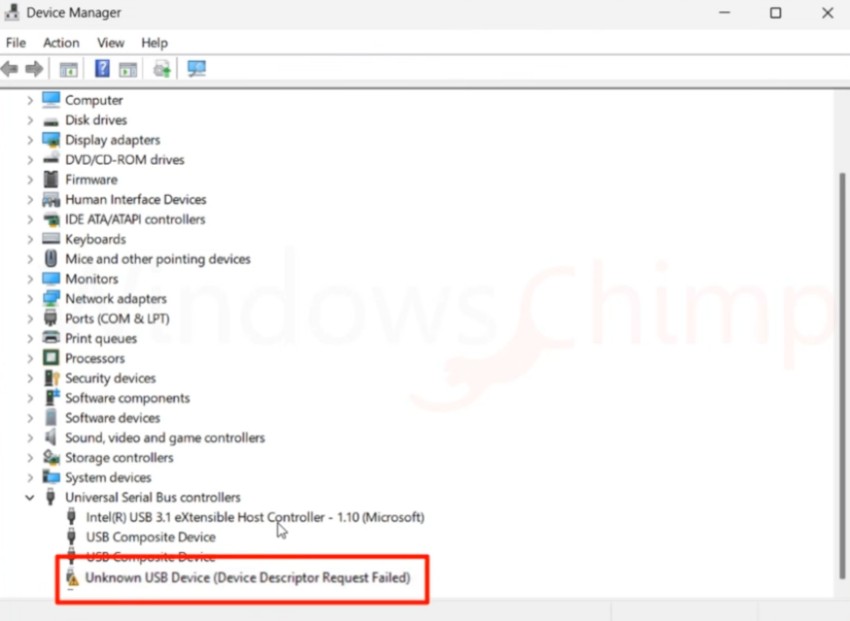
- Device Manager shows warning icons on key devices.
Check Update History
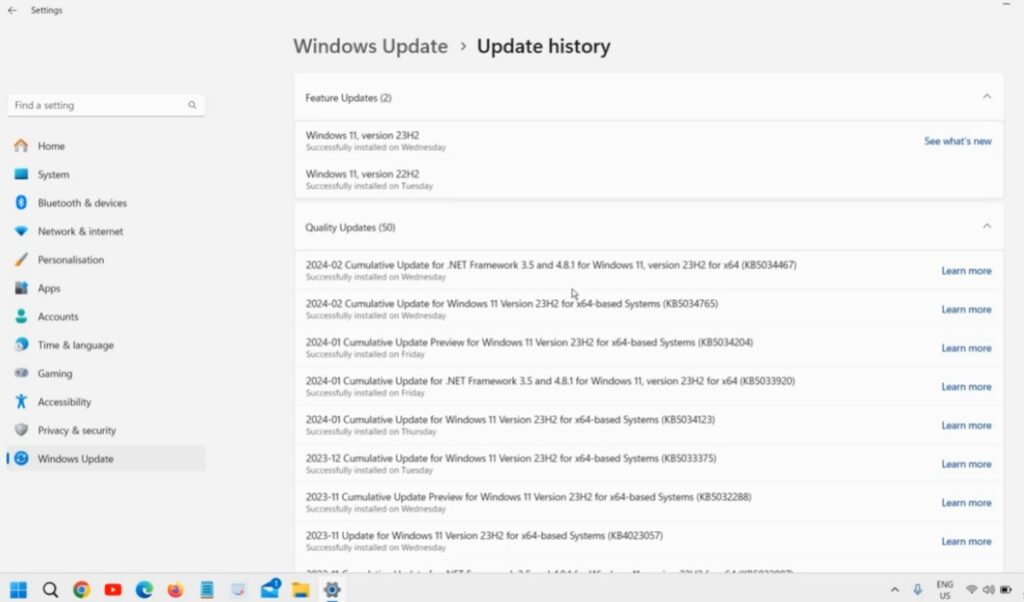
Go to Settings → Windows Update → Update history. Look for a pattern, is it always the same KB update, or always a specific driver?
If your PC also feels slower after the update chaos, see Windows 11 running slow for the post-update performance cleanup that Windows does not tell you about.
Fix 1: Reset Windows Update Components (The Clean Slate Method)
If Windows Update is stuck, the update cache and services are often the problem. Resetting the update components forces Windows to rebuild its update pipeline.
Do this in Windows Terminal or Command Prompt as Administrator.
- Stop update services:
net stop wuauserv
net stop bits
net stop cryptsvc
net stop msiserver- Rename update cache folders (Windows will recreate them):
ren C:\Windows\SoftwareDistribution SoftwareDistribution.old
ren C:\Windows\System32\catroot2 catroot2.old- Start the services again:
net start wuauserv
net start bits
net start cryptsvc
net start msiserver
Restart your PC and try Windows Update again. If the loop was caused by corrupted cache files, this is often the knockout punch.
Fix 2: Repair System Files (SFC and DISM)
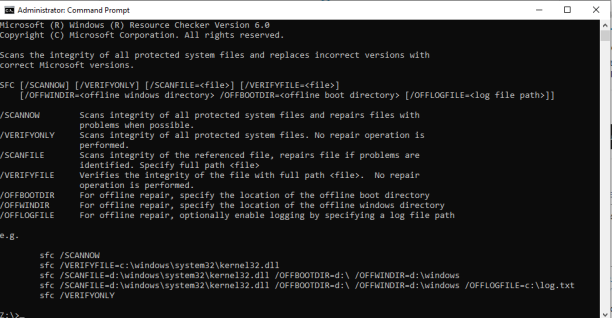
If Windows is corrupted, it will keep failing updates and drivers until the corruption is repaired. These two tools fix different layers, and they are worth running in the right order.

Run SFC
sfc /scannowIf SFC finds and fixes issues, restart and test Windows Update again.
Run DISM (Especially If SFC Cannot Fix Everything)
DISM /Online /Cleanup-Image /RestoreHealthAfter DISM finishes, run SFC again:
sfc /scannowThese commands are documented by Microsoft, and if you want to go deeper, we will include an outbound link to Microsoft Learn in the final publish version.
Fix 3: Fix the Driver Failure Properly (Stop the Repeat Offender)
Driver failures are common because Windows Update tries to handle drivers for every device, including ones it barely understands. If a driver is failing, you want to either roll it back, replace it manually, or block Windows from forcing the bad one.
Roll Back the Driver (If the Problem Started After an Update)
- Right-click Start → Device Manager.
- Find the affected device (Display adapters, Network adapters, Sound, etc.).
- Right-click → Properties → Driver tab.
- If available, select Roll Back Driver.
Install the Driver Manually (Recommended for GPU, Chipset, Network)
For critical drivers, manual installs are usually safer than letting Windows Update guess. Download the correct driver from your hardware vendor, install it, then rerun Windows Update.
- GPU: NVIDIA, AMD, or Intel official drivers
- Chipset: Intel or AMD chipset drivers
- Wi-Fi or LAN: motherboard vendor or laptop OEM
If your update drama triggers gaming stutters or random hitching, you will also want reduce lag without sacrificing graphics after the system is stable again.
High CPU Usage After Updates Can Be a Symptom
Sometimes Windows Update services or a broken driver causes background CPU spikes that look like a performance issue, but the real cause is update failure churn. If Task Manager looks like it is trying to mine crypto without your permission, see high CPU usage issues for cleanup steps once updates are under control.
Fix 4: Disk and Boot Checks (The Boring Fix That Works)
If updates keep failing and rolling back, your storage and file system need to be trusted. Even SSDs can develop file system issues after crashes, forced shutdowns, or repeated rollbacks.
Run CHKDSK
If Windows boots normally, run an elevated terminal and schedule a scan:
chkdsk C: /fIf asked to schedule on restart, type Y and reboot.
For a full CHKDSK guide with what the flags mean and what to do when it reports problems, use use CHKDSK to fix hard drive errors.
When to Roll Back the Update or Use System Restore
If a specific update started the loop, rolling it back can break the cycle and let you patch again later.
- Uninstall the latest quality update: Settings → Windows Update → Update history → Uninstall updates.
- System Restore: Use if you have restore points and the system became unstable after updates.
If you are stuck in boot loops, the recovery environment can also let you uninstall the latest update from Advanced options.
When Reinstalling Windows Is Actually the Right Move
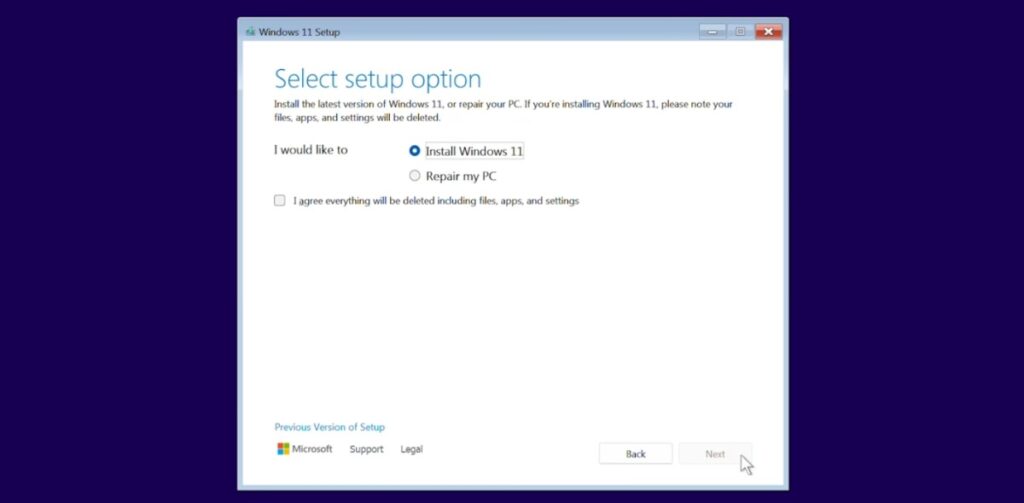
Reinstalling Windows is the last resort, not the first hobby. Consider it if:
- DISM and SFC repeatedly fail or cannot repair corruption.
- Windows Update components keep breaking even after reset.
- You cannot boot reliably even after rollback and Safe Mode work.
If you do reinstall, try a repair install or reset that keeps files first. A clean install is the nuclear option, sometimes necessary, but rarely the best first move.
How to Prevent Windows Update Loops and Driver Failures
Once you have stability back, you want to avoid repeating the cycle.
- Do not let Windows Update manage critical drivers: update GPU and chipset manually when possible.
- Pause updates before big gaming weekends: then update when you have time to troubleshoot.
- Keep Windows lean: fewer background conflicts means fewer weird update failures.
If you want a quick performance and stability cleanup checklist, see Windows settings to disable once your update issues are resolved.
Quick Takeaways (Do This in Order)
- Get into Windows, use Safe Mode if needed.
- Pause updates temporarily so the loop stops while you fix it.
- Reset Windows Update components (cache and services).
- Run SFC, then DISM, then SFC again.
- Fix the driver properly, roll back or install manually.
- Run CHKDSK if failures keep repeating.
- Only consider reinstalling Windows if repairs fail repeatedly.
Final Word
Windows Update loops and driver failures feel like chaos, but they follow patterns. If you stop the loop first, repair the update pipeline, and handle drivers manually when Windows gets it wrong, you can usually recover without wiping your machine. For the full library of Windows fixes, keep this pillar bookmarked: Windows 10 and 11 problems and how to fix them.
For official documentation and deeper technical explanations, Microsoft provides detailed guides on Windows Update troubleshooting and the correct use of DISM and system file repair tools. These resources confirm the steps above and explain what Windows is doing under the hood.