
Updated February 2026: Refreshed for modern GPUs, undervolting trends, and real-world stability testing.
If you are searching for how to use MSI Afterburner safely, without crashing your PC or cooking your GPU, this is the guide you actually need.
MSI Afterburner is still the best free tool for GPU tuning, monitoring, and performance tweaking in 2026. But if you open it without understanding what the sliders do, you can cause crashes, instability, or worse, spend hours fixing something that was fine.
This guide shows you exactly how to use MSI Afterburner for safe overclocking, undervolting, fan control, and monitoring, without turning your system into a troubleshooting project.
Quick Start: Safe MSI Afterburner Setup (No Risk)
- Leave voltage control OFF
- Increase power limit slightly if available
- Set a smooth custom fan curve
- Enable monitoring overlay (FPS, temps, usage)
- Test in a real game for 15 to 20 minutes
This alone gives you better visibility and stability without touching risky settings.
So What Is MSI Afterburner, and Why Do You Still Need It?
MSI Afterburner is a free GPU tuning and monitoring tool that works on almost every modern graphics card, NVIDIA and AMD included.
In 2026, it remains the easiest way to:
- Monitor FPS, temps, and usage in real time
- Adjust fan curves for better cooling
- Safely overclock or undervolt your GPU
- Understand how your system actually behaves under load
If you already use HWiNFO, Afterburner pairs perfectly with it. Afterburner controls behavior, HWiNFO verifies what is really happening.
Before You Click Anything: What MSI Afterburner Cannot Do
- It will not turn an old GPU into a modern one
- It will not fix bad airflow or failing hardware
- It does not work on CPUs
If your performance issues are not hardware-related, this guide will help you identify that. If your games feel delayed even when FPS looks fine, your connection might be the problem. These low latency Wi-Fi adapter picks can help stabilize online gameplay.
Step 1: Download It From the Right Place

Download MSI Afterburner from the official site:
MSI Afterburner Official Download
It installs with RivaTuner Statistics Server, which handles the on-screen display.
Avoid third-party mirrors. This tool interacts with your hardware directly.
Step 2: Learn the Interface Before Touching Anything

- Core Clock: GPU processing speed
- Memory Clock: VRAM speed
- Power Limit: Maximum allowed power draw
- Temp Limit: Thermal cap before throttling
- Fan Speed: Cooling control
- Voltage: Advanced tuning only
Understanding these matters more than blindly increasing numbers. If you are not sure whether your CPU or GPU is limiting performance, read this: CPU vs GPU bottleneck guide.
Step 3: Safe Overclocking Basics
Start small. Always.
- Increase Core Clock by 50 to 100 MHz
- Increase Memory Clock gradually
- If you crash, reduce by 25 MHz
Test in a real game for at least 15 to 20 minutes. Watch for:
- Crashes
- Visual glitches or artifacts
- Sudden FPS drops
If any of these appear, your settings are not stable.
For heavier testing scenarios, see our GTA VI PC performance guide.
Step 4: Undervolting, the Smart Move in 2026
Undervolting reduces voltage while keeping performance stable. This lowers temperatures, noise, and power usage.
Press Ctrl + F to open the voltage curve editor.
Example:
- 1900 MHz at 1.1V → reduce to ~0.95V
If this feels confusing, skip it for now. Undervolting is optional, not required.
For a full breakdown, read: how undervolting actually works.
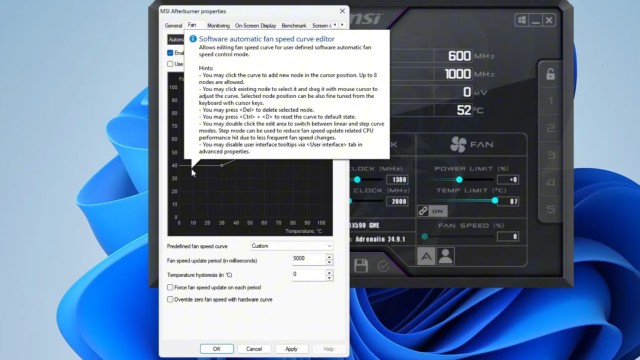
Step 5: Build a Fan Curve That Makes Sense
Enable user-defined fan control and use a smooth curve:
- 30 to 40°C: 20 percent
- 65 to 75°C: 50 to 65 percent
- 80°C and above: 80 percent or higher
Smooth transitions reduce noise and wear.
If you are planning CPU upgrades alongside GPU tuning, avoid bad buys with this guide: buying a used CPU safely.
Step 6: Enable the On-Screen Display

Go to Settings, Monitoring tab, and enable:
- FPS
- GPU temperature
- GPU usage
Make sure RTSS is running in the background.
Save Profiles and Avoid Startup Regret
Save stable settings to a profile.
Only enable startup auto-apply after several hours of stable gameplay. Otherwise you risk boot issues.
For consistent game performance, storage matters too. See: best external SSDs for gaming.
Common MSI Afterburner Myths
- More voltage equals more performance, usually false
- Undervolting is dangerous, it is actually safer
- It only works on MSI GPUs, completely false
Test your system, do not rely on guesswork.
When You Should NOT Use MSI Afterburner
Sometimes the best move is to leave things alone.
- If your system is already stable and cool
- If your case airflow is poor
- If you are not comfortable testing changes
You are not losing performance just because you are not tweaking settings.
Why MSI Afterburner Is Still Worth Learning
MSI Afterburner teaches you how your PC actually behaves, not what marketing claims.
It becomes even more useful when paired with broader system knowledge. If your PC still feels slow, read: why your PC still feels slow.
If you are dealing with instability, start here: why your GPU keeps crashing.
For deeper fixes, use the full toolkit: Fix-Your-Damn-PC Toolkit.