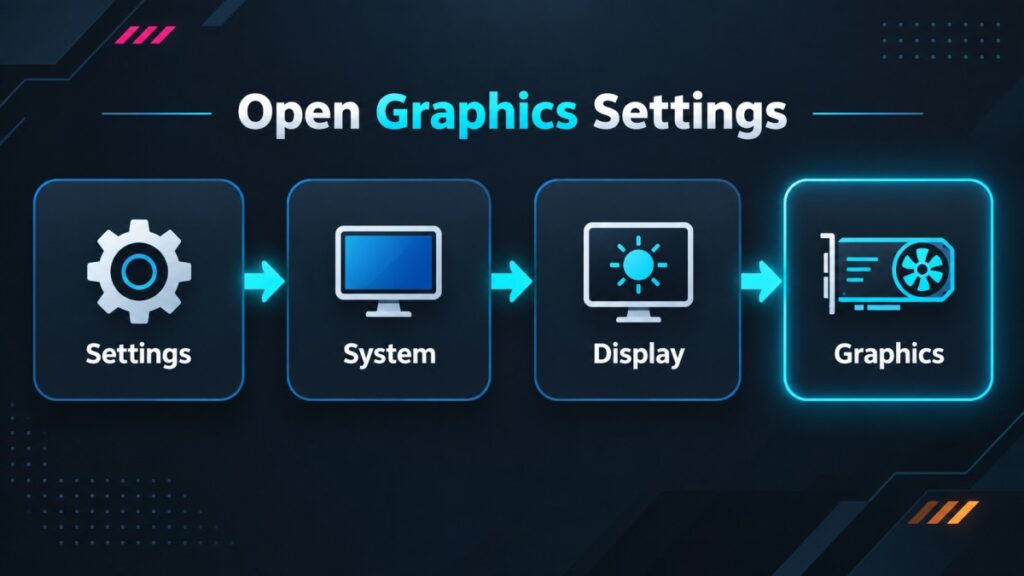
If you find your game using integrated graphics instead of dedicated GPU resources, Windows may be assigning it to the power-saving adapter. You can change this under Settings → System → Display → Graphics, but first check which GPU is actually processing the game.
These instructions primarily use Windows 11. In Windows 10, open Settings → System → Display, scroll down and select Graphics settings. The available names and layout may vary slightly between Windows versions.
Seeing activity on the integrated GPU does not prove something is wrong. On some hybrid laptops, the dedicated GPU renders the game while the integrated GPU remains involved in sending the finished frames to the screen. Both can be active even when the laptop is working correctly.
The steps below will help you identify both GPUs, verify which one the game is using, apply the right desktop or laptop fix, and then test the result. If the dedicated GPU is already rendering the game, you can stop changing GPU settings and investigate the real performance problem instead.
Game Using Integrated Graphics? Try This First
If you have already confirmed that the game is running on the wrong GPU, set a graphics preference for that game in Windows:
- Close the game.
- Open Settings → System → Display → Graphics.
- Select the game. If it is not listed, use the option to add or browse for a desktop app.
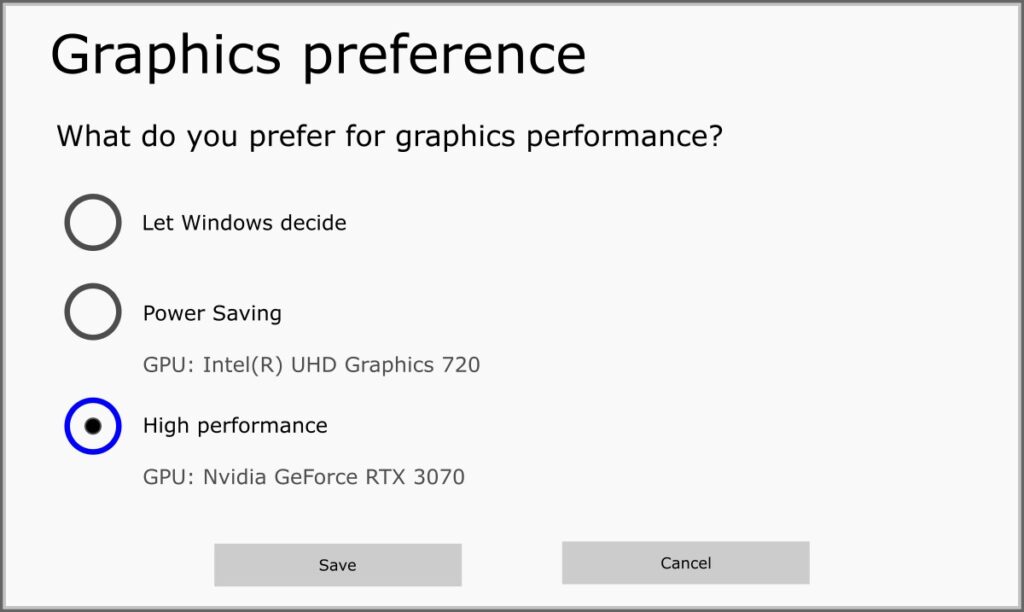
- Open its graphics options and select High performance.
- Check that Windows names your intended dedicated GPU under that option.
- Save the preference, launch the game again and verify which GPU it uses.
If the game was already using the dedicated GPU, this setting will not overcome insufficient VRAM, a weak CPU, too little RAM or settings that are too demanding for the PC.
First, Check Which GPU the Game Is Actually Using
Do not diagnose the problem from a single utilisation percentage. First identify which adapter Windows calls GPU 0, GPU 1 or another number, and then check the engine used by the game process.
- Open Task Manager. You can press Ctrl + Shift + Esc.
- Open the Performance section and locate each GPU.
- Write down which number belongs to the integrated GPU and which belongs to the dedicated GPU. Do not assume GPU 0 is always the integrated adapter.
- Launch the game and enter a normal playable scene. A launcher, pause menu or loading screen may not place a meaningful 3D load on the GPU.
- Return to Task Manager and inspect the game process. If necessary, enable the GPU and GPU engine columns by right-clicking the column headings.
- Match the GPU number used by the game to the adapter names you recorded under Performance.
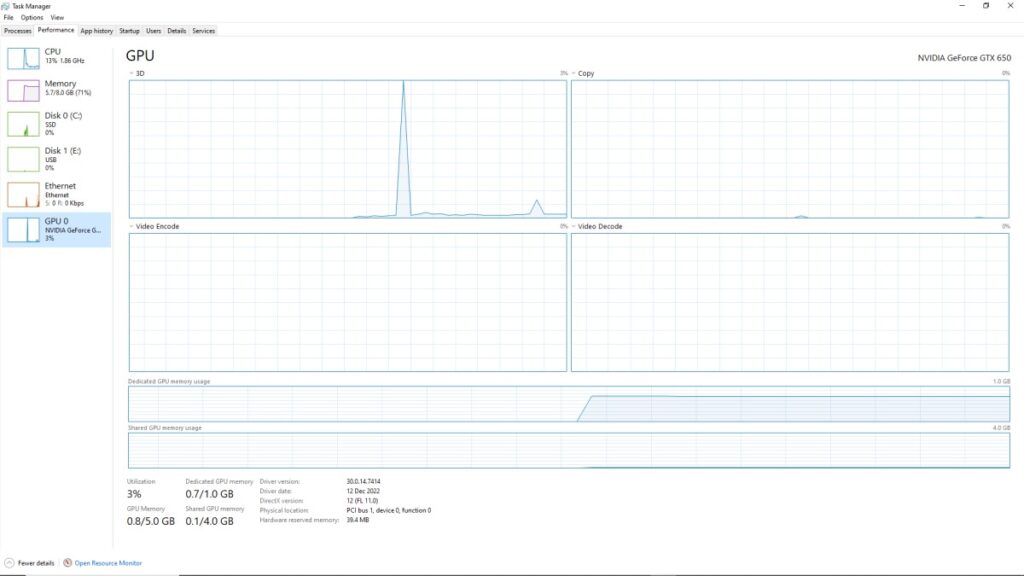
Microsoft explains that Task Manager can show which GPU engines are processing a workload. The important part here is the physical GPU and engine assigned to the game—not whether one percentage looks lower than expected. You can read Microsoft’s technical explanation of GPU reporting in Task Manager if you want the deeper detail.
| What you see | What it establishes | What it does not establish |
|---|---|---|
| The game uses the iGPU’s 3D engine | The selected game process appears to be using the integrated GPU’s 3D engine during that test. | Why that adapter was selected |
| The game uses the dGPU’s 3D engine | The dedicated GPU is processing the game | Whether another performance bottleneck exists |
| Both GPUs show activity | Both adapters are doing some work | That the game is incorrectly configured |
| The dGPU shows low usage | It is not heavily loaded at that moment | That the integrated GPU is rendering the game |
| The dGPU is absent | Windows is not exposing it normally | Whether the cause is its driver, firmware, connection or hardware |
Why Your Integrated GPU May Still Show Activity
Dual-GPU laptops are designed to balance performance with battery life. Windows and the laptop’s graphics system can use integrated graphics for lighter work and wake the dedicated GPU for demanding applications such as games.
On some hybrid designs, the dedicated GPU renders the game while the integrated GPU remains in the path to the internal laptop display. Desktop programs, video playback and other background processes may also be using the iGPU at the same time. That is why both adapters can show activity without the game being trapped on integrated graphics.
This behaviour is part of the design behind systems such as NVIDIA Optimus. The exact display path varies between laptops, and an external monitor may be wired differently from the built-in screen.
Set the Game to the Dedicated GPU in Windows
Windows Graphics Settings provides the most useful vendor-neutral starting point. Microsoft supports assigning a graphics preference to individual games when the PC contains more than one GPU.
- Open Settings → System → Display → Graphics.
- Look for the game in the application list.
- If it is not listed, use the available option to browse for a desktop application.
- Select the game, open its options and choose High performance.
- Check that High performance names the dedicated GPU you intend to use.
- If the correct GPU is shown, save the preference and close the game completely before launching it again.
If High performance does not name the dedicated GPU you expected, do not save the setting blindly. Continue to the driver and detection checks below to confirm that Windows recognises the dedicated GPU correctly.
Intel documents the same basic process in its guide to setting the default GPU for applications and games.
Some PCs also provide application-specific graphics controls through NVIDIA, AMD or the computer manufacturer’s software. The available controls vary, so use them only after confirming the correct game executable and checking the instructions for your particular system.
Make Sure You Selected the Game, Not Just Its Launcher
Steam, Epic Games Launcher, EA App and other launchers normally start a separate game process. Assigning the launcher to the dedicated GPU may therefore change nothing about the executable that renders the game.
For example, assigning steam.exe to High performance does not necessarily assign the actual game executable that Steam launches.
- Run the game and reach a playable scene.
- Open Task Manager and locate the process that remains active for the game.
- Use Task Manager’s file-location option, when available, to identify the executable.
- Add that executable to Windows Graphics Settings and select High performance.
- Restart the game and repeat the GPU-engine check.
Installation paths and permissions differ between games and services, particularly for protected or packaged applications. If Windows does not allow you to browse to the executable, use the current support instructions for that game or store rather than changing folder permissions blindly.
Desktop PC: Check the Display Cable and GPU Detection
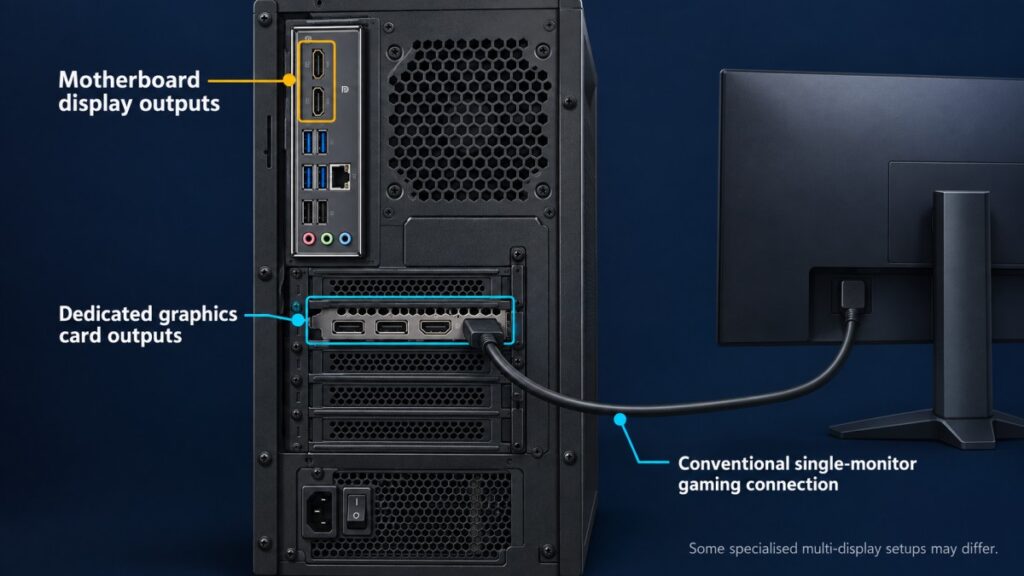
A desktop has one simple physical cause that does not apply to a normal laptop: the monitor may be connected to a video output on the motherboard instead of an output on the dedicated graphics card.
Check Where the Display Cable Is Connected
- Shut the computer down.
- Look at the rear of the case. Motherboard display ports are grouped with the USB, network and audio connections. Graphics-card ports are normally lower down on the installed expansion card.
- For a conventional dedicated-GPU gaming setup, connect the monitor to a port on the graphics card.
- Start the PC and repeat the adapter and GPU-engine checks.
Do not move display cables while using this guide with the computer operating. Although some desktops intentionally run integrated and dedicated graphics together, the graphics-card output is the appropriate first check when the dedicated GPU should drive a conventional gaming display.
Confirm That Windows Detects the Graphics Card
Open Device Manager → Display adapters. If the dedicated GPU is listed normally, return to the per-game preference and verification steps. If it is disabled, showing an error, missing entirely or represented by Microsoft Basic Display Adapter, you no longer have a simple per-game selection problem.
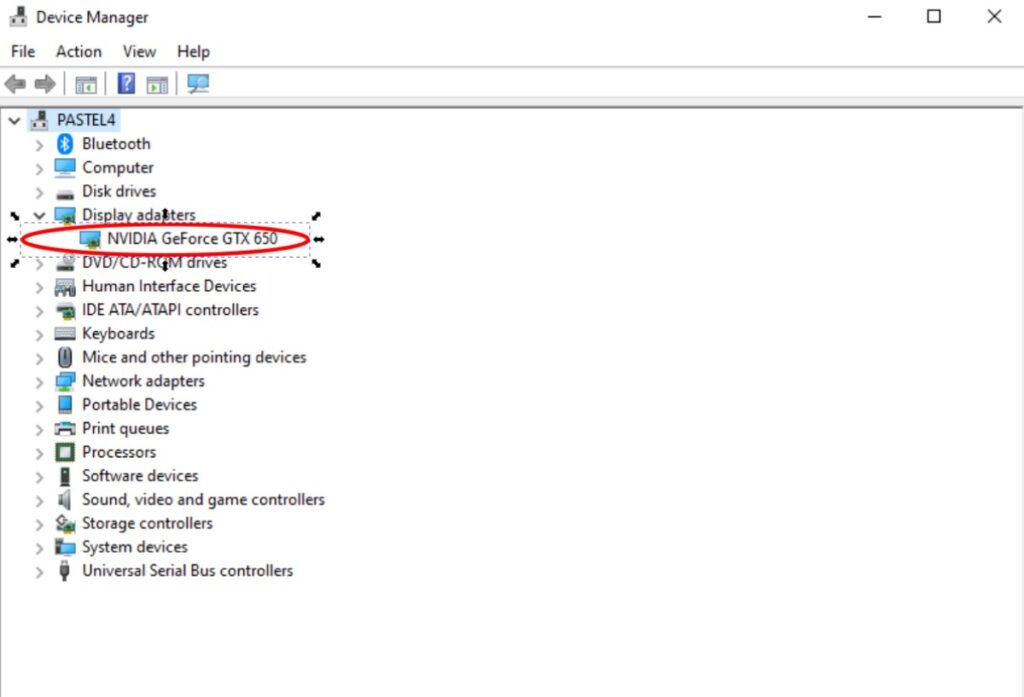
If this is a newly built or recently changed PC, use the physical checks in our guide to diagnosing a new PC that will not boot correctly. Do not repeatedly remove or reseat hardware unless you are comfortable working safely inside the computer.
Laptop: Check Power, Hybrid Mode and GPU Controls
Laptops use integrated graphics to reduce power consumption, heat and unnecessary fan noise. Before changing drivers or firmware, put the laptop into a sensible gaming configuration and test it again.
- Connect the appropriate charger. Some laptops restrict dedicated-GPU performance or availability while running on battery.
- Open Settings → System → Power & battery and check the current power mode. Use Balanced or Best performance while diagnosing the problem rather than Best power efficiency.
- Open the laptop manufacturer’s control utility and check whether it is using an Eco, Silent, iGPU-only or other power-saving graphics mode.
- If the laptop offers Hybrid, Optimus, Standard, Discrete GPU, Ultimate or MUX controls, read the exact instructions for your model before changing them.
- Restart the laptop if the manufacturer requires it, then repeat the same game test.
| Situation | Appropriate action |
|---|---|
| Gaming on battery | Connect the appropriate charger and retest |
| Windows uses Best power efficiency | Use Balanced or Best performance while diagnosing |
| Manufacturer software uses Eco or iGPU-only mode | Select an appropriate hybrid or performance mode using its model-specific instructions |
| The laptop offers a MUX or dGPU option | Follow the exact manufacturer’s procedure and restart if required |
| Both GPUs remain active | Check the game process’s rendering engine before changing anything else |
| No dedicated GPU appears | Continue to the driver and detection checks |
A dedicated-GPU-only mode is not automatically the best permanent setting. Depending on the laptop, it may use more power, shorten battery life and increase heat or fan activity. Some laptops do not provide such a mode at all.
Do not disable the integrated GPU in Device Manager as a routine laptop fix. Hybrid laptops differ in how their displays are wired, and the iGPU may be part of the intended display path. Use settings documented for your exact model.
If the Dedicated GPU Is Missing or Cannot Be Selected
If Windows does not list the dedicated GPU under Display adapters or offer it as the High performance option, stop treating this as a game preference problem. First establish whether Windows can detect and operate the adapter correctly.
| Device Manager result | Next action |
|---|---|
| Both GPUs listed normally | Return to the game’s Windows preference and verify the correct executable |
| Dedicated GPU disabled | Enable it, restart Windows and retest |
| Microsoft Basic Display Adapter | Install the appropriate manufacturer-specific display driver |
| Dedicated GPU displays an error | Record the error code and follow support for the exact PC or GPU |
| Dedicated GPU absent | Investigate model-specific firmware, physical detection or hardware support |
Microsoft uses Microsoft Basic Display Adapter when a manufacturer-specific display driver is unavailable or not installed. That makes the driver a reasonable next step in this specific situation. It does not mean every reader should immediately remove and reinstall all graphics software.
- Restart Windows once and inspect Display adapters again.
- If the GPU is disabled, enable it and restart.
- If Windows uses a generic driver or reports a driver problem, locate the current supported driver for the exact PC, laptop or GPU model.
- Install the driver, restart and check whether Windows now offers the GPU in Graphics Settings.
- If an error or missing adapter persists, record the Device Manager status before seeking model-specific support.
Do Not Guess at BIOS or MUX Settings
Some PCs expose graphics modes through firmware or a manufacturer utility, but the names and effects are not universal. If the GPU remains missing, consult the support material for your exact computer or motherboard before changing a primary-display, Hybrid, MUX, Eco or Discrete setting.
Do not copy BIOS instructions written for a different machine. Consider a firmware update only when the manufacturer documents a relevant compatibility or GPU-detection fix for your model.
Verify That the Game Now Uses the Dedicated GPU
Every material change needs the same repeat test. Otherwise, you will not know which action mattered—or whether anything changed at all.
- Close the game completely.
- Launch it again and return to the same or a similar playable scene.
- Inspect the game’s GPU engine in Task Manager.
- Match that GPU number to the adapter name under Performance.
- Record the result before making another change.
| Result | What it means | Next step |
|---|---|---|
| The game uses the dGPU and performance improves | Incorrect selection was likely part of the problem | Keep the working configuration |
| The game uses the dGPU but still runs poorly | GPU selection is no longer the main diagnosis | Investigate the actual bottleneck |
| The game still uses the iGPU | The preference did not apply or another control may be overriding it | Recheck the game executable. On a laptop, also check the manufacturer’s graphics mode. On a desktop, confirm the monitor connection and that Windows detects the dedicated GPU normally. |
| The dGPU remains unavailable | This is a detection, driver, firmware or hardware path | Use model-specific support |
| Both GPUs remain active | This may be normal hybrid behaviour | Judge the game by its rendering engine |
You do not need the integrated GPU to fall to 0%, and the dedicated GPU does not have to reach 100%. The successful result is that the game process uses the intended dedicated GPU while you test it under a meaningful workload.
Dedicated GPU Working but Still Showing Low Usage?
If Task Manager confirms that the game uses the dedicated GPU, stop trying to force a different adapter. Low usage can occur when the game is sitting in a menu, limited by an FPS cap or V-Sync, light enough not to need the GPU’s full capacity, or waiting for another part of the PC.
Use our guide to diagnosing a CPU or GPU problem during gaming to determine what is actually holding performance back. For a wider system check, see how to identify your gaming PC’s bottleneck.
When the Game Still Will Not Use the Dedicated GPU
Stop making general changes and seek model-specific help if the dedicated GPU never appears in Device Manager, repeatedly reports an error, disappears under load, or cannot be offered by Windows after the correct driver and documented graphics mode have been checked.
If the GPU is detected normally but fails or disappears when games place it under load, continue with our guide to diagnosing a GPU that keeps crashing. That is a different problem from Windows assigning the wrong graphics adapter.
Before contacting the PC, laptop or GPU manufacturer, collect:
- Your exact PC or laptop model.
- Your CPU, integrated-GPU and dedicated-GPU names.
- Your Windows and graphics-driver versions.
- Any Device Manager status or error code.
- Whether the problem affects one game or every game.
- Whether the laptop was connected to power during testing.
- Screenshots of the Windows graphics preference and Task Manager result.
The correct outcome may be a Windows setting, the right game executable, a corrected desktop cable, an appropriate laptop power mode or a repaired driver. It may also be confirmation that the dedicated GPU was working all along. Do not replace hardware until the evidence points beyond configuration and software.
If Windows now shows the game using the dedicated GPU, the selection problem is solved, even if the integrated GPU still shows some activity. If performance remains poor, investigate the actual bottleneck rather than continuing to change GPU-assignment settings.