Is Your WiFi Adapter Causing Lag? Test Ping Spikes and Packet Loss
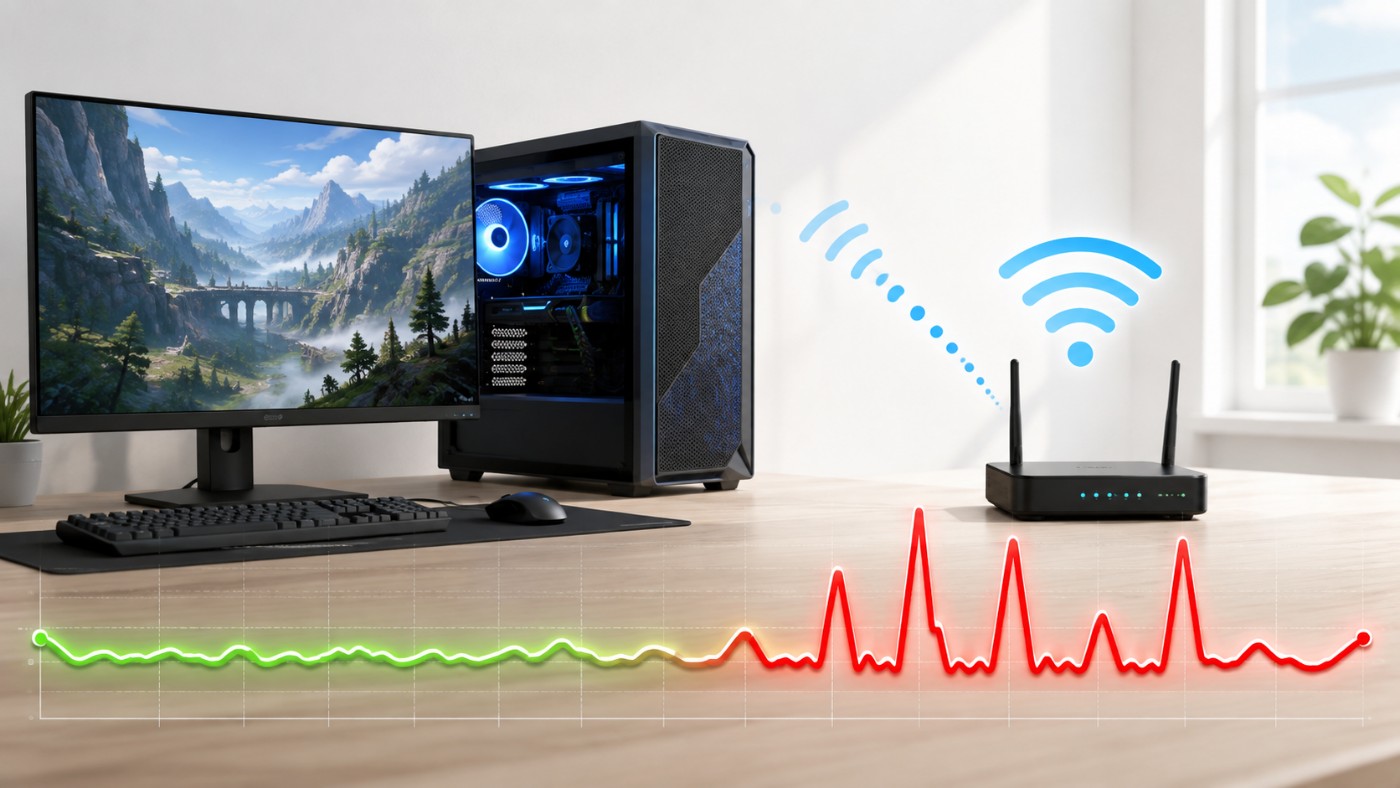
Yes, a WiFi adapter can cause lag, including ping spikes, packet loss, rubber-banding and random disconnects even when your internet speed looks normal. However, those symptoms do not prove that the adapter itself is faulty. Weak signal, router congestion, interference, background traffic and ISP problems can look almost identical.
The correct way to diagnose the problem is to test the connection in layers. First test the wireless link between your PC and router. Then test the wider internet connection, compare WiFi with Ethernet and repeat the test under different conditions. Only replace the adapter when the evidence continues to point back to it.
This guide walks you through that process on Windows 10 and Windows 11 without starting with registry edits, VPNs or a shopping list.
Signs Your WiFi Adapter May Be Causing Lag
A failing or poorly configured adapter usually affects network behaviour rather than frame rate. Look for symptoms such as:
- Ping suddenly jumps from normal values into the hundreds or thousands of milliseconds.
- The game reports packet loss or shows a connection-warning symbol.
- Players teleport, rubber-band or stop moving briefly while your FPS remains stable.
- The PC disconnects from WiFi and reconnects without warning.
- Voice chat cuts out at the same time the game lags.
- This PC struggles while other devices on the same network remain stable.
- The problem disappears when you connect the same PC through Ethernet.
- A USB adapter works differently when moved to another port or extension cable.
These are warning signs, not proof. A weak signal or congested router can produce every symptom in that list without the adapter being defective.
WiFi Lag vs FPS Drops
| Symptom | More Likely Network Lag | More Likely PC Performance |
|---|---|---|
| Other players teleport or rubber-band | Yes | Unlikely |
| Ping or packet-loss warning appears | Yes | No |
| Voice chat cuts out | Yes | Unlikely |
| The entire image freezes | Possible | Yes |
| FPS counter drops | No | Yes |
| Game stutters during heavy scenes | Unlikely | Yes |
If your FPS falls or the entire PC stutters, investigate the system before blaming WiFi. The Complete Gaming PC Health Check will help you separate network symptoms from CPU, GPU, memory, storage and temperature problems.
Quick Test: Is the Problem WiFi, the Adapter or the Internet?
Run these comparisons before changing Windows settings:
- Test the PC over Ethernet if possible.
- Move the PC or adapter closer to the router.
- Test another device in the same location.
- Pause downloads, cloud backups, updates and streaming.
- Test both 2.4 GHz and 5 GHz if the router provides them.
| Test Result | What It Suggests |
|---|---|
| Ethernet is stable, but WiFi is not | The wireless path is involved, but the adapter is not yet proven faulty |
| Moving closer fixes the spikes | Weak signal, obstacles or interference are more likely than hardware failure |
| Every device struggles in the same place | Router placement, coverage or congestion is more likely |
| Only this PC struggles on several WiFi networks | The adapter, antennas or driver becomes a strong suspect |
| WiFi and Ethernet both spike | Look at router congestion, the ISP or the game server |
This quick comparison often prevents the wrong purchase. For a more precise result, continue with separate local and internet ping tests.
Step 1: Test the Connection Between Your PC and Router
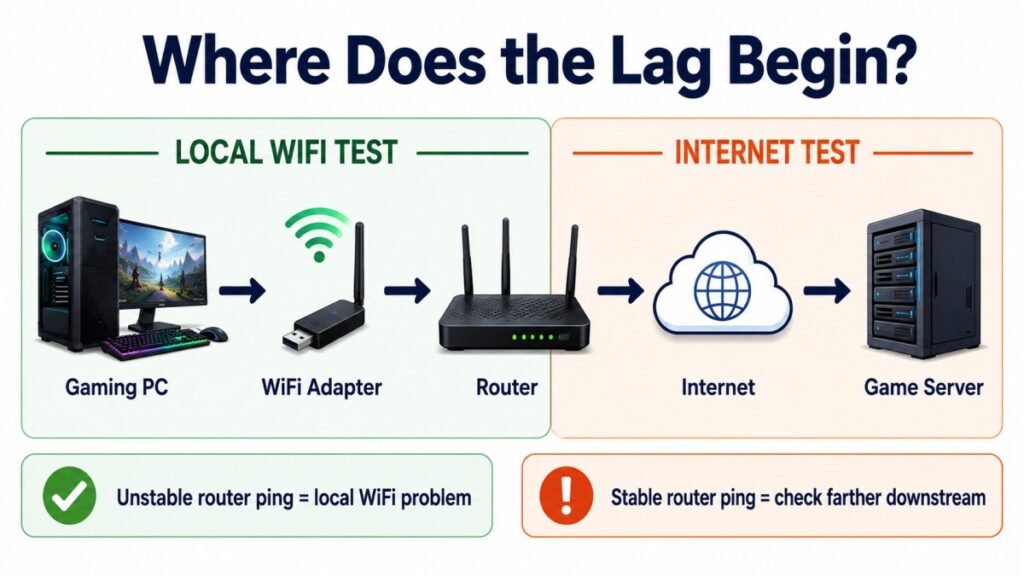
The first test should stop at your router. This isolates the local WiFi connection before your ISP or a game server becomes involved.
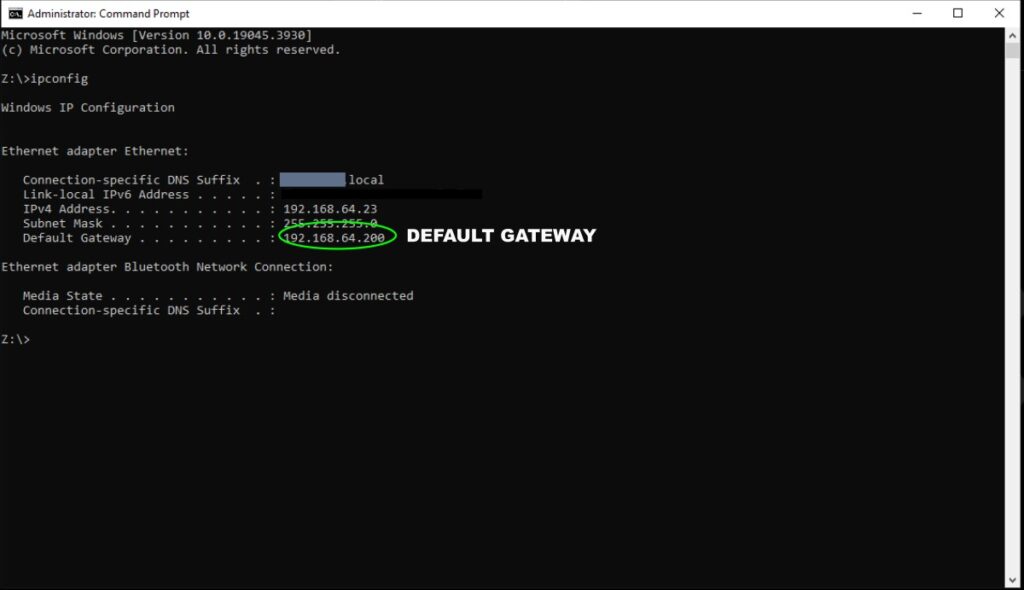
Find Your Router’s Address
- Press Windows Key + R.
- Type cmd and press Enter.
- Enter the following command:
ipconfigFind the active WiFi adapter and look for Default Gateway. The address is commonly something like 192.168.0.1 or 192.168.1.1, but use the address shown on your own PC.
Run a Local Ping Test
Replace the example address below with your Default Gateway:
ping -n 100 192.168.1.1The command sends 100 test requests to the router and reports the response time and packet-loss result. Microsoft describes ping as a primary Windows command for testing IP connectivity and round-trip response times. See the official Microsoft ping documentation for the command reference.
What a Healthy Router Ping Looks Like
A nearby router will often respond in a few milliseconds, but the exact number varies with distance, interference and network activity. Focus on consistency rather than chasing one perfect result.
- Good sign: Responses remain low and reasonably consistent with 0% packet loss.
- Possible problem: Frequent large jumps occur while the network is idle.
- Strong warning: The test reports repeated timeouts or packet loss to the router.
One isolated spike does not prove the adapter is bad. Repeat the test when the game normally struggles and compare the result with Ethernet, another device or another adapter.
Step 2: Compare Local Ping With Internet Ping
If the router test is stable, repeat the test against an external destination:
ping -n 100 1.1.1.1This sends 100 requests to Cloudflare’s public DNS address. You can also use another reliable destination, but keep the destination the same when comparing WiFi and Ethernet.
For a More Convincing Comparison, Run Both Tests Together
The 100-request tests above are suitable for a quick diagnosis, but network conditions can change between one test and the next. If the lag is intermittent, open two Command Prompt windows and run the local and internet tests at approximately the same time.
In the first window, continuously ping your router. Replace the example address with the Default Gateway shown on your PC:
ping -t 192.168.1.1In the second window, continuously ping the external destination:
ping -t 1.1.1.1Leave both windows running while you reproduce the lag. When the problem occurs, press Ctrl + C in each window to stop the tests and display their summaries.
- Both tests spike at the same time: The local wireless path is likely involved because the delay is already visible between the PC and router.
- The router remains stable while the internet test spikes: The problem probably begins beyond the PC-to-router connection, such as router congestion, the ISP or the wider route.
- Both tests remain stable while one game lags: The game server, its network route or a game-specific connection problem becomes more likely.
This comparison is most useful when the ping spikes appear at the same time as the in-game lag. A test performed while the connection is behaving normally cannot completely rule out an intermittent problem.
| Router Ping | Internet Ping | Likely Area |
|---|---|---|
| Stable | Stable | The connection looked healthy during the test |
| Unstable | Unstable | Local WiFi, adapter, interference or router radio |
| Stable | Unstable | Router congestion, ISP or wider internet route |
| Stable | Only one game struggles | Game server or game-specific route |
Some internet hosts block or deprioritize ping requests, so one timeout does not automatically prove that game traffic is being lost. Look for repeated patterns and compare them with your in-game network statistics.
Intel also recommends comparing packet-loss results across different destinations because a problem limited to one game may not appear in a general ping test. See Intel’s guide to testing and fixing packet loss.
Optional Advanced Test: Pathping
If the router ping is stable but the external test is not, Windows can examine the route more closely:
pathping 1.1.1.1Pathping takes several minutes because it measures latency and apparent loss across the route. Do not treat one intermediate timeout as proof of a broken connection. Some network devices simply do not prioritise these test responses. Loss becomes more meaningful when it continues through later hops or reaches the final destination.
Step 3: Compare WiFi With Ethernet
Connect the same PC to the same router with Ethernet, disable WiFi temporarily and repeat both ping tests.
- WiFi unstable, Ethernet stable: The wireless path is involved.
- Both unstable: The adapter is unlikely to be the only cause.
- Both stable, but one game lags: Investigate the game server or its route.
Ethernet fixing the problem does not prove that the WiFi adapter is defective. It only removes the adapter, wireless signal and local interference from the test. The remaining wireless suspects include antenna placement, distance, router channels and the adapter’s driver.
Step 4: Test Signal, Distance and Other Devices
Repeat the router ping while changing one condition at a time. Do not move the PC, switch bands and update drivers simultaneously or you will not know which change mattered.
Move Closer to the Router
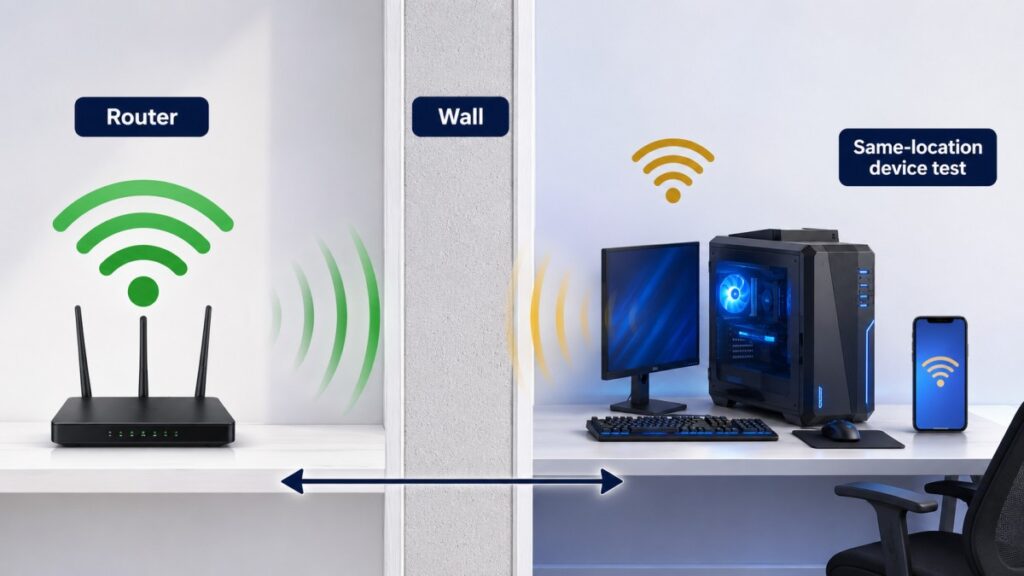
If the ping becomes stable near the router, the adapter may be working normally but receiving a weak or obstructed signal. Try repositioning the antennas, raising a USB adapter with an extension cable or moving the router into a more open position.
Compare Another Device in the Same Location
Test a laptop or another PC in the same room and on the same WiFi band. A phone can provide a rough comparison, but different antennas and power behaviour make another computer more useful.
- Every device struggles: Coverage, interference or the router is more likely.
- Only the gaming PC struggles: Its adapter, antennas, driver or Windows settings become stronger suspects.
Test 2.4 GHz and 5 GHz Separately
If your router and adapter support multiple bands, test each one separately rather than allowing the PC to switch automatically while you measure.
- 2.4 GHz: Usually provides better reach through walls, but it is commonly more congested and can suffer interference from nearby devices.
- 5 GHz: Often provides the best balance for gaming when the router is reasonably close and the signal remains strong.
- 6 GHz: Can provide cleaner spectrum for compatible WiFi 6E and WiFi 7 equipment, but it has shorter practical reach and requires support from the router, adapter and operating system.
A lower maximum speed with stable latency is better for gaming than a faster band that repeatedly produces ping spikes or packet loss.
Try Another Network or Adapter
A mobile hotspot can show whether the PC behaves differently on another network, although cellular latency makes it an imperfect comparison. The strongest practical test is another WiFi adapter on the same PC, router and location.
If the replacement adapter remains stable while the original repeatedly spikes under identical conditions, the original adapter or its driver is probably the weak link.
Step 5: Check the Adapter and Windows Wireless Report
Identify the Exact WiFi Adapter
- Right-click Start and open Device Manager.
- Expand Network adapters.
- Find the exact wireless-adapter model.
- Open Properties and check the device status and driver details.
A yellow warning symbol, repeated disappearance from Device Manager or failure across several USB ports is more serious than an occasional ping spike. Download drivers for the exact adapter and hardware revision from the PC, motherboard or adapter manufacturer.
Generate the Windows Wireless Report
Open Command Prompt as an administrator and run:
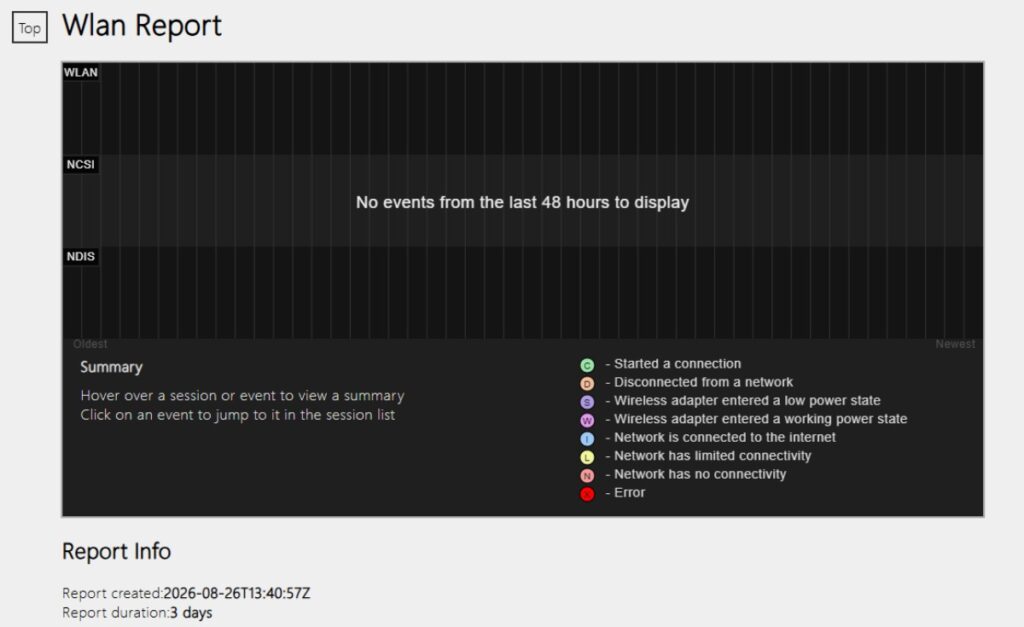
netsh wlan show wlanreportWindows will display the location of an HTML report. Open it in your browser and check:
- recent wireless sessions
- disconnects and failure reasons
- adapter and driver information
- repeated warnings at the same time the game lagged
The report does not automatically declare that the adapter is broken, but repeated driver failures or unexplained disconnects provide stronger evidence than a normal speed test. Microsoft’s wireless network report guide explains the report’s sections.
Check What the Adapter Supports
Run the following command:
netsh wlan show driversLook under Radio types supported. Windows may display technical standards rather than familiar WiFi generation names:
- 802.11n generally corresponds to WiFi 4.
- 802.11ac corresponds to WiFi 5.
- 802.11ax corresponds to WiFi 6 and is also used by WiFi 6E equipment.
- 802.11be corresponds to WiFi 7.
This list shows the radio types supported by the adapter and its installed driver. It does not prove that the PC is currently connected using the newest listed standard. In particular, seeing 802.11ax does not by itself confirm that the adapter supports the 6 GHz band used by WiFi 6E.
How to Read Your Test Results
| Evidence | Most Likely Cause | Next Step |
|---|---|---|
| Router ping spikes only on this PC | Adapter, antenna, driver or Windows setting | Test closer, update the driver and compare another adapter |
| Router ping improves near the router | Weak signal or interference | Reposition antennas, router or USB adapter |
| Every device has unstable router ping | Router, congestion or poor coverage | Restart and reposition the router; inspect channels and traffic |
| Router ping is stable but internet ping spikes | Router congestion, ISP or external route | Stop background traffic and compare Ethernet |
| WiFi spikes but Ethernet is stable | Wireless path | Test signal, driver and another adapter |
| WiFi and Ethernet both spike | Router, ISP or game server | Look beyond the WiFi adapter |
| Another adapter fixes the same PC | Original adapter or its driver | Reinstall the driver or replace the adapter |
| Only one game is affected | Game server or game-specific route | Compare regions, servers and other games |
No single result proves hardware failure. The adapter becomes a strong suspect when several tests point to the same conclusion.
How to Fix WiFi Adapter Lag in the Right Order
Apply one fix at a time and repeat the same router ping test after each change. Start with the safest and most reversible fixes.
1. Reposition the Adapter or Antennas
Move antennas away from the rear of the PC, walls and surrounding cables. For USB adapters, try an extension cable or cradle that places the adapter higher and in the open.

2. Restart the PC and Router
Restart Windows, then power-cycle the router according to the manufacturer’s instructions. This clears temporary driver, radio and connection problems without changing the configuration.
3. Stop Background Network Traffic
Pause game downloads, Windows updates, cloud backups, streaming and file synchronisation. If the ping only spikes while the connection is busy, the problem may be router queueing or congestion rather than the adapter.
4. Update or Reinstall the Correct Driver
Download the driver for the exact PC, motherboard or adapter model. Laptop and prebuilt owners should normally check the computer manufacturer first because its driver may include device-specific changes.
If the problem began after a driver update, check whether Windows offers a rollback option. Before removing a driver completely, download the replacement installer so you are not left without a working connection.
5. Disable Adapter Power Saving
- Open Device Manager and expand Network adapters.
- Right-click the WiFi adapter and select Properties.
- Open the Power Management tab if it is available.
- Clear Allow the computer to turn off this device to save power.
Microsoft includes this step in its official guidance for unstable WiFi connections. The setting may not appear on every adapter or Windows configuration.
6. Test Each Available Wifi Band
Compare 2.4 GHz, 5 GHz and, if supported, 6 GHz under the same conditions. Test each band separately instead of allowing the PC to switch automatically while you measure. Use the band that produces the most consistent router ping, not simply the highest speed-test result.
7. Try Another USB Port
Connect a USB adapter directly to another port and avoid an unpowered hub during testing. If 2.4 GHz behaves badly near USB 3.x ports or cables, an extension cable or different port may reduce local interference. Continue using the interface required by the adapter for its full performance.
8. Check the Router
Install current router firmware, confirm that the PC is using the intended band and inspect whether the channel is crowded. Avoid changing several advanced settings at once. Record the original values before modifying anything.
9. Use Windows Network Reset Last
Network Reset removes and reinstalls network adapters and returns networking settings to their defaults. It can also remove saved or specialised configurations, so use it only after simpler tests fail.
Avoid Random Registry and WLAN AutoConfig Fixes
Old forum solutions sometimes recommend registry edits or disabling WLAN AutoConfig to stop periodic WiFi scanning. These changes can interfere with connecting to and moving between networks. Do not use them as first-line fixes without proving that scanning is responsible and understanding how to reverse the change.
When the WiFi Adapter Is Probably Bad
Replacement becomes reasonable when several of these are true:
- The same adapter fails on more than one WiFi network.
- Router ping remains unstable even close to the router.
- Ethernet is stable on the same PC.
- Other devices work normally in the same location.
- Updating or reinstalling the correct driver does not help.
- Another WiFi adapter works normally on the same PC and network.
- The adapter disappears from Device Manager or shows repeated errors.
- A USB adapter disconnects across several known-good ports.
- The WLAN report records repeated adapter or driver failures.
The strongest practical evidence is simple: the same PC, router and location become stable when only the adapter changes.
When Replacing the Adapter Will Not Help
- Every device struggles: The router, coverage or network congestion is more likely.
- Moving closer fixes it: Improve signal placement before replacing working hardware.
- Ethernet also spikes: Look at the router, ISP or game server.
- Only one game struggles: Test another server or region.
- Lag appears during downloads: Investigate background traffic and router queueing.
- Your FPS drops: Diagnose PC performance rather than networking.
A fast speed test does not rule out jitter or packet loss, but buying a faster internet package also does not automatically fix them. Read Does Faster Internet Reduce Lag? before changing your plan.
Should You Replace Your WiFi Adapter?
If unstable router ping follows the original adapter across different ports, locations or networks, and another adapter fixes the same PC under the same conditions, replacement is reasonable. Our guide to the best WiFi adapters for gaming PCs compares USB, PCIe, WiFi 6, WiFi 6E and WiFi 7 options without treating maximum Mbps as a gaming-ping score.
Frequently Asked Questions
Can a WiFi adapter cause lag in games?
Yes. A weak signal, unstable driver, poor antenna position or failing adapter can cause ping spikes, packet loss and disconnects. Test the connection to your router before assuming the wider internet is responsible.
How can I tell if my WiFi adapter is bad?
The adapter becomes a strong suspect when it fails across multiple networks, remains unstable near the router, Ethernet works normally and another adapter fixes the same PC. Device Manager errors and repeated failures in the Windows wireless report provide additional evidence.
Why does my PC lag on WiFi but not Ethernet?
This proves that the wireless path is involved, but not that the adapter is defective. The cause could still be weak signal, interference, antenna placement, router settings or the adapter’s driver.
Can a USB WiFi adapter cause ping spikes?
Yes, particularly when it has weak antennas, unstable drivers, poor USB-port placement or a failing connection. Test another port and use an extension cable to move the adapter away from the PC before replacing it.
Will updating the WiFi driver fix packet loss?
It can fix packet loss caused by a buggy, corrupted or incompatible driver. It will not fix weak signal, router congestion or an ISP problem. Download the correct driver for the exact adapter and hardware revision.
Will a new WiFi adapter lower my ping?
Only if the current adapter is adding instability between the PC and router. A new adapter cannot shorten the route through your ISP or reduce latency caused by the game server.
Final Verdict: Is Your WiFi Adapter Causing Lag?
Your WiFi adapter may be causing lag if the router ping is unstable on this PC, Ethernet remains clean and another adapter fixes the problem under the same conditions. One random ping spike or a good speed test is not enough to reach that conclusion.
Test the local connection first, change one condition at a time and replace the adapter only when the evidence follows it. If the adapter tests normally but gaming remains unstable, continue with our broader guide to reducing lag without sacrificing graphics.