Updated: 10/03/2026
The Steam CPU temperature overlay is one of the most useful additions to Steam’s performance monitor in years. It finally allows PC gamers to see CPU temperatures directly inside the Steam overlay while playing.
However, on Windows this feature requires an optional kernel-mode driver, which triggered some confusion and security concerns when the feature first appeared in the Steam Client Beta. In reality, the situation is far less dramatic than the headlines suggested.
This guide explains how the Steam CPU temperature overlay works, why Windows requires a driver for temperature readings, and when you should still use monitoring tools like HWiNFO or MSI Afterburner.
Quick answer: Steam can display CPU temperatures in its performance overlay, but on Windows it needs an optional kernel driver to access hardware sensor data. The driver runs only when detailed CPU monitoring is enabled and can be disabled in Steam settings.
How to Enable the Steam CPU Temperature Overlay
Steam’s CPU temperature overlay is part of the built-in performance monitor. If you already use Steam’s FPS counter, enabling the temperature display takes only a few extra steps.
- Join the Steam Client Beta
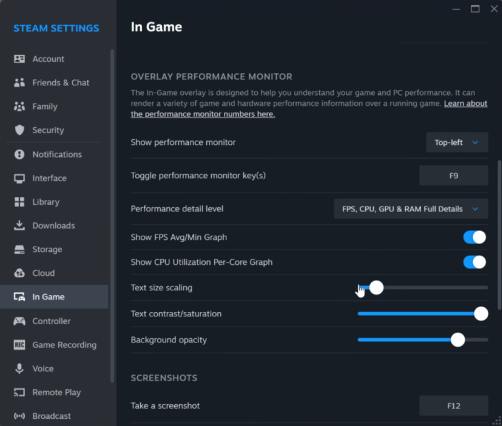
Open Steam → Settings → Interface and enable Steam Beta Update, then restart Steam. - Enable the Performance Monitor
Go to Settings → In-Game and turn on Show Performance Monitor. - Increase Detail Level
Set the performance detail level above basic so CPU metrics and temperature appear. - Optional Windows Driver
Enable Kernel driver-based metrics (CPU Temperature) if you want temperature readings. - If you are using Windows, the temperature reading requires Steam’s optional hardware monitoring driver. You can enable or disable it in Steam → Settings → In-Game by toggling Enable kernel driver-based metrics (CPU temperature). The driver only activates while the detailed performance overlay is visible.
The driver loads only when detailed monitoring is enabled and can be disabled at any time.
What the Steam Performance Monitor Actually Shows
The Steam performance monitor is designed as a lightweight alternative to third-party overlays. It displays real-time system data while you play without needing extra software.
The overlay can display:
- FPS
- Frame time
- CPU usage
- GPU usage
- VRAM usage
- System memory usage
- CPU temperature (new feature)
For quick performance checks, the built-in monitor is convenient. However, advanced diagnostics still benefit from dedicated monitoring tools.
Why Steam Needs a Kernel Driver on Windows
Windows does not expose accurate CPU die temperature sensors through standard user-mode APIs. Most motherboard sensors and CPU thermal sensors require low-level hardware access, which means software must communicate with hardware drivers.
Steam uses a sensor access method similar to tools like CPU-Z and HWiNFO. The optional driver allows Steam to read hardware monitoring data directly from the CPU and motherboard.
Without this driver, Windows applications typically rely on incomplete or missing temperature data through WMI classes such as Win32_TemperatureProbe, which often return no useful readings.
Why Linux Doesn’t Need the Driver

Linux exposes hardware sensors through the kernel using standard interfaces. Tools like lm-sensors already provide temperature access to applications, so Steam can simply read that data without installing an additional driver.
This difference in operating system design explains why the Steam CPU temperature overlay works driver-free on Linux while Windows requires optional kernel access. Linux exposes hardware temperature sensors directly through the kernel using standardized monitoring tools such as lm-sensors. Because the operating system already provides access to CPU and motherboard sensor data, applications like Steam can read temperature information without installing a separate kernel driver.
Is the Steam CPU Temperature Driver Safe?
Some players were concerned when they heard the overlay required a kernel driver. Kernel drivers operate with high system privileges, and historically some monitoring tools used poorly maintained drivers.
However, the Steam implementation has several safeguards.
- The driver is optional.
- It runs only while detailed monitoring is active.
- It can be disabled instantly in settings.
- It uses established sensor access technology.
In practice, this puts Steam in the same category as trusted monitoring tools such as CPU-Z, HWiNFO, and MSI Afterburner.
If you want to understand how deeper kernel access works in gaming software, our analysis of modern anti-cheat systems explains how scope and control determine whether software is intrusive or safe.
Why CPU Temperature Monitoring Matters in Games

Seeing CPU temperature during gameplay is not just a curiosity. It can reveal hidden performance problems that cause frame rate instability or sudden stutter.
If your CPU runs too hot, it may trigger thermal throttling, reducing clock speeds to protect the processor. When this happens, frame times increase and games may feel uneven.
Monitoring temperature helps diagnose issues such as:
- thermal throttling
- poor airflow
- dust buildup
- failing CPU coolers
If you want to learn how temperature, clocks, and usage interact during gaming workloads, our guide on monitoring PC hardware like a pro explains how to interpret sensor data correctly.
Temperature alone is not always the real bottleneck. Sometimes the real problem is hidden throttling or poor CPU scheduling, which we explain in Your Temps Are Lying: The Hidden Throttles Killing FPS.
And if you are diagnosing stutter or inconsistent performance, start with our full troubleshooting guide: Why Does My Game Stutter on a High-End PC?.
When the Steam Overlay Is Enough (And When It Isn’t)
The Steam overlay is excellent for quick performance checks, but it does not replace dedicated monitoring software.
Use the Steam overlay when you want:
- basic CPU and GPU monitoring
- quick temperature checks
- a lightweight overlay without extra software
Use dedicated tools when you need deeper diagnostics.
- HWiNFO for full sensor lists and logging
- MSI Afterburner + RTSS for custom overlays
- MangoHud for Linux monitoring
Many players combine these tools with broader system optimization guides such as our Windows 10 and 11 troubleshooting hub.

Troubleshooting the Steam CPU Temperature Overlay
If the temperature reading does not appear, the issue is usually related to configuration rather than hardware.
- CPU temp missing – confirm the Steam Client Beta is enabled.
- Overlay shows limited data – increase the performance monitor detail level.
- Driver disabled – enable kernel driver metrics in Steam settings.
- Overlay conflicts – temporarily disable other overlays such as RTSS.
If system performance still feels inconsistent even when temperatures look normal, check whether the problem is CPU or GPU related using our guide on identifying CPU vs GPU bottlenecks.
What BTF Thinks of the Steam CPU Temperature Overlay
The Steam CPU temperature overlay is a practical upgrade that simplifies basic system monitoring. It allows players to check temperatures without installing separate tools, which is especially useful for casual performance troubleshooting.
For deeper diagnostics and hardware tuning, advanced monitoring tools remain essential. But for everyday gaming checks, Steam’s built-in overlay now covers most of the basics.
FAQ
Does the Steam CPU temperature overlay require a driver?
Yes, on Windows the feature requires an optional kernel driver to read CPU sensors.
Does the driver run constantly?
No. It activates only while detailed performance monitoring is enabled.
Does the overlay work on Linux?
Yes. Linux exposes sensor data through the kernel, so no additional driver is required.
Can I still use HWiNFO or MSI Afterburner?
Yes. Many players still use those tools for deeper monitoring and custom overlays.
If you want to keep your PC running cool and stable, our PC maintenance guide covers airflow, cooling, and long-term performance tips.