You spend thousands building your dream gaming PC. You expect buttery smooth gameplay, instant responsiveness, and the ability to crank every graphics setting to Ultra without breaking a sweat.
Instead, your expensive new PC behaves like a bargain-bin office computer. Games randomly crash to the desktop. Blue screens appear for seemingly no reason. You receive bizarre error messages like “Out of Memory” despite having 32GB or even 64GB of RAM.
One game runs perfectly while another crashes every fifteen minutes. Your fans suddenly ramp to maximum speed while the PC is sitting idle on the desktop. Some days everything appears fine. The next day the problems return.
Nothing makes sense. So you do what every PC gamer does.
- You reinstall Windows.
- You update your graphics drivers.
- You lower graphics settings.
- You disable XMP.
- You search Reddit.
- You search YouTube.
- You ask AI.
- You try every “guaranteed fix” you can find.
Still nothing? If this sounds familiar, you are far from alone.
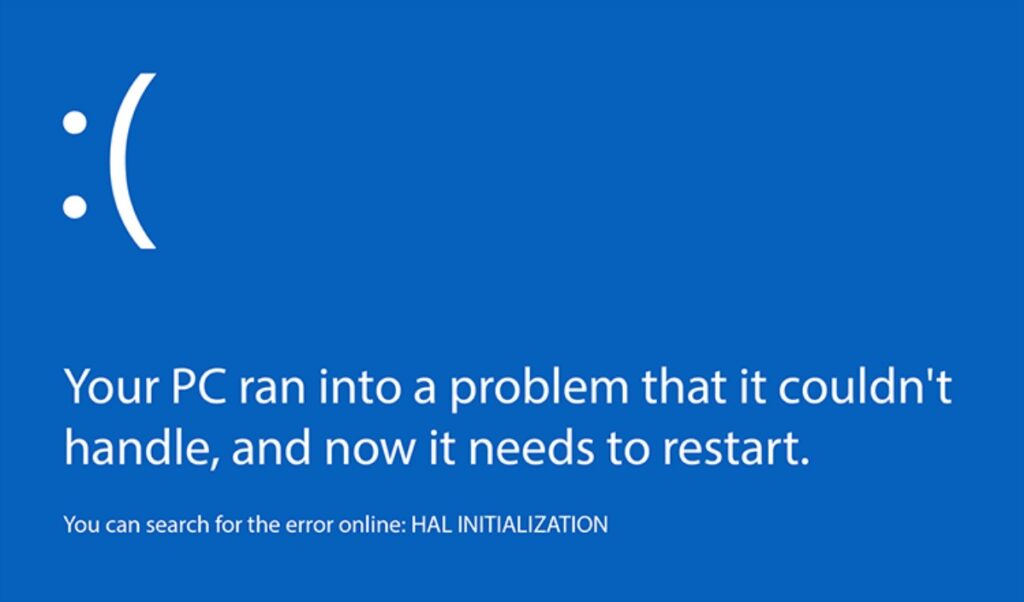
Over the past two years, many owners of Intel 13th and 14th Generation desktop processors experienced an incredibly frustrating problem. Their systems showed dozens of completely unrelated symptoms that often pointed to the wrong component. Many gamers blamed their graphics card, Windows, faulty RAM, or even the games themselves when the real cause was something entirely different.
Even worse, many people had already updated their BIOS once and assumed they were running the latest fixes, unaware that motherboard manufacturers later released additional BIOS updates containing Intel’s newer stability microcode.
That was exactly what happened to one BuiltToFrag reader.
After purchasing a brand-new gaming PC built around an Intel Core i9-14900K, RTX 5070 Ti, and ASUS ROG Strix Z790-A Gaming WiFi II motherboard, the system suffered months of random crashes, strange performance issues, and unexplained instability. Every common fix failed.
Updating the motherboard BIOS from the Asus Z790-A version 1806 to Version 2105, this transformed the system almost overnight. Games became smooth, crashes disappeared, and the expensive gaming PC finally performed the way it should have from day one.
This article explains why that happened, how Intel’s 13th and 14th Generation instability issue created so many confusing symptoms, how to determine whether your own PC may be affected, and why checking for a newer BIOS update might save you weeks of unnecessary troubleshooting.
The Strange Symptoms That Didn’t Make Sense
One of the biggest reasons this issue became so difficult to diagnose is that almost nobody experienced exactly the same symptoms.
Instead of producing one obvious error, affected systems often displayed a collection of completely unrelated problems that changed from game to game and even from day to day.
Our case study perfectly demonstrates this. The system looked exceptional on paper:
- Intel Core i9-14900K
- NVIDIA RTX 5070 Ti
- ASUS ROG Strix Z790-A Gaming WiFi II
- 64GB DDR5 memory
- 2TB NVMe SSD
- 1000W power supply
By every reasonable expectation, this PC should have delivered flawless gaming performance. Instead, it behaved unpredictably.
| Symptom | What It Looked Like |
|---|---|
| Random Blue Screens | Windows crashed without any obvious pattern. |
| Game Crashes | Games suddenly closed and returned to the desktop. |
| Out of Memory Errors | Games reported memory shortages despite 64GB of RAM. |
| Massive Stutters | Gameplay froze for several seconds before recovering. |
| Frame Drops | FPS suddenly collapsed for no clear reason. |
| Desktop Problems | Icons became difficult to click and Windows felt sluggish. |
| Fan Spikes | Cooling fans randomly ramped to maximum while the PC was idle. |
What made the situation even more confusing was that not every game behaved the same way.
Older titles such as Overwatch and Red Dead Redemption 2 were among the worst offenders. Newer games often appeared to run reasonably well, but still suffered from unexplained stutters and random frame drops.
That naturally led to the conclusion that older game engines were somehow incompatible with the hardware. It was a logical conclusion. It just wasn’t the correct one.
This is one of the reasons CPU instability is so difficult to identify. The crashes rarely point directly to the processor. Instead, every application tends to fail in its own unique way, making the problem appear to jump between Windows, the graphics card, drivers, memory, or the individual game itself.
If you’ve already been working through general PC troubleshooting, our guide to Why PC Games Run Badly, FPS Drops, Stutter & Bottlenecks Explained is a useful foundation before diving deeper into Intel-specific instability.
Why None of the Common Fixes Worked
When a gaming PC starts crashing randomly, most of us troubleshoot the same way.
- We fix the part that appears to be failing.
- If games are crashing, we blame the graphics card.
- If Windows blue screens, we blame RAM.
- If only one game crashes, we blame the game developer.
Unfortunately, Intel’s 13th and 14th Generation instability issue rarely behaves that logically.
Because the processor sits at the center of almost everything your PC does, instability can appear almost anywhere. One game may report a DirectX error, another may throw an “Out of Memory” message, while another simply closes without any explanation.
That makes the problem incredibly easy to misdiagnose. In Christopher’s case, almost every common recommendation from Google, Reddit, YouTube and AI was attempted before discovering the real cause.
| Suggested Fix | Did It Help? | Why It Didn’t Solve the Problem |
|---|---|---|
| Reinstall NVIDIA drivers | No | The graphics card wasn’t the root cause. |
| Lower graphics settings | No | The crashes weren’t caused by GPU workload. |
| Switch Vulkan to DirectX 12 | Only temporarily in some games | It changed how one game behaved but didn’t address system stability. |
| Disable XMP | No lasting improvement | Memory wasn’t the underlying problem. |
| Limit CPU affinity | Temporary workaround | Reduced the symptoms but not the cause. |
| Undervolt the CPU | Mixed results | May improve stability but doesn’t replace updated Intel microcode. |
| Update to the latest BIOS | Yes | The newer BIOS contained Intel’s updated microcode and stability improvements. |
The important lesson here is that none of these recommendations are necessarily bad advice. They simply solve different problems.
If your graphics drivers are corrupted, reinstalling them can absolutely fix crashes. If your RAM is unstable, disabling XMP can help identify the issue.
If a specific game has problems with one graphics API, switching between DirectX and Vulkan can improve stability.
But when the processor itself is operating outside expected stability margins, none of those fixes address the root cause.
Why So Many People Blamed Their Graphics Card
This is probably the biggest trap gamers fell into. Modern games rely heavily on the GPU, so when a game suddenly crashes, the graphics card is usually the first suspect.

Christopher followed exactly the same path.
- He reinstalled his graphics drivers repeatedly.
- He experimented with different graphics settings.
- He changed rendering APIs.
- He searched for game-specific fixes.
Nothing consistently worked. Looking back, that’s actually one of the biggest clues. If multiple games using completely different engines all crash in different ways, the problem often isn’t the games themselves.
It’s something they all have in common.
The CPU.
If you’re unsure whether your processor or graphics card is actually responsible, our guide Low FPS or Weird Usage? Here’s How to Tell If Your CPU or GPU Is the Problem explains how to separate the two before replacing expensive hardware.
The Intel BIOS Update That Almost Didn’t Happen
This is the part of Christopher’s story that really caught my attention. He had already updated his BIOS once before. It made absolutely no difference.
Like most people, he crossed “Update BIOS” off the troubleshooting list and never considered it again. That decision made perfect sense at the time.
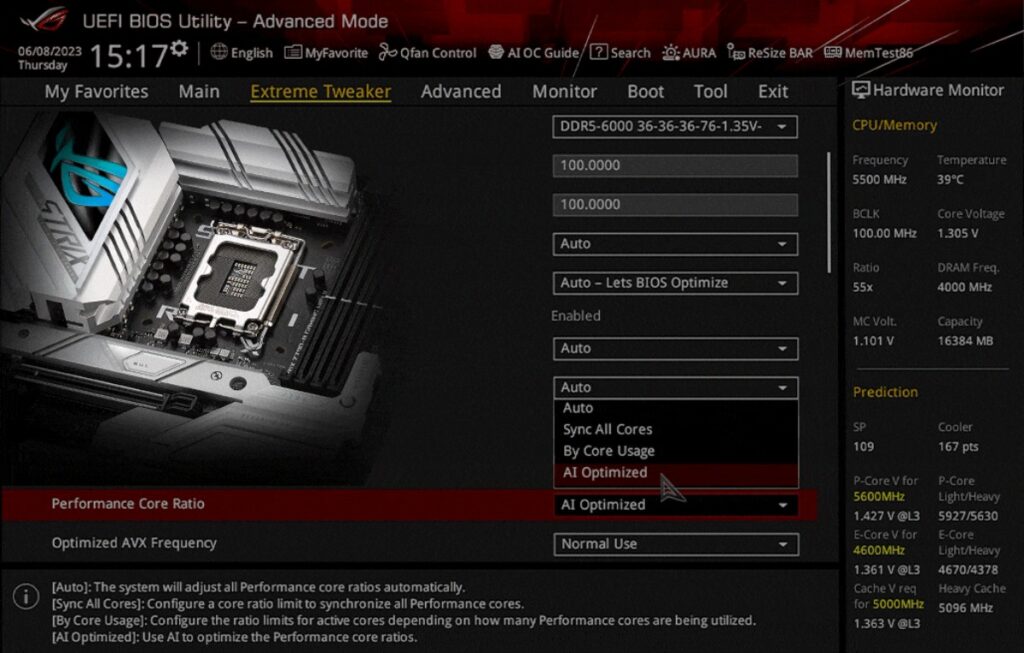
The problem was that motherboard manufacturers continued releasing new BIOS versions as Intel rolled out additional microcode updates to improve stability on affected processors.
In other words, the BIOS update that didn’t help months ago wasn’t necessarily the same BIOS update available later.
That’s an important distinction. Many gamers dismissed BIOS updates because they had already tried one early in their troubleshooting journey. They never realised newer releases contained significant changes rather than routine maintenance.
That turned out to be exactly what happened here.
I Tried Every Fix… The BIOS Update I Ignored Was the Real Solution
Christopher purchased his gaming PC on 8 March 2025. On paper, it was an absolute monster.
- Intel Core i9-14900K
- NVIDIA RTX 5070 Ti
- 64GB DDR5 RAM
- 2TB NVMe SSD
- 1000W power supply
- ASUS ROG Strix Z790-A Gaming WiFi II
Instead of feeling like a flagship gaming machine, it became a constant source of frustration.
- Games crashed for no obvious reason.
- Some reported “Out of Memory” despite having more RAM than most gamers will ever need.
- Others simply disappeared back to the desktop without showing an error message.
- Windows occasionally blue screened.
- Even simple desktop tasks sometimes felt sluggish.
To make matters worse, the problems weren’t consistent.
Overwatch and Red Dead Redemption 2 were particularly troublesome, while newer games such as Silent Hill 2 Remake generally ran better but still suffered from unexplained stutters and sudden frame drops.
- That inconsistency made the diagnosis incredibly difficult.
- It looked like older game engines were incompatible with modern hardware.
- It looked like NVIDIA drivers were unstable.
- It looked like Windows was broken.
- It looked like almost everything except the processor.
Christopher summed up the experience perfectly:
“I basically stopped playing games for the last few months because I thought my PC was a piece of junk”.(Not Exact Words Used, they were far more filthy!)”
Eventually, he decided to try one last thing. His motherboard was still running BIOS version 1806. He updated it to version 2105. The difference was immediate.
| Before BIOS 2105 | After BIOS 2105 |
|---|---|
| Random BSODs | No unexpected crashes during testing |
| Games randomly closed | Games remained stable |
| Out of Memory errors | No recurrence |
| Frequent stuttering | Smooth gameplay |
| Random frame drops | Consistent performance |
| Fans randomly surged | Normal fan behaviour |
| Constant troubleshooting | Finally able to enjoy gaming again |
For the first time since buying the system, it behaved exactly as a flagship gaming PC should. Graphics settings could be pushed to Ultra without the constant fear of another unexplained crash.
More importantly, confidence in the system returned. Instead of spending evenings searching forums for another possible fix, He could finally spend them playing games.
What Was Actually Happening?
So what changed? Why could a simple BIOS update completely transform a flagship gaming PC? The answer lies in something most gamers never think about.
CPU microcode.
Think of your motherboard BIOS as the operating manual for your processor.
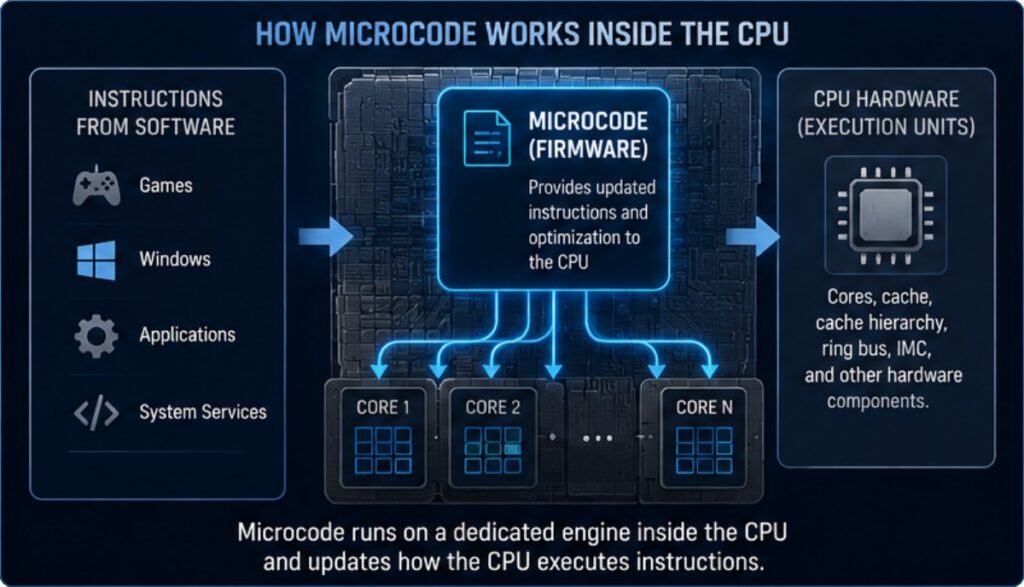
While the CPU physically executes instructions, the BIOS contains low-level firmware that tells the motherboard how to initialize, configure and communicate with that processor. Intel can also provide updated microcode through BIOS updates, allowing motherboard manufacturers to correct issues discovered after a processor has already been released.
During 2024 and 2025, Intel acknowledged instability affecting certain 13th and 14th Generation desktop processors. Motherboard manufacturers, including ASUS, MSI, Gigabyte and ASRock, released multiple BIOS updates containing newer Intel microcode designed to improve processor stability and prevent excessive operating conditions.
This is why one BIOS update early in your troubleshooting journey may have made absolutely no difference, while a later update could completely change your system’s behavior.
It wasn’t simply “a newer BIOS.” It contained newer Intel microcode and updated motherboard behavior that many earlier BIOS versions simply didn’t have.
Intel later confirmed that elevated operating voltages and incorrect voltage requests contributed to instability in some 13th and 14th Gen desktop processors.
Intel’s official 13th and 14th Gen desktop instability root-cause update explains the issue and confirms that the corrective microcode is delivered through motherboard BIOS updates.
It’s also important to understand that these BIOS updates are designed to improve stability and reduce the likelihood of further degradation. If a processor has already suffered permanent damage from prolonged instability, updating the BIOS may not fully resolve the issue. In those situations, Intel warranty support may still be required.
How Can One CPU Cause So Many Different Problems?
This is probably the most confusing part of the entire issue. Most gamers expect faulty hardware to produce one consistent symptom.
- A bad graphics card should create graphics problems.
- A faulty SSD should create storage problems.
- A bad stick of RAM should create memory errors.
Processors don’t always behave that way. The CPU is involved in virtually everything your computer does. Every game, every application, every driver and every background process depends on it. When the processor becomes unstable, every program reacts differently.
| Symptom | What You Might Suspect | Possible Reality |
|---|---|---|
| DirectX crashes | Graphics card | CPU instability |
| Out of Memory errors | RAM | CPU instability |
| Desktop freezing | Windows | CPU instability |
| Random BSODs | Faulty drivers | CPU instability |
| Game suddenly closes | Game bug | CPU instability |
| Massive stutters | GPU bottleneck | CPU instability |
That explains why so many gamers spent weeks replacing drivers, tweaking settings and chasing completely unrelated fixes. The symptoms pointed in every direction except the real one.
If your system also suffers from unexplained stuttering after you’ve ruled out the obvious, our guide My Game is Still Stuttering? Real Fixes Nobody Tells You About covers several additional causes worth investigating.
Updated Your BIOS Already? You May Still Need Another Update
This is where many people unknowingly stop troubleshooting. They remember updating the BIOS months ago. It didn’t help. So they assume BIOS isn’t the problem. That assumption is completely understandable.
The problem is that motherboard manufacturers often release multiple BIOS versions over the life of a product. Some contain routine compatibility improvements, while others include major firmware changes supplied by Intel.
Chris experienced exactly that. He had already updated his BIOS once. Nothing changed. It wasn’t until ASUS released a much newer BIOS that included Intel’s latest stability improvements that everything finally came together.
If your motherboard is still running a BIOS from early 2024 or early 2025, it’s worth checking whether your manufacturer has released a newer version specifically mentioning Intel microcode, stability improvements or processor updates. Even if you’ve updated before, there may be another update that’s significantly different from the one you originally installed.
How to Check Your Current BIOS Version
- Press Windows + R.
- Type msinfo32.
- Press Enter.
- Locate BIOS Version/Date.
- Write down the version number.
- Visit your motherboard manufacturer’s support page.
- Compare your installed version with the latest available release.
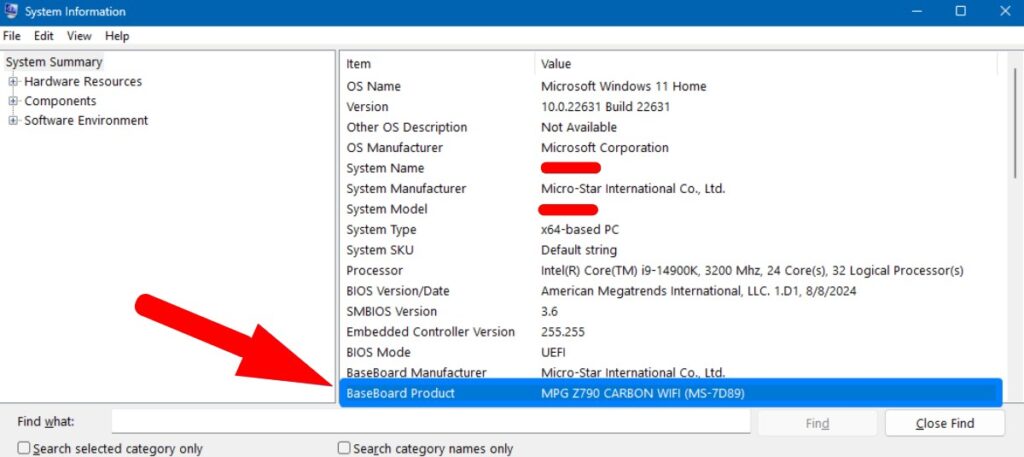
Don’t assume Windows Update has installed the latest BIOS for you. In many cases, BIOS updates must still be downloaded directly from your motherboard manufacturer’s website.
Before making any changes, it’s also worth monitoring your temperatures, voltages and clock speeds. Our Ultimate HWiNFO64 Guide: Bottlenecks, Temps, and Sanity Checks shows exactly what to look for before and after a BIOS update.
How to Safely Update Your BIOS
Updating a BIOS is much safer today than it was years ago, but it should still be approached carefully.
- Download the BIOS only from your motherboard manufacturer’s official website.
- Double-check that the BIOS matches your exact motherboard model.
- Read the release notes before updating.
- Use a reliable USB flash drive if required by your motherboard.
- Do not interrupt the update once it begins.
- Allow the system to reboot normally.
- After updating, load the motherboard’s optimized defaults unless the manufacturer instructs otherwise.
- Re-enable settings such as XMP only after confirming the system is stable.
Once the update is complete, spend some time testing the games that previously caused problems. Instead of immediately assuming the issue is fixed, verify it properly.
- Run the same games.
- Monitor temperatures.
- Watch for crashes.
- Compare performance over several gaming sessions.
If you’d like a structured way to confirm your PC is genuinely stable, follow our guide on How to Test Gaming PC Performance the Safe Way (Benchmarks, Temps, FPS).
What If Updating Your BIOS Doesn’t Fix the Problem?
If the latest BIOS doesn’t solve the problem, don’t panic. It doesn’t automatically mean your graphics card, motherboard or memory is faulty.
Instead, work through the following checklist:
- Confirm the BIOS update completed successfully.
- Install the latest Intel chipset drivers.
- Reset any aggressive manual overclock or undervolt settings.
- Test memory stability.
- Monitor temperatures under load.
- Review Windows Reliability Monitor and Event Viewer for recurring errors.
If your processor continues to crash after installing the latest BIOS and running default motherboard settings, there’s a possibility the CPU has already suffered permanent degradation.
In that situation, contact Intel or your system builder to discuss warranty options before spending money replacing other components. Replacing a perfectly healthy graphics card won’t fix an unstable processor.
Frequently Asked Questions
Can a BIOS update really stop games from crashing?
Yes. If the crashes are caused by firmware or CPU stability issues addressed in a newer BIOS release, updating can dramatically improve system stability.
Should I update my BIOS even if my PC seems fine?
If your motherboard manufacturer recommends the update for your processor and you’re affected by known stability issues, it’s generally worth considering. Always read the release notes first.
Can BIOS updates repair a damaged CPU?
No. BIOS updates cannot reverse physical degradation. They can improve stability and prevent further issues, but processors that have already suffered permanent damage may still require replacement.
How often should I check for BIOS updates?
You don’t need to check every month. However, if you’re experiencing unexplained instability or you’ve recently purchased a motherboard that may have shipped with older firmware, it’s worth checking for newer releases.
Final Thoughts
Christopher’s experience highlights an important lesson for every PC gamer.
- Sometimes the problem isn’t your graphics card.
- Sometimes it isn’t Windows.
- Sometimes it isn’t your RAM.
- And sometimes it isn’t the game.
When dozens of unrelated problems suddenly appear on an otherwise powerful gaming PC, the root cause may be much lower in the system than you expect.
Updating from BIOS version 1806 to 2105 transformed one frustrating gaming PC from a machine that constantly crashed into one that finally delivered the performance its hardware promised. Will every Intel 13th or 14th Generation system experience the same result?
No.
But if you’ve already tried every obvious fix, checking your BIOS version could save you weeks of frustration, unnecessary upgrades and countless hours chasing the wrong problem.
Sometimes the fix you’ve already ruled out isn’t the wrong fix at all. It’s simply the one that wasn’t available yet.