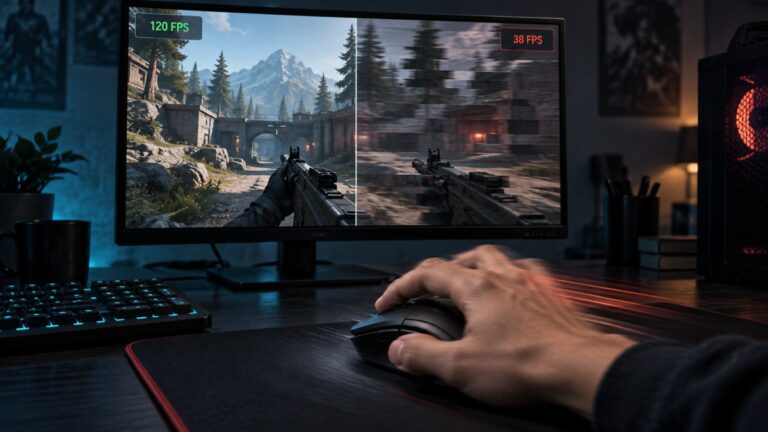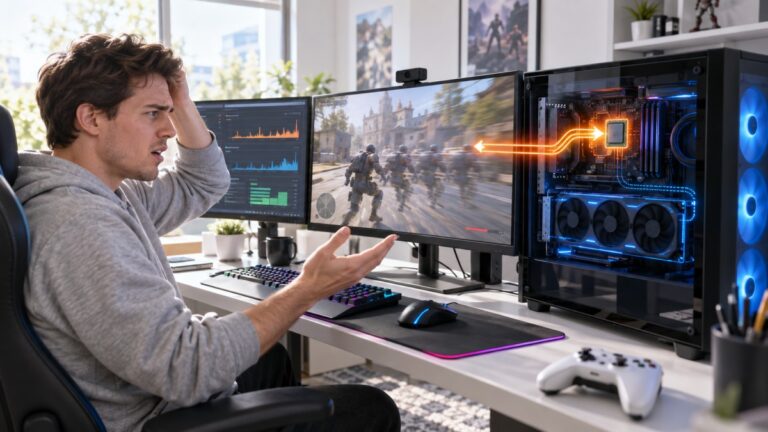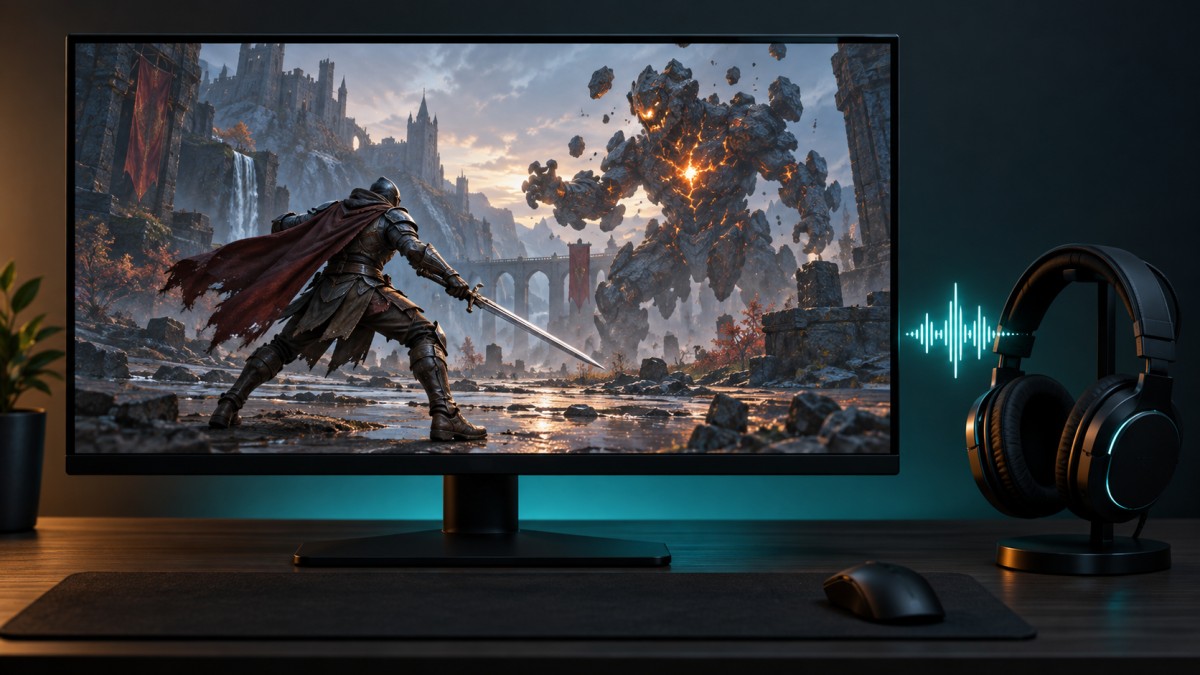
If your game freezes but sound keeps playing, the sound alone cannot tell you what crashed. First check whether Windows still responds. Then compare what happens in other games and look for a matching Windows error. Those checks can separate a stuck game from a wider graphics or system problem without guessing that your GPU is dead.
This guide is for Windows PC games whose picture stops moving while audio continues. Keep the approximate time of each freeze handy: it will help you match what you saw to any Windows record.
Sound may keep advancing or repeat a short fragment while the picture is stuck. Neither tells you that Windows or the GPU is healthy. What matters first is whether you can still use Windows.
| When the picture freezes | Do this first |
|---|---|
| Windows responds; only this game freezes | Note the time. Check for a recent game update or mod; otherwise verify the game’s files and retry the same scene. |
| Windows recovers after a brief black screen, or several games freeze | Note the time and look for a matching display recovery in Windows. Follow the graphics diagnostic path below. |
| Windows and other apps stop responding | Note what still moves, wait briefly, then restart only if necessary. Follow the full-lockup path below. |
1. Check What Still Works When the Picture Freezes
When the image stops, give the PC a few seconds. Press Alt+Tab to switch away from the game. If fullscreen mode prevents that, try Ctrl+Alt+Delete and wait briefly. Can you reach the Windows screen or use another app? If you can, note whether the game stays frozen when you return to it. If Task Manager opens, check whether the game is marked Not responding. Save your work in other apps before ending the game process.
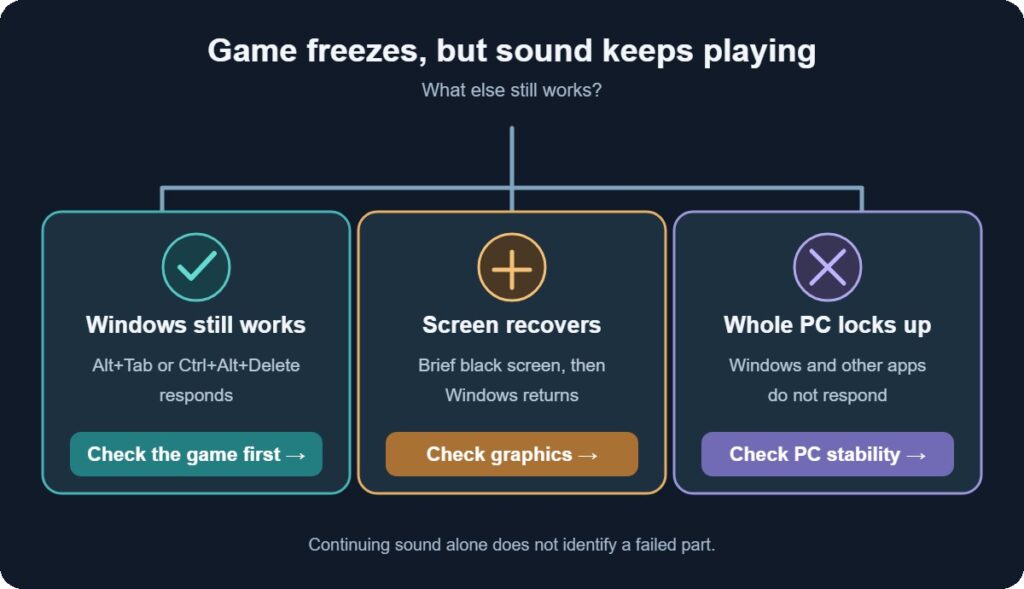
A responsive desktop tells you the whole PC has not locked up. It does not prove the graphics driver is healthy, or that the game itself is the only possible cause. If the screen briefly goes black and comes back, note that too: Windows can recover from a graphics timeout, sometimes leaving the game unusable. Microsoft describes this graphics recovery behavior.
If neither shortcut works, check whether the mouse pointer moves or the clock updates before concluding that the entire PC has locked up. Note the time before restarting if possible. A forced shutdown can lose unsaved work, so use it only when the PC remains unresponsive.
2. Record the Pattern Before Changing Settings
After you recover, note the game, approximate time, and what you were doing. Does it always freeze in the same scene, during loading, or only after longer play? Try a second game you already own under normal settings. You are checking whether the problem follows one title or appears elsewhere; you are not trying to stress the PC until it fails.
| What you observe | What it suggests | Next check |
|---|---|---|
| Windows works; only one game freezes | Start with that game’s files, updates, settings and known issues. | Check Windows records at the freeze time, then make one game-specific change. |
| Several games freeze in a similar way | A shared graphics or system issue becomes more plausible. | Look for a repeated Windows error before changing drivers or hardware. |
| The whole PC stops responding | The fault may extend beyond the game. | Investigate wider PC stability; do not assume that continuing sound clears the system. |
Also note whether the sound moves forward or repeats the same short fragment. Either way, treat it as a description of the freeze, not a reliable test that identifies a failed component.
One freeze in one game is a weak sample. If it happens every time at the same loading screen, record the location and any error message. If it appears only after half an hour, record roughly how long you played and whether the PC was doing anything else, such as streaming or recording. A repeatable pattern lets you test a change under similar conditions instead of mistaking a lucky uninterrupted session for a fix.
3. Check What Windows Recorded at That Time
Press Win+R, type eventvwr.msc, and press Enter. In Event Viewer, open Windows Logs → Application and look near the time of the freeze for an error naming the game or reporting an application hang. Then check Windows Logs → System for a display driver recovery at the same time. Open a relevant event and record its time, source and message.
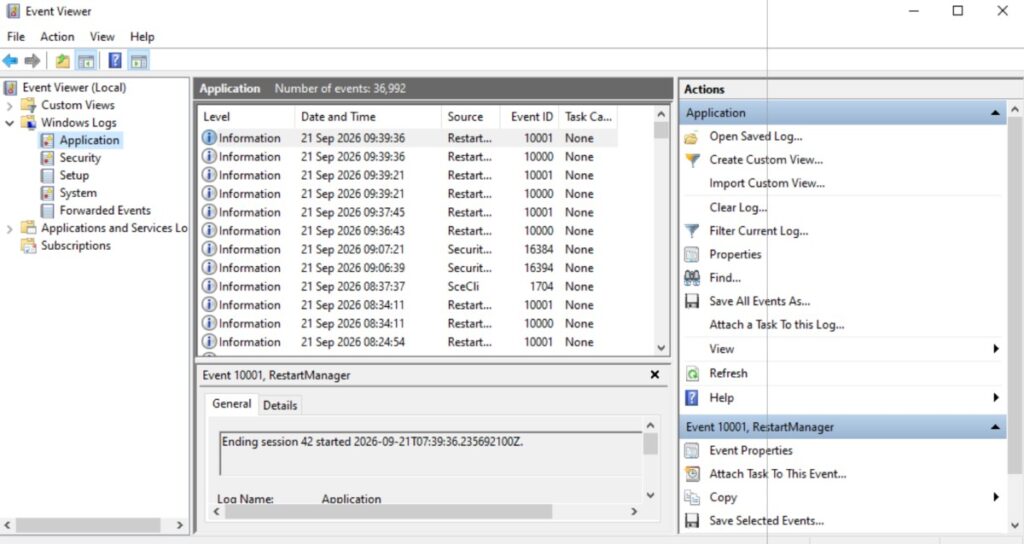
For example, if the game stopped at 20:15, start with events around 20:15 rather than scanning every warning in the log. In Application, compare the affected program name with the game you were playing. In System, look for an event whose message says the display driver stopped responding and recovered. Record the exact wording; driver names vary by graphics hardware. If you had to hold the power button afterward, a later unexpected-shutdown record may describe that forced restart rather than the original freeze.
A game application hang is evidence that Windows saw the application stop responding. A matching display recovery makes the graphics path worth investigating. Neither record identifies a broken physical part on its own. A warning logged hours earlier is weak evidence; a repeated event that lines up with each freeze is more useful. Microsoft notes that a successful graphics recovery can be recorded in Event Viewer. If you find no matching event, keep the diagnosis open: some freezes leave no useful record.
Do not treat every red error icon as the answer. Check the time, the program or source, and whether the same event appears on a second freeze. An application hang could be a consequence of another fault. Likewise, a display recovery points to graphics processing being interrupted but does not distinguish a game bug from driver, settings or hardware instability on its own.
No matching event? That does not clear the game or the PC. Use the pattern you observed instead: one game, several games, or the whole system. If you cannot reproduce the freeze, keep these notes for the next occurrence rather than changing several settings at once.
4. Choose One Next Step Based on the Evidence
Only one game freezes
Check that game’s official support or known-issues page and note whether the problem began after an update. If your launcher offers a file verification option, use it and test the same scene again. If the game is modded, test without mods only after backing up the relevant saves and configuration. Do not erase saves or reinstall Windows as your first experiment.
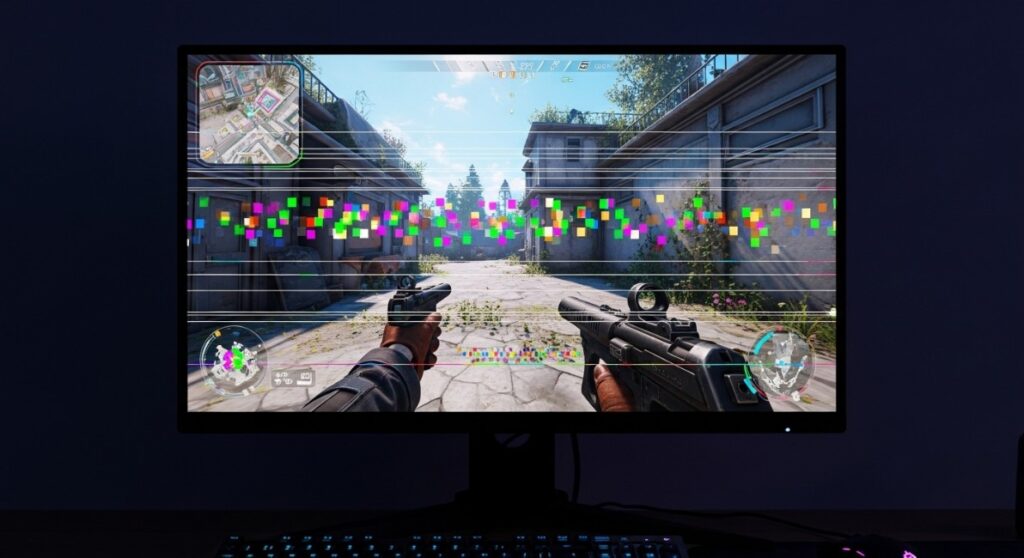
Start with the trigger you can identify. If the freeze began after you added a mod, first check that mod’s compatibility and try a clean test without it; our mod crash guide has the deeper mod-specific path. If it began after a game update, check the developer’s current issue reports. If there is no clear trigger, verify the game’s files in its launcher and retry the same scene. File verification checks installation integrity; it does not prove that drivers or hardware are healthy.
After each change, return to the point that froze. If the issue happens only in a particular save, try a different save or a new game when practical; keep the original save intact. If you cannot reproduce the problem consistently, record several sessions before attributing the improvement to your change.
If the files are fine but the same game still freezes
- Remove one likely conflict. If you use an in-game overlay, recording tool, shader injector or recent mod, turn off one at a time and retry. Keep anti-cheat requirements in mind; do not delete game or system files to disable an overlay.
- Try a lighter game setting. Reduce a demanding graphics preset or resolution and replay the same scene. On an older PC with limited memory, also close an unnecessary browser or recording session before testing. If that helps, you have narrowed the conditions that trigger the freeze, not proven which part is faulty.
- Compare saves or modes. If one save or one level always freezes, test a different save or a new game without overwriting the original. If only online matches freeze, check the game’s current server or support notices before changing hardware settings.

If the issue persists after those focused checks, give the game’s support team the title and version, the location of the freeze, any error message, and the time and wording of a matching Windows event. That is more useful than sending a list of every tweak you have tried.
The display recovers, or several games freeze
If Windows recorded a display recovery, or the same pattern occurs in multiple games, follow our GPU crashing diagnostic guide for the deeper graphics and stability checks. A graphics timeout means Windows detected a stalled graphics operation; it does not establish that the GPU hardware needs replacing. Leave TDR registry settings alone: Microsoft advises end users against changing them.
Before moving to that guide, note any recent graphics driver update, GPU tuning change or new game setting. Those changes can make the next test more focused. Do not change all three at once: if the freeze disappears, you will not know which change mattered.
Start with the most recent change. If the freezes began just after a graphics driver update, check whether your graphics maker offers a previous driver version or whether Windows Device Manager offers Roll Back Driver. If the driver is old and there was no recent update, get a suitable driver from your GPU or laptop maker’s official site. Avoid third-party driver-updater programs. Restart after a driver change and test before touching anything else.
If you overclocked or undervolted the GPU, CPU or memory, return one recent change to its known stable setting and retest. If you have never changed those settings, skip this step. You can also try a less demanding graphics preset in a game that freezes reliably. Improvement under lighter settings suggests a load-related trigger, but it does not identify whether the cause is temperature, power, software or hardware. The linked GPU guide walks through those checks in more detail.
The whole PC locks up
After restarting, check whether the lockup also happens outside that game and whether it follows a recent driver, Windows or hardware change. If you recently changed a GPU or CPU overclock or undervolt, return that one setting to its default and retry under similar conditions. If nothing changed, test a second game you already own and note whether Windows records a matching error; a repeat across games points toward a wider stability problem. If the PC restarts or shuts off on its own, use the restart and shutdown diagnostic guide. A forced power-off by itself does not prove a power-supply fault. Do not buy a new graphics card based on this symptom alone.
For a lockup without an automatic restart, first remove any recent tuning change and retest. If you changed nothing, check whether the problem appears in a second game or during ordinary Windows use. A single game still points you back to its own support path; repeat lockups in different tasks justify a broader stability investigation. If the PC is unusually hot, its fans are blocked, or the lockups occur only after extended play, clear external vents and ensure the machine has room for airflow before trying another comparable session. Do not open a power supply or keep forcing repeated freezes to test it.
If the PC repeatedly locks up in several games or on the desktop, stop treating this as a single-game fix. Save your important files while Windows is working and document the exact symptoms and matching errors for further diagnosis or repair. A missing Event Viewer entry does not make the lockup harmless.
5. Repeat the Same Test and Verify the Result
Change one thing at a time. Return to the same scene or play for roughly the same period under comparable settings, and note whether the freeze returns. If it does, revert that change when appropriate and follow the next evidence-based branch. If it does not, test again before calling it fixed; an intermittent freeze can disappear once by chance.
Conclusion:
The key question is not “Why is the sound still playing?” It is “What else stopped responding at the same moment?” That answer, combined with a repeatable pattern and any matching Windows record, gives you a defensible next step.